In This Article
Chromecast
You can use Chrome’s built-in Cast functionality to send what you’re seeing on your PC screen to your TV. The simplest method is to right-click anywhere in Google Chrome and select Cast. You can also access it by clicking the three-dot icon in the upper right corner. Select the Chromecast-enabled device on which you want your browser window to appear in the pop-up window. You can also choose to cast a single tab, your entire desktop, or a specific file to the target television.
Group tabs
Tangled in multiple taps that often get confused? Chrome allows you to organize your tabs into groups so that everything is neatly organized and easy to find. To make a group, right-click a tab and select Add tab to a new group. You can then name the group, assign a colour to it, add a new tab, split the group, close all tabs in the group, and open all tabs in a new window from the pop-up menu.
 You can also drag tabs to reorganise the group, add new tabs, or remove pages. To add a new tab, remove a tab from the group, or move a tab to a new or existing group, right-click a tab within the group.
Reopen closed tabs
We often accidentally close tabs that might be of importance. Going back to browsing history and searching there can be a bit of a task. To bring back the most recently closed tab, use the keyboard shortcut Control/Command + Shift + T. Or If you close a tab by accident, right-click on the menu bar (not the tab itself), and a pop-up menu will appear with the option to re-open a closed tab.
Startup Pages
There are times when we have to use the same pages again and again. Thus, chrome has a feature of startup pages. Click On Startup in the Settings menu and select what you want Chrome to open the next time you reopen it.
 Chrome allows you to open the default New Tab page, all the tabs you had opened the previous time, or select specific pages to open. If you select Open a specific page or set of pages, you can either add specific pages or save all of the tabs that are currently open.
Integrated music control
Bored while working? Music also helps to build our concentration. Chrome includes an in-built music controller, which can be accessed via the music note icon in the menu bar. You can play/pause, seek backwards and forward, and skip or go back a track by clicking the button. If it’s a YouTube video, you can watch it from any tab by using picture-in-picture mode or by enabling live captions.
Search engine
Another Google Chrome hack is if you want to go directly to a particular website and a particular page on that website. Without having to navigate to Google.com. To enable this feature, go to Settings > Search engine > Manage search engines. You’ll see your default search engine (the one Chrome uses whenever you type a query into the Omnibox) as well as other sites that are already available for quick searches.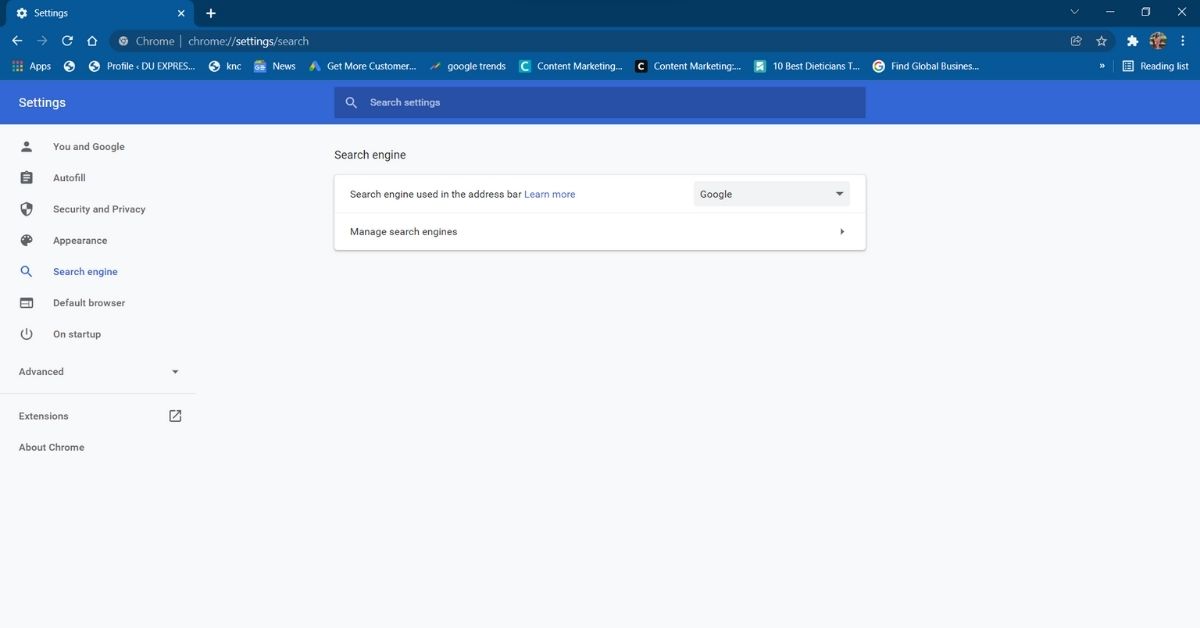 So, to perform quick searches, go to Manage search engines and click Add, then enter the site URL. The next time you type the particular site’s name into the Omnibox, you’ll see a prompt on the far right telling you to press the tab to search within the site.
 When you press the tab button, the Omnibox changes to show that you are now searching within that website rather than Google. When you enter a search term, you will be taken to that page rather than a Google search result.
 This feature is not limited to reference or search sites. You can use Omnibox to search directly through almost any website.
Read Also: How to Disable Google Smart Lock on Android and Chrome?
This feature is not limited to reference or search sites. You can use Omnibox to search directly through almost any website.
Read Also: How to Disable Google Smart Lock on Android and Chrome?
Open Tabs
Another Google Chrome hack to save your time is directly landing on the search tab. Chrome allows you to search for open tabs, allowing you to quickly navigate to the web page you require. Use the search bar to search for the title of an open tab. Chrome will autocomplete results and show recently used tabs that match the query as you type the title. To go to the tab, click the Switch to this tab button under the right result.
Task Manager
Low internet speed? Now that everything is virtual, we often rely on our internet for everything. The task manager displays the memory and CPU usage of each tab open in your Google Chrome browser. If you have three or more Tabs open in your browser and they are causing slowness, you can open task manager to locate the problematic site. You can open it by right-clicking on the title bar and selecting “Task Manager,” or
by pressing Shift + escape.
or
by pressing Shift + escape.

Home button
The home button is quite useful when you have to start your work on the same page. You can add a home button by following the steps below.- To add a home button in Chrome, click the three dots in the top-right corner.
- Select “settings,”.

- Under the tab, select ‘Appearance’.
- Check the box for the “Show Home button in the toolbar.”
- Add the URL of the site you want to make the home page.

Autofill anything
We’re always annoyed when we have to type our details again and again, but chrome has a function to save your time and effort. Chrome’s AutoFill options, which can recollect the information. From addresses to passwords, you can save everything at autofill. Navigate to Settings -> Autofill, and then select “AutoFill options.”
You can enter your information by clicking “Add address.”
 So, these were the time-saving Google Chrome hacks that will make your daily life easier.
For the latest gadget and tech news, and gadget reviews, follow us on Twitter, Facebook and Instagram. For newest tech & gadget videos subscribe to our YouTube Channel. You can also stay up to date using the Gadget Bridge Android App. You can find the latest car and bike news here.
So, these were the time-saving Google Chrome hacks that will make your daily life easier.
For the latest gadget and tech news, and gadget reviews, follow us on Twitter, Facebook and Instagram. For newest tech & gadget videos subscribe to our YouTube Channel. You can also stay up to date using the Gadget Bridge Android App. You can find the latest car and bike news here. 



 .
. 













 Download from
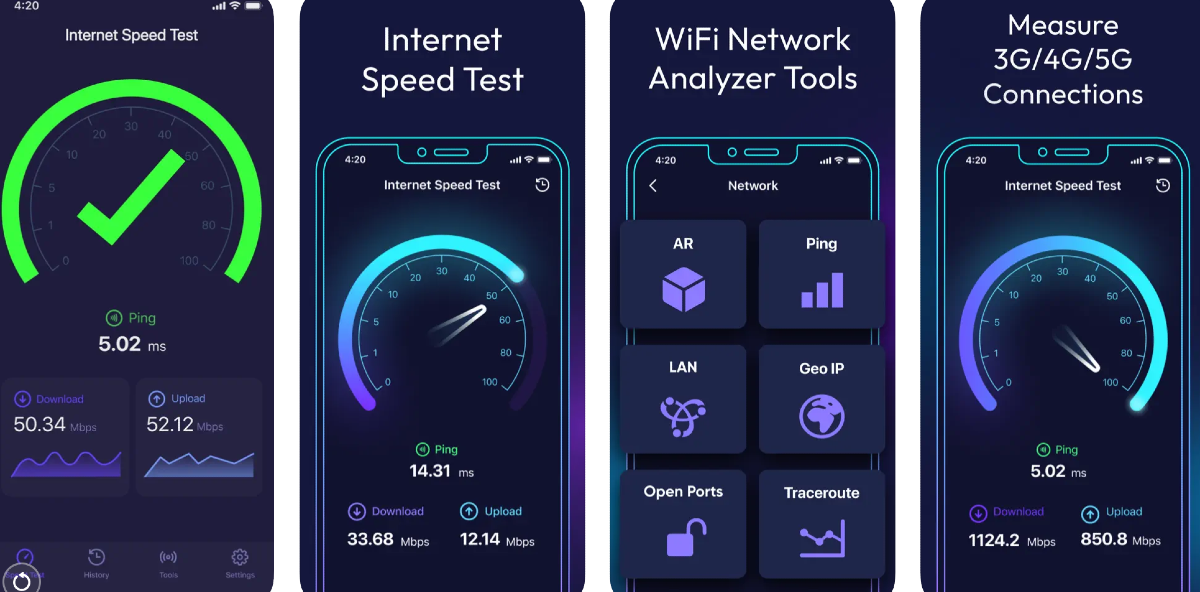 The Speed Test & WiFi Analyzer app by Appenvision Ltd accurately calculates the speed of your internet connection and also identifies the problems with your WiFi setup, if there are any. You can also conduct a ping test and get detailed statistics related to your internet connection. The app maintains a history of your previous speed tests so you can track the performance of your network provider over time. On top of that, the app also has a VPN for users who want to maintain their anonymity while connected to a public network.
Download from
The Speed Test & WiFi Analyzer app by Appenvision Ltd accurately calculates the speed of your internet connection and also identifies the problems with your WiFi setup, if there are any. You can also conduct a ping test and get detailed statistics related to your internet connection. The app maintains a history of your previous speed tests so you can track the performance of your network provider over time. On top of that, the app also has a VPN for users who want to maintain their anonymity while connected to a public network.
Download from 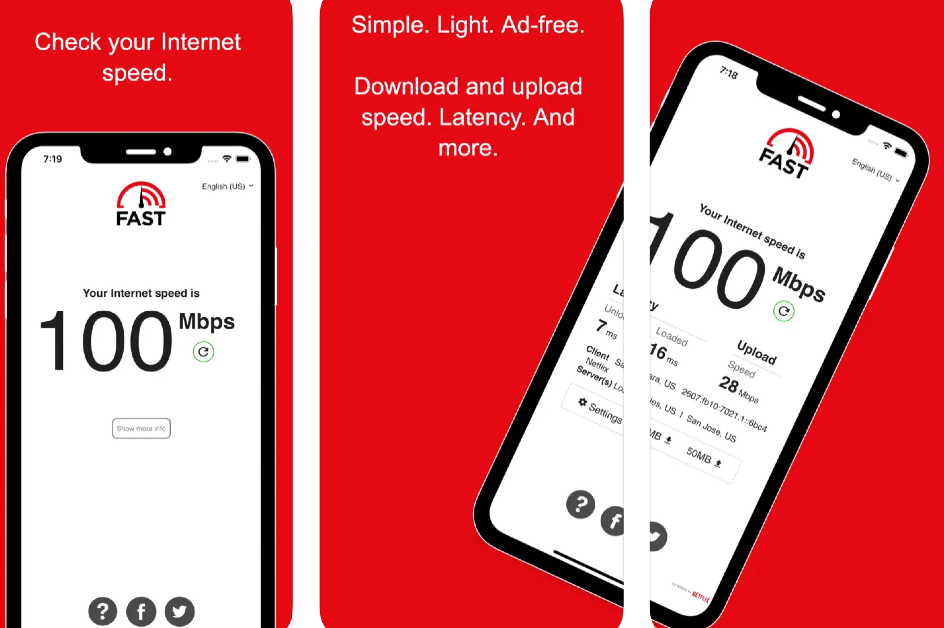 Simple and easy to use, the Fast Speed Test app gets rid of the frills and keeps things to the point. The app is well-optimised for iPhones and loads very quickly. One of our favourite things about this app is that there are no ads on it. Simply hit the button to initiate the speed test on your device. Once you get the results, you can share them on any platform you like directly from the app. Fast is owned by Netflix.
Download from
Simple and easy to use, the Fast Speed Test app gets rid of the frills and keeps things to the point. The app is well-optimised for iPhones and loads very quickly. One of our favourite things about this app is that there are no ads on it. Simply hit the button to initiate the speed test on your device. Once you get the results, you can share them on any platform you like directly from the app. Fast is owned by Netflix.
Download from 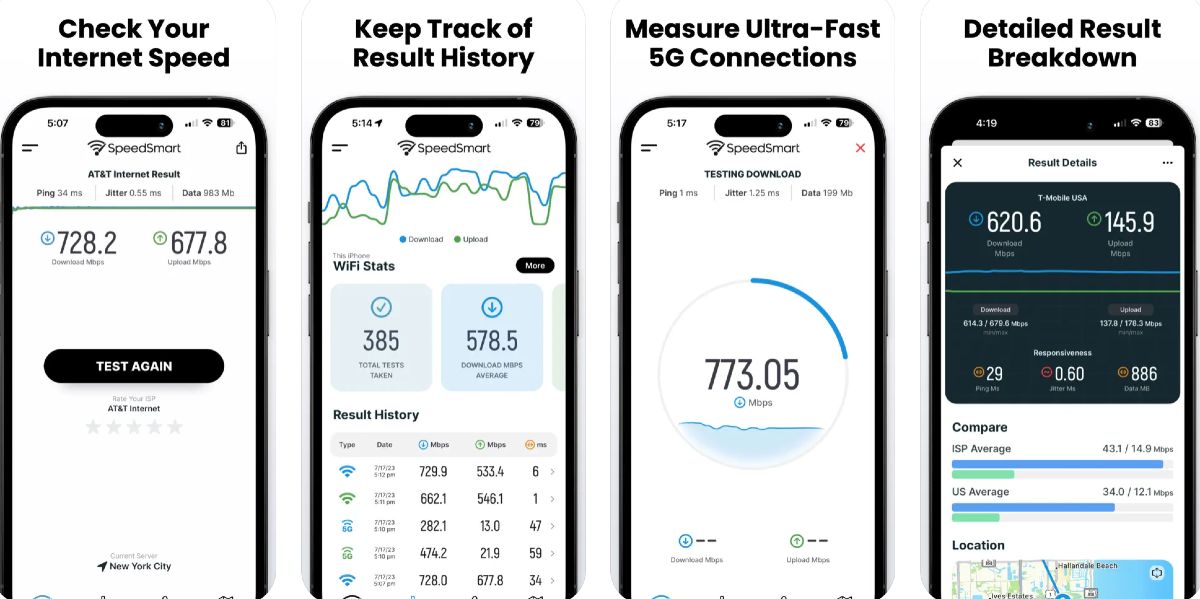 Speed Test by VeeApps is one of the most comprehensive internet speed test apps out there right now. You can check your internet speed with a quick one-tap test, compare it to other ISPs in your country, and track the performance of the connection over a period of time by recording the speed tests. An average speed test on this app takes less than 20 seconds. The app focuses on aesthetics as well, offering a helpful dark mode option.
Download from
Speed Test by VeeApps is one of the most comprehensive internet speed test apps out there right now. You can check your internet speed with a quick one-tap test, compare it to other ISPs in your country, and track the performance of the connection over a period of time by recording the speed tests. An average speed test on this app takes less than 20 seconds. The app focuses on aesthetics as well, offering a helpful dark mode option.
Download from 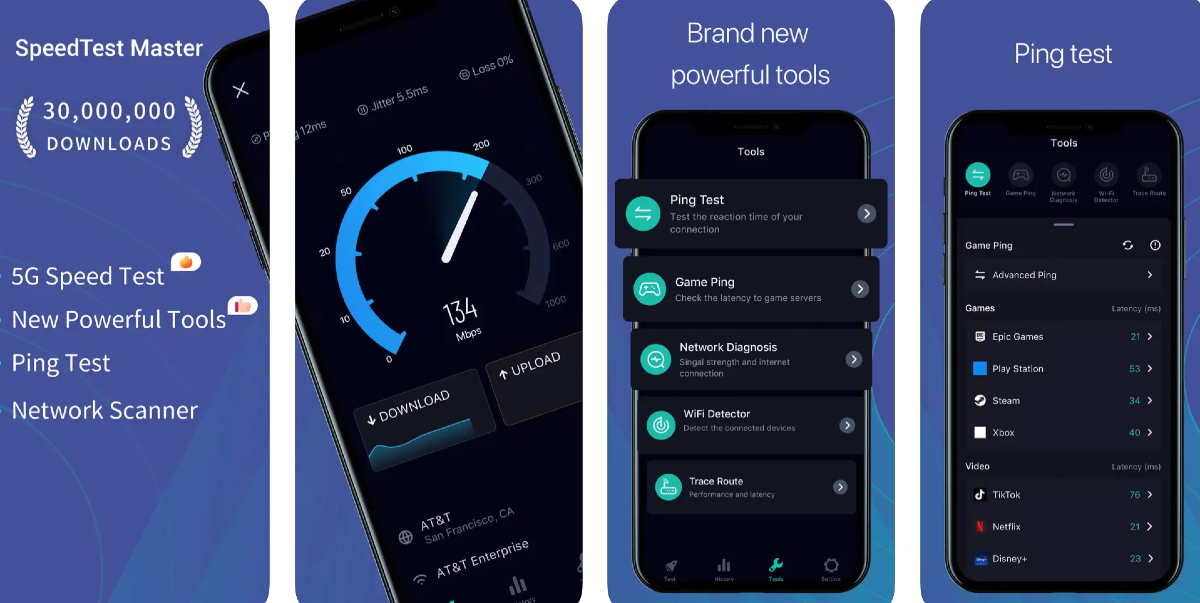 Flaunting a 4.6 rating on the App Store from over 12,000 reviews, the Speed Test Master app is one of the best internet speed test apps for iOS. This app can conduct a speed test for 2G, 3G, 4G, 5G, DSL, and ADSL. It can accurately calculate the upload and download speed, ping latency, and jitter. If you’re facing trouble with your WiFi connection, you can use this app’s WiFi analyser tool to diagnose and troubleshoot the problem. It can also detect which devices are using your WiFi connection without your permission.
Download from
Flaunting a 4.6 rating on the App Store from over 12,000 reviews, the Speed Test Master app is one of the best internet speed test apps for iOS. This app can conduct a speed test for 2G, 3G, 4G, 5G, DSL, and ADSL. It can accurately calculate the upload and download speed, ping latency, and jitter. If you’re facing trouble with your WiFi connection, you can use this app’s WiFi analyser tool to diagnose and troubleshoot the problem. It can also detect which devices are using your WiFi connection without your permission.
Download from 













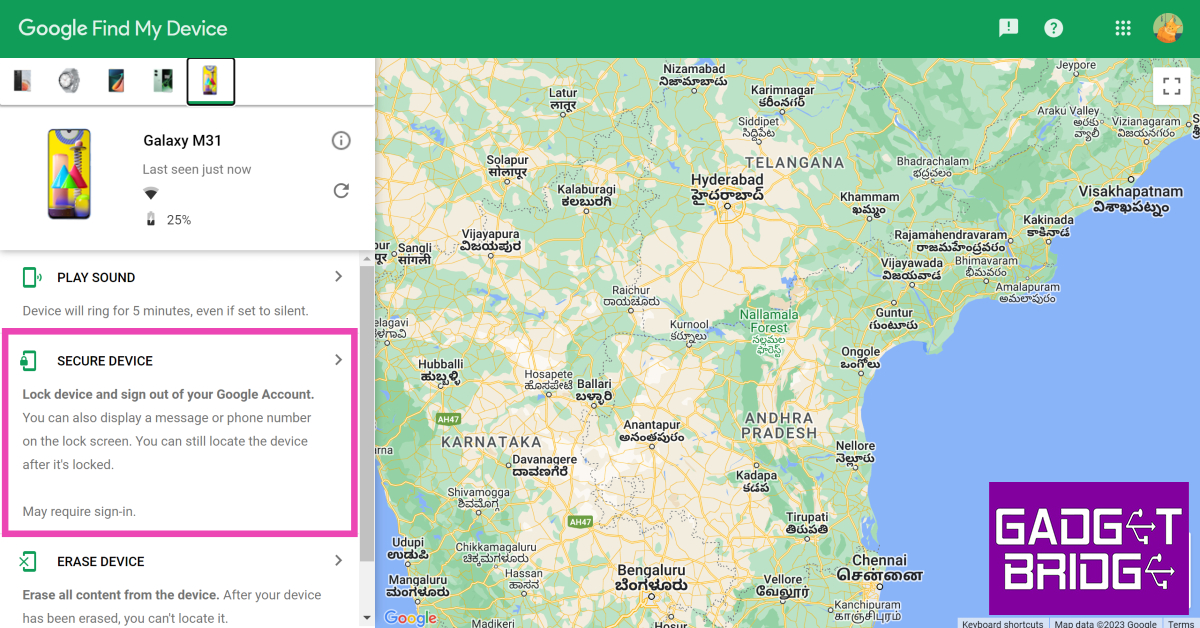 Step 5: Add a recovery message and your phone number in case someone finds your phone and wants to reach out to you to return it.
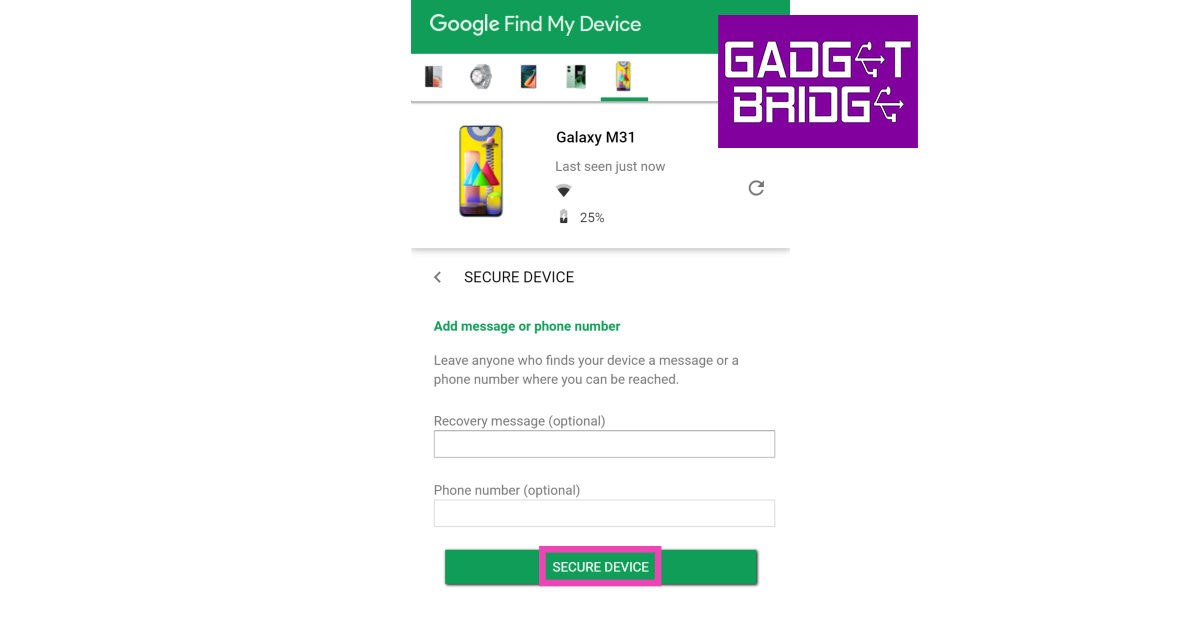 You will be logged out of the device.

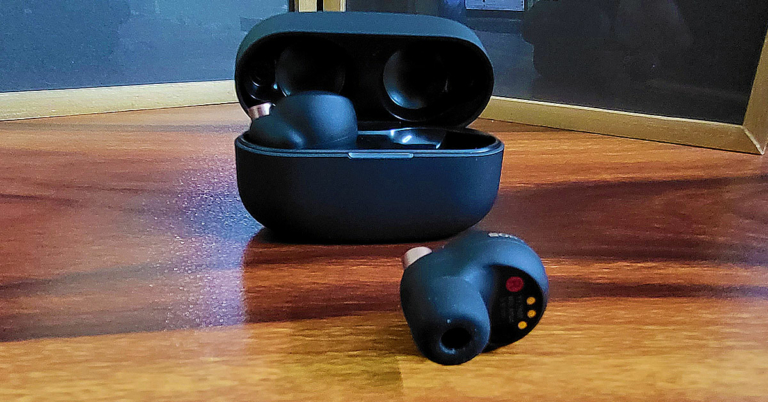
 The charging case can be charged using the USB Type-C port placed on the back or can be wireless charged as it is Qi-enabled, too. The case is not very heavy (39 grams, without the earphones) and the matt black finish works well for it. Sony’s branding can also be found on the top of the lid in gold. Flip it open and you will see a LED lamp light up the front. The Sony WF-1000XM4 earphones are neatly tucked inside. Yes, the containment has magnets in each pocket to snap the earplugs in place.
Talking about the Sony WF-1000XM4 built and quality, these are built with absolute perfection. The Sony craftsmanship can be seen here. The Sony branding (again in gold) can be found on each earpiece with a hint of extra bronzish gold on them. Both have charging points underneath along with sensors that pause the music as soon one of them is pulled out of the ear. They also have black matt finish and overall weigh 14 grams (7gm each).
The charging case can be charged using the USB Type-C port placed on the back or can be wireless charged as it is Qi-enabled, too. The case is not very heavy (39 grams, without the earphones) and the matt black finish works well for it. Sony’s branding can also be found on the top of the lid in gold. Flip it open and you will see a LED lamp light up the front. The Sony WF-1000XM4 earphones are neatly tucked inside. Yes, the containment has magnets in each pocket to snap the earplugs in place.
Talking about the Sony WF-1000XM4 built and quality, these are built with absolute perfection. The Sony craftsmanship can be seen here. The Sony branding (again in gold) can be found on each earpiece with a hint of extra bronzish gold on them. Both have charging points underneath along with sensors that pause the music as soon one of them is pulled out of the ear. They also have black matt finish and overall weigh 14 grams (7gm each).
 The resonance of the Sony WF-1000XM4 is exceptional. We loved every bit of it. 7 grams is light on the ear and with