How to screenshot on a MAC? Try this technique

0
Taking screenshots is an important task and is essential for a user to capture a lot of information or memories. On its competitors like MS Windows, it’s fairly easy and has multiple ways to do it. Looking at this and the importance of the feature Apple recently updated on ways to take screenshots on your macOS. Here are the ways and steps to do so. 

Taking a Screenshot

Taking a simple screenshot is easy on macOS now  Step 1 – Be on the screen you want to take a screenshot of. Step 2 – Hold Shift + command + 3 together. Taking Screenshot Step 3 – If you see a thumbnail in the corner of your screen, click it to edit the screenshot. Step 4 –  If the thumbnail doesn’t appear, wait for the screenshot to save to your desktop. Read Also: Apple’s new patent provides a solution for foldable phones

Capturing Portion of the screen

Step 1 – Be on the screen you want to capture the portion of Step 2 – Press Shift + command + 4 Selective Screenshot Step 3 – Drag the crosshair on-screen to select the area you want to capture on macOS. Step 4 – To move selection press and hold the space bar while dragging. To cancel press Esc. Step 5 – Release the mouse or trackpad to take a screenshot. Screenshot Read Also: How to take a screenshot on Windows 10  Step 6 – If you see a thumbnail in the corner of your screen, click it to edit the screenshot. Step 7 –  If the thumbnail doesn’t appear, wait for the screenshot to save on to your desktop.

Capturing a window or menu

Step 1 – Open the window you want to capture. Step 2 – Press and hold Shift + command + 4.  Selective Screenshot Step 3 – The pointer will change to a camera icon. Step 4 – Click the window or menu to capture it. Selective Screenshot Image Step 5 – For hiding the capture shadow and to align properly hold the Options key. Step 6 – If you see a thumbnail in the corner of your screen, click it to edit the screenshot. Step 7 – If the thumbnail doesn’t appear, wait for the screenshot to save to your desktop. This is an easy way to capture screenshots that will come in handy. One can locate the captured screenshot on the desktop with the name ”Screenshot [date] at [time].png.”. In macOS Mojave or later, you can change the default location of saved screenshots from the Options menu in the Screenshot app. For the latest gadget and tech news, and gadget reviews, follow us on Twitter, Facebook and Instagram. For newest tech & gadget videos subscribe to our YouTube Channel. You can also stay up to date using the Gadget Bridge Android App. You can find the latest car and bike news here.

Amazon Fire TV Stick 4K Max launched, now available for pre-orders

Amazon has announced the launch of its latest streaming device Fire TV Stick 4K Max in India. This is the follow up of the third-gen of Amazon Fire TV Stick that was announced months back in the country. The latest gen of the Amazon Streaming devices not only supports Dolby Vision and Dolby Atmos but is 40 percent more powerful than its predecessor. It is powered by a new quad-core 1.8GHz processor which makes apps load and navigation faster. Along with this device comes with Wi-Fi 6 support.

Amazon Fire TV Stick 4K Max Price and availability details

Amazon Fire TV Stick 4K Max has been launched in India with a price tag of Rs 6,499. The Streaming device is now up for pre-orders in the country and can be booked via  Amazon.in and Amazon kiosks in select malls. The company will begin shipping to its customers starting October 7. Amazon Fire TV Stick 4K Max launched, now available for pre-orders

Amazon Fire TV Stick 4K Max specs and features

Speaking of the design first, the Amazon Fire TV Stick 4K Max comes with a similar design as the previous generations of Fire TV Stick. The latest device supports 4K UHD, HDR, and HDR10+ streaming. In addition to this, it also has support for Dolby Vision and Dolby Atmos for a theatre-like experience at home. The device features a new quad-core 1.8GHz processor and 2GB of RAM which is 40 percent more powerful than the previous generation which makes apps load faster and navigation is more fluid.  In addition to this the Fire TV Stick 4K Max is said to be the first media player by Amazon to offer Wi-Fi 6 support and uses the latest Mediatek MT7921LS Wi-Fi 6 chipset that makes smoother streaming in 4K. It comes with the latest Alexa Voice Remote so you can easily search for the content you want to watch, control playback, manage your smart home, and more. There are four preset buttons that get you to your apps quickly. You can also control your compatible TV and soundbar without needing another remote.  Amazon Fire TV Stick allows access to more than a thousand apps, Alexa skills, and channels and the latest movies. All the movies can be accessed in 4k Ultra HD resolution across other OTT platforms like Netflix and more. Stream for free with YouTube, watch live TV, and more. Listen to songs, playlists through services like Amazon Music, Apple Music, and Spotify.   Commenting on the launch of the new Amazon Fire TV stick Parag Gupta, Head, Amazon Devices India, said, “There is a significant increase in video streaming with several direct to streaming releases and customers choosing at-home entertainment. Fire TV has millions of active users in India, who enjoy hours of content every day. With Fire TV Stick 4K Max, we have taken the best-selling streaming media player and made it even better with a faster experience and the latest connectivity that provides seamless streaming without slowing down your home Wi-Fi.” For the latest gadget and tech news, and gadget reviews, follow us on TwitterFacebook and Instagram. For newest tech & gadget videos subscribe to our YouTube Channel. You can also stay up to date using the Gadget Bridge Android App. You can find the latest car and bike news here.

10 September  2021 Flipkart Daily Trivia Quiz Answers: Answer to win exciting prizes

The e-commerce website Flipkart is hosting Daily Trivia Quiz. Every day it brings a bunch of new questions for its users. By answering them correctly you can win exciting prizes. The questionnaire is based on questions related to general knowledge. Also, the users can win free vouchers and super coins, among other offers via the daily quiz. 10 September 2021 Flipkart Daily Trivia Quiz Answers has already gone live on its platform. The participant should be at least 18 years old and should have a valid login ID. The Quiz is available on the mobile platform and not the web version. E-commerce conducts the quiz on daily basis and goes live at 12:00 AM IST and runs till 11:59 PM IST.  The winners are announced within 15 days from the date of participation that can be viewed under the Gems/Rewards section in the app.

How to participate in the Flipkart Daily Trivia Quiz

To participate download the Flipkart app on your phone. Then open the Flipkart app then head to Game Zone. Now click on the Daily Trivia Banner or search for Daily Trivia. Enter the game and answer all 5 questions with correct answers.

10 September 2021 Flipkart Daily Trivia Quiz Answers 

Question 1: Which former cricketer made a special appearance in the film ‘Kai Po Che? Answer: Ajay Jadeja Question 2: Based on a novel by RK Narayan, the 1965 film ‘Guide’ was directed by who among these? Answer: Vijay Anand Question 3: Which actress’ autobiography ‘The Hit Girl’ was launched by Salman Khan? Answer: Asha Parekh Question 4: Who directed the 2017  children’s film ‘Blue Mountains: A Modern-day  Classic’? Answer: Suman Ganguli Question 5: Who was the first woman to win multiple Grammy Awards? Answer: Ella Fitzgerald
For the latest gadget and tech news, and gadget reviews, follow us on TwitterFacebook and Instagram. For newest tech & gadget videos subscribe to our YouTube Channel. You can also stay up to date using the Gadget Bridge Android App. You can find the latest car and bike news here.

10 September 2021 Amazon Quiz: Participate to win Rs 50,000 Amazon Pay Balance

The e-commerce platform is back with another new quiz on its platform. The 10 September 2021 Amazon Quiz can be played daily on the mobile app that goes live via the mobile app. All you need to do is answer all the questions correctly and win free products and goodies such as gadgets and Amazon Pay Balance up to Rs 50,000, today you have a chance to win Rs 50,000 Amazon Pay Balance. 10 September 2021 Amazon Quiz has gone live and a new set of questions have also been updated. The daily quiz on the Amazon app has become the hottest topic as it gives a chance to win exciting free gifts. In today’s Amazon quiz you have a chance to win Rs 50,000 Amazon Pay Balance. The quiz contains only five questions that are based on current affairs and general knowledge. Answering all the questions correctly will get your name selected for a lucky draw. Only one person will be selected as the winner and the results are announced at the end of every month. The lucky ones might win something by answering all the questions correctly, and the wrong answers will get you eliminated from the quiz. To participate and win check out today’s answers of the Amazon Quiz.

10 September 2021 Amazon Quiz Answers

Question 1: Ramappa temple, which became the 39th site in India to earn the ‘World Heritage’ tag from UNESCO, is located in which state? The answer is- A) Telangana Question 2: Which country added a new module called ‘Nauka’ to the International Space Station in 2021? The answer is- B) Russia Question 3: 12-year-old Hend Zaza was the youngest Olympic athlete to compete in Tokyo, in which sport? The answer is- D) Table tennis Question 4: If you were on this planet, from which direction would you see the sun rising? The answer is- A) West Question 5: He was the last non-Indian to receive which prize? The answer is- D) Bharat Ratna
For the latest gadget and tech news, and gadget reviews, follow us on TwitterFacebook and Instagram. For newest tech & gadget videos subscribe to our YouTube Channel. You can also stay up to date using the Gadget Bridge Android App. You can find the latest car and bike news here.

Sony introduces 5.1 channel HT-S40R Soundbar with 600W output launched in India

0
The popular audio products manufacturer Sony has expanded its home theatre portfolio with the launch of a new entry-level Soundbar in India. The Sony 5.1 channel HT-S40R Soundbar has a sleek build and its audio is supported by Dolby Digital Technology. The whole system packs a sub and rear speakers along with a subwoofer that comes with wireless connectivity.  Sony 5.1 channel HT-S40R Soundbar price in India availability details Sony 5.1 channel HT-S40R Soundbar has been launched in India with a price tag of Rs 28,990. The soundbar is now available for purchase across all Sony Center, E-commerce portals, www.ShopatSC.com portal and major electronic stores in the country. Sony 5.1 channel HT-S40R Soundbar specs and features Sony 5.1 channel HT-S40R Soundbar offers 600W of total power output. The audio has been further enhanced with Dolby Audio technology that brings a cinematic experience at home. The Sony soundbar consists of a three-channel bar speaker, rear speakers and a subwoofer to provide a surround sound experience.  All the speakers and subwoofer come with wireless connectivity that doesn’t disturb the home decor and send audio to your home theatre system wirelessly with a Sony BRAVIA TV supporting TV wireless connection. For a wireless connection, the home theatre supports Bluetooth to wirelessly stream your favourite tracks from a smartphone. The compact soundbar and rear speakers can be wall-mounted to fit neatly in your room. The wireless amplifier can be placed flat on a table shelf or wall-mounted.   Though it can be connected to compatible Television through HDMI cable but can be connected with not compatible devices with HDMI via Optical Inputs. The HT-S40R comes with 4 sound modes; Cinema, Music, Standard and Auto Sound, so you choose the perfect setting that best suits the content being played. Additionally, there are Night and Voice modes as well. You can also use the subwoofer’s volume control to fine-tune your viewing and listening experience. The Sony Soundbar measures 900 x 52 x 74.5 mm and weighs a total of 2 Kg. Whereas the subwoofer measures 192 x 387 x 366 mm and weighs 7.8 Kg.  For the latest gadget and tech news, and gadget reviews, follow us on TwitterFacebook and Instagram. For newest tech & gadget videos subscribe to our YouTube Channel. You can also stay up to date using the Gadget Bridge Android App. You can find the latest car and bike news here.

MediaTek 900T SoC for premium range tablets and notebooks goes official

Taiwanese semiconductor manufacturer, MediaTek, today officially announced its Kompanio 900T SoC tailored for a premium range of tablets, portable notebooks and other devices. The chipset is based on a 6nm process and comes equipped with two Arm Cortex-A78 ultra-performance cores and six Arm Cortex-A55 power-efficient cores, an Arm Mali-G68 GPU and MediaTek APU (AI processor). In addition to this, the SoC supports LPDDR5 memory and UFS 3.1 storage with  2K resolution 120Hz refresh rate screens. MediaTek’s Kompanio 900T platform comes integrated with a 5G modem which provides ultra-high-speed data transmission, reliable connections worldwide. It also supports standalone (SA) and non-standalone (NSA) dual-mode networking with full coverage of 5G sub-6GHz. It not only supports 5G dual-carrier aggregation but Voice over New Radio (VoNR) services.  The Processor comes with MediaTek 5G UltraSave power-saving technology, for ultra-low power consumption with high-speed 5G networks. The MediaTek Kompanio 900T SoC supports 2×2 MIMO Wi-Fi 6 and Bluetooth 5.2 for faster and more reliable connectivity. Kompanio 900T also allows for multiple peripheral extensions.  Along with this, it comes equipped with the company’s proprietary  MiraVision image quality engine and AI-enhanced video display features that can enhance SDR video content to near HDR quality and upgrade HDR10 to nearly HDR10+, in addition to supporting HDR10+ video playback image quality enhancement features in real-time. The company says it has designed a series of chips for Chromebooks and tablets with innovative, ultra-modern, portable and stylish designs. The MediaTek APU (AI processor) supports advanced voice and vision applications, such as voice and image recognition, neural noise suppression, excellent audio and video resolution, and gesture control. Moreover, the 900T SoC also comes with the support for triple cameras with a maximum resolution of 108M and 3840×2160 pixels. The cameras will support features like Hardware video HDR, 3X HDR-ISP, MFNR, 3DNR, AINR, Hardware Depth Engine, Warping Engine. While the display will come with a max resolution of 2000 x 1200 pixels and a max refresh rate of 120Hz. According to the company, the devices powered by MediaTek Kompanio 900T processor will be available soon. Zeng Baoqing, general manager of MediaTek’s Intelligent Multimedia Division said, “With the MediaTek Kompanio platform, users can count on incredible mobile computing experiences. The Kompanio 900T delivers robust computing power, outstanding audio and video multimedia features, smooth gaming capabilities and support for the latest 5G and wireless features so users can get the most out of their devices.” For the latest gadget and tech news, and gadget reviews, follow us on TwitterFacebook and Instagram. For newest tech & gadget videos subscribe to our YouTube Channel. You can also stay up to date using the Gadget Bridge Android App. You can find the latest car and bike news here.

Windows 11 will launch soon, here is a list of software to install first on the new version of Microsoft OS

Windows 11 is an upcoming major version of the Windows operating system developed by Microsoft. With tons of new updates in design as well as usability. It is also rumoured that Windows 11 will natively support Android Applications. The exact apps supported by the new OS are currently unknown. But here are a few recommendations to install that will surely run in the new Microsoft ecosystem. Google Chrome Google Chrome is one of the best browsers in the market. It has cross-platform syncing that lets you open your desktop tabs on your phone and vice-versa. The performance is super-speedy, includes little conveniences like letting you instantly search Google for an image, and has a vast library of Chrome extensions that enhances the user experience on Windows 11. Download Here
  • Google Drive

Google Drive Google Drive is the application one should install for all cloud storage solutions. It offers 15GB of free storage, which is shared across your Google account with Google Photos and Gmail too. It is super easy to share files with others, plus the service works well across Google’s productivity suite. Drive offers an app for every major platform, making it really easy to take your files anywhere. One can also purchase extra cloud storage with a monthly subscription fee. Download here
  • Spotify

Spotify Earlier one used to organise and arrange their collection of MP3 files that also took a large chunk of space in the PC/Laptop. The times have changed now, due to online music streaming services. The free plan of Spotify is ad-supported. There are quite a few plans available in the premium subscription for each choice of the user. Consumers can pick the plan that best suits them.  Download Here
  • LibreOffice

LibreOffice Many machines come with a lifetime MS Office suite licence when you buy your computer or laptop. But there are many that don’t get it or are not satisfied with Microsoft’s service. LibreOffice is a completely free alternative to it. It is a powerful office suite that includes alternatives to Microsoft Word, Excel, PowerPoint, Access, and more. The developers churn out regular updates for users to have a smooth experience an will be suitable for your new Windows.  Download Here Read Also: How to find downloaded files on your Android device
  • Malwarebytes Anti-Malware

Malwarebytes Anti-Malware Malwarebytes is specially targeted towards malware removal from your system. Malwarebytes provides real-time protection from malware and also scans your system continuously for suspicious files. For sudden attacks on your system, this software can be your go-to as it provides 14 days free trial with limited functionalities. Although even with limited functionalities it can easily save your under attack system. One can always buy a subscription after the 14 days expiration and pay extra for supporting up to 5 devices. Download here
  • VLC

VLC Many users love to play their Videos or Movies locally. VLC is a strong media player providing a large variety of format support i.e. MPEG-2, MPEG-4, H.264, MKV, WebM, WMV, MP3 and more. For other specific formats, the company provides external codex that can be installed. The company provides regular updates and the player is absolutely free since its release in the market. Download Here
  • 7-Zip

7-Zip Windows includes native support for simple zipped files, but anything beyond the basics requires a more powerful tool. A file extractor and compressor is a must-have in your system for any archived file you encounter. The application is lightweight and installs in seconds. The only problem with 7-Zip is that its interface looks a bit old. The UI is very basic and very retro. But, being free software, looks hardly matter till the time your job is being done. Download Here
  • Rambox

Rambox Nowadays people use a lot of messaging services, which include mails as well as chatting services to get in touch with your work colleagues and friends. Sometimes it gets really difficult to manage all of them at once. That is the situation where Rambox shines. It lets you add accounts from dozens of popular messaging services, including WhatsApp, Facebook Messenger, Skype, Telegram, Hangout (Google Chats now), Discord, Gmail and many more. The app simply adds a new tab for every service you use, letting you keep up with every group in one window and one can close each window at a time according to their convenience. Rambox is free with limited features and can be unlocked with a monthly subscription. Download Here Read Also: Best Anti-Virus protection for your PC: Paid and free
  • Bitwarder

Bitwarder With the rise in Internet dependency, one needs to open multiple accounts online. It gets really difficult to set a strong password for each site and remember it as well. Bitware is a secure service that creates good passwords for you and locks them behind one master password, which is the only one you have to remember. Users can add extensions on the browser as well, to make the software remember passwords for you online.The basic options are free to use, while one can always buy a subscription to add more people to the plan and get advanced features. Download Here
  • ShareX

ShareX This application has the simple feature of capturing screenshots for you. The basic Snipping Tool and Snip & Sketch apps only provide a barebones feature, so if you need something better ShareX is the best alternative. It is one of the most powerful screenshot tools With tons of capture methods, a built-in editor, the ability to run automated steps after you take a screenshot, and extra tools like a colour grabber and ruler. The best part of this application is that it is absolutely free. Download Here These are the must-have applications in your PC or laptop with the new Microsoft Windows 11 install. These applications will save a lot of your time and increase one’s productivity. It will be exciting to see what other applications open up for Windows 11 when it is officially launched for all the consumers in the market on 5th of October, 2020. For the latest gadget and tech news, and gadget reviews, follow us on TwitterFacebook and Instagram. For newest tech & gadget videos subscribe to our YouTube Channel. You can also stay up to date using the Gadget Bridge Android App. You can find the latest car and bike news here.

15 advance keyboard shortcuts every Microsoft Excel user should know

MS Excel is a commonly used Microsoft Office application. It is a spreadsheet program that is used to save and analyse numerical data. In this spreadsheet, one can record data in the form of tables and easily analyse it. Here are a few of the shortcuts that will be very useful and make you a pro at MS Excel. This is an essential shortcut when you’re working with a large set of data and want to extend your selection to the bottom, or any edge it can be activated by pressing Ctrl + Shift + Direction arrows.
  • Paste Special

It is a powerful shortcut. It works more than a typical paste option. One can paste values, formulas, formatting, and even column widths by pressing  Ctrl + Alt + V. Read Also: Amazon begins rolling out Live TV streaming feature for Fire TV
  • Formula references

Typing $ again and again for each formula seems like a ton of work. By using the F4 shortcut one can quickly rotate through all absolute and relative formula reference option.
  • Fill down

An excellent way to copy values from the cell above without the hassle of copy-paste. It can be toggled by pressing Ctrl + D also fill column by pressing Ctrl + R 
  • Auto sum

You can use this option to sum rows, columns, or even an entire table in one step. Pressing Alt+ = will automatically insert a sum function. Read Also: 15 Microsoft Excel keyboard shortcuts every beginner
  • Current Date and Time

Want to fill the current date and time but does typing it, again and again, seem like a hassle? Microsoft got you covered for this, users can press control + ; for the current date and Control + Shift + : for the current time.
  • Go to first cell / last cell 

It’s easy to traverse from one cell to another without hitting your keyboard multiple times. Ctrl + Home is used to go to the first cell whereas Ctrl + End is used to go to the last cell.
  • Repeat the last action

Many commands can be repeated in MS Excel like applying the same borders, format, or even inserting a worksheet again. It can be activated by either pressing F4 or Ctrl + Y. Read Also: Top 5 laptop stands to keep your laptop cool 
  • Data navigation 

This option lets you move to the edges of the data instantly, without tediously scrolling. It comes in handy when the data sets are large in number. Using Ctrl + Navigation keys will help in this case.
  • Insert/delete columns and rows

To insert an entire row or column selected, use Ctrl + Shift + + and if you wish to delete, select an entire row or column and use Ctrl + -.
  • Enter in multiple cells

Whenever you want to enter the same value or formula in more than one cell at a time press Ctrl + Enter and multiple cells selected will be auto-filled.
  • Format cells

This option is often used by many people but, the traditional way is quite a time taking process. It can be easily done by pressing  Ctrl + 1. It will open a Format Cell dialogue box. Though one can use it to format anything in MS Excel.
  • New Table

Ctrl + T can be used and is very handy when you want to convert a set of data to a proper Excel table with filters and formatting.
  • Reveal Formulas

 A very fast way to temporarily reveal all formulas in a worksheet. It can be achieved by pressing Ctrl + `. Use the shortcut again to turn formulas back to invisible.
  • Toggle Filters

This option is used to clear all the filters applied in a table. This option comes in handy when one user wants to reset a table with many filters. Users can press Ctrl + Shift + L to use this feature. These shortcuts are very easy to use, remember and will come in handy in making proper Excel sheets in no time. These will not only save a lot of time but will also increase your productivity. For the latest gadget and tech news, and gadget reviews, follow us on TwitterFacebook and Instagram. For newest tech & gadget videos subscribe to our YouTube Channel. You can also stay up to date using the Gadget Bridge Android App. You can find the latest car and bike news here.

Twitter is testing a new feature allowing users to tweet and connect with communities with similar interests

Twitter has announced that it has begun testing global communities features on its platform. The functionality will allow tweeting to groups or people with the same interests, reflecting more of the thriving and niche discussions on Twitter. At the moment this function is available on iOS and web browsers but will be extended to the Android platform as well. While announcing the feature, Twitter said, “There’s always been a broad, weird and wonderful range of conversations on Twitter, but we haven’t done enough to help connect people who are into the same things. And now, that’s changing. Starting today, we’re testing Communities, a way to easily find and connect with people who want to talk about the same things you do.” The users can join communities on Twitter where they can Tweet directly to that group instead of to all your followers. Only members in the same Community are able to reply and join the conversation so it stays intimate and relevant.  The communities feature on Twitter will allow the users to Tweet only to their Community for a focused conversation. Also, the Community pages and timelines are publicly available so anyone can read, Quote, Tweet, and report Community Tweets.  Twitter says that it will continue to support public conversation and help people find Communities that match their interests, while also creating a more intimate space for conversation. “With Communities, moderators pick the focus, create the Community rules, and invite the people who will make it a great place for conversation. Think of Communities as places created for conversation where the vibe and tone is set by people who share the same interests and want to have relevant conversations. Moderators set the Community rules and can also invite others to moderate their space to keep things on track and focused,” the social media platform via its blog post said. According to the microblogging platform, the Communities creation will be limited but in the coming months, Twitter will allow more people to create Communities. Some of the initial communities that are being tested surround popular conversations such as dogs, weather, sneakers, skincare, and astrology. Right now, you have to be invited to a Community by a moderator or another member. The interested ones can create a Community here For the latest gadget and tech news, and gadget reviews, follow us on TwitterFacebook and Instagram. For newest tech & gadget videos subscribe to our YouTube Channel. You can also stay up to date using the Gadget Bridge Android App. You can find the latest car and bike news here.

Microsoft acquires Clipchamp, to integrated its video editing tech with Microsoft 365

The American multinational technology company, Microsoft, has officially announced that it has acquired Clipchamp. It is a browser-based video editing application that the company has recently purchased. With the acquisition, the tech giant could use its video editing technology for its products such as Microsoft 365.  Chris Pratley, Corporate Vice President, Office Media Group while making the announcement said, “I am bubbling over with excitement that Clipchamp will be joining Microsoft. The Clipchamp team is a creative powerhouse dedicated to quality and great customer outcomes, and we welcome them wholeheartedly as kindred spirits. We will be doing incredible things together—more to come on that later!” According to Microsoft, this will provide benefits to creators and other professionals who don’t have much editing skills. Small business owners, marketers, influencers, students, educators, families, and information workers of all types need the capability to make great videos with minimal effort. Whether it’s a 10-second social media ad, a 2-minute pitch for a product, or a 20-minute instructional video, Clipchamp and Microsoft will provide the tools and experience they need. Clipchamp is an in-browser video creation and editing application that was founded in 2013. Its application is also available on the Microsoft Store. It comes with the ability to process video using the full computing power of a PC with graphics processing unit (GPU) acceleration.  According to Microsoft Clipchamp’s template-driven, the task-focused user experience will empower creators. It offers a wide variety of filters, styles, transitions, and stock media combined with the power of a multi-track audio and video compositing editor. Apart from creating videos the application also allows you to share your work on social media by offering output styles and aspect ratios for all the popular social networks. “As a web app that uses the full power of your PC, Clipchamp is a natural fit to extend the cloud-powered productivity experiences in Microsoft 365 for individuals, families, schools, and businesses,” the company stated. This means the pact will allow Microsoft to get the support of Clipchamp’s video editing technology with Windows and the cloud-powered productivity experiences in Microsoft 365. With the integration of this technology into Microsoft Windows, the users will be able to edit game clips, make school projects, create a memory video and more.  For the latest gadget and tech news, and gadget reviews, follow us on TwitterFacebook and Instagram. For newest tech & gadget videos subscribe to our YouTube Channel. You can also stay up to date using the Gadget Bridge Android App. You can find the latest car and bike news here.

15 Google Docs Shortcuts that everyone should know

Google Docs is widely used for production or personal use. It is an easy way to share a document with colleagues and edit them together. With hundreds of fonts, adding links, images, and drawing features enhances one’s productivity. There are also templates available for its users for a head start. With these features and cross-platform capabilities Google offers this platform completely free to its users. Here are 15 shortcuts that will help you use Docs like a pro. These shortcuts come in handy when you need to alter your document. For copying press Ctrl + C, for pasting from the clipboard press Ctrl + V and to cut anything in the document press Ctrl + X in Docs.
  • Paste without formatting

Often it has happened that you copy information from somewhere else and it copies the format of that page as well. To make the pasting process hassle-free one can press Ctrl + Shift + V. This will paste the copied information without following its formatting rules.
  • Undo or Redo

Making mistakes is common but reverting it is easy. By pressing Ctrl+Z one can undo the action. To do vice versa, the ‘Redo’ option is used and can be activated by pressing Ctrl+Y. There are few actions that cannot be undone or redone in such a case nothing will happen even if you press the shortcut. Read Also: 15 advance keyboard shortcuts every Microsoft Word user
  • Hyperlink

Want to add links in your document which can be redirected? It’s easy, the user can select the text they want to mark and press Ctrl + K. This shortcut is even used to edit the link as well. To open a link press Alt + Enter.
  • Print

Users can print a document directly from the Docs web page or application by connecting a printer to their system and pressing Ctrl + P.
  • Find and replace

This option can be useful if one wants to find a word and replace it with something else. It can be achieved by pressing Ctrl + H. After this a popup will appear on the screen asking from the word you want to search and what should be the replacement of it. Read Also: 15 Microsoft PowerPoint keyboard shortcuts for every beginner. 
  • Repeat Action

Performing the same task, again and again, can be very tiring. One can press Ctrl + Y to repeat the previous action performed for overcoming this issue.
  • Bold, Italic and Underline

Typographical emphasis can be used for many purposes in a document. For Bold, you need to press Ctrl + B, for Italic Ctrl + I and Ctrl + U for underlining.
  • Font Size

Font size can be easily altered by selecting the word, line or paragraph one needs to edit. Press Ctrl + Shift + > to increase font size and Ctrl + Shift + < to decrease the same. Read Also: How to add a watermark in your Google Documents.
  • Align text 

Text can be aligned either left, right or to the centre. It can be achieved by pressing Ctrl + Shift + L for left,  Ctrl + Shift + R for right and  Ctrl + Shift + E for centre respectively.
  • Insert list 

There are two types of list options available in Google Docs. One is a number list that can be applied by pressing Ctrl+ Shift + 7 and the other option by pressing Ctrl + Shift + 8, which will apply a bullet list.
  • View word count

Word count can help in counting pages, words and characters. To use this feature one can press  Ctrl+ Shift + C.
  • Go up or Down on Page

Need to go up or down on the page? There is no need to press direction keys multiple times. Press Fn + Up direction key to go up and  Fn + Down direction key to go down. This method is useful if one does not have the page up or page down key present on their system.
  • Insert Comment

This can be used if the user wants to remember something on the document or want to leave an explanation to other shared participants. It can be achieved by pressing  Ctrl+ Alt + M.
  • Justify Text

If the user feels that the text is going out of their page margin or is not aligned properly one can use Justify. Press Ctrl + Shift + J to justify the selected paragraph. This causes the text to auto-fit to the left and right margins of the slide. These shortcuts are very easy to use, remember and will come in handy in making a document. These shortcuts will not only save a ton of time but also increase your productivity. The best part about Google Docs is that the document gets saved automatically in your Drive without eating any amount of space.

Poco M3 Pro 5G review (long term): Good for gaming and daily usage

We have seen some of the best affordable devices during the first half of the year in India. Poco and Redmi are some of the few brands that came up with multiple budgets and mid-range smartphones in the country. These two companies have established themselves in the market and are now focusing to conquer the 5G segment. Poco started the year with the release of Poco M3, and now it has launched its follow-up device- Poco M3 Pro 5G. This is not only the company’s first, but India’s first 5G device, and we have been using the phone for quite a long time so that we can figure out how well the phone performs in the long run. So here is our review of Poco M3 Pro 5G (long term).

Poco M3 Pro 5G Review: Design and Display

The company has opted for a glossy plastic finish on the rear of Poco M3 Pro 5G. At first sight, it will look like glass, but the rear is an absolute fingerprint magnet. Yes, because of the glossy finish the back panel is more prone to attracting fingerprints, smudges and scratches, but the company has provided a back that is of good quality and will help in keeping the device safe. But we do suggest keeping a micro-fibre cloth handy. Poco M3 Pro 5G Review: Design and Display The panel on the back has a fairly large Poco branding just below the camera module, which the company calls its switchblade design. The camera set-up consists of three sensors and a dual flash just beside the primary sensor. The phone is not uncomfortable, bulky or heavy, it is well balanced. You also get a side-mounted fingerprint sensor on the right side that also doubles up as a home button. The sensor is located in the right position and is a reliable one. Poco M3 Pro 5G Review: Design and Display  Also, the volume button is given right above the fingerprint sensor and on the other side, you get a SIM card slot. The company provides speakers on the top as well as at the bottom, so a stereo speaker setup. The 3.5 mm headphone jack is positioned at the top and the USB Type-C slot at the bottom. This 5G smartphone by Poco comes in three-colour options of Cool Blue, Power Black, and Poco Yellow. We have the Black colour variant for the review but the other 2 colour variants are quite good as well. review of Poco M3 Pro 5G Coming to the display, the Poco M3 Pro 5G is highlighted with a 6.5-inch LCD having 1,080×2,400 pixels of resolution with a circular camera cut out at the top centre. There is a dual 360 degrees light sensor setup that can detect and adjust the brightness to very high levels. The display comes with a 90Hz refresh rate panel but by default, it runs on 60Hz, 400 nits of brightness and is protected with Corning Gorilla Glass 3.  review of Poco M3 Pro 5G We did our testing with the 90Hz refresh rate mode on and the device worked smoothly while scrolling the web pages, social media feed and while UI navigation. While streaming HD content on this phone the colour reproduction is on the cooler side, which looks less saturated when compared to AMOLED displays.  The contrasts are higher and the dynamic range is average as well, so the overall streaming experience is not what is expected from an LCD panel. That being said, there are plenty of options available in the market that offer an OLED display for what Poco is asking for. On the brighter side, the adaptive refresh rate panel automatically adjusts to 50Hz, 60Hz or 90Hz depending upon what is actually being run on the screen; this makes the battery last longer. This surely gives you a personalised experience but is probably not recommended for streaming HD content, nonetheless it is good for daily usage.

Poco M3 Pro 5G review: Performance and Cameras

The Poco M3 Pro 5G is powered by an 8-core MediaTek Dimensity 700 SoC with a clock speed of up to 2.2GHz paired with Arm Mali-G57 MC2 GPU under its hood. It is offered with up to 6GB of LPDDR4X RAM storage and 128GB of UFS2.2 storage. The device which we have used comes with 6GB of RAM and 128GB of storage. Notably, the global variant supports 12 5G bands, and the India variant which we have supports 5 bands.  The phone easily handles day-to-day tasks such as social media, chatting, and browsing through the web. The COD: Mobile game can be played smoothly at medium graphics and high frame rate. We did not notice any frame drops here. We even tried out Asphalt 9: Legends and we didn’t feel any issues in terms of frame rate drop or lag, so in this department, the device offers decent to good performance. The smartphone does get warm if you play for over 30 minutes, but we would not necessarily mind it and we cannot call it a heating issue. Poco M3 Pro 5G review: Performance and Cameras On the software front, Poco M3 Pro 5G runs on MIUI 12 based on Android 11. The biggest drawback of this operating system is that you will be spammed with plenty of notifications and advertisements that the pre-loaded unnecessary apps send. Yes, you do get bloatware, but they can be easily uninstalled. Poco M3 Pro 5G review: Performance and Cameras Coming to the cameras, the Poco 5G smartphone comes with a triple rear camera setup that consists of a 48MP main camera with an f/1.79 aperture. Further, assisted by a 2MP macro camera with f/2.4 aperture and a 2MP depth sensor with f/2.4. In terms of taking selfies, the device is equipped with an 8MP front-facing camera at f/2.0 fps. Poco M3 Pro 5G review: Performance and Cameras The Poco M3 Pro camera fails to maintain good contrast. In addition to this, the images produced also lack good dynamic range and sharpness. Surprisingly there is no ultra-wide lens, which is the biggest spoiler in our opinion. In terms of portraits as well, the phone fails to retain a natural skin tone, looks softer, lacks details and highlights. However, most images in daylight looked sharp and detailed, which is its saving grace. Poco M3 Pro 5G review: Performance and Cameras We were not very happy with the selfies too. The selfies looked faded, soft and lacked details. For portraits the edge detection is perfect but still, the images look washed out. Something that Poco can improve in the next update.  On the other side, the close-up shots at the same time produced punchy colours and were sharp. The camera struggles in low light conditions; there is visible noise as you can see in the sample images, but the brightness is boosted when night mode is turned on. In terms of video recording, you are limited to 1080p at 30fps on the Poco M3 Pro 5G. But in the end, POCO did not make this a photography phone, it is a gaming phone after all.  The 5,000mAh battery on the smartphone will not disappoint you at all. Under moderate usage, the phone delivers a full day of battery life. Though the company has reduced the battery’s capacity from 6,000mAh battery to 5,000, which comes on the Poco M3. But the 5G smartphone is shipped with a 22.5W fast charger, which is actually good as the M3 includes an 18W fast charger only. The 22.5W fast charge takes 2 hours to completely charge the phone.

Verdict

The company has made some compromises on the Poco M3 Pro 5G. The device is shipped with a similar camera set up as it has been shipped on the cheaper Poco M3. It does have 5G capabilities. Besides this, we think the company has not made any major changes in terms of features that too in the mid-price range. If the camera is your preference then you can definitely consider a better 4G smartphone. But if you want a good gaming smartphone within a budget (under Rs 20,000) this is one of the choices you should definitely look at.  Pros
  • 90Hz refresh rate
  • Decent battery life
  • Good for gaming
Cons
  • Below average camera performance
  • Lacks wide-angle lens
  • Charge time could have been better
For the latest gadget and tech news, and gadget reviews, follow us on TwitterFacebook and Instagram. For newest tech & gadget videos subscribe to our YouTube Channel. You can also stay up to date using the Gadget Bridge Android App. You can find the latest car and bike news here.

Tinder adds a new Explore section, giving more control to users over who they meet

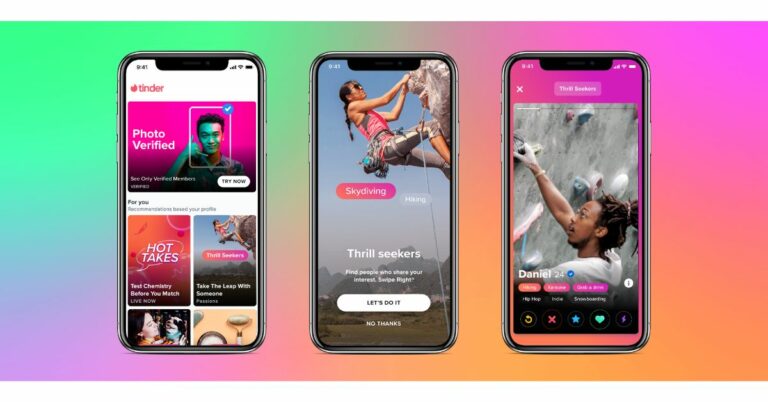
The online dating app Tinder keeps coming up with new features on its platform that enhance the user experience. Previously, the company brought an ID verification feature to make online dating safer and then it arrived with a Safety Centre for India. In the latest development, the social media platform has now added a new section titled Explore that will let the user find matches based on their interests, location, sexuality and more.  The Explore section is a newly-created hub within the app that will host completely new, interactive ways to use Tinder. It will give more control to users over who they meet by giving them the option to navigate through profiles arranged by interest, while also allowing them to access a growing list of exclusive social experiences, such as Hot Takes, Vibes and Swipe Night and many more to follow. With the addition of a new section, Tinder aims to provide new social experiences and will evolve its discovery options so members can find someone new for whatever they’re into.  Tinder adds a new Explore section, giving more control to users over who they meet Jim Lanzone, CEO of Tinder said, “A new generation of daters is asking for more from us in the post-Covid world: more ways to have fun and interact with others virtually and more control over who they meet on Tinder, Today’s launch of Explore is a major step in creating a deeper, multi-dimensional, interactive experience for our members that expands the possibilities of Tinder as a platform.” The members can now easily look or discover their potential matches by their interests, activity, age, and more. New interests will launch on a regular basis so members can find someone new for whatever they’re into. In addition to this, the member would only see a photo verified profile which will be a part of the Trust & Safety feature on Tinder. This will allow users to self verify through a series of real-time posed selfies, which are compared to existing profile photos using human-assisted AI technology. The profile which has the verified photos will bear a  blue checkmark and for the first time members can choose to only see Photo Verified profiles through a dedicated space in Explore.   The previously announced Swipe Night feature will also be accessible in the Explore Section from November. In addition to this, the recently announced Hot Takes will also be part of Explore now. Not only this it will also include Vibed which is basically a weekly event that allows members to express their opinions on everything on the online dating app.  According to Tinder it has started rolling out Explore Section features for members in all major English-speaking countries and is expected to be available around the world by mid-October.   For the latest gadget and tech news, and gadget reviews, follow us on TwitterFacebook and Instagram. For newest tech & gadget videos subscribe to our YouTube Channel. You can also stay up to date using the Gadget Bridge Android App. You can find the latest car and bike news here.

9 September 2021 Flipkart Daily Trivia Quiz Answers: Answer to win exciting prizes

The e-commerce website Flipkart is hosting Daily Trivia Quiz. Every day it brings a bunch of new questions for its users. By answering them correctly you can win exciting prizes. The questionnaire is based on questions related to general knowledge. Also, the users can win free vouchers and super coins, among other offers via the daily quiz. 9 September 2021 Flipkart Daily Trivia Quiz has already gone live on its platform.

9 September 2021 Amazon Quiz: Participate to win Rs 30,000 Pay Balance

9 September 2021 Amazon Quiz has gone live on its Mobile app platform. The quiz can be played from 12 AM to 11:59 PM. To participate log in to the e-commerce app and then answer 5 questions based on general knowledge and current affairs. You have to answer all the questions correctly otherwise the wrong answer will eliminate you from the quiz. After clearing the daily quiz you will get selected for a lucky draw. The winner’s name will be announced at the end of the month. To make sure you answer all the questions correctly Gadget Bridge every day updates all the correct answers to all 5 questions to win Rs 30,000 Pay Balance. Check out today’s answers:

9 September 2021 Amazon Quiz Answers

Question 1: North Eastern Space Applications Centre is located in which Indian state? The answer is- A) Meghalaya Question 2: A court in Ecuador ruled in favour of revoking the citizenship of which current prisoner in the UK? The answer is- B) Julian Assange Question 3: In July 2021, which country’s currency lost more than 90 percent of its value as gas, electricity, food, and medicine are in short supply? The answer is- C) Lebanon Question 4: Which celestial body is this flower named after? The answer is- A) Sun Question 5: Identify this vehicle. The answer is- A) Hot air balloons For the latest gadget and tech news, and gadget reviews, follow us on TwitterFacebook and Instagram. For newest tech & gadget videos subscribe to our YouTube Channel. You can also stay up to date using the Gadget Bridge Android App. You can find the latest car and bike news here.

Bose Smart Soundbar 900 with Dolby Atmos, Alexa and Google Assistant support launched 

The audio products giant Bose has announced the launch of the latest soundbar in the market. The company has introduced the Bose Smart Soundbar 900 expanding its line of speakers and party speakers. As the name suggests the newest Bose soundbar comes with Amazon’s Alexa and Google Assistant support for voice control. In addition to this, there is Dolby Atmos support multi-room Wi-Fi music streaming support along with AirPlay 2. Read on to know its price and availability details. Bose Smart Soundbar 900 price and availability details The Bose Smart Soundbar 900 has been launched in the US with a price tag of $899 that translates to Rs 66,200. The audio device comes in two colour options of  Arctic White and Black. The premium soundbar is now available for pre-orders and the company will begin shipping from September 23 onwards.  Bose Smart Soundbar 900 with Dolby Atmos, Alexa and Google Assistant support launched  Bose Smart Soundbar 900 tech specs and features Bose Smart Soundbar 900 comes with an oval-shaped design, wraparound metal grille, tight seams, clean lines, and a polished, impact-resistant tempered glass top. The device is 2.3 inches in height, 4 inches deep and 41inch in length. The soundbar features company’s proprietary Bose spatial technologies that are said to elevate Dolby Atmos content by separating instruments, dialogue, and effects. The Bose soundbar features  HDMI eARC for connectivity and Wi-Fi and Bluetooth for wireless connection. Moreover, the speaker has a simple app for touch control and is compatible with Spotify Connect, AirPlay 2. There is voice assistance support for Google Assistant and Amazon Alexa. Alexa also allows taking or making calls and also enables the exclusive Bose Voice4Video feature that turns a TV on to the channel or input requested. The Bose Soundbar is also compatible with the new QuietComfort 45 headphones. The Bose Music app helps with pairing, personalization, and updates.  According to the company for programming or playlists, Bose QuietPort technology is said to deliver exceptional bass performance and virtually no distortion at any volume. And if furnishings or system placement interferes with audio quality, proprietary ADAPTiQ technology automatically fixes it, optimizing performance for every space, every time. For the latest gadget and tech news, and gadget reviews, follow us on TwitterFacebook and Instagram. For newest tech & gadget videos subscribe to our YouTube Channel. You can also stay up to date using the Gadget Bridge Android App. You can find the latest car and bike news here.

Oppo Enco Buds TWS earphones with 8mm dynamic drivers launched in India

The Chinese electronics giant Oppo announced the launch of its entry-level true wireless stereo (TWS) earphones in India today. The company has introduced Oppo Enco Buds that come with noise reduction technology. The audio device features 8mm drivers and a low-latency gaming mode. The TWS earphones offer 24 hours of music playtime and Bluetooth v5.2 connectivity. Oppo Enco Buds price and availability details Oppo Enco Buds has been launched in India with an introductory price of Rs 1,799. However, the device is listed to be priced at Rs 1,999. The earphone will be available for purchase via Flipkart in the country.  It will be a 3-day offer, starting from September 14 till September 16. There will be a single White colour option only. Oppo Enco Buds specs and features The Oppo Enco Buds comes with a 2-layer composite diaphragm as well as the AAC (Advanced Audio Coding), a high-definition audio transmission protocol for crisper sound. It features an 8mm dynamic driver. The device comes with a frequency range of 20Hz to 20,000Hz. In addition to this, there is support for AAC and SBC Bluetooth codecs along with Bluetooth v5.2 for faster connectivity which supports binaural low-latency transmission that solves the problems of interference and disconnection to provide quick and stable connections; however, it offers a connectivity range of 10 metres.  Oppo Enco Buds TWS earphones with 8mm dynamic drivers launched in India The Oppo Enco Buds come with an AI-based call noise-cancellation. It packs a 400mAh battery and can support 24-hours music playtime when fully charged along with the earbuds. Each earbud has a  40mAh battery with six hours of music playback. For mobile gamers, the Enco Buds come with a super-low 80ms-latency Game Mode that improves audio-visual sync in twitch-action games. Users just need to triple-tap the earbuds to activate this mode.  Like we said earlier the TWS supports an AI-based intelligent call noise-cancellation feature that can differentiate between ambient sounds and human voices to effectively block out background noises, while you are on a phone call. There is an Open-Up Auto Connection which automatically turns earbuds on as soon as you open the charging case. In addition to this, the TWS earphones include smart touch controls to pause music, switch between songs, and adjust the volume. However, the earphones also allow for customized touch controls on their smartphones using the Hey Melody App for complete, natural control over their audio experience. Lastly, the Oppo Enco Buds are IP54 rated for dust and water resistance. For the latest gadget and tech news, and gadget reviews, follow us on TwitterFacebook and Instagram. For newest tech & gadget videos subscribe to our YouTube Channel. You can also stay up to date using the Gadget Bridge Android App. You can find the latest car and bike news here.

15 advance keyboard shortcuts every Microsoft Word user should know

MS Word is used to make professional-quality documents, letters, reports, etc., It is a word processor developed by Microsoft. It has some advanced features which allow you to format and edit your files and documents in the best possible way. Users use MS word for a lot of things including to create a Word Cloud in Microsoft Word. Microsoft has been updating Word often and these are some essential shortcuts to know. This function helps to have a look at how the Word document looks when it’s printed on paper. The print layout view can be accessed by pressing Ctrl+Alt+V.
  • Outline View

The Outline view allows you to see the different heading levels of the document. It shows the different levels of headings as designated by the styles applied in your document as a Normal or Layout view. Each heading in the Outline view is indicated by symbols. It can be accessed by pressing Ctrl+Alt+O.
  • Move to the first or last page

Ctrl Home can be pressed to move to the first preview page when zoomed out. On the other hand, one can press Ctrl+End to Move to the last preview page. Read Also: 15 Microsoft PowerPoint keyboard shortcuts
  • Open Search box

If a user wishes to search for a particular word from the document it is easy to access the search box in the navigation pane by pressing Ctrl+H
  • Go to location

Ctrl + H can be used to go to a specific page, bookmark, footnote, table, comment, graphic, or other location
  • Switch between edited places

If you made some changes in the document but are now not able to recall where the changes were made. This shortcut will come in handy for such situations. By pressing Alt+Ctrl+Z the user can switch between the last four places that he/she has edited.
  • Move around

It’s very common to use direction keys to move around the document but there is also some other shortcut that you might not know. Press Ctrl + left or right direction key will move one word next or previous. Combining Ctrl with up or down direction keys will move paragraphs. Read Also: WhatsApp revealed the cheat codes for Web and Desktop apps
  • Read Mode 

Want to read your document without making any changes to it? You can use reading mode in MS Word by pressing Alt+W then F.
  • Extended Mode

When you press the F8 key multiple times, you can select different parts of your text. For instance, when you press F8 once, you simply turn on extended mode. Press it a second time, and the current word is selected. A third time results in the current sentence being selected.
  •  Reduce the size of the selection

Want to reduce the size of specifically what you have selected? Do this by selecting the image or words you want to reduce the size of and press Shift + F8
  • Delete one word left or one word right

If the user got a word wrong there is no need to press backspace again and again simply press Ctrl+Backspace to delete one word to the left and Ctrl+ Del to delete one word Right.
  • Increase or decrease font by one

If the user wants to increase the font, press Ctrl + [ and for decreasing the font by one press Ctrl+ ].
  • Copy and paste formatting

Want to copy and paste and don’t want to lose the formatting as well. It can be done by pressing Ctrl + Shift + C for copying formatting and can be pasted by pressing Ctrl + Shift + V for pasting with formatting applied. Read Also: Oppo extends warranty across its product portfolio
  • Set Line Spacing

This can be achieved by pressing Ctrl+1 for one line spacing, Ctrl+2 for double space lines and Ctrl+5 to set 1.5 line spacing. One can also press Ctrl 0 to add or remove line space preceding a paragraph
  • Apply Heading

Want to apply multiple headings and selecting one by one and going to the menu to apply it feels like a hassle. Microsoft has made a shortcut for that as well. Press Alt + Ctrl + 1 to Apply the Heading 1 style, Press Alt + Ctrl + 2 to Apply the Heading 2 style and Press Alt + Ctrl + 3 to Apply the Heading 3 style respectively. These are the top picks of shortcuts that one should know to work on their word document. These will increase the productivity of the users and will save a lot of their time as well. For the latest gadget and tech news, and gadget reviews, follow us on TwitterFacebook and Instagram. For newest tech & gadget videos subscribe to our YouTube Channel. You can also stay up to date using the Gadget Bridge Android App. You can find the latest car and bike news here.

15 advance keyboard shortcuts every Microsoft PowerPoint user should know

MS PowerPoint is a program that is included in the Microsoft Office suite. It is used to make presentations for personal and professional purposes. Gradually, with each version, the program is becoming more creative and interactive. Various other features are added by Microsoft in PowerPoint which massively increased the requirement and use of this MS Office program. Here are some of the Best shortcuts to use while making a presentation on Powerpoint. During the presentation, if one feels like having a black screen or blank screen, it is easy to do it in MS PowerPoint. One can press W for a white screen or B for a blank or black screen.
  • Laser Pointer

During a presentation, a user can change the pointer into a visual laser pointer by pressing Ctrl + L.
  • Draw on presentation

It’s easy to draw on your presentation directly without using any external device. The user can use the shortcut Ctrl + P to change the pointer into the pen and conveniently draw over the presentation. Read Also: 6 Best websites where you can get free templates 
  • Inserting a Hyperlink

Select text or object in a slide and then press Ctrl + K to open the Insert Hyperlink in the dialogue box to turn it into a link. One can also press Ctrl + K without selecting anything first, then specify where to add a hyperlink later.
  • Change the order of a slide

By Pressing Ctrl + Up Arrow to move the selected slide one position up in the presentation and the reverse can be done by pressing Ctrl + Down Arrow to move it one later in the presentation.
  • Change Font 

Users can press Ctrl + Shift + Right Arrow to increase the size of the selected text a little at a time. To make the font smaller: Press Ctrl + Shift + Left Arrow to decrease the size of the selected text.
  • Alignment

Press Ctrl + E to centre the selected paragraph. For Left alignment of text: Press Ctrl + L to the selected paragraph. To right align select the paragraph and press Ctrl + R.
  • Justify text

If the user feels that the text is going out of their page margin or is not aligned properly one can use Justify. Press Ctrl + J to justify the selected paragraph. This causes the text to auto-fit to the left and right margins of the slide. Read Also: JBL Commercial makes its debut in India with the launch 
  • Subscript and superscript

For superscripting, a user can press Ctrl and the Plus sign to turn the selected text into superscript. Subscribing is easy as well Press Ctrl + = to turn the selected text into a subscript.
  • Check spelling

Many consumers make a lot of mistakes while making a presentation and finding a mistake one by one seems very hectic. Microsoft thought about it and made a shortcut for it. By pressing F7 users can run a built-in spell-check.
  • Search within a presentation

Want to search for a specific text on your presentation? Get it done by pressing Ctrl+F. This will open a dialogue box where you can search the desired word. One can also replace the word with some other with the same dialogue box. Read Also: WhatsApp revealed the cheat codes for Web and Desktop apps
  • Help 

Microsoft has its own help support built in the software which can be activated by pressing F1.
  • Redo and Undo

Did a mistake and want to reverse the action? By pressing Ctrl+Z one can Undo the action. To do vice versa Redo option is used and can be activated by pressing Ctrl+Y. There are few actions that cannot be undone or redone in such a case nothing will happen even if you press the shortcut.
  • Cancel

Esc shortcut is used to abort any task you don’t want to complete. It can also be used to exit the presentation.
  • Cut, Copy and Paste

Press Ctrl + C to copy text to the clipboard, press Ctrl + X to cut, and Press Ctrl + V to paste the content of the clipboard at the cursor location. These shortcuts are very easy to use and will come in handy in making a good presentation. These shortcuts will not only save a ton of time but also increase your productivity. For the latest gadget and tech news, and gadget reviews, follow us on TwitterFacebook and Instagram. For newest tech & gadget videos subscribe to our YouTube Channel. You can also stay up to date using the Gadget Bridge Android App. You can find the latest car and bike news here.

Vivo X70 series allegedly gets listed on China Telecom, key specs tipped

Vivo X70 series is all set to launch on September 9, which is tomorrow. The company is rumoured to introduce a vanilla variant along with Vivo X70 Pro and Vivo X70 Pro+. Recently the specification of the standard and the Pro+ variant were tipped by TENAA listing ahead of the launch. Now Vivo X70 series specifications have been leaked through China Telecom as well Reportedly China Telecom has mistakenly released the alleged specification of all three devices. According to the listing, Vivo X70 will come with a 6.56-inch full-HD+ AMOLED display. The screen will support a 120Hz refresh rate. It will be powered by Exynos 1080 SoC. In terms of optics, the device is tipped to feature a triple rear camera set up that will include a 48MP main camera, 12MP ultra-wide-angle sensor, and another 12MP portrait lens. On the front, there will be a 32MP selfie camera sensor. The phone is expected to pack a 4,000mAh battery and 44W fast charging support. Vivo X70 series allegedly gets listed on China Telecom, key specs tipped On the other hand, Vivo X70 Pro is listed to feature a bigger 6.56-inch full-HD+ AMOLED display with similar refresh rate support. Under the hood, there will be an Exynos 1080 SoC. For imaging, X70 Pro is likely to come with a quad rear camera setup consisting of a 50MP main sensor along with a 12MP  ultra-wide-angle sensor, a 12MP portrait lens and an 8MP telephoto sensor. For taking selfies and video calling it may arrive with a similar lens as the vanilla variant. It could include a slightly bigger 4,450mAh battery with 44W fast charging support. Lastly, the Vivo X70 Pro+ is said to be highlighted with a 6.78-inch quad-HD+ E5 AMOLED display. The screen will have 120Hz refresh rate support and the phone will be powered by a Snapdragon 888+ SoC. While the camera set-up will be similar to the Pro variant. There will be a 4,500mAh battery with 55W fast charging support. Previously Vivo X70 was spotted with V2132A and V2133A model numbers. The former one is listed to equip a 2.8GHz octa-core SoC coupled with 6GB, 8GB, and 12GB RAM options. The listing reveals that the latter one will be powered by  3.0GHz octa-core SoC, paired with 8GB, 12GB RAM options. Both the models will be offered with 128GB, 256GB, and 512GB storage options and will run Android 11 out of the box. However, the specifications are listed to come with similar specs having a 6.58-inch full-HD+ AMOLED display offering 1,080×2,376 pixels of resolution.  For the latest gadget and tech news, and gadget reviews, follow us on TwitterFacebook and Instagram. For newest tech & gadget videos subscribe to our YouTube Channel. You can also stay up to date using the Gadget Bridge Android App. You can find the latest car and bike news here.

HBO Max India plan details leaked ahead of the official launch

HBO Max by Warner Media is trying to set its foot in the Indian market. The company is prepping up to enter India to make a direct consumer presence in the country. The firm recently appointed Disney veteran executive Amit Malhotra as the Managing Director of HBO Max in Southeast Asia and India. Ahead of the official launch HBO Max’s plans and pricing details have been leaked. The tariff may start from Rs 69 per month and would go up to Rs 329. As per the latest report by OnlyTech, the Indian plans and pricing details of the HBO Max has been revealed ahead of its unannounced launch. Citing information shared among a group of users under an online pre-launch survey conducted by ‘Nepa’ reveals the go-to-market strategy of HBO Max in India and offers an insight into its makeshift plans and pricing. Those who are unaware HBO Max is an OTT streaming service that offers a variety of big titles of movies and TV shows just like other platforms such as Amazon Prime Video, Disney+ Hotstar, and Netflix. The service is likely to enter India soon; however, the exact launch details are yet to be revealed. Reportedly, HBO Max conducted an online pre-launch survey that revealed its strategy and plans for the potential future launch in India. In the country, the company plans to offer users its service at as low as Rs 69 per month. This will be ad-supported and will contain 2  concurrent streams across various devices which can be streamed in SD video quality. In addition to this, the content release will include late release content like series episodes when the whole season is available and movies one year after the theatrical run/digital release.  After the first plan, HBO Max India may also offer a second plan called Mobile which would be available at Rs 139 per month. The Mobile plan will include ad-free content which may be streamed in SD quality and would be available in a single concurrent stream viewable on mobile and tablets only. The users will be able to access regular releases like series episodes 2 to 3 weeks after the global release and movies 6-8 months after the theatrical run/digital release.  Lastly, the Standard plan will be available at Rs 329 a month. This will include ad-free content in UHD 4K resolution with three concurrent streams that would include early release directly after global/theatrical run/digital release. Moreover, all three tiers will allow users to create up to five profiles with access to content in all languages. Besides monthly plans, HBO Max is also likely to offer annual subscriptions for its Mobile and Standard subscription plans. The Mobile plan with an annual subscription will get 40 percent discounts over the monthly plan priced at Rs 1001. On the other hand, the annual subscription of the standard plan will see a 50% discount over the monthly plan cost priced at Rs 1974 yearly. It should be noted that these plans tend to change when they originally release so you can take it with a pinch of salt. UPDATE: Reply from HBO “We routinely conduct market research with consumers in countries around the world that test a wide range of possible offers and price points for our services. Those being reported that suggest a future launch of HBO Max in India are amongst many being tested and evaluated and do not reflect any current plans.” For the latest gadget and tech news, and gadget reviews, follow us on TwitterFacebook and Instagram. For newest tech & gadget videos subscribe to our YouTube Channel. You can also stay up to date using the Gadget Bridge Android App. You can find the latest car and bike news here.

Top 3 Ways to Find Downloaded Files on Your Android Device (2024)

It’s incredibly simple to use an Android device. Earlier a lost file on your Android smartphone was very hard to locate, as when the smartphone OS first launched it didn’t even have a file explorer. The times have changed now and it has become very easy to find downloaded files on your Android phone. Here is how you can do it.

File manager

This is the best way to find all your downloaded files in one go. The name of your smartphone’s file manager may differ depending on the brand one uses. Step 1: Locate the file manager in the app drawer. One can also find the application on the search bar above the drawer to locate it. Step 2: Inside the file manager head towards the download tab. All the recently downloaded files, be it an application, PDF or any other multimedia file will be stored there in chronological order of newer to older files for most smartphones. Users can change the order in the Sort by option available by pressing the three-dot option and setting it accordingly. Step 3: After locating the file of your need just tap on it for opening or one can also long-press to get more options related to the file. File manager Read Also: How to find downloaded files and videos on your iOS device

Using Third-party file explorer

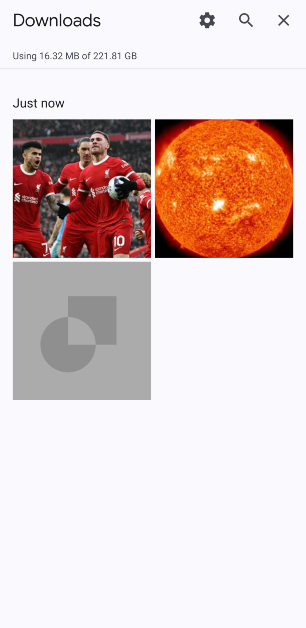
What if for the odd chance, some user’s phone does not have a built-in file explorer or the consumer doesn’t like the default file explorer? Well, the Play Store has got you covered with tons of third-party applications available for its users to download for free. Files by Google is our top pick for file explorers as it has smart features to arrange files properly and can also be used to tidy up your storage and give suggestions to clean up the clutter on your device. Step 1: Install Files by Google from Playstore on your Android device. Step 2: Head to the browse tab at the end of the phone screen between share and clean. Step 3: Tap on downloads to view all the downloaded files, applications or other multimedia files. Files by google Read Also: Apple Event: Apple confirms California Streaming event for September 14, may unveil iPhone 13 series There is also a sharing feature on Files named “Share”, which works like AirDrop for sharing files and folders instantly to another local device. These file explorers will come in handy to find the files that are downloaded locally on your device. One can directly play multimedia from there and also install the downloaded application. There is also a possibility that a specific format is not supported by the file explorer on your smartphone. To overcome this issue the consumer can connect the smartphone to a PC/ laptop via USB and find the file there.

Use Google Chrome to find recently downloaded files

Can’t find a document or APK that you recently downloaded on your phone using Google Chrome? Well, you can always find it in the web browser’s download tab. Here’s how. Step 1: Launch the Google Chrome app on your phone. Step 2: Hit the ellipses at the top right corner of the screen. Step 2: Hit the ellipses at the top right corner of the screen. Best Ways to View Saved Passwords in Google Chrome (2024) Step 3: Select Downloads. Step 3: Select Downloads. Step 4: This is where you’ll find your recently downloaded files. Step 4: This is where you'll find your recently downloaded files.

Frequently Asked Questions (FAQs)

Where is the Downloads folder on my phone?

You can access the Downloads folder on your phone from the default File Manager app. Google’s Files app can also carry out this task.

Where do I find my downloaded images?

All images downloaded from the web browser can be found in the ‘Downloads’ folder in the gallery. If you downloaded an image from an app, browse to that app’s folder in the gallery.

How do I find my recently downloaded files on Chrome?

Launch Chrome, hit the ellipses, and select ‘Downloads’ to view the recently downloaded files. Read Also: Korean Tech Giants Samsung And LG Pause US Construction Amid Cost Surge, India Can Be A Good Alternate Option

Conclusion

These are the top 3 ways to find downloaded files on your Android device. To change the destination folder for new downloads, go to Chrome>Downloads and hit the settings icon. If you know any other way to go about this task, let us know in the comments!

How to find downloaded files and videos on your iOS device

iOS has been the most versatile operating system offered by Apple. It is famous for its simplicity and easy to use interface. It has happened often that you have downloaded some files, but are unable to locate them on your iPhone. There is also a chance that it got downloaded in some other location. Here are some easy ways to locate your downloaded files on your iOS devices. 

Find Downloaded Files

Step1 – Open the files application from the home screen, which will be a blue-white icon. When you tap the Save to Files option on a file, the phone will prompt you to choose a saving location. Depending on your settings or selection, you’ll have the option to save to On My iPhone, iCloud Drive, and possibly other cloud drives. By downloading a file this way, you’ll find it in the Files app. Step 2 – Tap on the “browse” button located at the bottom right corner. Step 3 – Head to the On My iPhone option under the “Location” header. This option will hold the file depending on how you downloaded your file if it’s for the default setting it will be stored in the “On My iPhone” option. If you selected a third-party cloud service or default one to store the file it will be stored on Another folder named “iCloud Drive”. Step 4 –  Head to the download folder that will be a blue folder pointing downwards.  How to find downloaded files and videos on your iOS device This is typically where you’ll find downloaded files, such as PDFs, documents, audio files, and images you didn’t save to your Photos app. If one has selected a photos application for saving photos it will be available on the application. Read Also: Apple Event: Apple confirms California Streaming event for September 14, may unveil iPhone 13 series

Locate Downloaded Music

Downloaded a Music file and were unable to locate it? These steps will easily help you to locate the lost files.  Step 1 – Open the app library and head to the Music application. Step 2 – Tap the library option on the bottom part of the screen. Locate Downloaded Music Step 3 – Tap on the Downloaded Music category on the Library page. Step 4 – This displays another list of categories one can choose from: Artist, genre or all music according to their convenience.

Missing Downloaded Application on iOS?

The home screen of iOS is a cluster of applications together. It often happens that the downloaded application is right in front of our eyes but we are unable to locate it. Following this simple trick will come in handy. Step 1 – Swipe left across to find the app library(one might have to swipe left multiple times to find the end of the line) Step 2 – Tap on the search bar of the app library Step 3 – Input the name of the application you want to search and it will be displayed right away. Read Also: Rumoured Specifications, release date and price for MacBook Pro 16 App drawer These are some easy steps to find any type of file on your iOS device, be it an iPad or iPhone. Also, if none of the steps works we recommend connecting the phone or tab to the computer and locating the file there as the file format might not be supported resulting in not displaying the file on the iPad or iPhone. For the latest gadget and tech news, and gadget reviews, follow us on TwitterFacebook and Instagram. For newest tech & gadget videos subscribe to our YouTube Channel. You can also stay up to date using the Gadget Bridge Android App. You can find the latest car and bike news here.

Apple Event: Apple confirms California Streaming event for September 14, may unveil iPhone 13 series

It’s that time of the year when the Cupertino based tech firm Apple usually makes its biggest announcement of the year. Yes, you guessed it right we are talking about the most anticipated Apple iPhone 13 series. The good news is that the company has officially announced its upcoming event- California Streaming on September 14.  The last time when Apple hosted its event it titled it ‘Spring Loaded’ but this time the company has titled it ‘California Streaming’. The Apple event will take place on September 14 at 10 am PDT, or 10.30 pm IST. As the tagline says, it is going to be another virtual event that will be streamed live from Apple Park. Traditionally the company never reveals anything about what products it is going to present at its upcoming event and going by its tradition this time also the Apple has not revealed anything. But speculations suggest we might see the new lineup of iPhone that is iPhone 13 and it might also be possible that Watch Series 7, and the AirPods 3 are likely to make an appearance. Apple Event: Apple confirms California Streaming event for September 14, may unveil iPhone 13 series At its previous Apple event, the company unveiled the new iPad Pro lineup but at the California Streaming event, Apple may introduce the iPhone 13 series because at the moment lots of rumours and leaks around the upcoming iPhone lineup are doing the rounds on the internet. Normally Apple announces its new iPhone at the fall event to recall the last time it was held in October but things might change this time as the delay last time was due to the production delay during the pandemic. Also, the company’s event poster usually gives out some hints but looking at the glowing Apple logo an-always-on display is expected. Moreover, the poster also shows the low light scenario which benefits from improved nighttime photography.  To give a better perspective Apple’s SVP of worldwide marketing has shared a video on Twitter that also shows the glowing logo while the glowing stars also indicate the upcoming iPhone 13 series might include astrophotography mode similar to what we have seen on the Google Pixel devices. The devices are also tipped to get a satellite connectivity feature that will provide connectivity even without cellular coverage but that is to be expected to be available in select markets only.  If that is to be believed then along with the next generation of the Apple iPhone the company could also announce the timeline for the release of iOS 15 at the Apple Event. This time as well Apple is stated to present four devices iPhone 13, iPhone 13 Mini, iPhone 13 Pro and iPhone 13 Max that will come with a new design upgrade, improved battery life, cameras and more. At this year’s WWDC Apple spoke about the upcoming WatchOS 8 operating system for its smartwatches. The company could also include this at its upcoming event. The Apple Watch Series 7 will be succeeding the Watch Series 6 that will bring new features, sleek design and improved battery life. The device is also expected to have a blood glucose monitoring sensor. For the latest gadget and tech news, and gadget reviews, follow us on TwitterFacebook and Instagram. For newest tech & gadget videos subscribe to our YouTube Channel. You can also stay up to date using the Gadget Bridge Android App. You can find the latest car and bike news here.
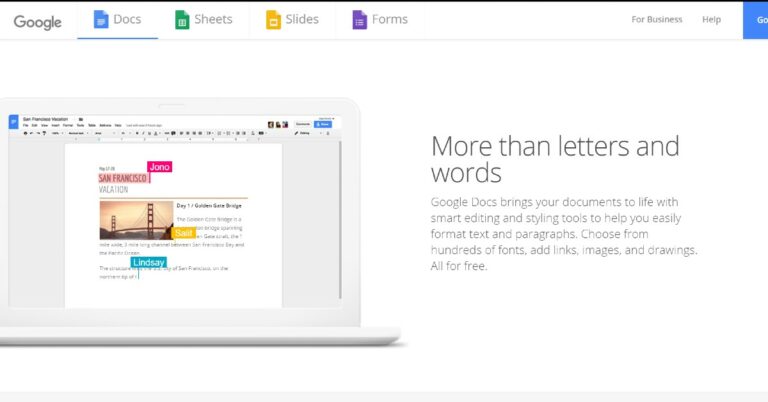
8 September 2021 Flipkart Daily Trivia Quiz Answers: Answer to win exciting prizes

The e-commerce website Flipkart is hosting Daily Trivia Quiz. Every day it brings a bunch of new questions for its users. By answering them correctly you can win exciting prizes. The questionnaire is based on questions related to general knowledge. Also, the users can win free vouchers and super coins, among other offers via the daily quiz. 8 September 2021 Flipkart Daily Trivia Quiz Answers has already gone live on its platform. The participant should be at least 18 years old and should have a valid login ID. The Quiz is available on the mobile platform and not the web version. E-commerce conducts the quiz on daily basis and goes live at 12:00 AM IST and runs till 11:59 PM IST.  The winners are announced within 15 days from the date of participation that can be viewed under the Gems/Rewards section in the app.

How to participate in the Flipkart Daily Trivia Quiz

To participate download the Flipkart app on your phone. Then open the Flipkart app then head to Game Zone. Now click on the Daily Trivia Banner or search for Daily Trivia. Enter the game and answer all 5 questions with correct answers.

8 September 2021 Flipkart Daily Trivia Quiz Answers 

Question 1: In which Madhya Pradesh city is the Holkar Cricket Stadium located? Answer: Indore Question 2: Which country hosted the South Asian Games 2019? Answer: Nepal Question 3: Who won the Dilip Sardesai Award for taking the most wickets in Test cricket in 2018-19? Answer: Jasprit Bumrah Question 4: Who recently set the Indian record for the longest gap between 2 T20I matches? Answer: Sanju Samson Question 5: Who recently became the first New Zealand cricketer to hit six sixes in an over? Answer: Leo Carter For the latest gadget and tech news, and gadget reviews, follow us on TwitterFacebook and Instagram. For newest tech & gadget videos subscribe to our YouTube Channel. You can also stay up to date using the Gadget Bridge Android App. You can find the latest car and bike news here.