In This Article
Using Wi-Fi extender setting
Many smartphones like the OnePlus and some Samsung phones have built-in Wi-Fi extender options. The process is the easiest one with absolutely no hassle. All you have to do is bring down the notification panel on your Android phone and switch on Wi-Fi and Hotspot simultaneously. We also recommend altering the Hotspot password and not keeping it as an open network. Read Also: OnePlus will return to its roots will be offering budget smartphones
Wi-Fi coverage extend option
If your phone does not have a built-in option to use Wi-Fi and hotspot together, worry not Google has provided the option hidden in the Developers option. Head to the setting and open developer options (head to software info>build number and tap it 4-5 times to enable it if it’s not available). Here find the “Enable Wi-Fi Coverage Extend” feature and toggle it on. Now you will be able to do the exact same thing mentioned in the first method.
Use a third-party application
If you don’t feel like the experience from the pre-existing feature you can always download a third-party application for your help. The only con about these applications is that you have to manually set up wifi for each device. But worry not we have a solution for that as well. Try downloading the NetBridge application once done, open the application and give all the permissions. Now you will see the main highlight of the application. On the setup page where there will be different OS platforms (consider the image below), you now select the device you use like for say Windows, it will tell you a step-by-step guide to how to set it up.
Use USB tethering
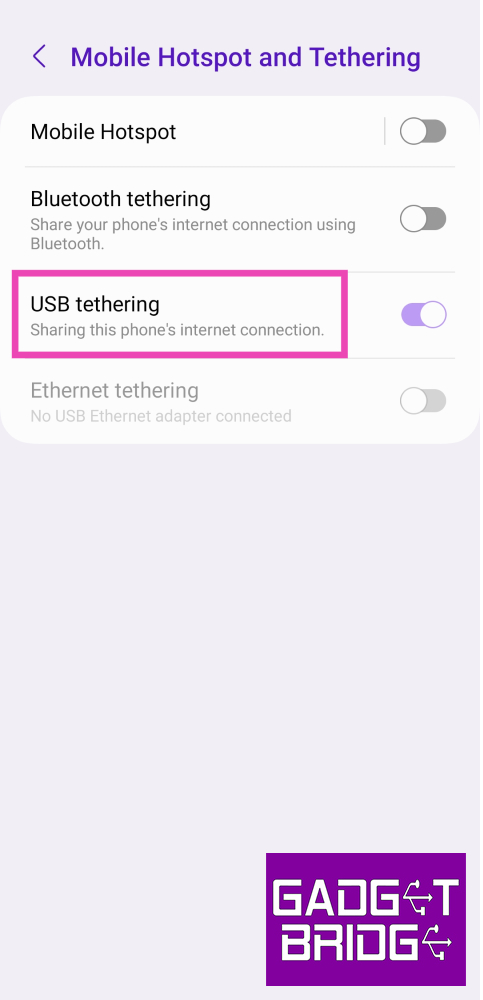
USB tethering is mainly used to share your device’s mobile data over a USB connection, but some devices also allow a WiFi connection to be extended using this feature. Here’s how you can go about it. Step 1: Connect your Android smartphone to a PC using a USB cable. Step 2: Go to Settings and select Connection. Step 3: Tap on Mobile Hotspot and Tethering.
 Step 4: Make sure your phone’s mobile data is turned off and that you are connected to a WiFi network.
Step 5: Turn on the toggle switch for USB tethering.
Step 4: Make sure your phone’s mobile data is turned off and that you are connected to a WiFi network.
Step 5: Turn on the toggle switch for USB tethering.
Use Ethernet tethering
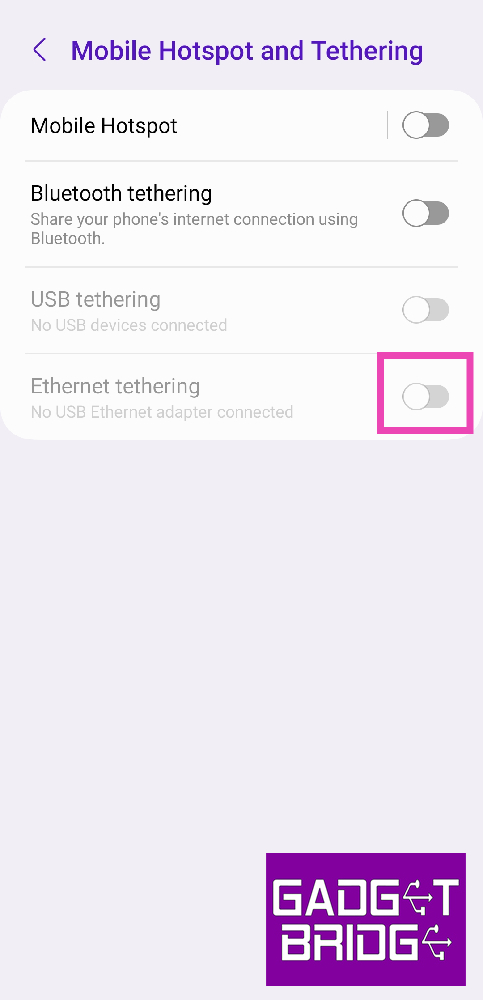
If your PC or laptop has an ethernet port, you can use an ethernet USB cable to share your WiFi connection with your PC. Here’s how. Step 1: Connect your Android smartphone to a PC using an Ethernet USB cable. Step 2: Go to Settings and select Connection.
Step 3: Tap on Mobile Hotspot and Tethering.
Step 4: Make sure your phone’s mobile data is turned off and that you are connected to a WiFi network.
Step 5: Turn on the toggle switch for Ethernet tethering.
Use Bluetooth tethering
Yes, it is a wireless medium to use the phone as a Wi-Fi repeater and yes it transmits signals. The biggest drawback of this method is that the connection is very slow. But this still works and can be used in emergency cases. This can be switched on by long-pressing the hotspot settings on the notification panel and toggling Bluetooth tethering. Read Also: 10 must-download utility apps for new Android smartphone







 Step 3


 Step 2 –






 Step 3 –
  Step 4 –
 Step 5 –
 Step 3
 Step 2



 Step 3 –






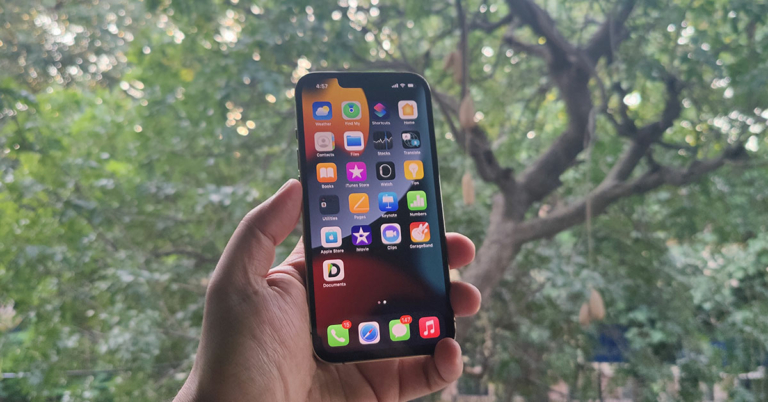
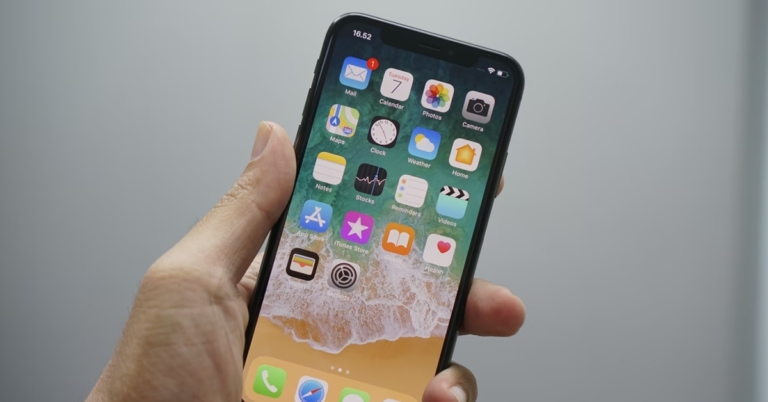
 For starters, the square frame with rounded curves for the exterior shell feels familiar, but it looks a lot more premium than before. (At least in the golden variant that we are testing, this becomes apparent easily.) The camera module at the back has changed slightly, and the notch on the front of the device, which we were hoping would be done away with, this time has thankfully become smaller. A new sierra blue colour variant has been added to the line-up, which stands out for being bold and brilliant.

 The
The 
 Macro photography has also been added to the new iPhone, which clicks very good up close and personal images. The front camera is also powered by a 12MP sensor and can take wide-angle shots. We loved the selfie experience of the Apple