Apple will be introducing iOS 15 soon and it is coming with some exciting new functions with FaceTime, a new notification system, and offline Siri support. Apple mostly releases new iOS every June-Sep but the great news is, there is a beta version of the iOS available for you to try before the official release of the iOS 15. Read the blow to enroll in the beta program.
In This Article
Disclaimer before downloading the beta version:
Before downloading the developer’s version of the iOS 15 beta. There are some precautions you should take and some information you should be aware of. For those who are unaware, all beta versions are like unfinished versions designed mostly for testing. So there are chances involved to contract bugs, glitches, and even crashes sometimes. So it is highly advised before downloading the beta version you should upload all your data and files to the cloud or transfer them to external storage.
Read more: Android 12 Beta 1 now available for download: These are the compatible devices
How to enroll in the iOS 15 beta program:
An Apple developer program will cost you 100 dollars annually and you can join the developer program. There are also some requirements you need to meet, such as turn-on two-factor sign in and you also have to provide your full legal name and address. After you have your developer ID you can download the beta version. The following steps are on how to install the beta version.
Using the Safari browser search for developer.apple.com and log in with your Apple ID
In the left-hand menu go to downloads
Scroll down to iOS 15 beta and click install “Profile button” and Accept
Now go to the phone Settings and click on Profile downloaded
Or go to General>Profile and select iOS beta profile
Software is tagged as beta when it is at a stage of development but not yet complete. The basic features are in place but not fully developed. The public betas do lag behind the developer version and it is rolled out significantly late. The public beta is to be available in July 2021. Here are the steps to install a public beta version.
Open the webpage of the Apple Beta Software Program
And sign up with your Apple ID
Scroll down to Get started and Click Enroll your iOS device
Now on your iOS device go to beta.apple.com/profile
Download and install the configuration profile
Now Settings>Profile downloaded>Install>Restart your iOS device
Last step Settings>General>Software update>Tap Download and install
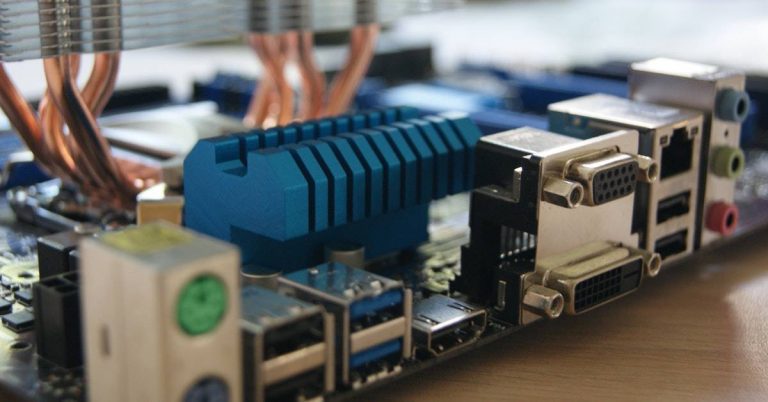
USB has been an essential part of all devices may it be for wired data or power transfers. The importance of a USB has been widespread from laptops, PCs, to mobile phones. The use of USB is understood in many aspects of charging your devices, file transfer, and many others. Over the years USB has been upgrading to meet your requirement and the new USB 4 will bring enhanced features. Read below to know more. The specification of USB 4 was first announced in 2019 and it is now time to deliver the new generation of USB connectivity. The upgrade will include the Thunderbolt 3 for faster data transfer and it will be supported in Intel’s 11th generation core processor as well as Apple Silicon Macs. Apart from the faster transfer speed, it will give you better management of video bandwidth and compatibility with all devices supporting Thunderbolt 3. The first update that USB 4 will be bringing is the support of DisplayPort 2.0. Breaking down the specs of Display 2.0 it can support an 8K resolution display at 60 Hz with HDR10 colour. Also, it has a transfer speed of up to 80 Gbps because it sends all data in one direction, and does not need to send anything back to the host device. And for the conclusion, the combination of USB 4 and DisplayPort 2.0 will bring in very high speeds to transfer files.
Read more: Top 10 Laptops of the year 2020: List worth checking outThe new USB 4 will deliver a stable speed of 40Gbps of transfer speed and come with two-speed variants of 20Gbps and 40Gbps. The two speeds of USB 4 20Gbps and USB 4 40Gbps have dual-lane cables enabling greater bandwidth and faster data travel between two devices. The Thunderbolt 3 enables this top speed of 40Gbps transfers, but speeds can go up to 80 Gbps. Using two sets of four bidirectional lanes it can send video and data in the same lane. The USB 4 will use the lanes to send video and data together by sharing resources and will display the bandwidth required to support the data transfer.
Read also: How to transfer your PlayStation4 games and saved data to your new PlayStation5 console?It is also expected to give better resource allocation for video. The devices supporting USB 4 will be using a process called “protocol tunneling” that sends DisplayPort, PCIe, and USB packets at the same time while allocating proper bandwidth accordingly. For example, if 20 percent of the bandwidth is allocated to power a video of 1080p in your system the remaining 80% will be made free to transfer files from your external SSD, which will operate over either USB protocol or PCIe. The USB 4 also has the best compatibility with its previous generations. USB 4 will function with USB 3, USB 2 devices, and ports. Though it is compatible you should note the ports of USB 3 and USB 2 will not be delivering the 40Gbps top speeds. All in all, USB 4 will be faster, better and can manage simultaneous uploads and downloads at high speeds from any device.
For the latest gadget and tech news, and gadget reviews, follow us on Twitter, Facebook and Instagram. For newest tech & gadget videos subscribe to our YouTube Channel. You can also stay up to date using the Gadget Bridge Android App.
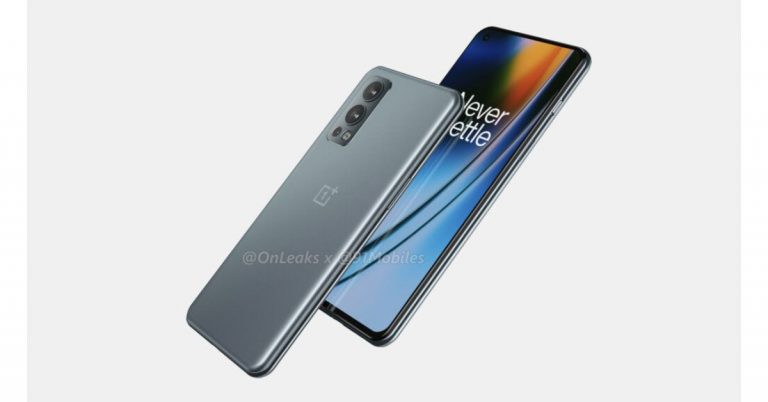
Recently OnePlus launched its most affordable Nord CE 5G in India, which is a successor to the OnePlus Nord N10 5G. Now the company is prepping up to bring the OnePlus Nord 2, which is the follow up of the original Nord that was first launched in India in July last year. Not long ago, the device’s specifications were tipped by AI benchmark listing and now its alleged renders have surfaced on the web showcasing the handset’s design from front to back. Tipster Steve Hemmerstoffer aka @OnLeaks not only shared the renders of the OnePlus Nord 2 but has also thrown some light on its key specifications in his previous leaks. As per the latest leaked renders the device will come with a hole-punch design display to house a selfie camera which is placed on the top left corner of the screen. The renders show slim renders of both sides, top and a noticeable chin. On the utility front, there is a volume rocker on the left side of the frame while the power button on either side along with the alert slider. While the bottom of the frame houses a USB Type-C port, SIM tray, and a speaker grille.Image Courtesy: Twitter/@onleaksComing to the back of the phone, you will notice some changes in the design of the back panel. Unlike the original one, the upcoming OnePlus Nord 2 will feature a rectangular camera module on the top left corner instead of a pill-shaped camera system. The camera set-up can be seen housing three sensors stacked vertically with an LED flash. The device is said to measure 160×73.8×8.1 mm. The renders show the green colour variant however the Nord 2 is likely to arrive in more colour options.Speaking of the specification, the AI Benchmark listing tipped that the OnePlus Nord 2 could be powered by MediaTek Dimansity 1200 SoC. The device is said to be a rebadged version of Realme X9 Pro. The upcoming phone is said to be offering 8GB of RAM and will run Android 11.In the past, the Chinese smartphone company itself confirmed the OnePlus Nord 2 moniker. The handset accidentally got listed in the eligible phone’s list for free Stadia Premiere Edition in theFAQ section of the OnePlus UK website where it was running a promotional offer for OnePlus phone buyers to get free Stadia Premiere Edition. The FAQ also includes other eligible phones in its list of supported phones: the OnePlus 9, OnePlus 9 Pro, OnePlus 8T, OnePlus 8 Pro, OnePlus Nord, and the OnePlus Nord 2. However, the alleged phone has now been removed from the list. Besides this, the device is expected to feature a 90Hz 6.43-inch full-HD+ AMOLED display and an octa-core MediaTek Dimensity 1200 SoC under its hood. For the photos and videos, the OnePlus Nord 2 is slated to come with a triple rear camera setup with a 50-megapixel primary sensor accompanied by an 8-megapixel and 2-megapixel sensors. For selfies, it is said to include a 32-megapixel sensor on the front. Moreover, the phone is tipped to have a 4,500mAh battery on board along with an in-display fingerprint sensor.
For the latest gadget and tech news, and gadget reviews, follow us on Twitter, Facebook and Instagram. For newest tech & gadget videos subscribe to our YouTube Channel. You can also stay up to date using the Gadget Bridge Android App.
The e-commerce website Flipkart is hosting Daily Trivia Quiz. Every day it brings a bunch of new questions for its users. By answering them correctly you can win exciting prizes. The questionnaire is based on questions related to general knowledge. Also, the users can win free vouchers and super coins, among other offers via the daily quiz. June 29 Flipkart Daily Trivia Quiz Answers has already gone live on its platform.
The participant should be at least 18 years old and should have a valid login ID. The Quiz is available on the mobile platform and not the web version. E-commerce conducts the quiz on daily basis and goes live at 12:00 AM IST and runs till 11:59 PM IST. The winners are announced within 15 days from the date of participation that can be viewed under the Gems/Rewards section in the app.
In This Article
How to participate in the Flipkart Daily Trivia Quiz
To participate download the Flipkart app on your phone. Then open the Flipkart app then head to Game Zone. Now click on the Daily Trivia Banner or search for Daily Trivia. Enter the game and answer all 5 questions with correct answers.
June 29 Flipkart Daily Trivia Quiz Answers
Question 1: Which Of The Following Vehicles means a wasp in Italian?
Answer: Vespa
Question 2: The Shahid Kapoor starrer Batti Gul Meter Chalu is about the problem of inflated
Answer: Electricity Bill
Question 3: Which Country recently recorded the first polio case in 27 years?
Answer: Malaysia
Question 4: Which of these companies invented the transistor in 1947?
Answer: Bell Labs
Question 5: Which Of These is housed in the Peace Palace Of Netherlands?
Answer: ICJ
India’s leading e-commerce website Amazon hosts an Amazon Quiz session for its customers. The website brings an app quiz on a daily basis, which begins at 12 AM to 11:59 PM daily. As part of the quiz, the participants stand a chance to prizes as well as cash prizes on a daily basis.
The Amazon Quiz session allows the customers to win bumper prizes such as Apple iPhone x, iPhone Xs, Go Pro Hero 8 and many more every day while sitting at home. To win the participants must answer five questions correctly based on current affairs and general knowledge. One wrong answer can eliminate you from the quiz and the results will be announced at the end of the month. Today’s question will let you win Rs 20,000 Amazon Pay Balance. Check below for today’s Amazon quiz answers.
Amazon Quiz Answers for June 29
Question 1: Chandro Tomar from Uttar Pradesh, who passed away recently, was popularly known by which of these monikers?
The answer is- Shooter Dadi
Question 2: Recently found to be stranded in the Pacific Ocean, what is Patania II?
The answer is- Mining Robot
Question 3: Which of these states has launched the ‘Parvat Dhara Yojna’ to rejuvenate water sources?
The answer is- Himachal Pradesh
Question 4: What term, possibly first used in mid-15th century Scandinavia and later made popular in Florence, is used to describe this meal?
The answer is- Steak
Question 5: How many complete voyages had this ship made when it hit an iceberg and sank in 1912?
The answer is- Zero
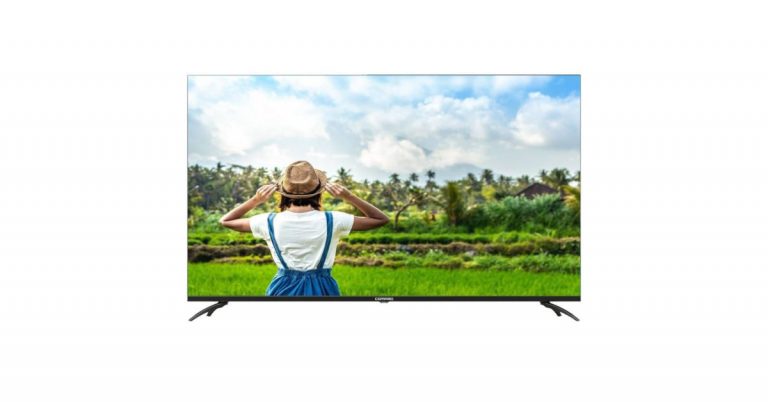
Compaq a familiar brand in laptops and computing made its come back in India last year with the launch of its 55-inch and 65-inch model of Hex 4K QLED TV. Today the company announced the operating system update for its flagship model. The Hex 65 QLED TV has been upgraded with Android 9.0. In addition to this, the Television will also come integrated with Mimi technology which offers sound personalisation. Speaking about the product, (Spokesperson) said, “Compaq TVs offer the Indian consumers with highly advanced and future-forward technology. We aim to deliver a seamless, home entertainment experience, and cater to every household as we bring our A-Game with the HEX 65 QLED TV, powered by Android 9.0.”According to the company the Compaq Hex 65 QLED Smart TV will be running Android 9.0. In addition to this, the 4K Television will be shipped with Mimi audio technology that is said to be based on a unique bio-algorithm integrated into the smart TV through the Mimi App, that replicates the way the human ear responds to sound. Basically, this technology adapts the sound to match an individual’s unique hearing profile by focusing on the intensity and delivery mechanism of various components of sound, improving the overall TV experience. Apart from this rest of the specification remains the same. It should also be noted that only the 65-inch model of Hex 4K QLED TV has been configured while the 55-inch variant remains the same. Compaq Hex 65 QLED TV was launched in India with a price tag of Rs 89,999. It features an Ultra-HD QLED screen offering 3840×2160-pixel of resolution and HDR10 support. Now the 4K Tv will run Android 9.0 with access to Google Play Store to download over 5,000 apps and games. The display comes with an LED backlight that lets you see every image in vivid, breath-taking colours. It is capable of presenting over 1.07 billion colours.The Compaq Hex 65 QLED TV also has support for Dolby Audio and DTS TruSurround Technology. It offers 2.5GB of RAM and 16GB of storage. In terms of connectivity, it includes Wi-Fi connectivity up to 5GHz, four HDMI ports, and three USB ports. Besides this, the device incorporates an Experience Stabilisation Engine that ensures vivid visuals and crisp fast-action sequences without any blur or lag using dynamic frame transitions. With Google Assistant support the users can control the Compaq TV with their voice The TV remote comes with a dedicated button for the Google Assistant. Whereas the Chromecast allows you to mirror your phone onto the screen to play content on a bigger screen.
For the latest gadget and tech news, and gadget reviews, follow us on Twitter, Facebook and Instagram. For newest tech & gadget videos subscribe to our YouTube Channel. You can also stay up to date using the Gadget Bridge Android App.
A laptop with low audio volume is the biggest hardship to face when you want to enjoy movies or YouTube videos. What can be more annoying than not being able to feel the videos because of the low sound? You often get stuck in such a situation not knowing what to do at times with no speakers to fix the problems. The problem can be fixed to some extent. Follow the guide below.
In This Article
On Windows laptops:
The low audio volume on laptop has been a common problem faced by many Windows users. But it is not a tough issue that cannot be fixed or not a situation that you will be needing a technician for. There are some simple ways for you to start fixing the problems. Follow the guide.
Read more: Nokia Power Earbuds Lite with 35 hours of music playback launched in India
Check the loudness equalizer settings
Here is a step you can start doing to solve the low audio volume on your Windows laptop. The step is to stabilise the audio playback.
Open settings>Sound Settings
Scroll down and click on the Sound control panel
From the page open up tap on speakers>right-click Properties
Now go to Enhancement and press the tick on Loudness equalisation
Press Apply and click Ok
Manage the default playback device
The settings in the laptop change sometimes without even you knowing it. The reasons may be many, maybe because of the plugin’s external speakers, the default gets changed. Check the steps below to check the default setting.
Right-click on the sound icon on the taskbar
Tap on the Sound
And select Playback devices
Go to Playback and select the speakers
Set as Default Device
Update the audio drivers
Another setting that you can do to fix the low audio on your Windows laptop is to update the audio drivers. The audio drive may cause problems with the output volume so updating the drivers might help the volume problem.
Read also: How can you display your smartphone screen on a TV
On Apple Macbook:
The low audio volume problem on a laptop can be faced on a Mac as well. But there are some ways to fix it if the problem arises. Here are some ways you can boost the audio output on Mac.
Run Maintenance scripts
You can run the maintenance script by downloading the CleanMyMac X’s app. The process will help in optimising the performance of your Mac by running some routine checks. Follow the steps to run the functions.
Download the app and open it
Select maintenance from the sidebar
Now click on Run maintenance Scripts
Press Run button
It will repair disk, verify startup disk, rebuild the launch service database
Fixing the functions will result in sound settings and might fix the low sound issue
Check the sound setting
Checking the sound settings might help in identifying the cause of the problem and will be able to solve the low audio volume problem. Follow the steps.
Press on the Apple menu and open the System Preferences
Sending files on the internet has been easy and simple with many platforms available now. But what about the limitation that these sites have, sending big files being one? Files are regularly transferred through mail or other platforms but large files cannot be sent on mail or other usual platforms. Check the list for the 8 best websites to transfer/send large files from a PC or Mac.Read Also:Top 5 Things to Know Before Buying a VR Headset
The DropSend website lets you send/transfer large files through an email link that will be sent to the recipient. The email link that he/she will receive can be downloaded or viewed according to preference. The website offers three paid subscriptions that differ depending on the size you want to send. For 10GB online storage with 25 sends a month you can subscribe to the basic plan, the standard plan gives you 25GB of storage and 50 sends a month, and the professional plan offers you unlimited send each month. Worry not, the website also gives you a free plan option in which you can send files with a maximum size of 8GB.
FileWhopper allows you to transfer files up to 5GB for free and lets you transfer files after 5GB to 10TB for a paid subscription. The file transfer is an easy and simple process you can upload it online or choose from a folder. The files you will be sending are encrypted with zero-knowledge encryption for a more secure transfer. The best function of the website is it lets you pause the upload and save the process in case of an emergency. The attraction of FileWhopper file transfer is no size limit, data protection and simple interface.
Read more: 5 apps and software you can use to wirelessly transfer files from your smartphone to PC and vice versa.
Transferring large files will be easier and very convenient with WeTransfer, a user-friendly website. The file transferring on the website has very few limitations and it is a free file sharing service for all. It allows you to transfer files up to 2GB but the Pro version allows you up to 20GB with many benefits. The process to transfer the files is simple and easy: select the file, enter the email address of the recipients and press transfer. The best part of this website is that you do not need to open an account to transfer the files. In some cases, you might need to verify with a code that will come to your email address.
Read also: How to transfer your PlayStation4 games and saved data to your new PlayStation5 console?
This website has some unique features: it gives you control over the link, which will last till 7 days. Filemail offers a transfer of data of 30GB maximum file size and it is simple to send a file. Just fill out the email address, attach the file you want to transfer and hit send. And also for more interesting functions, the website allows you to add as many recipients as you want. The advantages of this website worth consideration are its download management options, download tracker, unlimited recipients, and no registration.
MediaFire makes your large file sharing easier with its cloud storage service. The website offers 10GB of storage that can be increased up to 50GB later. When you upload your large files on the website’s cloud storage service you will receive a download link that can be shared with others. There is no limit to downloads and you have complete control of the shared download link.
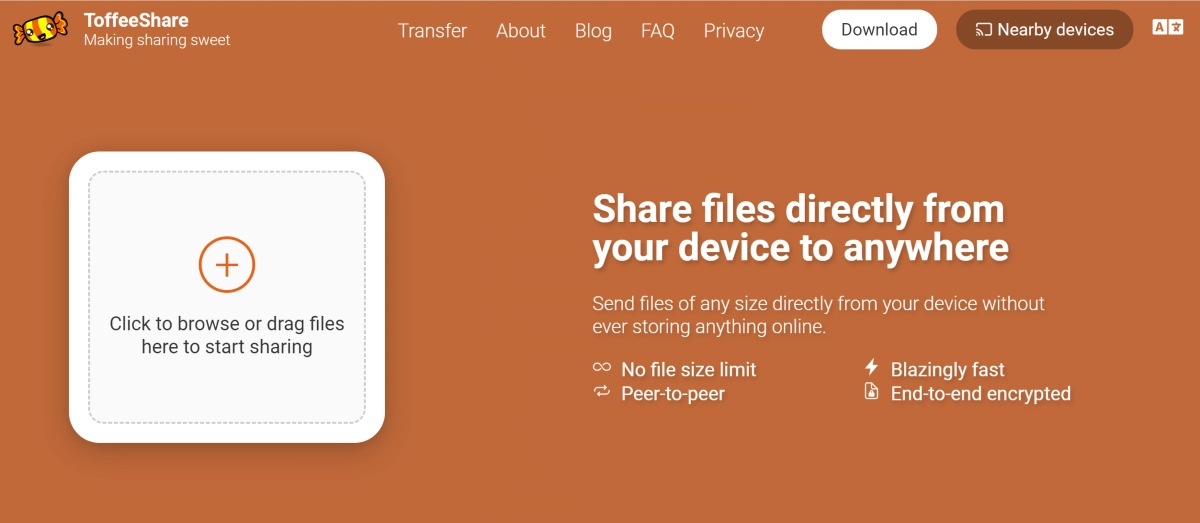
ToffeeShare is one of the websites for sending large files from your PC or Mac to another device. The process of transferring files using ToffeeShare is very simple. Open the official ToffeeShare website on your web browser, hit the plus icon, and upload the file. Once the file has been uploaded, ToffeeShare will generate a QR code and link for the download. Sharing this link with the recipient gives them access to the file. Files are shared straight from your device, which means the transfer process will be terminated as soon as you close the tab.
If you’re looking for a cloud solution, then Google Drive should be on top of your list. Every Google Account gets 15GB of free cloud storage. This is more than enough to store or transfer a large volume of pictures, videos, and other files. Google Drive is available for all major platforms, so compatibility should not be an issue. It may not be as fast as other websites on this list but it is reliable and gets the job done.
Ending this list is Send Anywhere, one of the simplest file-sharing tools for your PC and Mac. Once you upload a file on Send Anywhere, it generates a six-digit code which can be used to download the file on any device. All you need to do is open the Send Anywhere website in another browser and enter the code. If you’re using the website on your smartphone, make sure you enable its desktop version. You can send up to 10GB of files using Send Anywhere for free.
Read Also:Telegram business introduced, to offer customer support
Conclusion
These are the top 8 websites to transfer large files from your PC or Mac. All of these websites work fine for cross-platform sharing. While you can use them all for free, some may require a premium subscription for very large transfers. If you’re looking for an app that can carry out the transfers, check out Xender and Feem.
Vivo Y51A was launched in India earlier this year. Then the company only introduced it in a single 8GB RAM model, but today the new 6GB RAM with 128GB variant has been introduced in the country. Besides this, the specification remains the same. The phone includes a triple rear camera set up, a 5,000mAh battery and is powered by Snapdragon 662 SoC.
In This Article
Vivo Y51A 6GB RAM with 128GB storage price and availability
The price of the 6GB RAM with 128GB of Vivo Y51 has been set at Rs 16,990. The phone will be available in two colour options of Titanium Sapphire and Crystal Symphony. The new variant is now up for sale via Vivo India E-store in the country. The company is offering cashback to HDFC Bank cardholders. There will be exchange offers and no-cost EMI for up to 12 months as well.To recall, in January this year the phone was introduced at Rs 17,990 for the 8GB RAM with 128GB storage option.
Vivo Y51A tech specs
Vivo Y51A comes with a 6.58-inch full-HD+ LCD offering 1,080×2,408 pixels of resolution. The device runs Funtouch OS 11 on top of Android 11 and it is powered by Qualcomm Snapdragon 662 SoC paired with 8GB RAM with 128GB storage. The internal storage can be expanded up to 1TB using a microSD card.In terms of cameras, Vivo Y51A features a triple rear camera setup that includes a 48-megapixel primary sensor with an f/1.79 aperture. It is accompanied by an 8-megapixel ultra-wide-angle lens with an f/2.2 aperture and a 2-megapixel tertiary lens with f/2.4. The rear camera also offers Ultra-Stable video with Electronic Image Stabilization (EIS) technology along with Super Night Camera capabilities for both front and rear. Moreover, there are other modes like Ultra Stable video, Super Night mode and Macro mode. On the front, there is a 16-megapixel selfie camera with an f/2.0 aperture.In terms of connectivity, there is dual-band Wi-Fi, Bluetooth 5.0, USB Type-C, GPS among others. There is a side-mounted fingerprint sensor for phone unlocking and it also packs a5,000mAh battery with 18W Fast Charge support and Reverse Charging feature.
For the latest gadget and tech news, and gadget reviews, follow us on Twitter, Facebook and Instagram. For newest tech & gadget videos subscribe to our YouTube Channel. You can also stay up to date using the Gadget Bridge Android App.
Microsoft is upgrading the AI features in MS Word with predictive text. Many users of Word now can strain off their fingers while typing. The feature will automatically suggest words as you type, making typing work easier and less hectic. The users can now type faster and reduce the spelling and grammar mistakes to a minimum. Microsoft AI will make machine learning more efficient by enabling grayed-out prediction by tapping the accept key or reject key. The technology will function according to your writing style and give you the best prediction available. In case you do not need it, you can always turn it off.Microsoft for clarity stated the new Predictive text features are not snooping into any of the user’s text in an email or any other texting environment or taking control of their typing. Text prediction is a tool that makes suggestions of what you type. The text can only be read by other humans if you put it within the feedback.
Read more: 10 must-know Hidden Features of Microsoft WordTo use the function of “Text Prediction” you can press the “Tab” key on your keyboard to accept the prediction and use the “Esc” keys to reject the prediction. Microsoft Word will automatically insert the word suggestion into the sentences when you are writing and make the documents clearer. Google docs have Smart compose also, which works in the same manner.
Read also: Now use Google Lens to copy text to your laptop: These are the new features addedThe feature of predictive text is already available on the Office 365 insider program. If you want to test the feature and see how efficient and convenient it can be before you install it on your Microsoft word, you can enroll in the program. Windows also has a similar feature that you can enable by Settings>Device> Typing and turn on the “Show text suggestion as I type” For many users who type large documents in Microsoft Word, this new feature comes as a blessing as when typing huge documents it will make thinking easier. This function will benefit many University students and the researchers who have to write a lot. Moreover, with Microsoft Office 2021 also coming soon, the Predictive text has a lot to offer, as hopefully the new feature will be added in Microsoft 2021.In our view, the Microsoft Predictive text objective is to assist the Word user make his/her typing faster, which will help to save a lot of time and effort of typing more fruitful. Also, Microsoft commented, “Text prediction helps users write more efficiently by predicting text quickly and accurately. The features reduce spelling and grammar errors and learn over time to give the best recommendations based on your writing style.” Hence, enabling the Predictive text feature on your Microsoft Word will not only help in your writing, but will largely contribute to increasing productivity, efficiency, and accuracy.
For the latest gadget and tech news, and gadget reviews, follow us on Twitter, Facebook and Instagram. For newest tech & gadget videos subscribe to our YouTube Channel. You can also stay up to date using the Gadget Bridge Android App.
Elon Reeve Musk, a popular business tycoon, turned 50 today. The founder of CEO and the Chief Engineer at SpaceX is not the only business that he owns. He is the founder of several businesses, which made him one of the richest people in the world. That is not the only reason for his popularity, he is quite popular on social media and the internet for his unorthodox or unscientific stances and highly publicised controversies. Apart from owning SpaceX, he also owns Tesla Motors. So today on his birthday here is the list of the five most popular and expensive things Elon Musk owns.
In This Article
SpaceX
SpaceX is Elon Musk’s space transportation services and communications company. This aerospace manufacturer is aimed at reducing space transportation costs to enable the colonization of Mars. The company also manufactures heavy vehicles like Falcon 9, rocket engines, dragon, cargo, spacecraft and the very popular Starlink communication satellite. Also, the company’s Starlink constellation became the largest satellite constellation in the world last year. Space Exploration Technologies Corp. (SpaceX) is also developing a fully reusable, two-stage-two-orbit super heavy-lift launch vehicle, Starship. In 2020 SpaceX became the first private company to send astronauts to the International Space Station. In the past as well, SpaceX became the first to produce a privately funded fully liquid-fueled rocket Falcon 1 flight 4 to reach orbit. And recently this month it was the first to reuse a booster for a ‘national security’ mission.
Tesla
Tesla Inc., another company owned by Elon Musk, manufactures electric cars, battery energy storage from home to grid-scale, solar panels and solar roof tiles, as well as other related products and services. The company offers four car models: the Model S, Model 3, Model X and Model Y. The Model S is a five-door liftback sedan whereas the Model 3 is a four-door fastback sedan. On the other hand, Tesla Model X is a mid-size crossover SUV and Model Y is a compact crossover utility vehicle. Apart from this, the company also owns an all-electric Class 8 semi-trailer truck named Tesla Semi, which is available in two variants 300 miles (480 km) and one with 500 miles (800 km) of range. The company has discontinued the very popular original Tesla Roadster, a battery electric vehicle (BEV) sports car. However, its second-generation model was launched in 2017.
X.com now PayPal
X.com was an online bank co-founded in the year 1999 by Elon Musk, Harris Fricker, Christopher Payne, and Ed Ho. But later on, the company merged with a software company Confinity and changed its name to PayPal which spun off to become an independent company after it was bought by eBay in 2002. X.com was the world’s first online bank and in 2017 Musk repurchased the domain name X.com from PayPal citing “it has great sentimental value”.
OpenAI
Open AI is an artificial research laboratory owned by Elon Musk that is the arrival of DeepMind. The company’s mission is to ensure that artificial general intelligence benefits all of humanity and focuses on reinforcement learning.
The Boring Company
An American infrastructure and tunnel construction services company founded by Elon Musk – The Boring Company. The firm focuses on developing projects designed for intra-city transit systems and has completed two tunnels in Las Vegas for loop travel. Loop in an all-electric, zero-emissions, underground public transportation system in which passengers are transported directly to their final destination with no stops along the way.Initially, the company was a subsidiary of SpaceX and it became fully independent in 2018. The company also creates safe, fast to dig, low-cost transportation, utility and freight tunnels that are aimed at solving traffic, enabling rapid point to point transportation and transforming cities.
For the latest gadget and tech news, and gadget reviews, follow us on Twitter, Facebook and Instagram. For newest tech & gadget videos subscribe to our YouTube Channel. You can also stay up to date using the Gadget Bridge Android App.
Playing games for long hours on your smartphone will no longer be a problem as many cooling fans are available now. The phone cooling fans will not let your mobile overheat and let you play mobile games for long. Cooling fans help in extending the battery life span and make your gaming time on your smartphones less of a worry. Here is the list of 5 cooling fans for your smartphones. Remember, all these are available on Amazon USA site, so they might not deliver to all over India. In case you have someone coming from the USA, they can carry it with them.
The IVY mobile cooling fan is a powerful heat sink fan that will help in cooling the phone instantly while playing games. The radiator can be used for half an hour and it is a water-cooled radiator that cools down between 10~30 degree C. The cooler can be attached to a mobile whose width is 65-85mm and it can be used for both Android and iOS devices. The product is equipped with a 1.5m USB data cable. Price: Rs 1,800Buy on Amazon.com
4Trigger Mobile Game Controller With Cooling Fan: YOBWIN
The smartphone cooler comes with a gaming grip gamepad controller for mobile. It comes with six fingers operation support to enhance the game playing you can aim, shoot, move at the same time. The product is equipped with silent cooling fan technology and will help in extending the phone’s battery. The phone cooler also has a charging port on two sides for non-stop gaming. Price: Rs 1,300Buy at Amazon.com
Read more: Acer Predator Triton 300 and Predator Helios 300 with 10th Gen Intel Core H-series processors now available in India
Cyesor Cell Phone Cooler:
The cell phone cooling system for your gaming needs is compatible with all mobiles with 4.5 inches to 7-inch screens. The product is equipped with 3-second Ultra-fast refrigeration with ice porcelain refrigeration technology. Cyesor phone cooler has a 30db noise reduction design, which cuts off all noise by the powerful radiator. And for better user-friendly, all adapter USB ports are used when plugged in and turned on. Price: Rs 1,200Buy from Amazon.com
Read also: Top 5 laptop stands to keep your laptop cool
The best thing about the product is it comes with 2 semiconductor cooling chips for better performance. The SakuraClub phone cooler includes rapid cooling down technology by activating the dual fans cooling the phone down at 6,500rpm in 10 seconds. The phone cooler also features silent features for noise cancellation and it is lightweight. The cooler fits well on all types of mobiles that has a screen size of 4.7-inches to 7-inches. The company claims the product is 100 % quality tested.Price: Rs 2,000Buy the product from Amazon.com
Infinizy Gaming Grip with Portable Charger cooling Fan
The product is ideal for playing different games, which need mobile trigger joysticks with an L1R1 controller. The Infinizy gaming grip with portable cooling fan is compatible with mobile screens up to6.5-inches. The cooler for phones includes an adjustable bracket to accommodate your phone and can be used as a game controller. It also comes with two charging ports on two sides of the handle along with a 6 finger game shooter for better gaming experience. Price: Rs 2,000Buy from Amazon.in
For the latest gadget and tech news, and gadget reviews, follow us on Twitter, Facebook and Instagram. For newest tech & gadget videos subscribe to our YouTube Channel. You can also stay up to date using the Gadget Bridge Android App.
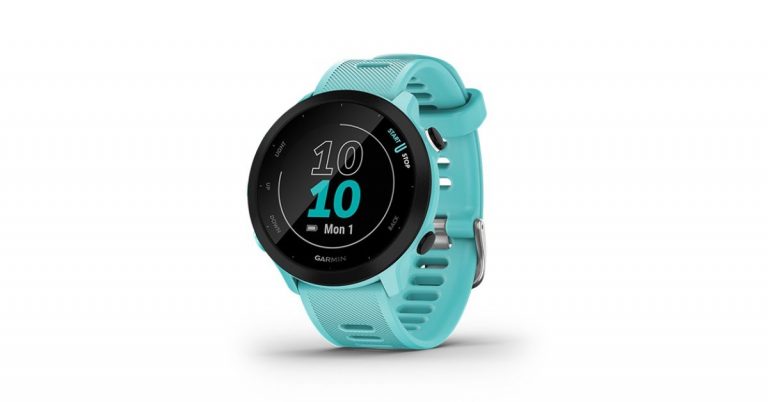
The American smartwatch manufacturer, Garmin, has expanded its portfolio with the launch of a new device in India. The company has introduced GPS enabled Garmin Forerunner 55, which is designed for higher skill levels. Prior to its launch in the country, the company launched this product in the US alongside the much expensive and dedicated premium GPS running and triathlon smartwatch Forerunner 945 LTE earlier this month.Garmin Forerunner 55 price and availabilityThe Garmin Forerunner 55 has been launched in India with a price tag of Rs 20,990. Notably, India pricing is on the higher side as compared to the US pricing. There it was launched at $199.99 that translates to Rs 14,837. Anyways the smartwatch will be offered in three colour options of Aqua, Black, and Monterra Grey. It will be available for purchase via Amazon, Flipkart, Tata CLiQ, Synergizer, and Garmin Brand Stores in the country.Garmin Forerunner 55 featuresGarmin Forerunner 55 comes with a 1.04-inch round display protected with chemically strengthened glass and a Silicon strap. This fitness watch comes with 5ATM certification for water and dust resistance. There is a button on the device which when pressed can track time, distance, speed, pace and heart rate data right before beginning a run or a walk. The Garmin Smartwatch can run up to 2 weeks in smartwatch mode and up to 20 hours in GPS mode. Besides this one can also control the music playing on your paired smartphone and upload your activities to the Garmin Connect app to connect, compete and share your triumphs via social media. You can also set alarms, timers, stopwatch, and sunrise/sunset times. The new smartwatch lets you switch your workout routine with activity profiles for track or virtual running, pool swimming, Pilates, HIIT and even breathwork. You can also track running, treadmill running, track running, indoor track running, virtual running, cycling, swimming, and more.Additionally, it allows the user to monitor their overall health and wellness with wrist-based heart rate, respiration rate, fitness age, stress monitoring, relaxation reminders, sleep monitoring, hydration, and women’s health. It also makes you aware of your calories burned, distance travelled, and more. The Find My watch functionality allows you to easily locate your smartphone. Besides GPS, the smartwatch includes GLONASS, Garmin Elevate wrist heart rate monitor, and accelerometer.
For the latest gadget and tech news, and gadget reviews, follow us on Twitter, Facebook and Instagram. For newest tech & gadget videos subscribe to our YouTube Channel. You can also stay up to date using the Gadget Bridge Android App.
Music can be listened to from many mediums. And listening to music on the radio has been one of the oldest ways. If you enjoy radio music there are great Android apps now that let you tune in to the radio and entertain yourself. Check out the list of best internet radio apps available now for Android smartphones. We are sure these will rock with each one of you.
In This Article
TuneIn Radio: News, Sports & Online Music Stations
This is an app known for being the most popular radio app. TuneIn not only offers radio stations it also gives you live news, sports updates, podcasts from across the globe.The app streams news channels such as CNN, MSNBC, and FOX news. The interesting feature is you can listen to the radio app from anywhere and it also has “Car mode” that sets the interface to be suitable for driving.Download on Play Store
iHeartRadio: Free Music, Radio & Podcast
iHeartRadio has its own stations apart from the FM radio that the app provides. The app has the largest music catalog that you can choose from. The best part is, you can choose music from all types of genres. You can download the app and use it with no charge or subscription. This Android radio app comes with Chromecast and Android Wear support for your convenience. Download from Play Store
Read more: Samsung Free app gets the new Podcast Player on flagship Galaxy Smartphones: How to use it?
myTuner Radio and Podcasts
The radio app is for those who love traditional radio station content. The app has the most user-friendly UI and lets you access podcasts, internet radio, and FM radio. The app contains more than 5,000 radio stations from many countries giving the users more options. The best feature is that the app supports Android auto, Sonos and streaming sticks.The app is on the Play Store. Download here.
Read also: Apple Podcasts Subscriptions and channels are now live across the globe
My Radio: Free Radio Station, AM FM Radio app Free
The next radio app on the list for Android smartphones is My Radio. The app gives you free access to FM radio, AM radio, and local stations from all around the world. The app has around 50,000+stations that you can tune in to for the relaxation you need. The app has interesting functions like a Radio tuner with a sleep timer so you do not have to worry about switching off the app. The app lets you listen to different types of live radios, news, comedy, talk shows, and more. This app has really great content for everyone.Download from the Play StoreCheck out the above list and do let us know in the comment which one of these is your favourite.
For the latest gadget and tech news, and gadget reviews, follow us on Twitter, Facebook and Instagram. For newest tech & gadget videos subscribe to our YouTube Channel. You can also stay up to date using the Gadget Bridge Android App.
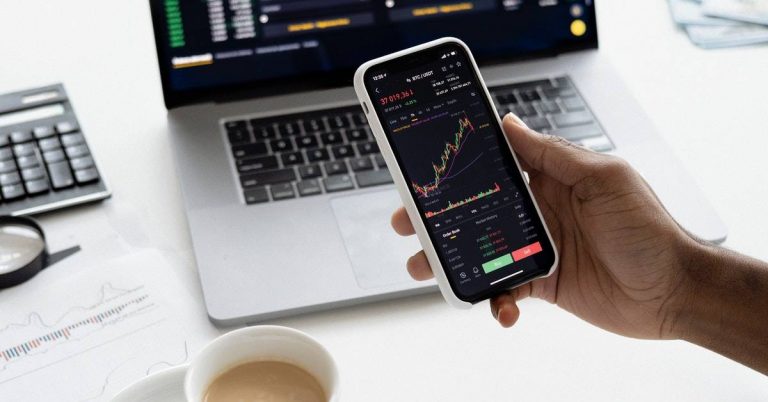
Investing seems very complicated to newcomers but it has been very simplified now. The Android apps for investment allow both new and old investors to invest in the stock market and also the financial market. The process of putting your money in the financial market is simple: you put the money with the aim of earning more money. Here is the list of top rated Android apps to make money investments. (Be careful, there is a risk involved in any money scheme, so read the offer documents carefully)
This app has its own unique features. Forex is designed for beginners who want to start trading and investing. When you open the account the app will give you training as well. The app will give you the required knowledge about Forex trade and also help you improve. After the training, you will be able to easily read the Forex stock charts and it will help you in picking the best asset you need to invest in. Download the app from Play Store
E*TRADE:
The next on the list is E*TRADE. An app, no matter your level of experience, with which you can simply start investing. The app is also commission free and is online listed for US-listed stock. Trading in mutual funds is also possible from E*TRADE. The app allows the option to deposit checks, pay bills, transfer money, and more. E*TRADE is fraud protected and you are not liable for unathorised use of your account.Download at Play Store
Webull:
The Android app Webull is specialised in giving you investment-related news, real-time market data, and analysis tools. All these features provided by the app help you in making smart investing decisions. The app has a customisable portfolio, smart financial tool, global investment news, and one can also practice with free paper trading. You can also enable custom widgets and alerts. Get the app on Playstore.(Be careful, there is a risk involved in any money scheme, so read the offer documents carefully)
For the latest gadget and tech news, and gadget reviews, follow us on Twitter, Facebook and Instagram. For newest tech & gadget videos subscribe to our YouTube Channel. You can also stay up to date using the Gadget Bridge Android App.
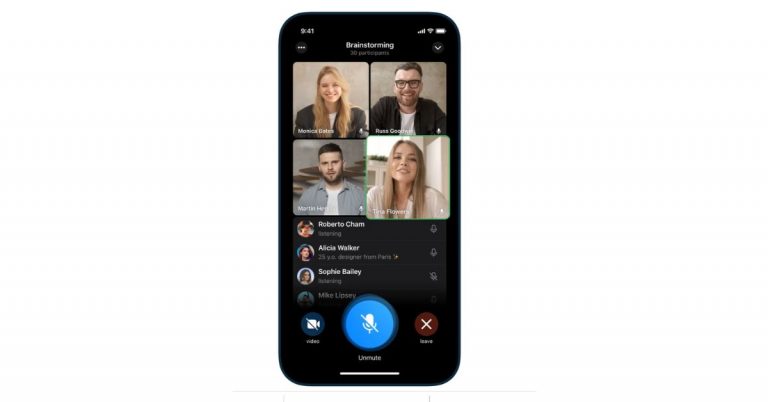
Due to the recent WhatsApp policy, a major shift has been seen from users migrating to Telegram. Before this Telegram did not provide a video calling feature on its platform but has always ensured user’s data protection. So to enhance the user experience the social media platform has finally rolled out group video calls along with more features through its latest update.The group video calling feature was initially announced a year back and now being rolled out across mobile devices, tablets, and desktops. The users can turn on their camera or share their screen during voice call in chats. With this addition, the instant messaging platform can now be utilised for online classes, business meetings and family gatherings. In addition to group video call, the social media channel has also introduced animated backgrounds and message sending animations, as well as a new menu button for bots, new ways to import stickers, reminders to help keep your account safe, and more.Group Video call was a much-demanded feature on Telegram which the company promised to bring exactly a year back. The biggest USP of the feature is that it lets you add up to 30 participants at once in a group video call whereas in WhatsApp only up to 8 people can join a video call. The company promised to expand this limit that will be helpful in streaming games, live events and more. The user can also tap on any video to make it fullscreen. If you pin a video, it will stay focused as new users join the call and turn on their cameras which is not possible during WhatsApp video calls.To start with check the ⋮ menu in the profile of any group where you are an admin (on iOS, you will find a ‘Voice Chat’ button right in the group profile).Like we said before Telegram will also allow screen sharing in addition to the camera feed. This functionality will let you share your screen and camera feed at the same time. To share your screen, tap ⋮ or ⋯ in any app and select it from the menu.Noise suppression has also been improved in voice chats to provide a better and clear audio experience. A toggle has been brought to turn noise suppression off in settings.Apart from mobile phones, as there is more screen space for Tablets and desktops Telegram will offer more display options. Tap to open the side panel and see a split-screen view of the video grid and list of participants, optimized for both portrait and landscape orientation.Voice chats on the desktop will open in a separate window, so you can type and talk without minimizing anything. Desktop apps also have selective screen sharing so you can broadcast an individual program instead of your whole screen. As per Telegram anyone who starts sharing their screen on the desktop app will be pinned automatically which will be helpful when small teams meet to coordinate their work.With the new update Telegram also added a new animated background in Settings. The Android users can go to the Chat Settings > Change Chat Background. For the iOS user’s open Appearance > Chat Background. Also to keep your phone numbers up to date Telegram will send you login info reminders e to ensure you can always log in to your account. If your phone number has changed, you can quickly update it right from the new reminder in Settings on iOS. Initially, this feature is being rolled out to iOS and will arrive in Android in the next update.
For the latest gadget and tech news, and gadget reviews, follow us on Twitter, Facebook and Instagram. For newest tech & gadget videos subscribe to our YouTube Channel. You can also stay up to date using the Gadget Bridge Android App.
The e-commerce website Flipkart is hosting Daily Trivia Quiz. Every day it brings a bunch of new questions for its users. By answering them correctly you can win exciting prizes. The questionnaire is based on questions related to general knowledge. Also, the users can win free vouchers and super coins, among other offers via the daily quiz. June 28 Flipkart Daily Trivia Quiz Answers has already gone live on its platform.
The participant should be at least 18 years old and should have a valid login ID. The Quiz is available on the mobile platform and not the web version. E-commerce conducts the quiz on daily basis and goes live at 12:00 AM IST and runs till 11:59 PM IST. The winners are announced within 15 days from the date of participation that can be viewed under the Gems/Rewards section in the app.
In This Article
How to participate in the Flipkart Daily Trivia Quiz
To participate download the Flipkart app on your phone. Then open the Flipkart app then head to Game Zone. Now click on the Daily Trivia Banner or search for Daily Trivia. Enter the game and answer all 5 questions with correct answers.
June 28 Flipkart Daily Trivia Quiz Answers
Question 1: How many pawns does each player have in Chess?
Answer: Eight
Question 2:For Which cricket Team did cricketers nicknamed Big Bird, Super Cat and Whispering Death Play?
Answer: West Indies
Question 3:Which Cricketer recently married south Indian Actress Ashrita Shetty ?
Answer: Manish Pandey
Question 4:Who Is the only Indian to score more than 300 runs in four consecutive Test Series?
Answer: Goutam Gambhir
Question 5: Which of these neighbouring countries of India has won an individual Olympic medal?
Answer: Pakistan
The e-commerce website Amazon continues to keep its customers entertained and in high spirits through their daily quizzes. June 28 Amazon Quiz has gone live now in its mobile app platform. The daily quiz contest conducted by the company brings an opportunity for the consumers to win exciting prizes. In today’s quiz, you can win the Rs 15,000 Amazon Pay Balance by answering all the questions correctly.
Every day Amazon brings a fresh set of questions for its customers that contains five easy questions based on general knowledge and current affairs. The quiz can be played on the Amazon app from 8 AM to 12 noon. You have to answer all the questions correctly; one wrong answer can make you eliminate from the quiz. By answering all the questions correctly, you will be shortlisted for a lucky draw. The results for the lucky draw will be announced at the end of the month. By participating in the quiz, you can win free products ranging from smartphones, other gadgets and Amazon Pay balance. Check out today’s quiz questions and answers to win June 28 Amazon Quiz: Today you can win Rs 15,000 Amazon Pay Balance.
June 28 Amazon Quiz Answers
Question 1: Due to the pandemic, which state recently suspended the yatra of Chota Char Dham, one of the most important Hindu Pilgrimages in India?
The answer is- Uttarakhand
Question 2: P-8 Poseidon, recently bought by Indian Navy, is an aircraft manufactured by which company?
The answer is- Boeing
Question 3: Thisara Perera, who recently announced his retirement from international cricket, played for which country?
The answer is- Sri Lanka
Question 4: What is the craft of making these objects called?
The answer is- Fletching
Question 5: Name this Italian town, where a great number of inhabitants were buried when Mount Vesuvius erupted in 79 AD.
The answer is- Pompeii
Amazon quiz has gone live now on its mobile app platform. The quiz can be played from 12 AM to 11:59 PM noon. All you need to do is just answer five easy questions that the e-commerce website puts before you. Today you can stand a chance to win Rs 10,000 Amazon Pay Balance.
Every day Amazon brings a new set of questions that consists of five easy questions based on general knowledge and current affairs. The participants have to answer them correctly to enter into a lucky draw. One wrong answer will get you eliminated from the quiz. Only one person will be declared as a winner and the results are announced at the end of every month. By submitting correct answers Amazon customers can win free gadgets as well as Amazon Pay Balance. To make sure you answer all the questions correctly Gadget Bridge everyday updates all the correct answers to all 5 questions. Check out today’s answers:
June 27 Amazon Quiz Answers
Question 1: Project CLAP is a cleanliness drive launched by which state government?
The answer is- Andhra Pradesh
Question 2: In May 2021, who won the Portuguese Grand Prix?
The answer is- Lewis Hamilton
Question 3: On the occasion of the centenary of which famous Indian’s birth is ‘Another Dozen Stories’ being translated into English?
The answer is- Satyajit Ray
Question 4: In which book of Shakespeare, is this herb mentioned as ‘for remembrance’?
The answer is- Hamlet
Question 5: What colour is the cue ball in this game?
The answer is- White
The storage of your Windows 10 laptop or PC will get full at a point. No matter the size of your hard drive if you save unnecessary data it will fill up the storage. Regularly clearing the disk can help free up storage occupied by temp files. When the storage is full on your computer it will slow the performance of your system. Enable Storage sense and delete files:Storage sense is a tool in Windows 10 that helps to clean up junk files and temporary files. The function will free up space on the drives and open up space to store other files. Using the Storage sense and timely deleting temp files will help in improving drive efficiency. Storage sense can be enabled manually or automatically. If the Storage sense has been enabled before Windows will set it automatically to delete temporary files and also the Recycle Bin. The below steps are to use Storage sense manually.
Tap the Window icon on the left bottom corner
Go to settings>System
And then select storage
Below the Storage click on the Configure Storage Sense or run it now
When the page opens up toggle the Storage sense
Use the Run storage drop-down menu and select During low free disk space
Read more: 5 best ways to fix if your external HDD not showing up on Windows 10Uninstall unnecessary apps: One of the reasons your Windows 10 storage is filled up is because of all the apps you have installed earlier and some are just stored with no use. Reviewing all the apps in computers and checking which is in use and which is taking space, can help in freeing up disk space in Windows 10. Check the steps below.
Open setting on Windows 10
And select Apps & features from settings menu
On the Sort by option: Put it to size
Find the app from the list which has big memory and are not in use
Click on the app>Uninstall
Read also: Running short of storage? Here are the best ways to free up storage space on your PCSave files to drive or cloud: Saving all your computer files in Cloud is a good way to free up all the space in Windows 10 hard disk. Some may use Microsoft one drive or Google drive but storing all your files in the cloud is highly advised. Cloud storage lets you select folders from your computers and upload them on Cloud server so that you can free space on the hard disk. The process of uploading your files differs a little according to Cloud service but it is common that the steps will be to Login>upload>Select files and upload. Disk cleanup: Another option to free up some space in the hard disk is to clean up the disk using the legacy Disk Cleanup tool. You can remove temporary files using this function and also clean Local disk (C:) junk files. Here are steps for Disk clean up
On the search bar next to the Windows icon search for Disk clean up and open it
From the function that opens choose (C:) drive and click Ok
From the same page, use Clean up system files for temp
For the above process, you can also use command with Win+R
Steam is a digital games distribution service where you can search and download PC Games from the Steam client. Though the downloads on Steam run smoothly most of the time there might be a few bumps at times. But this is not a problem that cannot be fixed or resolved. The following is the guide to fix Stream if it is not able to download games on your PC.Read Also:7 Best Websites for Safe APK Downloads (2024)
In This Article
Restart your PC
The first step towards fixing any problem on your PC should be restarting it. A quick restart will fix any background glitch that may be causing Steam issues with downloading new games. To restart your PC, hit the Windows start icon on the taskbar, click the power button, and select ‘Restart’.
Delete the Steam download cache
The problem with not being able to download games on Steam might be because of the heavily downloaded cache in the app. This is a process that can be done easily on the Steam app. And the first solution to the games downloading issues. Below is the guide on how to delete the downloaded cache on the Steam app.
Open the Steam app on your computer
On the homepage go to the top right corner and click Steam
From the drop-down window select settings
On the Settings page from the left-side panel click on Downloads
On the right-side window scroll down to find the Clear Download cache
And click on it and press ok
Change the region
The next solution is to change the download region of your Steam client. The problem might be because of the download server of a region you have selected and the server is not able to connect properly. Steam has servers all over the world and chooses one based on your IP address. So choosing a better region server is important for optimal speeds. Check the steps below to change the region.
Go to the settings on the Steam app
From the left side panel click on downloads
And from the open-up window on the right: On download region
Another option that is available to fix downloading games issues on stream is to let Steam run as administrator. It might have occurred as a privilege issue and that might be the reason why the game is not able to be downloaded. Run the stream as administrator on your computer and it will solve the problem. Learn the steps below.
Go to the Windows homepage and right-click on the Steam shortcut
Scroll down to properties and find Compatibility from the options
From the Compatibility page scroll down and click on Run this program as an administrator with the tick
Now press OK and run Steam, it should fix the issue
It is possible you may have gone offline on Steam by accident. To check if that is the case, hit the Steam option at the top left corner of the screen and notice if it shows the ‘Go Offline’ option. This option is only available when you are offline. If that is not the case, hit the ‘Go Online’ button
Check Compatibility mode
There might be many other reasons for not being able to download the game but checking the compatibility mode is a must. This will help in identifying the older games that you are trying to download and it is no longer compatible. Read the steps below to check the compatibility.
Open the app
Go to the library and right-click on the game you are trying to download
Select Properties
Search Local files on the side panel>Browse
Find the file with exe/executable on it
And click Properties again
From the open up page: Tick on Run this program in compatibility mode
And choose your Window
Check if Steam’s servers are down
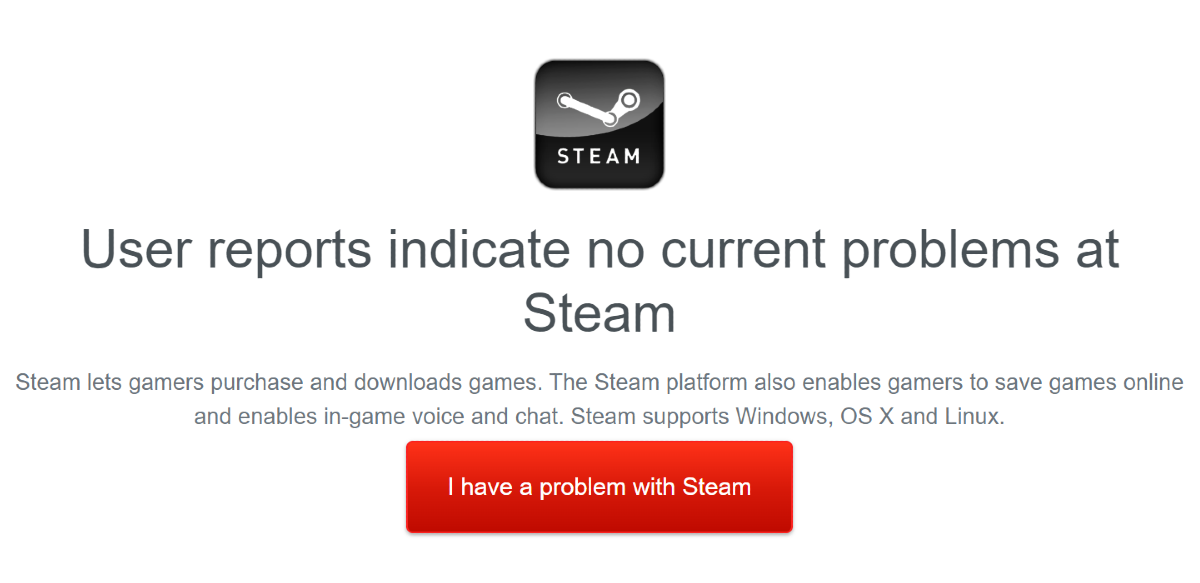
If trying the above fixes did not work for you, maybe it’s Steam’s servers that are at fault. The good news is that it is very easy to check that. Go to Downdetector.in and search for Steam. If you see a spike in user reports, it means that Steam is currently experiencing a server outage. The only thing you can do now is wait it out.
Frequently Asked Questions (FAQs)
Why is Steam not downloading games on my PC?
If Steam is not downloading games on your PC, it could be because corrupt cache, compatibility issues, or simply because you accidentally went offline.
How do I check if Steam’s servers are down?
Go to Downdetector.in and search for Steam. If you see a spike in user reports, it means the website is experiencing a server outage.
How do I run Steam as an administrator app on my PC?
Right-click on Steam’s shortcut in the Start menu, go to Properties, select Compatibilty, and tick the checkbox next to ‘Run this program as an administrator’.
Read Also:7 Things to Consider When Buying a Keyboard
Conclusion
These are the top 7 ways to fix Steam if it is not able to download new games on your PC. If you know of any other method to resolve this issue, let us know in the comments. While you’re here, check out this article to learn how to fix Steam’s voice chat if it is not working.
Having to download at high speed from the internet is one thing everyone wants and needs. The first thing that is needed for a faster download is better internet bandwidth of course, but there are other ways as well for faster internet. The following is the guide to increase the download speed in your Google Chrome browser. Read Also:Samsung Galaxy M55 5G, Galaxy M15 5G India launch date confirmed
In This Article
Close unused tabs
If you have several tabs open in the background of the Google Chrome browser, it can significantly bring down the download speed. The unused tabs eat RAM space, thereby making the browser slower. If you’re playing multimedia content in one of the tabs, close it to give the download speed a little boost.
Using Google DNS
DNS means Domain Name System, which turns the website’s readable domain name into a machine number readable IP address. And this might not be the optimal solution but using DNS for download might help in increasing the download speed. Using a third-party DNS address will help you get a better download speed. To make the DNS settings in your web browser follow the steps below.
Using the search box on the left bottom corner open the Control panel
Select Network and Internet>Network and Sharing center>Change adapter settings
Right-click for Properties> Internet Protocol Version 4 (TCP/IPv4)>Properties
Select Advanced>DNS tab
Click on ‘Use the following DNS server address’
Replace the website address with the IP address from the DNS server
Prefetch is the network action prediction and it is used to open the web page faster. If you use the prefetch settings you can increase the download speed in the Google Chrome browser. When the prefetch settings are on the web pages on Chrome browser can load faster and better and can help with your download. Follow the steps below for the settings.
Open Chrome browser and go to settings for the top right corner menu
Select settings from the drop-down page
Go to Privacy and Security
Now select Cookies and other site data
Turn on the “Preload pages” and experience faster browsing and downloading
Another option to increase download speed on your web browser is by enabling “Parallel download”. The parallel download flag settings can be enabled by following the steps below.
On your Google browser open a new window and in the address bar on the top type “chrome://flags”
The Experiment window page will open up and on the search box you can type “parallel downloading
From the drop-down options use the pointer and select enabled
Now relaunch as soon as it appears
Relaunch the Chrome browser
Turn off VPN
VPN servers are quite handy if you’re trying to maintain your anonymity, but they can hamper the download speed by a significant factor. This is particularly true if you’re using a free VPN. Paid VPN services are generally faster and do not affect the download speeds on your device. If you’re using a free VPN app, disable it while the download is taking place on your device.
Use ‘Turbo Download Manager’ extension
The Turbo Download Manager extension can be easily installed from the Chrome extension. The extension functions are to stop, pause, or resume multiple downloads in the Chrome browser. Adding turbo download can solve the download speed problem in Google Chrome and increase the speed, too. The extension can also extract audio from video, and help save images from websites. Below are the steps to add the Turbo Download Manager on the Chrome browser.
Go to More tools>extension from the drop-down page
Find the three horizontal line on the left top corner
Open Chrome Web store>Search Turbo Download Manager on the search box
Add to Chrome
Update Google Chrome
If you’re using an older version of Chrome, not only is your device more susceptible to online threats like malware and phishing scams, but it also dials down the speed of downloads. Keep your browser updated at all times to avoid this. Once Google Chrome has a pending update, the ellipses at the top right corner of the browser will turn into a red arrow. Hit the arrow to update the browser.
Frequently Asked Questions (FAQs)
How do I increase the download speed in Google Chrome?
Make sure there are no unused tabs open in the background, disable your VPN, use Google DNS, and enable parallel downloading in Chome’s experimental features.
Is there a third-party extension to boost the download speed in Google Chrome?
The Turbo Download Manager extension for Chrome increases the speed of your downloads. It also allows you to extract audio from videos and save images from any website.
How do I update Google Chrome on my PC?
To update Google Chrome, simply hit the red arrow at the top right corner of the screen and select the update option. If there is no red arrow icon, it means your browser is up to date.
Read Also:OnePlus new AI Eraser image editing feature announced
Conclusion
These are the top 7 methods you can use to increase the download speed in Google Chrome. If you are using Chrome on your smartphone, make sure you allow it unrestricted access using battery settings. If you know any other way to boost the download speeds on your PC, let us know in the comments!
There is no YouTube app yet for desktop but YouTube can be streamed from the website using Chrome or any other browser. Google is responsible for streaming YouTube and connecting Google Chrome to YT. At times it may not be able to load YT on Chrome browser or YouTube may not be working on your desktop. So, here are the top 7 ways to fix the ‘YouTube not working’ issue on Google Chrome for desktop.Read Also:Google’s AI-Powered Trip Planning: A Game-Changer for Travelers
In This Article
Close all other functions and restart Google Chrome
The first solution on the list is simple and it works to fix many other issues as well. If you had opened too many pages and tabs on the Chrome browser this might be the first reason for YouTube not working on your desktop. How you can fix such an issue is simple. You need to close all tabs and pages from the browser and clear all browsing site data. You can clear all the site data by using Ctrl+H or by clicking on the vertical three-dot on the top corner. Next, select Settings>Privacy and Security>Clear browsing data and after completing the process restart the Google Chrome browser.
Turn on the Javascript
The next option to fix the problem of YouTube not working on Google Chrome desktop is by enabling Javascript. Turning on the Javascript will help in video playback and the video on YT will run smoothly. Follow the steps to enable Javascript.
Open the Chrome settings by using the vertical three-dot icon on the right top corner
Visit Privacy and Security and on the search bar at the top of the window you search for Javascript or
Manually you can toggle the settings: Go to site settings>Content section
The adblocker in your Chrome browser extension might be one of the reasons that is creating issues while loading YouTube. The extension which has been enabled on Chrome might block the YT playback. You have two to fix from the extension: You can pause the extension or you can remove the extension added to your Chrome. Check the steps below.
Click the three-dot icon menu on the top corner
Go to More tools
From the drop-down page select extensions
And the from the page that open toggle off the extension
Or you can remove the extension from the Chrome browser
VyprVPNAnother best solution for fixing YouTube not being able to load on Google Chrome desktop is opening YT using a VPN. The Virtual private network will help you stream your YouTube if you encounter a problem playing it on Chrome. You can either download a VPN app or you can add an extension to your Google Chrome browser. The following step is on how to add a VPN extension.
Use the menu icon on the top right corner: three-dot icon
Go to more tools>Extensions
Click the horizontal line icon on the top left corner
Scroll down on the left side portal and select Open Chrome Web store
Using the Search bar on the left window search for a VPN
And click Add to chrome
Clear Google Chrome’s cookies and cache
Launch Google Chrome on your PC and click on the ellipses (three dots) at the top right corner of the screen.
Click on Settings.
Switch to the Privacy and Security tab.
Click on Clear Browsing Data.
Select Clear Data.
Reset flags on Google Chrome
Launch a new tab in Chrome and enter chrome://flags/ in the address bar.
Hit Reset All.
Update Google Chrome
If you’re using an older version of Google Chrome on your desktop, it may be causing issues while loading websites — including YouTube. To update Chrome, simply hit the red arrow where the ellipses should be (top right corner of the screen). Once the web browser has been updated, close all the tabs and relaunch it.
Frequently Asked Questions (FAQs)
Why is YouTube not working on Google Chrome?
This could be due to several different reasons. Typically, a corrupt cache, faulty connection, and malicious extensions are the major culprits behind this issue.
How do I update the Google Chrome browser on my desktop?
Launch Google Chrome and hit the red arrow button at the top right corner of the screen to update it. Once updated, restart the browser.
How do I clear the cookies and cache on Google Chrome?
These are the top 7 ways to fix the ‘YouTube not working issue’ on Google Chrome for desktops. If these fixes did not work for you, head over to Downdetector.in and check if YouTube’s servers are down. If you have any other methods to share with us, let us know in the comments!
Google Chrome has been the most preferred internet browser by many netizens. But the Web browser can sometimes run into problems such as not being able to load pages. This kind of error can be fixed with some simple steps. Several users have reported the same problem of not being able to load the pages on the Chrome browser. Follow the below steps to fix the error.
In This Article
Restart the process:
The first thing you can do if pages are not able to load on Google Chrome in your Windows 10 computers is to restart the system. This process is the easiest and simplest way. You can complete this process by restarting your Chrome by quitting Chrome and reopening it, to use command press control + Q. Another option is by closing all tabs that are open on the browser and also all the extensions that are added on Chrome. And if these two options do not work you should restart your computer and it might work.
Read more: Top ways to fix images not getting downloaded from Google Chrome browser?
Clear cache and cookies:
Cache and cookies are temporary data like HTML files, Java scripts, CSS stylesheets, etc. Clear the cache from all sites or single websites. The cache and cookies that are stored in the Chrome browser might prevent other functions if the cache is loaded. Open Chrome clicks the three-dot icon on the top right corner and select settings. Now click on Privacy and security and clear browsing data. You use the command Ctrl, Shift, and Del keys also for shortcuts.
Read also: How to change default location of files you download from Chrome browser?
Check Troubleshoot Crash problems:
Checking for malware, fixing network issues, and fixing apps can be another function if Google Chrome is not able to load pages. First, troubleshoot, you should be checking for malware or if any viruses have been contracted from the page or websites. If the problem is found to be on the website, you should try restarting your network or restarting your internet router. And to fix problems with apps go to Settings>Advanced, go to “Reset and Clean up”, and click Update or remove incompatible applications. After this try reloading the page again.
Set Google Chrome to default in settings:
Another possible option to fix the sites that do not load in Google Chrome is by setting Google Chrome to default. Follow the steps to put it to default.
Open the Chrome browser
And click the three-dot icon on the top right corner
Go to settings
And scroll down to Advanced at the bottom of the page
Under Reset and Clean up: Select Restore settings to their original default
Press the blue colour Reset settings
Now relaunch Google Chrome and see if the page can open up
The e-commerce website Flipkart is hosting Daily Trivia Quiz. Every day it brings a bunch of new questions for its users. By answering them correctly you can win exciting prizes. The questionnaire is based on questions related to general knowledge. Also, the users can win free vouchers and super coins, among other offers via the daily quiz. June 26 Flipkart Daily Trivia Quiz Answers has already gone live on its platform.
The participant should be at least 18 years old and should have a valid login ID. The Quiz is available on the mobile platform and not the web version. E-commerce conducts the quiz on daily basis and goes live at 12:00 AM IST and runs till 11:59 PM IST. The winners are announced within 15 days from the date of participation that can be viewed under the Gems/Rewards section in the app.
In This Article
How to participate in the Flipkart Daily Trivia Quiz
To participate download the Flipkart app on your phone. Then open the Flipkart app then head to Game Zone. Now click on the Daily Trivia Banner or search for Daily Trivia. Enter the game and answer all 5 questions with correct answers.
June 26 Flipkart Daily Trivia Quiz Answers
Question 1: What replaced Internet Explorer as the default browser of Windows 10 PC?
Answer: Microsoft Edge
Question 2: Who gave these ways of diplomacy – “Saam Daam Dand Bhed”?
Answer: Chanakya
Question 3: Which legendary cricketer acted in the Marathi movie ‘Savli Premachi’?
Answer: Sunil Gavaskar
Question 4: The name of which of these Saudi Arabian cities literally means ‘town’?
Answer: Medina
Question 5: Pranab Mukherjee was the 1st Indian President to visit _‘s official home in Finland.
Answer: Santa Claus



 An Apple developer program will cost you 100 dollars annually and you can join the developer program. There are also some requirements you need to meet, such as turn-on two-factor sign in and you also have to provide your full legal name and address. After you have your developer ID you can download the beta version. The following steps are on how to install the beta version.
 Software is tagged as beta when it is at a stage of development but not yet complete. The basic features are in place but not fully developed. The public betas do lag behind the developer version and it is rolled out significantly late. The public beta is to be available in July 2021. Here are the steps to install a public beta version.










 ToffeeShare is one of the websites for sending large files from your PC or Mac to another device. The process of transferring files using ToffeeShare is very simple. Open the official ToffeeShare website on your web browser, hit the plus icon, and upload the file. Once the file has been uploaded, ToffeeShare will generate a QR code and link for the download. Sharing this link with the recipient gives them access to the file. Files are shared straight from your device, which means the transfer process will be terminated as soon as you close the tab.
 If you’re looking for a cloud solution, then Google Drive should be on top of your list. Every Google Account gets 15GB of free cloud storage. This is more than enough to store or transfer a large volume of pictures, videos, and other files. Google Drive is available for all major platforms, so compatibility should not be an issue. It may not be as fast as other websites on this list but it is reliable and gets the job done.
 Ending this list is Send Anywhere, one of the simplest file-sharing tools for your PC and Mac. Once you upload a file on Send Anywhere, it generates a six-digit code which can be used to download the file on any device. All you need to do is open the Send Anywhere website in another browser and enter the code. If you’re using the website on your smartphone, make sure you enable its desktop version. You can send up to 10GB of files using Send Anywhere for free.
Read Also:
Ending this list is Send Anywhere, one of the simplest file-sharing tools for your PC and Mac. Once you upload a file on Send Anywhere, it generates a six-digit code which can be used to download the file on any device. All you need to do is open the Send Anywhere website in another browser and enter the code. If you’re using the website on your smartphone, make sure you enable its desktop version. You can send up to 10GB of files using Send Anywhere for free.
Read Also: 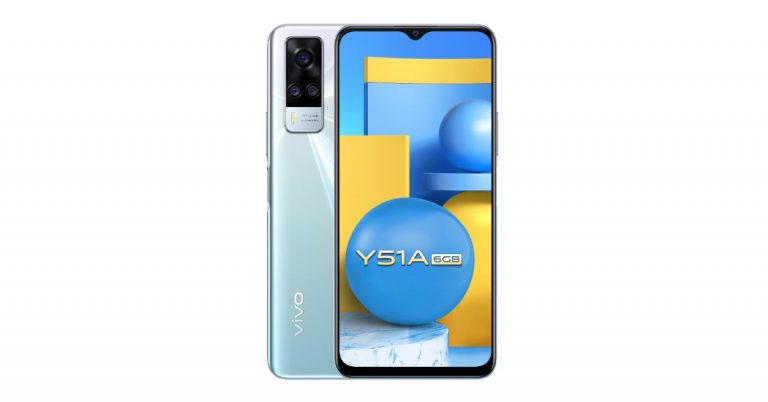






 Garmin Forerunner 55 features














 If trying the above fixes did not work for you, maybe it’s Steam’s servers that are at fault. The good news is that it is very easy to check that. Go to
 If you have several tabs open in the background of the Google Chrome browser, it can significantly bring down the download speed. The unused tabs eat RAM space, thereby making the browser slower. If you’re playing multimedia content in one of the tabs, close it to give the download speed a little boost.

 VPN servers are quite handy if you’re trying to maintain your anonymity, but they can hamper the download speed by a significant factor. This is particularly true if you’re using a free VPN. Paid VPN services are generally faster and do not affect the download speeds on your device. If you’re using a free VPN app, disable it while the download is taking place on your device.

 If you’re using an older version of Chrome, not only is your device more susceptible to online threats like malware and phishing scams, but it also dials down the speed of downloads. Keep your browser updated at all times to avoid this. Once Google Chrome has a pending update, the ellipses at the top right corner of the browser will turn into a red arrow. Hit the arrow to update the browser.