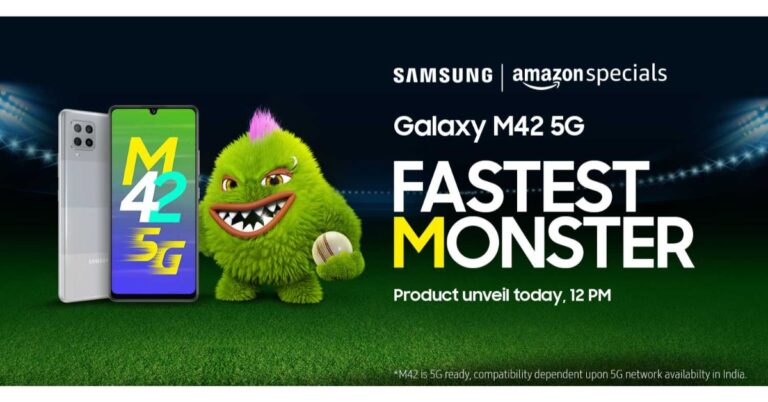
Samsung is all set to launch its next 5G smartphone in India today. The company is going to introduce the long-rumoured Samsung Galaxy M42 5G in the country. It should be noted that this smartphone is going to be the first 5G smartphone to make its entry into the popular Galaxy M range. It will be featuring a waterdrop-style notch display and a quad-camera setup in a square-shaped module. The Samsung Galaxy M42 5G shall be unveiled through the Amazon India website at noon today. Ahead of the official announcement, the device has also been listed on Amazon and a dedicated landing page has been created to tease its availability. The company has not yet disclosed the pricing of its 5G phone but leaks suggest that it will be retailing in India at Rs 20,000 and Rs 25,000 price segments. After getting launched the smartphone will be available for purchase via Amazon India, Samsung online store and partner retail outlets.Coming to the specifications, a recent report suggests that Samsung Galaxy M42 5G will be a rebranded variant of Galaxy A42 5G. The device code “a42xq” spotted via Google Play Console listings claims that they both have the same codes. Most importantly the specifications of both the handsets are also the same. On the other hand, Wi-Fi Alliance and Bluetooth SIG listing had also confirmed that Galaxy M42 5G, is a rebranded Samsung Galaxy A42 5G model. If the report is to be believed then the specifications of the smartphone will be similar to Galaxy A42 5G, however, there might be some slight differences. As per the listing the Samsung Galaxy M42 5G will be powered by Qualcomm SM7225 chipset, which is the Snapdragon 750G processor paired with 6GB of RAM. Moreover, the device will be featuring an HD+ display with 720×1,339 pixels of resolution and will ship Android 11 out of the box.In terms of rear optics, the upcoming smartphone will include a quad rear camera set up that will include a 64 or 48-megapixel primary sensor. Moreover, it will pack a 6,000mAh battery. Alongside, the phone will also include Samsung Knox security as well as Samsung Pay. Noticeably the tech firm is promoting Galaxy M42 5G as “Fastest Monster”.
For the latest gadget and tech news, and gadget reviews, follow us on Twitter, Facebook and Instagram. For newest tech & gadget videos subscribe to our YouTube Channel. You can also stay up to date using the Gadget Bridge Android App.
The e-commerce website Flipkart is hosting Daily Trivia Quiz. Every day it brings a bunch of new questions for its users. By answering them correctly you can win exciting prizes. The questionnaire is based on questions related to general knowledge. Also, the users can win free vouchers and super coins, among other offers via the daily quiz. April 28 Flipkart Daily Trivia Quiz Answers has already gone live on its platform.
The participant should be at least 18 years old and should have a valid login ID. The Quiz is available on the mobile platform and not the web version. E-commerce conducts the quiz on daily basis and goes live at 12:00 AM IST and runs till 11:59 PM IST. The winners are announced within 15 days from the date of participation that can be viewed under the Gems/Rewards section in the app.
In This Article
How to participate in the Flipkart Daily Trivia Quiz
To participate download the Flipkart app on your phone. Then open the Flipkart app then head to Game Zone. Now click on the Daily Trivia Banner or search for Daily Trivia. Enter the game and answer all 5 questions with correct answers.
April 28 Flipkart Daily Trivia Quiz Answers
Question 1: In which of these continents was the 2009 IPL season organised?
Answer: Africa
Question 2: Identify this former cricketer who is currently the director of the IPL team Sunrisers Hyderabad?
Answer: Tom Moody
Question 3:Glenn Maxwell has not played for which of these IPL teams?
Answer: Chennai Super Kings
Question 4: The first-ever Purple Cap winner in the IPL was from which country?
Answer: Pakistan
Question 5: Who was the second batsman to score a century in IPL 2021?
Answer: Devdutt Padikkal
The e-commerce platform Amazon is back with another new session of the quiz on its platform. It brings Amazon Quiz sessions for its customers on a daily basis. Customers can stand a chance to win bumper prizes just by playing at home from 12 AM to 11:59 PM. Every day Amazon asks 5 questions that the customers have to answer correctly. This session is only available for app user in India.
In today’s Amazon Quiz the winners will get a chance to win Rs 15,000 Amazon Pay Balance. Check out April 28 Amazon Quiz answers:
Question 1: Kraigg Brathwaite, the new Test captain of West Indies was born in which Caribbean island?
The answer is- Barbados
Question 2: On April 6th, the UN observes International Day of ____ for Development and Peace. Fill in the blanks
The answer is- Sport
Question 3: Eshan Naqvi, plays the role of which badminton player in the movie ‘Saina’, starring Parineeti Chopra?
The answer is- Parupalli Kashyap
Question 4: This breed of dog originated in which of these places and was brought to England by fishermen in about 1800?
The answer is- Newfoundland
Question 5: This animal is seen on the logo of which of these organisations?
The answer is- WWF
The Premium smartwatch maker, Garmin, has today announced the launch of the all-new smartwatch in India. The Garmin Approach S12 smartwatch is another GPS enabled device that is said to be helpful to golfers in improving their game and providing accurate data for each swing. In addition to this, the smartwatch is backed with a dedicated app. The golf GPS watch by Garmin does not feature a coloured display however it is relatively cheaper than the other wearable that the company offers. Garmin Approach S12 smartwatch has been specially designed keeping in mind the increasing love for Golf in India. This smart wearable will help golf players to improve their performance and game with accurate data. The Garmin Approach S12 smartwatch has been launched in the country with a price tag of Rs 20,990. The device will be available for purchase via Amazon.in, synergizer.co.in, Flipkart, Tata Cliq as well as through the offline market across the country. It will be available in two colour option of White and Black.Launching the new smartwatch for Golf lovers in India, Mr Ali Rizvi, Director of Garmin India said, “Golfing is a very niche sport and requires a great course and steady techniques to win each hole. As Golf enthusiasts are increasing in India, the players need a perfect device that can enhance their performance and game with accurate data. The new Approach S12 is engineered with all the essential elements which are required by the players during their game. The smartwatch will equip the customers with precision and form with every swing and also add a touch of style to their personality.”Speaking of the features, the Garmin Approach S12 smartwatch is a dedicated device for golfers which uses GPS for better accuracy, provides yardages and can help you keep score — all from your wrist. The smart wearable comes loaded with more than 42,000 golf courses around the world. It has a 0.9 inches sunlight-visible, transflective memory-in-pixel display. The watch is 5ATM rated for water and dust resistanceThe Autoshot feature on the watch measures shot distances and auto-records detected shots for post-round analysis on the dedicated Garmin Golf app. It is a free to download app and is compatible with iPhone and Android devices so that you can compete, compare and connect with fellow golfers. The Green View displays the shape and layout of the green and allows you to manually drag and drop the pin to today’s position for even more precise targeting. Furthermore, the CourseView Auto Updater automatically updates frequently played courses for free when connected to a wireless network. When the Garmin Approach S12 smartwatch is synced with the Garmin Connect it lets you log workouts, track data and share your triumphs through social media. In addition to this, the golfers can play up to 30 hours per charge all that in GPS mode. On the normal watch mode, it is said to last for up to 10 weeks.
For the latest gadget and tech news, and gadget reviews, follow us on Twitter, Facebook and Instagram. For newest tech & gadget videos subscribe to our YouTube Channel. You can also stay up to date using the Gadget Bridge Android App.
The PlayStation 5 DualSense controller is the most advanced game controller designed by Sony to date. It offers several features to enhance the gaming experience and performance. The controller features a haptic feedback mechanism, built-in microphone setup, and adaptive triggers.
Earlier, the PlayStation 5 DualSense controller could only get wirelessly connected with Android devices. However, with the release of the new iOS 14.5 update, Apple devices can now get connected with the PlayStation 5 DualSense and the Xbox Series X controllers.
In This Article
How can you connect the PlayStation 5 DualSense controller to an Android device?
To connect the PlayStation 5 DualSense controller to an Android device, follow these steps.
Open the Notification panel of your Android device by swiping down the screen.
Tap the Bluetooth icon to turn it on.
Go to the Bluetooth settings by tapping and holding the icon. This step may vary across different devices.
On your PlayStation 5 DualSense controller, press and hold the logo button and the Share button until the LEDs blinks.
You will find the PlayStation 5 DualSense controller appear in the Available devices section of the Bluetooth settings.
Tap the DuаlSense 5 Wireless Controller in the Available devices list.
Tap Pair to connect establish the connection between the PlayStation 5 DualSense controller and the Android device.
How can you connect the PlayStation 5 DualSense controller to an Android or an iOS device?
How can you connect the PlayStation 5 DualSense controller to an iOS device?
You must note that to connect the PlayStation 5 DualSense controller, your device must have the iOS 14.5 version. If your device is running a previous version update the operating system by going to Settings > General > Software Update.
To connect the PlayStation 5 DualSense controller to an Android device, follow these steps.
Turn on the Bluetooth by going to Settings > Bluetooth.
On your PlayStation 5 DualSense controller, press and hold the logo button and the Share button until the LEDs blinks.
You will find the PlayStation 5 DualSense controller appear in the Available devices section of the Bluetooth settings.
Tap the DuаlSense 5 Wireless Controller in the Available devices list to connect it.
The second wave of the COVID-19 pandemic has imposed its worst impact in India. With around 3.5 lakh new COVID-19 patients each day, the country is indeed going through a catastrophic situation. Being one of the largest and most populous nations, its reverberation can be felt throughout the world.
How is the world coming together to help India fight the COVID-19 pandemic?
India follows and has always preached the lesson of “Vasudhaiva Kutumbakam” i.e. the world is one family. The country has selflessly helped every nation amid the COVID-19 pandemic in all possible ways. India did not think twice to provide vaccines or medical supplies to even the biggest nations of the world. Now, in its difficult time, other countries are showing their compassion and extending their helping hands to help India win this fight against the COVID-19 pandemic.
How are big tech companies helping India win the war against the COVID-19 pandemic?
India has produced some of the most influential leaders in the world. This is evident from the fact that some of the leading multinational companies have Indian CEOs including Sundar Pichai (CEO of Google LLC & Alphabet Inc.), Satya Nadella (CEO of Microsoft), Shantanu Narayen (CEO, Adobe Inc.), Arvind Krishna (CEO of IBM Group).
Almost all big companies of the world have their headquarters in India. The country is not merely a marketplace for them. With lakhs of employees and millions of customers, India is like a home to them. Thus, CEOs of around 40 top American companies including Apple Inc., Google, and Microsoft did not think twice to help India recuperate from this apocalyptic situation.
In This Article
How is Microsoft helping India fight the COVID-19 pandemic?
Microsoft CEO Satya Nadella announced that the company will help India improve its medical infrastructure through its “voice, resources, and technology”. Moreover, Microsoft will help the Indian government and hospitals buy critical oxygen concentration devices.
According to Satya Nadella, chief executive officer (CEO) of Microsoft, “I am heartbroken by the current situation in India. I’m grateful the US government is mobilizing to help. Microsoft will continue to use its voice, resources, and technology to aid relief efforts, and support the purchase of critical oxygen concentration devices”.
How is Microsoft helping India fight the COVID-19 pandemic?
How is Apple Inc. helping India fight the COVID-19 pandemic?
Apple CEO Tim Cook announced that the company will provide donations and assistance in relief efforts to contain the COVID-19 cases on the ground.
According to Tim Cook, chief executive officer of Apple Inc., “Amid a devastating rise of COVID cases in India, our thoughts are with the medical workers, our Apple family and everyone there who is fighting through this awful stage of the pandemic. Apple will be donating to support and relief efforts on the ground”.
How is Apple Inc. helping India fight the COVID-19 pandemic?
How is Google helping India fight the COVID-19 pandemic?
Google CEO Sundar Pichai announced to help India by providing medical supplies and assistance to high-risk communities.
According to Sundar Pichai, chief executive officer of Google LLC & Alphabet Inc., “Devastated to see the worsening Covid crisis in India. Google & Googlers are providing Rs 135 Crore in funding to @GiveIndia , @UNICEF for medical supplies, orgs supporting high-risk communities, and grants to help spread critical information”.
How is Google helping India fight the COVID-19 pandemic?
With the countries of the world coming together to help each other, that day is not far when India, as well as the world, will emerge out of this pandemic.
For the latest gadget and tech news, and gadget reviews, follow us on Twitter,FacebookandInstagram. For newest tech & gadget videos subscribe to our YouTube Channel. You can also stay up to date with the Gadget Bridge Android App.
Garena Free Fire City Open 2021 tournament has been officially announced in India. In this gaming tournament, the survivors will be battling to get a chance to represent their own city/state. This national tournament will bring the top 12 Free Fire teams from across the nation to win a prize pool of Rs 60 lakhs. Read on for all the details.Garena has announced the Free Fire City Open 2021 tournament in India. The is the national tournament being hosted in the country for the very first, time and to participate the survivors can sign up in-game through the Free Fire Cup (FFC) mode till the match day on 30 April. In the Free Fire tournament, the players will battle for a chance to represent their own city/state in which the top 12 Free Fire teams from across the nation will fight to win a prize pool of Rs 60 lakh. According to Garena, these 12 teams will consist of the 10 top teams from 8 states, which have been named after their major city – Delhi, Mumbai (Maharashtra), Hyderabad(Telangana), Ahmedabad (Gujarat), Kolkata (West Bengal), Chennai (Tamil Nadu), Lucknow (Uttar Pradesh), and Visakhapatnam(Andhra Pradesh). Besides this, there will be two wildcard entries that will come from outside of these 8 regions. It should be noted that these 8 participating regions have been chosen via a public poll. Speaking on the format of the format, the winners from each of the participating cities will be chosen basis their individual city finals. So, 2 teams selected from the play-ins between the teams ranked #2 to #4 from each of the 8 city finals; and 2 “wildcard” entries which will be the best teams chosen from the rest of India, outside of the 8 participating cities. The tournament is said to kickstart with the FFC mode on April 30 followed by the city finals starting in June. How to register?
Firstly sign up in-game through the Free Fire Cup (FFC) mode.
Click on the banner and you will be taken to the FFCO lobby, here all the important details related to match, schedule, scoring and other details have been given.
Then tap on the quad button in the lobby in order to create or join a team.
If you want to create a team then you are required to fill in all your details like the name of your squad, contact information, your region and so on.
On the other hand, you need to submit a request so as to join a team from the friends or application list.
Each team will receive a total of eight tickets and the team formation will begin from April 30.
The Xbox Game Bar application on Windows 10 enables you to capture your screen along with application audio and voiceover. This feature of Xbox helps you record your gameplays along with commentary. You may also use this feature to record your online lectures or create your own tutorial videos. The screen recordings are automatically saved on your PC to access them anytime.
In This Article
What you must ensure before you begin recording your screen using the Xbox Game Bar?
Before you begin recording your screen using the Xbox Game Bar, you must ensure the following points.
Enable the Xbox Game Bar in the Settings: Go to Settings > Gaming > Xbox Game bar and turn the toggle on for record game clips, chatting with friends, and receiving game invites.
Enable the Xbox Game Bar in the Settings.
Open the app that you want to record: Either close or minimize the apps that you don’t is to record. If other application windows are left open, they will also be recorded.
Turn-off other sounds: The screen recorder function of the Xbox Game Bar records all the sounds that are playing at a time. These include the sounds from your current application as well as background applications. To avoid distracting sounds, either close the secondary applications or turn their volume off.
How can you record your PC’s screen using the Xbox Game Bar?
To record your PC’s screen using the Xbox Game Bar, follow these steps.
Launch the Xbox Game Bar by search it in the Start menu. Alternatively, you can use the Windows+G key combination to start it.
Apart from the application sounds, you can do a voiceover by clicking the microphone icon located at the top left corner. This will activate the external audio recording.
To control the volume of the running application, use the slider given in the System Sounds tab.
Once you’re set to start the screen recording, click the Record button. Alternatively, you may use the Windows+Alt+R key combination.
Once you’re set to start the screen recording, click the Record button.
As soon as the screen recording begins, you will get a pop up with a timer that displays the total time of recording. You may also use the microphone icon given on the pop up to toggle your external microphone on or off.
As soon as the screen recording begins, you will get a pop up with a timer that displays the total time of recording.
Once you’ve recorded your screen, you may stop the recording by clicking the stop button located on the top left as well as on the pop-up. Alternatively, you may use the Windows+Alt+R key combination.
You will get a notification saying, “Game clip recorded”.
You will get a notification saying, “Game clip recorded”.
To access the recorded screens, click the notification that you get once you stop the screen recording. Alternatively, you can go to This PC > Videos > Captures to get all screen recordings.
For the latest gadget and tech news, and gadget reviews, follow us on Twitter,FacebookandInstagram. For newest tech & gadget videos subscribe to our YouTube Channel. You can also stay up to date with the Gadget Bridge Android App.
The second wave of the COVID-19 pandemic in India has been more severe than the first. Some cities have been undergoing complete lockdown while others are experiencing weekend lockdown. As a result, organisations are allowing their employees to carry out their work from home.
The environment at home is different from that of an office. Before you can delve into office tasks at your home, you need to ensure that you have all the gears and facilities for uninterrupted workflow. A laptop is among the most essential gadgets that you need for your office-related work. Here are the best laptops that you can buy for under ₹ 30,000 to work from home.
In This Article
1) Asus E203 E203MAH-FD005T 11.6-inch laptop
The Asus E203 comes with a 1.1GHz Intel Celeron N4000 processor that will efficiently handle your office tasks. The 4GB LPDDR4 RAM accompanied by Intel UHD Graphics 600 Graphics enables you to run graphic-driven software and websites. You get a 500GB 5400RPM hard drive for storing your work-related documents and files. The 11.5-inch screen firmly helps with a durable 180-degree hinge. As a result, you can adjust the angle according to your sitting posture for stress-free working hours. If you need faster speed, you can, later on, install an SSD in it, which will better the load times and boot speed.
Asus E203 E203MAH-FD005T 11.6-inch laptop
Price: ₹ 24,277
Buy on Amazon
2) HP Chromebook 14a-na0003TU 14-inch laptop
The HP Chromebook laptop features several features to make your workflow smooth. With Google Assistant, you can speed up your tasks by using voice commands for opening and navigating through applications. You may also set reminders for subtasks, control your home and play videos during breaks. The laptop is powered by the Intel Celeron N4020 processor with a base clock frequency of 1.1GHz and a burst frequency of 2.8 GHz. The laptop runs the Chrome OS that offers automatic updates so your apps run smoothly with the latest virus protection. You get a 4GB DDR4-2400 SDRAM and a 64GB HDD expandable up to 256GB.
HP Chromebook 14a-na0003TU 14-inch laptop
Price: ₹ 24,990
Buy on Amazon
3) Lenovo Ideapad Slim 3 laptop
The Lenovo Ideapad Slim 3 is powered by an AMD Athlon Silver 3050U processor that can get clocked at a base frequency of 2.3GHz and a max frequency of 3.2GHz. The laptop is equipped with 2 cores and 4MB cache memory for fast data fetching. You get pre-installed MS Office Home for carrying out your work efficiently. The laptop is equipped with 4GB DDR4 RAM for graphic-enabled tasks. You get 3 years of authorised warranty across India that includes a 1-year default base warranty and a 2-year additional warranty.
Lenovo Ideapad Slim 3 laptop
Price: ₹ 28,089
Buy on Amazon
4) Dell Vostro 3405 14″ HD AG Display laptop
The Dell Vostro 3405 is a 14-inch laptop that is powered by an AMD Silver 3050U laptop. You get 256GB SSD for data transfer and application loading. The laptop comes with 4GB RAM accompanied by Intel Integrated Graphics for handling multiple software simultaneously. You can even run applications that demand GPU. Dell Vostro 33405 comes with pre-installed Windows 10 and Microsoft Office so that you can efficiently carry your tasks while working from home. The HDMI 1.4b enables you to view your applications and presentations on larger screens.
Dell Vostro 3405 14″ HD AG Display laptop
Price ₹ 28,990
Buy on Amazon
5) Acer A315-23 Aspire 3 laptop
The Acer Aspire 3 laptop is a 15.6-inch laptop featuring a Full HD 1080p display. The laptop runs an AMD Ryzen R3-3250U processor with a base clock frequency of 2.6GHz. You get a 1TB hard drive for storing all your work-related files and documents. The Acer Aspire 3 laptop comprises 4GB RAM and AMD Radeon graphics for running your applications and projects smoothly. The laptop comes with two built-in speakers for carrying out online conferences with clear sound output. The 3-cell battery provides a backup of 8 hours.
Acer A315-23 Aspire 3 laptop
Price: ₹29,999
Buy on Reliance Digital
For the latest gadget and tech news, and gadget reviews, follow us on Twitter,FacebookandInstagram. For newest tech & gadget videos subscribe to our YouTube Channel. You can also stay up to date with the Gadget Bridge Android App.
The Chinese smartphone company, Oppo, today launched its brand new budget 5G ready smartphone in India. The company has introduced Oppo A53s 5G, which is an offspring of Oppo A53 5G that was launched in the country last year. The latest 5G smartphone is powered by MediaTek Dimensity 700 SoC. It comes with a rectangular shaped triple rear camera setup and a 60Hz refresh rate screen. In addition to this, it packs a 5,000mAh battery and runs Android 11 out of the box.Oppo A53s 5G pricing and availabilityOppo A53s 5G has been launched in two RAM and storage configurations. The price of the 6GB RAM with 128GB storage has been set at Rs 14,990 on the other hand the 8GB RAM with 128GB storage model will be available with a price tag of Rs 16,990. The device will be available in two colour options of Crystal Blue and Ink Black. In terms of availability, the phone is scheduled to on its first sale via Flipkart starting May 2 at noon onwards. The launch offers for Oppo A53s 5G includes up to 10 percent discount on HDFC Bank cards and on non-EMI transactions. There will be a 5 percent unlimited cashback on Flipkart Axis Bank Credit card and 10 percent Off on the first transaction on HDFC Bank Mastercard Credit card.Oppo A53s 5G tech specificationsThe Oppo A53s 5G comes with a 6.52-inch HD+ display driven by 720×1,600 pixels of resolution. It offers 60Hz refresh rate support and an 88.7 percent screen-to-body ratio. The smartphone runs ColorOS 11.1 based on Android 11. Under the covers, there is a MediaTek Dimensity 700 SoC paired with Mali-G57 MC2 GPU. The phone will be offered with up to 8GB of RAM and 128GB of storage that can also be expanded up to 1TB using a microSD card.On the imaging front, Oppo A53s 5G sports a triple rear camera setup consisting of a 13-megapixel primary sensor with an f/2.2 aperture. Further assisted by a 2-megapixel depth sensor with an f/2.4 aperture and a 2-megapixel macro lens with an f/2.4 aperture. For taking selfies and video calling the 5G smartphone sports an 8-megapixel front-facing camera with f/2.0 aperture.Oppo A53s 5G packs a 5,000mAh battery. In terms of integrations, there is 5G, 4G, Wi-Fi, GPS, Bluetooth v5, and a USB Type-C port. The sensors on the phone include a side-mounted fingerprint scanner, accelerometer, ambient light sensor and proximity sensor.
For the latest gadget and tech news, and gadget reviews, follow us on Twitter, Facebook and Instagram. For newest tech & gadget videos subscribe to our YouTube Channel. You can also stay up to date using the Gadget Bridge Android App.
The recently launched Samsung Galaxy M12 is the successor of Galaxy M11 that was launched in India last year. The device comes with a massive 6,000mAh battery, waterdrop-style display and a quad rear camera set up. With all these features today we will talk about its pros and cons as it has arrived with some improvements over its predecessor. So let’s find out how well it performed in our Samsung Galaxy M12 review.
In This Article
Design
Let’s start first with the built quality and the design of the Samsung Galaxy M12. If you look at the rear of the phone it has a new textured finish while the bottom area features a smooth finish, which looks refreshing and feels good too. The best part about this design is that it does not attract smudges or fingerprints and feels great while holding. The weight of the phone is 221g that feels bulky when you hold it but considering it houses a massive 6,000mAh battery, it is ok. Also, the mobile phone is 9.7mm thick and because of its thickness, the camera bump is less visible, which is also good as it does not wobble when it lays flat on the surface.If we compare it to the design of M11, with the latest version, instead of a rear fingerprint sensor it now sports a side-mounted one. Honestly, we recently reviewed the Galaxy A32, which comes with an under-display sensor that either took a long time to open or too many failed attempts, however, it is refreshing to seeM12 side sensor unlocks the device much faster. Just above the power/fingerprint scanner is the volume rocker, which again is well placed. On the left frame is the sim tray and the headphone jack, USB Type C port with a single firing speaker grill is given at the bottom.Moving on to the display, where you get a 6.5-inch HD+ TFT Infinity-V Display. The screen offers 720×1,600 pixels of resolution and a 20:9 aspect ratio. The best part about the display is that it supports a 90Hz refresh rate. But we would have loved it more if Samsung would have gone for an FHD display or an AMOLED one. However, the viewing angles are decent. The screen is smooth and is bright enough to look at in direct sunlight also. The screen is WIDEVINE L1 certified, which makes HD video streaming pleasurable. Overall, the display looks pretty sharp but the colours could have been better.
Performance and camera
Talking about the internals, Samsung Galaxy M12 is powered by the Exynos 850 SoC based on an 8nm process. The review unit we have tested is the 6GB RAM with a 128GB storage version. It can handle day to day stuff and multitasking just fine. To compensate Samsung has provided the 90Hz refresh rate panel along with the One UI Core OS. This phone is only meant for casual gaming. We played Call of Duty on medium graphics and at High frame rate settings in which we experienced a few stutters now and then. So for heavy gamers, this device is not recommended for you. Samsung here provides Android-based One UI 3.1 but that is also a core version instead of a full version of One UI. The biggest drawback of the core version is that here you don’t get a secure folder, Knox security and more. The UI feels clean, although the phone does come with some apps pre-installed such as Amazon, Netflix, PhonePe and Snapchat. But these can also be uninstalled. Now coming to the camera performance, Samsung Galaxy M12 has a quad-camera setup, which includes a 48-megapixel primary sensor with f/2.0 aperture, a 5-megapixel ultra-wide sensor with f/2.2 aperture and 123-degree field of view, a 2-megapixel macro sensor, and a 2-megapixel depth sensor. Upfront, you get an 8-megapixel selfie camera with f/2.2 aperture.M12 produces beautiful shots in a well-lit environment. The pictures have good details, are sharp, and the colours are close to natural. As there is a 5-megapixel wide-angle lens so don’t expect detailed and sharp images however it offers a 123-degree field of view which is quite good. While the portrait images are impressive and edge detection is on point, also colours look natural. On the other hand, we were a bit not ecstatic about the macro shots, it just gets the work done.In terms of selfies, if there is ample lighting the subject’s details, skin tone, exposure everything is on point but in low light, the camera sensor struggles to produce well-lit-like images. Also, there is no dedicated night mode. So when it comes to night time images from the front and the rear cameras, performance slightly dips and is not great. As you would see if the images are taken in a low lit environment the images are grainy and lack details. Video recording on the other hand is just average as there is no stabilisation on the front as well as on the rear camera set up.So considering the price point, we are quite satisfied with the camera performance.Before we conclude let’s talk about the battery performance. The Samsung Galaxy M12 comes with a 6,000mAh battery. Even on heavy usage and multiple hours of gaming, it was able to deliver a day more hours of battery life. However, the average users can stretch it to two or more days. But when it comes to charging, the company ships a 15W fast charger that easily takes 3 hours to get fully charged.
Verdict
So in the end we would say Samsung Galaxy M12 is a decent performer and would not disappoint you at all as it comes with a 90Hz panel, a 6,000mAh battery, good performing cameras and Android 11 out of the box. So we would actually recommend you this phone if you are looking for a good sturdy budget phone.Pros90Hz refresh rate screen48-megapixel quad rear cameraAndroid 116,000mAh batteryAffordableConsLacks FHD displayNight Mode is missingVideo stabilisation is missing
For the latest gadget and tech news, and gadget reviews, follow us on Twitter, Facebook and Instagram. For newest tech & gadget videos subscribe to our YouTube Channel. You can also stay up to date using the Gadget Bridge Android App.
Last week, Motorola launched two new smartphones in India Moto G60 and Moto G40 Fusion. Both the devices share some similarities in terms of specifications and design. Today Moto G60 will go on sale for the first time in the country. The sale will go live via Flipkart. The device is powered by Qualcomm Snapdragon 732G and houses a 6,000mAh battery. In addition to this, it features a 120Hz screen refresh rate screen and a 108-megapixel triple rear camera setup. The thing is all these flagship-level specs will be offered under the budget price segment.Moto G60 pricing and launch offer detailsMotorola launched Moto G60 in a single 6GB RAM with a 128GB storage model priced at Rs 17,999. The device will be available in two colour options of Dynamic Gray and Frosted Champagne. The sale of the smartphone will go live at noon via Flipkart. On the purchase of the phone, there will be an instant discount of Rs 1,500 on ICICI Bank cards and EMI transactions. In addition to this, there will exchange offers along with no-cost EMI options.Moto G60Moto G60 specificationsMoto G60 comes with a 6.8-inch full-HD+ display with a 120Hz refresh rate, 20.5:9 aspect ratio and HDR10 support. The phone runs Android 11 out of the box and is powered by octa-core Qualcomm Snapdragon 732G SoC, paired with 6GB RAM and 128GB of storage option. The internal storage can be expanded via a hybrid microSD card to up to 1TB.In terms of imaging, this Motorola smartphone features a triple rear camera setup that includes a 108-megapixel primary sensor with an f/1.7 aperture. In addition to this, there is an 8-megapixel ultra-wide-angle sensor with f/2.2 aperture and 118-degree field of view and a 2-megapixel depth sensor with f/2.4 aperture. Upfront there is a 32-megapixel selfie camera with an f/2.2 aperture.Furthermore, Moto G60 is backed by a 6,000mAh battery that comes with TurboPower 20 fast charging support. On the connectivity front, it includes a Bluetooth 5.0, Wi-Fi 802.11 ac, NFC, USB Type-C port, 3.5mm audio jack and more. The phone also offers a rear-mounted fingerprint sensor, an accelerometer, gyroscope, proximity sensor, ambient light sensor, and sensor hub.
For the latest gadget and tech news, and gadget reviews, follow us on Twitter, Facebook and Instagram. For newest tech & gadget videos subscribe to our YouTube Channel. You can also stay up to date using the Gadget Bridge Android App.
Remembering the birthdays of your friends and relatives can be a challenging task. In a fast-moving world, everyone is busy with their lifestyle. As a result, forgetting to wish people on their birthdays is likely. However, Google Calendar enables you to set reminders so that you never miss wishing your friends and relatives on their birthdays.
Google Calendar is an application available for Android as well as iOS devices. This application offers the following features.
You may view the calendar in different modes like a month, week and day.
You may add events from Gmail such as restaurant reservations, flights, and hotel bookings.
You may add events related to your video conferencing to your calendar.
Due to integration with iCloud and Google Drive, you can all your schedules in one place in a few steps.
Google Calendar application is integrated with Apple Health so that you can easily mark your workout goals.
How can you add a birthday to Google Calendar using your contact list?
To add a birthday to Google Calendar through your contacts, follow these steps:
Launch the Contacts app and choose the contact for which you wish to add a birthday.
Tap Edit contact and select More fields located at the bottom.
Scroll down and look for the field for the birthday.
Tap the date field to choose the date and tap Save.
Now launch the Google Calendar application.
You’ll find the birthday as soon as the Calendar syncs with the Contacts application.
You may also do it manually by tapping the three dots located at the upper right corner and then choosing Refresh.
How can you add a birthday to Google Calendar as a repeat reminder?
To add a birthday to Google Calendar as a repeatable reminder, follow these steps.
Launch the Calendar application and tap the plus icon located at the bottom-right corner
Tap the plus icon located at the bottom-right corner
You will get three options, namely, Goal, Reminder, Task, and Event. Tap the Reminder option.
In the text field that says, “Remind me to…”, add a note such as “ABC’s Birthday” and choose the date from the calendar.
In the text field that says, “Remind me to…”, add a note.
Tap Does not repeat and choose Every year.
Tap Does not repeat and choose Every year.
Tap the Save button located at the top-right corner.
You’ll get the reminder on the selected date every year. You may also add the reminder using Google Assistant. You just need to say, “Okay, Google, remind me about ABC’s birthday on [Date]”. Just like the above process, select Does not repeat and then tap Every year.
For the latest gadget and tech news, and gadget reviews, follow us on Twitter,FacebookandInstagram. For newest tech & gadget videos subscribe to our YouTube Channel. You can also stay up to date with the Gadget Bridge Android App.
Google is known to produce one of the most innovative technologies in the world. The camera setup installed in the Pixel smartphone series is believed to be highly sophisticated. Implementation of advanced Machine Learning algorithms enables the Pixel camera to offer a reliable face-recognition system and realistic depth effect. Recently, Google leaked photo samples taken by the Pixel 5A on a blog.
In This Article
How did Google accidentally reveal Pixel 5a camera details?
In a blog post, Google revealed two image samples that are believed to be taken from the upcoming Pixel 5A smartphone. The blog was intended to explain the features and working of the HDR+ algorithm. However, the company accidentally linked the Google Photos gallery comprising of two images that looked different from the EXIF data. These images conformed to the rumour regarding the release of the new smartphone this year.
The first leaked image indicates the presence of a wide-angle lens in the Pixel 5A smartphone. (Image Source: Google)
The first leaked image indicates the presence of a wide-angle lens in the Pixel 5A smartphone. The image was taken on October 1, 2020. This shows that the company has been working on the smartphone for a while. The Pixel 4A 5G and the Pixel 5 were are announced during the same time. The second image was of a girl standing inside the water. The image was taken on February 16, 2021. Since the second image is void of the EXIF data, it might be taken from a Pixel 5A prototype.
One of the leaked images taken by the Pixel 5A smartphone was taken down by the company. Since the EXIF data related to the image was already public so withdrawing the images would hardly make any difference.
The second image was of a girl standing inside the water. The image was taken on February 16, 2021. (Image Source: Google)
What do the Google Pixel 5A leaks suggest about its design and features?
The leaked EXIF data indicate the following features regarding the Google Pixel 5A smartphone.
Design and Display
The upcoming Pixel 5A is expected to have dimensions quite similar to those of the Pixel 4A 5G. The leaked images indicate the design to be measuring 156.2 x 73.2 x 8.8 mm. The smartphone may feature a 6.2-inch FHD+ OLED display with a punch-hole at the top to accommodate the selfie camera. The Pixel 5A will offer an elegant look with minimal bezels on the top and bottom. The device may provide a rear fingerprint scanner, a 3.5 mm headphone jack, and stereo speakers.
Performance & Camera
The Pixel 5A is expected to run the powerful Qualcomm Snapdragon 765G processor. The leaked images indicate that the smartphone may feature a square module at the rear comprising of a dual-camera setup with a flash. The information derived out of the EXIF data suggests that the smartphone may come with an ultra-wide lens. Being a 5G smartphone, the Pixel 5A will offer ultra-fast connectivity for experiencing lag-free online gaming and streaming.
The current Pixel 4A
How soon is the Pixel 5A 5G expected to arrive?
Google is expected to launch its Pixel 5A in August 2021 which would be almost one year after the Pixel 4A release. However, some reports suggest that that the launch event may take place as early as June 2021. This year’s launch event may not necessarily be in line with that of the Pixel 4A.
Last year, the launch event was postponed due to the COVID-19 outbreak. However, the suspense regarding the launch of the Pixel 5A is intact as the COVID-19 pandemic persists. The complete information regarding the regions where the Pixel 5A is yet to be revealed.
For the latest gadget and tech news, and gadget reviews, follow us on Twitter,FacebookandInstagram. For newest tech & gadget videos subscribe to our YouTube Channel. You can also stay up to date with the Gadget Bridge Android App.
After launching Oppo A54 and A74 in the Indian market the Chinese smartphone company is all set to launch another A-Series phone in the country. Today the company has scheduled to launch the Oppo A53s 5G smartphone, which is a follow-up device to Oppo A53. The new phone will be powered by MediaTek Dimensity 700 SoC that will come with large memory and storage.Oppo A53s launch detailsOppo A53s will be launching today at noon via Flipkart. This smartphone has been listed on the e-commerce website already, to tease its availability. As per the listing, this 5G phone will come in a blue gradient finish however it will also be made available in more colour options. It should also be noted that Oppo A53 5G is going to be the first budget 5G smartphone to be priced under Rs 15,000. The company stated that “The new smartphone is aiming at breaking all records, by bringing in the most affordable device to its consumers, which is 5G ready and packs in a powerful and advanced MTK700 processor, under the hood.”Oppo A53s expected specificationAs we already said, Oppo A53s is an offspring of Oppo A53 5G that was launched in the market last year so the specification will be a bit similar. The device is confirmed to be powered by MediaTek Dimensity 700 SoC, which is based on a 7nm process with two Cortex-A76 cores clocked at 2.2GHz and six Cortex-A55 cores clocked at 2.0GHz. It will be featuring a rectangular shaped triple rear camera setup with flash support. It is likely to include a 48 or a 64-megapixel primary sensor, a 2-megapixel depth sensor and another 2-megapixel macro lens. While on the front it might include an 8-megapixel selfie camera. As per the listing, there will be a side-mounted fingerprint sensor for security doubling up as the power button. The Oppo A53s 5G is also expected to feature a 90Hz refresh rate screen. The Flipkart listing has also revealed that the phone will be available in two different configurations of 6GB RAM with 128GB storage and 8GB RAM with 128GB storage. Moreover, the company says there will be a 5,000mAh battery and 18W fast charging support. On the connectivity front, it might include Bluetooth 5.1, NavIC GPS, Wi-Fi 5 standard and more.
For the latest gadget and tech news, and gadget reviews, follow us on Twitter, Facebook and Instagram. For newest tech & gadget videos subscribe to our YouTube Channel. You can also stay up to date using the Gadget Bridge Android App.
The e-commerce website Flipkart is hosting Daily Trivia Quiz. Every day it brings a bunch of new questions for its users. By answering them correctly you can win exciting prizes. The questionnaire is based on questions related to general knowledge. Also, the users can win free vouchers and super coins, among other offers via the daily quiz. April 27 Flipkart Daily Trivia Quiz Answers has already gone live on its platform.
The participant should be at least 18 years old and should have a valid login ID. The Quiz is available on the mobile platform and not the web version. E-commerce conducts the quiz on daily basis and goes live at 12:00 AM IST and runs till 11:59 PM IST. The winners are announced within 15 days from the date of participation that can be viewed under the Gems/Rewards section in the app.
In This Article
How to participate in the Flipkart Daily Trivia Quiz
To participate download the Flipkart app on your phone. Then open the Flipkart app then head to Game Zone. Now click on the Daily Trivia Banner or search for Daily Trivia. Enter the game and answer all 5 questions with correct answers.
April 27 Flipkart Daily Trivia Quiz Answers
Question 1: Which IPL team has never been captained by an overseas player?
Answer: Chennai Super Kings
Question 2: Fast Bowler Prasidh Krishna, who recently made his debut for India, plays for which IPL team?
Answer: Kolkata Knight Riders
Question 3: Who was the Emerging Player of the Year for the IPL 2009 season?
Answer: Rohit Sharma
Question 4: Which of these was the first match of IPL 2021 that had a Super Over?
Answer: DC vs SRH
Question 5: Who took 30 wickets to win the Purple Cap in the IPL 2020 season?
Answer: Kagiso Rabada
India’s leading e-commerce website Amazon hosts an Amazon Quiz session for its customers. The website brings an app quiz on a daily basis, which begins at 12 AM to 11:59 PM daily. As part of the quiz, the participants stand a chance to prizes as well as cash prizes on a daily basis.
The Amazon Quiz session allows the customers to win bumper prizes such as Apple iPhone x, iPhone Xs, Go Pro Hero 8 and many more every day while sitting at home. To win the participants must answer five questions correctly based on current affairs and general knowledge. One wrong answer can eliminate you from the quiz and the results will be announced at the end of the month. Today’s question will let you win a GoPro Hero9 Action Camera. Check below for today’s Amazon quiz answers.
Amazon Quiz Answers for April 27:
Question 1: On the occasion of National Maritime Day in India, observed on April 5th, an award named what is presented?
The answer is- Varuna
Question 2: Recently, which of these vaccines was denied emergency use authorization in India by the government’s Subject Expert Committee?
The answer is- Sputnik- V
Question 3: Which organisation headquartered in Vienna, agreed to gradually ease its oil output cuts from May onwards?
The answer is- OPEC
Question 4: The defending Olympic champion in women’s singles in this sport is from which country?
The answer is- Spain
Question 5: In the Marvel Cinematic Universe, this superhero is NOT alive during the timeline of which of these movies?
The answer is- Spiderman: Far from Home
iQoo 7 Legend is the latest smartphone by Vivo’s sub-brand, which comes with the top of line specifications. The device today made its way to the Indian market and is Qualcomm Snapdragon 888 SoC and has a triple rear camera setup. So, today we have compared the smartphone with the recently launched Mi 11X Pro and Mi 11 Ultra that will help you note the differences between the three handsets.
iQoo 7 Legend: 48-megapixel primary sensor with f/1.79 aperture, a 13-megapixel ultra-wide-angle and a macro lens with f/2.2 aperture and a 13-megapixel depth sensor with f/2.46 aperture.Mi 11X Pro: 108-megapixel Samsung HM2 sensor with an f/1.75 aperture, an 8-megapixel ultra-wide sensor with f/2.2 aperture that has 119-degree FoV, and a 5-megapixel macro shooter with f/2.4 aperture. Mi 11 Ultra: 50-megapixel Samsung GN2 primary wide-angle sensor with f/1.95 aperture and OIS support. In addition to this, there are two 48-megapixel Sony IMX586 ultra-wide-angle and tele-macro sensors (5x optical and 120x digital zoom) onboard.
Selfie camera
iQoo 7 Legend: 16-megapixelMi 11X Pro: 20-megapixel sensor with an f/2.45 apertureMi 11 Ultra: 20-megapixel sensor
RAM and storage
iQoo 7 Legend: 8GB with a 128GB storage and 12GB with a 256GB storage variant Mi 11X Pro: 8GB + 128GB and 8GB + 256GB variantMi 11 Ultra: 12GB of RAM with 256GB storage
Battery
iQoo 7 Legend: 4,000mAh battery with 66W fast charging supportMi 11X Pro: 4,520mAh batteries that support 33W fast chargingMi 11 Ultra: 5,000mAh battery, which has support for 67W wired and wireless fast charging support
Operating system
iQoo 7 Legend: Android 11 with OriginOS Mi 11X Pro: MIUI 12 based on Android 11 Mi 11 Ultra: MIUI 12 on top of Android 11
All three phones come with flagship-level specifications and features. Considering the pricing and specs Mi 11 Ultra offers top-of-the-line specs, and is basically a camera-centric smartphone having a 50-megapixel Samsung GN2 primary wide-angle sensor including 48-megapixel Sony IMX586 ultra-wide-angle and tele-macro sensors which the other two smartphones lack. These three phones feature a 120Hz refresh rate display, but the Ultra is slightly bigger than both the handsets.On the other hand, Mi 11X Pro does come with similar pricing as of iQoo 7 Legend but with upgraded specs. At similar pricing, the Xiaomi smartphone offers an enhanced camera set up on the back as well as on the front. The battery is also bigger than the Legend but iQoo comes with a 67W fast charging tech. So if you are looking for a cheaper option then you can go for Mi 11X Pro as it is quite similar to Ultra and better than iQoo 7 Legend with similar pricing.
For the latest gadget and tech news, and gadget reviews, follow us on Twitter, Facebook and Instagram. For newest tech & gadget videos subscribe to our YouTube Channel. You can also stay up to date using the Gadget Bridge Android App.
Microsoft recently announced that thirteen game titles of Electronic Arts will soon get updates. These updates will provide enhancements to the refresh rates on the Xbox Series X/S. The FPS boost will allow the gamers to play thirteen games from Electronic Arts at refresh rates of up to 120Hz.
In This Article
Which games will support up to 120Hz refresh rates on Xbox Series X/S?
Thirteen game titles that will support the FPS Boost shall be available to Xbox Game Pass Ultimate members through EA Play.
The game titles from Electronic Arts that will support the refresh rates of up to 120Hz are as follows.
Battlefield 1
Battlefield 4
Battlefield 5
Mirror’s Edge Catalyst
Plants vs. Zombies: Battle for Neighborville
Plants vs. Zombies: Garden Warfare
Plants vs. Zombies: Garden Warfare 2
Star Wars Battlefront II
Star Wars Battlefront
Titanfall
Titanfall 2
Unravel 2
Sea of Solitude (will support the refresh rate of up to 60Hz)
According to Xbox, “We recommend installing the latest Xbox OS update to get the most out of FPS Boost titles! Also, to play at 120hz, make sure your TV settings are optimized correctly: https://xbx.lv/2QKQQvm“.
What is EA Play?
EA Play is an online video game subscription service provided by the collaborative efforts of Xbox and Electronic Arts. With EA Play on the Xbox Game Pass subscription, users will be able to access several video games without paying an extra cost. The game library includes Battlefield 5, Need for Speed Heat, and Star Wars Jedi: Fallen Order.
The EA Play subscription also comes with additional monthly rewards. The players can get rewards including EA Play Celebration Pack for Madden 21, Gold Team Fantasy MUT packs, and N7 Weapon Charm for Apex Legends. People using the EA Desktop app can get discounts on digital purchases. They will also access the exclusive in-game challenged and reward and member-only content.
What is EA Play?
What is FPS Boost in Xbox Series X/S?
The FPS Boost was developed in February 2021 by the backward compatibility team of Xbox Wire. The technology was designed with a motive to enhance the framerates of select game titles to 2x. By improving the frame rates, the gameplay experience will become smoother with better response times.
According to Xbox, “From Titans and Zombies to Soldiers and Plants, every frame counts. FPS Boost is coming to some of your favourite EA games: https://xbx.lv/3axv7hA“.
How can gamers use the FPS Boost on select video games?
The FPS Boost feature is not enabled by default on the Xbox Series X/S. You will need to activate it by going to the Compatibility Options in the Manage game and add-ons setting.
To utilise the FPS Boose feature on the Xbox Series X/S, you will need to update and reboot their consoles. To ensure that the supported game has the FBS Boost feature enabled, follow these steps.
Tap on the Xbox button given on the controller
Use the Guide overlay indicator given in the top-right corner.
Google offers several integrated tools to make your browsing experience interactive and convenient. The search engine supports several languages spoken in different countries and regions throughout the world. Google Translate service automatically translates webpages in the language selected by you. However, you can also change your default language or add more than one language to your Google Search engine.
Read Also:Redmi K60 Ultra debuts with Mediatek Dimensity 9200+ SoC: Details inside
In the General preferences for the web section, tap Language.
In the “General preferences for the web” section, tap Language.
Tap the pencil icon and choose the desired language. Tap Select located at the right.
Tap Edit language and choose the desired language.
You may add multiple languages by tapping Add another language.
Frequently Asked Questions (FAQs)
How do I change the language in Google on a PC?
Go to your Google Account and click on Data & personalisation>General Preferences>Language and select your desired language from the list.
How do I change the language in Google on my Android device?
Go to Settings>Google>Manage your Google Account and switch to the Data & personalisation tab. Tap on Language and select your desired language from the list.
How do I change the language in Google Chrome on my phone?
This is how you can change the language in Google on your PC and smartphone. You can also select more than one preferred language. You can also choose to auto-translate web pages that are in a different language to your preferred language(s). If you found this article helpful, let us know in the comments!
For the latest gadget and tech news, and gadget reviews, follow us on Twitter,FacebookandInstagram. For newest tech & gadget videos subscribe to our YouTube Channel. You can also stay up to date with the Gadget Bridge Android App.
Today in India, Vivo’s sub-brand iQoo has launched another entrant into the mushrooming gaming smartphone category. The company has introduced the iQoo 7 Series in the country, which includes two devices: a regular variant and a Legend edition designed in partnership with BMW Motorsport. Both smartphones carry different chipsets. The former one is powered by a Qualcomm Snapdragon 870 SoC while the latter one comes with a Snapdragon 888 SoC.iQoo 7 pricing and availabilityiQoo 7 has been launched in India in three different configurations of 8GB with 128GB storage priced at Rs 31,990 and 8GB with 256GB storage model at Rs 33,990. Lastly, the 12GB with 256GB storage option comes at Rs 35,990. All these versions will be offered in two colour options of Storm Black and Solid Ice Blue.On the other hand, the iQoo 7 Legend Edition will be available in 8GB with a 128GB storage variant at Rs 39,990 and 12GB with a 256GB storage variant at Rs 43,990. This device will come in a single design option, which has been designed in partnership with BMW Motorsport racing.All the models will be available for pre-orders starting from May 1 and can be purchased via Amazon and iQoo.com. The launch offers include up to Rs 3,000 off on ICICI Bank credit card and EMI transactions. Flat Rs 2,000 off with amazon coupons along with no-cost EMI offers for up to 9 months.iQoo 7iQoo 7 specsiQoo 7 is powered by the Qualcomm Snapdragon 870 SoC, along with up to 12GB of RAM and up to 256GB of internal storage. It features a 6.62-inch full-HD+ AMOLED display with 1,080×2,400 pixels of resolution, a 20:9 aspect ratio and a 120Hz refresh rate along with an in-display fingerprint sensor. The phone runs Android 11 with OriginOS out of the box. The screen also has a 300Hz touch sampling rate.In terms of photography, the smartphone comes with a triple rear camera setup that includes a 48-megapixel primary sensor with OIS, a 13-megapixel ultra-wide lens that also doubles up as a macro sensor and a 2-megapixel mono lens. The phone features a 16-megapixel front-facing camera for taking selfies and video calling.On the connectivity front, there is 5G, 4G LTE, Wi-Fi, Bluetooth 5.1, NFC, and a USB Type-C port. The mobile phone packs a 4,400mAh battery that supports 66W fast charging.iQoo 7 LegendiQoo 7 Legend specsiQoo 7 Legend features a 6.62-inch full-HD+ AMOLED display with 1,080×2,400 pixels of resolution. The 120Hz refresh rate panel offers a 91.4 percent screen-to-body ratio, and a 20:9 aspect ratio. Under the hood, there is an octa-core Snapdragon 888 SoC paired with up to 12GB of RAM and 256GB of storage option.The triple camera setup on the back of the iQoo 7 Legend includes a 48-megapixel primary sensor with f/1.79 aperture, a 13-megapixel ultra-wide-angle and a macro lens with f/2.2 aperture and a 13-megapixel depth sensor with f/2.46 aperture. The 5G smartphone by iQoo will pack a 16-megapixel front-facing camera with f/2.0 aperture.The phone is likely to be backed by a 4,000mAh battery with 66W fast charging support. For connectivity, it includes 5G, 4G VoLTE, Wi-Fi 6, Bluetooth v5.2, GPS/ A-GPS, NFC, and a USB Type-C port.
For the latest gadget and tech news, and gadget reviews, follow us on Twitter, Facebook and Instagram. For newest tech & gadget videos subscribe to our YouTube Channel. You can also stay up to date using the Gadget Bridge Android App.
Apple is planning to conduct vaccine drives in its offices. The company has reportedly collaborated with Walgreens Boots Alliance, an American holding company for this programme. Apple employees will soon get the vaccination facility at their workplaces.
In This Article
What are the steps taken by Apple Inc. for its employees during the COVID-19 pandemic?
When it comes to taking care of employees, Apple is one of the top-rated companies like many other multi-nationals. Since the outbreak of the COVID-19 pandemic, Apple has been a leading company that opted measures to carry out work without spreading the infection. As a result, the company has been following strict social distancing protocols. Moreover, for non-point services, the company has carried out the work-from-home culture.
Apple has been offering paid leaves for vaccination. This step shall encourage Apple employees to get vaccinated. Besides, the company is proving paid sick leaves. This shall help the employee to stay away from the stress regarding his job role. Moreover, he/she would be more confident to get back to work after recovery. Other big companies like MacDonald’s have also offered paid time off to encourage their employees to get vaccinated as soon as possible.
What are the steps taken by Apple Inc. for its employees during the COVID-19 pandemic?
Which other tech companies are carrying out vaccination drives at their campuses?
Apple is not the only tech company that shall provide the vaccination facility at its campuses. It is the outcome of the awareness in the entire Silicon Valley to protect their employees from infection by following precautionary measures and vaccination drives. Other companies with the vaccination plan include the following.
Facebook
Facebook revealed that it will transform a few portions of its campus at Menlo Park headquarters into a vaccination site. This step will enhance the speed of the vaccination drive in the United States. The company has collaborated with Ravenswood Family Health Centre to effectively manage and carry out the vaccination process.
According to Sheryl Sandberg, Chief Operating Officer of Facebook, “We’re also teaming up with the State of California and local non-profits to support mobile vaccination clinics in four of the state’s hardest hit regions”.
Which other tech companies are carrying out vaccination drives at their campuses?
Amazon
Amazon is among those tech giants that have the highest number of employees. The company has already started the onsite vaccination process for its employees at different campuses across the United States. These include offices in Kansas, Missouri, and Nevada. Amazon India announced to bear the cost of vaccination of its employees as well as employees of the linked firms.
According to Amazon India, “As COVID-19 vaccines become available to individuals above 45 years of age in India, Amazon India is encouraging its employees, associates, sellers on Amazon.in and partners to get vaccinated at the earliest appropriate time to protect themselves, their families, and their communities.”
As more companies are committed to getting their employees vaccinated right at their workplace, the easier it will become to contain the infection. The vaccination drives at the offices will ensure that the companies fight against the COVID-19 pandemic without slowing down their work.
For the latest gadget and tech news, and gadget reviews, follow us on Twitter,FacebookandInstagram. For newest tech & gadget videos subscribe to our YouTube Channel. You can also stay up to date with the Gadget Bridge Android App.
According to the latest report, changing the name of your YouTube channel has become hassle-free. The old way of changing your channel name was very time consuming but now the users can change it very easily, which is an appreciated move as it was a highly demanded feature by creators on the video streaming platform. In accordance with the report by The Verge, YouTube will now allow the YouTube creators to change their channel’s name and profile picture without impacting the entire Google Account. This feature has now been rolled out to all the users and is applicable to both personal as well as brand accounts. Earlier, YouTubers were required to update their name and icon for their entire Google account with the purpose that their name on YouTube would match as the one on their Gmail account. With the new change, users will be able to now send an email with their actual name instead of the channel’s name, which means they are not required to change their Gmail account’s name.On the flip side, the verified accounts will lose their verification badge that is the checkmark if they change their name. In spite of everything, YouTube creators will be able to again apply for the verification in order to receive the badge. As we said before the new YouTube name changing feature will be accessible to both personal and brand accounts. According to Google, this functionality is a “top request from creators” and it has also begun rolling out to all the users.
Here is how to change your YouTube channel name and profile picture on mobile and desktop?
A Super Moon is a natural phenomenon in which the full moon occurs on a day when it is closest to the earth. The peak illumination is expected to occur tonight i.e. April 26, 2021, at 11.33 PM EDT. As the moon rises above the horizon, it will take a golden pink hue. The event will be visible through the naked eye. However, you may also want to make it memorable by capturing it using your smartphone.
In This Article
How can you click the best pictures of the pink moon using your smartphone camera?
To click amazing pictures of the super moon using your smartphone, follow these steps.
Ensure that you get a clear view
No matter how good you are at clicking pictures, you can’t capture the best picture of the super moon unless you get a good view of the moon. You may take the pictures even through your window. But, the window frame does not allow you to freely set the angle. Moreover, your view may get obstructed by trees, walls or a building. For best shots, you should go to your balcony or terrace so that you get a complete view of the moon.
Use a tripod
Capturing a moon is different from capturing an object on the ground. While capturing the moon, you have to look up and keep your smartphone facing the moon. Getting a good shot requires at least five clicks. Holding your smartphone at a higher angle may exhaust your energy. This may degrade your performance after each click. To ensure that you get an enhanced image after each click, mount your smartphone on a tripod. This will allow you to freely change the angle to get a perfect shot.
AmazonBasics 50-Inch Lightweight Tripod with Bag
Price: ₹ 699
Buy on Amazon
Use the night mode
Clicking pictures at night using a smartphone is a challenge due to the limited capability of the camera. Nowadays, smartphones feature the night mode that uses advanced algorithms to get outstanding images even in low-light conditions. Once you enable the night mode, keep your smartphone stable to capture sufficient light to produce a bright picture.
Utilise the optical zoom feature to its max
Moon is a distant object that is approximately 384,400 km away from earth. Without using a telescope, it becomes a difficult task to get the details of the moon surface. Without using the zooming capability of a smartphone camera, you get nothing more than a big white spot on the display. Nowadays, smartphones come with a telephoto lens with outstanding zooming capabilities. Some premium smartphone feature up to 30x optical zoom. Expand the zoom to its max but keep the digital zoom limited to avoid tearing of pixels.
Do share the pictures you click tonight in the comments below or on our social channels. We just might feature the best ones.
For the latest gadget and tech news, and gadget reviews, follow us on Twitter,FacebookandInstagram. For newest tech & gadget videos subscribe to our YouTube Channel. You can also stay up to date with the Gadget Bridge Android App.
Prevention is indeed better than cure. The ongoing COVID-19 pandemic has compelled everyone to take extra care of their health. Considering the pressure on the health system, taking pro-active measures is the most effective way to win over the pandemic.
Since the outbreak of the COVID-19 pandemic, people have been trying scientific as well as household methods to boost their immunity. The pandemic has substantially instilled medical awareness in people throughout the globe. Now, terms like a pulse-oximeter, antibodies, virus-chain, and herd-immunity are not restricted to a biotech lab. They have become a part of general human awareness.
In This Article
What is a pulse-oximeter?
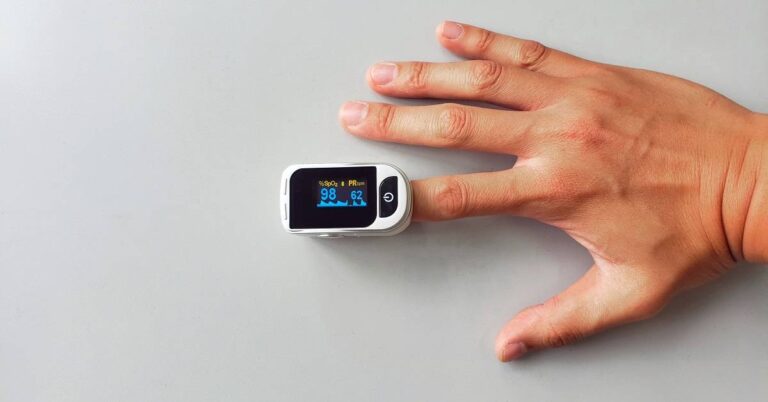
Pulse oximetry is a noninvasive scientific method to determine and monitor a person’s SpO2 (blood oxygen saturation) level. A pulse oximeter is a compact and portable device that tells the SpO2 level conveniently and without pain or piercing. Pulse-oximeters range across various types and sizes. However, the most used clinical pulse-oximeter easily fits onto the fingertips and in a few moments. Almost all pulse oximeters take about 8 to 15 seconds to determine a person’s SpO2 levels. Some specialised oximeters can tell the reading of a person’s blood saturation level in merely three seconds.
What should you consider before buying a pulse oximeter?
The demand for the pulse oximeter has shot up especially in India where the COVID-19 cases have been incessantly rising for the past few weeks. This has put a pressure on the manufacturing units leading to scarcity of the medical supplies including pulse oximeter. Although the government has facilitated the manufacturing of the device, some people are taking advantage of the situation. Cases of black-marketing and faulty medical resources have been observed in several stats in India.
Before you buy a pulse oximeter, you must verify the product on the following metrics.
Type
There are three kinds of pulse oximeters. Each type is designed for a different purpose. You can’t choose a pulse oximeter by merely skimming through a list of products. You need to know the usage of each variety. The pulse oximeter comes in the following three types.
Fetal pulse oximeter: This is made for hospital use and needs specialised knowledge to use it.
Handheld oximeter: This is also a complex device designed for hospital use.
Fingertip pulse oximeter: This is the most portable version to be used for domestic as well as medical usage.
Before you buy a pulse oximeter, note the technical words. Do not forget to include the term ‘fingertip’ in the search field to get the desired pulse oximeter.
What should you consider before buying a pulse oximeter?
Price
The price of pulse oximeters generally lies between ₹1,000 and ₹5,000. Choose to buy the device from a registered shop or on a reliable platform. Do not get tempted by sellers or websites claiming to sell the same device at a much cheaper price. Those products may be faulty or smuggled. Moreover, refrain from paying an exorbitant price. The government regulations restrict the shopkeepers from selling the medical supplies beyond the market price.
Certifications
For the general public, judging the efficacy of a pulse-oximeter may not be possible. The only way to get assured of the accuracy and validity of a pulse oximeter is through genuine certifications. The Central Drugs Standard Control Organisation (CDSCO) under the Ministry of Health & Family Welfare approves the medical devices including pulse-oximeters. The Quality Council of India (QCI) and the National Accreditation Board for Certification Bodies (NABCB) check these devices against international quality standards.
With some awareness, you can buy the right pulse-oximeter for you and track your health during the ongoing pandemic.
For the latest gadget and tech news, and gadget reviews, follow us on Twitter, Facebook and Instagram. For newest tech & gadget videos subscribe to our YouTube Channel. You can also stay up to date with the Gadget Bridge Android App.





 Launching the new smartwatch for Golf lovers in India, Mr Ali Rizvi, Director of Garmin India said, “Golfing is a very niche sport and requires a great course and steady techniques to win each hole. As Golf enthusiasts are increasing in India, the players need a perfect device that can enhance their performance and game with accurate data. The new Approach S12 is engineered with all the essential elements which are required by the players during their game. The smartwatch will equip the customers with precision and form with every swing and also add a touch of style to their personality.”
Speaking of the features, the Garmin Approach S12 smartwatch is a dedicated device for golfers which uses GPS for better accuracy, provides yardages and can help you keep score — all from your wrist. The smart wearable comes loaded with more than 42,000 golf courses around the world. It has a 0.9 inches sunlight-visible, transflective memory-in-pixel display. The watch is 5ATM rated for water and dust resistance
The Autoshot feature on the watch measures shot distances and auto-records detected shots for post-round analysis on the dedicated Garmin Golf app. It is a free to download app and is compatible with iPhone and Android devices so that you can compete, compare and connect with fellow golfers.
The Green View displays the shape and layout of the green and allows you to manually drag and drop the pin to today’s position for even more precise targeting. Furthermore, the CourseView Auto Updater automatically updates frequently played courses for free when connected to a wireless network. When the Garmin Approach S12 smartwatch is synced with the Garmin Connect it lets you log workouts, track data and share your triumphs through social media. In addition to this, the golfers can play up to 30 hours per charge all that in GPS mode. On the normal watch mode, it is said to last for up to 10 weeks.
For the latest gadget and tech news, and gadget reviews, follow us on Twitter, Facebook and Instagram. For newest tech & gadget videos subscribe to our YouTube Channel. You can also stay up to date using the Gadget Bridge Android App.
Launching the new smartwatch for Golf lovers in India, Mr Ali Rizvi, Director of Garmin India said, “Golfing is a very niche sport and requires a great course and steady techniques to win each hole. As Golf enthusiasts are increasing in India, the players need a perfect device that can enhance their performance and game with accurate data. The new Approach S12 is engineered with all the essential elements which are required by the players during their game. The smartwatch will equip the customers with precision and form with every swing and also add a touch of style to their personality.”
Speaking of the features, the Garmin Approach S12 smartwatch is a dedicated device for golfers which uses GPS for better accuracy, provides yardages and can help you keep score — all from your wrist. The smart wearable comes loaded with more than 42,000 golf courses around the world. It has a 0.9 inches sunlight-visible, transflective memory-in-pixel display. The watch is 5ATM rated for water and dust resistance
The Autoshot feature on the watch measures shot distances and auto-records detected shots for post-round analysis on the dedicated Garmin Golf app. It is a free to download app and is compatible with iPhone and Android devices so that you can compete, compare and connect with fellow golfers.
The Green View displays the shape and layout of the green and allows you to manually drag and drop the pin to today’s position for even more precise targeting. Furthermore, the CourseView Auto Updater automatically updates frequently played courses for free when connected to a wireless network. When the Garmin Approach S12 smartwatch is synced with the Garmin Connect it lets you log workouts, track data and share your triumphs through social media. In addition to this, the golfers can play up to 30 hours per charge all that in GPS mode. On the normal watch mode, it is said to last for up to 10 weeks.
For the latest gadget and tech news, and gadget reviews, follow us on Twitter, Facebook and Instagram. For newest tech & gadget videos subscribe to our YouTube Channel. You can also stay up to date using the Gadget Bridge Android App.  Launching the new smartwatch for Golf lovers in India, Mr Ali Rizvi, Director of Garmin India said, “Golfing is a very niche sport and requires a great course and steady techniques to win each hole. As Golf enthusiasts are increasing in India, the players need a perfect device that can enhance their performance and game with accurate data. The new Approach S12 is engineered with all the essential elements which are required by the players during their game. The smartwatch will equip the customers with precision and form with every swing and also add a touch of style to their personality.”
Speaking of the features, the Garmin Approach S12 smartwatch is a dedicated device for golfers which uses GPS for better accuracy, provides yardages and can help you keep score — all from your wrist. The smart wearable comes loaded with more than 42,000 golf courses around the world. It has a 0.9 inches sunlight-visible, transflective memory-in-pixel display. The watch is 5ATM rated for water and dust resistance
The Autoshot feature on the watch measures shot distances and auto-records detected shots for post-round analysis on the dedicated Garmin Golf app. It is a free to download app and is compatible with iPhone and Android devices so that you can compete, compare and connect with fellow golfers.
The Green View displays the shape and layout of the green and allows you to manually drag and drop the pin to today’s position for even more precise targeting. Furthermore, the CourseView Auto Updater automatically updates frequently played courses for free when connected to a wireless network. When the Garmin Approach S12 smartwatch is synced with the Garmin Connect it lets you log workouts, track data and share your triumphs through social media. In addition to this, the golfers can play up to 30 hours per charge all that in GPS mode. On the normal watch mode, it is said to last for up to 10 weeks.
For the latest gadget and tech news, and gadget reviews, follow us on Twitter, Facebook and Instagram. For newest tech & gadget videos subscribe to our YouTube Channel. You can also stay up to date using the Gadget Bridge Android App.
Launching the new smartwatch for Golf lovers in India, Mr Ali Rizvi, Director of Garmin India said, “Golfing is a very niche sport and requires a great course and steady techniques to win each hole. As Golf enthusiasts are increasing in India, the players need a perfect device that can enhance their performance and game with accurate data. The new Approach S12 is engineered with all the essential elements which are required by the players during their game. The smartwatch will equip the customers with precision and form with every swing and also add a touch of style to their personality.”
Speaking of the features, the Garmin Approach S12 smartwatch is a dedicated device for golfers which uses GPS for better accuracy, provides yardages and can help you keep score — all from your wrist. The smart wearable comes loaded with more than 42,000 golf courses around the world. It has a 0.9 inches sunlight-visible, transflective memory-in-pixel display. The watch is 5ATM rated for water and dust resistance
The Autoshot feature on the watch measures shot distances and auto-records detected shots for post-round analysis on the dedicated Garmin Golf app. It is a free to download app and is compatible with iPhone and Android devices so that you can compete, compare and connect with fellow golfers.
The Green View displays the shape and layout of the green and allows you to manually drag and drop the pin to today’s position for even more precise targeting. Furthermore, the CourseView Auto Updater automatically updates frequently played courses for free when connected to a wireless network. When the Garmin Approach S12 smartwatch is synced with the Garmin Connect it lets you log workouts, track data and share your triumphs through social media. In addition to this, the golfers can play up to 30 hours per charge all that in GPS mode. On the normal watch mode, it is said to last for up to 10 weeks.
For the latest gadget and tech news, and gadget reviews, follow us on Twitter, Facebook and Instagram. For newest tech & gadget videos subscribe to our YouTube Channel. You can also stay up to date using the Gadget Bridge Android App. 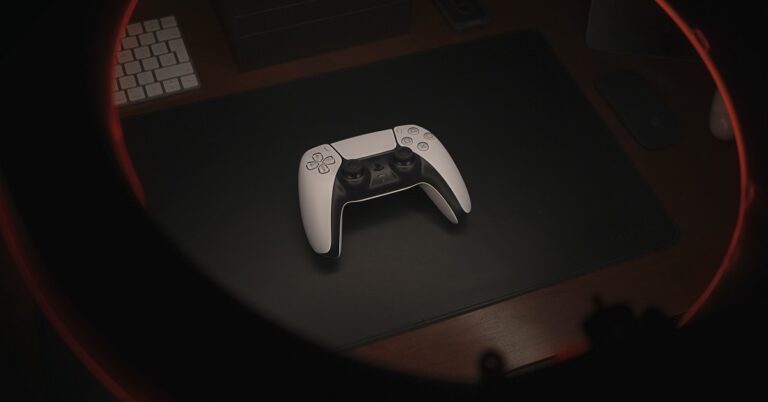












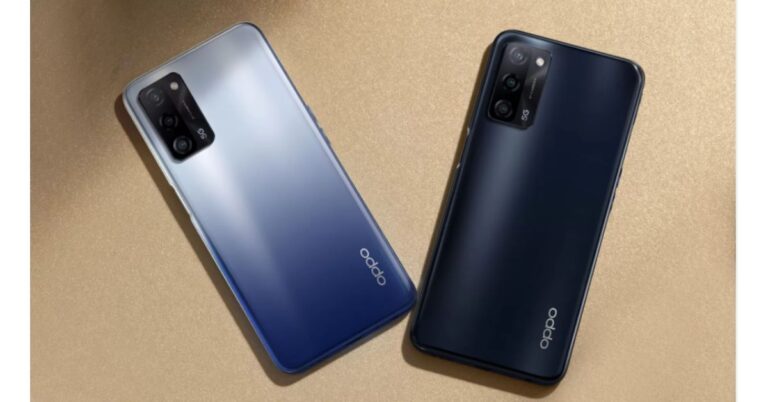
 Oppo A53s 5G tech specifications
The Oppo A53s 5G comes with a 6.52-inch HD+ display driven by 720×1,600 pixels of resolution. It offers 60Hz refresh rate support and an 88.7 percent screen-to-body ratio. The smartphone runs ColorOS 11.1 based on Android 11. Under the covers, there is a MediaTek Dimensity 700 SoC paired with Mali-G57 MC2 GPU. The phone will be offered with up to 8GB of RAM and 128GB of storage that can also be expanded up to 1TB using a microSD card.
On the imaging front, Oppo A53s 5G sports a triple rear camera setup consisting of a 13-megapixel primary sensor with an f/2.2 aperture. Further assisted by a 2-megapixel depth sensor with an f/2.4 aperture and a 2-megapixel macro lens with an f/2.4 aperture. For taking selfies and video calling the 5G smartphone sports an 8-megapixel front-facing camera with f/2.0 aperture.
Oppo A53s 5G packs a 5,000mAh battery. In terms of integrations, there is 5G, 4G, Wi-Fi, GPS, Bluetooth v5, and a USB Type-C port. The sensors on the phone include a side-mounted fingerprint scanner, accelerometer, ambient light sensor and proximity sensor.
For the latest gadget and tech news, and gadget reviews, follow us on Twitter, Facebook and Instagram. For newest tech & gadget videos subscribe to our YouTube Channel. You can also stay up to date using the Gadget Bridge Android App.
Oppo A53s 5G tech specifications
The Oppo A53s 5G comes with a 6.52-inch HD+ display driven by 720×1,600 pixels of resolution. It offers 60Hz refresh rate support and an 88.7 percent screen-to-body ratio. The smartphone runs ColorOS 11.1 based on Android 11. Under the covers, there is a MediaTek Dimensity 700 SoC paired with Mali-G57 MC2 GPU. The phone will be offered with up to 8GB of RAM and 128GB of storage that can also be expanded up to 1TB using a microSD card.
On the imaging front, Oppo A53s 5G sports a triple rear camera setup consisting of a 13-megapixel primary sensor with an f/2.2 aperture. Further assisted by a 2-megapixel depth sensor with an f/2.4 aperture and a 2-megapixel macro lens with an f/2.4 aperture. For taking selfies and video calling the 5G smartphone sports an 8-megapixel front-facing camera with f/2.0 aperture.
Oppo A53s 5G packs a 5,000mAh battery. In terms of integrations, there is 5G, 4G, Wi-Fi, GPS, Bluetooth v5, and a USB Type-C port. The sensors on the phone include a side-mounted fingerprint scanner, accelerometer, ambient light sensor and proximity sensor.
For the latest gadget and tech news, and gadget reviews, follow us on Twitter, Facebook and Instagram. For newest tech & gadget videos subscribe to our YouTube Channel. You can also stay up to date using the Gadget Bridge Android App.  Oppo A53s 5G tech specifications
The Oppo A53s 5G comes with a 6.52-inch HD+ display driven by 720×1,600 pixels of resolution. It offers 60Hz refresh rate support and an 88.7 percent screen-to-body ratio. The smartphone runs ColorOS 11.1 based on Android 11. Under the covers, there is a MediaTek Dimensity 700 SoC paired with Mali-G57 MC2 GPU. The phone will be offered with up to 8GB of RAM and 128GB of storage that can also be expanded up to 1TB using a microSD card.
On the imaging front, Oppo A53s 5G sports a triple rear camera setup consisting of a 13-megapixel primary sensor with an f/2.2 aperture. Further assisted by a 2-megapixel depth sensor with an f/2.4 aperture and a 2-megapixel macro lens with an f/2.4 aperture. For taking selfies and video calling the 5G smartphone sports an 8-megapixel front-facing camera with f/2.0 aperture.
Oppo A53s 5G packs a 5,000mAh battery. In terms of integrations, there is 5G, 4G, Wi-Fi, GPS, Bluetooth v5, and a USB Type-C port. The sensors on the phone include a side-mounted fingerprint scanner, accelerometer, ambient light sensor and proximity sensor.
For the latest gadget and tech news, and gadget reviews, follow us on Twitter, Facebook and Instagram. For newest tech & gadget videos subscribe to our YouTube Channel. You can also stay up to date using the Gadget Bridge Android App.
Oppo A53s 5G tech specifications
The Oppo A53s 5G comes with a 6.52-inch HD+ display driven by 720×1,600 pixels of resolution. It offers 60Hz refresh rate support and an 88.7 percent screen-to-body ratio. The smartphone runs ColorOS 11.1 based on Android 11. Under the covers, there is a MediaTek Dimensity 700 SoC paired with Mali-G57 MC2 GPU. The phone will be offered with up to 8GB of RAM and 128GB of storage that can also be expanded up to 1TB using a microSD card.
On the imaging front, Oppo A53s 5G sports a triple rear camera setup consisting of a 13-megapixel primary sensor with an f/2.2 aperture. Further assisted by a 2-megapixel depth sensor with an f/2.4 aperture and a 2-megapixel macro lens with an f/2.4 aperture. For taking selfies and video calling the 5G smartphone sports an 8-megapixel front-facing camera with f/2.0 aperture.
Oppo A53s 5G packs a 5,000mAh battery. In terms of integrations, there is 5G, 4G, Wi-Fi, GPS, Bluetooth v5, and a USB Type-C port. The sensors on the phone include a side-mounted fingerprint scanner, accelerometer, ambient light sensor and proximity sensor.
For the latest gadget and tech news, and gadget reviews, follow us on Twitter, Facebook and Instagram. For newest tech & gadget videos subscribe to our YouTube Channel. You can also stay up to date using the Gadget Bridge Android App. 
 If we compare it to the design of M11, with the latest version, instead of a rear fingerprint sensor it now sports a side-mounted one. Honestly, we recently reviewed the Galaxy A32, which comes with an under-display sensor that either took a long time to open or too many failed attempts, however, it is refreshing to seeM12 side sensor unlocks the device much faster. Just above the power/fingerprint scanner is the volume rocker, which again is well placed. On the left frame is the sim tray and the headphone jack, USB Type C port with a single firing speaker grill is given at the bottom.
 Moving on to the display, where you get a 6.5-inch HD+ TFT Infinity-V Display. The screen offers 720×1,600 pixels of resolution and a 20:9 aspect ratio. The best part about the display is that it supports a 90Hz refresh rate. But we would have loved it more if Samsung would have gone for an FHD display or an AMOLED one. However, the viewing angles are decent. The screen is smooth and is bright enough to look at in direct sunlight also. The screen is WIDEVINE L1 certified, which makes HD video streaming pleasurable. Overall, the display looks pretty sharp but the colours could have been better.


 Samsung here provides Android-based One UI 3.1 but that is also a core version instead of a full version of One UI. The biggest drawback of the core version is that here you don’t get a secure folder, Knox security and more. The UI feels clean, although the phone does come with some apps pre-installed such as Amazon, Netflix, PhonePe and Snapchat. But these can also be uninstalled.

 Now coming to the camera performance, Samsung Galaxy M12 has a quad-camera setup, which includes a 48-megapixel primary sensor with f/2.0 aperture, a 5-megapixel ultra-wide sensor with f/2.2 aperture and 123-degree field of view, a 2-megapixel macro sensor, and a 2-megapixel depth sensor. Upfront, you get an 8-megapixel selfie camera with f/2.2 aperture.

 M12 produces beautiful shots in a well-lit environment. The pictures have good details, are sharp, and the colours are close to natural. As there is a 5-megapixel wide-angle lens so don’t expect detailed and sharp images however it offers a 123-degree field of view which is quite good. While the portrait images are impressive and edge detection is on point, also colours look natural. On the other hand, we were a bit not ecstatic about the macro shots, it just gets the work done.

 In terms of selfies, if there is ample lighting the subject’s details, skin tone, exposure everything is on point but in low light, the camera sensor struggles to produce well-lit-like images. Also, there is no dedicated night mode. So when it comes to night time images from the front and the rear cameras, performance slightly dips and is not great. As you would see if the images are taken in a low lit environment the images are grainy and lack details. Video recording on the other hand is just average as there is no stabilisation on the front as well as on the rear camera set up.
So considering the price point, we are quite satisfied with the camera performance.
Before we conclude let’s talk about the battery performance. The Samsung Galaxy M12 comes with a 6,000mAh battery. Even on heavy usage and multiple hours of gaming, it was able to deliver a day more hours of battery life. However, the average users can stretch it to two or more days. But when it comes to charging, the company ships a 15W fast charger that easily takes 3 hours to get fully charged.
In terms of selfies, if there is ample lighting the subject’s details, skin tone, exposure everything is on point but in low light, the camera sensor struggles to produce well-lit-like images. Also, there is no dedicated night mode. So when it comes to night time images from the front and the rear cameras, performance slightly dips and is not great. As you would see if the images are taken in a low lit environment the images are grainy and lack details. Video recording on the other hand is just average as there is no stabilisation on the front as well as on the rear camera set up.
So considering the price point, we are quite satisfied with the camera performance.
Before we conclude let’s talk about the battery performance. The Samsung Galaxy M12 comes with a 6,000mAh battery. Even on heavy usage and multiple hours of gaming, it was able to deliver a day more hours of battery life. However, the average users can stretch it to two or more days. But when it comes to charging, the company ships a 15W fast charger that easily takes 3 hours to get fully charged.
 If we compare it to the design of M11, with the latest version, instead of a rear fingerprint sensor it now sports a side-mounted one. Honestly, we recently reviewed the Galaxy A32, which comes with an under-display sensor that either took a long time to open or too many failed attempts, however, it is refreshing to seeM12 side sensor unlocks the device much faster. Just above the power/fingerprint scanner is the volume rocker, which again is well placed. On the left frame is the sim tray and the headphone jack, USB Type C port with a single firing speaker grill is given at the bottom.
 Moving on to the display, where you get a 6.5-inch HD+ TFT Infinity-V Display. The screen offers 720×1,600 pixels of resolution and a 20:9 aspect ratio. The best part about the display is that it supports a 90Hz refresh rate. But we would have loved it more if Samsung would have gone for an FHD display or an AMOLED one. However, the viewing angles are decent. The screen is smooth and is bright enough to look at in direct sunlight also. The screen is WIDEVINE L1 certified, which makes HD video streaming pleasurable. Overall, the display looks pretty sharp but the colours could have been better.


 Samsung here provides Android-based One UI 3.1 but that is also a core version instead of a full version of One UI. The biggest drawback of the core version is that here you don’t get a secure folder, Knox security and more. The UI feels clean, although the phone does come with some apps pre-installed such as Amazon, Netflix, PhonePe and Snapchat. But these can also be uninstalled.

 Now coming to the camera performance, Samsung Galaxy M12 has a quad-camera setup, which includes a 48-megapixel primary sensor with f/2.0 aperture, a 5-megapixel ultra-wide sensor with f/2.2 aperture and 123-degree field of view, a 2-megapixel macro sensor, and a 2-megapixel depth sensor. Upfront, you get an 8-megapixel selfie camera with f/2.2 aperture.

 M12 produces beautiful shots in a well-lit environment. The pictures have good details, are sharp, and the colours are close to natural. As there is a 5-megapixel wide-angle lens so don’t expect detailed and sharp images however it offers a 123-degree field of view which is quite good. While the portrait images are impressive and edge detection is on point, also colours look natural. On the other hand, we were a bit not ecstatic about the macro shots, it just gets the work done.

 In terms of selfies, if there is ample lighting the subject’s details, skin tone, exposure everything is on point but in low light, the camera sensor struggles to produce well-lit-like images. Also, there is no dedicated night mode. So when it comes to night time images from the front and the rear cameras, performance slightly dips and is not great. As you would see if the images are taken in a low lit environment the images are grainy and lack details. Video recording on the other hand is just average as there is no stabilisation on the front as well as on the rear camera set up.
So considering the price point, we are quite satisfied with the camera performance.
Before we conclude let’s talk about the battery performance. The Samsung Galaxy M12 comes with a 6,000mAh battery. Even on heavy usage and multiple hours of gaming, it was able to deliver a day more hours of battery life. However, the average users can stretch it to two or more days. But when it comes to charging, the company ships a 15W fast charger that easily takes 3 hours to get fully charged.
In terms of selfies, if there is ample lighting the subject’s details, skin tone, exposure everything is on point but in low light, the camera sensor struggles to produce well-lit-like images. Also, there is no dedicated night mode. So when it comes to night time images from the front and the rear cameras, performance slightly dips and is not great. As you would see if the images are taken in a low lit environment the images are grainy and lack details. Video recording on the other hand is just average as there is no stabilisation on the front as well as on the rear camera set up.
So considering the price point, we are quite satisfied with the camera performance.
Before we conclude let’s talk about the battery performance. The Samsung Galaxy M12 comes with a 6,000mAh battery. Even on heavy usage and multiple hours of gaming, it was able to deliver a day more hours of battery life. However, the average users can stretch it to two or more days. But when it comes to charging, the company ships a 15W fast charger that easily takes 3 hours to get fully charged.
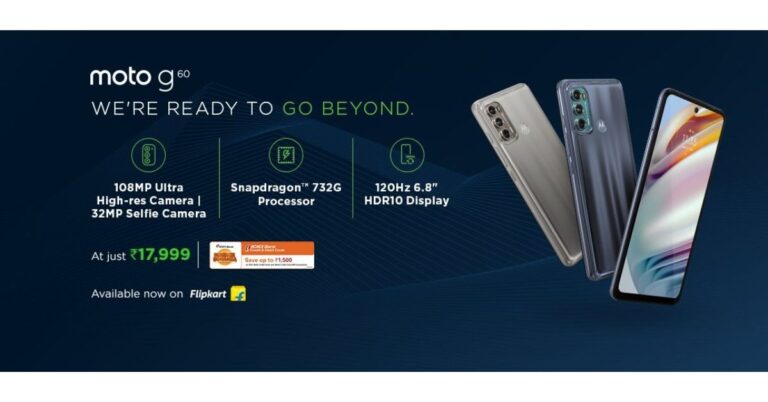





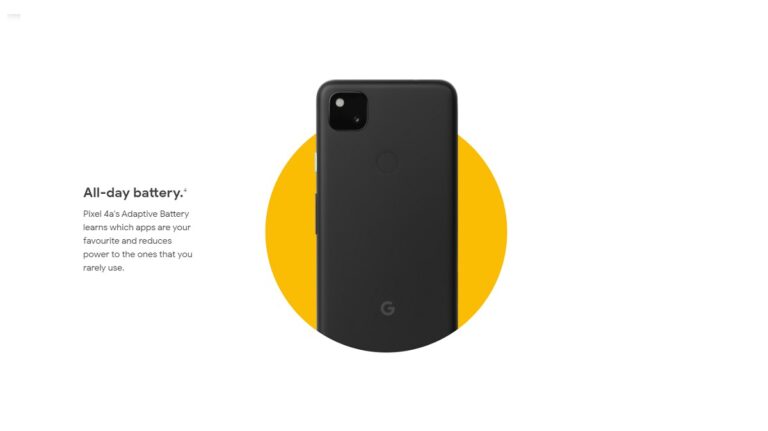




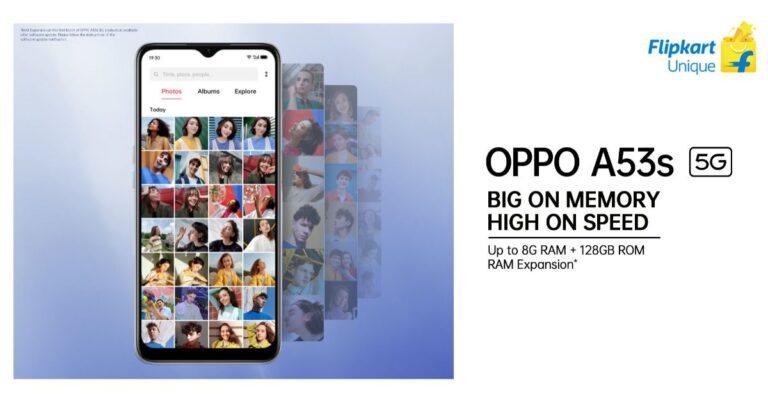

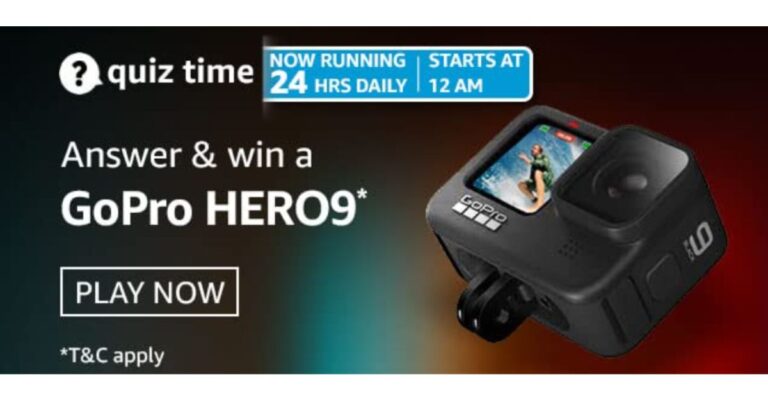
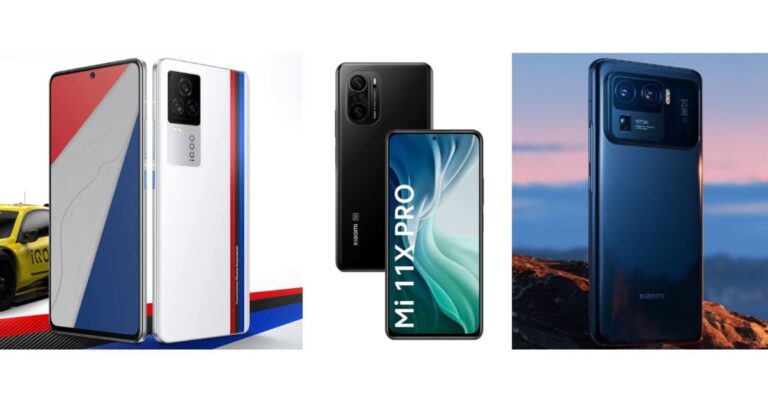




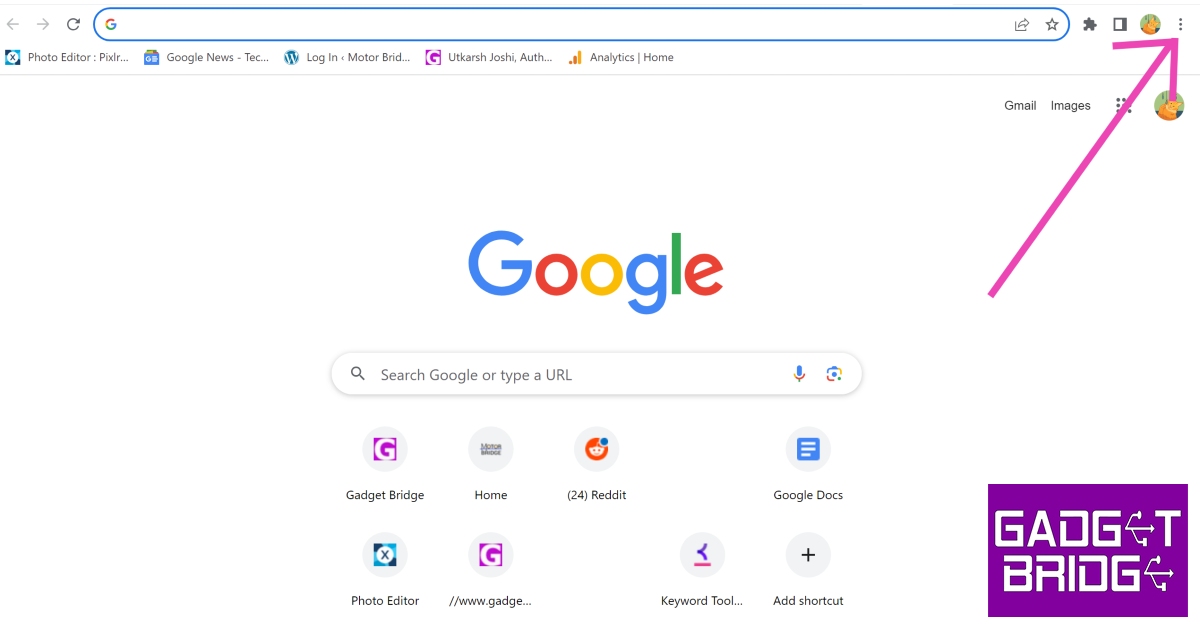
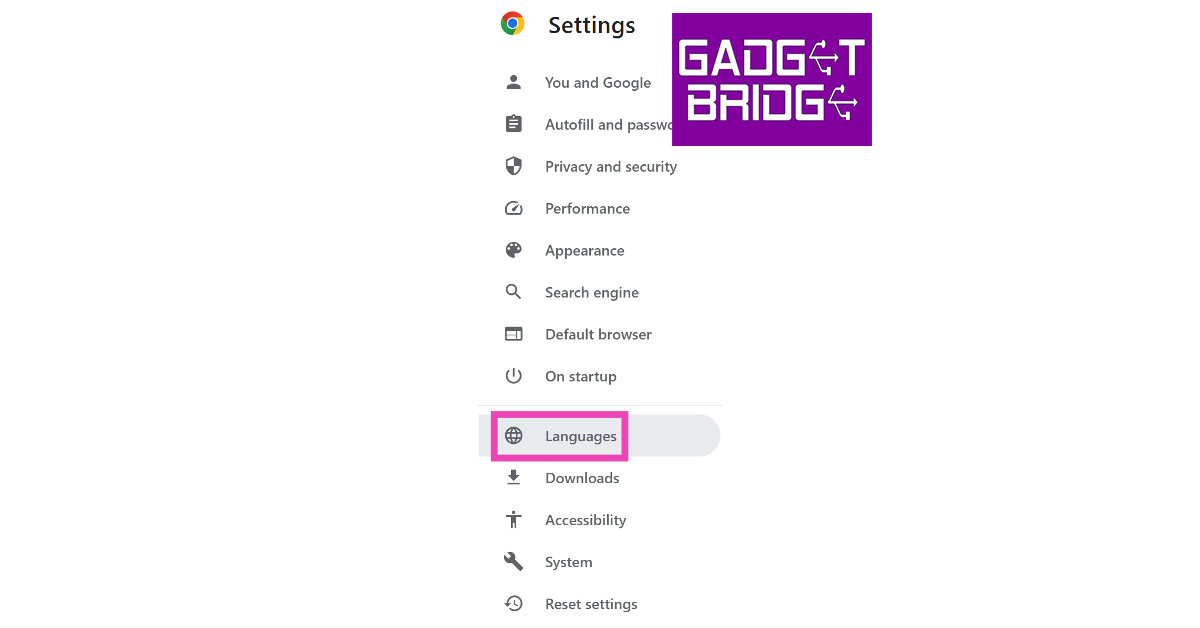
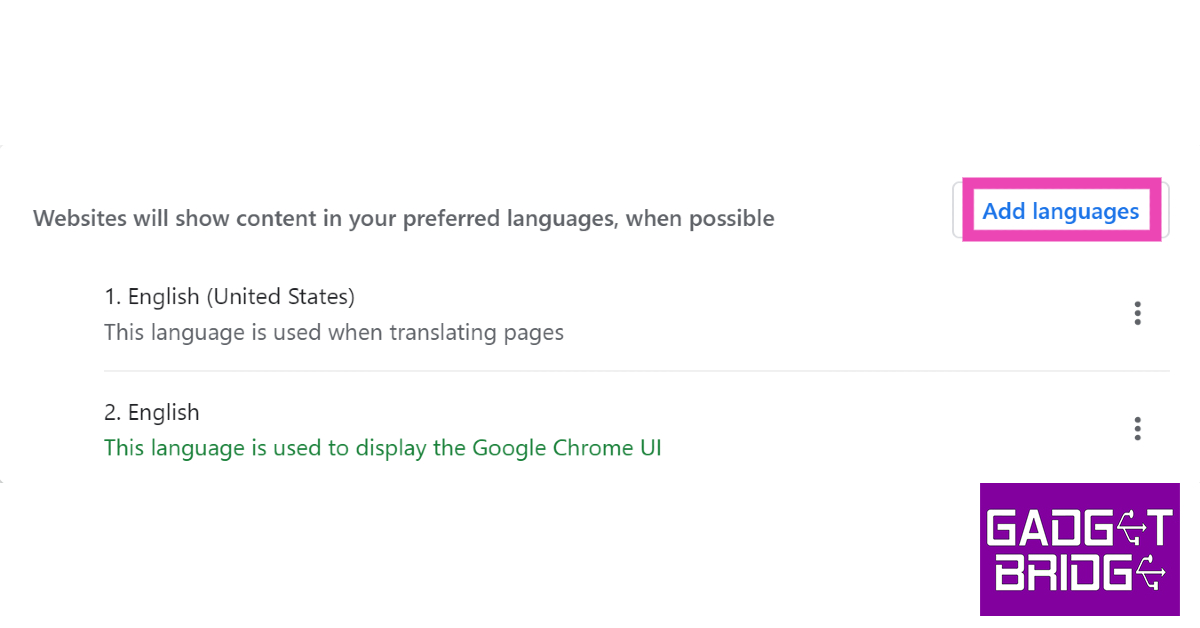
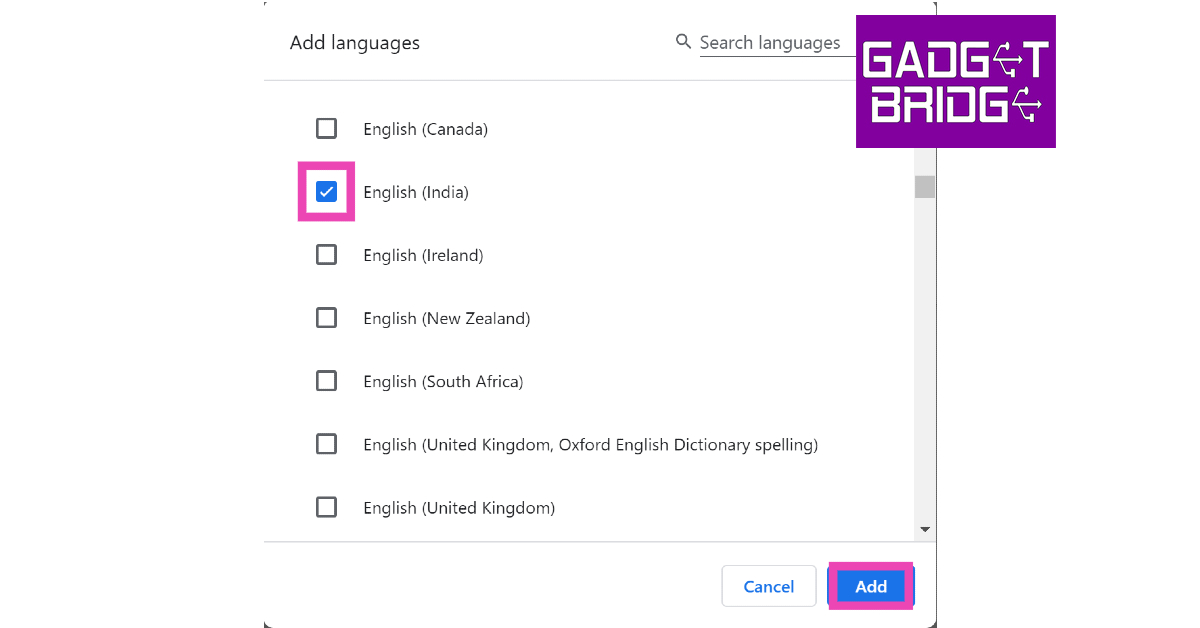
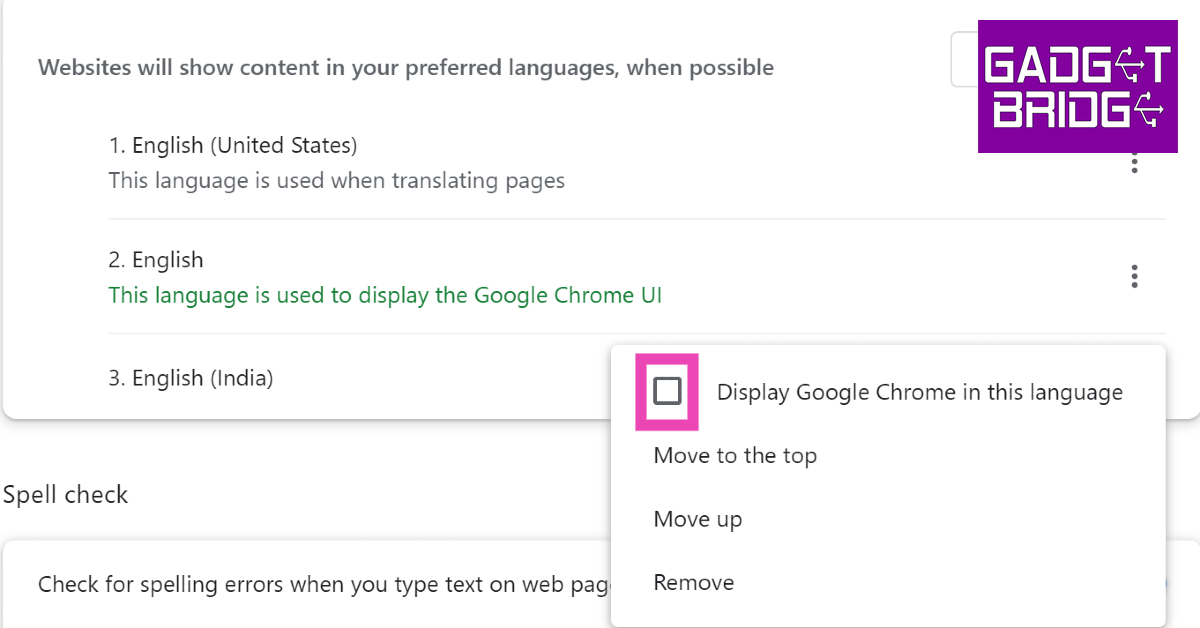

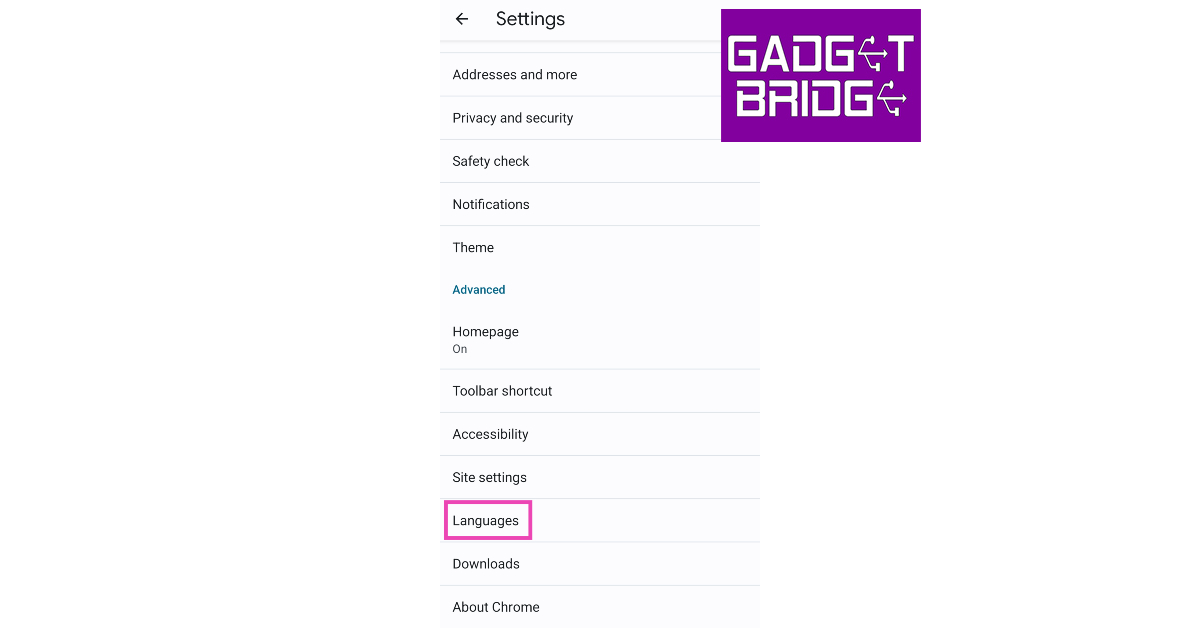
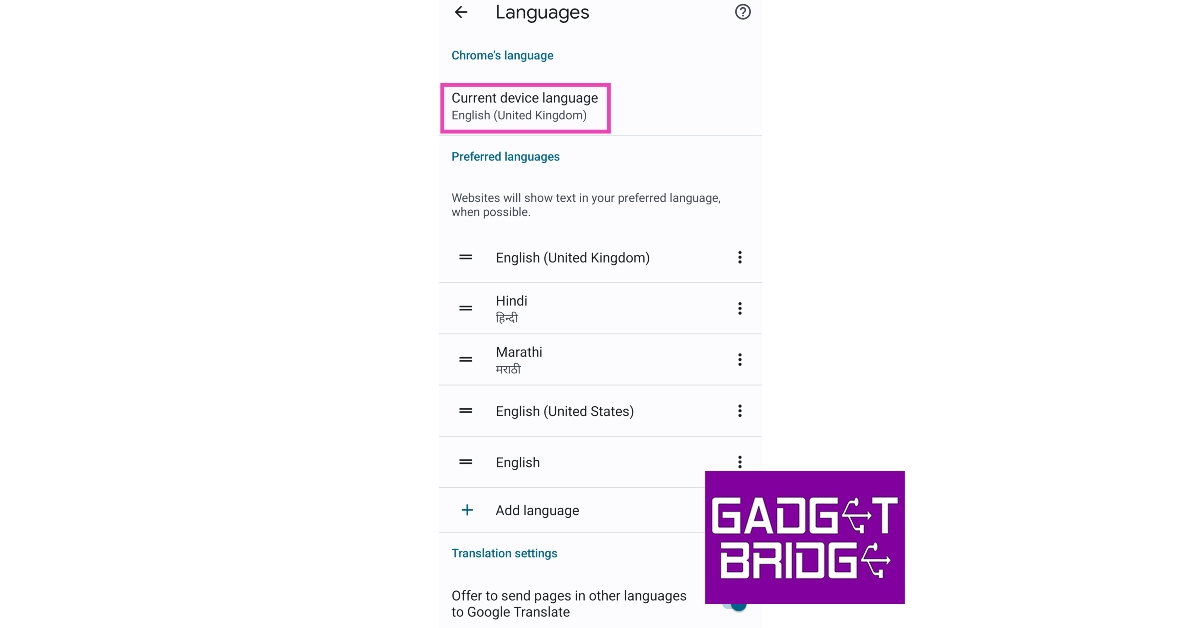
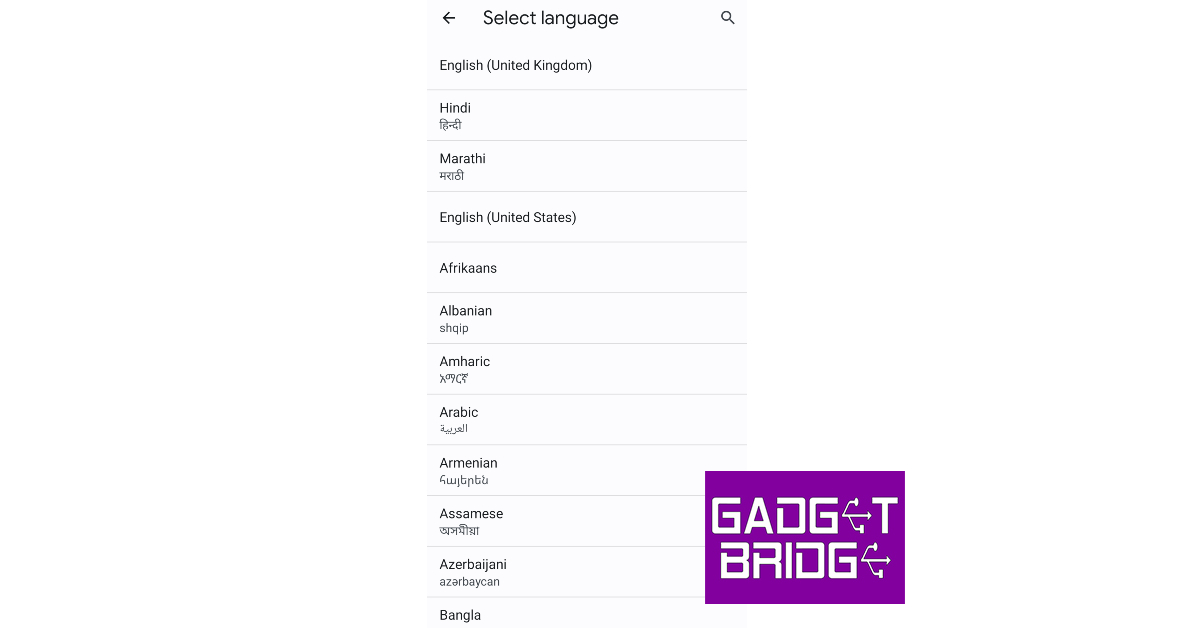


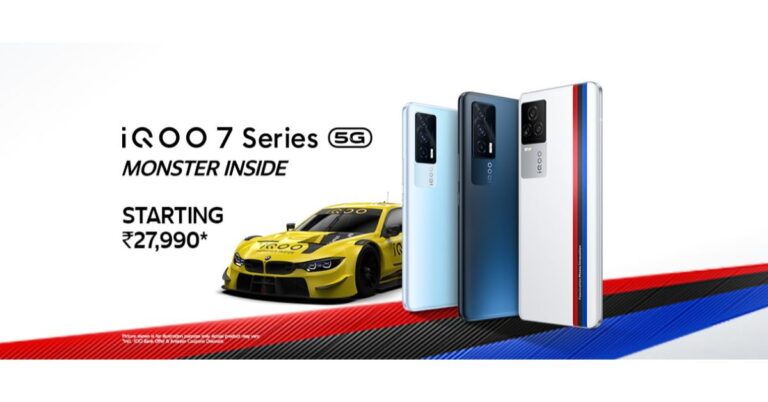







 For the latest gadget and tech news, and gadget reviews, follow us on Twitter, Facebook and Instagram. For newest tech & gadget videos subscribe to our YouTube Channel. You can also stay up to date using the Gadget Bridge Android App.


 For the latest gadget and tech news, and gadget reviews, follow us on Twitter, Facebook and Instagram. For newest tech & gadget videos subscribe to our YouTube Channel. You can also stay up to date using the Gadget Bridge Android App.