Facebook is going to shut down its facial recognition system on its social networking platform that is said to be potentially compromising privacy. The features help to identify users in photographs and videos.Meta via a blog post said, “We’re shutting down the Face Recognition system on Facebook. People who’ve opted in will no longer be automatically recognized in photos and videos and we will delete more than a billion people’s individual facial recognition templates.”So now people who have opted into the Face Recognition setting will no longer be automatically recognised in photos and videos and the facial recognition template used to identify them will be deleted as part of this change. According to the company, this change will also have an effect on Automatic Alt Text (AAT) which generates image descriptions for the blind and visually impaired. AAT descriptions will no longer include the names of people recognised in photos after this change but will otherwise function normally. “Making this change required careful consideration because we have seen a number of places where face recognition can be highly valued by people using platforms. For example, our award-winningautomatic alt text system, which uses advanced AI to generate descriptions of images for people who are blind and visually impaired, uses the Face Recognition system to tell them when they or one of their friends is in an image.”Facial recognition tech is used for identity verification, or to prevent fraud and impersonation. However, the many specific instances where facial recognition can be useful must be balanced against growing concerns about the use of this technology in general. Many people are concerned about the role of facial recognition tech in society and regulators are still working to develop a clear set of rules governing its use. In the face of this outgoing uncertainty, the company believes that restricting the use of facial recognition to a limited set of use cases is appropriate. Ending the use of our existing Face Recognition system means the services it enables will be removed over the coming weeks, as will the setting allowing people to opt into the system.
For the latest gadget and tech news, and gadget reviews, follow us on Twitter, Facebook and Instagram. For newest tech & gadget videos subscribe to our YouTube Channel. You can also stay up to date using the Gadget Bridge Android App. You can find the latest car and bike news here.
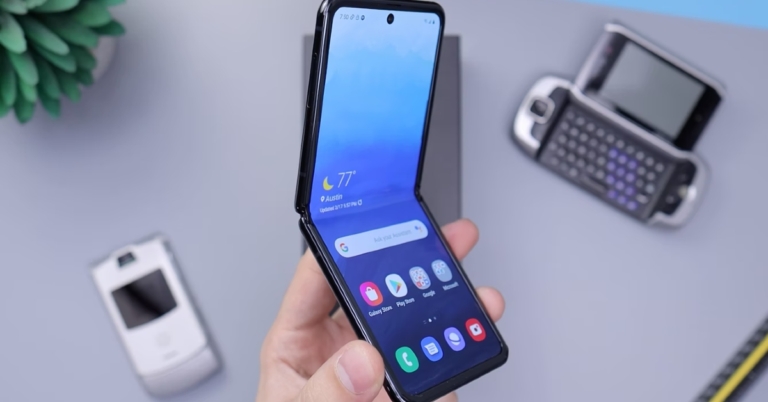
Internet connectivity has become an essential need in our day-to-day life. Most consumers rely on WiFi connectivity across all devices. There is a possibility that the devices in your room are not getting the proper internet strength to connect. In such cases, you might need a repeater to extend the range. But do you know that you can use your current smartphone or a spare Android as a repeater as well? Here are the top 7 ways you can use your Android smartphone as a WiFi repeater.Using a smartphone as a WiFi extender has multiple benefits. Yes, there are many WiFi-extending solutions in the market that work flawlessly, for example, entender from TP-Link or Google Nest. But these are pretty expensive. Also, a big advantage of using a smartphone as the repeater is that it can be used on the go as compared to the traditional counterpart which needs to be plugged into a home socket. Depending on your smartphone model here is how to do it.
In This Article
Using Wi-Fi extender setting
Many smartphones like the OnePlus and some Samsung phones have built-in Wi-Fi extender options. The process is the easiest one with absolutely no hassle. All you have to do is bring down the notification panel on your Android phone and switch on Wi-Fi and Hotspot simultaneously. We also recommend altering the Hotspot password and not keeping it as an open network. Read Also: OnePlus will return to its roots will be offering budget smartphones
Wi-Fi coverage extend option
If your phone does not have a built-in option to use Wi-Fi and hotspot together, worry not Google has provided the option hidden in the Developers option. Head to the setting and open developer options (head to software info>build number and tap it 4-5 times to enable it if it’s not available). Here find the “Enable Wi-Fi Coverage Extend” feature and toggle it on. Now you will be able to do the exact same thing mentioned in the first method.
Use a third-party application
If you don’t feel like the experience from the pre-existing feature you can always download a third-party application for your help. The only con about these applications is that you have to manually set up wifi for each device. But worry not we have a solution for that as well. Try downloading the NetBridge application once done, open the application and give all the permissions. Now you will see the main highlight of the application. On the setup page where there will be different OS platforms (consider the image below), you now select the device you use like for say Windows, it will tell you a step-by-step guide to how to set it up.
Use USB tethering
USB tethering is mainly used to share your device’s mobile data over a USB connection, but some devices also allow a WiFi connection to be extended using this feature. Here’s how you can go about it.
Step 1:Connect your Android smartphone to a PC using a USB cable.
Step 2: Go to Settings and select Connection.
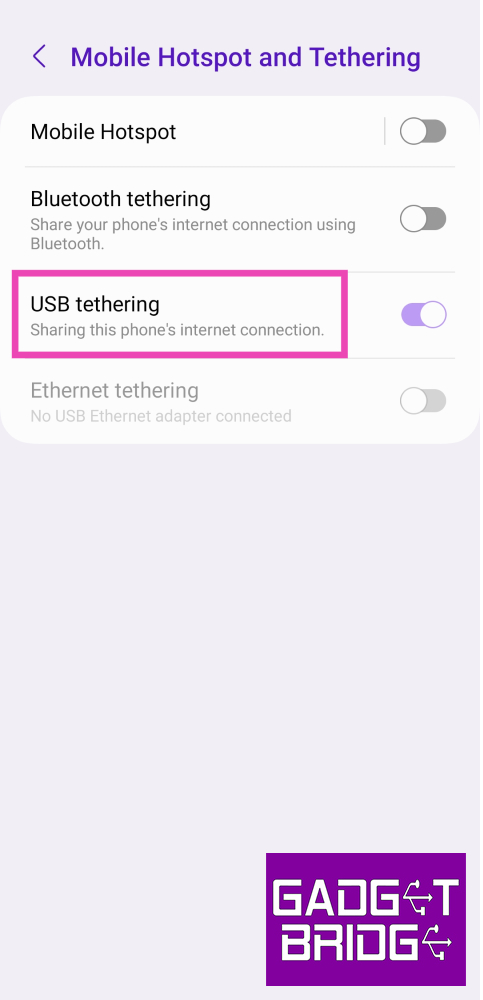
Step 3: Tap on Mobile Hotspot and Tethering.
Step 4: Make sure your phone’s mobile data is turned off and that you are connected to a WiFi network.
Step 5: Turn on the toggle switch for USB tethering.
Use Ethernet tethering
If your PC or laptop has an ethernet port, you can use an ethernet USB cable to share your WiFi connection with your PC. Here’s how.
Step 1:Connect your Android smartphone to a PC using an Ethernet USB cable.
Step 2: Go to Settings and select Connection.
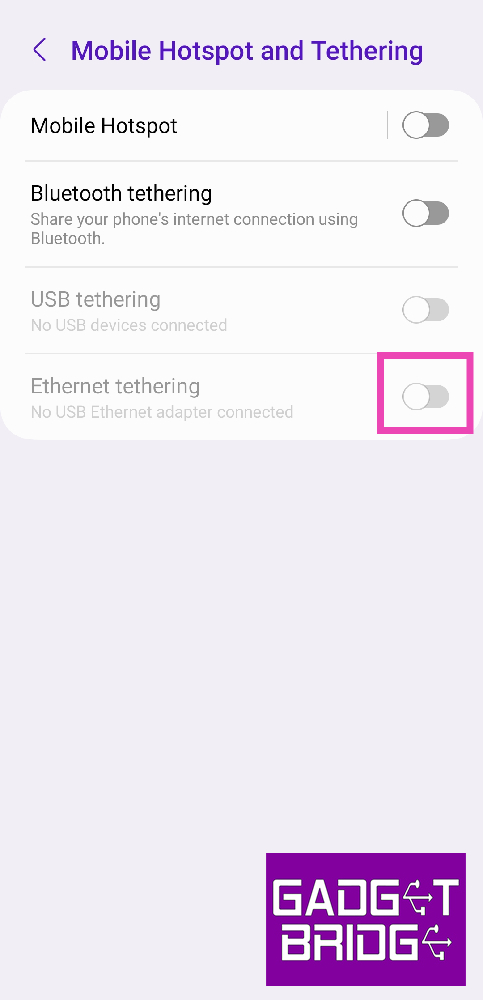
Step 3: Tap on Mobile Hotspot and Tethering.
Step 4: Make sure your phone’s mobile data is turned off and that you are connected to a WiFi network.
Step 5: Turn on the toggle switch for Ethernet tethering.
Use Bluetooth tethering
Yes, it is a wireless medium to use the phone as a Wi-Fi repeater and yes it transmits signals. The biggest drawback of this method is that the connection is very slow. But this still works and can be used in emergency cases. This can be switched on by long-pressing the hotspot settings on the notification panel and toggling Bluetooth tethering. Read Also: 10 must-download utility apps for new Android smartphone
Root the phone
This method is not advised as it may brick your phone very easily. If you have a spare smartphone and you don’t mind losing it. Try rooting your phone and discover tons of editability options of which a WiFi repeater is one. Most of the new ROMs also have this feature built into the UI. Also, be careful and always take professional help before trying rooting for the first time. With this, you can convert your smartphone into a WiFi repeater.
Frequently Asked Questions (FAQs)
How do I repeat my WiFi connection using my smartphone?
You can extend the WiFi connection that your smartphone is connected to by simply turning on the mobile hotspot. You can also extend the network over a USB or Ethernet connection.
Can my smartphone act as a WiFi repeater using a hotspot?
Most midrange and premium smartphones are capable of sharing a WiFi connection over a mobile hotspot. If your device isn’t able to do the same, go to Developer options (by tapping on the build number 7 times) and turn on the toggle switch for ‘Enable WiFi Coverage Extend’.
What are some good apps for sharing my WiFi connection over a mobile hotspot?
These are the top 7 ways to use your Android smartphone as a WiFi repeater. These methods will come in clutch when you’ve forgotten the password to a WiFi network that your phone is connected to. Simply extend the WiFi network using these methods so other devices can connect to it.
For the latest gadget and tech news, and gadget reviews, follow us on Twitter, Facebook and Instagram. For newest tech & gadget videos subscribe to our YouTube Channel. You can also stay up to date using the Gadget Bridge Android App. You can find the latest car and bike news here.
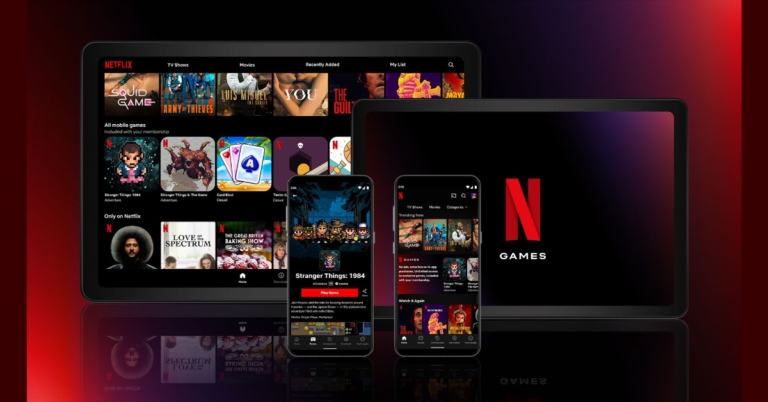
The popular video streaming app Netflix has announced the launch of games on its platform. The Netflix Games can be accessed by users worldwide. As of now, they can only play five mobile games on both Android and iOS platforms of the app. According to the company initially, the company will be offering 5 exclusive mobile games with no ads, no additional fees and no in-app purchases. The list includes Stranger Things: 1984, Stranger Things 3, Shooting Hoops, Card Blast and Teeter Up.While announcing the Netflix Games the company’s blog post says, “We love games, whether it’s physical games (Floor Is Lava), mind games (The Circle) or Squid Game😉. And we love entertaining our members. That’s why we’re excited to take our first step in launching Netflix games on mobile to the world.” It further added, Whether you’re craving a casual game you can start from scratch or an immersive experience that lets you dig deeper into your favourite stories, we want to begin to build a library of games that offers something for everyone. We’re in the early days of creating a great gaming experience, and we’re excited to take you on this journey with us.”The new Netflix games will be available to download and play to all the Android and iOS members across the globe. So before you begin you need to share all the details and one needs to have a Netflix subscription so that there are no ads, no additional fees and no in-app purchases. In the beginning, Netflix is making you play all its mobile games only on Android when you log into your profile. Members on an Android mobile phone will see a dedicated games row and games tab where you can select any game to download. While the tablet users can also have a dedicated games row or be able to select games from the categories drop-down menu to download and play.Netflix games will be available in various languages, so your games will automatically default to the preference set in your Netflix profile. If your language is not yet available, games will default to English.In addition to this, the users will be able to use the same account to play games on multiple mobile devices(but there is a device limit).While in terms of child safety these games are not available on children’s profiles. If you have set up a PIN to prevent children from accessing adult profiles, you will need that same PIN to log in to Netflix and play the game on a device. Some of the games will require internet connection to be accessed while other games will be available to play offline.
Have you participated in the Amazon Quiz today? If not then participate in the 3 November 2021 Amazon Quiz as it has already gone live on the app. The daily quiz can be played from 12 AM to 11:59 every day on the mobile app platform. Today the e-commerce is giving the chance to win Rs 1000 Amazon Pay Balance.Every day Amazon brings a fresh quiz for its customers. By participating in the quiz the participants can win an Amazon Pay Balance of up to Rs 50,000. The quiz can only be played on the mobile app as it is not available for the desktop platform. The quiz contains five easy questions and you have to answer all the questions correctly. The participants will then be shortlisted for a lucky draw to select a winner. Whereas the results are declared at the end of the month. Check out today Amazon quiz answers to win Rs 1000.
In This Article
3 November 2021 Amazon Quiz Answers
Question 1: Which of these states has had three Chief Ministers in 2021?
Answer: Uttarakhand
Question 2: At the Whistling Straits course, the USA beat Europe in which recently conclude team competition?
Answer: Ryder CupQuestion 3: Which of these Oscar-winning actors plays the villain in the latest James Bond movie- No Time to Die?Answer: Rami Malek
Question 4: This is the famous Sears Tower, located in which city in the USA?
Answer: Chicago
Question 5: This is a visual from the Sir Seewoosagur Ramgoolam International Airport serving the capital of which country?
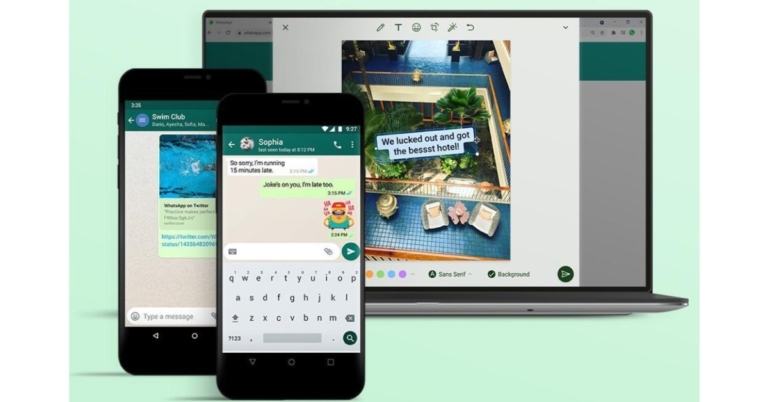
WhatsApp now has added three new features to its platform. The latest update arrives both on the web and mobile versions of the app. WhatsApp users can now edit their pictures on the web using the desktop editor while the mobile users will be able to get sticker suggestions. The company has also improved the app’s link preview as well. While announcing the new WhatsApp features the instant messaging platform commented, “ We built this feature with privacy in mind, so rest assured that WhatsApp cannot see your searches and your personal messages are always protected by end-to-end encryption.”
WhatsApp new features:
Preview links. Now you’ll know what you’re clicking into. Share news, videos, or that fun Tweet, sneak peek included.
Sticker suggestions. Find the perfect sticker as you type, it’s just like emoji suggestions but better.
Desktop photo editor. Now you can add stickers and text or crop and rotate your photos from any WhatsApp screen, big or small.
WhatsApp preview linksLink previews have also been improvised. When sending a link through WhatsApp web users can see a full preview of it. On receiving the link the users have even more scope as to what the link is all about. WhatsApp sticker suggestionsSo now when users type a message they will receive suggestions, providing the right sticker for their conversations. The new sticker suggestions feature on WhatsApp will resolve the issues of going through the process of finding the right sticker that usually breaks the flow of conversations. WhatsApp desktop photo editorThe social media app has also introduced a desktop photo editor to the web version of the app. Earlier this feature was only available on the mobile version of WhatsApp but it has been extended to the desktop platform as well. So now you can easily edit your picture on the web platform but for this, the company has separately added a media editor option.
For the latest gadget and tech news, and gadget reviews, follow us on Twitter, Facebook and Instagram. For newest tech & gadget videos subscribe to our YouTube Channel. You can also stay up to date using the Gadget Bridge Android App. You can find the latest car and bike news here.
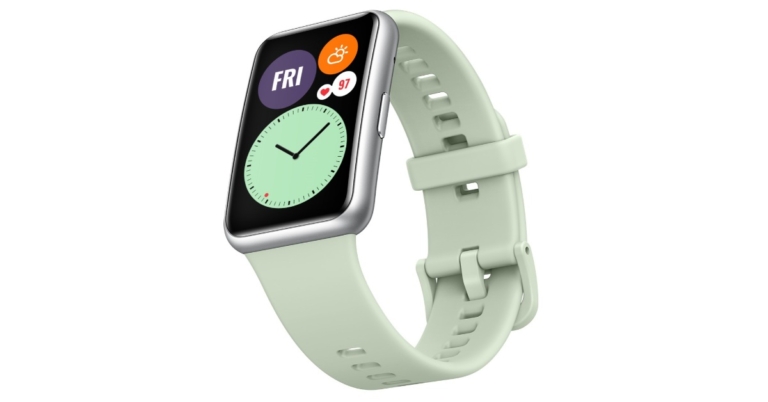
The Chinese electronics company Huawei has announced the launch of its latest smartwatch in the Indian market. Huawei Watch Fit is the latest device to arrive in the country. The fitness band comes with an Always-On display and offers 96 workout modes. It also features a SpO2 tracker, heart rate monitor and more.
In This Article
Huawei Watch Fit price in India and availability
Huawei Watch Fit has been launched in India with a price tag of Rs 8,990. The latest smartwatch from HUAWEI will be available with several wrist strap colour options including Sakura Pink, Isle Blue and Graphite Black. The fitness watch is now available exclusively on Amazon. As an introductory offer, consumers will get a free HUAWEI Mini Speaker with the purchase of HUAWEI WATCH FIT till stocks last. To recall, Huawei Watch Fit was first introduced in the United Arab Emirates (UAE) in August this year. There it was launched at AED 399.
Huawei Watch Fit specifications and features
The Huawei Watch Fit has a 1.64-inch AMOLED display with a resolution of 280×456 pixels of resolution and a pixel density of 326ppi. The display is shielded by a 2.5D curved glass with a 70 percent screen to body ratio. The screen also features always-on watch faces. Users would be able to download additional watch faces from third-party developers via the Watch Face Store. This also means allowing you to use a photo from your phone as the face of your watch.The smartwatch also includes 12 animated workouts such as Exercise at work Full-Body Stretch and Ab Ripper. It also includes 44 standard movement demonstrations along with 96 workout modes. The watch’s workout mode includes 11 professional sport modes such as running, swimming, cycling as well as 85 custom workout modes. For a more personalised training experience, use the heart rate algorithm. Aside from that, there is an AI heart rate algorithm, a SpO2 tracker for monitoring blood oxygen saturation levels. Huawei’s proprietary TruSeen 4.0 heart rate monitoring technology allows HUAWEI WATCH FIT to support intelligent background heart rate monitoring, while HUAWEI TruSleep 2.0 delivers sleep stage monitoring, real-time heart rate monitoring, sleep respiration quality and big data analysis. The smartwatch comes with 12 animated fitness courses and 44 standardised fitness exercises built-in to give users free one-on-one personal training without the need for a smartphone or any other device. The watch also includes a GPS Sensor, a six-axis IMU sensor that includes an accelerometer and a gyroscope.The smartwatch offers 10 days of battery life when heart rate and sleep monitoring are turned on while just half an hour will charge the battery to 70%.
For the latest gadget and tech news, and gadget reviews, follow us on Twitter, Facebook and Instagram. For newest tech & gadget videos subscribe to our YouTube Channel. You can also stay up to date using the Gadget Bridge Android App. You can find the latest car and bike news here.
South Korean electronics major LG Electronics today announced exciting offers on its home entertainment range as a part of its Khushiyon ka carnival campaign. The new LG sale has been launched to commemorate the Diwali festival. This will allow buyers to save a lot of money this holiday season when buying LG OLED TVs. According to the company, the customers will have the opportunity to win prizes worth up to Rs 11 crore under the auspices of these offers that will be valid until November 15. Those you purchase LG Home Entertainment products this Diwali can take advantage of exciting offers and enter to win a plethora of attractive gifts. On select LG TVs, customers can get five year assurance and can also win an OLED TV every day. There will be other prizes worth up to Rs 11 crores on the offer.Buyers can get up to 20 percent instant cashback on select debit/credit cards as well as fixed EMIs starting from Rs 999 with the first EMI completely free. In addition, with the purchase of a select LG TV, customers can win free audio products worth up to Rs 64,990 and an LG ToneFree FN7.Apart from this LG electronics has also announced a partnership with Shah Rukh Khan and Gauri Khan for its OLED TV lineup. The company is also said to release its next-gen OLED TVs with Dolby Vision IQ, Dolby Atmos and Auto Volume Leveling. Moreover, LG has also introduced the OLED Evo which is an India specific Nano Cell TV Series, the LG QNED lineup. Commenting on this initiative, Mr. Hak Hyun Kim, Director – Home Entertainment, LG Electronics India,– said, “LG has enjoyed the loyalty of its customers in India for the past 24 years, and these offers are our way to thank each of them for their trust in the company’s offerings. As a customer-centric brand, we have always strived to offer our consumers the most meaningful innovation that not just addresses their present needs but is future-ready. We hope to add more light to everyone’s home this Diwali with these attractive offers on our range of Home Entertainment products.”
For the latest gadget and tech news, and gadget reviews, follow us on Twitter, Facebook and Instagram. For newest tech & gadget videos subscribe to our YouTube Channel. You can also stay up to date using the Gadget Bridge Android App. You can find the latest car and bike news here.
AirDrop is an integrated piece of software in the Apple ecosystem. The application allows Mac users to transfer files on their iPad or iPhones or vice versa. The speciality of AirDrop is that it accomplishes this wirelessly, without the use of cloud storage or any thor party services. But with these facilities, a common problem faced by the users is AirDrop not working. There can be a lot of reasons why a user faces this problem. Here are a few solutions that you can try which solve AirDrop failure on Mac.
In This Article
Check Wi-Fi and Bluetooth
AirDrop mainly relies on Bluetooth and Wi-Fi to transfer files. The first check during this process should be to ensure that your Bluetooth and Wi-Fi are enabled for you to have an effortless experience. On the Mac, the menu bar clicks on Wi-Fi and Bluetooth one by one to enable it. The prompt will be shown in the AirDrop menu as well. If the prompt is not there try turning them off and then on again.Read Also: Apple approves TRAI’s DND app to avoid iPhone ban in India
Discoverable to everyone
Sometimes the Contacts Only option for sharing in AirDrops creates an issue resulting in the failure of files to your iPhone. Allow it for everyone by following the below steps.Step 1 – Open the Finder menu and click AirDrop on the left pane.Step 2 – In the Allow me to discover by option, select Everyone.Try sending the file again to see if the issue is resolved.
Disable DND
DND or Do not disturb feature blocks away from all the notifications so users can work efficiently it also blocks the incoming files eliminating the AirDrop functionality. To check, head to the control centre in MacOS to see the Do Not Disturb tab. Make sure it’s turned off, also check the same for the pairing device as well.
Prevent Mac from sleeping automatically
If you are transferring huge files, which will surely take time, it will make the mac sleep automatically if the setting is off. This will ultimately cancel the transfer in the middle so to prevent it follow the below steps.Step 1 – Open System preference on Mac.Step 2 – In battery head to Power Adapter setting.Step 3 – Check on the Prevent computer from sleeping… option.But checking on this option your Mac won’t sleep automatically once the screen is off.Read Also: Best 3 ways to fix AirDrop transfer failure on iPhone
Bonus Tip
Before starting the transfer do check if the devices are compatible. Also, see if all the sharing requirements are fulfilled by the other device as well as there might be a problem on the other device and you might have been trying to fix the Mac for no reason. Following these steps will fix AirDrop failure on Mac
For the latest gadget and tech news, and gadget reviews, follow us on Twitter, Facebook and Instagram. For newest tech & gadget videos subscribe to our YouTube Channel. You can also stay up to date using the Gadget Bridge Android App. You can find the latest car and bike news here.
We previously reported that the Redmi Note 11 Pro and Redmi Note 11 Pro will be rebranded as Xiaomi smartphones in India. However, no information was provided about the standard Redmi Note 11 5G. According to a leak the device will be released in India as the Redmi Note 11T 5G.Redmi late in October introduced the Redmi Note 11 series in China. The company has not yet revealed the global nor the Indian availability of the smartphone. But according to a tipster the Redmi Note 11 5G is expected to arrive in India as Redmi Note 11T 5G. The device is likely to be codenamed evergo. The codename of the Poco M4 Pro 5G is revealed to have the codename evergreen on the other hand the Redmi Note 10T 5G could be codename evergoin. Some of the previous reports also suggested that Redmi Note 11 5G could be rebranded to Poco M4 Pro 5G which the company confirmed to launch on November 9.Other than that Redmi Note 11 Pro and Redmi Note 11 Pro+ is will also be rebranded before arriving in the country the Phones are slated to hit the stores here as Xiaomi 11i and Xiaomi 11i HyperCharge respectively. For the global market, the company will go with Redmi branding. If the rumours and leaks are true, then only the branding will change while the rest of the specifications will remain the same as the original ones. The Redmi Note 11 5G features a 6.6-inch FHD display and comes with a refresh rate of 90Hz. It is powered byMediaTek Dimensity 810 SoC. The phone has dual rear cameras that include a 50MP primary sensor and an 8MP secondary lens. While on the front the phone features a 16MP selfie camera. It also carries a 5,000mAh battery and supports 33W fast charging. The 3.5mm audio jack and a USB Type C post are also available for connectivity. On the other hand, Redmi Note 11 Pro and Redmi Note 11 Pro+ comes with a hole punch design 6.67 inch AMOLED display The screen supports a 120Hz refresh rate, 260Hz touch sampling rate 20:9 aspect ratio and HDR10+. Both the phones are powered by MediaTek Dimensity 920 SoC.They have a quad rear camera set up on both Xiaomi 11i and Xiaomi 11i HyperCharge including a 108MP Samsung HM2 primary sensor. Apart from this, there is an 8MP wide-angle sensor and a 2MP depth sensor. There is a 16MP snapper on the front for taking selfies and video calling. Redmi Note 11 Pro packs a 5,160mAh battery with 67W fast charging support. Whereas the Xiaomi 11i HyperCharge houses a 4,500mAh battery with a mega 120W fast charging support.
For the latest gadget and tech news, and gadget reviews, follow us on Twitter, Facebook and Instagram. For newest tech & gadget videos subscribe to our YouTube Channel. You can also stay up to date using the Gadget Bridge Android App. You can find the latest car and bike news here.
Usually, the process of uninstalling an application is very easy and simple. While uninstalling any program from your Apple iPhone you should not encounter any problem. With the update of iOS 15, there are multiple reports surfacing of people not being able to uninstall applications from their iPhones. This glitch is very frustrating especially when you are running out of limited space. Are you facing not being able to remove apps iPhone problem as well? Fret not, here are some walkthroughs that you can try to resolve this issue.
In This Article
Disable Restriction
There is an option by which you can disable applications from uninstalling/ installing. There might be a chance that some bug might have triggered this option making the apps not being able to uninstall. To rectify it, follow the steps below.Step 1 – In the iPhone open settings>screen time options.If the restrictions are turned off then there is no problem if they are turned on following the next step.Step 2 – Tap in the Content and privacy restrictions.Step 3 – Now head to the ‘iTunes & App Store Purchases’ (you will be asked for a passcode).Step 4 – Now set deleting apps to allow.This will potentially solve the problem, now try uninstalling the application.Read Also:How to watch restricted YouTube videos without signing in?
Stuck on waiting
If you want to uninstall an application but it’s stuck on waiting. All you have to do is first check for internet connection and speed. And the next check will be for storage, there should be a good amount of it available on the phone. If both are fine there are chances that the application has encountered some bug. To solve it, long-press the application and press cancel the download and it will automatically be removed from the device.
Force restart
For each iPhone, the force restart procedure differs, so follow the above combination of buttons and hold it for 2 seconds according to the iPhone you use. You will see the “Slide to Power Off” option, slide the bar and let the iPhone completely shut down. Wait for a few seconds and hold the power key to turn the device. Now try uninstalling the application.Read Also: PUBG Mobile gets a play time restriction of 6 hours per day: Will this solve anything?
Reset all settings
The last option to try is resetting all settings. It will eliminate any system bugs and bring the UI settings to square one. To do so follow these steps.Step 1 – Open Settings and head to General.Step 2 – Scroll to the bottom to find the transfer and reset option and press Reset, and then press Reset all Settings.After this step, there won’t be any doubt that your application won’t be uninstalled. Try these steps to solve the Not able to Remove Apps iPhone issues.
For the latest gadget and tech news, and gadget reviews, follow us on Twitter, Facebook and Instagram. For newest tech & gadget videos subscribe to our YouTube Channel. You can also stay up to date using the Gadget Bridge Android App. You can find the latest car and bike news here.
Technology has become an important part of our life. The more diverse the technology we use, the we get our hands on more and more files. These files are either of work or for entertainment. But what if we want to transfer files across platforms? Android and Windows are the two most used operating systems in the world. Want to transfer files to and fro them? Here are a few ways to transfer files from Android to PC.
In This Article
Bluetooth
The old school Bluetooth transfer is to the rescue. It is one of the easiest and traditional ways to transfer files from your Android smartphone to the system. Press Win + I on your Windows machine and then head to the Bluetooth and device section click on add devices and make sure the Bluetooth on your smartphone is on and is discoverable(refer to the image below). Once paired, transfer the file by clicking share on any of the devices and exchange files. This might take a lot of time as Bluetooth technology is slower than the other wireless solutions.Read Also: 5 apps and software you can use to wirelessly transfer files
Use AirDroid
It is a simple and convenient way to transfer files from your smartphone to the PC. The first thing you need to do is install the AirDroid mobile app and sign in to the account of your preference. Next, install the AirDroid application from the download page. Accept all the permission needed. Now all you are left with is drag and drop the files that can be easily accessed from the other device. In Android start adding files in the device section and the files can be viewed on the system. (Transfer speed depends on the internet connection).
USB transfer
The most convenient way of transferring files is by connecting both devices via USB. connect the USB A/USB C to your system and the other MicroUSB/Type C to your Android smartphone. As soon as you connect them you will see a popup on your Android device (See the image below, for reference, OneUI is used, the name may defer in others) select file transfer and you are good to go. NOw open the system and transfer the needed files.Read Also: 10 best apps to download for iPhone 13 and iPhone 13 Mini
Bonus Tip: Use Cloud storage/platform
Another convenient sharing option to transfer files from Android to PC that will not only allow you to share files across two devices, but you can access these files on any system where you can log in to your cloud service and view the files on the go. There are many cloud services, but let’s take the example of Google Drive. Install Google Drive on your Android system and open the website for Google drive or download the desktop version. Now start uploading files on Drive and those can be viewed on any device where you have signed in with the same account. You can select any of cloud storages but read the terms and storage options carefully.
For the latest gadget and tech news, and gadget reviews, follow us on Twitter, Facebook and Instagram. For newest tech & gadget videos subscribe to our YouTube Channel. You can also stay up to date using the Gadget Bridge Android App. You can find the latest car and bike news here.
Instagram has announced the release of three new Diwali stickers to encourage users to connect with their friends and family. Once users post Stories with the stickers, their followers will see them in a Diwali-themed multi-author story.These stickers are part of Instagram’s global Diwali campaign #ShareYourLight. They were created in collaboration with Neethi(@kneethee), a Bangalore based illustrator, muralist and pattern designer to commemorate new beginnings and the triumph of light over darkness.
In This Article
Here is how you can apply Stickers on Instagram:
Add content to your story by capturing it or uploading it.
From the top navigation bar, select the sticker tool.
The three new Diwali themed stickers can be found in the features section. Put the same thing on your story.
Now complete your story and post it!
The stickers are now available for access, and the multi-author story will be available starting tonight. Apart from this, the photo-sharing app owned by Meta formerly Facebook has also introduced adding links in Stories to all accounts. Stories links were earlier limited to verified accounts or those with a certain number of followers. But on users’ demand Instagram has expanded the feature to general users as well.
Here is how to Add Links to your stories
To add a link to your Instagram story, use the Link sticker. People who tap on the sticker will be redirected.
To add a Link sticker, follow these steps:
Add content to your story by capturing it or uploading it.
From the top navigation bar, select the sticker tool.
Now tap the “Link” option to add the link of your choice then tap Done.
Place the Link sticker on your story, just like other stickers available on Instagram and tap to see colour variations.
Nokia T20 Tablet has finally debuted in the Indian market today. The Tab was being teased on Flipkart for one week and has now gone official on the e-commerce platform. The Nokia Tablet features dual stereo speakers. It comes with a 2K display and includes a single 8MP rear camera. Additionally, the device houses an 8,200mAh battery.
In This Article
Nokia T20 tablet price in India and availability details
Nokia T20 Tablet has debuted in India in two variants Wi-Fi only and a Wi-Fi + LTE model. The Wi-Fi variant comes in two different configurations 3GB with 32GB storage and 4GB with 32GB storage priced at Rs 15,499 and Rs 16,499 respectively. The Wifi + LTE model has been made available with a price tag of Rs 18,499. The device will be available in a single blue colour option. As for the availability, Nokia T20 Tablet is now available for purchase via Flipkart, the company’s official website and via offline stores across the country.
Nokia T20 Tablet specifications and features
The Nokia T20 Tablet is highlighted with a 10.4-inch 2K in-cell display with 2,000×1,200 pixels of resolution. The panel also offers 400 nits of peak brightness and is guarded with toughened glass. Additionally, the tablet is also blue light certified so that you don’t strain your eyes.The Nokia Tablet is powered by octa-core UnisonicTiger T610 SoC painted with up to 4GB of RAM and 64GB of storage options. The internal storage can also be expanded up to 512GB using a microSD card. The device runs on Android 11 and the company promises to provide two years ofOS upgrades and three years of security updates. Apart from this, the tab will come pre-installed with Spotify that will give owners access to 70 million tracks and 2.9 million podcasts out of the box.For the optics, there is an 8-MP camera sensor on the back of the device along with an LED flash. While on the front it includes a 5MP selfie camera sensor. The Nokia Tab packs an8,200mAh battery that comes with 15W charging support but is shipped with a 10W charger inside the retail box. The battery is claimed to provide 15 hours of internet surfing, 7 hours of conference calls and 10 hours watching videos. The device has also got an IP52 rating for splash and dust resistance and comes equipped with Stereo speakers and OZO Playback. Also, there are dual microphones with noise cancellation. The Nokia T20 Tablet also features Google Kids Space which can be managed easily through Family Link parental controls. In terms of connectivity, there is 4G LTE, Wi-Fi 802.11ac, Bluetooth v5.0, 3.5mm headphone jack and USB Type C port for changing.
For the latest gadget and tech news, and gadget reviews, follow us on Twitter, Facebook and Instagram. For newest tech & gadget videos subscribe to our YouTube Channel. You can also stay up to date using the Gadget Bridge Android App. You can find the latest car and bike news here.
Amazon is back with another quiz on its mobile platform. The daily quiz is now live on the Amazon App and today’s Amazon Quiz will give you a chance to win Rs 10,000 Amazon pay Balance. The participants can play the 2 November 2021 Amazon Quiz from 12 AM to 11:59 PM. For those who are unaware of the quiz, the e-commerce platform brings a fresh quiz on a daily basis which consists of five questions related to general knowledge and current affairs.
The participants need to answer all the questions correctly and their names will be selected for a lucky draw. The winner will be announced at the end of the month. One wrong answer could eliminate you from the quiz. Only app users are eligible to participate in the Quiz. In today’s Amazon Quiz the participants will get a chance to win Rs 40,000 Amazon Pay Balance. Check Out 2 November 2021 Amazon Quiz Answers.
In This Article
2 November 2021 Amazon Quiz Answers
Question 1: Which of these days is observed on 4th October to raise the status animals in order to improve welfare standards across the globe?
Answer: Worls Animal Day
Question 2: Team Europe recently won the Laver Cup. Which team did they beat?
Answer: The rest of the world (Team World)
Question 3: What if___? is an animated series reimagining noteworthy events in which cinematic universe?
Answer: Marvel Cinematic Universe
Question 4: Name this dish, a Japanese noodle soup
Answer: Ramen
Question 5: This is a famous monument in which European capital city?
Everyone loves time-lapse. It’s like a stable fast forward video that covers everything and also the size of the video is smaller than the traditional video. Nowadays smartphones come with the timelapse feature as a standard in their camera application. But the problem arises when you have already shot a video and now you want a time-lapse version of it. Well, fret not, here are some simple techniques that you can use to convert any video into a beautiful time-lapse one. Without further ado, let’s get started.
In This Article
Converting in Desktop
It is one of the easiest ways to convert any normal video. The software preferred by us to do this is Microsoft Hyperlapse Pro. It is a versatile application designed by Microsoft to give you an immersive time-lapse experience. Also, the company optimised the application to make the video look a bit natural and smoother. To use it follow the below steps.Step 1 – Download Microsoft Hyperlapse Pro.Step 2 – Launch the application and “New” to select the normal video.Step 3 – Select the portion of the video you want to import.Step 4 – Press Next and then select the speed from speed controls. You can also use the smoothing effect from standard to advance.Step 5 – Sit back and relax until the process is completed.Once completed you will see that timelapse output.Read Also: How to save a Google Docs as a PDF
On Android
Microsoft also made the same application for Android smartphones as well. The procedure is pretty much the same and easy. Here is how you can do it.Step 1 – Download Microsoft Hyperlapse Mobile.Step 2 – Open the application and select from Import or Capture.Step 3 – Choose speed according to the taste.Once the process is completed you will be able to view the converted timelapse natively.
Convert Online
This is a convenient way if you don’t want to install any application on your device. There are many applications that do that for you but our choice for the task is Veed. The interface is very easy and user friendly. Here is how you can use it.Step 1 – Head to Veed.io to change speed.Step 2 – After the video has been uploaded click on the video bar and set the speed to 1.5X.Now press export on the top right corner and you are good to go. You will now have a time-lapse video with you.Read Also: Top 5 speech to text apps for your Android smartphone
Increase Playback speed
If you want to convert regular videos to time-lapse , but don’t care about the quality, just open up any video editing application on any platform. Upload the video on the desired video editing software. Now change the playback speed to 1.5X. This will not create smooth transitions for time-lapse but will show similar effects (Filmora video editing software used for demo images). Users can also shoot Timelapse directly from their smartphones for best results.
For the latest gadget and tech news, and gadget reviews, follow us on Twitter, Facebook and Instagram. For newest tech & gadget videos subscribe to our YouTube Channel. You can also stay up to date using the Gadget Bridge Android App. You can find the latest car and bike news here.
Lately, Redmi introduced the Redmi Note 11 series in China which includes Redmi Note 11 5G, Redmi Note 11 Pro and Redmi Note 11 Pro+. Out of the three two of the devices are now tipped to arrive in India soon. But the devices are expected to be released in the country with Xiaomi’s branding. According to a tipster, Redmi Note 11 Pro and Redmi Note 11 Pro+ will be rebranded before arriving in India. The devices are said to come as Xiaomi 11i and Xiaomi 11i HyperCharge respectively. However, the company is said to go with the Redmi branding for the global market. There is no information about the standard variant which is Redmi Note 11 5G but some reports suggest that the Poco M4 Pro 5G is a rebranded variant of the device which is set to launch on November 9.If the tipped information is believed then Xiaomi 11i price may start at 6GB RAM with 128GB storage at CYN 1,599 that is approximately Rs 18,700 whereas the price of the 8GB RAM with 128GB storage is set at CYN 1,899 that translates to Rs 22,300. The 8GB RAM with 256GB storage model cost CYN 2,099 which converts to Rs 22,300.On the other hand, Xiaomi 11i HyperCharge could come with a price tag of 6GB RAM with 128GB storage variant launched at CYN 1,899 which is approx. Rs 22,200. There is an 8GB RAM with 128GB/256B storage at CYN 2,099 that converts to Rs 24,500 and CYN 2,299 that is Rs 26,900. In terms of specs, both smartphone’s will share similar specifications. They are likely to come with a hole punch design 6.67 inch AMOLED display The screen supports a120Hz refresh rate, 260Hz touch sampling rate 20:9 aspect ratio and HDR10+. Both the phones will be powered byMediaTek Dimensity 920 SoC.There will be a quad rear camera set up on both Xiaomi 11i and Xiaomi 11i HyperCharge including a 108MP Samsung HM2 primary sensor. Apart from this, there is an 8MP wide-angle sensor and a 2MP depth sensor. There is a 16MP snapper on the front for taking selfies and video calling. Xiaomi 11i could house a 5,160mAh battery with 67W fast charging support. Whereas, Xiaomi 11i HyperCharge houses a 4,500mAh battery with a mega 120W fast charging support.
For the latest gadget and tech news, and gadget reviews, follow us on Twitter, Facebook and Instagram. For newest tech & gadget videos subscribe to our YouTube Channel. You can also stay up to date using the Gadget Bridge Android App. You can find the latest car and bike news here.
Samsung tops global smartphone shipments in the third quarter according to the latest Counterpoint research report. The South Korean smartphone brand managed to retain its top position in Q3 2021 with smartphone shipments of 69 million. However, the global smartphone market grew 6 percent QoQ but has declined 6 percent YoY to 342 million units in Q3 2021.According to the latest Counterpoint report, the global smartphone market grew 6% QoQ to reach 342 million units in Q3 2021while the market declined 6% YoY due to the ongoing global component shortages and the slow recovery of key markets such as China and parts of Europe. “As a result, market demand was met by mid-to high-tier smartphones that helped drive the quarter to a record revenue even with the declining shipments. Apple and Samsung refreshing their premium series with iPhone 13 series and Fold series respectively, added to the revenue growth,” Research Director Tarun Pathak said.In terms of brand performance, also Samsung is said to have shipped 69 million units in the third quarter of 2021, a 20 percent increase year on year owing to the resumption of regular operations at its Vietnam factories and the successful launch of its new foldable series.Whereas the revenue dynamics suggest that Apple led the smartphone market revenue, accounting for approximately 27 percent of the market, while Samsung increased its revenue by 32 percent QoQ is being propelled forward by the successful launch of its Fold Series. Considering the India smartphone shipments which declined 2 percent YoY to reach over 52 million in Q3 2021. The drop can be linked to rising demand last year as a result of COVID 19. The smartphone market remains resilient and the quarterly figures would have been higher if not for component shortages that worsened during the quarter.Xiaomi led the market with a 22 percent shipments share in the third quarter of 2021. Xiaomi produced three of the top five models during the quarter: Redmi 9A, Redmi 9 Power, Redmi Note 10 and Redmi 9 models.On the other hand, Samsung took second place with a 19 percent market share. Shipments are said to be driven by the online-focused Galaxy M and F series as well as the newly launched Galaxy A series models which were in high demand in offline channels (Galaxy M42, M52, A22 and A52s models). Also to differentiate itself from the competition, Samsung is focusing on providing the most 5G bands in its 5G models. Vivo’s Y series and V series smartphones also sold well, propelling the company to third place with a 15 percent market share. Realme took fourth place and Oppo came in fifth place.In the third quarter of 2021, India’s overall mobile handset market fell 5 percent year on year. Samsung reclaimed first place in the handset market with an 18 percent share in the Q3 of 2021. While the feature phone market fell 12 percent year on year in Q3 2021 as the shift to smartphones continued. In this case Itel dominated the feature phone market, accounting for 27 percent of the market followed by Lava, Nokia and Samsung.
For the latest gadget and tech news, and gadget reviews, follow us on Twitter, Facebook and Instagram. For newest tech & gadget videos subscribe to our YouTube Channel. You can also stay up to date using the Gadget Bridge Android App. You can find the latest car and bike news here.
Amazon is back with another quiz on its mobile platform. The 1 November 2021 Amazon Quiz is now live on its platform and today’s Amazon Quiz will give you a chance to win Rs 15,000 Amazon pay Balance.
Every day Amazon brings a fresh questionnaire that comprises 5 questions. These questions are based on current affairs and general knowledge. The quiz can be played from 8 AM to 11:59 PM and the contestants need to answer correctly to enter into a lucky draw. In today’s Amazon Quiz the participants will get a chance to win Rs 10,000 Amazon Pay Balance. Check Out 1 November 2021 Amazon Quiz Answers.
In This Article
1 November 2021 Amazon Quiz Answers
Question 1: BTS recently launched a new song in collaboration with Coldplay. What is the title of the song?
Answer: My Universe
Question 2: Virat Kohli recently became the first Indian to reach what landmark in terms of T20 runs?
Answer: 10,000
Question 3:Which engineering company with a focus on defense and space, recently has an IPO which received a 304 times subscription?
Answer: Paras Defence
Question 4: Which famous fort has been shown here?
Answer: Red Fort, Delhi
Question 5: This is a soup dish called Pho. This is typical of which cuisine?
Reliance collaborated with Google to launch an India exclusive phone named JioPhone Next. The smartphone was much-awaited and seems to be the most affordable phone in the country. The phone will be available this Diwali and will have a low upfront payment tag of just Rs 1,999. The phone was expected to launch way earlier, but it got delayed due to a global chip shortage. There are 3 ways you can buy a Jio phone but before that, we should know what we are getting if we buy the new smartphone by Reliance Jio.
In This Article
Price and Plans
The phone starts from Rs 1,999 only and the rest of the cost can be paid via easy EMI of Rs 300-600 over the next 18-24 months. The free monthly data and voice plan will differ depending on the EMI plan a consumer chooses (consider the image below to get an idea of plans and processing fee). Consumers can also choose an upfront payment of Rs 6,499 without finance for the Jio Phone Next smartphone.Read Also: Comparison: Nokia 8110 4G vs JioPhone 2
Specifications
The phone is an entry-level option and the specifications we get on it are no different. The JioPhone Next is powered by the Qualcomm Snapdragon 215 SoC. At the front, we can see an 8MP camera that has big traditional bezels and holds a 5.5-inch touch screen LCD. The phone also gets a traditional 3.5mm audio jack and dedicated SD card slot. Though there is a dual SIM provision, mobile data can only be utilised from a Jio SIM. While the other sim can be used for calls and messaging services. The device will be running on Pragati OS and it will get automatically updated in the background. Now the big question, how to buy a JioPhone Next. There are basically 3 ways to buy the JioPhone Next.
Visit the nearest Reliance Digital Store
Head to the nearest Reliance Digital store and ask the customer executive to tell you all the details about the JioPhone Next and guide you to the procedure on how to buy it.
Visit Official site
On the official Jio site head to the JioPhone Next registration. Input your email id and phone number to generate OTP. After the registration is complete choose the buying plan accordingly, with EMI or upfront payment. After giving them your location details you will receive an SMS confirming your order. Now you can just walk to the nearest Jio Mart retailer and collect your phone.Read Also: Reliance JioPhone Gift Card launched ahead of festive season:
Message on WhatsApp
JioPhone Next can be purchased by sending ‘Hi’ to 7018270182. After that, they will process you with the link to register. Once done the process is similar to the above step.The JioPhone Next will be an exciting entry-level offer for people who want to own an entry-level smartphone or for kids and old aged people. The smartphone will also have Google apps pre-installed along with the host’s Jio apps. A few of the best in class features like voice assistant, read aloud, translate and night mode picture are availed by the company as well.
For the latest gadget and tech news, and gadget reviews, follow us on Twitter, Facebook and Instagram. For newest tech & gadget videos subscribe to our YouTube Channel. You can also stay up to date using the Gadget Bridge Android App. You can find the latest car and bike news here.
Apple bringing iOS 15 is a massive update with new features and tweaks in the UI. In the last version of iOS, you could find widgets as well, but iOS 15 allows even more widgets that you can add. This customisability makes the newer iPhone look better and more advanced. Now, speaking of customisation, lock screen wallpaper and home screen wallpaper plays an important role in this. So if it’s a stunning background with a 3D effect or be it a live wallpaper. Here is how you can set it and the application where you can find this wallpaper.
In This Article
How to set up
Step 1 – Find a wallpaper by searching 3D wallpaper or live wallpaper on the web or consider using an application from below.Step 2 – Head to settings>wallpaper and select the wallpaper you downloaded.Step 3 – Now select either perspective or live photo (depending on the wallpaper you choose to download).If done correctly your wallpaper will have a 3D effect and the phone will use gyro to adjust the wallpaper as you move the device. Didn’t find any good wallpaper on the web? Here are a few applications that you can consider downloading.Read Also: WhatsApp to bring Wallpaper Dimming
3D wallpaper application for iOS
Live Wallpapers Forever
The application has a wide variety of still and live wallpaper and a healthy amount of categories to choose from. The application has a user-friendly interface and you can select wallpapers according to your taste very easily. In the application, you will also find the “for you” section making it easy to install 3D wallpapers iPhone. Here you can find tons of free wallpapers that the application sorted specifically for you. Though the users will find ads and some premium wallpaper in the app for which you have to buy the premium version which is a one time buy.Download Here
Wow Pixel
Are you into retro images or 8-bit wallpaper? The Wow Pixel is a perfect wallpaper for you. The application has tons of wallpaper to choose from and all of them have that 8-bit game graphics. For live and Parallax wallpaper you can choose adventure background and hero’s wallpaper. This application makes you feel how past graphics have met the feature technology. There are thousands of wallpapers with a lot of customisation options allowing its users to change it according to their taste.Download HereRead Also: How to make live wallpapers for your Android smartphones
Black Lite – Live Wallpapers
This is ideal for iPhone users who want something minimalistic and they want to take advantage of the new OLED displays on their iPhone. The application has a wide variety of live and parallax wallpaper with all back backgrounds and minimalistic design. The OLED panels switch off the pixels of the screen for blacks to look more vivid. This also results in a better battery. The lite version is free with some premium wallpapers which you can buy with a one-time payment.Download HereThis is it for install 3D wallpapers iPhone. The application has built-in features for applying 3D and live wallpaper. If you are unable to do it or understand it. All you have to do is download the wallpaper and use the method explained above to set it up.
For the latest gadget and tech news, and gadget reviews, follow us on Twitter, Facebook and Instagram. For newest tech & gadget videos subscribe to our YouTube Channel. You can also stay up to date using the Gadget Bridge Android App. You can find the latest car and bike news here.
Nokia brand licensee HMD Global earlier this month introduced Nokia T20 Tablet in the market. The Nokia tablet India’s availability was not announced yet but now the company has started teasing the device in the country as well. The Tab is expected to launch in India soon as it has now been listed on Flipkart.The company has not yet revealed the exact date of the launch as Flipkart’s listing only mentions Coming Soon. Apart from this, the listing also highlights the key features of the upcoming tablet. It says that the SBI card users are eligible to avail 10 percent instant discount on the purchase of the Tab.
In This Article
Nokia T20 Tablet price in India (expected)
Nokia T20 was launched in the European market in two variants- Wi-Fi only and Wi-Fi + 4G. The price of the tablet starts at EUR that is roughly around Rs 17,200 for the 3GB RAM with 32GB storage. Whereas the latter one cost EUR 239 which translates to Rs 20,600 for the 4GB RAM with 64GB storage model.
Nokia T20 Tablet specifications and features
The Nokia T20 Tablet features a 10.4-inch 2K in-cell display with 2,000×1,200 pixels of resolution. The screen will offer a peak brightness of 400 nits and has been protected with toughened glass. It runs on Android 11 provided with two years ofOS upgrades and three years of security updates. It is powered by an octa-core UnisonicTiger T610 SoC painted with up to 4GB of RAM and 64GB of storage options. The storage can also be expanded up to 512GB using a microSD card. For the optics, the Nokia Tablet comes with an 8-MP camera sensor on the back of the device along with an LED flash. While on the front it includes a 5MP selfie camera sensor. The device boasts an8,200mAh battery that comes with 15W charging support but is shipped with a 10W charger inside the box. The battery delivers 15 hours of internet surfing, 7 hours of conference calls and 10 hours watching videos.In terms of connectivity, the Nokia Tablet includes 4G LTE, Wi-Fi 802.11ac, Bluetooth v5.0, 3.5mm headphone jack and USB Type C port for changing. The Tablet also includes a dual speaker and has an IP52 rating for splash and dust resistance.
For the latest gadget and tech news, and gadget reviews, follow us on Twitter, Facebook and Instagram. For newest tech & gadget videos subscribe to our YouTube Channel. You can also stay up to date using the Gadget Bridge Android App. You can find the latest car and bike news here.
AirDroop is one of the finest and easiest ways to transfer files between devices across the Apple ecosystem. But sometimes these fine pieces of software malfunction, which creates hassle and worries. AirDrop not working is one of the biggest issues that Apple users face every now and then. Sometimes it also happens that AirDrop is working with all other devices but not a particular one. To fix these potential issues here are the best 3 ways to fix AirDrop transfer failure on iPhone.
In This Article
Turn off and on Wi-Fi and Bluetooth
From the heading of the solution, you might have known what to do. But for this, we advise you to do it via settings and not by iOS Control Center. Turn both the Wi-Fi and Bluetooth off and then turn them back on once again. Try this and see if AirDrops works for you. Read Also: How to reset your Android smartphone
Restart Apple Device
An evergreen solution for all electronics. Try restarting both the device, the receiver and the sender. This will give the UI a fresh start eliminating all the temporary bugs and glitches. Consider the below image on how to force restart your iPhone.Press the key simultaneously for 2 seconds to find the “Slide to Power Off” option. Slide the bar and let the iPhone completely shut down. Restart the device by holding the power button for 3-5 seconds. Once the device is on, try using AirDrop again.
Reset network Setting
You can also try resetting the network settings, it will eliminate any network bug and bring the network settings to square one. To do so follow these steps.Step 1 – Open Settings and head to General.Step 2 – Scroll to the bottom to find the transfer and reset option and press Reset, and then press Reset Network Settings.
Chinese smartphone company, Poco, is all geared up to announce the launch of its new M Series smartphone in the market. Yes, we are talking about the Poco M4 Pro 5G, which is going to be the successor of the existing Poco M3 Pro 5G. The company has officially confirmed that its upcoming device is set to launch on November 9. Ahead of this announcement, the smartphone also appeared on several certifications as well as benchmarking sites. While the rumours suggest that the phone will be very much like the recently launched Redmi Note 11. According to the firm, the Poco M4 Pro 5G launch will take place on November 9. It is going to be an online event beginning at 8 pm GMT+8 which is at 5.30 pm IST. The launch event is going to be live-streamed via the company’s official YouTube Channel as well as on its social media platform at the same time. The information about the upcoming Poco smartphone is very scarce, but the device has been spotted on Geekbench benchmarking site as well as on the IMEI certification website. The handset was found to be listed with similar model numbers- 21091116AC/21091116AG. The suffixes C and G are said to be the Chinese and the Global variant. As per the listing, the phone is to be powered by an MT6833P chipset that is believed to be MediaTek Dimensity 810 SOC. The device’s single-core score is 603 and the multi-core score is 1,779. Besides this, some reports suggest that the phone is likely to be powered by MediaTek Dimensity 700 SoC. The listing further reveals that the Poco M4 Pro 5G may arrive with Android 11 out of the box. It could also be offered with 8GB of RAM. On the other hand, Eurasian Economic Commission (EEC) and China’s 3C listing suggest that the phone will get 33W fast charging support and a MediaTek chip.
For the latest gadget and tech news, and gadget reviews, follow us on Twitter, Facebook and Instagram. For newest tech & gadget videos subscribe to our YouTube Channel. You can also stay up to date using the Gadget Bridge Android App. You can find the latest car and bike news here.
Septembers are special, and you don’t need to be a gadget geek or tech freak to have this month marked out on the calendar. Why? It’s that time of the year when Apple introduces the world to a new set of iPhones. We got our hands on the new device and from the get-go, you note two things—it’s one of the costliest smartphones in the Indian market and the iPhone 13 Pro has all the features every iPhone enthusiast wants. But more on that later, let’s first take a closer look at the design.
In This Article
Apple iPhone 13 Pro review: Subtle but Sophisticated
One of the chief charges that Apple faced with this launch was that it has become a little stagnant when it comes to the design of the iPhones. To a certain extent, all companies have become design stagnant. However, when it comes to the iPhone 13 Pro, while it does look a little like the 11th and the 12th versions, the trained eye will notice subtle differences. Apple enthusiasts should look at it as a challenge, how well do you know the brand to notice these changes.
For starters, the square frame with rounded curves for the exterior shell feels familiar, but it looks a lot more premium than before. (At least in the golden variant that we are testing, this becomes apparent easily.) The camera module at the back has changed slightly, and the notch on the front of the device, which we were hoping would be done away with, this time has thankfully become smaller. A new sierra blue colour variant has been added to the line-up, which stands out for being bold and brilliant.
The Display
The Apple iPhone 13 Pro sports a 6.1-inch super Retina XDR OLED HDR10 ready display that supports a 120Hz refresh rate. What does that imply? It means everything on the screen will be faster. The scrolling experience will buttery smooth. The one place and you will feel the difference is when you will scroll through Instagram posts, Facebook feeds or other social media platforms.
The colours on Apple iPhone 13 Pro seem brighter, the text on the screen is sharper and our experience with platforms such as Netflix and Prime videos was great. This is something that none of the Android smartphones provides. Moreover, if like me you love to play games, the touchscreen of the Apple iPhone 13 Pro is by far the best in the current gen of phones.
Apple iPhone 13 Pro review: Performance Parameters
Under the hood, Apple has put the latest Bionic A15 chipset that is the latest and the fastest from the company. This is coupled with up to 1 TB of storage, so all those who were bickering about the brand, not including a memory card slot in the iPhone can simply buy a larger storage driven iPhone 13 Pro. The RAM and battery size have been bumped up and together with the latest CPU from Apple, the smartphone can open the most intense of games and apps in a blink of an eye. Battery life has become better in the Apple iPhone 13 Pro, too. You will get a few additional hours of playtime if you compare it to the previous version. Also, iPhone 13 Pro is water and dust resistant and comes with an iOS 15 operating system out of the box.
Finger Clicking Good
The Apple iPhone 13 Pro has triple 12 MP cameras that take care of ultra-wide, wide, and telephoto shooting experience. There is a TOF 3D LiDAR sensor included, which is great for adding depth to images. This has become better and the depth in shots is far superior when compared to its previous gen.
Low light shot
Not to forget, the imagery has become much better from all three camera sensors. In our test, we got to see exceptional results in the day and at night. There was hardly a time of the day that we could not adjust the settings and get the shot we wanted from the phone. A new cinematic video mode has been added in the native camera app that will adjust the subject focus automatically. If there are two subjects in the video and one looks away from the camera the focus will automatically move on to the other person. Which by the way can be shot in 4K at 60FPS (frames per second).
Macro photography has also been added to the new iPhone, which clicks very good up close and personal images. The front camera is also powered by a 12MP sensor and can take wide-angle shots. We loved the selfie experience of the Apple iPhone 13 Pro. We got fabulous Instagram-share worthy shots during the day and at night. The camera does perfect justice to your skin tone and adjusts according to the ambient light.
Apple iPhone 13 Pro review: Verdict
It boils down to this: at Rs 1,49,000 (512GB model) it the Apple iPhone 13 Pro worth buying? Yes, if you are looking for the best cameras in a smartphone. Yes, if you want brilliant performance and display. Yes, if you like to game a lot. However, there is just one ‘no’. If you don’t fall into any of the above categories and are using an iPhone 12 Pro version, then you might want to skip this gen and pick the next one. But if you are using iPhone 11 variants or lower, the Apple iPhone 13 Pro is the perfect upgrade for you.
Pros:
Excellent Display
Brilliant performance
Premium built
Cons:
Notch still there
Seen looks
Credit: The article first appeared in India Today: Spice magazine.
Apple gives support to all their devices for many years, but after a period of time, it leaves it. Support includes iOS updates and security updates. Recently debarred was the iPhone 6 and iPhone 6 Plus. Apple officially announced that it is leaving support for both phones while the iPhone 6S is still hanging by a thread. It’s appreciated that the company is still supporting a 6 years old phone. With the updates stopped on the older iPhone the latest features are not included in the software. One of the most trending features is Dark mode, which was introduced in iOS 13 so obviously, iPhone 6 didn’t get it. But do you still want to get a dark mode like experience? Here are tricks you can use.
In This Article
Invert Colours
The best way through which you can achieve a dark mode like experience is by using inverted colours. To enable it to follow the below steps.Read Also: Samsung launches new range of Air conditioners in IndiaStep 1 – Open Settings on your iPhoneStep 2 – Head to General.Step 3 – Tap on Display Accommodations.Step 4 – Turn on Invert colours.In the same option, you will be having two options
Smart Invert – Will give a more dark mode like experience while not inverting all the colours
Classic Invert – This will completely reverse all the colours.
The “other” method
Though this is never recommended especially with older phones as if things went wrong you will be left with an expensive paperweight. Try rooting your iPhone, we advise you not to try it if you don’t have any experience with it and doing so will void the warranty(which would have been already finished by the time). If your iPhone is already rooted try using Cydia. In the application head to Sources>Add>Packix APT. In Packix search for carbon dark mode. Click install and confirm. After the installation is finished you can see system-wide dark mode just like the newer iPhones. Read Also: Whatsapp to finally release Dark ModeThis is all for the best ways with which you can get dark mode on your older iPhones. The first mode is the safest and the Dark mode for the Ui at least can be achieved by the smart invert option.
For the latest gadget and tech news, and gadget reviews, follow us on Twitter, Facebook and Instagram. For newest tech & gadget videos subscribe to our YouTube Channel. You can also stay up to date using the Gadget Bridge Android App. You can find the latest car and bike news here.


 Read Also: OnePlus will return to its roots will be offering budget smartphones
 Step 3: Tap on Mobile Hotspot and Tethering.
 Step 4: Make sure your phone’s mobile data is turned off and that you are connected to a WiFi network.
Step 5: Turn on the toggle switch for USB tethering.
Step 4: Make sure your phone’s mobile data is turned off and that you are connected to a WiFi network.
Step 5: Turn on the toggle switch for USB tethering.

 Read Also: OnePlus will return to its roots will be offering budget smartphones


 Step 3: Tap on Mobile Hotspot and Tethering.
 Step 4: Make sure your phone’s mobile data is turned off and that you are connected to a WiFi network.
Step 5: Turn on the toggle switch for USB tethering.
Step 4: Make sure your phone’s mobile data is turned off and that you are connected to a WiFi network.
Step 5: Turn on the toggle switch for USB tethering.
 Read Also: 10 must-download utility apps for new Android smartphone





 AirDrop mainly relies on Bluetooth and Wi-Fi to transfer files. The first check during this process should be to ensure that your Bluetooth and Wi-Fi are enabled for you to have an effortless experience. On the Mac, the menu bar clicks on Wi-Fi and Bluetooth one by one to enable it. The prompt will be shown in the AirDrop menu as well. If the prompt is not there try turning them off and then on again.
Read Also: Apple approves TRAI’s DND app to avoid iPhone ban in India
AirDrop mainly relies on Bluetooth and Wi-Fi to transfer files. The first check during this process should be to ensure that your Bluetooth and Wi-Fi are enabled for you to have an effortless experience. On the Mac, the menu bar clicks on Wi-Fi and Bluetooth one by one to enable it. The prompt will be shown in the AirDrop menu as well. If the prompt is not there try turning them off and then on again.
Read Also: Apple approves TRAI’s DND app to avoid iPhone ban in India
 Try sending the file again to see if the issue is resolved.
 DND or Do not disturb feature blocks away from all the notifications so users can work efficiently it also blocks the incoming files eliminating the AirDrop functionality. To check, head to the control centre in MacOS to see the Do Not Disturb tab. Make sure it’s turned off, also check the same for the pairing device as well.
 But checking on this option your Mac won’t sleep automatically once the screen is off.
Read Also: Best 3 ways to fix AirDrop transfer failure on iPhone
But checking on this option your Mac won’t sleep automatically once the screen is off.
Read Also: Best 3 ways to fix AirDrop transfer failure on iPhone
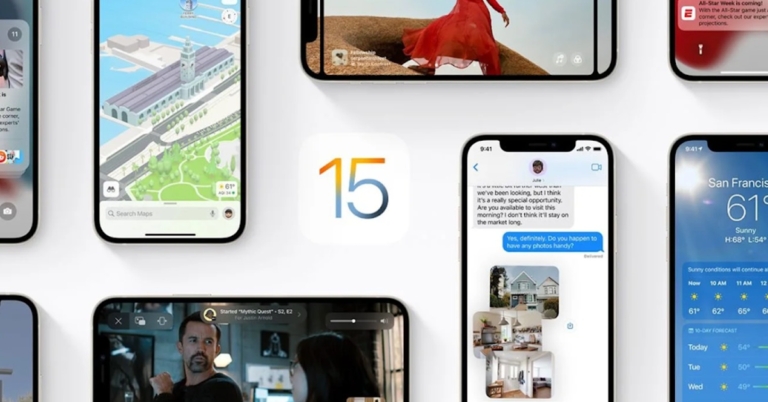
 This will potentially solve the problem, now try uninstalling the application.
Read Also:How to watch restricted YouTube videos without signing in?
This will potentially solve the problem, now try uninstalling the application.
Read Also:How to watch restricted YouTube videos without signing in?
 Step 3 – Now head to the ‘iTunes & App Store Purchases’ (you will be asked for a passcode).
Step 4 – Now set deleting apps to allow.
Step 3 – Now head to the ‘iTunes & App Store Purchases’ (you will be asked for a passcode).
Step 4 – Now set deleting apps to allow.
 This will potentially solve the problem, now try uninstalling the application.
Read Also:How to watch restricted YouTube videos without signing in?
This will potentially solve the problem, now try uninstalling the application.
Read Also:How to watch restricted YouTube videos without signing in?
 If you want to uninstall an application but it’s stuck on waiting. All you have to do is first check for internet connection and speed. And the next check will be for storage, there should be a good amount of it available on the phone. If both are fine there are chances that the application has encountered some bug. To solve it, long-press the application and press cancel the download and it will automatically be removed from the device.
 For each iPhone, the force restart procedure differs, so follow the above combination of buttons and hold it for 2 seconds according to the iPhone you use. You will see the “Slide to Power Off” option, slide the bar and let the iPhone completely shut down. Wait for a few seconds and hold the power key to turn the device. Now try uninstalling the application.
Read Also: PUBG Mobile gets a play time restriction of 6 hours per day: Will this solve anything?
For each iPhone, the force restart procedure differs, so follow the above combination of buttons and hold it for 2 seconds according to the iPhone you use. You will see the “Slide to Power Off” option, slide the bar and let the iPhone completely shut down. Wait for a few seconds and hold the power key to turn the device. Now try uninstalling the application.
Read Also: PUBG Mobile gets a play time restriction of 6 hours per day: Will this solve anything?
 Step 2 – Scroll to the bottom to find the transfer and reset option and press Reset, and then press Reset all Settings.
 After this step, there won’t be any doubt that your application won’t be uninstalled. Try these steps to solve the Not able to Remove Apps iPhone issues.
For the latest gadget and tech news, and gadget reviews, follow us on Twitter, Facebook and Instagram. For newest tech & gadget videos subscribe to our YouTube Channel. You can also stay up to date using the Gadget Bridge Android App. You can find the latest car and bike news here.
After this step, there won’t be any doubt that your application won’t be uninstalled. Try these steps to solve the Not able to Remove Apps iPhone issues.
For the latest gadget and tech news, and gadget reviews, follow us on Twitter, Facebook and Instagram. For newest tech & gadget videos subscribe to our YouTube Channel. You can also stay up to date using the Gadget Bridge Android App. You can find the latest car and bike news here. 
 The old school Bluetooth transfer is to the rescue. It is one of the easiest and traditional ways to transfer files from your Android smartphone to the system. Press Win + I on your Windows machine and then head to the Bluetooth and device section click on add devices and make sure the Bluetooth on your smartphone is on and is discoverable(refer to the image below). Once paired, transfer the file by clicking share on any of the devices and exchange files. This might take a lot of time as Bluetooth technology is slower than the other wireless solutions.
Read Also: 5 apps and software you can use to wirelessly transfer files
The old school Bluetooth transfer is to the rescue. It is one of the easiest and traditional ways to transfer files from your Android smartphone to the system. Press Win + I on your Windows machine and then head to the Bluetooth and device section click on add devices and make sure the Bluetooth on your smartphone is on and is discoverable(refer to the image below). Once paired, transfer the file by clicking share on any of the devices and exchange files. This might take a lot of time as Bluetooth technology is slower than the other wireless solutions.
Read Also: 5 apps and software you can use to wirelessly transfer files
 It is a simple and convenient way to transfer files from your smartphone to the PC. The first thing you need to do is install the AirDroid mobile app and sign in to the account of your preference. Next, install the AirDroid application from the download page. Accept all the permission needed. Now all you are left with is drag and drop the files that can be easily accessed from the other device. In Android start adding files in the device section and the files can be viewed on the system. (Transfer speed depends on the internet connection).
 The most convenient way of transferring files is by connecting both devices via USB. connect the USB A/USB C to your system and the other MicroUSB/Type C to your Android smartphone. As soon as you connect them you will see a popup on your Android device (See the image below, for reference, OneUI is used, the name may defer in others) select file transfer and you are good to go. NOw open the system and transfer the needed files.
Read Also: 10 best apps to download for iPhone 13 and iPhone 13 Mini
The most convenient way of transferring files is by connecting both devices via USB. connect the USB A/USB C to your system and the other MicroUSB/Type C to your Android smartphone. As soon as you connect them you will see a popup on your Android device (See the image below, for reference, OneUI is used, the name may defer in others) select file transfer and you are good to go. NOw open the system and transfer the needed files.
Read Also: 10 best apps to download for iPhone 13 and iPhone 13 Mini
 Another convenient sharing option to transfer files from Android to PC that will not only allow you to share files across two devices, but you can access these files on any system where you can log in to your cloud service and view the files on the go. There are many cloud services, but let’s take the example of Google Drive. Install Google Drive on your Android system and open the website for Google drive or download the desktop version. Now start uploading files on Drive and those can be viewed on any device where you have signed in with the same account. You can select any of cloud storages but read the terms and storage options carefully.
For the latest gadget and tech news, and gadget reviews, follow us on Twitter, Facebook and Instagram. For newest tech & gadget videos subscribe to our YouTube Channel. You can also stay up to date using the Gadget Bridge Android App. You can find the latest car and bike news here.
Another convenient sharing option to transfer files from Android to PC that will not only allow you to share files across two devices, but you can access these files on any system where you can log in to your cloud service and view the files on the go. There are many cloud services, but let’s take the example of Google Drive. Install Google Drive on your Android system and open the website for Google drive or download the desktop version. Now start uploading files on Drive and those can be viewed on any device where you have signed in with the same account. You can select any of cloud storages but read the terms and storage options carefully.
For the latest gadget and tech news, and gadget reviews, follow us on Twitter, Facebook and Instagram. For newest tech & gadget videos subscribe to our YouTube Channel. You can also stay up to date using the Gadget Bridge Android App. You can find the latest car and bike news here. 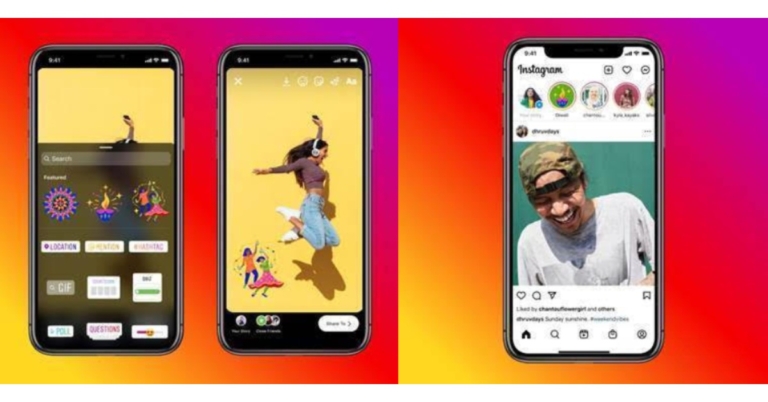


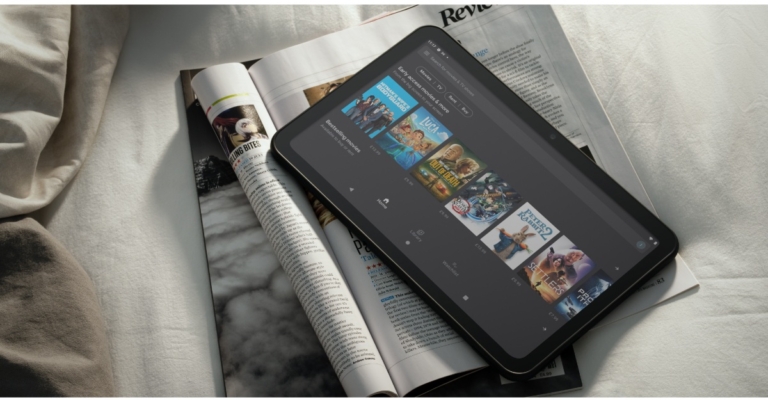



 Once the process is completed you will be able to view the converted timelapse natively.
 Step 3 – Select the portion of the video you want to import.
 Step 4 – Press Next and then select the speed from speed controls. You can also use the smoothing effect from standard to advance.
 Step 5 – Sit back and relax until the process is completed.
 Once completed you will see that timelapse output.
Read Also: How to save a Google Docs as a PDF
Once completed you will see that timelapse output.
Read Also: How to save a Google Docs as a PDF
 Step 3 – Choose speed according to the taste.
 Once the process is completed you will be able to view the converted timelapse natively.
 Step 2 – After the video has been uploaded click on the video bar and set the speed to 1.5X.
 Now press export on the top right corner and you are good to go. You will now have a time-lapse video with you.
Read Also: Top 5 speech to text apps for your Android smartphone
Now press export on the top right corner and you are good to go. You will now have a time-lapse video with you.
Read Also: Top 5 speech to text apps for your Android smartphone
 If you want to convert regular videos to time-lapse , but don’t care about the quality, just open up any video editing application on any platform. Upload the video on the desired video editing software. Now change the playback speed to 1.5X. This will not create smooth transitions for time-lapse but will show similar effects (Filmora video editing software used for demo images). Users can also shoot Timelapse directly from their smartphones for best results.
For the latest gadget and tech news, and gadget reviews, follow us on Twitter, Facebook and Instagram. For newest tech & gadget videos subscribe to our YouTube Channel. You can also stay up to date using the Gadget Bridge Android App. You can find the latest car and bike news here.
If you want to convert regular videos to time-lapse , but don’t care about the quality, just open up any video editing application on any platform. Upload the video on the desired video editing software. Now change the playback speed to 1.5X. This will not create smooth transitions for time-lapse but will show similar effects (Filmora video editing software used for demo images). Users can also shoot Timelapse directly from their smartphones for best results.
For the latest gadget and tech news, and gadget reviews, follow us on Twitter, Facebook and Instagram. For newest tech & gadget videos subscribe to our YouTube Channel. You can also stay up to date using the Gadget Bridge Android App. You can find the latest car and bike news here. 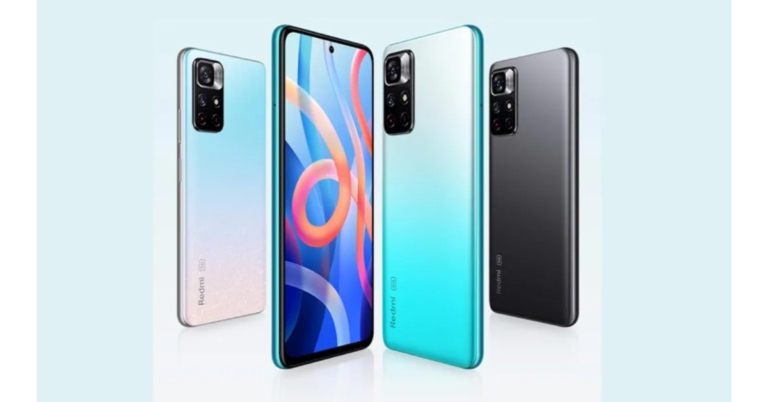
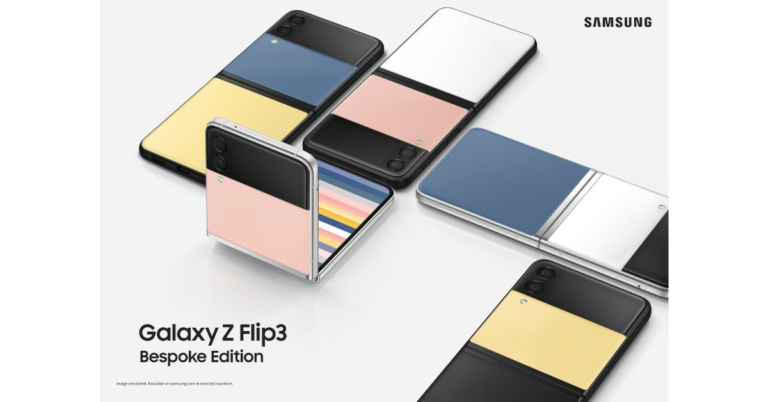

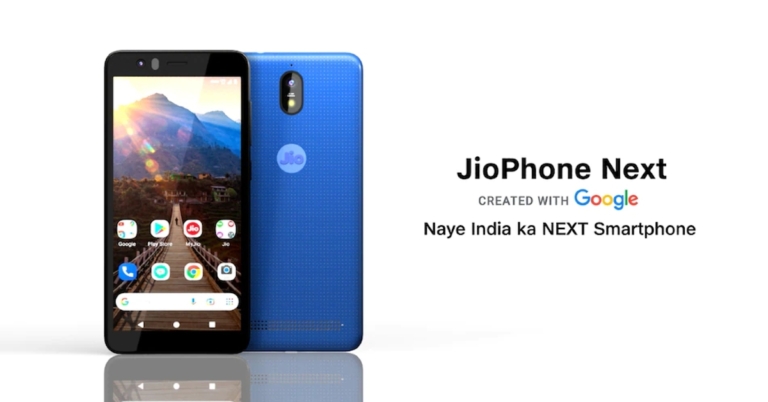

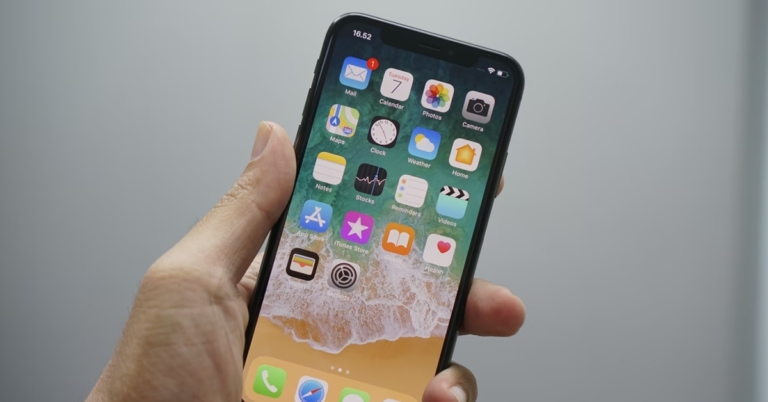
 Step 3 – Now select either perspective or live photo (depending on the wallpaper you choose to download).
 If done correctly your wallpaper will have a 3D effect and the phone will use gyro to adjust the wallpaper as you move the device. Didn’t find any good wallpaper on the web? Here are a few applications that you can consider downloading.
Read Also: WhatsApp to bring Wallpaper Dimming
If done correctly your wallpaper will have a 3D effect and the phone will use gyro to adjust the wallpaper as you move the device. Didn’t find any good wallpaper on the web? Here are a few applications that you can consider downloading.
Read Also: WhatsApp to bring Wallpaper Dimming
 The application has a wide variety of still and live wallpaper and a healthy amount of categories to choose from. The application has a user-friendly interface and you can select wallpapers according to your taste very easily. In the application, you will also find the “for you” section making it easy to install 3D wallpapers iPhone. Here you can find tons of free wallpapers that the application sorted specifically for you. Though the users will find ads and some premium wallpaper in the app for which you have to buy the premium version which is a one time buy.
Download Here
The application has a wide variety of still and live wallpaper and a healthy amount of categories to choose from. The application has a user-friendly interface and you can select wallpapers according to your taste very easily. In the application, you will also find the “for you” section making it easy to install 3D wallpapers iPhone. Here you can find tons of free wallpapers that the application sorted specifically for you. Though the users will find ads and some premium wallpaper in the app for which you have to buy the premium version which is a one time buy.
Download Here
 Are you into retro images or 8-bit wallpaper? The Wow Pixel is a perfect wallpaper for you. The application has tons of wallpaper to choose from and all of them have that 8-bit game graphics. For live and Parallax wallpaper you can choose adventure background and hero’s wallpaper. This application makes you feel how past graphics have met the feature technology. There are thousands of wallpapers with a lot of customisation options allowing its users to change it according to their taste.
Download Here
Read Also: How to make live wallpapers for your Android smartphones
Are you into retro images or 8-bit wallpaper? The Wow Pixel is a perfect wallpaper for you. The application has tons of wallpaper to choose from and all of them have that 8-bit game graphics. For live and Parallax wallpaper you can choose adventure background and hero’s wallpaper. This application makes you feel how past graphics have met the feature technology. There are thousands of wallpapers with a lot of customisation options allowing its users to change it according to their taste.
Download Here
Read Also: How to make live wallpapers for your Android smartphones
 This is ideal for iPhone users who want something minimalistic and they want to take advantage of the new OLED displays on their iPhone. The application has a wide variety of live and parallax wallpaper with all back backgrounds and minimalistic design. The OLED panels switch off the pixels of the screen for blacks to look more vivid. This also results in a better battery. The lite version is free with some premium wallpapers which you can buy with a one-time payment.
Download Here
This is it for install 3D wallpapers iPhone. The application has built-in features for applying 3D and live wallpaper. If you are unable to do it or understand it. All you have to do is download the wallpaper and use the method explained above to set it up.
For the latest gadget and tech news, and gadget reviews, follow us on Twitter, Facebook and Instagram. For newest tech & gadget videos subscribe to our YouTube Channel. You can also stay up to date using the Gadget Bridge Android App. You can find the latest car and bike news here.
This is ideal for iPhone users who want something minimalistic and they want to take advantage of the new OLED displays on their iPhone. The application has a wide variety of live and parallax wallpaper with all back backgrounds and minimalistic design. The OLED panels switch off the pixels of the screen for blacks to look more vivid. This also results in a better battery. The lite version is free with some premium wallpapers which you can buy with a one-time payment.
Download Here
This is it for install 3D wallpapers iPhone. The application has built-in features for applying 3D and live wallpaper. If you are unable to do it or understand it. All you have to do is download the wallpaper and use the method explained above to set it up.
For the latest gadget and tech news, and gadget reviews, follow us on Twitter, Facebook and Instagram. For newest tech & gadget videos subscribe to our YouTube Channel. You can also stay up to date using the Gadget Bridge Android App. You can find the latest car and bike news here. 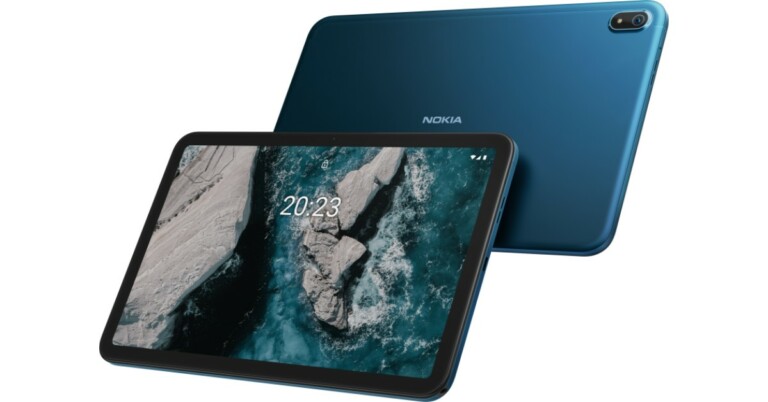

 From the heading of the solution, you might have known what to do. But for this, we advise you to do it via settings and not by iOS Control Center. Turn both the Wi-Fi and Bluetooth off and then turn them back on once again. Try this and see if AirDrops works for you.
Read Also: How to reset your Android smartphone
From the heading of the solution, you might have known what to do. But for this, we advise you to do it via settings and not by iOS Control Center. Turn both the Wi-Fi and Bluetooth off and then turn them back on once again. Try this and see if AirDrops works for you.
Read Also: How to reset your Android smartphone


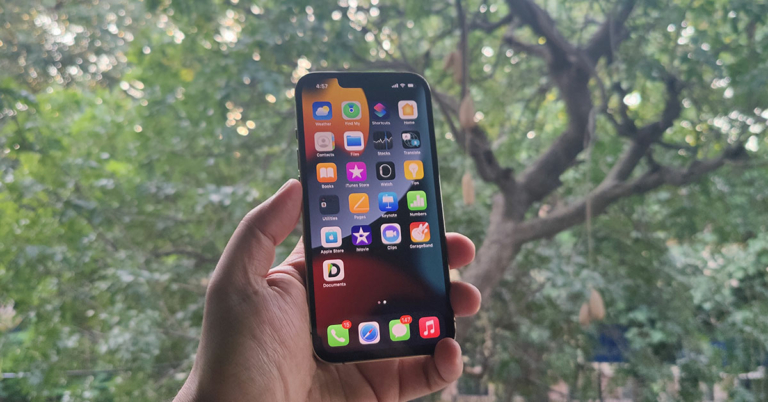
 For starters, the square frame with rounded curves for the exterior shell feels familiar, but it looks a lot more premium than before. (At least in the golden variant that we are testing, this becomes apparent easily.) The camera module at the back has changed slightly, and the notch on the front of the device, which we were hoping would be done away with, this time has thankfully become smaller. A new sierra blue colour variant has been added to the line-up, which stands out for being bold and brilliant.
 For starters, the square frame with rounded curves for the exterior shell feels familiar, but it looks a lot more premium than before. (At least in the golden variant that we are testing, this becomes apparent easily.) The camera module at the back has changed slightly, and the notch on the front of the device, which we were hoping would be done away with, this time has thankfully become smaller. A new sierra blue colour variant has been added to the line-up, which stands out for being bold and brilliant.

 The Apple iPhone 13 Pro has triple 12 MP cameras that take care of ultra-wide, wide, and telephoto shooting experience. There is a TOF 3D LiDAR sensor included, which is great for adding depth to images. This has become better and the depth in shots is far superior when compared to its previous gen.

 Macro photography has also been added to the new iPhone, which clicks very good up close and personal images. The front camera is also powered by a 12MP sensor and can take wide-angle shots. We loved the selfie experience of the Apple iPhone 13 Pro. We got fabulous Instagram-share worthy shots during the day and at night. The camera does perfect justice to your skin tone and adjusts according to the ambient light.

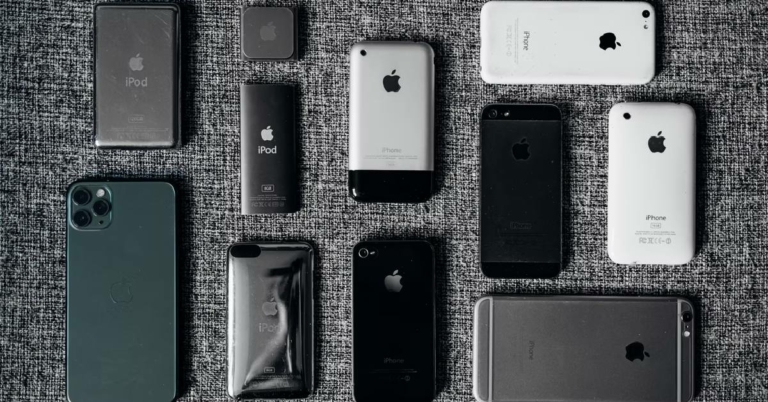
 Step 4 – Turn on Invert colours.
 In the same option, you will be having two options
