
In This Article
Check your Internet Connection
 As Microsoft Teams is an online-based software it requires a good and stable connection to work properly. Users can google any speed test online to check the internet connection and its speed. If the speeds are low, try connecting to a different WiFi connection. If no other WiFi is available try connecting it with a mobile hotspot.
Exiting Teams
 Sometimes the app becomes unresponsive and thus starts to misbehave either due to a bug or a trigger. The easy way to quit Microsoft Teams is by right-clicking on the taskbar and clicking quit. Another way is to go to the Task Manager and click the end task from there. Both methods will shut down Microsoft Teams and then try to restart the application. Now you should be able to log in.
Check your login credentials
It is possible that you entered the wrong credentials while logging into Microsoft Teams. Even a spelling error can keep you from logging into the service. Carefully go through each letter of your Email ID and password. Once you have verified that the login details are correct, hit Enter.Checking Teams Server
 It often happens that everything is fine from the client site but there is an error on the server site. Checking is also simple nowadays just open any browser and search Down Detector. If there are lots of reports you can ensure that the issue is regarding the server from Microsoft’s side.
Also Read: Beware: These are the 9 apps stealing Facebook login credentials from Google Play
It often happens that everything is fine from the client site but there is an error on the server site. Checking is also simple nowadays just open any browser and search Down Detector. If there are lots of reports you can ensure that the issue is regarding the server from Microsoft’s side.
Also Read: Beware: These are the 9 apps stealing Facebook login credentials from Google Play
Clearing Cache Memory
 To speed up the process of common tasks, computers often collect data in the background. If the computer collects a bad cache file it can show errors like login errors. The easy way to do this is:
Step 1 – Press Windows + R to open the run menu.
Step 2 – Type %appdata%MicrosoftTeams in the box and press Enter.
Step 3 – Delete all the files and folders.
To speed up the process of common tasks, computers often collect data in the background. If the computer collects a bad cache file it can show errors like login errors. The easy way to do this is:
Step 1 – Press Windows + R to open the run menu.
Step 2 – Type %appdata%MicrosoftTeams in the box and press Enter.
Step 3 – Delete all the files and folders.
Repairing Teams
There might as well be a bug in your system that is throwing Microsoft Teams an error thus resulting in a login issue. Repairing teams will solve this issue. This can be done by the following method: Step 1 – Press Windows + I. Step 2 – Go to Apps>Installed apps.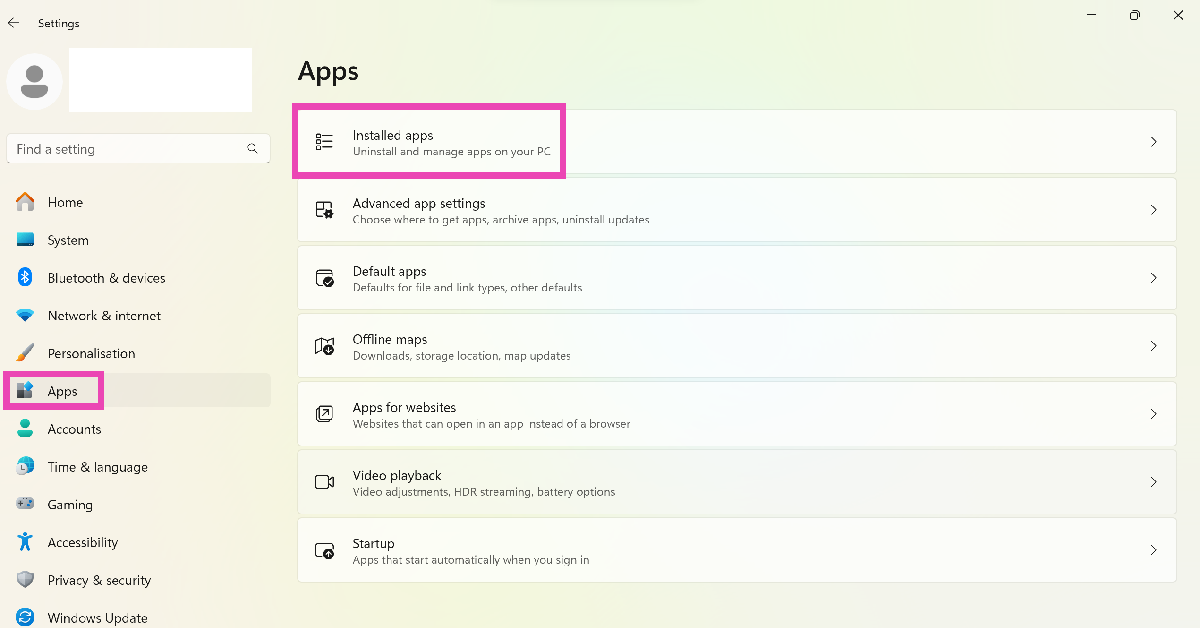 Step 3 – Hit the ellipses next to Microsoft Teams and select Advanced options.
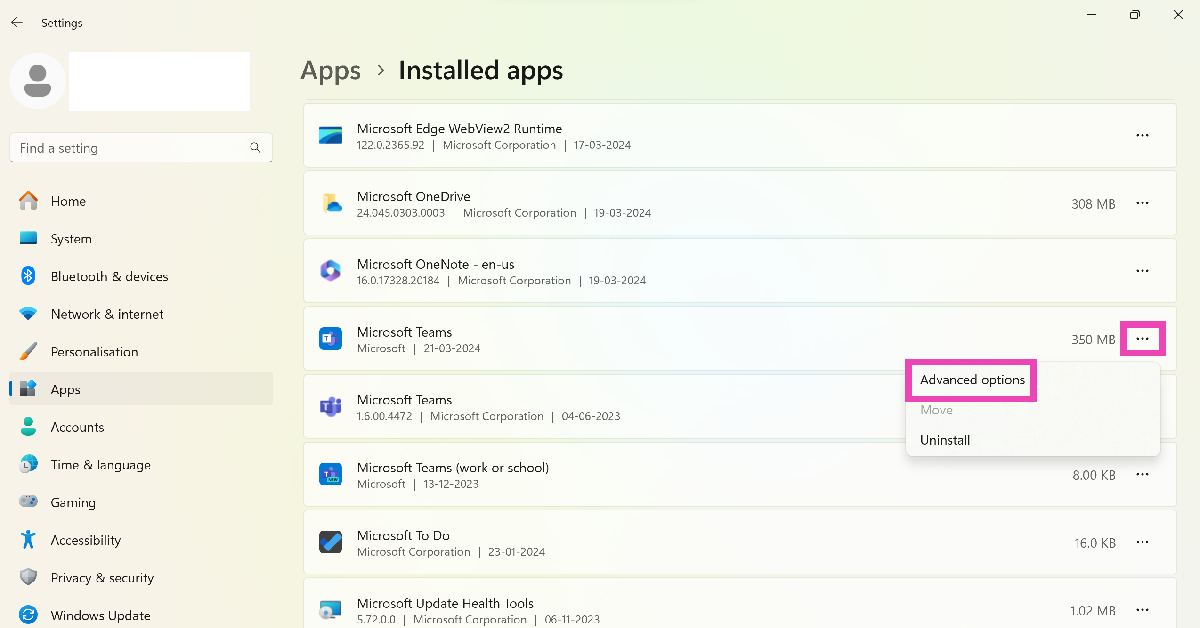 Step 4 – In the advanced menu under Reset there will be an option to Repair.
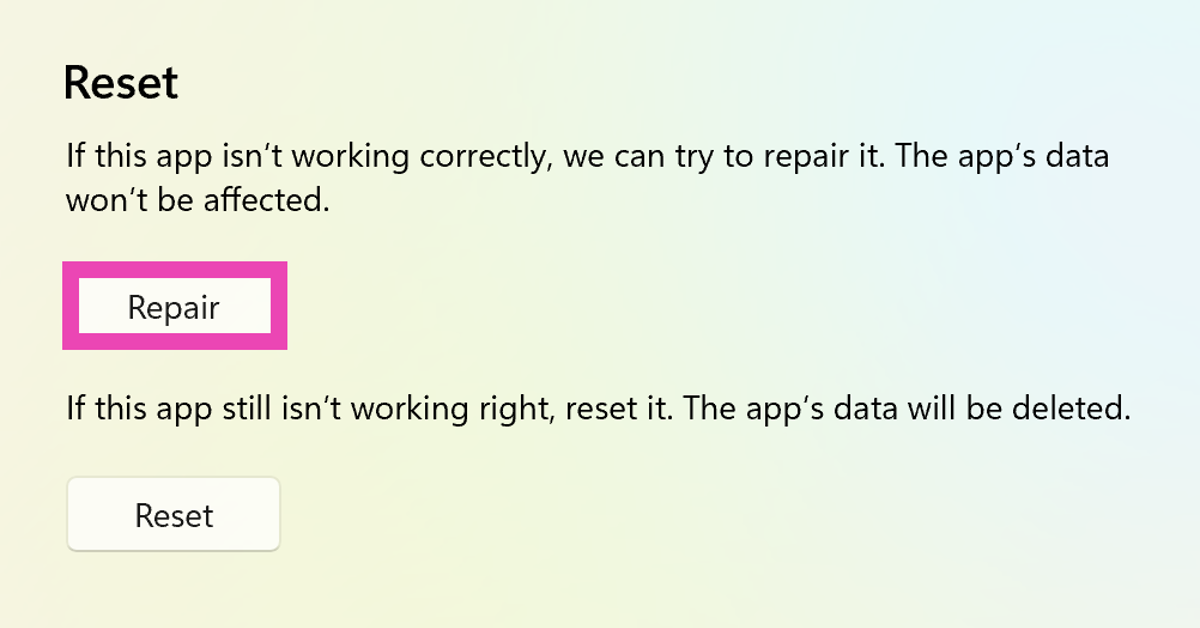 Step 5 – After the process is completed try running Teams once again.
Disable the VPN
If you’re using a VPN for your network, it can interfere with the Microsoft Teams software and cause an error while trying to sign in. If you don’t want to disable the VPN altogether, try changing the server location to another country. If that doesn’t work, pause the VPN and check if the issue has been fixed.Set the correct time zone
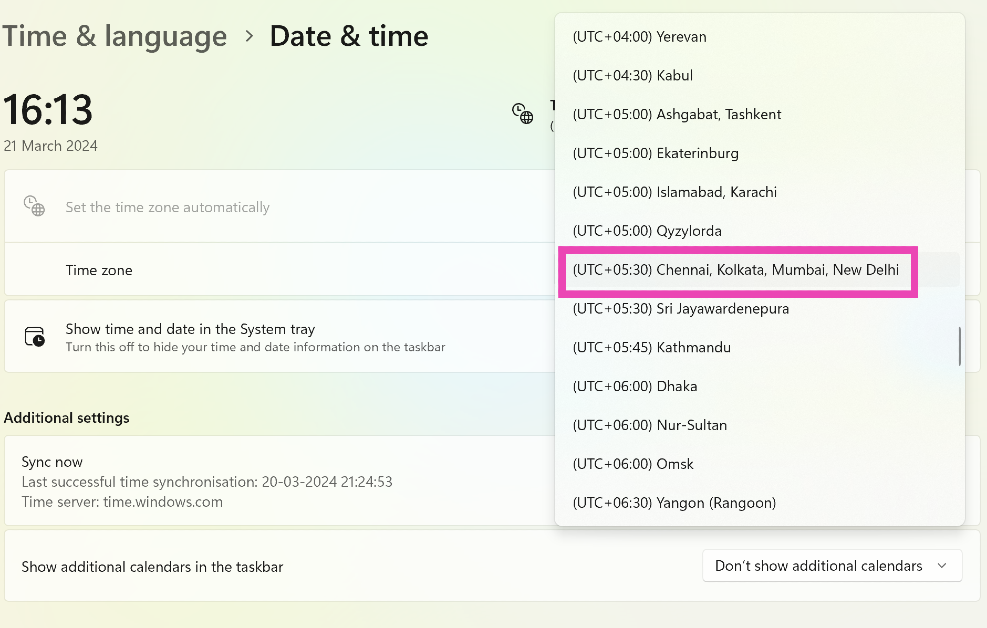
Incorrect date and time settings can cause Microsoft Teams to freeze. Here’s how you can fix it. Step 1: Press Windows + I to open settings. Step 2: Switch to the Time & language tab and select Date & time.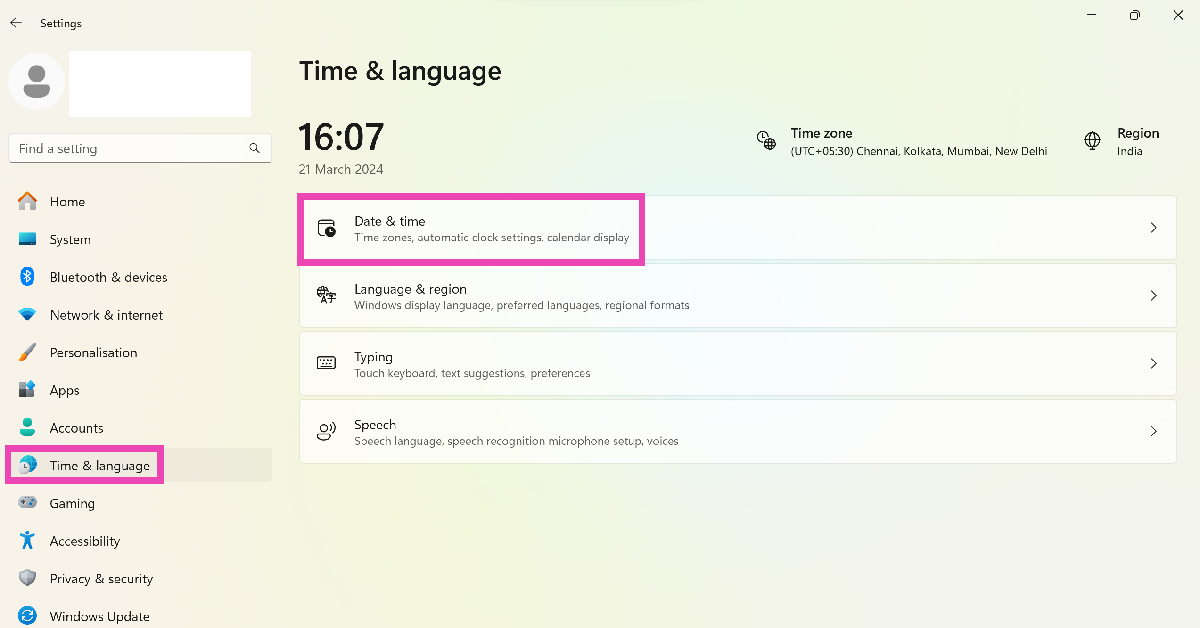 Step 3: Click on the dropdown menu next to Time zone and select the appropriate option.

























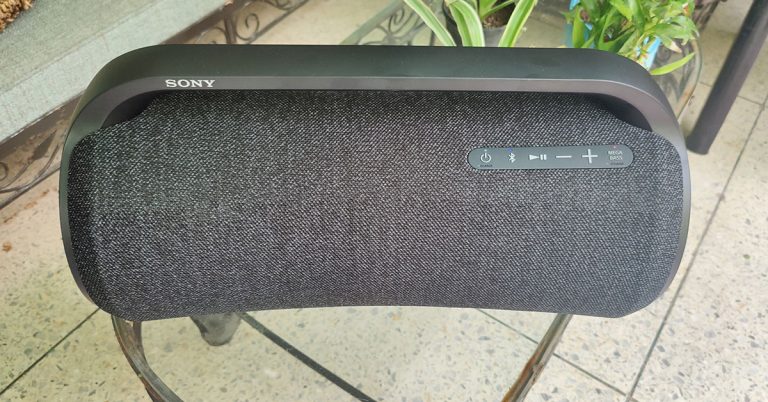
 The font top has rubberised buttons, which include the volume, power, Bluetooth and Mega Bass button that enhances the bass of any song. Underneath you will find a large rubber footing to neatly place it on any flat surface. Spin it around and you will find the ports panel, neatly tucked behind a thick rubber wall. Now you must be wondering why is there so much rubber on the Sony SRS XG500 wireless party speaker. Well, these speakers are meant for outdoor use as well, which is why Sony has got an IP66 rating for them. This means they are water-resistant and dustproof. But this does not mean you drop them in the pool, but accidental splashes on it won’t ruin them.
The ports on the Sony SRS XG500 include a couple of USB ports (which can be used to charge your smartphone too), power, 3.5mm audio-in and a special guitar or MIC auxiliary port. Just in case you are in the mood for some Karaoke, you can do that with Sony SRS XG500. Sadly, the mic is not part of the package. The last thing we want to talk about in the design department is the lights. Yes, you do get ambient LED lights on both side woofers. These dance as per the tunes you are listening to, but in case you want to control them, you can download the Sony Music Centre App and do so.
The font top has rubberised buttons, which include the volume, power, Bluetooth and Mega Bass button that enhances the bass of any song. Underneath you will find a large rubber footing to neatly place it on any flat surface. Spin it around and you will find the ports panel, neatly tucked behind a thick rubber wall. Now you must be wondering why is there so much rubber on the Sony SRS XG500 wireless party speaker. Well, these speakers are meant for outdoor use as well, which is why Sony has got an IP66 rating for them. This means they are water-resistant and dustproof. But this does not mean you drop them in the pool, but accidental splashes on it won’t ruin them.
The ports on the Sony SRS XG500 include a couple of USB ports (which can be used to charge your smartphone too), power, 3.5mm audio-in and a special guitar or MIC auxiliary port. Just in case you are in the mood for some Karaoke, you can do that with Sony SRS XG500. Sadly, the mic is not part of the package. The last thing we want to talk about in the design department is the lights. Yes, you do get ambient LED lights on both side woofers. These dance as per the tunes you are listening to, but in case you want to control them, you can download the Sony Music Centre App and do so.

 The verbal audio is crystal clear, the bass is deep, and the music does not crack even at full volume. Behind this rubber wall, you will find additional buttons on the Sony SRS XG500. These include a button that will tell you battery left, one is for enabling the guitar mode, another turns the lights on or off and the last one is for party connect. Yes, you can connect multiple Sony SRS XG500’s to each other or any other party connect compatible speaker to it.
As for the battery life, Sony says the SRS XG500 can last for 30 hours. But on our test bench, it needed a recharge after about 29 hours. So, what Sony says is just about right. Since a large power brick is also supplied with the speaker, it can fast charge the device and you can get 3 hours of wireless music playback with 10 minutes of charge. Over that, there are a couple of sound modes available on the app as well, which can be accessed via any iOS or Android device.
The verbal audio is crystal clear, the bass is deep, and the music does not crack even at full volume. Behind this rubber wall, you will find additional buttons on the Sony SRS XG500. These include a button that will tell you battery left, one is for enabling the guitar mode, another turns the lights on or off and the last one is for party connect. Yes, you can connect multiple Sony SRS XG500’s to each other or any other party connect compatible speaker to it.
As for the battery life, Sony says the SRS XG500 can last for 30 hours. But on our test bench, it needed a recharge after about 29 hours. So, what Sony says is just about right. Since a large power brick is also supplied with the speaker, it can fast charge the device and you can get 3 hours of wireless music playback with 10 minutes of charge. Over that, there are a couple of sound modes available on the app as well, which can be accessed via any iOS or Android device.
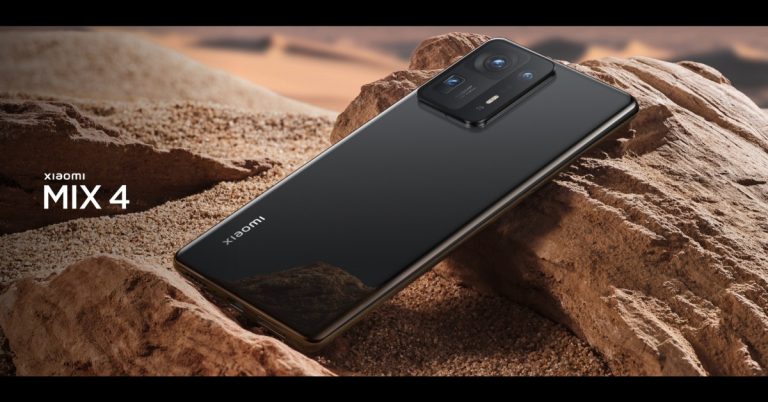
 Xiaomi Mi Mix 4 specifications