Facebook recently announced that it will stop recommending users worldwide regarding Facebook groups dealing with social and political issues. Last year, the company took several steps in promoting groups in search engine results and news feeds.
In This Article
Why did Facebook take this step?
There have been persistent criticisms by researchers and civil rights organisations regarding Facebook groups. According to them, Facebook has eagerly promoted misinformation. They believe that the platform, apart from offering a place to people with common interests, is providing a platform for organised radical activity.
According to Tom Alison, Facebook’s vice president of engineering, “They want us to turn down the temperature a little bit”.
During the US election and before the January 6 Capitol assault, Facebook groups were reported to spread misinformation and intense discourse. For instance, groups like “Stop the Steal” swiftly emerged even though their recommendations were stopped.
Why did Facebook take this step?
What will be the benefit of removing social and political group recommendations?
Throughout the COVID-19 pandemic, Facebook refrained from recommending health groups to users. This was done to stop rumours regarding the infection during a time when not much research was done on the virus. Recently, it has also busted some group as a part of the policy to check “militarised social movements.”
According to Facebook, the removal of the recommendations regarding social and political issues groups will significantly reduce tensions on the website. The new step will also restrict the reach of groups that violate Facebook’s terms and policies. Algorithmically, it is done by rating them lower in the recommendation list and warning people before they join groups that have earlier violated site rules.
How will Facebook implement the new step?
According to Tom Alison, Facebook’s vice president of engineering, the new Facebook groups on a particular subject would have to wait for 21 days before they could be recommended to users. In the meantime, the company would analyse how the group is projected to function.
Facebook stated that it would need some moderators to temporarily validate group posts. These posts pertain to the groups having rule-breaking members or those belonging to previously banned groups. However, Tom Alison, Facebook’s vice president of engineering, did not reveal the criteria to decide when a rule-breaking group or its members would be banned from the website.
How will Facebook implement the new step?
Groups have been the strategic priority for Facebooks since 2017. Facebook’s CEO, Mark Zuckerberg believes that Facebook groups are effective means to promote “meaningful connections”.
For the latest gadget and tech news, and gadget reviews, follow us on Twitter, Facebook and Instagram. For newest tech & gadget videos subscribe to our YouTube Channel. You can also stay up to date with the Gadget Bridge Android App.
Jio is one of the most prevalent telecom service providers in India. It is preferred for its wide availability and robust connection. JioFi is a trusted Wi-Fi router used by a significant number of Jio users due to is connectivity and portability.
In This Article
Who needs to update the JioFi password and why?
When you connect the same router to multiple devices, it becomes susceptible to unauthorised usage. You may start experiencing reduced internet speeds. This may impact your browsing experience and work. Moreover, when the router’s password is available with several users, it increases the chances of hacking. Thus, it’s a good habit to update your JioFi password once every three months.
How to change the JioFi password using the website?
To change the JioFi password using the website, follow these steps.
Connect your device with the JioFi hotspot
Launch a web browser on the connected device. In the search field, you will need to add http://jiofi.local.html or http://192.168.225.1
Once you’re on the website, click the Login option located on the top-right part of the screen.
Enter the credentials i.e. username and password and click the login button.
Now go to Network > Wi-Fi Configuration > Secure key
YouTube is releasing a new feature called “Checks” that will verify a video for copyright violation before it’s published. YouTubers will be able to find this feature no YouTube Studio dashboard while uploading a new video.
In This Article
How will the YouTube “Checks” feature work?
According to YouTube, “The copyright checks usually finish within three minutes, while monetization checks can take a couple of minutes longer. You’ll see a time estimate on the screen”.
While you are uploading a new video, YouTube’s algorithm will scan the content of the video. If any content is found that violates the copyright of original content, YouTube shall block the video from getting published.
According to YouTube, “You no longer have to publish a video as unlisted or private. Once the checks have completed, you’ll know if your video’s visibility or monetisation potential will be restricted once it’s public. However, it’s still possible for your video to receive restrictions after it’s published”.
How will the YouTube “Checks” feature work?
What will be the benefits of the new feature?
Prevention is indeed better than cure. The new feature of YouTube verifies the video for violation of copyright before it’s published. It will have the following benefits.
1) Encourages original content: Many YouTubers kept uploading content without caring for copyright violation. A significant number of them went unnoticed for violating the copyright. Now, the “Checks” feature will prevent the creators from uploading copyright content thereby encouraging creativity.
2) Fewer copyright violations: Since the copied material is blocked from getting published, there will be a drastic reduction in the number of cases of copyright violation.
3) Increased productivity: YouTube restricts the videos containing copyright content from getting monetised. As a result, YouTubers would eventually delete those videos nullifying the money and effort that was invested in creating the video. Now, they can put their energy into authentic content.
According to YouTube, “Keep in mind that if an issue is found, it might impact the video’s visibility or monetisation of the video”.
What is the benefit of the new feature?4) Minimised strikes on the channel: Since copied content will not be uploaded on YouTube, the chances for a YouTube channel to receive strikes for copied content will be minimum. However, it can still get banned for violating YouTube’s terms and policies.
According to YouTube, “protect your videos from other potential issues after publishing (like future manual claims, copyright strikes, and/or restrictions as a result of edits to your video settings)”.
5) Efforts reduced for copyright holders: Till now, the copyright holder had an extra responsibility of protecting their content from being copied on YouTube. Now, the same task will be taken care of by the “Checks” feature.
The new feature will discourage YouTubers from using someone’s intellectual property for raising their own channel and will encourage creativity.
For the latest gadget and tech news, and gadget reviews, follow us on Twitter, Facebook and Instagram. For newest tech & gadget videos subscribe to our YouTube Channel. You can also stay up to date with the Gadget Bridge Android App.
Samsung recently launched its Galaxy F62 smartphone in India at a starting price of Rs 23,999. The smartphone has an impressive set of specifications including a 7,000mAh battery, a 64MP primary camera, and an AMOLED display. Is Samsung Galaxy F62 a good buy for you? Read the rest of our review to find out:
In This Article
Samsung Galaxy F62 design and display
Let’s begin by talking about the look and feel of Samsung Galaxy F62. The smartphone is really good to look at and its design really stands out. The handset is available in Laser Blue, Laser Green, and Laser Black colour options and the one that we got for review was dressed in Black. The Black colour on the back panel transitions to Silver towards the bottom. There are thin stripes that run along the rear panel of the device, that also houses the quad camera setup, the LED flash and the Samsung branding. The frame and the back of the smartphone are made of plastic and have a glossy finish.
The right edge of Samsung Galaxy F62 has the Power and the Volume Rocker keys while the left edge has the SIM tray. The 3.5mm headphone jack, the Type-C port, the microphone and the speaker grille are at the bottom, while the secondary microphone is at the top.
Flip over, and you will see the 6.7-inch screen of the smartphone. The handset has a full-HD+ Super AMOLED Plus display that comes with a refresh rate of 60Hz. There is a selfie camera placed in a hole-punch cutout on the top middle part of the screen, right below the earpiece. It is worth pointing out that the device lacks an onscreen fingerprint scanner.
Coming back to the display of the smartphone, it can easily be called one of its best aspects. The images displayed were sharp and clear and the colours were vibrant. The brightness of the screen adjusted automatically according to the ambient lightning and the viewing angles were good too. The sunlight readability could be better. We spent a lot of time binge watching shows on Netflix using Samsung Galaxy F62 and the experience was really good, especially because the sound quality of the device matched the display quality.
Samsung Galaxy F62 performance and cameras
Before we speak about the performance of Samsung Galaxy F62, let’s quickly talk about its specifications. The handset is powered by an Exynos 9825 processor clubbed with 6GB/8GB RAM. The smartphone has 128GB of onboard storage and runs Android 11 skinned with One UI 3.1. The device boasts of a 7,000mAh battery and for imaging duties, there is a 64MP primary camera, a 5MP macro lens, a 12MP ultra-wide sensor, and a 5MP depth sensor. There is also a 32MP front camera for selfies and video calls.
The user interface of the smartphone is clean and you do have an option of selecting the additional apps you want installed on your device at the time of setup. However, even then, there were some besides the usual suite of Google apps and Samsung apps, like Facebook and Netflix, which were pre-installed. We did not get too many notifications while using the device, although there were some from the Galaxy Store. The handset has a number of nifty gestures that you can find in the Settings section, which you may find useful.
Coming to the performance of Samsung Galaxy F62, in most cases, it was smooth. Performing day-to-day tasks was a cakewalk for the device, and it did well even when it came to multi-tasking. We opened a number of apps and switched between them, and we did not face any lag in the performance. We even played several graphic-heavy games on the smartphone including Asphalt 9: Legends. While we didn’t experience any lag in gaming as well, the device did start warming up after like 10 minutes of play. You would find more gaming options in the One UI Game Launcher and if you want to block out notifications, you can switch to the Priority Mode.
The real highlight of the handset is its 7,000mAh battery. Even with heavy usage, involving social media apps, gaming, watching shows on Netflix and more, the battery of Samsung Galaxy F62 easily lasted two complete days. With moderate usage, you can use it for even longer. We found this to be extremely impressive. Since the battery capacity of the device is massive, you should know that it takes almost two hours to charge it using the 25W charger that’s there in the box.
Now, let’s talk about the cameras of the smartphone. As we mentioned earlier, Samsung Galaxy F62 comes with a quad rear camera setup that comprises of a 64MP primary lens, a 12MP ultra-wide lens, a 5MP depth sensor and a 5MP macro sensor. On the front panel, there is a 32MP camera for selfies.
Clicked from the primary camera
The primary as well as the ultra-wide cameras of the smartphone clicked some great shots in well-lit areas, especially outdoors. The images had very good details and were sharp and clear. The colour reproduction was apt too.
Clicked from the ultra-wide camera
However, a few shots taken from the ultra-wide sensor do have some distortion. In lowly-lit areas or at night, the two cameras showed good results with the Night Mode on, and we highly recommend turning it on.
Night mode shot
The macro camera’s performance was slightly inconsistent. While it did a good job during the day, in lowly-lit areas, the shots taken with it were just average. The Portrait Mode on the handset worked well too and you do get some filters for customization.
Clicked from the macro lens
The front camera did a fairly good job when we used it outdoors. We also managed to click some decent selfies indoors in well-lit conditions.
Verdict
At a price of Rs 23,999, Samsung Galaxy F62 has several features that make it a good investment. The smartphone’s design stands out and watching content on its display is a treat to the eyes. The battery life of the device is outstanding and its biggest pro. The performance is smooth too. The notifications on the device may be annoying to some and the lack of onscreen fingerprint scanner is not a deal breaker but would have a been a great addition. The cameras mostly did a good job, although their performance could be more consistent. Despite these minor hiccups, Samsung Galaxy F62 is smartphone you won’t regret buying. Go for it.
Pros
Google Chrome is one of the most preferred browsers due to its intuitive experience and security. It has been evolving since its inception to deliver a personalised browsing experience to its users. The Live Caption is another useful feature that you find in the updated version of the Chrome browser.
Yes, the new Live Caption feature automatically provides captions for the audio and videos that you play on the browser.
In This Article
How do the Live Captions function?
Once you activate the Live Caption feature from the Chrome Settings, the browser engine uses Machine Learning to process and convert audio signals into their equivalent text. You can find captions appearing in a movable box at the bottom of the Chrome window. Although the words of speech appear with a short delay, they have a high degree of accuracy. The interesting thing regarding this feature is that you can see the subtitles even when the volume is turned off.
How do the Live Captions function?
What are the advantages of the Live Caption feature?
The Live Caption feature was first introduced in Pixel smartphones in 2019. They are of great utility.
1) Hearing disability: The Live Caption feature has enabled people with hearing disability to get an enhanced experience over the internet. Now they can understand the speeches and videos that are primarily void of subtitles.
2) Do not disturb: The Live Caption feature works even when the system volume or the browser media player volume is turned off. As a result, you can read the captions to understand podcasts and speeches.
3) Lyrics: The Live Caption feature is highly useful for music listeners. The lyrics of the fast-tempo songs is difficult to catch. The Live Caption feature will effectively display the lyrics that you can even pause to understand the meaning.
How can you enable Live Captions?
You can enable the Live Captions in the latest version of Chrome browser in the following steps.
1) Click the vertical three dots located on the top-right.
2) Click the ‘Settings’ option
3) Scroll down to the bottom
4) Click the ‘Advanced’ option
5) In the ‘Advanced’ settings, locate the ‘Accessibility’ section
6) You’ll find the ‘Live Caption’ option with the following explanation: “Automatically creates captions for English audio and video. Audio and captions never leave your device”.
7) Turn the ‘Live Caption’ on.
How can you enable Live Captions?
As soon as you toggle the option on, Chrome will automatically download speech recognition files. Now when your browser plays audio, the captions will appear.
For the latest gadget and tech news, and gadget reviews, follow us on Twitter, Facebook and Instagram. For newest tech & gadget videos subscribe to our YouTube Channel. You can also stay up to date with the Gadget Bridge Android App.
Intel, the world’s largest semiconductor chip manufacturer, recently released its new 11th Gen Intel Core S-series desktop processors including the flagship Intel Core i9-11900K chipset. It is claimed to be a significant improvement from its predecessor with the capability to clock to 5.3 GHz with Intel Thermal Velocity Boost. As a result, it will greatly enhance the gaming and media experience.
In This Article
What is the architecture of the new Core S-series desktop processors?
The new Core S-series desktop processors are designed on the new Cypress Cove architecture. These chips will improve the hardware and software efficiency thereby enhancing the gaming experience. The Intel Core i9-11900K consists of 16MB of Intel Smart Cache and eight cores that are capable of handling 16 threads. The new architecture brings up to 19% more IPC (Instructions Per Cycle) (IPC) for the highest frequency cores. To attain intelligent graphic capabilities, it implements the Intel Xe graphics architecture.
What is the architecture of the new Core S-series desktop processors?
How will it enhance the gaming experience?
The performance of games relies on high-frequency cores for rendering several frames per second and reducing latency. The new 11th Gen desktop processors are designed to bring to the gamers the best gameplay experience. The new architecture is capable of taking up to 19 gen-over-gen instructions in each clock cycle. This will enable the GPU to seamlessly perform complex rendering techniques like anti-aliasing and ray-tracing. The fast memory speeds of DDR4-3200 will provide multitasking capabilities and smooth gameplay.
How will it enhance the gaming experience?
How will it enhance the media and streaming features?
The new 11th Gen Intel Core S-series is capable of offering exceptional media experiences including AAA gaming and high-definition streaming. The DDR4-3200 MHz support with 20 PCIe 4.0 lanes and Intel Quick Sync Video provide high-efficiency video decoding and end-to-end compression.
Why is it better than the predecessor?
Compared to the predecessor, the new 11th Gen Intel Core S-series desktop processors have made the following improvements.
Up to 19% gen-over-gen IPC performance enhancement
Intel Xe graphics architecture to achieve up to 50% better-integrated graphics performance
Support of the Intel Deep Learning Boost and Vector Neural Network Instructions to stimulate artificial intelligence (AI) inference
Improved tools and features for allowing smooth overclocking and tuning performance
Intel has collaborated with over 200 game developers to reach the current level of game engines and rendering optimisations.
What is the architecture of the new Core S-series desktop processors?
How does it achieve superior tuning and stability?
The new 11th Gen Intel Core desktop processors have come up with new overclocking tools to achieve smoother tuning and hence superior game performance. The real-time memory allows overclocking to feed real-time changes to DDR4 frequency. It will provide memory support for H570 and B560 chipsets to experience overclocking. Other capabilities include Advanced Vector Extensions (AVX), AVX-512 voltage guard band override, and an integrated memory controller with broader timings.
For the latest gadget and tech news, and gadget reviews, follow us on Twitter, Facebook and Instagram. For newest tech & gadget videos subscribe to our YouTube Channel. You can also stay up to date with the Gadget Bridge Android App.
Sennheiser recently released its new earphones with the name IE 300. These earphones are claimed to offer a high-quality listening experience capturing every nuance of the sounds you play. The German company has set standards in the field of professional audio systems. The company is celebrating its 75th anniversary with a new set of earphones that will continue the legacy.
According to Kapil Gulati, Director, Consumer Segment, Sennheiser India, “Sennheiser has been at the forefront of innovation and has evolved into developing some of the finest audio peripherals in the market right now. With the armour of high-end audio products, Sennheiser has paved the way to an audio revolution. Taking this legacy forward, we are excited to launch the all-new Sennheiser IE 300 in-ear headphones that have been crafted to offer a premium audio experience for our customers with impeccable sound quality when on the go.”
In This Article
What sound quality is offered by the new Sennheiser IE 300?
The new Sennheiser IE 300 is designed with an upgraded Sennheiser’s 7mm Extra Wide Band (XWB) transducer to deliver excellent sonic accuracy. The earphones are premium both in design and sound signature. The device consists of an optimised membrane foil that minimizes natural resonances to render a noiseless listening experience. With the Total Harmonic Distortion (THD) value of less than 0.08% at 1KHz, this earphone cuts the reflection inside the resonator chamber for detailed frequencies. It can produce sounds ranging from 6Hz to 20KHz so that you get the true-bass and refined trebles.
How comfortable are the new Sennheiser IE 300?
Sennheiser claims the IE 300 to be highly comfortable and durable. Sennheiser is renowned for designing the most professional and ergonomic audio systems. The new earphones come with flexible ear hooks that can be adjusted. The silicone and memory foam ear adapters provide a soft feel even after sustained usage. These adapters are available in three sizes, namely, small, medium, and large. The earphones provide a secure fit for optimum noise isolation. Thus, you can wear them in all kinds of sounding environments with comfort.
How comfortable are the new Sennheiser IE 300?
Is the new Sennheiser IE 300 durable enough?
The Sennheiser IE 300 consists of a 3.5mm cable guarded by para-aramid material to maintain strength even after several bend cycles. You get balanced cables with 2.5mm or 4.4mm connectors as optional gear. The gold-plating of the Fidelity+ MMCX connector minimises conductive noise and prevents rusting and wearing out. You get a premium case for keeping your earphones safely while travelling.
Power banks are highly useful gadgets proving a charging facility for your devices on the go. While travelling you may not find a charging socket at all places. Thus, a power bank keeps your devices charged so that you don’t get deprived of clicking pictures and listening to music. Considering the massive size of the latest smartphones, we’ve come with powerful power banks with a capacity of at least 10,000 mAh. Here is the top 10 list.
In This Article
1) Mi 20000mAh 2i
Mi 20000mAh 2i comes with an attractive design, durable quality, and high output capacity. This power bank fully supports fast charging. With dual USB output, you can charge two devices at a time. The ABS material used for making this power bank is lightweight, eco-friendly, and of high quality. Once fully charged, the power bank holds enough backup to charge a 3000mAh phone battery 4 times. This power bank now comes with a black metallic finish.
Mi 20000mAh 2i
Capacity (mAh): 20,000
Price: ₹ 1999
Buy on Amazon
2) Anker PowerCore 20100
The Anker PowerCore 20100 Power Bank is based on the PowerIQ and VoltageBoost technologies to offer fast and constant charging. The power bank comes with the MultiProtect safety system that ensures protection to the connected device and the user. The elegant matte finish improves grip and avoids smudges. This power bank is compatible with the included cable as well as third-party certified cables.
Anker PowerCore 20100
Capacity (mAh): 20,100
Price: ₹ 3,189
Buy on Amazon
3) Ambrane PP-20
Ambrane PP-20 is a 20,000 mAh power bank that comes with a durable rubber finish with a high-capacity polymer battery. You get dual input and dual output facility. You can connect one device to the micro-USB port and the other to a type-C port. The power bank has a compact design so that you can easily carry it along. It has a combined rating of 5V/2.1A and providing you with high efficiency and conversion rates.
Ambrane PP-20
Capacity (mAh): 20,000
Price: ₹ 699
Buy on Amazon
4) MAXOAK 50000 mAh
The MAXOAK 50000 mAh power bank offers a huge charging capacity of 50,000 mAh that is capable of efficiently charging even large devices including tablets and laptops. You get four Type-A USB ports for charging your smartphones and tablets. For charging your laptops, you get additional 12V and 20V ports. The power bank can be charged using the provided in-port. Owing to its size, some people may find it difficult to carry it in their hands.
MAXOAK 50000 mAh
Capacity (mAh): 50,000
Price: ₹ 27,979
Buy on Amazon
5) Xiaomi Mi 1000 mAh 2I
The Xiaomi Mi 1000 mAh 2I is a highly portable power bank weighing only 245 grams. You get dual-USB output for efficiently charging two devices. The power bank is covered with an Anodized aluminium alloy case to provide strength and durability. The 180degree ergonomic arc design makes it look attractive. It also provides a firm grip to avoid drops. The LED indicator tells you when your power bank needs to be charged.
Xiaomi Mi 1000 mAh 2I
Capacity (mAh): 10,000
Price: ₹ 899
Buy on Amazon
6) Philips 11000 mAh
The Philips 11000 mAh power bank is a highly portable charger enabling you to charge your devices on the go. You get additional power for charging up to three devices at a time. The intuitive LED battery display tells you the remaining battery. You get a 1-year manufacturing warranty with a micro connector inside the box. The compact design allows you to carry it along. The LED indicator tells you how much power backup is left in the power bank.
Philips 11000 mAh
Capacity (mAh): 11,000
Price: ₹1,040
Buy on Flipkart
7) Ambrane 10000 mAh
Ambrane 10000 mAh power bank comes with a single input and dual inputs facility. The elegant octagonal design making it one of the most attractive power banks that you can buy. The multiple chipset protection provides insulation from short circuits. The indicative LEDs help you optimally charge your smartphones and tablets. This power bank is available in two colours, namely, Turquoise Blue and Jet-Black. You can easily carry this device while travelling as it weighs only 277 grams.
Ambrane 10000 mAh
Capacity (mAh): 10,000
Price: ₹ 499
Buy on Amazon
8) SYSKA P1016B
SYSKA P1016B is a 10000 mAh power bank delivering an output of 5V/2.4A. It comes with a battery indicator so that your device doesn’t get overcharged. The intelligent multi-protection circuits offer current shunting and prevent short-circuits. You get a 6-month warranty and a prolonged battery life. The power bank weighs only 285 grams making it highly portable. It is available in attractive white and black colours.
SYSKA P1016B
Capacity (mAh): 10,000
Price: ₹ 699
Buy on Amazon
9) Samsung Wireless Powerbank 10000mAh
This wireless power bank is designed with Fast Wireless Charging capabilities so that you can charge two devices simultaneously plugged-in or wirelessly. The Qi-compatible technology makes it compatible with a wide range of devices including smartwatches. It weighs only 234 grams so you can easily carry it along while travelling or driving. The silver colour provides it with an elegant finish and classy look. Along with the battery pack, you get a USB-C charging cable and a QSG.
Samsung Wireless Powerbank 10000mAh
Capacity (mAh): 10,000
Price: ₹ 3,950
Buy on Amazon
10) Duracell PB10050
Duracell is a renowned brand in batteries. This power bank comes with a three-year warranty with a name of trust and experience. It is one of the rare power banks that come pre-charged from the factory. Thus, you can use it right after unboxing. With a 4-level LED indication, you can know when your power bank needs to be charged. It is designed using Dual charge technology so that you can simultaneously charge your smartphone and the power bank.
Duracell PB10050
Capacity (mAh): 10050
Price: ₹ 3999
Buy on Amazon
For the latest gadget and tech news, and gadget reviews, follow us on Twitter, Facebook and Instagram. For newest tech & gadget videos subscribe to our YouTube Channel. You can also stay up to date with the Gadget Bridge Android App.
Devices like smartphones and tablets are a great of knowledge and entertainment for kids. However, too much exposure to these gadgets can hamper their growth and well-being. Parents should set an upper bound to the time spent by their children on these devices. This can be done in the following simple steps on both Android and iOS devices.
Limit your child’s screen time on an Android smartphone or tablet
Google’s Family Link allows you to fix screen time limits for your child on their Android smartphone or tablet.
In This Article
How to set daily device limits?
Using a parent’s device
launch the Family Link app.
Choose your child’s profile.
In the ‘Daily limit’ section, tap ‘Set up’ or ‘Edit limits’.
Follow the on-screen instructions.
Using your child’s device
Open the Settings on your child’s Android device.
Tab ‘Digital Wellbeing & parental controls’.
Tap ‘Daily limit’ to see the current settings
To change the daily limit, sign in to confirm that you’re a parent.
Limit your child’s screen time on an Android smartphone or tablet
To change the Bedtime settings, sign in to confirm that you’re a parent.
Limit your child’s screen time on an iOS smartphone or tablet
With Content & Privacy Restrictions in Screen Time, you can block or limit specific apps and features on your child’s device. And restrict the settings on your iPhone, iPad, or iPod touch for explicit content, purchases and downloads, and privacy.
Set Content & Privacy Restrictions
Open the Settings and tap Screen Time.
Tap Continue and choose This is My Child’s [Device] while ‘Device’ stands for iPhone or iPad.
Follow the on-screen instructions until you reach the Parent Passcode.
Limit your child’s screen time on an iOS smartphone or tablet
Enter the Passcode. You’ll be prompted to enter your Apple ID and password.
Select Content & Privacy Restrictions.
Enter your passcode and turn on Content & Privacy. Set a passcode that’s different from what you use to unlock your device.
To modify or disable the passcode on your child’s device, go to Settings > Screen Time > [child’s name]. Now, tap Change Screen Time Passcode or Turn Off Screen Time Passcode. You’ll need to approve the modifications with Touch ID, Face ID, or passcode.
Google’s Family Link is an easy-to-use application allowing parents to set rules for their children to use devices like smartphones and tablets. It ensures that children grow in a healthy environment gaining useful knowledge while blocking inappropriate online content.
In This Article
Who needs Google Family Link?
Nowadays, children have as much access to gadgets like smartphones and tablets as an adult. Most schools have curriculums in which children have to submit homework and assignments through a portal or mobile application. Besides, the COVID-19 pandemic has led tasks like lectures and assessments to be carried out solely online on the internet.
Although smartphones and tablets are of great utility for children, they also expose them to online content inappropriate at such an age. To solve parents’ dilemma whether they should offer gadgets to their children or not, Google’s Family Link comes to their rescue.
How can Google’s Family Link help you manage your child’s phone?
Google’s Family Link empowers parents in a variety of ways to monitor their child’s activity on a smartphone.
1) Apps download: The app allows them to be the final authority to approve apps that their child wishes to download from the Play Store.
2) Screen time: With Family Link, parents can allot limits for the daily screen time on their child’s device. Moreover, the weekly and monthly reports tell the overall screen time and the time spent on individual applications by their child.
3) Remote lock: Family Link enables the parents to remotely lock their child’s device or hide particular apps during productive hours of their child.
4) SafeSearch filters: The SafeSearch feature blocks explicit content on Google Search including graphics violence and suggestive videos. This feature remains active for the user under 13.
5) Build curiosity: Besides being a limiter, the app acts as a facilitator. Family Link automatically shows teacher-recommended apps that your child can directly download from the Play Store.
How can Google’s Family Link help you manage your child’s phone?
How to use Google’s Family Link?
Google’s Family Link allows parents to decide when their child is mature enough to freely use the device. To set the Family link using the app, follow these steps.
1) Install the Family Link on an Android device.
2) Create a Google Account for your child within the application or a browser on the website families.google.com.
3) Now you can monitor your child’s account as a parent on your Android or iOS smartphone.
4) As soon as your child turns 13, the app will allow him/her to upgrade to a normal Google Account.
How to use Google’s Family Link?
Google’s Family Link allows a family group of up to six people with the parent as the administrator.
For the latest gadget and tech news, and gadget reviews, follow us on Twitter, Facebook and Instagram. For newest tech & gadget videos subscribe to our YouTube Channel. You can also stay up to date with the Gadget Bridge Android App.
PUBG Mobile recently ban over 1 million accounts permanently for actions that violate the game’s terms and policy. It is not a new event happening in the gaming world. Tencent regularly checks players exercising in-game activities that go against a healthy match.
In a tweet, PUBG Moble declared, “Don’t get caught on the wrong side of the #BanPan. From March 5th-11th, we permanently banned 1,110,842 accounts from accessing our game. The majority of reasons include Auto-Aim Hacks, Speed Hacks, X-Ray Vision”.
In This Article
What illicit tactics did the banned players use?
In its BanPan initiative, Tencent found that a majority of banned accounts were using illegitimate tactics to enhance their performances in the gameplay. These activities included auto-aim cheats, X-Ray vision cheats, and speed cheats.
While scanning the banned players, the company discovered the following.
34 per cent of the players belonged to the Bronze category
13 per cent belonged to the Diamond category
12 per cent belonged to the Silver and Crown ranks
11 per cent belonged to the Platinum category
10 per cent belonged to the Gold category
7 per cent belonged to the Ace category.
the remaining 13 per cent belonged to the Conqueror category.
Will the banned accounts be recovered?
As per the rules of the company, the banned accounts will not be recovered as their data has been deleted from the gamer servers. It has been found that among the banned accounts, a significant number constituted fake accounts or bots created by hackers to gain an unauthorised advantage during the gameplay. The remaining accounts were genuine players using cheats and hacks to gain rewards in the game. Tencent also observed a decline of about 41 per cent in the number of fake accounts created by hackers since the last BanPan report.
Will the banned accounts be recovered?
How can PUBG Mobile players prevent getting banned?
Using cheats is a common practice across different single-player and multiplayer games including GTA and Call of Duty. However, PUBG Mobile maintains a rigid position regarding cheats. It does not permit players to use hacks during gameplay that yield them unnecessary advantages over other players. To avoid getting banned, PUBG Mobile has suggested gamers obey the propriety of the game. They must indulge in fair gameplay to develop natural tactics of spotting and killing opponents.
For the latest gadget and tech news, and gadget reviews, follow us on Twitter, Facebook and Instagram. For newest tech & gadget videos subscribe to our YouTube Channel. You can also stay up to date with the Gadget Bridge Android App.
Realme GT was allegedly found cheating the AnTuTu benchmark tool owned by a Chinese software company named Cheetah Mobile. As a result, AnTuTu removed Realme from its benchmarking platform. In the past, smartphone brands including Huawei, OnePlus, and some others were also found manipulating the benchmark scores and faced consequences.
In This Article
Why was Realme removed from AnTuTu benchmarking platform?
AnTuTu revealed the reason for removing Realme from the benchmark on Weibo. It stated that the company tampered with the performance testing outcomes of its GT smartphone. AnTuTu claimed that Realme tried to change the values of the multi-threaded workload and JPG decoding parts.
As per the allegations, Realme delayed the threads of the GT smartphone while running the multithreaded test on the AnTuTu app. This enabled the smartphone to run the fastest CPU cores raising the result values. AnTuTu also blamed Realme for changing the reference image to minimise the processing time and attain a higher score.
What are the actions taken by AnTuTu?
AnTuTu has taken strict actions against Realme for manipulating the parameters. It has expelled the company from the benchmark platform for three months. Moreover, AnTuTu has asked Realme to furnish clarification for the action and to take corrective measures. If the company still fails to avoid such misdeed, it may get banned permanently from the list.
What are the actions taken by AnTuTu?
How did Realme respond to the situation?
Realme vehemently denied the allegations put by AnTuTu saying that it provided genuine data regarding the smartphone’s performance.
According to Realme, “Realme GT is equipped with the latest Snapdragon 888 5G platform, bringing users high performance. Benchmark scores of Realme GT are all accurate data under the current versions of the Antutu benchmark. Realme has always been committed to bringing users excellent performance, the actual user experience is the top priority for Realme. On the other hand, regarding the test issues doubted by both sides, we are in touch with Antutu to sort it out positively.”
Seems like Realme is up to no good and the customer sentiment with cheaters is known. The brand has already been facing a lot of flak and is not the best when it comes to smartphones or after-sales service. Many think that the Indian leadership is to be blamed for many of its hiccups here. And now with this Realme-cheating-gate, the companies worries are just going to increase.
For the latest gadget and tech news, and gadget reviews, follow us on Twitter, Facebook and Instagram. For newest tech & gadget videos subscribe to our YouTube Channel. You can also stay up to date with the Gadget Bridge Android App.
Samsung is hosting the awaited ‘Galaxy Awesome Unpacked’ event today i.e., March 17, 2021 at 7:30 PM India time. The company will launch globally a couple of its mid-range smartphones and a smartwatch. The event will be streamed live on Samsung Newsroom and Samsung’s YouTube channel. Here are the expected specs of the upcoming smartphones. For your convinence we have embedded the live streaming link here as well.
In This Article
How to watch live the Galaxy Awesome Unpacked event?
The Samsung Galaxy A72 may sport a 6.7-inch Full HD+ AMOLED display offering a 90 Hz refresh rate for fast-paced gaming. It may be released in LTE and 5G variants. You may get a 64MP primary camera, a 12MP ultrawide, 5MP macro sensors, and an 8MP telephoto lens. The smartphone might come with a 32MP selfie camera embedded in a central punch-hole notch. The Galaxy A72 is expected to run a powerful Snapdragon 720G processor accompanied by 6GB/8GB RAM. The device may be packed with a massive 5,000 mAh battery with 25W fast charging. The Android 11 operating system might board the smartphone backed by 128GB/256GB of secondary storage.
Expected Price:
128GB variant: ₹34,999
256GB variant: ₹37,999
Samsung Galaxy A52 expected features
The Samsung Galaxy A52 5G is expected to offer a 6.5-inch Full HD+ AMOLED display with an outstanding 90 Hz refresh rate. The smartphone may sport a quad rear camera setup with a 64MP primary sensor, a 12MP telephoto lens, a 5MP macro lens, and a 5MP depth sensor. You may expect a 32MP selfie camera fixed at the centre of the screen. The smartphone may run the Android 11 operating system. Like the galaxy A72, it may also arrive in two secondary storage variants i.e., 28GB and 256GB. The Galaxy A52 is also expected to be released with LTE or 5G connectivity. The device is reported to be packed with a heavy-duty 4,500 mAh battery with 25W fast charging.
Camera quality has been the priority of a majority of smartphone users. When it comes to social media and online meetings, we can’t ignore the selfie camera. The selfie talks much about the overall smartphone quality. The lens and the megapixels number go complementary with each other. Today, 24MP is considered a standard for front cameras. We have curated a list of the best smartphones offering at least a 24MP selfie camera.
In This Article
1) Samsung Galaxy S21 Ultra
Samsung Galaxy S21 Ultra is renowned for having outstanding camera quality. This 5G smartphone has one of the most powerful and latest hardware among all smartphones. It comes with a sharp 1,440p display that offers an impressive view quality. It does not get too hot even during non-stop GPU usage at 100% while playing high-end video games and delivering heavy tasks. On the rear, the smartphone has a 108-megapixel primary camera, a 12-megapixel camera, a 10-megapixel camera, and a 10-megapixel camera.
Samsung Galaxy S21 Ultra
Selfie camera: 40-megapixel
Price: ₹ 1,05,999
Buy on Amazon
2) Samsung Galaxy M51
The Samsung Galaxy M51 comes with an outstanding 6.7-inch Super AMOLED display supporting Full HD+ resolution. It runs a powerful Qualcomm Snapdragon 730G processor that can efficiently handle multitasking and gaming. You get a long-lasting 7,000mAh battery, which is one of the most massive batteries you can get in a smartphone. The device is available in two variants, one has 6GB RAM and 64GB of storage and the other has 8GB RAM and 128GB of storage. You can capture 4K videos from the rear as well as front camera.
Samsung Galaxy M51
Selfie camera: 32MP
Price: ₹ 22,999
Buy on Amazon
3) Oppo Reno 5 Pro 5G
The Oppo Reno 5 Pro 5G is known for its sleek design. It comes with a MediaTek Dimensity 1000+ processor for delivering high processing speeds. The device runs ColorOS 11.1 operating system based on Android 11. It is a 5G smartphone to offer you lightning-fast connectivity with the support of Bluetooth 5.1 and Wi-Fi 6. You get a 6.55-inch 1,080×2,400 pixels Super AMOLED display proving vivid colours and wide viewing angles. Along with a premium design, you get long battery life with fast charging.
Oppo Reno 5 Pro 5G
Selfie camera: 32MP
Price: ₹ 35,990
Buy on Amazon
4) Oppo Reno 3 Pro
Oppo Reno 3 Pro comes with a 6.4-inch AMOLED display with a fingerprint scanner embedded within the display. It runs an octa-core MediaTek Helio P95 processor that can easily handle multitasking and gaming. The device offers 8GB of RAM with two storage options, 128GB and 256GB. You get a long-lasting 4,025mAh battery with the support of 30W VOOC charging. The smartphone runs the ColourOS 7 operating system over Android 10. It has a quad-camera setup at the back consisting of a 64-megapixel primary sensor.
Oppo Reno 3 Pro
Selfie camera: 44MP + 2MP
Price: ₹24,990
Buy on Flipkart
5) Vivo V20 Pro
The Vivo V20 Pro sports a 6.44-inch full-HD+ AMOLED display along with Schott’s Xensation Up protective glass. It runs a powerful Qualcomm Snapdragon 765G processor that delivers high performance without much heating. The display renders amazing graphics to enhance your video streaming and gaming experience. This smartphone offers a 44-megapixel primary lens and an ultra-wide-angle 8-megapixel camera. Moreover, it’s a 5G smartphone to provide you connectivity with minimum latency.
Vivo V20 Pro
Selfie camera: 44MP + 8MP
Price: ₹ 29,990
Buy on Amazon
6) Vivo X50
This smartphone sports a 90Hz 6.56-inch AMOLED display supporting a Full-HD+ resolution to elevate your video-watching and gaming experience. it comes with an elegant yet durable design with Funtouch OS 10.5 based on Android 10. The device runs a powerful Qualcomm Snapdragon 730 processor offering outstanding performance while carrying out resource-demanding tasks. Vivo X50 is known for having an impressive battery life easily lasting more than a day once fully charged. The rear quad camera setup (48MP + 13MP + 8MP + 5MP) captures amazing pictures even in low-light conditions.
Vivo X50
Selfie camera: 32MP
Price: ₹ 34,990
Buy on Amazon
7) Asus ROG Phone 5
Asus ROG Phone 5 offers a 6.78-inch 1,080×2,448 pixels Full HD+ display. It runs a powerful octa-core Qualcomm Snapdragon 888 processor accompanied by 5GB RAM making it one of the most-awaited gaming smartphones. It comes with a massive 6,000mAh battery supported by proprietary fast charging. The Asus ROG Phone 5 has a 4G smartphone with an Android 11 operating system. You get 128GB of inbuilt storage with an in-display fingerprint sensor. The 64-megapixel primary camera captures outstanding pictures and videos.
Asus ROG Phone 5 (Image Credit: Asus)
Selfie camera: 24MP
Price: ₹49,999
Buy on Flipkart
8) OnePlus Nord
The OnePlus Nord is a budget smartphone offering outstanding camera quality and seamless experience. It has a 48 MP Sony IMX586 sensor to reduce blur and shakiness in pictures and videos. You also get an 8 MP ultra-wide-angle lens in addition to the 32MP main shooter. The device features a 90Hz fluid AMOLED screen and Oxygen OS. Nord runs on a powerful Qualcomm Snapdragon 765G 5G mobile platform that offers you improved CPU speeds, faster graphics rendering, and peak gaming performance. The smartphone delivers a high gaming performance and its HDR10+ screen renders amazing graphics.
OnePlus Nord
Selfie camera: 32MP + 8MP
Price: ₹ 27,999
Buy on Amazon
9) LG G8X
LG G8X is a dual-screen smartphone with a 360 Degree Free-Stop Hinge enabling you to fold the screen around or fix it at any desired angle. You get a dual 6.4-inch 2,340 x 1,080 pixels OLED FullVision display offering an outstanding picture quality with vivid colours. The smartphone runs a powerful Qualcomm Snapdragon 855 Octa-Core processor accompanied by 6GB RAM for delivering high performance and rendering cool graphics on each screen. The Balanced Stereo Speakers with DTS:X 3D Surround and 32-bit Hi-Fi Quad DAC offer a premium audio quality.
LG G8X
Selfie camera: 32MP
Price: ₹ 29,500
Buy on Amazon
10) Redmi Note 9 Pro Max
The Redmi Note 9 Pro Max comes with a 6.67-inch screen with a comfortable design. It has a huge 5,020mAh battery that can last longer than many other smartphones in the same price range. The device runs a powerful Qualcomm Snapdragon 720G processor. The Redmi Note 9 Pro Max is available in three variants, 6GB RAM with 64GB storage, 6GB RAM with 128GB storage and 8GB RAM with 128GB storage. You get a 33W fast charging that refills the battery within an hour. The rear 64MP rear camera captures sharp pictures even in low-light conditions.
Redmi Note 9 Pro Max
Selfie camera: 32MP
Price: ₹ 15,790
Buy on Amazon
For the latest gadget and tech news, and gadget reviews, follow us on Twitter, Facebook and Instagram. For newest tech & gadget videos subscribe to our YouTube Channel. You can also stay up to date with the Gadget Bridge Android App.
Online casinos are one of the most popular methods of gambling across the whole of India. It allows quick and easy access to a huge range of different casino games. The potential for massive wins is something that many Indian players are drawn to. But, there are a number of barriers in place that can make it difficult for Indian players to play at online casinos.
Because computers aren’t as widespread in India as they are in some other countries, it means that it can sometimes be difficult to access the sites. While it might not be changing in terms of access to computers, there are other ways that are becoming popular when it comes to giving Indian players access to online casinos.
Mobile Phones
More and more players in India are getting access to mobile phones. They make it relatively easy to sign up to an online casino and begin playing. What is most appealing about using a mobile phone is that it gives Indian players the ability to play without needing to have the internet in their home. The use of 3G, 4G and even 5G means that mobile networks can provide coverage to almost the whole world now. Indian players are able to use their relatively cheap data to play at a huge selection of different online casinos.
It provides access to these sites without the requirement of an expensive computer. Mobile phones can connect to the home internet of course, but it’s not a necessity like some other devices. It means that a mobile phone provides the ability for players to enjoy playing at an online casino no matter where they go. The only requirement is a charged battery and a strong connection to mobile data.
Mobile phones provide players with the opportunity to play across a number of different platforms. Both iOS and Android offer the ability to access the mobile versions of online casinos. There are two main ways that these sites can be accessed. The first is through a mobile app. These are downloads that are offered to players. They can normally be downloaded from the app stores but sometimes they are available through the casino website.
The second way is through a mobile browser. This is available at almost all online casinos that offer mobile play. While apps are not offered at all sites, there are very few sites that only support app play for mobile players. It means that even if the player device doesn’t have a lot of memory in place the mobile browser site will offer the opportunity to play at the online casino.
Tablets
Tablets are very similar to mobile phones in a number of ways. In fact, some of the top-end mobile phones are just shrunk down versions of tablets. Tablets do tend to have some small differences though. The first is that they don’t always have mobile data available. While some data plans are available for tablets, they aren’t offered as standard like they tend to be for mobile phones. It means that generally, tablets require players to connect to the home internet. This is obviously a bit of a drawback for players that want to play on the move, however, there are some positives that make up for this.
A big positive of tablets is that the size of the screen tends to be a lot larger. This means that the games look significantly better on a table when compared to mobile phones. Players can enjoy larger sized graphics and it’s much easier to see what’s going on. It provides a much more enjoyable gaming experience. On top of this, because tablets tend to have more powerful batteries players are able to play for longer. Finally, the faster processors in the tablet mean that it can play the games much more smoothly than on mobile.
Smart Watches
This is an area that’s much less well known than the previous two methods. Smartwatches are a much newer technology and they don’t have the level of support that mobile phones and tablets do. However, some of the more advanced models on the market do have built-in web browsers included.
With new online casino games being created using HTML5 it means that all modern browsers are able to play compatible games. If a smartwatch is strong enough then it will be able to run online casino games for players. Because smartwatches can connect to mobile phones to get access to an internet connection, it means that players are able to play some casino games on their smartwatch.
For the latest gadget and tech news, and gadget reviews, follow us on Twitter, Facebook and Instagram. For newest tech & gadget videos subscribe to our YouTube Channel. You can also stay up to date with the Gadget Bridge Android App.
Although Windows 10 is one of the most commonly used operating systems, some tips and tricks can save a lot of time and effort. You might already be aware of some of the given tricks, but we’ve also listed some tricks that only experienced users might know. Here are the best Windows 10 tricks that you must know.
In This Article
1) Minimize all windows while keeping the current one
If you have too many windows opened on your desktop, you can clear out the view by keeping only the current window while minimizing others. Just click the title bar of the desired window. Holding and shaking it will vanish other windows.
2) Open the Second Start menu
Besides the expanded Start menu, Windows 10 offers a secondary Start menu without any graphics icons. You can open it by pressing Windows + X or just right-clicking the Start menu icon.
Open the Second Start menu
3) Open a Taskbar window without clicking
When you have multiple windows in the taskbar, you can open the desired window without clicking. You just need to press Windows + [Number], whee ‘Number’ denotes the numeric position of the concerned window.
4) Identify how much space apps are occupying
When you fall short of space for files, you have to clean up your device’s storage. The first task is to figure out how much space do the apps occupy. Go to Settings > System > Storage. Choose a drive and click ‘Apps & games’ to get a list of installed applications along with the space they occupy.
5) Remove ads in your Start menu
Windows 10, by default, offers advertisements recommending new apps and games that you might like to install. However, if you want to get rid of the advertisements, go to Settings > Personalization > Start. Turn the ‘Show suggestions occasionally in Start’ option off.
6) Shut down background apps
Inactive applications also utilise the computer’s RAM and processing when they send you notifications or run updates. This can impact your current task as well as the battery. To stop the background apps, go to Settings > Privacy > Background apps. turn the ‘Let apps run in the background’ option off.
Shut down background apps
7) Background scrolling
Windows 10 allows you to scroll the window that you are not currently working on. This feature enhances your view without switching tasks. To use this feature, go to Settings > Devices > Mouse. Turn the ‘Scroll inactive windows when I hover over them’ option on.
8) Show file extensions
For a clean view, Windows doesn’t show the extensions of the file in Windows Explorer. However, if you’re interested to view them while working on a project, go to the Search bar and type ‘File Explorer Options’. In the View tab, uncheck the ‘Hide extensions for known file types’ box and click and OK.
9) Enable focus assist
You can avoid distracting notifications by setting a limit on the number of notifications. Go to Settings > System > Focus assist. You can choose any of the three options:
Off – disable all notifications
Priority – selected notifications from a priority
Alarms – hide all notifications, except for alarms
Enable focus assist
10) Take a screenshot
We quite often need to take a screenshot while working on Windows 10. There are several ways to take a screenshot but you can quickly do that by pressing the Windows key + Print Screen key. You can access all your screenshots by going to Pictures > Screenshots.
For the latest gadget and tech news, and gadget reviews, follow us on Twitter, Facebook and Instagram. For newest tech & gadget videos subscribe to our YouTube Channel. You can also stay up to date with the Gadget Bridge Android App.
Microsoft releases Windows 10 updates from time to time to keep the operating system features and virus definitions up to date. Most users usually update their Windows as and when the system prompts them to do so. However, there may be cases when you want to suspend or disable the Windows 10 updates. When you are working on a project, it’s not possible to shut down your PC for updates. Moreover, updates quite often bring compatibility issues that you want to avoid. Thus, here are the best ways to pause and disable Windows 10 updates.
In This Article
How to pause Windows 10 updates?
To pause the updates on Windows 10, follow these steps.
1) Go to Start > Settings > Update & Security > Windows update
2) This panel shows the pending updates of Windows 10 if any otherwise you will see the message “You’re up to date” with a tick mark.
3) At the bottom, you will see four option listed, namely, Pause updates for 7 days, Change active hours, View update history, and Advanced options.
4) Click the ‘Pause updates for 7 days’ option.
5) The Windows updates will be paused with the message “Updates paused”. You can go to the ‘Advanced options’ to pause the updates to a particular date.
As soon as you click the ‘Resume Updates’ option, Windows will automatically start checking for updates.
How to pause Windows 10 updates?
How to disable updates in Windows 10?
Windows 10 allows you to pause updates for 35 days. To prevent Windows from updating for a longer period, you will need to disable the updates Follow these steps.
1) Press Windows+R to open the ‘Run’ box
2) Type ‘services.msc’ and press OK.
3) Look for ‘Windows Update’ and double-click on it.
4) Choose ‘Disabled’ from the ‘Startup type’ drop-down menu.
To enable the updates, reiterate the above steps set the ‘Startup type’ to ‘Automatic’ or ‘Manual’.
How to disable updates in Windows 10?
For the latest gadget and tech news, and gadget reviews, follow us on Twitter, Facebook and Instagram. For newest tech & gadget videos subscribe to our YouTube Channel. You can also stay up to date with the Gadget Bridge Android App.
BMW recently revealed the new eighth edition of the iDrive, an in-car communications and entertainment system. The BMW iDrive has existed for the past twenty years and has played a major role in enhancing the driving experience of BMW cars. The new version is seen to be a revolutionary step towards autonomous driving.
In This Article
What is the new BMW iDrive all about?
The eighth edition of the BMW iDrive will come with a curved screen stretching from the driver’s end to the centre of the dashboard. The display size will vary across different car sizes. The new iDrive will significantly enhance the interior communication system of BMW cars. The installed system will be able to compute about 20 times the information of the previous version leading to much higher accuracy and efficiency in autonomous driving.
According to BMW, “The brain of this car will be a significant improvement over the previous model”.
As said, the screen sizes will vary depending on the vehicle, but there will be the appearance of “floating” on the screen in all variants, the automaker said. The new iDrive is expected to come installed in the new BMW iX electric SUV and the i4 electric sedan by the end of the year 2021.
What is the new BMW iDrive all about?
How does the new iDrive work?
According to BMW Chief Technology Officer, Frank Weber, “the new BMW iDrive will support the Level 2 and Level 3 autonomous driving systems. Level 2 includes functions including automatic emergency braking, adaptive cruise control, and lane-keeping. On the other hand, Level 3 allows the driver to take control on request”.
According to Frank, BMW Chief Technology Officer, “Nobody currently can offer at the start of production Level 3 capabilities, because you need so many test miles. And so you need a production vehicle, and then you run all your validation tests for Level 3”.
There would be several ways to control the iDrive. Such as through voice, gesture, and touch. There will be three key modes that are as follows.
Drive: Drivers can take the assistance of the information display
Focus: This mode helps in highly dynamic driving circumstances
Gallery: It clears out space for other applications by compressing the driving data.
How do other major automobile companies see the new BMW iDrive system?
Major automobile brands including Audi are also competing to design the best autonomous driving system. Audi claimed that its A8 sedan would feature a ‘Traffic Jam Pilot’ feature that would not require the driver during traffic. Audi has not yet decided to activate this feature. Level 3 automation still has many challenges to overcome.
How do other major automobile companies see the new BMW iDrive system?
For the latest gadget and tech news, and gadget reviews, follow us on Twitter, Facebook and Instagram. For newest tech & gadget videos subscribe to our YouTube Channel. You can also stay up to date with the Gadget Bridge Android App.
A recent Windows 10 update was reported to create an issue while using a printer. When some users tried to print a Notepad or Office document, they received the BSOD (Blue Screen of Death) error with a message “Your PC ran into a problem and needs to restart”.
When Microsoft acknowledged the issue face by people using printers, it began figuring out the problem. Even though the company didn’t have a solution, it said, “We are presently investigating and will provide an update when more information is available”.
In This Article
How users reacted to the issue?
The issue was not observed in all the devices with the new update. It is happening with printers of specific brands using specific firmware. Windows users began complaining regarding the error on Reddit. Due to the error, the printing could not be possible with normal Windows options. Instead, direct printing must be enabled in the Command Prompt. Based on the application is being used for printing, a compatibility tool may also be used. These two methods seem complex and thus are not likely to click the users’ minds.
How users reacted to the issue?
How Microsoft acknowledged the issue?
After the users began complaining regarding the printing error, Microsoft became aware of the problem faced with the PCs with the new Windows update. The company soon registered the issue on the Windows 10 Support page. According to Windows, it has “seen numerous reports of error popping up here and there”. The printer brands that seemed to have faced the problem included Zebra, Kyocera, and Ricoh.
How is Microsoft solving the issue?
Microsoft is trying to fix the issue that is causing the fatal error in Windows. The company has released a new update that should let the printing take place without any error. According to Microsoft, the error happened only with a few printers using some apps. It didn’t clarify the brands of the printer and applications that faced the issue.
The new update of Windows 10 is expected to resolve the issue. If you have been facing the same printing error, you may update your Windows 10 in the following steps: Settings > Update & Security > Windows Update > Check for Updates.
For the latest gadget and tech news, and gadget reviews, follow us on Twitter, Facebook and Instagram. For newest tech & gadget videos subscribe to our YouTube Channel. You can also stay up to date with the Gadget Bridge Android App.
Laptop heating is quite a common issue faced by users all over the world. When you use a laptop for a sustained period especially while gaming, it emits a significant amount of heat. This heat, if left untreated, can affect the hardware thereby shortening the life of the device. A laptop cooling stand is thus an essential gear for almost every user. They are quite affordable and will greatly enhance the performance of your device. Here is the top 5 list to choose from.
In This Article
1) Portronics My buddy plus Adjustable Laptop cooling Table
This laptop table from Portronics comes with an ergonomic design with inclinations up to 300 degrees. It has a 1,800RPM cooling fan located underneath the tabletop. The attached USB will connect with your laptop for the power supply. You can use all design of laptops with this laptop cooler desk. The fans provide optimum cooling without making any noise. The desk is made of durable material. It can be folded to carry in a backpack, too.
Portronics My buddy plus Adjustable Laptop cooling Table
Price: ₹ 1,899
Buy on Amazon
2) Diswa Adjustable Laptop Table with Fan
Diswa’s laptop table is lightweight and made of highly durable aluminium alloy. It has ventilation holes for airflow and a cooler to avoid laptop heating. The ergonomic design reduces back pain. The stand can be folded to easily store and carry along. The stand comes with a mousepad that can be set on either side for easy access. It has a load capacity of 13KG i.e. you can place all kinds of laptops on it.
Diswa Adjustable Laptop Table with Fan
Price: ₹ 1,590
Buy on Amazon
3) Cooler Master Notepal X-Slim
The Cooler Master Notepad X-Slim comes with a noiseless 160mm high-performance fan. The pad can be adjusted between two settings for achieving an optimum typing angle. You get a high-quality metal mesh for smooth airflow. The groves on the surface allow you to manage your cables, too. The pad can easily support up to 17inch laptops. The fan gets connected to a laptop through a USB and the front vent hand dryer design keeps your hands cool while using your device.
Cooler Master Notepal X-Slim
Price: ₹ 7,316
Buy on Amazon
4) Cooler Master Notepal XL
The Cooler Master Notepal XL comes with a quiet yet fast 230mm fan. It can expel approx. 89.8 cubic feet of air per minute to maintain an optimal flow. The stand has an ergonomic design allowing you to gain an appropriate typing angle. There are three USB ports for connecting miscellaneous peripherals. The design is big enough to support even 17-inches laptops. It is slim and lightweight (0.85Kg) enabling you to easily carry it along.
Cooler Master Notepal XL
Price: ₹ 3,499
Buy on Amazon
5) Targus Lap Chill Mat
The Targus Lap Chill Mat comes with a slim design with the ability to adjust in four levels. It comes with a dual-fan system that can operate at up to 2,500rpm. The ergonomic design allows you to tilt it for comfortable typing. The rubber stops given on the Chill Mat checks the laptop from slipping. The exterior neoprene covering ensures that you don’t feel exhausted while carrying the table on your lap. You get a 4-port USB hub for connecting additional peripherals.
Targus Lap Chill Mat
Price: ₹ 6,899
Buy on Amazon
For the latest gadget and tech news, and gadget reviews, follow us on Twitter, Facebook and Instagram. For newest tech & gadget videos subscribe to our YouTube Channel. You can also stay up to date with the Gadget Bridge Android App.
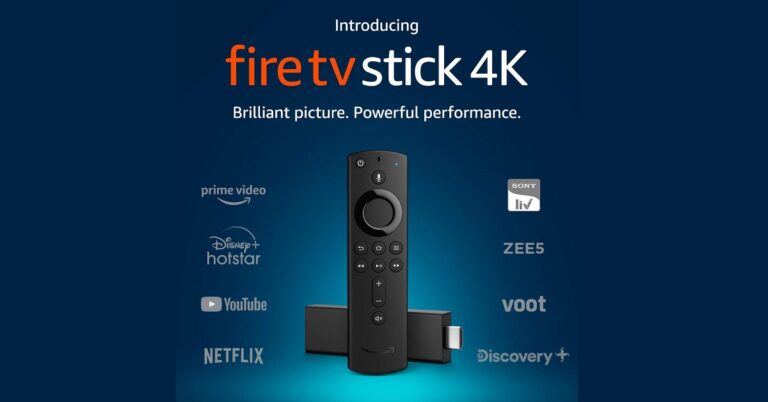
Amazon is a renowned company offering dozens of products that have uplifted the living standards of users and made their lifestyle easy. Amazon Fire Stick is one of those products that allow you to access a variety of high-quality content on your TV making it smarter. Besides streaming music and movies, you can perform several other functions. Here are the top 10 Fire Stick applications that you must install.
In This Article
1) Netflix
Netflix is among the most popular applications for streaming TV shows and movies. Netflix offers different kinds of plans keeping in mind different kinds of viewers. However, even the basic plans provide the same quality of original content as the expensive plans. Netflix comes with an intuitive platform that recommends content based on your watching habits. This helps you find new relevant content with ease. Unlike other applications, you can create your schedule to watch shows the way you want.
Netflix
2) YouTube
When it comes to streaming videos, there is hardly anything that comes first in the mind other than YouTube. With its user-friendly interface and robust recommendation engine, you get exactly what you want. The best part is you can access unlimited videos all the time free of cost. With the firestick application, you can get the same experience on your Fire Stick. You can easily watch videos, movies, and take the Premium subscription to get access to exclusive content.
YouTube
3) Hulu
Hulu is one of the most preferred streaming applications globally. It offers a huge library of original content, TV shows, and movies. It would be the best choice for Fire TV as it allows you to keep multiple profiles including kids’ profiles. Hulu is slightly different from other applications including Netflix as you can get early access to web series from conventional networks. Moreover, this app allows you to download the content across multiple devices to watch them offline.
Hulu
4) Crackle
Crackle is a streaming service owned by Sony. With the Fire Stick app, you can get access to exclusive Sony content that you might not get on other applications. Crackle is known for its simple interface allowing you to sort the movies and TV shows based on genre or lexicographically. The best part is that it is absolutely a free video streaming service. Crackle fully runs on video advertisements and you don’t have to spend a penny.
Crackle
5) Spotify
You can access the finest music on your Fire TV with the Spotify app. You just need to link your Spotify account and make it your default music app. You can use voice commands to start the music. The Spotify Fire TV app will elevate your music listening experience. You can browse playlists and favourite tracks using the Fire TV remote or your smartphone. The premium account allows you to access high-quality audio without irritating advertisements.
Spotify
6) VLC Media Player
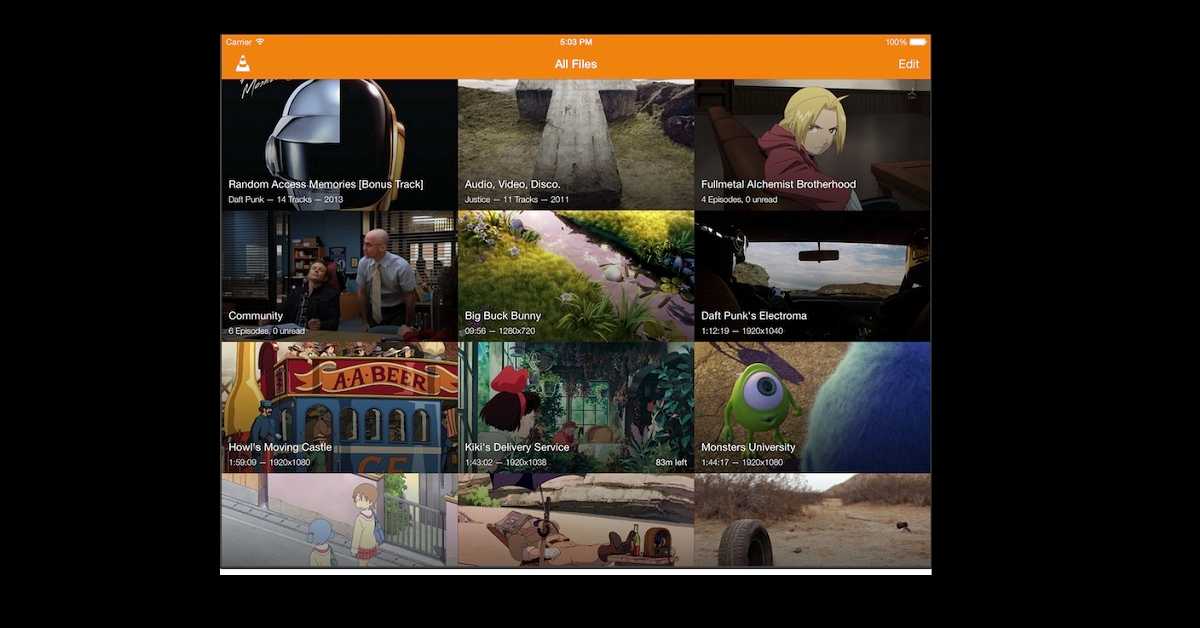
VLC Media Player is one of the most useful applications that you can have on your Fire TV. There are several file formats for videos. Some may be supported by your stick while others may not. VLC Media Player is compatible with almost all kinds of video file formats. VLC for Fire Stick comes with a media library allowing you to directly browse the folders for audio and video files. You can play the local files as well as the network streams.
VLC Media Player
7) AllCast
AllCast is a must-have Fire TV application for those who want to watch smartphone content on their TV. By using the AllCast application, you can mirror the media files from your smart device to the Fire Stick. Now you can enjoy music and movies saved on your smartphone on the large screen. You can also view photos via a Google or iCloud account. The Premium Edition blocks ads for you on most websites and allows you to save unlimited website bookmarks.
AllCast
8) Twitch
Twitch is a must-have Fire TV application for gamers and streamers. Twitch on your Fire Stick will allow you to watch the live streams of your favourite games. You can browse the live channels that you wish to watch including LIRIK and MAN vs GAME. Twitch also offers you news related to big game developers like Ubisoft, 2K games, and Microsoft. It comes with an intuitive interface so that you can easily explore your favourite content.
Twitch
9) DittoTV
DittoTV is a highly useful application for your Firestick as it lets you to stream live TV content at an affordable price. You can access all your favourite TV channels including Zee and Star. DittoTV offers movies in different languages with a watch-on-demand feature. You can stay updated with news, sports, and stock updates. Ditto TV is the only online platform where you can stream HD TV Channels including National Geographic Wild and Sony HD.
DittoTV
10) VPN by Private Internet Access
While streaming online content on your Fire Stick, it’s beneficial to remain protected from unauthorised activities. VPN by Private Internet Access encrypts your network so that you can browse privately online. You can remain anonymous on the public WI-Fi by hiding your IP address. It has been a trusted VPN provider since 2010 obeying the no-log policy. You can connect up to 5 devices simultaneously and get 24/7 professional customer support.
VPN by Private Internet Access
For the latest gadget and tech news, and gadget reviews, follow us on Twitter, Facebook and Instagram. For newest tech & gadget videos subscribe to our YouTube Channel. You can also stay up to date with the Gadget Bridge Android App.
The Portable Document Format, commonly known as PDF is one of the most preferred file formats across different purposes and professions. This file format is compatible with almost all electronic devices. Being a highly secure format, it is used for circulating online content like e-books, research papers, applications, and press releases.
In This Article
Who would need to compress a PDF file and why?
Most organisations use cloud storage solutions like Amazon Web Services, Microsoft Azure, and Google Cloud. Storage on the servers comes with a cost. Bigger the files, the more cost the companies will incur. This is where reducing the PDF file size becomes crucial. Moreover, transferring heavy files (say several MBs or even GBs) takes time as they require much larger bandwidth as compared to small files. Thus to reduce the transmission latency, file compression is necessary. In our day-to-day life, we might not feel the need to reduce the size of PDF files. But when it comes to scalable projects, file compression is the need of the hour.
Here are the best ways to reduce the size of a PDF file.
File compression using ilovepdf.com website
Open the iLovePDF website (https://www.ilovepdf.com/) in a web browser. This website offers a plethora of tools to modify your ODF files.
Click the ‘COMPRESS PDF’ option in the menu bar located at the top.
Click the button ‘Select PDF files.
Select the files from your device’s storage to reduce the size.
Click the ‘Compress PDF’ button located at the bottom right.
The processing time may vary depending on the size of the PDF file. Bigger the PDF file, the more processing time it will take.
The uploaded PDF file will be compressed and automatically downloaded. However, if the auto-download feature does not work, click on the ‘Download compressed PDF’ button to save the file.
File compression using ilovepdf.com website
File compression using Adobe online PDF file compressor
Microsoft has released a new feature in the Skype Desktop app called active noise cancellation. This new feature will enhance the experience of Skype voice and video calls by optimally reducing the background noise.
According to Skype, “We are pleased to announce the release of our latest background noise suppression feature in the Skype desktop app. Originally developed for Microsoft Teams, this new feature is designed to silence just about everything except for your voice when you’re meeting on Skype.”
In This Article
How does this feature work?
Skype revealed that this technology of active noise cancellation works on Machine Learning. When the user speaks in a voice or video call, the voice signals are sent through the microphone. The audio feed is analysed and feed to deep neural networks that cancel the noise without compromising the voice quality.
According to Skype, “This technology relies on machine learning (ML) to learn the difference between clean speech and noise and is frequently referred to as artificial intelligence (AI). A representative dataset is used to train the ML model to work in most of the situations our Skype users experience. There needs to be enough diversity in the dataset in terms of clean speech, noise types, and the environments from which our users are joining online calls”.
This technology relies on machine learning (ML) to learn the difference between clean speech and noise and is frequently referred to as artificial intelligence (AI).
How to enable the active noise cancellation video calls?
To activate the active noise cancellation feature in Skype video calls, follow these steps.
1) Launch the Skype Desktop app.
2) Click on the three vertical dots located on the top-left part of the screen next to the profile picture.
Click on the three vertical dots located on the top-left part of the screen next to the profile picture.
3) Click the ‘Settings’ option to open the ‘Settings tab.
4) In the ‘Settings’ tab, click the ‘Audio & Video’ option from the side menu.
5) Scroll down to the ‘Audio’ section.
6) Click the down arrow located next to the ‘Noise cancellation.
Click the down arrow located next to the ‘Noise cancellation.
7) Choose the desired option among the following: ‘Off’, ‘Auto’, ‘Low’, ‘High’. If you are not sure which option to choose, click the ‘Auto’ option. This is the default option that optimally cancels the background noise.
8) Exit the ‘Settings’ Tab. Your updated preferences will automatically be set.
Which platforms support this new feature of Skype?
The Clubhouse, an invitation-only audio-chat iPhone app, recently announced its new accelerator programme in which it will offer support to the selected 20 creators with resources. According to Paul Davidson, the Clubhouse co-founder, the selected creators will be offered assistance and resources to help them connect with sponsors.
According to Clubhouse, “We are launching our first creator accelerator program, Clubhouse Creator First. We are looking to support and equip 20 creators with resources they need to bring their ideas and creativity to life”.
In This Article
What will the creators get in the accelerator programme?
The selected creators will receive a monthly salary of around $5,000. They will have the choice to pick up to three gears among booking guests, mentorship, recording features, and analytics. The programme will also allow the creators to share links to their profiles. To expand the reach, the Clubhouse has decided to allow users to join rooms of their chosen language. Moreover, they can send invitations using their phone numbers.
According to Clubhouse, “Clubhouse Creator First is an accelerator program designed to help aspiring creators on Clubhouse host amazing conversations, build their audience, and monetize.”
The Clubhouse has added a new feature for nominating users from clubs. Now, the invitees will have a nomination bade sowing the name of the club. Moreover, new provisions have been made to discover abuse in the programme.
What will the creators get in the accelerator programme?
What is the significance of the programme?
Till now, Twitter has been the most effective medium for broadcasters to connect with their viewers. The accelerator programme is seen as an opportunity for the Clubhouse to encourage creators to use the app. Also considering Facebook’s importance in information sharing, the new programme will bind the users to the app.
According to analyst Vajresh Balaji, “Clubhouse only has a little over 10 million users. To put that into perspective: Facebook has 2.9 billion users, TikTok has 2 billion users, and Twitter has almost 200 million users”.
What is the limitation of the program?
Despite being a significant step to support the creators, the accelerator programme has a few limitations. The programme works on the invite-only concept i.e. it’s based on audio chats and not available freely to creators all around the world. Moreover, the programme is available only on iOS. As a result, the users who primarily work on other operating systems will not be counted in the first place.
The Clubhouse shall be selecting 20 creators for the accelerator programme via applications till March 31, 2021.
For the latest gadget and tech news, and gadget reviews, follow us on Twitter, Facebook and Instagram. For newest tech & gadget videos subscribe to our YouTube Channel. You can also stay up to date with the Gadget Bridge Android App.
Microsoft’s Surface Duo set multiple new dimensions for the company. The device helped the company to establish its new identity in the field of smartphones with Android experience. The smartphone, being a dual-screen gadget, gave competition to the most advanced smartphones. Now, Microsoft is preparing to release an improved edition of the smartphone, named ‘Surface Duo 2’.
In This Article
What can we expect from the Surface Duo 2?
The Microsoft Surface Duo 2 is expected to come with more powerful features as compared to its predecessor. It will sport a faster processor, better camera quality and 5G support. The Surface Duo was quite appreciated for its design and display but had a lot of issues with the software. This time, the company has emphasised eradicating the software issues including the camera app.
Surface Duo comes with an 11MP camera that didn’t produce outstanding results. We expect the Surface Duo 2 to get an improved camera quality. Microsoft has even posted several job listings to grow a team of engineers to work on the Surface Duo 2. The Duo has one battery installed in each panel but could only provide the power of 3,577mAh. We can expect an improved battery in the upcoming smartphone. The Surface Duo offers a Dual 5.6-inch OLED screen, a Qualcomm Snapdragon 855 processor, and 6GB RAM. The Surface Duo 2 might sport a more powerful processor to support a double screen. However, like its predecessor, the Surface Duo 2 might come in 128GB and 256GB variants.
What can we expect from the Surface Duo 2?
When will Microsoft release the Surface Duo 2 and how much will it cost?
Surface Duo 2 has been reported to be under development and is expected to arrive by the end of the year 2021. Comparing with its predecessors and enhanced features, we can expect the 128GB model of Surface Duo 2 to cost around $1,400. Likewise, the 256GB model might be available at a price of $1,500.
What else is Microsoft working on?
The company endeavours to bring to the customers “the best of Microsoft to the Android ecosystem”. The “Obscured Regions” API shows that Microsoft is working in the field of Android.
What else is Microsoft working on? (Image Credit: Microsoft)
According to Microsoft, “The API will allow the developer to re-flow the experience into the visible regions. For example, a Launcher might animate its bottom drawer to the un-obscured are to allow the user to launch another application”.
The company is also aiming to release Surface Laptop 4 at the beginning of the second quarter. Surface Pro 8 is also expected to arrive in the market in the last quarter.
For the latest gadget and tech news, and gadget reviews, follow us on Twitter, Facebook and Instagram. For newest tech & gadget videos subscribe to our YouTube Channel. You can also stay up to date with the Gadget Bridge Android App.





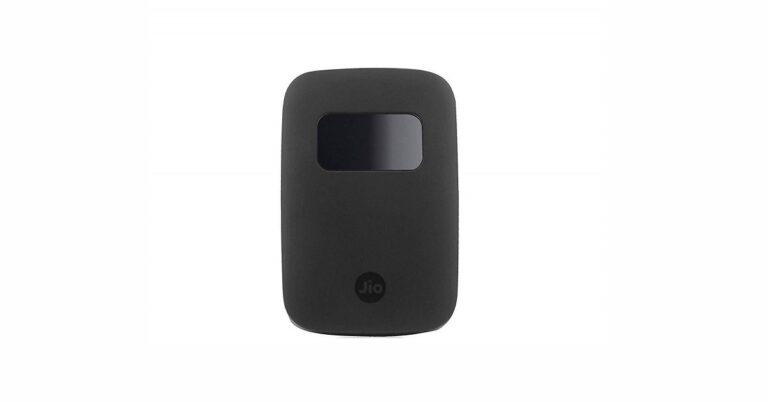




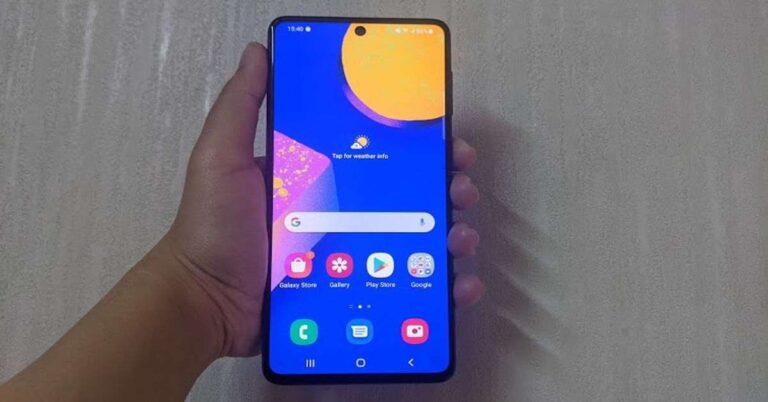
 The right edge of
  Coming back to the display of the smartphone, it can easily be called one of its best aspects. The images displayed were sharp and clear and the colours were vibrant. The brightness of the screen adjusted automatically according to the ambient lightning and the viewing angles were good too. The sunlight readability could be better. We spent a lot of time binge watching shows on
  The user interface of the smartphone is clean and you do have an option of selecting the additional apps you want installed on your device at the time of setup. However, even then, there were some besides the usual suite of Google apps and Samsung apps, like
  Coming to the performance of Samsung Galaxy F62, in most cases, it was smooth. Performing day-to-day tasks was a cakewalk for the device, and it did well even when it came to multi-tasking. We opened a number of apps and switched between them, and we did not face any lag in the performance. We even played several graphic-heavy games on the smartphone including Asphalt 9: Legends. While we didn’t experience any lag in








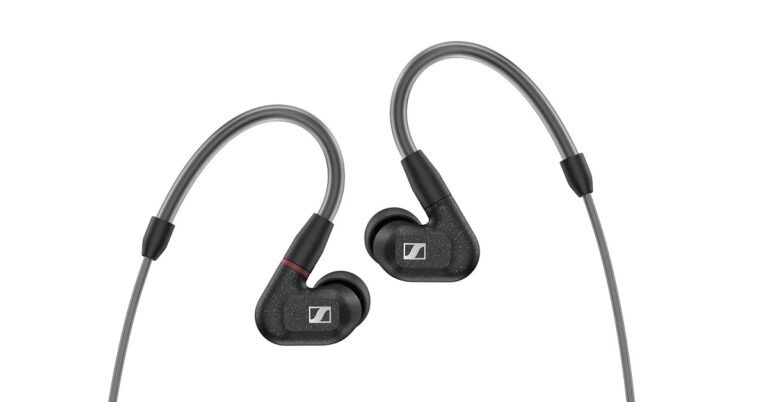


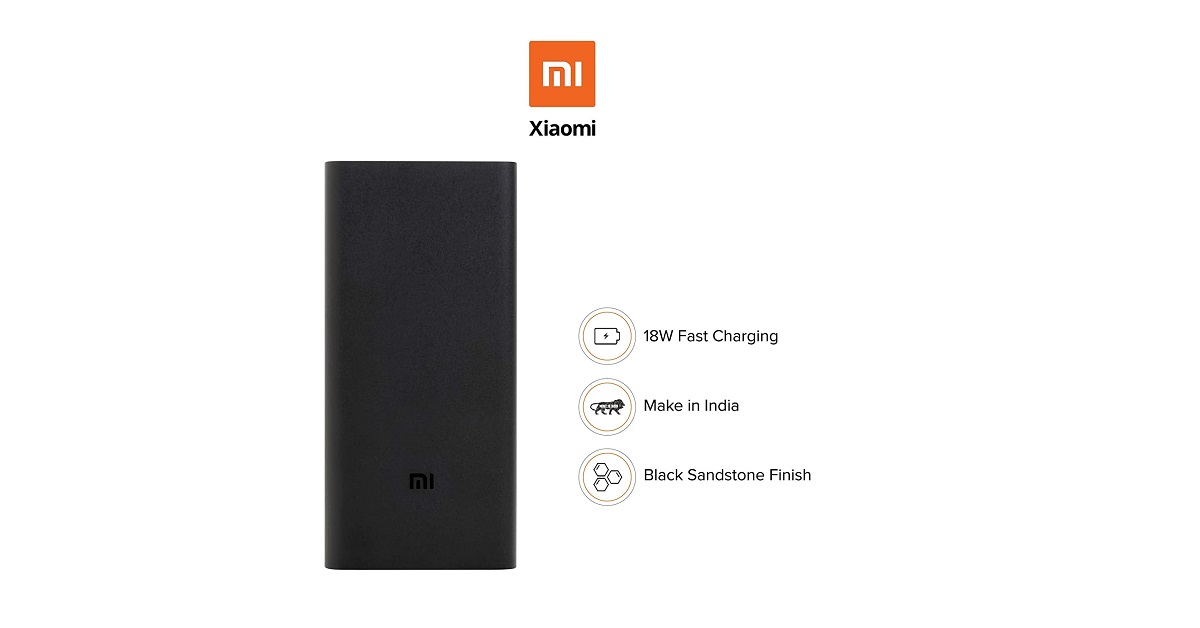
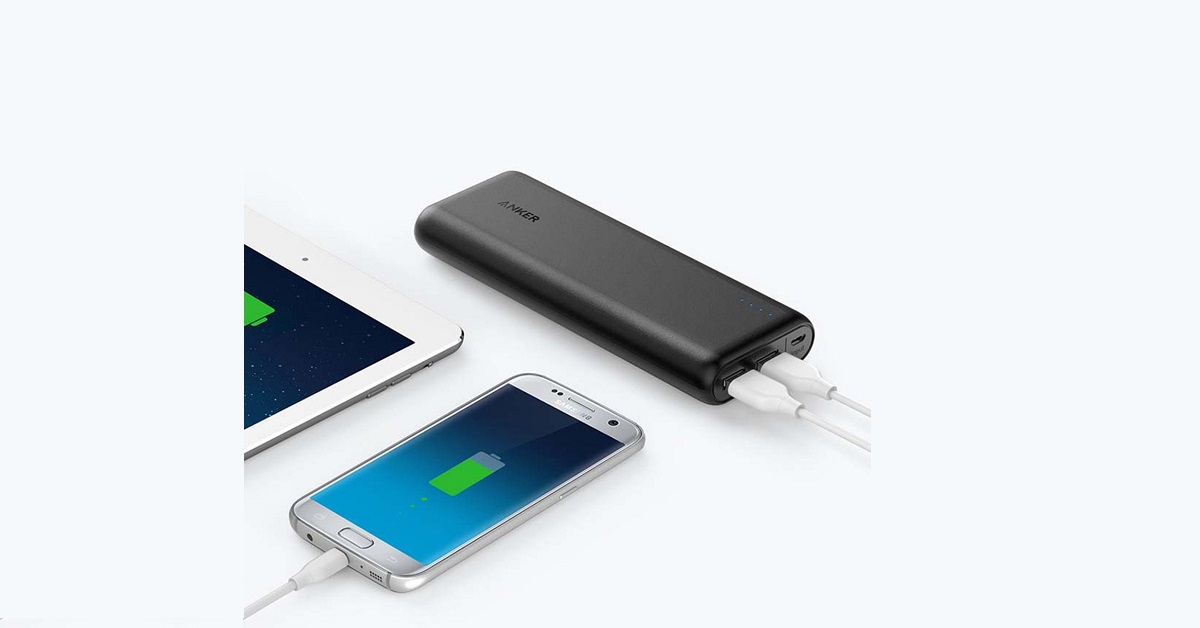
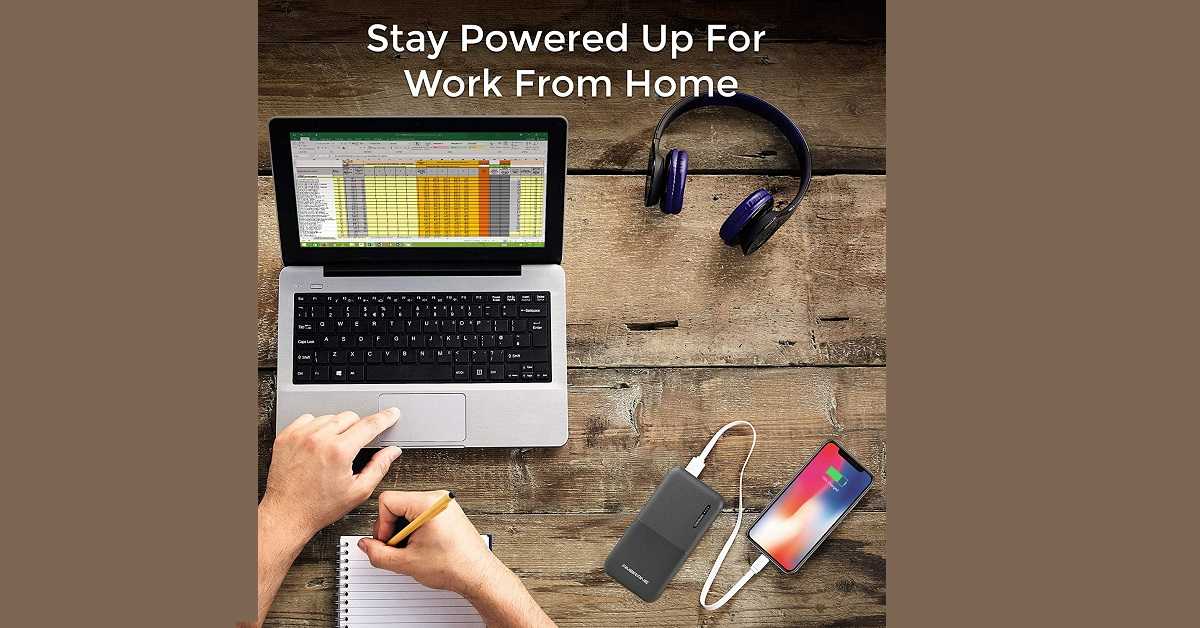















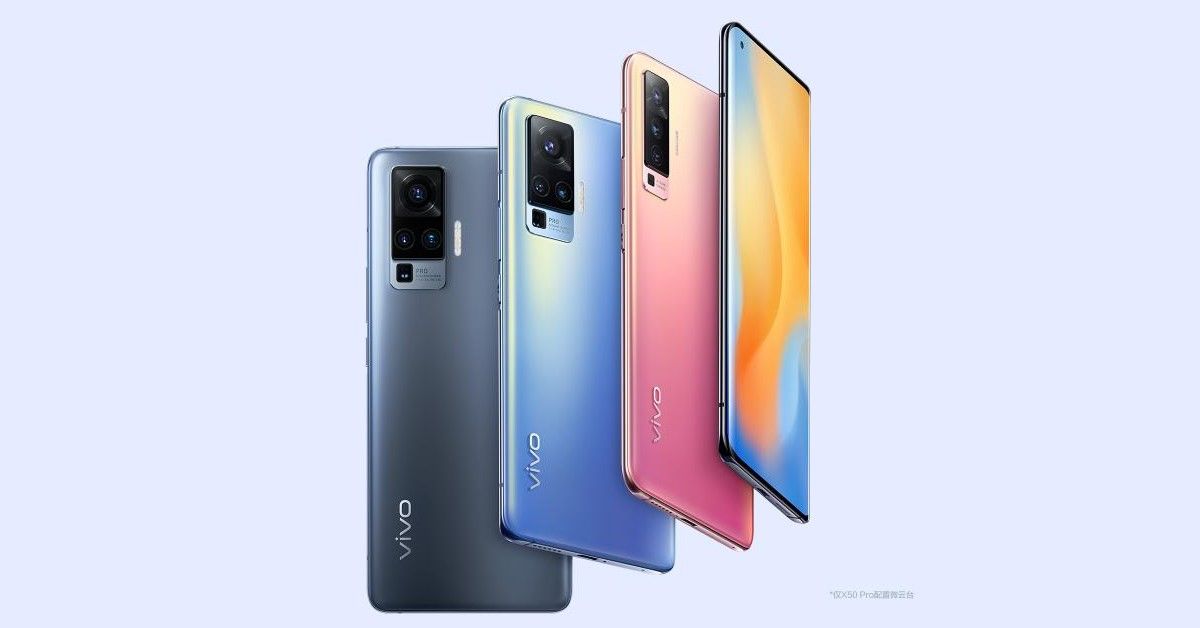











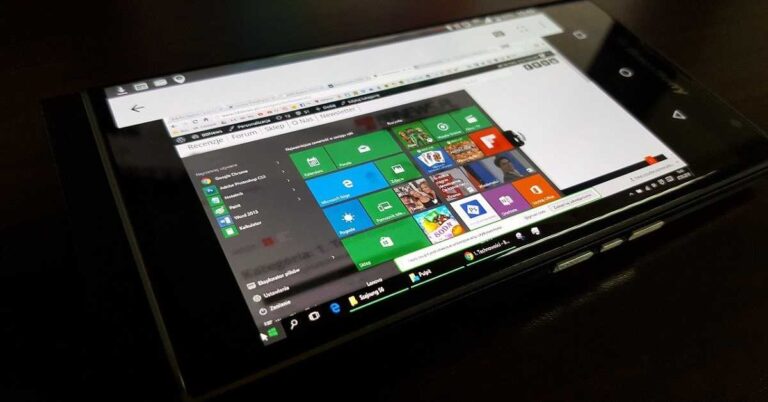

 For the latest