In This Article
Restart your PC
The first step towards fixing any problem on your PC should be restarting it. A quick restart will fix any background glitch that may be causing Steam issues with downloading new games. To restart your PC, hit the Windows start icon on the taskbar, click the power button, and select ‘Restart’.Delete the Steam download cache
 The problem with not being able to download games on Steam might be because of the heavily downloaded cache in the app. This is a process that can be done easily on the Steam app. And the first solution to the games downloading issues. Below is the guide on how to delete the downloaded cache on the Steam app.
- Open the Steam app on your computer
- On the homepage go to the top right corner and click Steam
- From the drop-down window select settings
- On the Settings page from the left-side panel click on Downloads
- On the right-side window scroll down to find the Clear Download cache
- And click on it and press ok
Change the region
The next solution is to change the download region of your Steam client. The problem might be because of the download server of a region you have selected and the server is not able to connect properly. Steam has servers all over the world and chooses one based on your IP address. So choosing a better region server is important for optimal speeds. Check the steps below to change the region.- Go to the settings on the Steam app
- From the left side panel click on downloads
- And from the open-up window on the right: On download region
- Choose a region
- Select the region and press Ok
Make Steam run as administrator
 Another option that is available to fix downloading games issues on stream is to let Steam run as administrator. It might have occurred as a privilege issue and that might be the reason why the game is not able to be downloaded. Run the stream as administrator on your computer and it will solve the problem. Learn the steps below.
- Go to the Windows homepage and right-click on the Steam shortcut
- Scroll down to properties and find Compatibility from the options
- From the Compatibility page scroll down and click on Run this program as an administrator with the tick
- Now press OK and run Steam, it should fix the issue
Check if Steam is offline
It is possible you may have gone offline on Steam by accident. To check if that is the case, hit the Steam option at the top left corner of the screen and notice if it shows the ‘Go Offline’ option. This option is only available when you are offline. If that is not the case, hit the ‘Go Online’ buttonCheck Compatibility mode
There might be many other reasons for not being able to download the game but checking the compatibility mode is a must. This will help in identifying the older games that you are trying to download and it is no longer compatible. Read the steps below to check the compatibility.- Open the app
- Go to the library and right-click on the game you are trying to download
- Select Properties
- Search Local files on the side panel>Browse
- Find the file with exe/executable on it
- And click Properties again
- From the open up page: Tick on Run this program in compatibility mode
- And choose your Window
Check if Steam’s servers are down
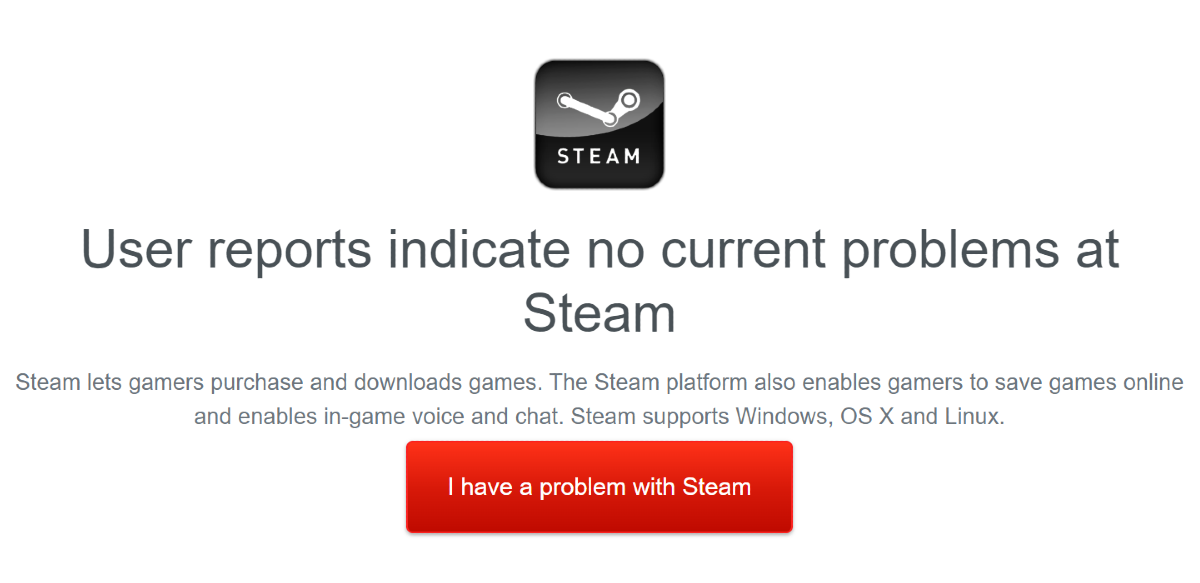 If trying the above fixes did not work for you, maybe it’s Steam’s servers that are at fault. The good news is that it is very easy to check that. Go to Downdetector.in and search for Steam. If you see a spike in user reports, it means that Steam is currently experiencing a server outage. The only thing you can do now is wait it out.

 If you have several tabs open in the background of the Google Chrome browser, it can significantly bring down the download speed. The unused tabs eat RAM space, thereby making the browser slower. If you’re playing multimedia content in one of the tabs, close it to give the download speed a little boost.

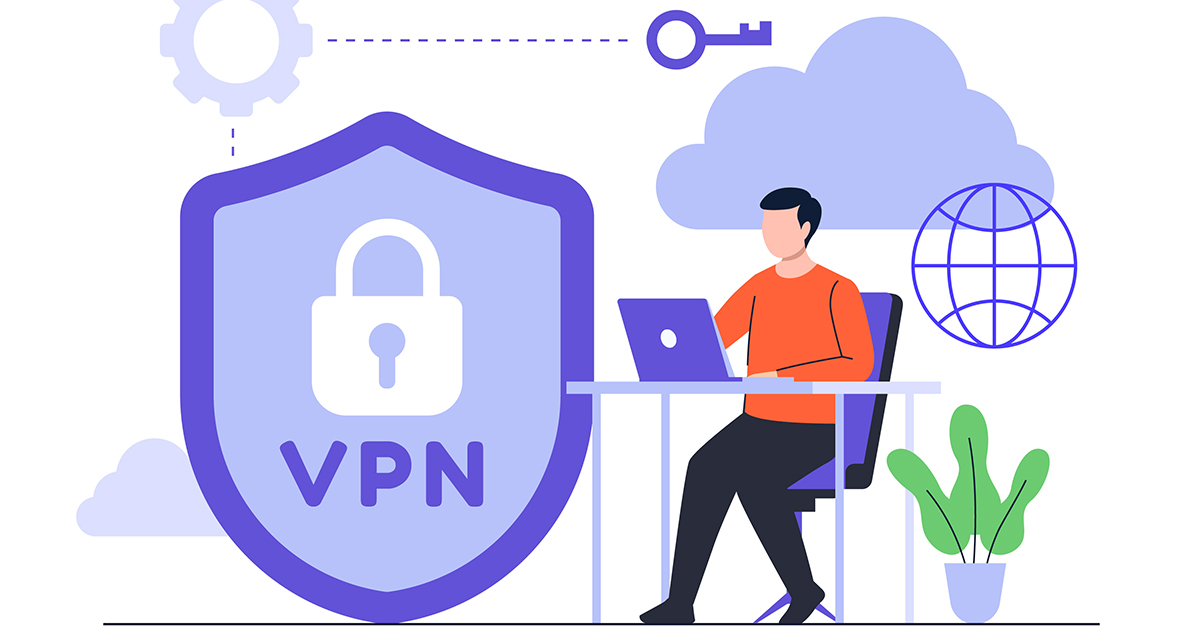 VPN servers are quite handy if you’re trying to maintain your anonymity, but they can hamper the download speed by a significant factor. This is particularly true if you’re using a free VPN. Paid VPN services are generally faster and do not affect the download speeds on your device. If you’re using a free VPN app, disable it while the download is taking place on your device.

 If you’re using an older version of Chrome, not only is your device more susceptible to online threats like malware and phishing scams, but it also dials down the speed of downloads. Keep your browser updated at all times to avoid this. Once Google Chrome has a pending update, the ellipses at the top right corner of the browser will turn into a red arrow. Hit the arrow to update the browser.









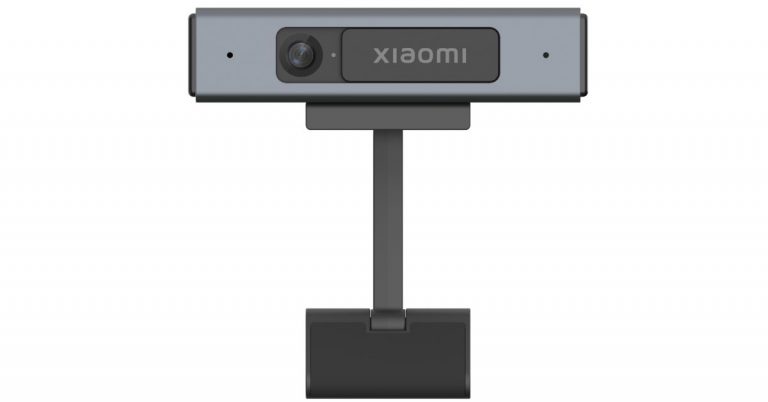
 Mi TV Webcam specifications

















 Vivo V21e 5G tech specs