In This Article
Play the Android games using BlueStacks:
 BlueStacks is one of the many Android emulators that you can play your Android games on. Before you start playing your games on Bluestack smooth;y it is better if you make some changes. On the first step make sure to enable Intel VT-x or AMD-V from the computer BIOS. BlueStacks is a great emulator when it comes to playing games. Here are the steps to install the Android emulator.
- Download BlueStacks from this link.
- Install the app after you have downloaded it.
- After the installation launch, the app> Choose storage location.
- Now when you launch the app login to your Play Store using your Google Account.
- Now you can access your Android library or you can download games from the search box.
- You can also adjust resolution, DPI, FPS, and the amount of CPU or RAM allocated to the emulator.
Play the Android games using Genymotion:
 This emulator is designed to give you a full Android experience. You will be able to explore the full Android operating system rather than individual games. Genymotion Android emulator uses VirtualBox to emulate your Android. Below are the steps to install the emulator.
- You can download Genymotion from the link given.
- After downloading open the emulator> Create Account >Activate>Log in.
- Find the Plus icon and you will be able to add your Android device to emulate.
- You can also customise.
Using Android-x86:
 Android-x86 is an open-source project that lets you port your device to the x86 platform that lets you run it on your Windows 10 instead of an ARM-based device. Android-x86 brings Android to x86 based PCs with AMD and Intel processors. It also lets you customise your Android.
To use your PC must have the following:
Android-x86 is an open-source project that lets you port your device to the x86 platform that lets you run it on your Windows 10 instead of an ARM-based device. Android-x86 brings Android to x86 based PCs with AMD and Intel processors. It also lets you customise your Android.
To use your PC must have the following:
- An AMD or Intel processor.
- A RAM of 2GB or more.
- Disk space of more than 4GB.
- And a USB port.
- An empty USB drive.
- Downloaded Android-x86 on your Windows 10: Link for download
- UNetbootin downloaded on your PC: Download link
Mirror your Android phone on your Windows 10:
 There is an option to get Android on your Windows 10. Download the Your Phone app on your Windows and it will mirror your phone screen to your Windows. Microsoft has been working to make additional features like the ability to pin Android apps on your taskbar and launch them individually. Microsoft’s Your Phone app allows you to send and receive a text from their Windows PC using the Android device. The steps to use the Your Phone app are below.
- Down Your Phone app from Microsoft Store: Link
- Installed the app>Sign in.
- Swide down to the Quick Panel and Tap link to Windows.
- Sign in Manually if asked.
- Allow the permission when it shows.
- Now it will synchronise.


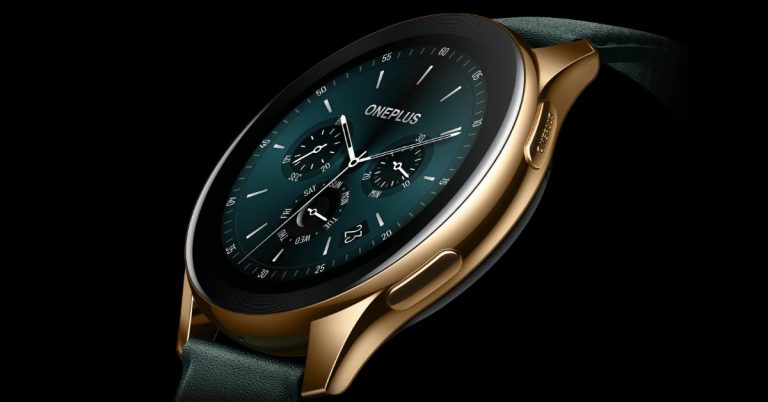
 OnePlus Watch Cobalt Limited Edition tech specs





 This anime is the first of its kind to have a star-studded cast for dubbed English version and prove anime are also watched on a global scale. For example, the two noted big names are Gillian Anderson and Billy Bob Thorton. The anime movie will take you on a spiritual journey and will understand the environmental issue brought by many factors. Released: 1997

















 Logitech MK470 Slim Wireless Keyboard and Mouse Combo tech specs












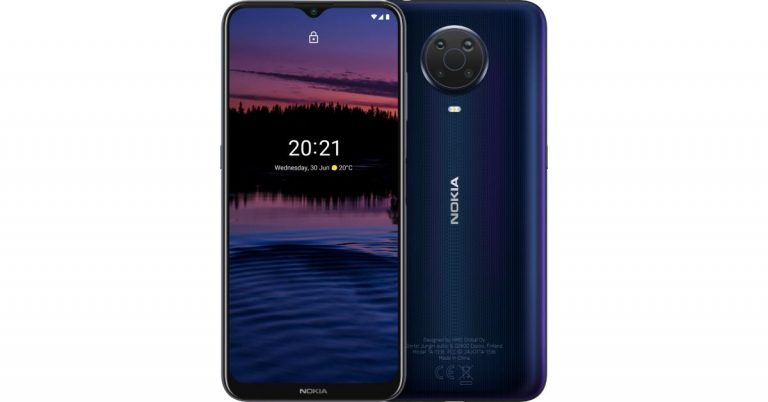
 Nokia G20 tech specs