Forgot Wi-Fi password? Here are the best 7 ways to recover Wi-Fi password

In today’s era when we have to remember a lot of passwords, it is obvious that we keep forgetting passwords for our social media accounts and also WiFi. If you have forgotten the password of your WiFi and now you can not access it, we have some simple hacks/ways by which you can recover it. In this article, we will guide the best 7 ways to recover a Wi-Fi password.  Just follow these simple ways and you should be able to recover your wifi password

Check if the password is on the WiFi router

If you have forgotten the wifi password of your home then recovering the password would be very easy. You just need to grab the Wi-Fi router and look for any sticker pasted on the router. You could find a sticker on which the password of the wifi network is mentioned, of course, if you have changed the password this trick won’t work. The password will be mentioned by name SSID, Wi-Fi password, Default password, password, or something like that. Just see the password from there and you are good to go.

Recover the WiFi password in Windows 11

So if you have a Windows machine that you use and it is also connected to the WiFi that you forgot, you can use it to find the WiFi password. Just follow these steps
  1. Go to the settings in your Windows 11 PC, then click on Network and Sharing.Windows- Ways to recover wifi password
  2. Scroll down and click on the More Network adapter option under Advance network settings, and a window will pop up.Windows- Ways to recover wifi password
  3. Select your WiFi and then click on wireless properties.Ways to recover wifi password
  4. Change the tab to security and you will find the WiFi password over there.recover wifi password- How to find wifi password
Finding passwords in windows 10/8/7 is also very similar to this. Read also: How to find your forgotten Wi-Fi password in Windows 10?

Press the WPS button to connect to another Windows device

If you do not have a Windows PC connected to the WiFi network then you should follow this step
  1. Take your router and examine it if it has a button that says WPS.
  2. If yes then press the button and you should be able to connect any device to the network for a while
  3. Connect your Windows PC to it.
  4. Now that you have connected the pc to the wifi network just follow the first way and you should be able to recover the password.

Recover Wi-Fi password with an iPhone or iPad

If your iPhone or iPad is connected to the Wi-Fi network whose password you have forgotten you can recover it with the help of an iPhone or iPad. You can use PassFab iOS Password Manager. Just follow the steps given
  1. Install the PassFab iOS Password Manager on your PC or laptop and connect it to your iPhone or iPad.
  2. Once you connect your device using a USB cable, begin the scan to initiate the recovery process.
  3. And as soon as the scan completes, you’ll recover your password, now just note it down anywhere so that you can find it later on.

Recover WiFi password on an Android smartphone

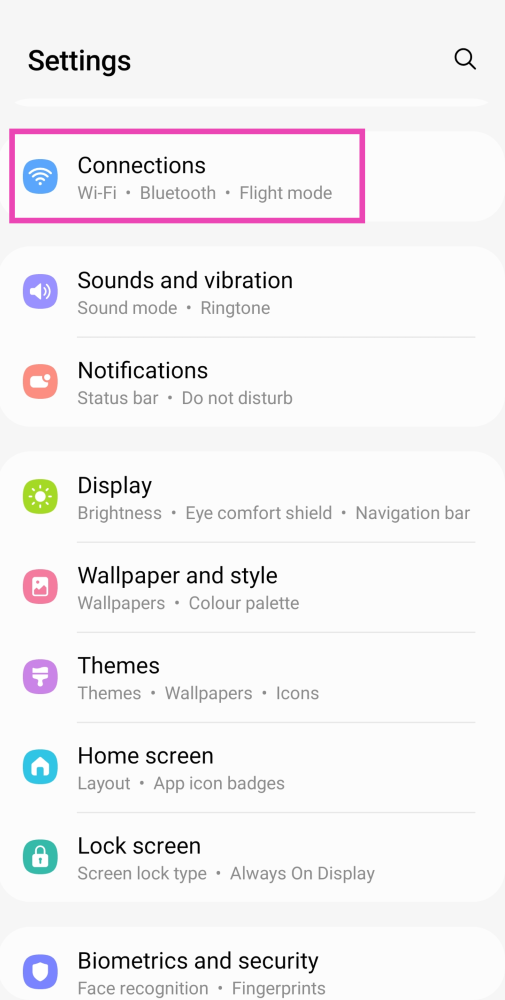
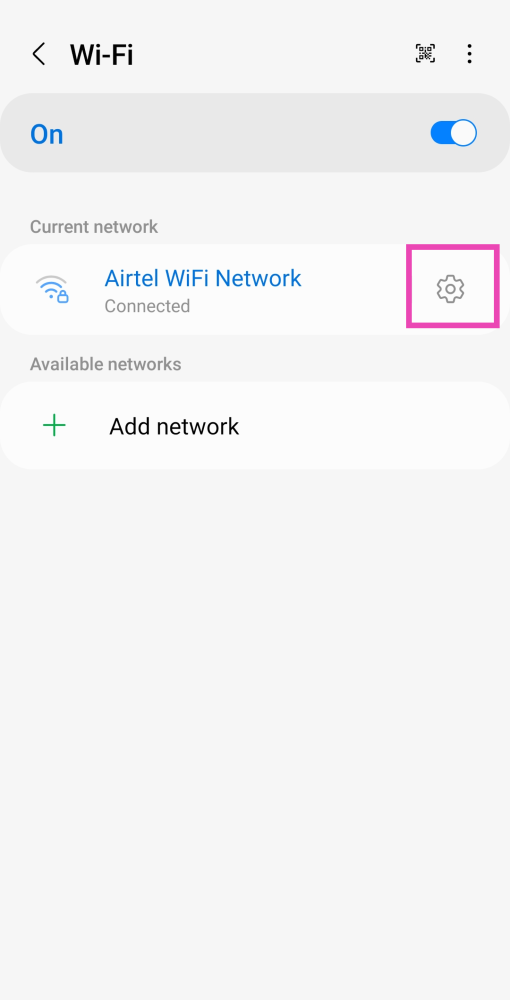
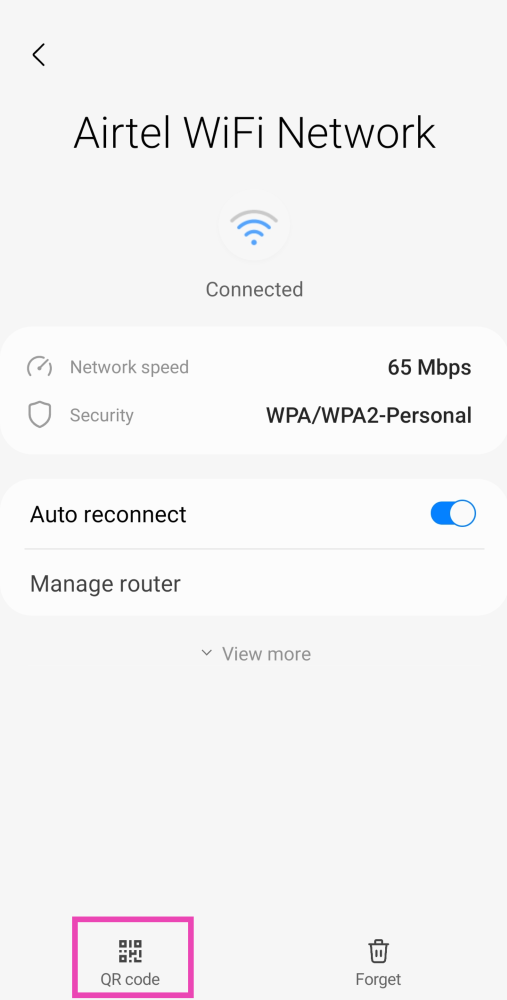
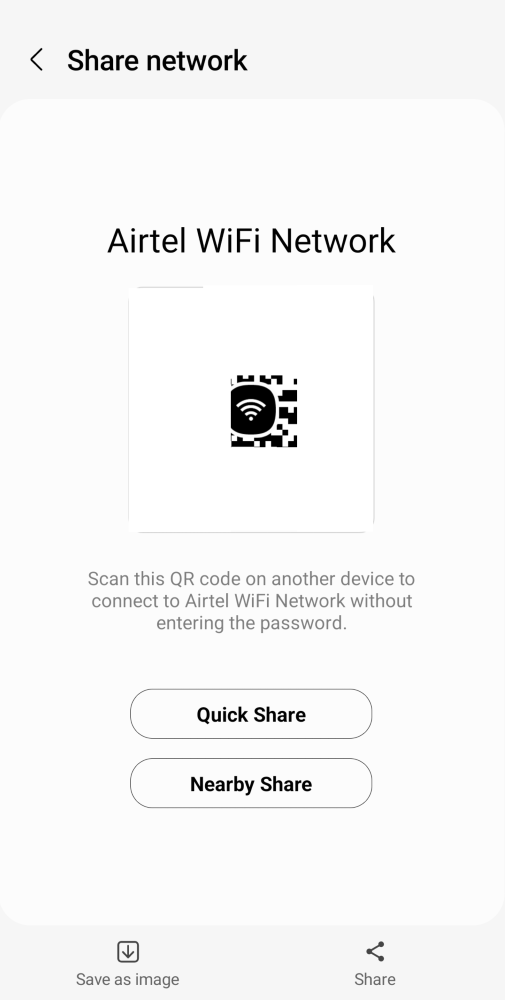
Step 1: Go to Settings and select ‘Connections’. Step 1: Go to Settings and select ‘Connections’. Step 2: Select WiFi and tap on the gear icon next to the WiFi network you’re connected to. Step 3: From the bottom menu select ‘QR Code’ and take a screenshot or select ‘Save as image’. Step 3: From the bottom menu select ‘QR Code’ and take a screenshot or select ‘Save as image’. Step 3: From the bottom menu select ‘QR Code’ and take a screenshot or select ‘Save as image’. Step 4: Download a QR code scanner app and load the screenshot to read it. Step 4: Download a QR code scanner app and load the screenshot to read it. Step 5: You will be able to see the WiFi password. Look for it right after the WiFi network name and WPA security tag.
How to find out a forgotten Wi-Fi password on a Google Pixel smartphone

Finding out the WiFi network’s password is way easier on a Google Pixel smartphone. Just follow these simple steps. Step 1: Go to Settings and select ‘Network and Internet’. Step 1: Go to Settings and select ‘Network and Internet’. Step 2: Tap on ‘Internet’ and select the WiFi network you’re connected to. Step 2: Tap on Internet and select the WiFi network you’re connected to. find forgotten wifi password android Step 3: Select ‘Share’ and type in the pin or scan your fingerprint for verification. Step 3: Select Share and type in the pin or scan your fingerprint for verification. find forgotten wifi password android Step 4: The WiFi password will be displayed just below the QR Code. Step 4: The WiFi password will be displayed just below the QR Code. find forgotten wifi password android

Find through router settings

You can also find Wi-Fi passwords through your WiFi router settings, just find out which brand router you are using and search how to open IP settings in that router and then follow these steps
  1. Open your web browser and type the default IP of your router most of the routers have 192.168.0.1.
  2. Then login to the setup page if you have not changed these settings before then the username and password will be mentioned on your routerRouter- recover wifi password- How to find wifi password
  3. From there you can look for the SSID option and you can change or view the wifi password from there.SSID Settings- Router- recover wifi password- How to find wifi password

Frequently Asked Questions (FAQs)

How do I access my router’s gateway on my PC?

Launch your preferred web browser, type 192.168.1.1, and hit Enter to visit your Wi-Fi router’s web portal on your PC. If this doesn’t work, find out your router’s IP address and enter it in the address bar.

How do I share my Wi-Fi password with someone else if I don’t know what it is?

Go to Settings>Connections>WiFi Network Settings and hit the QR Code option at the bottom of the screen. Scan this QR Code on the device that wants to connect to the internent.

How do I recover the WiFi password on a Google Pixel smartphone?

Pixel smartphones have a special feature that displays the WiFi password of the network they are connected to. Simply go to Settings>Network and Internet>Internet, select your WiFi network, and hit Share. After you have verified yourself, you will be able to view the WiFi password. Read also: How to boost your WiFi signal while you are working from home

Conclusion

These are the top 7 ways to find out or recover a Wi-Fi password in case you forgot what it is. These methods will work on Windows, Android, and iOS devices just fine. When it comes to smartphones, only Pixels can directly display the WiFi password. You will need to use a QR Code scanner app for the rest.

Vivo V23 5G series India launch confirmed for January 5, to feature 50MP dual selfie camera

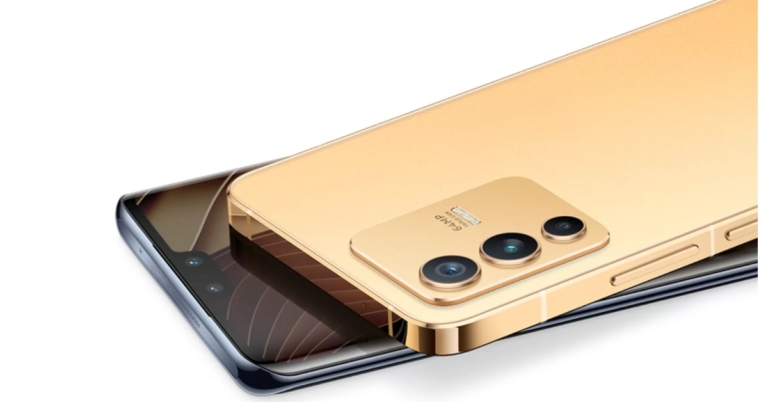
Vivo V23 5G series India launch is scheduled to take place on January 5. The news is confirmed by the company via a small teaser shared on Twitter. The company has also shared some posters depicting a dual selfie camera setup and colour changing rear panel. The Vivo V23 5G series will be available in India on January 5. The tech giant has officially teased the launch of the upcoming smartphone series in India via Twitter. According to the tweet, the new smartphone series launch will begin at 12 noon IST. The upcoming lineup will be available via Flipkart as it has also been listed on the e-commerce platform as well on the company’s official website. Both the microsites tease some key specifications of the Vivo V23 5G series. However, the firm has not yet confirmed how many smartphones will be released in the country but according to the landing page, the series will include two models Vivo V23 5G and Vivo V23 Pro 5G. Moreover, other shared teasers suggest Vivo V23 series will have a hue-changing back panel as the light changes. The company is teasing it as “India’s first colour changing smartphone”. The smartphone is seen changing colour from golden to bluish-green. However, the colour changing capability for Vivo V23 5G and Vivo V23 Pro 5G is limited, according to Vivo. Vivo V23 5G Speaking about the specifications, the Vivo V23 5G series’ key specifications are revealed on the microsite. The device is said to come with an ultra-slim 3D curved display. The standard variant has a metal flat frame on the sides and it will be powered by MediaTek Dimensity 1200 5G SoC. The microsite further mentions that the Vivo V23 5G is to be offered with 8GB of RAM, with 4GB of additional RAM. As the name suggests the Vivo V23 5G series will have 5G support as well. Speaking more about the design and specifications the devices will also have a triple-camera setup on the back, with the primary sensor being 108 megapixels. A wide-angle sensor and a macro sensor are among the other lenses available. A super-wide-angle sensor with night mode support will be added to the front-facing 50-megapixel dual selfie cameras. As the launch of the Vivo V23 5G and Vivo V23 Pro 5G approaches, the remaining specifications will be revealed in stages. So keep an eye on Gadget Bridge. For the latest gadget and tech news, and gadget reviews, follow us on TwitterFacebook and Instagram. For newest tech & gadget videos subscribe to our YouTube Channel. You can also stay up to date using the Gadget Bridge Android App. You can find the latest car and bike news here.

7 best apps to change voice in Android phones

Google Play Store is home to millions of apps with a variety of uses, some of them are for entertainment purposes and some for productivity. If you are looking for an Android app that can change your voice this is the right place for you, we have collected the 7 best apps to change your voice on Android phones. So, whether you just want to pass your time or shoot a horror short film this list will be handy for you.

Voice Changer by AndroidRock

Download from Google Play Store With an app size of just under 7MB and over 10M downloads, this voice-changing app is one of the best available on the Play Store. Since the size of the app is very less, you also need not worry about the storage on your phone. The app lets you change your voice with different filters that include bee, old man, martian, fan, hoarse, drunk, underwater, and many more.  To change your voice you just need to press the record button on that app and after that, you will be provided with different filters to choose from. If you already have a recording available on your phone then you can also use that.  Read also: How to create your own custom emoji on Android

Snapchat

Snapchat Download from Google Play Store Many users use Snapchat to make and break streak records with their friends. While almost all the users use Snapchat to show their life on the go, it also has a feature to change the voice. There is not any specific button or section to change voice but you can use some of the filters available on Snapchat to change your voice. Just search for filters on the app and you can change the voice. 

Funcalls

Funcalls Download from Google Play Store This is another voice-changing app that is available on the PlayStore for free. The app lets you choose from a few different voice effects in the app. The best part of the app is that you can also prank someone with its in-call voice-changing feature, which lets users change their voice during a call.   However, the calling feature on the app is paid only, you have to buy it in order to trick someone. Another downside to the app is that it does not provide many filters to choose from.

Voice Changer Voice Recorder

Voice Changer and recorder Download from Google Play Store The app sits just under 7MB and is quite decent to change the voice. The app has some less silly effects like a karaoke reverb effect that adds a bit of echo to your voice.  Apart from this, the app has the most popular voice-changing filters that include an old man, bees, an alien, a giant, and a robot. 

Voice Changer – Voice Effects

Download from Google Play Store Voice Changer - Voice Effects This nifty voice-changing app allows you to parse your voice recordings through several different fun filters. If you want to get more creative, you can use this app to dub different voices on a video. Apart from human voices, Voice Changer’s library contains quirky animal sounds. You can make your voice sound like a sheep, bee, dog, and more. Want more? Try out the zombie and alien voice effects as well! If you want your voice recordings to have a soothing touch, you can add ambient background sounds to them as well.

Voices AI – Change Your Voice

Download from Google Play Store Voices AI - Change Your Voice Harnessing the power of AI, this app lets you change your voice to that of popular celebrities like Elon Musk, Barack Obama, Mark Zuckerberg, Ed Sheeran, Taylor Swift, and more. The best part is that it supports several languages. English, Hindi, German, and Spanish are some of the languages that this app supports. Apart from short voice notes, you can upload voice recordings up to 2GB in size and let Voice AI work its magic.
SpeechLab: AI Voice Changer

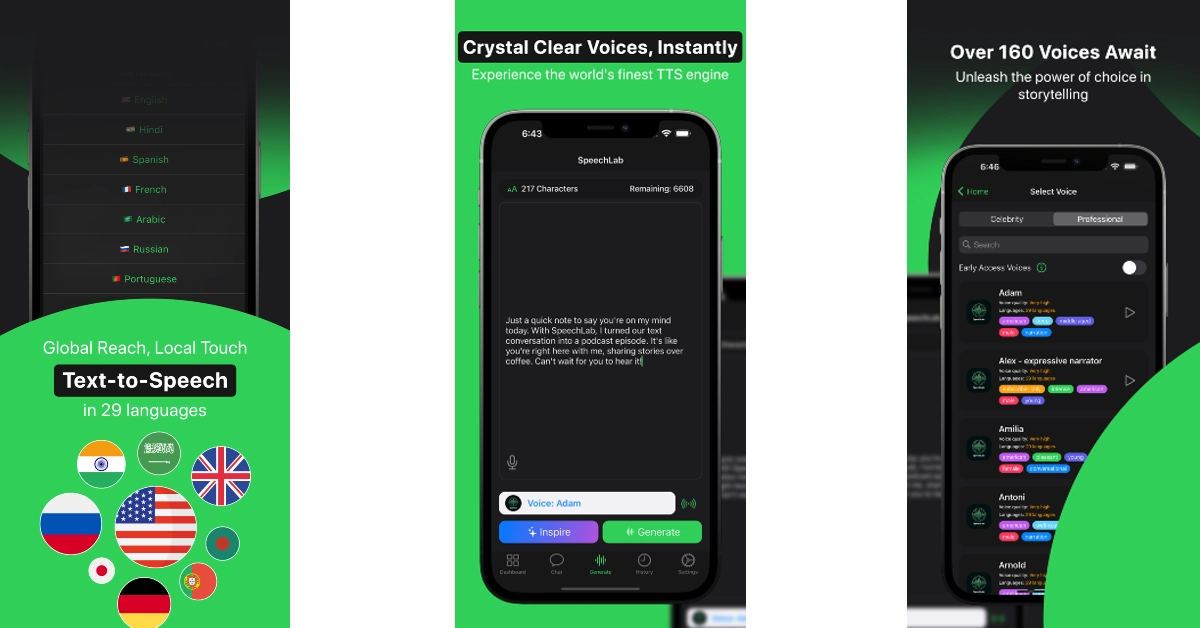
Download from Google Play Store SpeechLab: AI Voice Changer Have you ever wanted to greet your kids with a voice recording from Santa? SpeechLab makes it possible. With a diverse library to choose from, you can clone your voice into that of famous celebrities. If you don’t want to speak into the mic, SpeechLab allows you to convert text into speech. As of now, SpeechLab supports 29 languages (including Hindi, Portuguese, English, Russian, and more) for its text-to-speech feature. Read also: Will it clean the Google Playstore? Google’s new policy to curb appsWill it clean the Google Playstore? Google’s new policy to curb apps

Conclusion

These are the top 7 apps you can use to change your voice on Android. While all of these apps are free to download, some may have additional features hidden behind a paywall. If there’s any other app you love to use to clone your voice, let us know in the comments!

9 ways to fix apps not working on mobile data on Android mobile

Sometimes you might get an issue with some apps connecting them with mobile data. Most of the users are dependent on mobile data and if any apps do not get connected to the internet, that can be very annoying for everyone facing the issue. If you are facing this issue or have faced this issue then this article will tell you 9 ways to fix apps not working on mobile data on an Android mobile. Just follow these hacks/ways and you will be able to solve the issue.

Restart the phone

Restart PhoneIf you get any type of errors or bugs with your phone it is advised to restart the phone before jumping ahead with further procedure. Restarting the phone starts all the apps afresh and chances are that your issue will be solved. Also, it is good practice to restart your phone every now and then.
Check mobile data limit and connection

Check whether you are connected to the internet or not and also you should check if the data has been stopped because you have used the daily quota. This should be the second step before jumping to some technical measures.

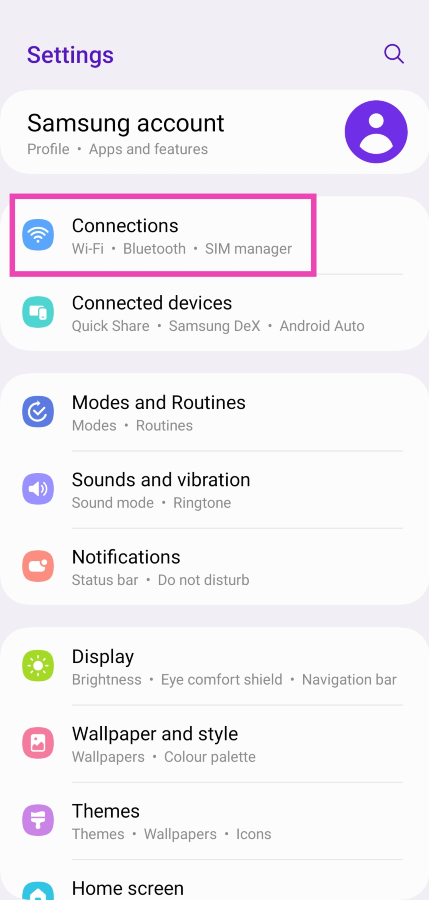
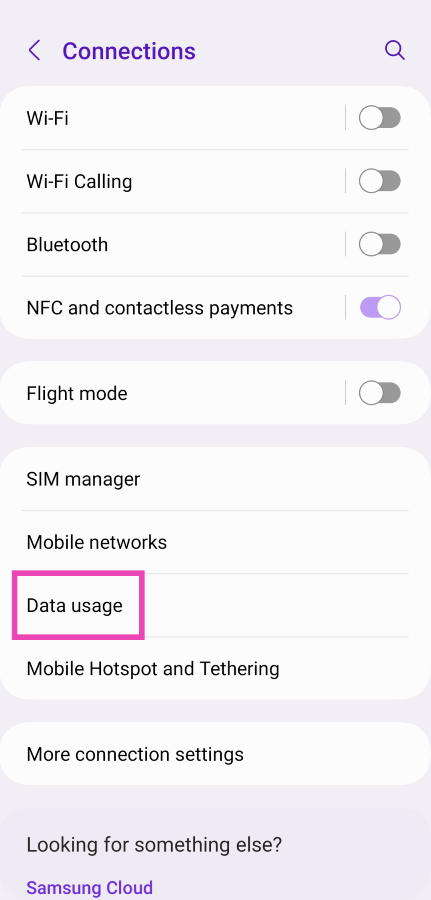
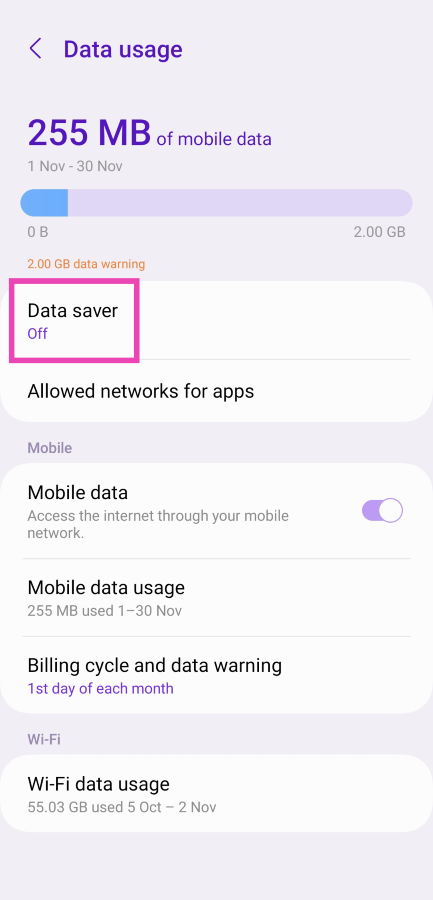
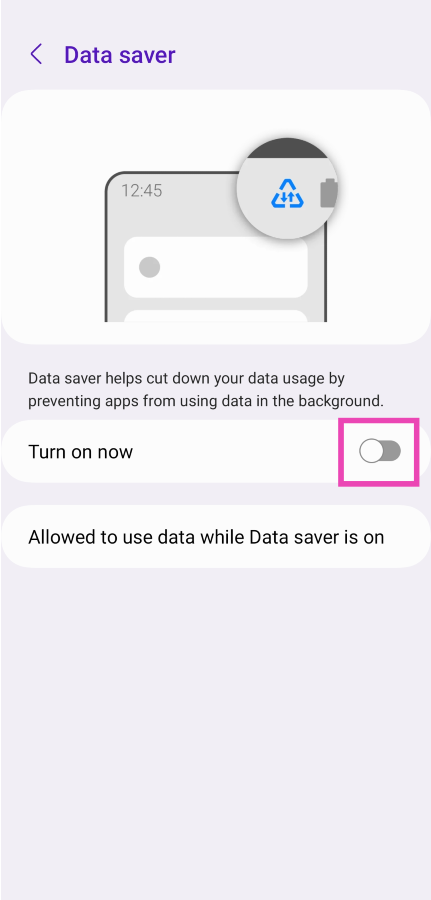
Turn off Data Saver

Step 1: Go to Settings and select Connections. Step 1: Go to Settings and select Connections. Step 2: Tap on Data Usage. Step 2: Tap on Data Usage. Step 3: Tap on Data Saver. Step 3: Tap on Data Saver. Step 4: Turn off the toggle switch for Turn on now. Step 4: Turn off the toggle switch for Turn on now.
Re-Insert SIM card

Re-Insert SIMYou should also try to remove and insert the SIM card on your phone. If this is a network issue then this way the issue can be resolved and after that, you will be able to use mobile data with the app that you wanted. Read also: 5 ways you can charge your Android smartphone faster

Turn Airplane mode on and off

Turon airplane mode on and off- App not workingAnother way to fix the network issue is by turning on and off the ‘Airplane Mode’. This is a quick way to solve any network issue and let it be apps not working on mobile data on Android phone issues. You can find an airplane icon in the quick settings, you can turn on or off the airplane mode from there.

Check if Data is Disabled for the App

If you are unable to use mobile data only on selected apps, then chances are that you might have accidentally changed the data usage setting of the app. To change the setting again just follow these steps:
  1. Open the Settings app on your phone.
  2. Go to app management and find the app that is not able to use mobile data.Data is Disabled for the App-App not working
  3. Then go to data usage details of the app and turn on background data if it is disabled.Data is Disabled for the App

Clear the cache data of the app

Restarting the phone and turning the airplane mode on and off, resolves the network issue present on the phone. But if the problem is still there with your phone then you have to clear cache files and data of the app that is not working properly. To do this just follow these steps:
  1. Open the Settings app, scroll down to App Management and tap on it.
  2. Find the app that is not working and tap on it.
  3. Go to Storage and clear all data.Clera cache data and app data- apps not working on mobile data on Android mobile
This should solve the issue.

Enable Data Roaming

If you are in a different state, then you need to turn on the Data roaming option in order to use the internet. This might be the reason that you were unable to use the internet with a few apps. Just follow these steps to turn on data roaming:
  1. Go to the Settings on your phone.
  2. Then go to SIM cards and mobile data and select the SIM that you are using.Enable roaming- apps not working on mobile data on Android mobile
  3. Then turn on data roaming.Enable roaming- apps not working on mobile data on Android mobile

Check if the app’s servers are down

If you’re having trouble with a specific app, it is very likely that the fault lies with the app itself and not your mobile data connection. The best way to find this out is by checking if the app is experiencing a server outage. Go to Downdetector.in and search for the app. If you see a spike in realtime user reports, the app’s servers are likely down. Wait until the services are restored to begin using the app again.

Frequently Asked Questions (FAQs)

Why are the apps on my phone not working on mobile data?

If the apps on your phone are not working while your device is connected to mobile data, it is likely because you have run out of your allotted data limit or your network strength is low.

Why doesn’t Google Drive upload images when I’m on mobile data?

Since uploading images to Google Drive takes a lot of data, it only works when you are connected to WiFi. This can be changed from Drive settings.

How do I turn off the data saver on my Android phone?

To turn off Data Saver on your device, go to Settings>Connections>Data Usage>Data Saver and turn off its toggle switch. Read also: Best 9 ways to fix cannot install or update YouTube on Android

Conclusion

So, these were some ways/hacks by which you can solve the issue of apps not working on mobile data on an Android mobile. If you’re performing tasks like updating your phone’s OS, backing up your WhatsApp chats, or uploading videos to Google Drive, you will need to connect to a WiFi network since these tasks utilise a great volume of data.

Oppo Reno 7 5G New Year Edition released: Specifications and pricing details inside

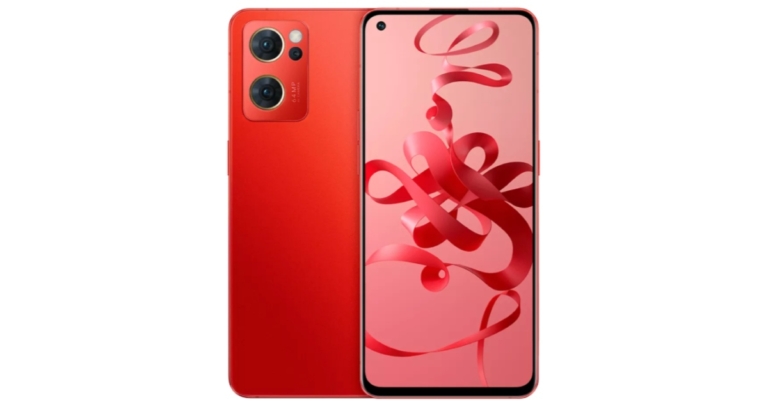
The Chinese smartphone company Oppo has specially announced the launch of a special edition smartphone in the market. The company has introduced Oppo Reno 7 5G New Year Edition. The special version of the original Oppo Reno 7 5G comes wrapped in a velvety red colour scheme and a unique Tiger logo as well. While the specifications of the smartphone remain the same as the standard model. Oppo Reno 7 5G New Year Edition price

Oppo Reno 7 5G New Year Edition price and availability details

Oppo Reno 7 5G New Year Edition has been launched in China at CYN 2,699 which translates to Rs 31,800 for the 8GB RAM with 128GB storage variant. While the price of the 256GB storage variant is set at CYN 2,999 which converts to Rs 35,400 and the 12GB RAM with 256GB storage option comes with a price tag of CYN 3,299 that is approximately around Rs 38,900. All the variants will be available in a bold Velvet colour option and can be purchased via the company’s official website. The phone has only been released in China and there is no word whether the smartphone will be rolled out internationally. Note that the Oppo Reno 7 series is also yet to be released in other markets. Oppo Reno 7 5G New Year Edition specifications

Oppo Reno 7 5G New Year Edition specifications

A 6.42-inch Full HD+ AMOLED display with 1,080×2,400 pixels of resolution is featured on the Oppo Reno 7 5G. The aspect ratio is 20:9, and the refresh rate is 90Hz. The phone is powered by the Snapdragon 778G chipset and runs ColorOS 12 on top of Android 11. The device is offered with up to 12GB of LPDDR4x RAM and up to 256GB of UFS 2.1 storage. Also read: Oppo Reno 7 5G and Reno 7 Pro 5G Indian pricing tipped The device features a triple rear camera system with a 64MP primary sensor, an 8MP wide-angle lens, and a 2MP macro lens. There’s also a 32MP Sony IMX709 front-facing camera for selfies and video calls. A 4,500mAh battery with 60W lash charge support is also included. 5G, 4G LTE, Wi-Fi 6, Bluetooth v5.2, GPS/ A-GPS, NFC, and a USB Type-C port are among the connectivity options. The Oppo Reno 7 5G New Year Edition also has a Tiger logo engraved on the back panel as the company states that 2022 is the Chinese Year of the Tiger. For the latest gadget and tech news, and gadget reviews, follow us on TwitterFacebook and Instagram. For newest tech & gadget videos subscribe to our YouTube Channel. You can also stay up to date using the Gadget Bridge Android App. You can find the latest car and bike news here.

Micromax IN Air Funk 1 Pro Review: Aesthetically pleasing

Micromax IN Air Funk 1 Pro are a stylish TWS earphones from the Indian smartphone manufacturer. Qualcomm Clear Voice Capture (cVc) 8.0 and an environmental noise cancellation feature are included in the earbuds. The TWS earphones have an IP44 rating and are equipped with 13mm drivers and quad microphones. So, here’s our long-term review of the Micromax IN Air Funk 1 Pro, which you should definitely look into if you’re looking for a new true wireless earphone for casual listening that’s also affordable.

Micromax IN Air Funk 1 Pro: Design

Micromax’s IN Air Funk 1 Pro are budget-friendly true wireless earphones. Looking at the case first, we notice that it has a glossy finish and that there are some scratches on it, which could be due to the packaging. However, after only a few days of use, the glossy finish attracts fingerprints and even more scratches. Micromax IN Air Funk 1 Pro Review: Aesthetically pleasing Otherwise, we thought the construction quality and design were excellent. The charging case is small and sturdy. With one hand, you can easily open the case. The hinges are also of excellent quality, and the ear tips are aesthetically pleasing. On the front, there is an IN logo with an LED light. It has a Type-C charging port on the bottom, and the battery capacity and other details are listed on the back. The TWS earphones have an IP44 rating, which means they can withstand splashes of water, sweat, and dust. Micromax IN Air Funk 1 Pro Review: Aesthetically pleasing The earbuds are magnetised to the case. These lightweight in-ear headphones have an in-ear design. The earbuds have a glossy finish as well. The earphones lack physical buttons in favour of a touch-sensitive panel. These earbuds feature Bluetooth 5.2, 13mm drivers, and a quad mic setup. Overall, we liked the design and quality of Micromax’s new TWS earphones.

Micromax IN Air Funk 1 Pro: Performance

When it comes to performance, the Micromax IN Air Funk 1 Pro’s pairing process is simple. Simply remove them from the case, locate them on your device, and click to connect them to your smartphone. The Qualcomm QCC3040 chipset with cVc 8.0 powers the Micromax IN Air Funk 1 Pro. Aside from that, Bluetooth 5.2 and Aptx are also supported. review of Micromax IN Air Funk 1 Pro In terms of sound quality, we put these Micromax true wireless earphones to the test, both indoors and out. It produces a good sound, with clear highs, lows, and mids, but it is not as loud as we are accustomed to hearing loud music. However, there is one advantage: these sounds aren’t particularly loud, but they last a long time on a single charge. Even though they have 13mm audio drivers, the bass isn’t as deep as it could be, but it’s not bad either. The audio quality on both sides is crystal clear thanks to the quad mic setup, which means two mics in each earbud. The IN Air Funk 1 Pro is touch-sensitive rather than having a physical button. The music pauses and resumes when you double-tap. You can easily switch to the next track by doing a triple tap on the right earbud, and the previous track by doing a triple tap on the left earbud. The Google Assistant is activated when you press the button for a long time. However, the sound quality is adequate, especially when used while gaming, but there is some lag to be found. On the fliside, we did not notice any lag while listening to music, but (as said) you will notice some lag in gaming because these earphones are not designed for gaming, rather just for everyday use.  In terms of battery life, the Micromax IN Air Funk 1 Pro has a great deal to offer. This lasts up to 7 hours on a single charge, and when combined with the case, it provides a total of 32 hours of battery life. review of Micromax IN Air Funk 1 Pro The Micromax TWS earphones also have ENC, which means that as soon as you put them on, a vacuum is created, effectively blocking out as much ambient noise as possible. As a result, they offer passive noise cancellation rather than active noise cancellation. So make sure to choose the right ear tip size for you, as this will not only ensure a secure fit but also improve sound quality. A Qualcomm chipset and quad-array mics are included in the Micromax IN Air Funk 1 Pro. The headphones have a total battery life of 32 hours. The vocals are crystal clear, and the instrument separation is excellent. You get good bass that isn’t overpowering but is sufficient for everyday use.  review of Micromax IN Air Funk 1 Pro We tried a variety of music genres and were generally pleased with the results, especially given the earbuds’ low price. To summarise, if you’re looking for a TWS with a good design and quality for everyday use, you should definitely look into them.

Micromax IN Air Funk 1 Pro: Pros and Cons

Pros
  • Decent audio quality
  • Long battery life
  • IP44 rating
  • Touch controls
Cons
  • Attracts fingerprints and scratches
  • No gaming mode
For the latest gadget and tech news, and gadget reviews, follow us on TwitterFacebook and Instagram. For newest tech & gadget videos subscribe to our YouTube Channel. You can also stay up to date using the Gadget Bridge Android App. You can find the latest car and bike news here.

27 December 2021 Amazon Quiz today answers: Answer to win Rs 15,000 Amazon Pay Balance

27 December 2021 Amazon Quiz has gone live. Customers from different parts of the country are participating in the daily quiz. The quiz begins from 12 AM to 11:59 PM. Those participating in the quiz can win exciting prizes by answering all the questions correctly. Today participants have a chance to win Rs 15,000 Amazon Pay Balance. Amazon quiz brings an opportunity for its customers to win Amazon Pay Balance ranging from Rs 1,000 to Rs 50,000. The Quiz can be played from 12 AM to 11:59 PM. The e-commerce platform brings a fresh quiz on a daily basis which consists of five questions related to general knowledge and current affairs. The participants need to answer all the questions correctly and their names will be selected for a lucky draw. The winner will be announced at the end of the month. One wrong answer could eliminate you from the quiz. If you manage to answer all the questions correctly you can stand a chance to win Rs 15,000 Amazon Pay Balance today. Only app users are eligible to participate in the Quiz. Check Out 27 December 2021 Amazon Quiz Answers.

27 December 2021 Amazon Quiz Answers

Question 1: Who has recently launched his new venture- a video resume platform called ShowReel?

Answer: Sabeer Bhatia

Question 2: Who recently criticised many billionaires by saying that the brightest minds should work toward saving Earth, not space travel?

Answer: Prince William

Question 3: Maratha Mandir cinema hall recently resumed shows of which film with which it has set a Guinness World Record?

Answer: Dilwale Dulhaniya Le Jayenge

Question 4: This character features in a 2007 movie, featuring which superhero group?

Answer: Fantastic Four

Question 5: Who recently won the ATP finals for the second time in his career in this sport?

Answer: Alexander Zverev For the latest gadget and tech news, and gadget reviews, follow us on TwitterFacebook and Instagram. For newest tech & gadget videos subscribe to our YouTube Channel. You can also stay up to date using the Gadget Bridge Android App. You can find the latest car and bike news here.

How to play a video in loop during a Zoom call to fake attend a meeting

If you also do attend a lot of meetings over video call clients as Google meet, Zoom, or any other platform, then there would have been some times when you would have been bored in the meeting and you just wanted to leave it. If this ever has been the case with you then you are in the right place because we will guide you through how to play video in loop in Zoom to fake attendance at a meeting. This hack can be very useful for those boring meetings in which you just need to mark your attendance and nothing else. Just follow these steps and you should be able to play video in loop in zoom to fake attendance at a meeting. Here are the steps:
  1. Open the camera app on your laptop, if you can not find the app you can just search in the menu option and you will be able to find it. fake attendance at a zoom meeting- Zoom make video
  2. Now that you have found the camera app, it is time to open it and record a 20-30 second video of yours in which you have to pretend that you are listening to an actual meeting. 
  3. Now before attending a meeting, find a dark room for yourself and put dark tape on the camera of the laptop. Some laptops have a privacy shutter, you can also use that. Just make sure that the feed from your laptop’s camera is completely dark. 
  4. Now, connect to the meeting that you did not wish to join.How to add fake video in zoom- Fake zoom calls
  5. When in the meeting, click on the arrow icon sitting close to the camera button.
  6. Tap on choose a virtual background, and select add a video to add your video that you recorded earlier.How to add fake video in zoom-Fake zoom calls
  7. Find the video and just add it. 
That’s it, faking meetings on Zoom video calls is so easy, this trick will be very handy for those who attend boring meetings on a regular basis. And using this simple trick you can save yourself and complete a nap. Read also: How to show your profile picture and not video in Zoom Cloud For the latest gadget and tech news, and gadget reviews, follow us on Twitter, Facebook and Instagram. For newest tech & gadget videos subscribe to our YouTube Channel. You can also stay up to date using the Gadget Bridge Android App. You can find the latest car and bike news here.

7 new smartphones that will be launched in the first 3 months of 2022

2020 and 2021 have been tough for the overall electronics market, not just smartphones. Due to chip shortage manufacturers had to delay the launches on phones and in some cases, they had to stop production due to the deficiency. But, it looks like 2022 will be a new start in the smartphone market and we will get to see many exciting launches. Here is a list of new smartphones launching in the first 3 months of 2022. So if you were planning to gift a brand new phone to yourself or to a family member of yours, this is a great place for you to know about upcoming smartphones before their launch.

OnePlus Nord 2 CE 

OnePlus Nord 2 CE 5G likely to launch before February
Image Courtesy- 91 Mobiles
The first phone on our list is OnePlus Nord 2 CE. After taking the smartphone market literally under fire, OnePlus is going to launch the new Nord 2 CE in early 2022. Nord 2 CE will be a very important launch for OnePlus as it has to clear the burn marks from the company Nord lineup. The phone is expected to launch in the last of March 2022 and it is tipped to cost around Rs 28,000 in India. The phone could feature a 6.4-inch FHD+ AMOLED display with a 90Hz refresh rate and Dimensity 900 chipset under the hood. The phone is also expected to have a 4,500mAh battery with 65W fast charging support.

Vivo V23 Series

Vivo V23 Series
Image Courtesy- GSMArena
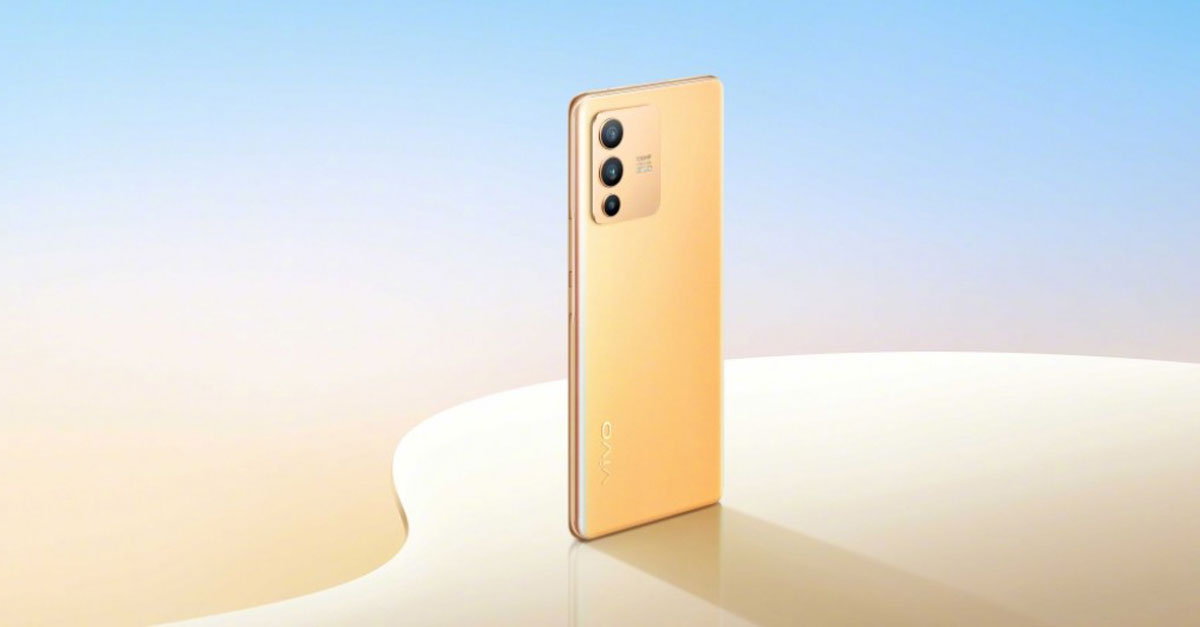
Vivo has confirmed that the launch of its awaited V23 series phones will be on 5th January 2022. The phones will come with an exclusive feature of colour-changing back glass which will make the first phone to have this feature in India. Although Vivo has not made any announcement for the specs but from the promo, we could figure out some of the specs. V23 will sport a 64MP triple camera setup while the Pro variant will come with a 108MP camera system. The rest of the specs are still unknown. Read also: OnePlus Nord CE 5G teased to feature a triple rear camera set u

Samsung Galaxy S21 FE

Samsung Galaxy S21 FE specifications
Image Courtesy: CoinBRS
With Galaxy S20 FE, Samsung had entered into a new market and it was also an instant hit. Samsung Galaxy S20 FE was an all-around good Samsung flagship at an affordable price. Based on the most recent specs leak, the Galaxy S21 FE will have a 6.41-inches 120Hz FHD+ AMOLED display. Powering this setup will be Snapdragon 888 or Exynos 2100 chipset and a 4,500 mAh battery with 25W charging speeds. The phone will come somewhere in January 2022

Samsung Galaxy S22 Series

Galaxy S22 Series
Image Courtesy-Gizmochina
In the flagship world, Samsung’s S series is the most important series. They are the flagships that come at the starting of January, and they set the bar for the upcoming premium smartphones. The S21 series was a hit series and it looks like Samsung will shake the market again with its S22 series.  Few details of the upcoming flagship from Samsung have leaked online and they go as follows- There will be three phones in the S22 series just like last year, regular S22, S22+, and the S22 Ultra. The expensive S22 ultra could feature a 6.8- Inches QHD+ AMOLED display with an adaptive high refresh rate. The S22 Ultra can also be seen with an S-Pen in it, which means that it will replace the Note series. 

OnePlus 10 Pro

 
OnePlus 10 Pro launch
Image Courtesy: Waqar Khan
OnePlus is also a very important player in the smartphone market and it looks like we could see a flagship phone from OnePlus in early 2022. The OnePlus 10 Pro is expected to come with LTPO Fluid 2.0 AMOLED display, Snapdragon 8 Gen 1 with 8GB/12GB RAM option, and 128GB/256GB internal storage option. The phone is expected to come with a triple camera setup, with Hasselblad’s colour calibration. Read also: Xiaomi 11i Hypercharge confirmed to launch in India on January 6, 2022

Poco F4 Pro

Poco F4 Pro
Image Courtesy- notebookcheck
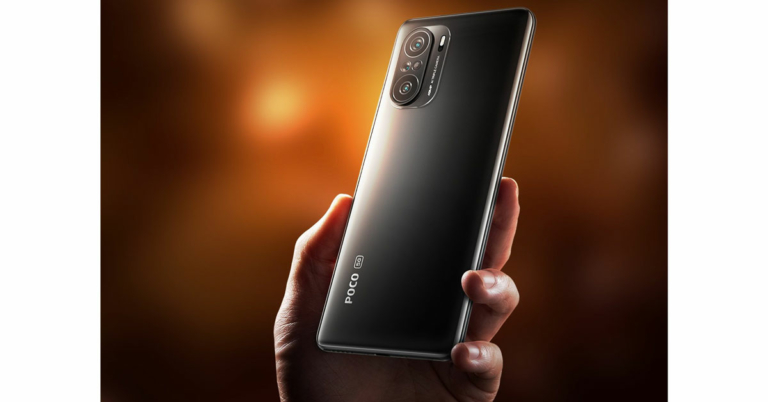
Poco is Xiaomi’s sub-brand that took the market under the wave of their first phone, the Poco F1, after that Poco has been continuously making value for money phones. The Poco F4 Pro is expected to come in the first quarter of 2022. The expected specs of the phone are: 6.67-Inches AMOLED display, Snapdragon 870 processor which is coupled with 8GB of RAM, and a triple-camera setup with a 48MP primary, 8MP ultra-wide, and 5MP cameras.  

Xiaomi 11i Hypercharge

MI 11i HyperchargeXiaomi has revealed in a recent teaser that the Xiaomi 11i Hypercharge will launch on 6th January 2022. The teaser shows that the phone is capable of mind-blowing super fast 120W charging. It may have a 6.67-inch AMOLED panel with MediaTek Dimensity 920.  This is how the first three months are gonna look like in the smartphone market and now you can decide which phone to buy in 2022.  Read also: Confirmed: OnePlus 10 Pro to debut in January 2022 For the latest gadget and tech news, and gadget reviews, follow us on Twitter, Facebook and Instagram. For newest tech & gadget videos subscribe to our YouTube Channel. You can also stay up to date using the Gadget Bridge Android App. You can find the latest car and bike news here.
How to stop YouTube from saving your search history?

YouTube is a very popular video streaming platform and many of us watch YouTube to take a break from our hectic schedule. By default YouTube stores all your search history and it will be shown to you every time you press the search icon. Well if you want to hide the search history of your account then you are at the right place. We will guide you through how to stop YouTube from saving your search history. Just follow these simple steps and you will be able to hide your search history.

Hide search history in the mobile app

If you use an Android or an iOS device then there are just a few steps to stop the search history. Just follow the steps below-
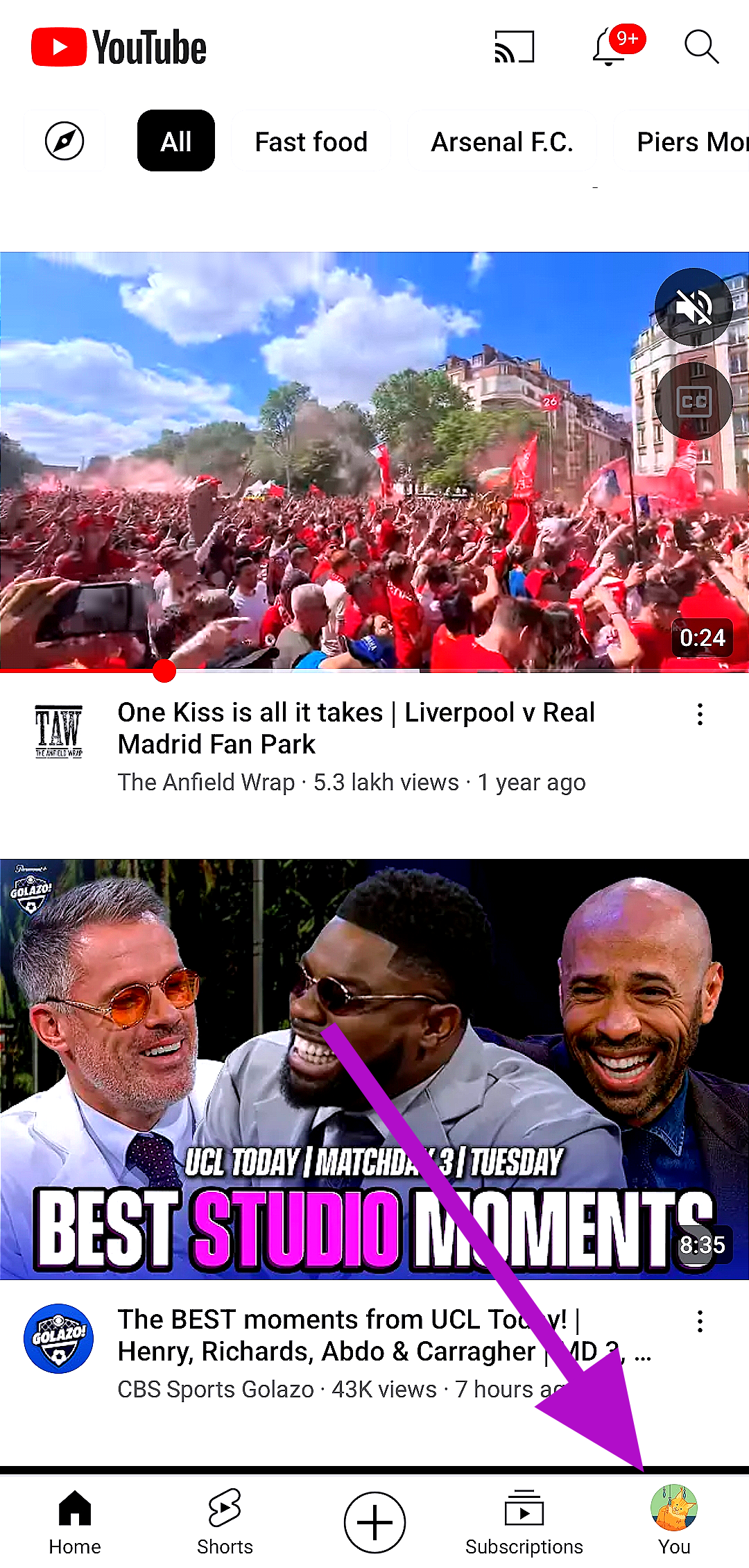
  1. Open the YouTube app on your Android or iOS smartphone.
  2. Then click on your profile picture on the app.Stop on ios and android
  3. Then tap on Settings.
  4. Then go to History & Privacy.Stop on ios and android
  5. The final step is to check the pause search history option and that’s it.Stop on ios and android- how to stop search history on Youtube
You can also turn off the watch history as well if you want. Search history is everything that you searched for on the YouTube search bar and watch history shows every video that you have watched. So if you want to stop the watch history as well then you can check that option as well. Read also: Now you can protect your Activity History on Google with a

Hide search history on the Web app

If you binge-watch YouTube with your Windows PC or your Mac, then turning off the search and watch history will be a bit different. Just follow the steps given and you will be able to pause search history and watch history on your Windows PC and Macs. Here are the steps:
  1. Open your web browser which you use, and search for YouTube.
  2. On the top right corner, you will be able to see your profile picture, tap on that.Stop on PC- how to stop search history on Youtube
  3. After you have clicked on the profile picture, just click on Your data in the YouTube option.Stop on pc- how to stop search history on Youtube
  4. From there you will be able to pause search history as well as watch history on YouTube.

Watch videos in incognito mode

Step 1: Launch the YouTube app. Step 2: Tap on the You tab at the bottom right corner of the screen. Step 2: Tap on the You tab at the bottom right corner of the screen. Step 3: Select Turn on Incognito from the list of options. Step 3: Select Turn on Incognito from the list of options. Once you are in incognito mode, the videos you watch will not be reflected in your watch history. Your suggestions and feed will not be influenced by the videos you watch. To switch back to your account, tap on the You tab again and select Turn off.
Frequently Asked Questions (FAQs)

How do I stop the search history and watch history on YouTube?

If you don’t want your search history and watch history on YouTube to reflect the videos you watch on the app, simply turn on the incognito mode from the ‘You’ tab.

What does the incognito mode on YouTube do?

Apart from not logging newly watched videos in your watch history and search history, turning on incognito mode also prevents the videos you watch from having an effected on the content suggested to you.

Is there an incognito mode on YouTube’s desktop website?

No, YouTube’s desktop website does not have an incognito mode yet. You will need to open a separate incognito window on your web browser to watch videos discreetly. Read also: How to view, manage and delete your location history in Google

Conclusion

This is how you can also stop the search history and watch history on the YouTube mobile app and YouTube web app. If you find yourself using the incognito mode on YouTube more often, you would be better off using a throwaway YouTube account for videos that you don’t want to watch on your main account. You can even clone the YouTube app on your device and sign into it using your throwaway account.

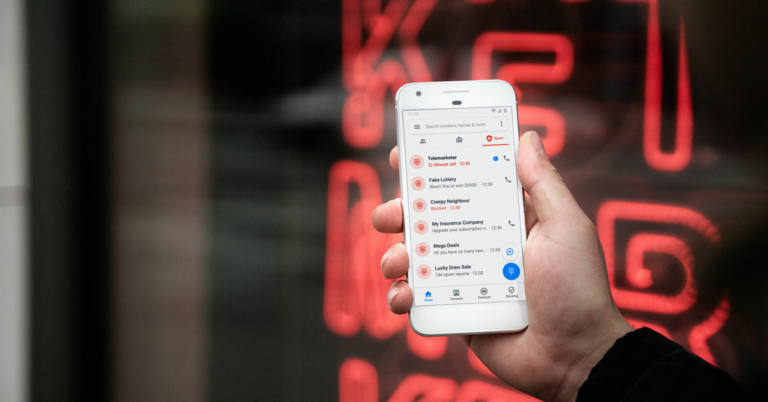
Top 9 ways to stop spam calls on your phone (2024)

Scam calls are a big problem, and the situation is getting worse day by day. With over 202 Million spam calls, India sits just below Ukraine at the fourth position when it comes to most spammed countries on the planet. This may sound unbelievable, but it’s true that over 202 million spam and scam calls were made by just one spammer in India in 2021. With these many spam calls, Indians have been losing a big chunk of money from their banks. You don’t wanna lose your hard-earned money right? Follow these 9 methods to stop or block spam calls on your phone.

Block spam calls on Android 

With any Android device on/or above Android 5.0 Lollipop, you can block spam calls, just follow the steps given below-
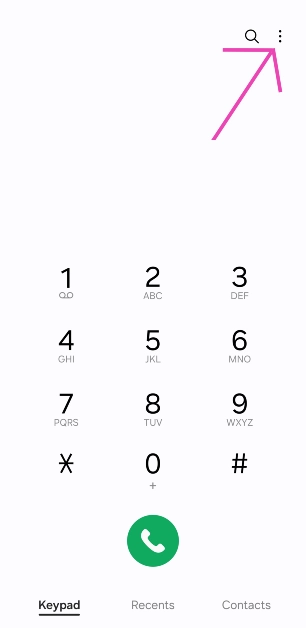
  1. Open the dialer app on your phone, and hit the three-dot menu.Block spam calls on Android
  2. Then go to the settings and hit Caller ID & Spam.Block spam calls on Android
  3. You will get the option to filter spam calls.Block spam calls on Android
This is a quick and simple way in which you do not have to install any other third-party app. 

Block spam calls on a Samsung smartphone (One UI)

Samsung users can follow these steps to block spam calls on their smartphones.
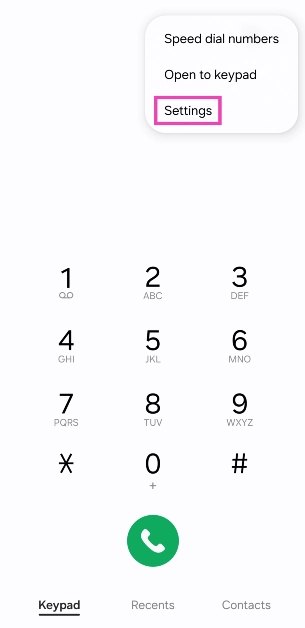
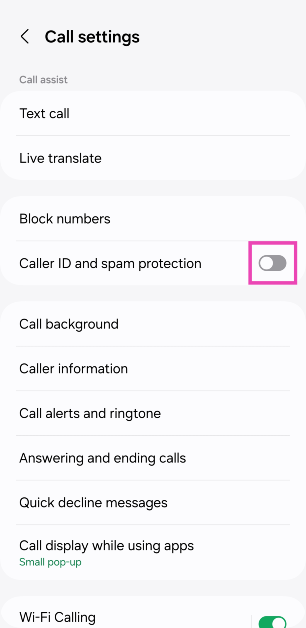
  1. Launch the native dialer app and hit the ellipses at the top right corner of the screen.
ellipses 2. Select Settings. Select Settings. 3. Turn on the toggle switch for Caller ID and spam protection. Turn on the toggle switch for Caller ID and spam protection.
Block spam calls on iPhone

Apple also provides an option to block spam calls in the native calling app. Just follow the given steps-
  1. Open the Settings app, and scroll down to find the Phone app.
  2. Then, check the Silence unknown callers option.  
This feature is available for iOS 13 and above, so if you have an older version of iOS installed on your iPhone it is the right time to install it. Also, do you know that now updating your phone regularly is a bad habit and can reduce the life of your phone? Check out the article on our page to know more about bad habits that kill your phone by clicking here. Read also: India secures 9th spot in global spam call ranking: Truecaller

Share your phone number carefully 

Admit it, we all make the mistake of sharing our personal contact numbers every time we go to a shopping mall. You must have received many calls during the season sales and festive sales from the malls, and you can stop that by not providing your phone number.  It is not necessary at all to share your contact number at the time of billing unless you want to be spammed by even more malls and call centres than you are already being. You can always deny giving your contact number, if the cashier still asks for it you can just give him a random contact number. 

Register your phone number in NDNC

Adding your phone number to the NDNC (National Do Not Call) registry will separate out any spam calls that were under the regulations. To do this you just need to send “START 0” to 1909 from your phone number. NDNC is created by TRAI (Telecom Regulatory Authority of India). The sole purpose for the creation of NDNC is to prevent unwanted Marketing SMS and calls from Telemarketers.Block spam calls on Android

Get the latest mobile number series

When getting a new number for yourself don’t just go for an easy and fancy number, because chances are that if the number was used before you got that, then that person might have subscribed to some services. So if you opt for that phone number then you will get those annoying spam calls on your new fancy phone number. So it is advised that you should always search for the latest series available for your operator in your region and choose a new number.

Block an individual number

Keep getting spam calls from one number? Block it and move on. Here’s how.
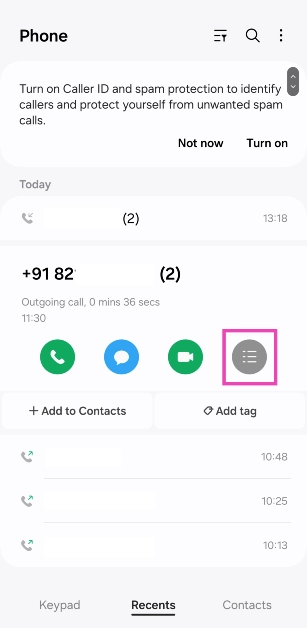
  1. Launch the dialer app on your phone and switch to the call history tab.
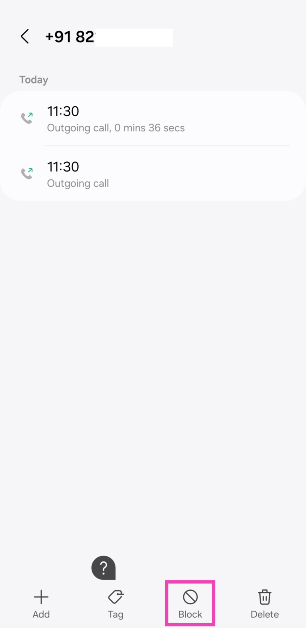
  2. Locate the number responsible for spam calls, tap on it, and hit the options icon.
Locate the number responsible for spam calls, tap on it, and hit the options icon. 3. Hit Block. 3. Hit Block.

Use Truecaller

Third-party apps like Truecaller are quite popular and are very effective in filtering out scam calls. Truecaller allows you to stop spam calls. To enable spam call filtering in Truecaller just follow these steps.
  1. Install and open the app.
  2. Press the three-dot menu on the top right and go to settings.Use truecaller
  3. From there enable call blocking features.Use truecaller
You can get the premium version of Truecaller in order to get some extra features.

Use Hiya

Hiya is another Caller ID that allows you to block spam calls on your phone. Not only does this app recognise and block all spam calls, but it also lets you look up user reports related to that number. You can add to these reports to let other users know the kind of spam a specific number is pushing. Flagging scam callers not only blocks them from contacting you again, but it is also helpful to other users. Apart from that, you can search for any unknown number and check who it belongs to.

Frequently Asked Questions (FAQs)

How do I block spam calls on an Android phone?

Go to Phone>Settings>Caller ID & Spam and turn on its toggle switch.

How do I block spam calls on my iPhone?

Go to Settings>Phone and turn on Silence unknown callers.

Which are some good apps to block spam calls on a smartphone?

Apps like Truecaller and Hiya offer effective spam filters to automatically block spam calls on your smartphone. Read also: Scam calls in India increased by more than double in 2018:

Conclusion

So, here is how you can stop or block spam calls on your phone. These hacks/ways are not 100% effective, but they will definitely filter out most spam calls. If you know any other way to keep spam calls at bay, let us know in the comments!

25 December 2021 Amazon Quiz today answers: Answer to win Rs 5,000 Amazon Pay Balance

Amazon is back with another quiz on its mobile platform. The Amazon Quiz is conducted every day for its customers. Customers from different parts of the country are participating in the daily quiz. Today’s Amazon quiz is now live on the Amazon App. The participants can play the 25 December 2021 Amazon Quiz and get a chance to win Rs 25,000 Amazon pay Balance. The Amazon Quiz can be played from 12 AM to 11:59 PM. For those who are unaware of the quiz, the e-commerce platform brings a fresh quiz on a daily basis which consists of five questions related to general knowledge and current affairs. The participants need to answer all the questions correctly and their names will be selected for a lucky draw. The winner will be announced at the end of the month. One wrong answer could eliminate you from the quiz. Only app users are eligible to participate in the Quiz. Check Out 25 December 2021 Amazon Quiz Answers.

25 December 2021 Amazon Quiz Answers

Question 1: Sandra Mason will replace Britain’s Queen Elizabeth II as head of state of which Caribbean nation?

Answer: Barbados

Question 2: With which brand has Ruskin Bond collaborated on a book to encourage handwashing among children?

Answer: Lifebuoy

Question 3: Which popular singer has recently released her new single titled Easy on Me, almost five years after her previous album?

Answer: Adele

Question 4: In the 2021 film adaptation of which book who is playing the character of Paul Atreides?

Answer: Timothee Chalamet

Question 5: What was this platform’s first original series?

Answer: Lillyhammer For the latest gadget and tech news, and gadget reviews, follow us on TwitterFacebook and Instagram. For newest tech & gadget videos subscribe to our YouTube Channel. You can also stay up to date using the Gadget Bridge Android App. You can find the latest car and bike news here.

Last-minute Christmas gifts guide: Best tech gadgets gift ideas for your loved ones

Festivals are the best time to buy gadgets, gifting them to your loved ones and making them feel special. This time around most of the companies and e-commerce platforms offer great deals and discounts on gadgets. However, choosing a perfect gift can be a big challenge as we often get confused about choosing an ideal gift for our family and friends. So here we have listed out some Christmas tech gifts for your loved ones if they are tech-savvy.

Last-minute Christmas tech gifts you can get for your loved ones

Fitness tracker

Samsung Galaxy Watch 4 Review: A perfect fitness tracker  Samsung Galaxy Watch 4: If your friend or a family member is a fitness enthusiast you should consider gifting this smartwatch. The watch runs on One UI Watch 3, based on the new Wear OS. It comes with a 1.2-inch AMOLED touch display. The device includes Optical Heart Rate, Electrical Heart and Bioelectrical Impedance Analysis. Read the review here. Price: Rs 24,720 Buy from Amazon Mi Smart Band 6 Mi Smart Band 6: Mi Smart Band 6 is another perfect gift for a fitness freak. The device features a 1.56-inch (152×486 pixels) AMOLED touch display. It comes with 30 workout modes and offers up to 14 days of battery life. Price: 3,499 Buy from Amazon 

TWS earphones/ Neckband/ headphones

Nothing ear 1 TWS earphones Nothing ear 1 TWS earphones: Nothing ear (1) have 1.6mm dynamic drivers. There are high-definition microphones and ANC features with two settings: light mode and maximum mode. With this case, the Nothing Ear 1 provides 5 hours of listening time and 34 hours of additional playtime. Price: Rs 5,999 Buy from Flipkart Vivo Wireless Sport Lite neckband earphones Vivo Wireless Sport Lite neckband earphones: Vivo Wireless Sport Lite neckband earphones are equipped with an 11.2mm dynamic driver unit. The neckband also comes with a low latency rate of up to 80ms which results in a theatre-like audio experience. The device also includes a Call Noise Cancellation feature and can run for 18 hours (play music of AAC codec at 50% volume) and can last for 13 hours (play music of AAC codec at 100% volume). Price: Rs 1,999 Buy from Vivo e-store Philips TAH6506BK headphones with ANC and 30 hours of playtime launched in India Philips TAH6506BK headphones: Philips TAH6506BK headphones feature 32 mm neodymium drivers. The Bluetooth multipoint pairing is included that allows connecting the headphones to two devices at once and the option to switch between them as per the need. These also feature Active Noise Cancellation with internal mics in its ear cups, which filter out the background noise you don’t want to hear. On a single charge, the headphones are said to have a total playback time of up to 30 hours, and up to 25 hours with the ANC turned on. Price: 5,799 Buy from Amazon

Bluetooth speaker/ Smart speaker

Sony SRS-XB12
Sony SRS-XB12
Sony SRS-XB12: Right now Sony is running Christmas sale on its platform. It is offering up to 30 percent off on speakers. The Sony SRS-XB12 is a portable wireless speaker that features EXTRA BASS and offers a battery life of up to 16 hours. The Bluetooth speaker is dust and waterproof as well. Price: 3,590 Buy from Sony Centre

Air Fryer

Kenstar Aster Digi 1500-Watt Oxy Fryer Kenstar Aster Digi 1500-Watt Oxy Fryer: Not only this air fryer can per gifted but you can purchase it for yourself if you are a foodie but health-conscious too. It has a digital control and 7 presets. There is a non-stick coating inside and a timer for up to 30 mins. Price: 5,990 Buy from Amazon iPhone 13

iPhone 13

Vijay Sales has today announced Apple Days Sale. The original price of the iPhone 13 starts at Rs 79,900 but during the sale, you can get it for as low as Rs 61,000. So now is the best time to buy the iPhone 13. Price Rs 61,000 Buy from Vijay Sales

Amazon Kindle

Amazon Kindle (10th Gen) Amazon Kindle (10th Gen) is last on our Christmas tech gifts list. It has an adjustable front light and comes with a 167 ppi glare-free display. It offers 8GB of storage and longer battery life. Price: 7,999 Buy from Amazon For the latest gadget and tech news, and gadget reviews, follow us on TwitterFacebook and Instagram. For newest tech & gadget videos subscribe to our YouTube Channel. You can also stay up to date using the Gadget Bridge Android App. You can find the latest car and bike news here.

Looking to buy an iPhone 13? Now get it for as low as Rs 61,000 during Apple Days Sale, deals on other Apple products too

On the occasion of the New year, Vijay sales has announced the Apple Days Sale on its platform. The retailer is offering exciting deals on Apple products like iPhone 13, iPhone 13 Pro, iPhone 13 Pro Max, iPhone 13 mini, iPhone 12, and iPhone 11. In addition to this, there are discounts on other devices like MacBooks, iPads, AirPods and HomePods. The sale is now live and will run till December 31. Other than discounts on Apple products, Vijay sales is also offering cashback of up to Rs 10,000 to HDFC cardholders and on EMI transactions. Consumers can avail best deals on all Apple products across its 110+ retail outlets as well as Vijaysales.com. During the Apple Days Sale Apple iPhone 13 will be available at Rs 75, 900 in addition to this if you are an HDFC customer you can get a flat cashback of Rs 6000 on the purchase of the phone. According to the retailer, if you wish to exchange your existing smartphone & if it carries a minimum exchange value of Rs 5000, it will be topped by another 3000 at Vijay Sales taking the total discount amount to Rs 18,000, therefore, bringing the final price of the iPhone 13 price down to Rs 61,900. Similarly, the price of the Phone 13 mini starts from 66,400 with an additional cashback of Rs 6000 on HDFC Bank Cards. iPhone 13 Pro price will start at Rs 1,13,900 with an additional Cashback of Rs 5000 on HDFC Bank Cards. On the other hand, iPhone 13 ProMax pricing now starts at Rs 1,23, 400 with a similar additional cashback as the Pro model gets. The price of the iPhone 11 starts at Rs 47,400 with an extra cashback of Rs 4,000 on HDFC Bank Cards and iPhone 12 starts at Rs 61,299 along with Rs 5000 off to HDFC Bank cardholders. One can also get a flat 10% off in stores on purchase of Any Apple Care + with iPhone. Besides the Apple iPad 9th gen will be available at a discounted price of Rs 29,600. In addition to this HDFC cardholders can avail of Rs 3,000. iPad Air 4th price will begin at 50,900 and iPad Pro starts at Rs 67,500 along with Rs 4,000 additional HDFC Bank card discount. There will be a flat 10 percent off if you purchase them with any Apple Care+ scheme through offline stores. In the same way, MacBooks are also up for sale on Vijay Sales. During the sale period, the price of the MacBook Air with Mi chip will start at Rs 83,610(with additional Rs 6,000 HDFC Bank card discount). MacBook Pro with M1 chip will price will now begin at Rs 1,10,619(Rs 7,000 bank discount), MacBook Pro With Latest M1 Pro Chip price now starts at Rs 1,81,200 (with 10,000 bank discount). Also, you will get 15% Off in stores on purchase of Any Apple Care + with MacBook. Coming to the Apple Watch, the Series 7 will be available at Rs 39,100 and if you have an HDFC card then you can get an additional cashback of Rs 3,000. Similarly, the Apple Watch SE price will start at Rs 27,900 during the Apple Days sale with Rs 2000 additional cashback to HDFC Bank cardholders. Other devices like AirPods and HomePod Mini are also upon sale.  For the latest gadget and tech news, and gadget reviews, follow us on TwitterFacebook and Instagram. For newest tech & gadget videos subscribe to our YouTube Channel. You can also stay up to date using the Gadget Bridge Android App. You can find the latest car and bike news here.

OnePlus Nord 2 CE 5G likely to launch before February

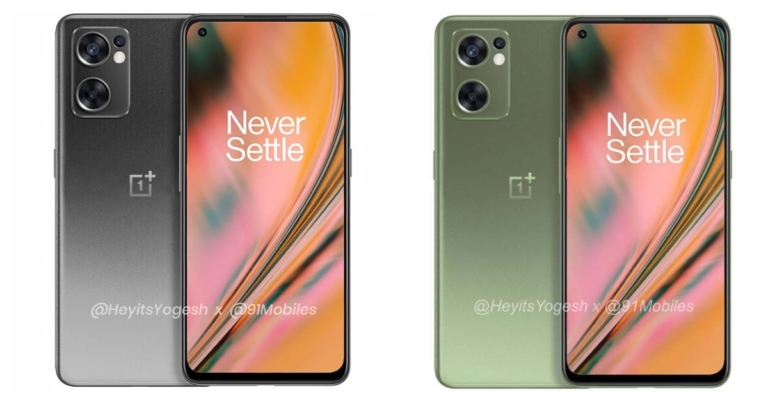
Recently the OnePlus Nord 2 CE 5G was spotted listed on the Bureau of Indian Standards (BIS) website hinting at the imminent launch in the country. Now the device is tipped to arrive in the country as soon as February 2022. Previous speculations suggested that the alleged smartphone will be launched earlier in 2022 possibly in January. According to tipster Yogesh Brar, OnePlus Nord 2 CE is expected to get launched before February next year. His tweet reads, “Reading stories about the OnePlus Nord 2 CE launching soon as it popped on some database. Well, the stories are incorrect, the phone has been sitting on BIS for a long time now (nothing exclusive). Like I said in a detailed leak last week, it will not launch anytime before February.” Also Read: OnePlus Nord 2 CE 5G bagged BIS certification, may launch in India soon OnePlus has not yet officially confirmed the existence of the OnePlus Nord 2 CE but its appearance on the BIS website confirms that launch might take place in early 2022. The phone was spotted with model number IV2201 on the Indian regulatory site last week. The information about the smartphone’s launch in February may also be believed as the company recently confirmed the launch of its flagship OnePlus 10 Pro. The next-gen series launch is scheduled to take place in January and this could be the reason for the delay of Nord 2 CE. OnePlus Nord 2 CE 5G renders were leaked previously on the internet. The phone has been spotted in two colour schemes grey and olive. According to the photos, the device would feature an AMOLED display with a hole punch design. The volume rocker is on the left side of the frame and the power button is on the right side. The handset’s bottom features a microphone, speaker grille, headphone jack and USB Type C port. A fingerprint sensor will also be integrated into the display. In terms of optics, the OnePlus Nord 2 will feature a triple rear camera sensor contained inside a rectangular module. On the specifications front, OnePlus Nord 2 CE is said to run OxygenOS 12 on top of Android 12. The gadget is also likely to be powered by a MediaTek Dimensity 900 SoC with 6GB of RAM and 128GB of internal storage as well as 12GB of RAM and 256GB of internal storage. The device is rumoured to include a 6.4 inch full HD+ AMOLED display with a refresh rate of 90Hz. With a punch hole cut out for the selfie, Corning Gorilla Glass will protect both the display and the back panel. Plastic will be used for the side frames. Also Read: OnePlus Nord CE 5G Long Term Review: A simple smartphone with clean UI, good for daily usage A triple camera arrangement on the rear of the smartphone has a 64MP primary OmniVision sensor, an 8MP ultra-wide lens and a 2MP macro lens. On the front, there is a 16MP camera for selfies and video calls. It features a battery capacity of 4,500mAH and enables 65W rapid charging. The OnePlus Nord 2 CE 5G is rumoured to include three card slots for SIM and microSD cards. The addition of the triple card slot is an improvement over the previous model because the OnePlus Nord CE lacks a MicroSD card slot. Also, the phone is likely to be lacking the alert slider, which may disappoint some. For the latest gadget and tech news, and gadget reviews, follow us on TwitterFacebook and Instagram. For newest tech & gadget videos subscribe to our YouTube Channel. You can also stay up to date using the Gadget Bridge Android App. You can find the latest car and bike news here.

Krafton to enforce permanent Battlegrounds Mobile India device ban from today to prevent cheating

According to the latest Krafton blog post, Battlegrounds Mobile India is going to ban the use of rogue devices. The permanent device ban on the popular Battle Royale game came into operation from today onwards, that is December 24. So from now onwards, those using illegal means to do cheating during the gameplay will be permanently prohibited and the smartphones running the cheating software. Now Krafton will not only penalise or prohibit the cheating user accounts on BGMI, but it will also permanently ban the devices. The new banning policy change will come into effect from today. While announcing the permanent device ban to deal with cheating it said, “If the use of illegal programs is detected with a mobile device by the newly applied security logic, the device will be permanently banned from using BGMI.” Also Read: Here are the steps taken by Krafton to remove cheaters from Battlegrounds Mobile India Before the device ban policy, Krafton used to only ban Battlegrounds Mobile India users’ accounts if they were found to be cheating. “Up until now sanctions were given only to the accounts, but now the mobile devices will be banned as well, making fair gameplay far more effective. We will continuously strive to eradicate any unfair gameplay, especially the use of illegal programs to provide our fans with the utmost pleasant gaming experience,” it further added. Previously Krafton has banned 25,19,692 accounts permanently and 7,06,319 accounts temporarily. In order to deal with cheaters, the developers also listed out strict measures that were taken to stop the use of unfair means to beat out other players, therefore, undermining the overall experience. Krafton earlier also advised players to avoid giving access to other people in their accounts. In addition to this Kraton is also keeping an eye on YouTube for any channels that promote illegal programs and if any are identified, their channels will be blocked immediately as the company is working with YouTube.  For the latest gadget and tech news, and gadget reviews, follow us on TwitterFacebook and Instagram. For newest tech & gadget videos subscribe to our YouTube Channel. You can also stay up to date using the Gadget Bridge Android App. You can find the latest car and bike news here.

5 Best ways to fix ‘Gmail storage is full’ issue

Gmail is the most used e-mail client of all. It is easy to use and you do not have to install, log in or create a separate Google account for this mail. Gmail, Google Photos, and Google Drive are all integrated into one account and you can seamlessly use all of them. But, sometimes you can’t accept mail on your Gmail because of storage issues. If you are facing this problem then this article is for you, here are the best ways to fix the ‘Gmail storage is full issue. Just follow these simple ways/hacks and you will be able to create space in your Gmail.

Clear spam, trash, and other unwanted mail

If you have ever signed on to any platform using your Gmail account, then you will be bombarded by many emails on your account. Every mail that you receive takes up some storage from your Gmail account and it is better to delete all the old and unnecessary trash from your Gmail. Just go to the trash folder and delete all the emails, and do the same with spam and old emails. Empty trash Also, you can unsubscribe to the newsletters, which you don’t want, just open any mail from which you do not want regular updates, and scroll down to the bottom you will see an unsubscribe button hit that, and follow the next steps. Read also: How to block emails in Gmail and Outlook

Manage space in Google Drive and Google Photos

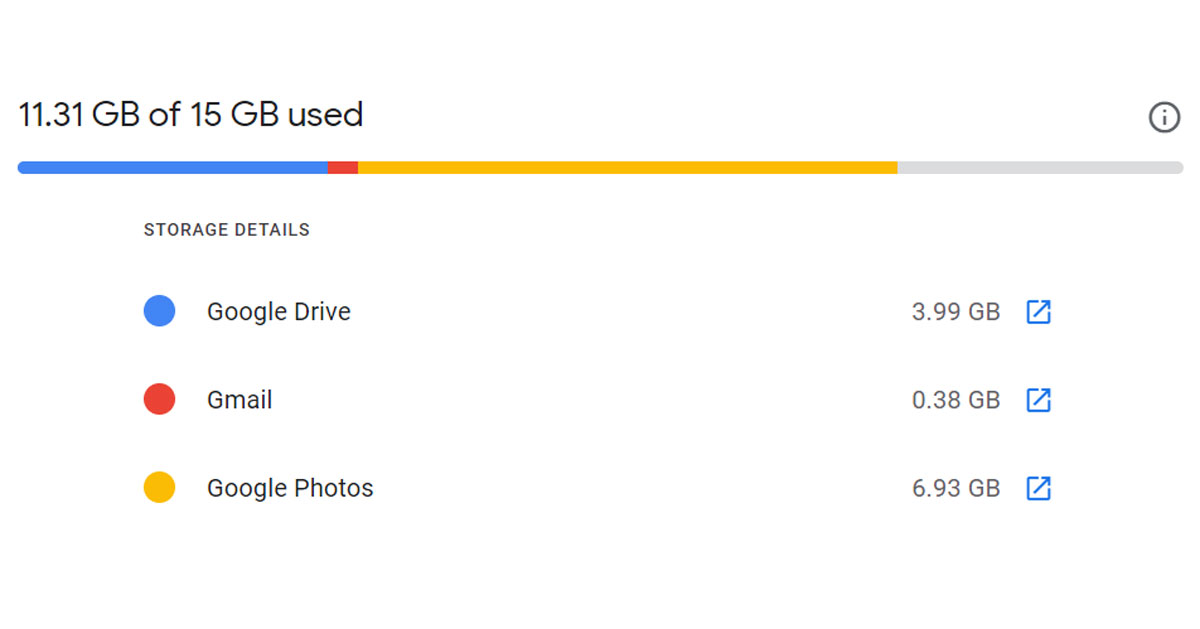
Since your Gmail, Google Photos, and Google Drive are linked to a single Google account the base 15GB of limited storage is shared between these three. Google has also removed unlimited storage functionality for Photos, so now every photo or video that you back up on the Photos app will take storage. Manage storage- Gmail storage is full issue Manage space in Google account Delete mails in gmail So if you have storage issues with Gmail, then chances are that the photos app is the culprit here. Just turn off the automatic backup option and delete some photos and videos. The same is the case with Google Drive, it also shares storage with the other two. So, if you have shared some large files on Google Drive with someone and you forgot to delete them, it’s the perfect time to delete those files and make some storage in your Gmail inbox. 

Empty the social/update tab

If you use your Gmail account to sign in to any app like Swiggy, Linkedin, or any other then those apps keep sending you a lot of updated emails that take up storage on the device, just delete them all and you will have some more storage in your account.

Save all your emails on your computer

Several third-party tools and email clients allow you to move your emails to the local storage on your computer. Once that’s done, you can simply clear your Gmail inbox. Before you link your Gmail account to a third-party client enable POP by going to Settings>Forwarding and POP/IMAP.

Buy more storage

If you use Gmail very often and you are a power user and share a lot of big files, then you should buy storage from Google. By default, Google gives 15GB of free space to every user. So if you need extra space you can always buy some extra storage.Buy more storage- Gmail storage is full issue Manage space in Google account Delete mails in gmail

Bonus Tip

You can search for large emails as well. Just type larger:5m in the search box of your email. This will show you all emails that are larger than 5 MB. Then you can easily delete them. You can use any number with M (1M, 5M, 10m) and Gmail will show you emails larger than those sizes. Remember to clear the trash after you delete these large emails. 

Frequently Asked Questions (FAQs)

How do I clear unwanted emails on my Gmail account?

To manage or clear unwanted emails on your Gmail account, routinely clear out the trash, social, and spam folders. Unsubscribe from newsletters forwarded by services that you use.

How do I filter large emails on Gmail?

If you want to view the emails with a large file size in your Gmail inbox, simply type large:5m in the search box and hit Enter. This will display all the emails larger than 5MB.

How do I save my emails on my computer?

Third-party email clients like Thunderbird, Outlook, and Windows Mail let you download your entire email inbox to your computer after you have successfully linked your Gmail account to them. Read also: How to clean-up your Gmail?

Conclusion

By following these simple hacks/ways you can solve the ‘Gmail storage is full’ issue. To ensure that you don’t hit the maximum storage capacity prematurely, manage your inbox on a regular basis by clearing out spam and unsubscribing from unwanted newsletters and emails.

24 December 2021 Amazon Quiz today answers: Answer to win Rs 25,000 Amazon Pay Balance

Have you participated in the Amazon Quiz today? If not then participate in the 24 December 2021 Amazon Quiz as it has already gone live on the app. The daily quiz can be played from 12 AM to 11:59 every day on the mobile app platform. Today the e-commerce is giving the chance to win Rs 20,000 Amazon Pay Balance. Every day Amazon brings a fresh quiz for its customers. By participating in the quiz the participants can win an Amazon Pay Balance of up to Rs 50,000. The quiz can only be played on the mobile app as it is not available for the desktop platform. The quiz contains five easy questions and you have to answer all the questions correctly. The participants will then be shortlisted for a lucky draw to select a winner. Whereas the results are declared at the end of the month. Check out today Amazon quiz answers to win Rs 25,000.

24 December 2021 Amazon Quiz Answers

Question 1: Who is the first representative from India to serve as Chairman of the World Steel Association? Answer: Sajjan Jindal Question 2: Kushinagar International Airport was recently inaugurated in Which Indian state? Answer: Uttar Pradesh Question 3: Which country recently launched its first homegrown rocket, Nuri? Answer: South Korea Question 4: What book of this author has to do with immortality? Answer: The picture of Dorian Gray Question 5: What was the name of this character’s brother in the famous books of Sir Arthur Conan Doyle? Answer: Mycroft For the latest gadget and tech news, and gadget reviews, follow us on TwitterFacebook and Instagram. For newest tech & gadget videos subscribe to our YouTube Channel. You can also stay up to date using the Gadget Bridge Android App. You can find the latest car and bike news here.

Amazon announced Grand Gaming Days: Up to 50% off on gaming laptops, consoles, and accessories

Grand Gaming Days in India has been announced by Amazon. The newly announced sale for gamers features a variety of offers and deals on gaming accessories. Gaming laptops, desktops, and monitors, advanced headphones, gaming consoles, graphic cards, and televisions will all be available at discounted prices on the shopping portal. Customers can find great deals on gaming laptops, desktops & monitors, advanced headphones, gaming consoles, graphic cards, and TVs from well-known brands such as Lenovo, Acer, ASUS, LG, HP, Sony, Dell, Corsair, Cosmic byte, JBL, and others. The promotions will run until December 25, 2021. Customers can save up to 40% on large screen TVs with high resolution, more RAM, and a faster refresh rate, which improves gaming performance. They can also take advantage of no-cost EMI and exchange offers, as well as price reductions on select models. Here are some of the most popular gaming products on Amazon.in, along with seller offers and deals:

Gaming Laptops, Desktops and Monitors

During the Amazon Gaming Grand Gaming Days, ASUS TUF Gaming F15 Laptop is available for Rs 56,990, which is a great deal. This gaming laptop is equipped with Powered by Intel Core H-Series processors and GeForce GTX 1650 Ti graphics. Victus by HP FHD Gaming Laptop price now starts at just Rs 58,990. One can also avail of Rs 5,000 off on exchange. It is powered by Intel Core R5-5600H processor and a dedicated Nvidia RTX 3050 graphics card with 4GB DDR6 memory. The Intel Core i5 11th generation processor powers the HP Pavilion Gaming Desktop. The Nvidia GeForce RTX 3060Ti graphics card has 8GB of dedicated DDR4 RAM and 16GB of computer RAM. With preinstalled Windows 11 and a 1TB SSD, you can enjoy smooth multitasking and excellent performance. The price of this gaming desktop is INR 1,02,490. MSI GF75 Thin Gaming Laptop is priced at Rs 59,990. The MSI GF75 Thin Gaming Laptop is equipped with a 10th Generation Intel Core processor. Your GF75 is powered by an Intel Core i5 processor with GeForce GTX 16 Series graphics. While the 144HZ gaming display provides the most vibrant visuals.

Gaming accessories, routers and TVs

JBL Quantum 100 by Harman, Wired Over-Ear Gaming Headphones are now available at a discounted price of Rs 1,999. Whereas Logitech G435 Wireless Gaming Headset now comes at Rs 6,995. On the other hand EvoFox X-Team Fireblade TKL Gaming Keyboard and Spirit Gaming Mouse Combo are now selling for Rs 1,410 while Logitech G502 High-Performance Wired Gaming Mouse can be bought for Rs 3,995 during Grand Gaming Days Sale on Amazon. Other devices like gaming routers are up for sale on Amazon. Netgear Nighthawk Whole Home Mesh WiFi 6 System, 4-Stream Wi-Fi 6 Router and Orbi High-Performance AC3000 Tri-band Whole Home Mesh WiFi System are selling at a sale price of Rs 12,999, Rs 8,049 and Rs 18,499 in the country. Whereas Gaming TVs like Sony Bravia (55) 4K Ultra HD Smart LED Google TV KD-55X80AJ and Redmi 139 cm (55 inches) 4K Ultra HD Android Smart LED TV are available for purchase at Rs 76,990 and Rs 44,999 respectively. For the latest gadget and tech news, and gadget reviews, follow us on TwitterFacebook and Instagram. For newest tech & gadget videos subscribe to our YouTube Channel. You can also stay up to date using the Gadget Bridge Android App. You can find the latest car and bike news here.

Tecno Camon 18 featuring a 48MP selfie camera launched in India

Tecno has officially launched a new series of smartphones in the Indian market today. Just a few months back this year the company launched Camon 17 series and today it has released its successor Tecno Camon 18 in the country. As of now only one device has been introduced featuring a 5,000mAH battery and FHD+ display and a triple rear camera set up. The device is powered by a MediaTek Helio G85 processor. Read on to know more.

Tecno Camon 18 price in India and availability details

Tecno Camon 18 price in India has been set at Rs 14,999 for the single 4GB RAM with 128GB storage variant. The smartphone will be offered in the hues of Dusk Grey and Iris Purple. With every Tecno Camon 18 purchase, the company is also including its Buds 2 true wireless earbuds worth Rs 1,999 free of cost. Starting on December 27, the smartphone will be available online and in stores. Tecno Camon 18 price in India

Tecno Camon 18 tech specifications

The Tecno Camon 18 has a 6.8-inch full HD+ screen with a resolution of 1,080×2,460 pixels. The screen also has a 120Hz touch sampling rate, 396 ppi, and 500 nits of maximum brightness. The mobile phone runs Android 11 with the HiOS 8 skin on top. The device is powered by a MediaTek Helio G85 octa-core processor with 4GB of LPDDR4 RAM and 128GB of storage. Tecno also allows you to use unused storage to virtually expand the built-in memory up to 7GB. In terms of cameras, a 48-megapixel primary sensor with an f/1.79 aperture, a 2-megapixel depth sensor, and an AI lens, as well as dual flash, are included in the Tecno Camon 18’s triple rear camera setup. Slow-motion, night video mode, video bokeh, and other modes are also available. In addition to this, the company’s TAIVOS technology, the smartphone also has 2K video recording and a low-light photography mode. Upfront there is a 48-megapixel hole-punch camera for taking selfies and video calling. The Tecno Camon 18 is powered by a 5,000mAh battery that supports 18W charging. For the latest gadget and tech news, and gadget reviews, follow us on TwitterFacebook and Instagram. For newest tech & gadget videos subscribe to our YouTube Channel. You can also stay up to date using the Gadget Bridge Android App. You can find the latest car and bike news here.

Redmi Note 11 4G global variant gets BIS certified, may launch soon

Reportedly, the Redmi Note 11 4G global variant has received certification from the Bureau of Indian Standards (BIS). The smartphone has also been certified by the National Broadcasting and Telecommunications Commission (NBTC). This indicates that Xiaomi may be planning to launch the device in India at some point in the near future. To recall the phone was launched in China earlier this month however the phone was also previously tipped to make its way to the Indian market. According to a report Redmi Note 11 4G global variant has been listed on BIS website bearing model number 2201117Ti. Similarly, the device with a slightly different model number 2201117TG was also listed on Thailand’s National Broadcasting and Telecommunications Commission (NBTC). The i and the G suffix at the end of the model number suggest Indian and Global variants. Meanwhile, model number 2201117TG for the Redmi Note 11 4G has shown up on the Camera FV-5 website. According to the Camera FV5 Database listing the upcoming smartphone will have a 50MP primary camera with an f/2.0 aperture and support for electronic image stabilisation (EIS). The handset will feature a 13.1MP front-facing camera with an f/2.4 aperture, a 99.4-degree horizontal field of view, and an 82.3-degree vertical field of view. The Redmi Note 11 4G global variant’s specifications are unknown. However, rumours suggest that the phone will be powered by Snapdragon 680 SoC and will be fuelled by a 5,000mAh battery. Besides, the other specifications are expected to be the same as the Chinese variant.

Specifications for the Redmi Note 11 4G

A 6.5-inch Full HD+ display with a hole punch cutout in the centre is featured on the top of the Redmi Note 11 4G. The display has a 90Hz refresh rate and a 180Hx touch sampling rate. The screen also has a 20:9 aspect ratio and a contrast ratio of 1500:1. The device’s operating system is MIUI 12.5 and is based on Android 11. The Redmi Note 11 4G features a MediaTek Helio G88 processor, 6GB of LPDDR4X RAM, and 128GB of EMMC 5.1 storage. In addition, the device comes with a 5,000mAh battery that supports 18W fast charging. For the latest gadget and tech news, and gadget reviews, follow us on TwitterFacebook and Instagram. For newest tech & gadget videos subscribe to our YouTube Channel. You can also stay up to date using the Gadget Bridge Android App. You can find the latest car and bike news here.

What is the difference: Twitter mute vs Twitter unfollow

Twitter is the most famous and used Micro-blogging site, and of course, it does not make it a proper blogging site. Twitter helps you to express your thoughts in limited characters which are 280 characters. So you have to be precise and short. The micro-blogging site has an enormous user base, and if you are also one of its users, you might want to know about What is the difference between Twitter mute vs Twitter unfollowing. This article is a guide for you for the same. 

What is Twitter mute and unfollow?

So, mute in Twitter is a feature that stops all the Tweets from appearing from your Twitter timeline. So if you started to see Tweets of some accounts that you don’t like, then you can simply mute that account. With this option, you can mute any account and after that, you won’t see any tweets from that account on your timeline. Now that you know what mute is in Twitter, it is the right time to mute accounts you don’t want to see on your timeline, just follow these steps-
  1. Just open the account of the person you want to mute, and hit the three-dot menu on the top right. Twitter mute
  2. Over there you will see a mute button, hit that and you are good to go.
Alternatively, you can hit the three-dot menu on the person’s tweet and then press the mute option to mute the person. Muting any account does not remove you from the follower’s list of that person, so it is a great option if you want to ignore someone’s tweets without letting them know. Read also: How to mute videos before sending them on WhatsApp? On the other hand, if you were following an account on Twitter and that account is no longer relevant to you or you do not like the tweets of that account and you also do not want to show the world that you follow that person. Unfollowing is the way to go for you. If you want to unfollow someone on Twitter then simply follow these steps:
  1. Open Twitter, and go to the person’s profile
  2. On the top right side, just below the account cover photo, you will be able to see a “Following” button, it shows that you currently follow the account.Unfollow on twitter
  3. Press the following button and the account will be unfollowed by you.
And that is the difference between Twitter mute vs Twitter unfollow. We have a similar article that guides you about the Facebook Messenger mute and ignore option, which you can check out by clicking here. Read also: How to find who unfollowed you on Instagram even if you follow For the latest gadget and tech news, and gadget reviews, follow us on Twitter, Facebook and Instagram. For newest tech & gadget videos subscribe to our YouTube Channel. You can also stay up to date using the Gadget Bridge Android App. You can find the latest car and bike news here.

What are Google Play Points? And how to use Google Play Points?

Google Playstore is a place where you can find hundreds of apps for almost anything you can ever imagine. It is home to thousands of apps, games, movies, e-books, and more. And if you are someone who uses a lot of paid apps and you have downloaded them from Playstore you expect to receive some rewards, don’t you? In this article, we will teach you what are Google play points? And how to use Google play points?

What are Google Play points?

So the first and most basic question is that what is a Google point, right? According to Google, “Play Points is a rewards program that lets you earn points and rewards with the Google Play Store”. In simplest terms, Play Points are rewards that you get for purchasing content which includes apps, movies, books, and games through the Google Play Store.  At the initial stage, you earn 1 point for every $1 you spend. However, during the first 7 days, you can earn 3 times more points. And the more you earn points the more benefit you get. Read also: Beware: These are the 9 apps stealing Facebook login credentials from Google Play

How can you use Google Play points?

Well, unfortunately, there are some requirements that you need to fulfill if you want to use Google Play Points. Here they are:
  1. You can use play points only in selected countries, and they are- Australia, Austria, Belgium, Denmark, Finland, France, Germany, Greece, Hong Kong, Indonesia, Ireland, Israel, Italy, Japan, Korea, Netherlands, New Zealand, Norway, Portugal, Saudi Arabia, South Africa, Spain, Sweden, Switzerland, Taiwan, United Arab Emirates, United Kingdom, or the United States.
  2. You will also need a computer or an Android device that works with Google Play.
  3. Google Play account that’s not managed by your school or a parent.
  4. A valid payment method.
  5. And at last, a billing address that matches your Google Play country.

What is its use?

The play points can be used in a variety of ways which include:
  1. To make purchases on apps, movies, books, and anything else in the Play Store.
  2. You can also use Google play points for in-app purchases. So if you want to purchase a coupon or a pass for any game you can use play points instead of money.
  3. And lastly, if you want to use them to go towards a charity you can also do that.
So this was it for this article, now you know what Google Play points are and how you can use them. Read also: Winners of Google Play Best of 2021 Awards in India announced For the latest gadget and tech news, and gadget reviews, follow us on Twitter, Facebook and Instagram. For newest tech & gadget videos subscribe to our YouTube Channel. You can also stay up to date using the Gadget Bridge Android App. You can find the latest car and bike news here.

10 Top Ways to Fix ‘Unable to Answer Calls on Android Phone’

Smartphones are a very essential part of our lives and making and accepting calls is the most basic function of a smartphone. But sometimes due to some reasons, you are unable to pick up calls on your Android phone. If this is the case with you we have 10 ways to fix unable to answer calls on Android phones.  Read Also: OnePlus 12 could launch in January 2024, company confirms

Restart your phone

While troubleshooting any problem the first step should be to restart your phone.Restart your phone- Android phone issue Restarting your phone resets all the background processes and when the phone is turned on again it starts all the apps from scratch and chances are the problem is solved. So this is a way in which you can fix being unable to answer calls on an Android phone.

Check if the proximity sensor is working properly

Restarting can solve the issue if it is limited to the software level, but if the screen of your phone does not turn on when you receive a call, then there is a chance that the proximity sensor is the culprit. Simply turn off the sensor by searching the option in the smartphone’s settings menu. Read also: 6 steps that help you access error-free Microsoft Store

See if you are picking up the call in the right way

So if your phone’s screen does not go black when you receive a call then that’s good, the proximity sensor is working fine. But the issue is still there, right? Well, see if you are picking up the call correctly or not. Android is an open-source OS and OEMs like to customise Android according to them. So if you have switched the phone to a different brand then chances are you are not picking up the call in the right way.Pick calls in right ways- Android phone issue In some phones, you have to swipe left from the green button while in some you have to swipe upwards, and in some, you just need to tap on the green button. Check the right way to pick up calls on your phone.

Re-insert the SIM card

Re-insert sim card- Android phone issue- Android not picking callsYou should also try to remove and insert the SIM card on your phone. If this is a network issue then this way the issue can be resolved and you can pick up the call that you are receiving. Read also: Best 9 ways to fix cannot install or update YouTube on Android

Turn on and off the Airplane Mode

Another way to fix the network issue is by turning on and off the ‘Airplane Mode’. This is a quick way to solve any network issue on your phone and let it be able to answer calls.Turon airplane mode on and off- Android not picking calls You can turn on ‘Airplane Mode’ by opening the quick settings menu and taping on the plane icon.

Clear the cache data of the phone app

While restarting the phone, it renews all the processes running on the phone but if the problem is with data on the phone app then you have to clear cache files and data of the phone app. To do this just follow these steps:
  1. Open the Settings app, scroll down to App Management and tap on it.
  2. Find the phone app that you are using and tap on it.Clear cache and app data- Unable to pick call- Android not picking calls
  3. Go to storage and clear all data.Clear cache and app data- Unable to pick call
This will solve the issue.

Update the phone app

Not updating software on our phone is a really bad habit, we have an article about bad habits that kill your smartphone, which you can check out from here. Coming back to the topic, you should go to the Playstore and see if you have any pending updates on the phone app, if you have it just install it.

Use the default phone app

If you have installed or used any other third-party calling app like Truecaller’s dialer, then chances are the culprit is that phone app. You should always use the default phone app.  To check this, just follow these steps:
  1. Open the Settings app on your phone.
  2. Then go to apps and tap the default app.Default phone app- Unable to pick call
  3. Click on the phone app and select the one which says system default.

Update your smartphone

If your smartphone is running on an older OS version, updating it to the latest version will help in fixing any issues you are facing on it. Here’s how you can do that.
  1. Go to Settings and select Software update.
Go to Settings and select Software update. 10 top ways to fix unable to answer calls on Android phone 2. Tap on Download and install. tap on download and install 10 top ways to fix unable to answer calls on Android phone 3. Select Install now. Select Install now. 10 top ways to fix unable to answer calls on Android phone

Turn off Do Not Disturb (DND)

Turn off Do Not Disturb (DND) 10 top ways to fix unable to answer calls on Android phone If your phone is in DND mode, you will not receive any notifications for incoming calls and messages. The idea of DND mode is to eliminate your phone as a distraction when you are focused on other tasks. This means all notifications will be muted and you won’t be able to receive any calls. Swipe down from the status bar and tap the tile for DND to turn it off.
Frequently Asked Questions (FAQs)

Why can’t I answer calls on my Android phone?

If you’re unable to answer calls on your Android phone, check if the network connection is working properly. Try performing a quick restart on your device. Lastly, make sure that DND isn’t turned on.

Why doesn’t my phone’s screen turn off when I accept a call?

If your phone doesn’t kill the screen when you bring it up to your ear during a call, it is due to a faulty proximity sensor. Clear the dust off the sensor to make sure this doesn’t happen again. If the situation continues to persist, take your phone to a professional repair centre.

Why can’t I receive calls on my phone?

If no one is able to reach you on your Android phone, the problem likely lies with your network reception. Go to an open place where you are more likely to receive a stronger signal. If that doesn’t fix the issue, perform a network reset on your device. Read also: Unable to download apps on your iPhone? Top 5 ways to fix the issue

Conclusion

These are the top 10 ways to fix the ‘unable to answer calls’ issue on your Android phone. If the problem still persists after trying these fixes, take your phone to the authorised service centre for further diagnosis. Make sure you back up all your personal data before turning your phone in for repair.

What is the difference: Facebook Messenger Mute vs Ignore

Facebook is by far the most famous social media platform, it has its users from teenage school kids to retired old citizens. Everyone uses Facebook on a daily basis to get updates from the life of friends and family and vice versa. But it does not mean that every user is a geek and knows each and every part of Facebook and its messenger service. If you wanted to know what is the difference between Facebook messenger mute vs ignore you are in the right place. We will teach you everything that you should know about Facebook messenger mute vs ignore. Stick with us till the end and everything will be clear.

What is Facebook Messenger

In case you don’t know what Messenger is, then let’s clear this doubt first. FB Messenger is an instant messaging app/platform that works alongside Facebook. Now that we have cleared this let’s move ahead. Read also: Bad habits that are reducing the life of your smartphone

Difference between Facebook Messenger mute and Ignore

Muting messages is a fairly old concept. You might know how to mute any chat on Whatsapp or Instagram, and in case you don’t, muting a chat will stop the notification that you receive from that particular chat.Mute on facebook messenger On the other hand, Ignore is the same as Mute but a notch above, you can call it an advance version of mute. Previously, the ignore option was only available for Messenger and not on other apps, but now you have the same option on Whatsapp also by the name of “Archived Chats”.  The mute option just stops all the notifications from a particular chat, it’s just like you have put your phone on silent mode for an individual chat. So you can mute those family Whatsapp groups and you won’t be annoyed by the bombarding of messages. The Ignore option however removes that chat of that individual from the chat menu and puts the chat in a different section by the name “Message requests”.Message requests This is very useful for those types of groups which you never wanted to be a part of but you had to, and now you are irritated by the notifications that it sends to your phone.

How to mute or ignore someone on Messenger

You just need to have the messenger app installed on your phone and log in with your Facebook account, then follow these steps
  1. Open the chat that you want to mute or ignore.
  2. On the top right corner, you will see an “i” button, tap on that.Ignore on facebook messenger
  3. Now just select the mute or ignore option, and that’s it.
And this was a quick guide for you on what is the difference between Facebook Messenger Mute vs Ignore. We have also an article on What is the difference: Twitter Mute vs Twitter Unfollow which you can check from here. Read also: How to mute chats and groups on WhatsApp and Telegram For the latest gadget and tech news, and gadget reviews, follow us on Twitter, Facebook and Instagram. For newest tech & gadget videos subscribe to our YouTube Channel. You can also stay up to date using the Gadget Bridge Android App. You can find the latest car and bike news here.