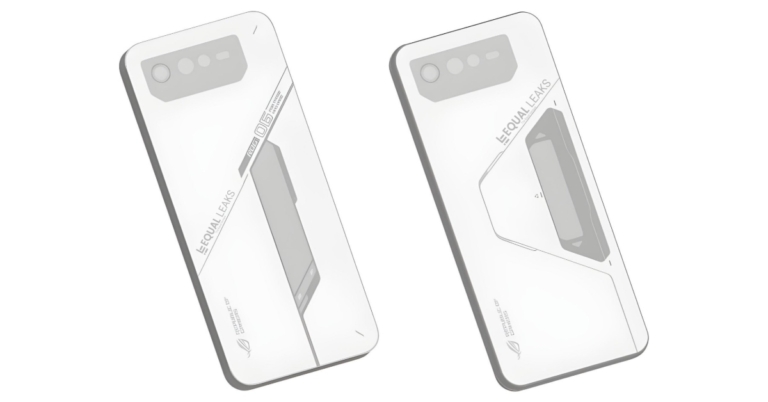
Asus is prepping to launch the successor of the ROG 5 series in India and globally earlier last year. The Asus ROG Phone 6 series is rumoured to be under development. 2D renderings of the forthcoming smartphone series have been released by a tipster that shows the design identical to that of the predecessor. The upcoming lineup is expected to include the standard Asus ROG Phone 6 and the ROG Phone 6 Pro.As of now, no date has been set for the introduction of Asus’ gaming smartphones. Thanks to EqualLeaks, new 2D renderings of the flagships have leaked on the internet. The series is said to include the ROG Phone 6 and ROG Phone 6 Pro featuring the same design as the ROG Phone 5, with the exception of the camera configuration, secondary display, and graphics on the rear panel.Only the rear part of the two Asus smartphones is seen in the renderings. A horizontally organised triple rear camera arrangement, as well as the flash, is seen in the renderings. The ROG Phone 6 Pro’s secondary display, which is reported to be somewhat larger, is seen to be positioned similarly to the predecessors.Like we said before the design of the next gaming cellphones has been somewhat altered. The rear panel visuals are likewise in accordance with the style of ROG Phones. According to the leaked images, the bottom of the Asus ROG Phone 6 and ROG Phone 6 Pro will be branded with the Republic of Gamers.In terms of availability, the company is expected to release ROG smartphones within two months from now because their predecessors were released in March 2021. Though Asus hasn’t revealed anything about its next gaming smartphone, this rumour should be treated with caution.The Asus ROG Phone 5 Ultimate is now available in India, according to the Taiwanese electronics company. The gadget is an 18GB RAM model of the Asus ROG Phone 5. Internal storage for the gaming smartphone is 512GB. It has a Qualcomm Snapdragon 888 processor and a 144Hz refresh rate display.The Asus ROG Phone 5 Ultimate with 18GB with 512GB storage costs Rs 79,999. The device is available in Storm White with a matte appearance.
For the latest gadget and tech news, and gadget reviews, follow us on Twitter, Facebook and Instagram. For newest tech & gadget videos subscribe to our YouTube Channel. You can also stay up to date using the Gadget Bridge Android App. You can find the latest car and bike news here.
If you want to screencast the screen of your phone to a TV and enjoy playing games on a bigger display you need smart devices for a smart TV right? Wrong! MHL is a technology that has been around for a while and with this tech, you can screencast to a TV with a wired connection. Today, we will teach you what is MHL and how to best use it.What is MHL?MHL stands for Mobile High-definition Link, MHL uses a five-pin connection to deliver up to 1080p picture quality, 192khz sound quality, and 7.1 channel surround sound. You can connect your smartphones, tablets, and other mobile devices to a TV or a monitor and share the smartphone’s display on it. In short, it is a wired form of Google Chromecast that lets you screencast to a TV with some wires. The plus point here is that since it is a wired connection there is zero latency between the phone and the screen.Read also: Google’s Stadia controller will not support Bluetooth headsetsHow to use MHLThere are a few items required if you want to screencast with the help of MHL.
The source device (smartphone, tablet, or any other phone) and the display device (TV or monitor) must have an MHL connection feature. If it doesn’t then you can also use an MHL-to-HDMI adaptor. You can check out if your device supports MHL or not by clicking here.
An MHL cable.
And that is it, with these items you can screencast to a TV with MHL.Now that you have all the items required it is just time to Plug and Play! Just connect one end of the HDMI cable to the adapter and the other end to the TV. Now connect your smartphone with the MHL adapted using the micro USB or Type-C port on the adapter (depending upon your phone type). Once you have connected everything you will be able to see your smartphone’s display to your TV.And it is that simple to get used to MHL technology, this can be a very useful hack if you do not have a smart TV or Google Chromecast at your home. MHL cables are freely available in markets and also on Amazon.Read also: Epson launches TW650 and TW5650 entry level Full HDFor the latest gadget and tech news, and gadget reviews, follow us on Twitter, Facebook and Instagram. For newest tech & gadget videos subscribe to our YouTube Channel. You can also stay up to date using the Gadget Bridge Android App. You can find the latest car and bike news here.
In the smartphone business, Blackberry’s influence is now gradually eroding. Now the company has just stated that all of its Classic smartphone models would no longer be provided services over cellular and Wi-Fi connectivity. The move was first announced in September of last year, but it was extended as a gesture of gratitude to the company’s loyal consumers and partners. Note that, the upgrade does not apply to BlackBerry phones running Android.The firm warned in an updated notice on its website that BlackBerry 7.1 OS and previous devices, BlackBerry 10 software, BlackBerry PlayBook OS 2.1 and earlier versions will no longer be supported as of January 4. This implies that BlackBerry phones with cellular or Wi-Fi connectivity will have no assurance of being able to access data, make phone calls, send text messages, or even contact 911 in an emergency. The notice stated, “As a reminder, the legacy services for BlackBerry 7.1 OS and earlier, BlackBerry 10 software, BlackBerry PlayBook OS 2.1 and earlier versions, will no longer be available after January 4, 2022. As of this date, devices running these legacy services and software through either carrier or Wi-Fi connections will no longer reliably function, including for data, phone calls, SMS and 9-1-1 functionality. We thank our many loyal customers and partners over the years and invite you to learn more about how BlackBerry provides intelligent security software and services to enterprises and governments around the world.”According to Blackberry, the termination of these service offerings and infrastructure will also impact functionality for applications such as Enhanced Sim Based Licensing (ESBL) / Identity Based Licensing (IBL), BlackBerry hosted email addresses, BlackBerry Link, Desktop Manager, BlackBerry Blend, BlackBerry Protect (allows consumers to lock, locate or wipe BBOS, BlackBerry 10 devices remotely. There is no impact to the new BlackBerry Protect which is an AI-based endpoint security solution).The corporation did state, though, that its Android-based smartphones are not included. They will be supported in the future as well.Also when no longer necessary or relevant, the firm will delete, destroy, erase, or anonymize your data. Immediate requests to remove your data may be made by emailing privacyoffice@blackberry.com. In order to back up BlackBerry device content like pictures select the OS software of the BlackBerry device you are looking to backup content for:
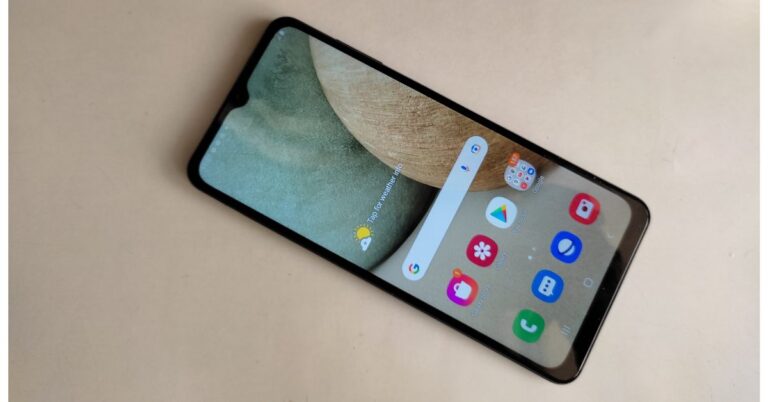
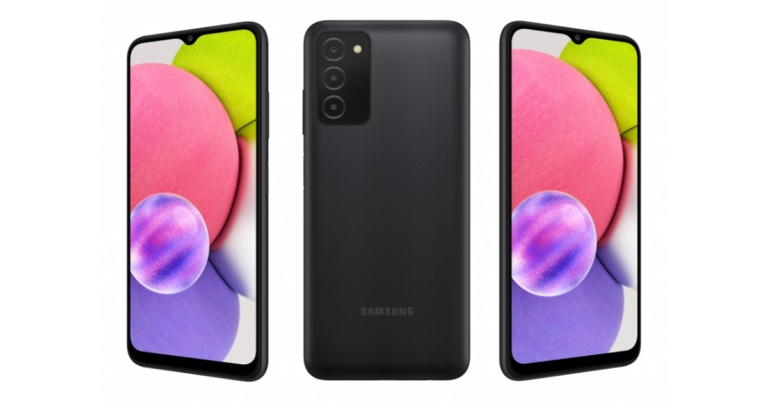
The Samsung Galaxy A13 5G will be available in India shortly as the device is tipped to launch in February. Ahead of the official launch the company has reduced the price of the Samsung Galaxy A12 that launched in India last year. Both the 4GB RAM and 6GB RAM variants of the smartphone are now available at a lowered price.
In This Article
Samsung Galaxy A12 new price details
The Samsung Galaxy A12 with 4GB RAM and 64GB storage, which was previously priced at Rs 13,999, has been reduced to Rs 12,999. In the same way, the device’s 6GB RAM and 128GB storage option has also been reduced by Rs 1,000 to Rs 15,499. This model was earlier available at Rs 16,499. The device will be available in three colour options of Black, Blue, and White and can be purchased via the company’s official website in the country.
Samsung Galaxy A12 tech specs
The Samsung Galaxy A12 has a 6.5-inch HD+ TFT Infinity-V Display with a resolution of 720×1,600 pixels. On top of Android 11, it runs One UI Core. There’s an octa-core Exynos 850 SoC under the hood, along with 6GB of RAM and 128GB of storage. A microSD card may be used to extend the internal storage up to 1TB.
The Samsung Galaxy A12 has a quad-camera configuration on the back, with a 48-megapixel main sensor and an f/2.0 aperture. A 5-megapixel ultra-wide-angle lens with an f/2.2 aperture, a 2-megapixel macro lens with an f/2.4 aperture, and a 2-megapixel depth sensor with an f/2.4 aperture are also included. A front-facing 8-megapixel selfie sensor with an f/2.2 aperture is included.
The phone is powered by a 5,000mAh battery that charges at 15W over a USB Type-C connection. It includes LTE, Wi-Fi, Bluetooth, GPS, and a 3.5mm headphone connector for connection. A side-mounted fingerprint sensor, an accelerometer, ambient light, magnetometer, and proximity sensor are among the phone’s sensors.
The popular Amazon Quiz is now live on the Amazon app. The 3 January 2022 Amazon Quiz gives a chance to win Rs 10,000 Amazon Pay Balance by answering all the questions correctly. The quiz can be played every day from 12 AM to 11:59. Only app users are eligible to participate in the Quiz as it is not accessible on the web platform.The Amazon Quiz brings a fresh set of questions for its customers that contains five easy questions. The questionnaire consists of five questions related to general knowledge and current affairs. The participants need to answer all the questions correctly and their names will be selected for a lucky draw. The daily quiz brings an opportunity for the customers to win exciting prizes. They can win Amazon Pay Balance ranging from Rs 1,000 to Rs 50,000. The participants need to answer all the questions correctly and their names will be selected for a lucky draw. The winner will be announced at the end of the month. Check Out 3 January 2022 Amazon Quiz Answers.
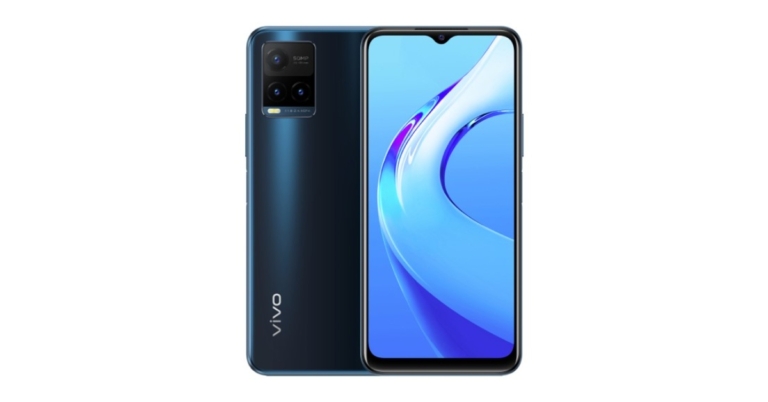
Vivo has launched yet another Y-Series smartphone in the market. The company has introduced Vivo Y21T in Indonesia which is also speculated to launch in India next week. The device comes with a triple rear camera set up with a 50-megapixel primary sensor. The phone is powered by Qualcomm Snapdragon 680 SoC and it equips a 5,000mAh battery which supports 18W fast charging.
In This Article
Vivo Y21T price and availability details
Vivo Y21T has debuted in Indonesia in a single 6GB RAM with a 128GB storage variant. The device there is priced at IDR 3,099,000 that translates to Rs 16,200. The smartphone comes in two colour options of Midnight Blue and Pearl While and is now available for pre-orders in the country.Besides this, the Vivo Y21T India launch is tipped to take place next week. The phone is said to be available with a price tag of Rs 16,490.
Vivo Y21T specifications
Vivo Y21T is highlighted with a 6.51-inch HD+ display with 720×1,600 pixels of resolution. It operates on Funtouch OS 12 on top of Android 11 out of the box. The mobile phone is powered by an octa-core Qualcomm Snapdragon 680 SoC with 6GB of RAM and 128GB of internal storage option which can also be expanded up to 1TB via microSD card. The built-in storage may also be used to practically increase the RAM to up to 2GB.The Vivo Y21T sports a triple rear camera arrangement that includes a 50-megapixel primary sensor with an f/1.8 aperture, a 2-megapixel macro sensor with an f/2.4 aperture and a 2-megapixel depth sensor with an f/2.4 aperture. In addition, the device has an 8-megapixel selfie camera with an f/1.8 aperture.The newly launched handset has 4G LTE, Wi-Fi, Bluetooth v5, GPS/ A-GPS, FM radio, USB Type-C, and a 3.5mm headphone port as connectivity options. An accelerometer, ambient light sensor, magnetometer, and proximity sensor are among the sensors onboard. There is also a fingerprint scanner on the side. The Vivo Y21T has a 5,000mAh battery with 18W fast charging capabilities.
For the latest gadget and tech news, and gadget reviews, follow us on Twitter, Facebook and Instagram. For newest tech & gadget videos subscribe to our YouTube Channel. You can also stay up to date using the Gadget Bridge Android App. You can find the latest car and bike news here.
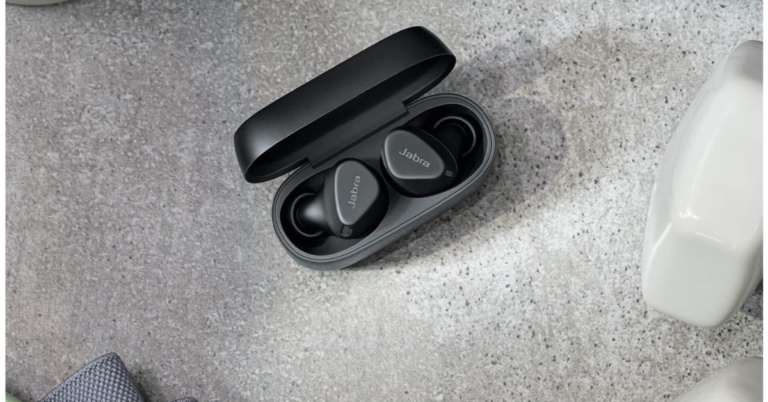
Jabra Elite 4 Active true wireless stereo (TWS) earphones have been released in India. The new audio device comes with active noise cancellation (ANC), HearThrough technology, and Google Fast Pair. In addition to this, the earphones are IP57-rated and support Alexa and Google Assistant for hands-free support. The Jabra Elite 4 claimed to offer up to 28 hours of battery life.
In This Article
Jabra Elite 4 Active price in India and availability details
Jabra Elite 4 Active true wireless stereo (TWS) earphones have been launched in India at a price tag of Rs 10,999. The device will be offered in three colour options of Black, Mint, and Navy. In terms of availability, the audio device can be purchased via both Amazon and Flipkart in the country.
Jabra Elite 4 Active specifications
The Jabra Elite 4 Active TWS earbuds include 6mm drivers and include four built-in MEMS microphones that are insulated from wind noise by a unique mesh covering. The earphones may also be used separately thanks to a Mono ModeJabra Elite 4 Active TWS earphones feature active noise cancellation (ANC) and an adjustable HearThrough function, which lets the wearer to decide how much ambient sound is let in when listening to music or making phone conversations. These have a Secure Active Fit ergonomic wing-free design that ensures a noise-isolating fit. The device also supports Qualcomm aptX and SBC audio codecs and the audio equaliser in the Jabra Sound+ app allows sound customisation.In addition to this, the Jabra earbuds include four built-in MEMS microphones that are insulated from wind noise by a unique mesh covering. For dust and water resistance, the earphones are IP57 certified. The earphones may also be used separately thanks to a Mono Mode. The earbuds have a Spotify Tap playback function, which allows you to start listening to music with only one tap. Users may link up to six devices with the earphones and include an auto on/off feature. Support for Amazon Alexa, Google Assistant, and Siri are among the other capabilities of the Jabra Elite 4 Active TWS headphones.The Jabra TWS earbuds are said to have a seven-hour playtime and a 28-hour total playback. And just 10 mins of charging offers one hours of usage and it takes three hours to charge completely. They’re also equipped with Google’s Fast Pair technology, which makes pairing a breeze.
For the latest gadget and tech news, and gadget reviews, follow us on Twitter, Facebook and Instagram. For newest tech & gadget videos subscribe to our YouTube Channel. You can also stay up to date using the Gadget Bridge Android App. You can find the latest car and bike news here.
Samsung is planning to expand its A-Series portfolio with the addition of the two new smartphones in the Indian market. The Samsung Galaxy A33 5G and Samsung Galaxy A13 5G are expected to arrive in India in February. The company has not yet revealed the smartphone’s launch and it might announce the devices after the debut of the Galaxy S22 series, which is set to take place in February.According to a report by 91Mobiles quoting tipster Mukul Sharma Samsung Galaxy A33 5G and Samsung Galaxy A13 5G are expected to launch in India by February. In addition to this, the source claims that the Samsung Galaxy A33 5G pricing in India would not be significantly higher than its predecessor which is Samsung Galaxy A32. According to the article, the tipster has not offered any price information for the Samsung Galaxy A13 5G but does say that the firm is working on a 4G model of the device.Apart from this Samsung Galaxy A33 5G is rumoured to include a 6.4-inch full-HD+ Super AMOLED display with a hole-punch for the selfie camera when it launches. The device will come with P67 dust and water-resistant rating and might also pack a 5,000mAh battery. According to previous Galaxy A33 5G renderings, the phone would include a quad-camera configuration with a 48-megapixel main camera and a 13-megapixel front camera. A 3.5mm headphone connector is also expected on the smartphone.The Samsung Galaxy A13 5G was released in the United States in early December and has a 6.5-inch Infinity-V HD+ display with 720×1,600 pixels of resolution and a 90Hz adaptive refresh rate. The smartphone runs on Android 11 and is powered by the MediaTek Dimensity 700 SoC, 4GB of RAM, and 64GB of storage. It comes with a 5,000mAh battery which supports 15W charging. Moreover, the phone has a triple camera setup with a 50-megapixel primary sensor with an f/1.8 aperture, a 2-megapixel macro camera with an f/2.4 aperture, and a 2-megapixel depth sensor with an f/2.4 aperture, as well as a 5-megapixel selfie camera with an f/2.0 aperture.
For the latest gadget and tech news, and gadget reviews, follow us on Twitter, Facebook and Instagram. For newest tech & gadget videos subscribe to our YouTube Channel. You can also stay up to date using the Gadget Bridge Android App. You can find the latest car and bike news here.
CES 2022 will conclude a day early, according to the most recent information from CTA, due to an increase in COVID cases. The Consumer Electronics Show is the greatest gathering where a sneak peek at what’s to come in the industry is provided. It takes place every year in Las Vegas, and despite Omicrons’ objections, CTA decides to go in person. Last year, though, the tech exhibition was streamed live online. Many companies have opted out of attending the event in person, which kicks off on January 5.Many firms, including Advanced Micro Devices, Micro-Star International, and Procter & Gamble General Motors, as well as Alphabet’s Google, Facebook parent Meta Platforms, Twitter, Lenovo, AT&T, and Amazon, have all cancelled in-person attendance plans citing the spread of Omicron as a reason.After corporations like these decided not to attend the Las Vegas event in person owing to Omicron worries, the operator of the worldwide technology and gadget expo said that CES will now finish a day earlier than scheduled.The Consumer Technology Association (CTA), the event’s organiser, announced on Friday that the event will now finish on January 7th. “The Consumer Technology Association (CTA) today announced that CES 2022 will be closing one day early, and the in-person event will take place in Las Vegas on Jan. 5-7, 2022. The step was taken as an additional safety measure to the current health protocols that have been put in place for CES.”The exhibitor furthermore said, “We are shortening the show to three days and have put in place comprehensive health measures for the safety of all attendees and participants.”According to the organiser, Those who are unable to attend CES 2022 in Las Vegas may participate virtually. More than 40 live-streamed conference sessions, keynotes, and select Media Days press conferences will be available to attendees who register online, as well as the option to interact with exhibitors at CES.As a result, Gadget Bridge will be covering the event remotely again this year. According to reports in only eight days, the number of new COVID-19 cases in the United States has doubled, averaging 329,000 per day.However, those that are travelling to Las Vegas must be fully vaccinated against COVID-19. Only individuals who are fully vaccinated will be able to pick up a CES badge and access CES in-person in Las Vegas. Individuals should also be tested for COVID-19 before travelling to Las Vegas, according to CES. International visitors to the United States must take a COVID test within 24 hours of arriving in the country.
For the latest gadget and tech news, and gadget reviews, follow us on Twitter, Facebook and Instagram. For newest tech & gadget videos subscribe to our YouTube Channel. You can also stay up to date using the Gadget Bridge Android App. You can find the latest car and bike news here.
Samsung Galaxy S21 FE launch is expected to take place on January 4th. In terms of availability, the upcoming smartphone is likely to go on sale from January 11th. However, the company has not revealed any of the information but we already know almost everything about the smartphone owing to multiple sources and leaks. But in a new leak the Galaxy S21 FE Indian availability, RAM variants, storage capacity and chipset details have surfaced on the web.Reportedly, Samsung Galaxy S21 FE could be available in India starting January. Here the company will be offering it in four colour options White, Purple, Olive, and Graphite. In addition to this, the Samsung Galaxy S21 FE Indian model will come equipped with Exynos 2100 chipset instead of the speculated Snapdragon 888 processor that will be used on the Global variants. The device is also said to be provided with 8GB of RAM and 128GB storage and 8GB of RAM and 256GB of internal storage options. The worldwide model’s basic edition, on the other hand, will include 6GB of RAM and 128GB of storage.In terms of pricing, Samsung Galaxy S21 FE is claimed to come with a base price of $699 that translates to Rs 51,900. Because the pricing has yet to be confirmed, nothing can be confirmed at such a time. According to rumours, there won’t be much modifications to the design or hardware. As a result, prices might stay the same or even drop somewhat to keep the category competitive.Now let’s take a look at the S21 FE’s rumoured specifications to put things in context. The Samsung Galaxy S21 FE is expected to come with a 6.4-inch full HD+ AMOLED with 2340 x 1080 pixels resolution, 401ppi pixel density a punch-hole cutout for the front camera. The screen is said to get 120Hz refresh rate support and Corning Gorilla Glass protection. The Qualcomm Snapdragon 888 or Exynos 2100 5G processor will power the Galaxy S21 FE, which will come with up to 8GB of RAM and 256GB of internal storage which is expandable. It’ll probably run Android 11 with the OneUI 3.1 overlay, although we’d rather to see Android 12 out of the box.A 12MP primary camera with an f/1.8 aperture lens, 79-degrees FoV, and OIS with dual-phase detection autofocus will be included on the triple camera setup. In addition to this a 12MP ultra-wide camera, and an 8MP telephoto camera with 3x zoom are rumoured to be included in the camera system. For selfies and video chats, there’s a 32MP camera on the front.5G, 4G LTE, dual-band Wi-Fi, Bluetooth 5.2, GPS, NFC, and a USB Type-C connector are among the connectivity capabilities. Apart from that, an optical in-display fingerprint scanner for identification, a 4500mAh battery, and IP67 dust and water protection are also expected.
For the latest gadget and tech news, and gadget reviews, follow us on Twitter, Facebook and Instagram. For newest tech & gadget videos subscribe to our YouTube Channel. You can also stay up to date using the Gadget Bridge Android App. You can find the latest car and bike news here.
1 January 2022 Amazon Quiz has gone live on its platform. The quiz timings are 12 AM to 11:59 PM. The interested users can participate in the Amazon daily quiz to win exciting prizes. The company puts up 5 questions based on general awareness. You can submit the correct answers from the four options. Today the participants have the chance to win a Rs 25,000 Amazon Pay Balance.Daily the e-commerce platform Amazon brings a new set of questionnaires that includes five easy questions. The Amazon Quiz can be played from 12 AM to 11:59. The users have to answer all the questions correctly to enter into a lucky draw. The result of today’s quiz will be announced at the end of the month and only one person is declared a winner. We at Gadget Bridge update all the answers to the Amazon Quiz on our website for the convenience of our readers. Here are the answers of the 1 January 2022 Amazon Quiz that will make you win Rs 25,000 Amazon Pay Balance.
In This Article
1 January 2022 Amazon Quiz Answers
Question 1: Which former Wimbledon champion coached Novak Djokovic to the 2021 title?
Answer: Goran Ivanisevic
Question 2: Which singer-actor has reportedly joined the Marvel Cinematic Universe as Eros, the brother of Thanos?
Answer: Harry Styles
Question 3: Which city will be represented in the IPL by a team owned by Kolkata based RPSG Ventures?
Answer: Lucknow
Question 4: On this country’s flag, you would find the words Order e Progresso. What does it mean?
Answer: Order and progress
Question 5: Who was the first mascot for this fast-food franchise?
Telegram has released an update that includes new features like the ability to translate messages in the app and the ability to respond to messages with emojis. In addition to this, the messaging app has also added themed QR codes, hidden text (spoilers)/ spoiler formatting, and more. Continue reading to know more about the new Telegram update.Telegram already allows users to send animated and interactive emoji. The new Telegram update now makes these emoji become available as reactions to share feelings and feedback – without sending any messages. You can change your default reaction to another emoji in Settings. Android: Chat Settings > Quick Reaction. iOS: Stickers and Emoji > Quick Reaction.According to the instant messaging app, In private chat rooms, reactions are always on. Admins decide whether or not to enable reactions in groups and channels, as well as which reaction emoji are available in chat. This opens the door to a variety of feedback mechanisms, ranging from simple likes to upvote and downvote systems and beyond. Admins can control reactions via their group or channel’s Info Page > Edit > Reactions. For more feedback options, try channel comments and our powerful polls.With support for hidden text (spoilers) of Telegram now users will be able to hide the content of the message. To do that select any part of your text when typing and choose the new ‘Spoiler’ formatting. This will hide the selected part of the message in the chat, as well as in the chat list and notifications. Tap the spoiler to reveal its text when you’re ready to see what’s hidden.Whereas the in-app translation feature on the app to translate any message into another language. To enable Translations go to Settings > Language adds a dedicated Translate button to the context menu when selecting a message. You can also choose to exclude any languages in which you are fluent, in which case the translate button will be disabled for those messages.According to the company, on Android devices that support Telegram, translation is available, but on Apple devices, iOS 15+ is required. The languages that are available are determined by the operating system on your phone.As the new Telegram update drops on devices QR codes can be generated for any user with a public username. This also applies to groups, channels, and bots, making it simple to show off your favourite blog or fan club to others. Tap the new QR code icon next to the username of a person (or from a chat’s info page), choose the colours and pattern that fit best, then print, post or share your QR code to other apps. A QR code for your own username can be obtained in Settings.Telegram for macOS’s context menus have been redesigned, with new shortcut hints and beautiful animated icons for each menu item.New interactive versions of emojis have also been added to the popular messaging app. Send any of them to your partner in one-on-one chats, then tap to activate a full-screen effect for both of you.
For the latest gadget and tech news, and gadget reviews, follow us on Twitter, Facebook and Instagram. For newest tech & gadget videos subscribe to our YouTube Channel. You can also stay up to date using the Gadget Bridge Android App. You can find the latest car and bike news here.
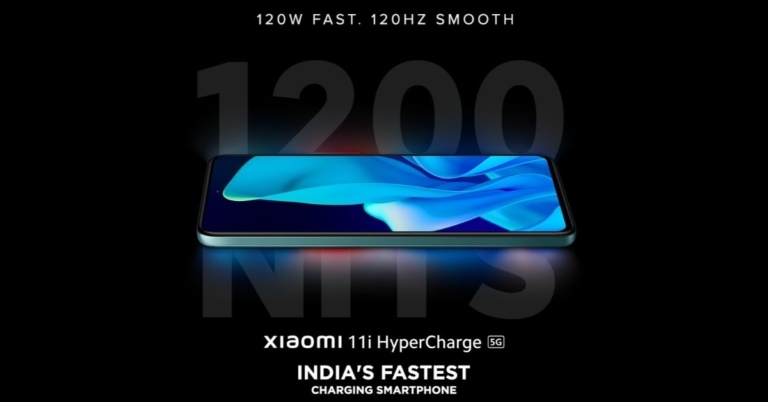
Xiaomi 11i HyperCharge India launch is set for January 6th. The company is gradually teasing the key details of the upcoming smartphone as the launch is inching closer. In a new development, the Xiaomi 11i HyperCharge India price has been teased. The pricing has been revealed by the company’s executive during an interview. The company previously revealed that the upcoming smartphone will have 120W fast charging and 5G connectivity. In addition to this, it will have a 120Hz refresh rate and 1200 nits peak brightness display.Speaking about the pricing, reportedly Xiaomi 11i HyperCharge price is expected to be around Rs 25,000 and Rs 30,000. Like we said before the pricing has been revealed by Xiaomi India Chief Business Officer Raghu Reddy during one of his interviews.Xiaomi 11i HyperCharge India launch is going to take place on January 6th. It is going to be a rebadged variant of the Redmi Note 11 Pro+ that was announced in China a few months back. Xiaomi is expected to hold a physical launch event in the country to introduce the Xiaomi 11i Hypercharge. The company did not, however, reveal the launch date or any other details.Xiaomi 11i HyperCharge is said to be a rebranded variant of Redmi Note 11 Pro+, so it is likely to be priced at CYN 1,899 (roughly Rs 22,200) for the 6GB RAM with a 128GB storage variant. The 8GB RAM model with 128GB/256GB storage might cost CYN 2,099 (roughly Rs 24,500) and CYN 2,299 (roughly Rs 26,900).A 6.67-inch AMOLED display with a hole punch design is expected on the Xiaomi 11i Hypercharge. The screen supports a 120Hz refresh rate, 260Hz touch sampling rate, 20:9 aspect ratio, and HDR10+. The Xiaomi 11i Hypercharge will be powered by the MediaTek Dimensity 920 SoC.A quad rear camera setup with a 108MP Samsung HM2 primary sensor will be included on the device. Aside from that, a wide-angle 8MP sensor and a depth sensor of 2MP could be included. The smartphone could have a 16MP camera on the front for selfies and video calls.A 4,500mAh battery and a massive 120W fast charging capability are expected to be included in the device.
For the latest gadget and tech news, and gadget reviews, follow us on Twitter, Facebook and Instagram. For newest tech & gadget videos subscribe to our YouTube Channel. You can also stay up to date using the Gadget Bridge Android App. You can find the latest car and bike news here.
Oppo A16K is tipped to launch in India soon. According to information provided by the tipster, the launch is likely to take place in the coming weeks. However the Chinese smartphone company is yet to confirm the smartphone’s availability in the country. To recall, the device has already landed in the Philippines last month. It is powered by MediaTek Helio G35 SoC. In addition to this, there is a dual rear camera set-up and a waterdrop notch design display.According to a report citing information from tipster Mukul Sharma, the Oppo A16K India launch is expected to happen in the very first week or in the second week of January 2022. As per tipster, the handset will be released in India with the slogan “live a worthy life.”
In This Article
Oppo A16K price in India expected
Oppo is yet to announce Oppo A16K India launch details but the phone already got released in the Philippines last month in November. There the device is priced at PHP 6,999 that translates to Rs 10,350. The mobile is likely to be available for a similar price or under Rs 15,000 price segment in India.
Oppo A16K specifications expected
In India, the Oppo A16K is said to be powered by an octa-core MediaTek Helio G35 SoC, paired with 3GB of RAM and 32GB of storage. In addition to this, the phone may also pack a 230mAh battery that can be charged at a rate of 10W via a USB Type-C port. Also, the mobile phone is expected to have a 6.52-inch HD+ display with a pixel density of 269ppi and a water drop-style notch for the front camera. Moreover, Oppo A16K is slated to have a 13-megapixel primary camera and an 8-megapixel secondary camera on the back. The selfie camera’s specifications have not been revealed.According to the tipster, the smartphone’s camera features will include night filters, a power saver mode, and improved charging at night. The smartphone is expected to include dual-band Wi-Fi, Bluetooth 5.0, and a 3.5mm headphone jack in terms of connectivity. The smartphone will operate on ColorOS 11.1 based on Android 11.
For the latest gadget and tech news, and gadget reviews, follow us on Twitter, Facebook and Instagram. For newest tech & gadget videos subscribe to our YouTube Channel. You can also stay up to date using the Gadget Bridge Android App. You can find the latest car and bike news here.
Since we purchase a smartphone every year or two by discarding our old phone, chances are that we might have an old phone which is still in working condition lying around in a corner of our home. If this is the case with you then we have the top 5 ways to use your Android phone or tablet as a second screen.So just pick up your old device and give a new life to that by following the steps mentioned below:
In This Article
Use Spacedesk
Spacedesk is a quite popular choice if you want to make use of your old Android tablet or phone as a secondary display. The app lets users connect a tablet or phone with a Windows PC using USB, Wi-Fi, or LAN. Just install the necessary drivers needed for this onto your PC by clicking here, and app for your tablet or phone from here. The app is available for Windows 7 and above. The setup process of Spacedesk is very simple for even a 10-year kid, just follow the steps that the apps tell you to follow and that is it, anyone can setup this with the provided instruction. And that is it. Now you can use your old tablet or phone as a secondary display.Read also: Samsung is planning to launch three new tablets in India
Google Remote desktop
It is a software by Google that lets users connect smartphones or tablets as a remote control for PC. Users can control the laptop or desktop from which they have connected their phones. Just download Google Remote desktop from here and set up the remote access from here. The setup process is very simple just follow the steps that the apps tell you to follow and that is it, anyone can setup this with the provided instruction.
Splashtop Wired XDisplay
As the name says “Wired”, the software requires a wire to connect your phone/tablet to a computer. Since you are connected with a wired medium the plus side is that you get better resolution and frame rate. It supports Full HD resolution at 60 frames per second. Just download the app for Android from here and for iOS from here, and install the companion software for mac from here and for windows from here. Now, just open the software on your computer and then connect your phone via USB. And that is it! Now you have connected the phone or tablet to your PC.
iDisplay
It is another software that can be used to mirror a display on your iPhone or iPad. It supports 60 fps and plus offers multi-touch on the device you are using it on. The iDisplay has every feature that you can ask for but the only thing is that unlike other methods mentioned above which are free, iDisplay is not free and you have to pay $18 for this. The setup method is similar to all the above and you can check out the software from here.
The Xiaomi 12 Series officially debuted this week. Now one of the devices from the current lineup is tipped to launch in India soon. Xiaomi 12X India launch is likely to take place soon as per a report. In addition to this, the variant details of the smartphone have also leaked and it is said to come in two memory options and four colour options. The device is affordably priced and it features a 120Hz refresh rate AMOLED display. The Snapdragon 870 SoC powers the device and it has a 50-megapixel primary camera.Xiaomi is preparing to launch the new Xiaomi 12X smartphone in India soon, according to a report. Although no timeline has been provided, it is expected to take place in early 2022. Also, the report states that the phone is likely to come in two versions: one with 8GB of RAM and 128GB of storage and another with 8GB of RAM and 256GB of storage.Xiaomi has not announced any plans to bring the smartphone to the country, and pricing is unknown at this time. At launch, the Xiaomi 12X is believed to be available in three colour options: Blue, Grey, and Purple.To recall, the Xiaomi 12X was launched in China at CNY 3,199 which translates to Rs 37,500 for the 8GB RAM with 128GB storage model. The phone also comes in an 8GB with 256GB model for CNY 3,499 which is approx Rs 41,000 and the 12GB RAM with 256GB model for CNY 3,799 that converts to Rs 44,500.The Xiaomi 12x features a 6.28-inch full-HD+ AMOLED display with a 20:9 aspect ratio and a resolution of 1,0802,400 pixels. The display has a peak brightness of 1,100 nits, a 120Hz refresh rate, Dolby Vision support, and Corning Gorilla Glass Victus protection on top.It is powered by a Qualcomm Snapdragon 870 SoC, up to 12GB of LPDDR5 RAM, and up to 256GB of UFS 3.1 onboard storage, and runs MIUI 13 based on Android OS.The phone has a triple rear camera system with a 50-megapixel Sony IMX766 sensor, an f/1.88 aperture, and optical image stabilisation (OIS). The camera also has a 13-megapixel ultra-wide lens with a field of view of 123 degrees and an aperture of f/2.4.A 5-megapixel macro camera is included with these. The rear camera setup is supported by a proprietary CyberFocus technology for improved focus-locking. The Xiaomi 12x has a 32-megapixel selfie camera sensor on the front. It supports Stagger HDR and artificial intelligence-based beautification features (AI).A 4,500mAh battery powers the device and supports 67W fast charging and 50W wireless charging. In addition, 10W reverse wireless charging is supported by the phone. Connectivity options include 5G, 4G LTE, Wi-Fi 6E, Bluetooth v5.2, GPS/ A-GPS, NFC, Infrared (IR), and a USB Type-C port.
For the latest gadget and tech news, and gadget reviews, follow us on Twitter, Facebook and Instagram. For newest tech & gadget videos subscribe to our YouTube Channel. You can also stay up to date using the Gadget Bridge Android App. You can find the latest car and bike news here.
Google Workspace, formally known as G-Suit is a set of productivity apps that help to get the different tasks done with apps like Google Docs, Gmail, Meet, Chat, Drive, Docs, Sheets, and many more it is a one-stop-shop for all. If you also use Google G-suit to get your office work or school projects done, then you should know how to Recover deleted Google Sheets, Docs, and Slides Files, because accidents can happen anytime and you do not want all your hard work to get washed off by just one click.Read also: How to recover your Snapchat account securely and safelyIf you have accidentally deleted files in Google Sheets, Docs or Slides here is how you can recover them:
Steps to recover files from Google Slides, Google Docs, Google Sheets
The first step to recover your deleted files is to open the app from which the file is missing.
First check if the file is present in that app or not, chances are that you have accidentally renamed the file and that’s why you are unable to find that.
Now that you have checked the app for the missing file and you are sure that you have deleted the file accidentally, it is time to tap on the three-line menu button on the top left corner of the screen.
Once you have clicked the button you will see different options, scroll down and look for Google Drive.
Click on the Drive icon and it will open Google Drive.
Once you are inside Google Drive, look for an option that says Bin on the left menu bar.
Click on the Bin and you will be able to see all the deleted files, search for the file that you were looking for.
Once you have found the file just right-click on the file and hit the restore button, it will be restored to its original position.
Earlier this week the Indian pricing of Vivo V23 5G and Vivo V23 Pro 5G were leaked. The upcoming V-Series launch is scheduled to take place on January 5th in the country. Ahead of the official announcement Vivo V23e 5G price and launch date in India have been leaked on the web. Though it is part of the forthcoming lineup the device has already debuted in Thailand last month. The MediaTek Dimensity 810 SoC powers the device. It also comes with a 4,050mAh battery that supports 44W flash charging for quick charging. A triple rear camera with a 50-megapixel primary sensor is also included, and the phone runs Android 11.According to the latest report Vivo V23e 5G is going to launch in India a month after the Vivo V23 5G and Vivo V23 Pro 5G gets released here. The device is likely to debut in India in February and its price is slated to fall between Rs 25,000 and Rs 30,000.To recall the device was introduced in Thailand late in November. There it is available in a single 8GB RAM with 128GB of internal storage option priced at THB 12,999 that translates to Rs 29,200. The device is available in two colour options of Sunshine Coast and Moonlight Shadow.
Vivo V23e 5G specifications, features
In terms of specifications, The Vivo V23s 5G features a full HD+ AMOLED display measuring 6.44 inches in terms of specifications. The screen has a resolution of 1.0802,400 pixels. Out of the box, the phone runs FunTouch OS 12, which is based on Android 11. The MediaTek Dimensity 810 SoC is housed inside, along with 8GB of RAM and 128GB of internal storage. A microSD card can be used to expand the memory up to 1TB.The Vivo V23e has a triple rear camera setup that includes a 50-megapixel primary sensor with an f/1.8 aperture for photos and videos. An 8-megapixel ultra-wide angle lens with f/2.2 aperture and a 2-megapixel macro sensor with f/2.4 aperture is also included. A 44-megapixel front-facing camera is available for selfies and video calls.Among the connectivity options are a USB Type-C port, Bluetooth Version 5.1, GPS, and dual Wi-Fi. On the screen, there’s also a fingerprint sensor. Vivo V23e 5G has a 4,050mAh battery and supports 44W fast charging.
For the latest gadget and tech news, and gadget reviews, follow us on Twitter, Facebook and Instagram. For newest tech & gadget videos subscribe to our YouTube Channel. You can also stay up to date using the Gadget Bridge Android App. You can find the latest car and bike news here.
Google Meet is an online meeting client that is used by many. It is one of the most used online meeting clients that we use in our everyday life. It is easy to use, comes with interesting features, and can be accessed on any device and it also does not require to be downloaded. You can access Gmeet in the Gmail app and on the web browser as well, without compromising on features. But if you have ever faced echo issues then you should go through this article, because we will show you how to solve the Google Meet sound echo problem.So now you don’t have to worry about any echo issues in your G-meetings, just follow the steps given below and you will be able to omit any echo from your meetings:
In This Article
Check if you are creating an echo
One of the great features of Google Meet is that it sends a pop-up notification during a meeting if an echo is detected. When you receive that pop up then you can click on Get help here to troubleshoot the issue. It offers three recommendations to remove echo from your end.
Sitting in a room well isolated can reduce the amount of echo and background noise. Also, try to attend meetings in that room of your house which is filled with sound-absorbing materials such as rugs, mats, carpets, and heavy curtains. Soft materials like blankets and rugs have the ability to absorb sound up to some extent. Also, you have to make sure that while attending the meeting you are not directly facing a wall, as it will reflect back your voice and can produce an echo that you do not want.
Use of the Microphone correctly
Most people don’t know where the microphone of their device is placed, so either they end up blocking the MIC on their phone or they stay too far from the MIC of their laptop, as a result, it produces an echo. If you attend meetings on a phone then mics are generally placed at the bottom of the phone and on the top bezel in the case of laptops. So make sure that you are not too far from them because it will produce an echo. Additionally, you should also use an external mic if it is available with you, or you can just use any normal pair of earphones. External MIC/earphones generally are better than onboard mics on most laptops. Using a good microphone will omit most of the echo that is produced.
Smart TVs are very common these days, they are now very easily available at a price similar to a normal TV. Purchasing a smart TV makes more sense since these smart machines allow access to many channels that offer TV programs, movies, and music without the need to connect a TV antenna or a cable. But if your smart TV has now slowed down then this article is for you. Here are the 13 best ways to make your Android TV run faster. So it’s time to give a new life to your TV and make it faster and more enjoyable. Just look and follow the hacks and methods mentioned below and you will be able to make your smart TV run faster.Read Also:Asus Chromebook CM14 with MediaTek Kompanio 520 CPU launched in India
In This Article
Clear Cache data and app data
If your TV has now slowed down then chances are that you have filled up the storage of your TV or maybe some apps are the culprit. In order to clear data or cache data from your TV just follow the given steps:Step 1: Go to your Android TV Settings, different TVs might have different methods so just look for your TV in the instruction manual.Step 2: Then go to Apps and tap your preferred app.Step 3: Click on Clear Cache and press the OK button, or just clear all the data and press OK.That is how you can clear data on your TV and it should make your TV run faster.
Uninstall apps
If clearing data and cache didn’t work then you should uninstall the apps that are just taking up space and you do not use them. This is the best method to clear up the space on your TV. To uninstall apps just follow the steps:Step 1: Open your Android TV Menu.Step 2: Head to the Apps section and highlight the app from the list you want to remove.Step 3: Press and hold the Select or Enter key on your TV Remote.Step 4: The final step is to just uninstall the app.And that’s how you can uninstall any app that you do not use on your Android TV.
Free the Storage Space
If you are running out of storage space on your TV, it is a good idea to clear it up. If there’s not enough storage space, your TV can slow down considerably.
Step 1: Go to Settings and select More Settings.
Step 2: Click on Storage.
Step 3: This is where you’ll see the storage breakdown among Apps, Media, Downloads, and more. Visit each category and delete the files you no longer need.
Disable Bloatware Apps
Some Android TVs (especially in the budget category) ship with a lot of bloatware apps that ultimately slow it down. Some of these apps can’t be removed from the TV, but you can disable them. If you don’t use the Google app on your device, you should consider disabling it as well. Here’s how.
Step 1: Go to Settings.
Step 2: Scroll down and select Apps.
Step 3: Select Google.
Step 4: Hit Disable.
Similarly, you can disable other bloatware apps on your TV.
Read also: Best 4 ways to remove Chinese apps from your Android
Turn Off Usage Diagnostics & Location Tracking
If you will turn off this feature then it will help to improve the performance of your Android TV and will make it run faster. Since Android TVs are not meant for multitasking, this feature runs in the background and consumes resources making your TV run slower. To disable this just follow the steps:Step 1: Open the Settings on your Android TV, and scroll down and click on Location under Personal.Step 2: Over here, click on Location Status and turn it Off.Step 3: Now, just go back to the Settings menu and click on Usage & Diagnostics.Step 4:Disable the toggle to turn it Off.This is how you can turn off this feature and make your TV run faster.
Disable Automatic Software Updates
Android TVs have a decent processor inside them but that is not meant for multitasking or handling many tasks at the same time. Background updates take up resources from your TV and make it slow down. If you want to make your TV run faster then just disable the background update settings by following these steps:Step 1: Open the Settings menu on your TV.Step 2: Go to the System Software Update menu.Step 3: Over here you will have to turn off automatic updates and that is it.
Disable Automatic App Updates
You have to turn off the automatic app updates as well in order to make your Android TV run faster. To do this just follow the given steps:Step 1: Open the Google Play Store on your Android TV, and go to Settings.Step 2: Over here, click on Auto-update apps and turn it off.It is that simple, just 2 steps and that is it!
Limit Your TV’s Background Processes
Using developer options, you can decide the number of processes your TV is allowed to handle in the background at any given time. Doing so will help in speeding up its performance.
Step 1: Go to Settings and select About.
Step 2: Click on Build Number 7 times to enter Developer Mode.
Step 3: Go back to Settings and select More Settings.
Step 4: Scroll all the way down and select Developer Options.
Step 5: Click on Background Processes Limit.
Step 6: Select the number of processes you want your TV to handle in the background.
Turn Off or Reduce Animation Scales
Using developer options, you can also turn off or reduce the animations on your TV to make it run faster. Here’s how.
Step 1: Go to Settings and select Developer Options.
Step 2: Scroll down to the animation scales section.
Step 3: Turn off the Window Animation Scale, Transition Animation Scale, and Animator Duration Scale. If you don’t want to turn them off entirely, you can reduce them by a certain factor.
Use a higher bandwidth connection
Since Android TV relies on the internet they need to have a good internet connection otherwise you might see lags in the performance of the TV. So, if possible then connect your TV to a 5GHz band, since it offers more speed. Also, make sure that the WiFi router is fairly close to the TV. If possible then use a wired connection rather than using WiFi since a wired connection offers lossless speed and you will feel fewer lags in your experience.
Close apps
We all have a habit of jumping straight to the home and not closing the apps. Again, smart TVs do not have specs that are made to handle many tasks at the same time. When you jump straight to the home screen, the app keeps running in the background and takes up resources from the TV, slowing its performance. So it is advised that you should always press the back button to close the apps, not the home button.
Update Your TV’s OS
Older software versions can cause your TV to slow down. Make sure its updated to the latest OS version. Here’s how.
Step 1: Go to Settings and select About.
Step 2: Hit System Update.
Step 3: Click on Software Update and select Check For Updates.
Step 4:Download any new updates.
Turn Off Account Syncing
Let’s be honest, you don’t really need to sync your TV data to your Google account unless you’re replacing the unit with a newer one. Background syncing can use significant resources and end up slowing down your TV. Here’s how you can disable it.
Step 1: Go to Settings and select Accounts & sign-in.
Step 2: Select your Google Account.
Step 3: Turn off the toggle switches for all the synced services.
Frequently Asked Questions (FAQs)
How do I make my Android TV go faster?
Get rid of the bloatware apps on your TV, clear the cache of your most used apps, and free up its storage to make it go faster.
How do I update my Android TV software?
Go to Settings>About>System Update>Software Update>Check for Updates and download any pending updates.
These are the top 13 ways to make your Android TV faster. By simply freeing up the storage space and removing the bloatware apps on the device, you will see a visible bump in performance. If the videos across different streaming apps take a lot of time to load, you need to switch to a better internet connection. If you know any other ways to make your Android TV run faster, let us know in the comments!
If you have ever been in a situation where you need to be a detective to uncover someone’s nefarious plans? If yes, then you must have thought about how you can record audio on a phone with the screen off. This article is for you if you also want to know how you can record audio on a phone with the screen off.Just follow the methods or ways mentioned below:
In This Article
Use the native audio recorder
Almost all smartphones have a built-in audio recorder that lets users record audio in the background. Recording audio in the background means recording the audio when the screen is turned off or you are doing some other work. In order to record audio in the background with a native recorder just follow these steps:Step 1: Open the audio recorder app on your phone, it should be by names like- Audio recorder, Recorder, Sound Recorder, Voice recorder, etc.Step 2: Now that you have opened the recorder, it is time to press the record button.Step 3: After pressing the record button just jump back to the home menu or simply tap the power button to lock your phone.And this is how you can enable sound recording in the background. This hack comes with a downside though. Some phones do not have either a built-in audio recorder or it does not allow recording in the background.
Record a voice note directly from the lock screen
Using the native voice recorder widget on your lock screen, you can record audio without even needing to unlock your phone. Here’s how.
Step 1: Go to Settings and select Lock screen.
Step 2: Tap on Widgets.
Step 3: Turn on the toggle switch for Voice Recorder.
Step 4:Lock your phone’s screen.
Step 5: Press the side key once.
Step 6: Tap once on the clock to reveal the widgets.
Step 7: Hit the red button on the voice recorder widget to start recording audio.
Step 8: Hit the Stop icon when you’re done.
Read also: 4 Ways to record Clubhouse audio conversations
Use GOM Recorder
GOM Recorder is an audio recording app that can be very useful in certain situations where you have to quickly start recording the audio. The GOM Recorder comes with motion gestures you just have to set the intensity and shake your phone to start recording. It also comes with a schedule recording feature, along with a quick widget that you can add to your home screen, these features make GOM Recorder an easy audio spy tool for Android. You can download GOM Recorder by clicking here.
Smart Recorder
The next app on our list is Smart Recorder that is specifically designed for continuous recording, thanks to its skipping silence on-the-fly feature. You do not have to press the record button or the stop/pause button when there is no conversation, the app does it all by itself. You just have to turn on the app once and leave it, the app automatically removes the part where there was silence. This can be extremely useful. The app also offers tonnes of useful features including sensitivity control, live audio spectrum analyzer, gain control, Wave/PCM encoding with adjustable sample rate, and whatnot. You can download Smart Recorder by clicking here.
Background Video Recorder
The final app on our list is Background Video Recorder. With the above apps you can just record the audio, but using this app you can also record videos in the background without letting anyone know about it. Just install the app by clicking here. The app has an option to disable camera sounds and previews so, no one will be able to tell you’re actually recording instead of playing a game or watching a movie.
Frequently Asked Questions (FAQs)
How do I record audio on my Android smartphone with the screen off?
Most native audio recording apps on Android smartphones let you record with the screen off. Simply launch the app, start recording and lock the screen.
How do I record audio on my phone without unlocking it?
Most Android smartphones allow you to place a widget for the voice recorder app on the lock screen. Go to Settings>Lock screen>Widgets to enable it. Using this widget, you can record audio without unlocking your phone.
Tecno Spark 8 Pro has officially launched in the Indian market. As the name suggests it is an upgraded model of Spark 8 that arrived in India a few months back. The key highlights of the smartphone include a 5,000mAh battery with support for 33W fast charging. The device is powered by MediaTek Helio G85 SoC and sports a 48-megapixel primary sensor.
In This Article
Tecno Spark 8 Pro price in India and availability
Tecno Spark 8 Pro has been launched in India at a launch price of Rs 10,599 for the single 4GB RAM with a 64GB storage model. The device comes in four colour options of Black, Komodo Island, Turquoise Cyan, and Winsor Violet. This budget smartphone is now listed on Amazon and is scheduled to go on sale from January 4 via the e-commerce platform.
Tecno Spark 8 Pro specifications
Tecno Spark 8 Pro features a 6.8-inch full-HD+ Dot-in display with 1,080×2,460 pixels of resolution. The screen offers a 20.5:9 aspect ratio and 500 nits of peak brightness. It runs on Android 11 with HiOS v7.6 on top and is powered by a MediaTek Helio G85 octa-core processor and 4GB of LPDDR4x RAM and up to 64GB of eMMC 5.1 storage that can be expanded up to 512GB via microSD card. The internal storage can also be used to virtually expand the RAM by up to 7GB.The Tecno Spark 8 Pro has a triple rear camera setup for photos and videos, with a 48-megapixel primary sensor and an f/1.79 aperture, as well as a 2-megapixel secondary sensor and an AI lens. A front-facing 8-megapixel selfie camera sensor with an f/2.0 aperture and dual-LED flash is also included.Battery and connectivity Tecno has included a 5,000mAh battery with 33W fast charging support in the Spark 8 Pro. 4G VoLTE, Wi-Fi 802.11ac, Bluetooth v5.0, GPS/ A-GPS, and a USB Type-C port are just a few of the connectivity options available. An accelerometer, ambient light, proximity, and a fingerprint sensor on the side are among the sensors onboard.
For the latest gadget and tech news, and gadget reviews, follow us on Twitter, Facebook and Instagram. For newest tech & gadget videos subscribe to our YouTube Channel. You can also stay up to date using the Gadget Bridge Android App. You can find the latest car and bike news here.
31 December 2021 Amazon Quiz has gone live on its platform. The quiz timings are 12 AM to 11:59 PM. The Amazon App users can participate in the quiz daily and all they have to do is submit correct answers to the questions asked on the e-commerce platform. Today’s participants can get a chance to win Rs 30,000 Amazon Pay Balance.Amazon brings a fresh questionnaire that contains 5 questions daily. These questions are based on current affairs and general knowledge. The quiz can be played from 8 AM to 11:59 PM and the contestants need to answer correctly to enter into a lucky draw.Only one person is declared as a winner and the results will be announced at the end of every month. And to make sure that you give correct answers to all the 5 questions Gadget Bridge everyday updates all the answers to the Amazon Quiz. Do check out 31 December 2021 Amazon Quiz Answers to win Rs 30,000 Amazon pay Balance.
In This Article
31 December 2021 Amazon Quiz Answers
Question 1: Which actor is set to wear the black cape as the latest Batman in an upcoming feature film on the superhero?
Answer: Robert Pattinson
Question 2: Which team did Namibia defeat to register its first-ever win in a T20 World Cup match?
Answer: Netherlands
Question 3: Which city now boasts the highest infinity pool in the world?
Answer: Dubai
Question 4: During a game of this sport, which of these scores are you likely to see?
Answer: 15-0
Question 5: This ancient statue is believed to depict which Greek goddess?
The Samsung Galaxy Flip is one of the best foldable phones out right now, with its clamshell design the users get a nostalgic feeling of the early 2000s. Xiaomi is also working on Samsung Galaxy Flip rival and here are 4 things to know about the new Xiaomi Clamshell phone.
In This Article
About the patent
Xiaomi already has theMi Mix Fold in its portfolio, they are now planning to add another foldable with a clamshell design. The company patented a device under the application number 2020301357510 at CNIPA (Chinese National Intellectual Property Association) and from the patent sketches the resemblance of the device with Galaxy Z Flip 3 can be seen. Most of the details still remain unknown including the name of this upcoming flip phone from XiaomiRead also:Here’s another look at what the foldable iPhone may look like
Design
In the patent images, we can clearly see a hinge dividing the phone horizontally into two. We can also see a front pill-shaped camera cutout and a horizontal camera module. On the bottom side, we can see the type-C port and SIM card slot as well. Also, the design is more suitable for most people since when the phone is folded into half the size it fits very easily inside the pocket. Another benefit of the clamshell design is that it offers a more sensible screen aspect ratio, so watching movies and videos won’t be a problem in this type of design.
Dual display on the phone
Just like its inspiration, it looks like that the Flip phone from Xiaomi will also feature a secondary display at the back of the phone. The secondary display can be very useful to check time, notifications, and also to click selfies with the back of the camera. TheGalaxy Z Flip 3 features a 1.9-inch Super AMOLED display at the back of the phone.
Price
Samsung has been a leader in the foldable department but their phones are very expensive with the cheapest Galaxy Z Flip 3 costing you a whooping Rs 85,000, for the pretty average specs that it offers. The expected price for the upcoming Flip phone from Xiaomi could be less than Rs 75,000. If it gets launched in this price range then it will take the title of the most affordable folding phone, currently, that title is held by the Samsung Galaxy Z Flip 3. Since the foldable technology is getting more easily accessible it does look like that we will be seeing a lot of foldable phones in the year 2022. Read also:Top 5 Samsung phones to launch in quarter 1 of 2022For the latestgadget and tech news, andgadget reviews, follow us onTwitter,FacebookandInstagram. For newesttech & gadget videos subscribe to ourYouTube Channel. You can also stay up to date using theGadget Bridge Android App. You can find the latestcar and bike news here.
Samsung phones are associated with trust and quality at this time. They are usually a bit more expensive than other phones offering the same specs, but people go for the trust value that the company provides. So if you are a Samsung fanboy or you trust the company and use Samsung phones or want to switch to Samsung this article is for you. Here are the top 5 Samsung phones that will launch in quarter 1 of 2022So, just check out the list below and select your new Samsung device.
In This Article
Samsung Galaxy S21 FE (Fan Edition)
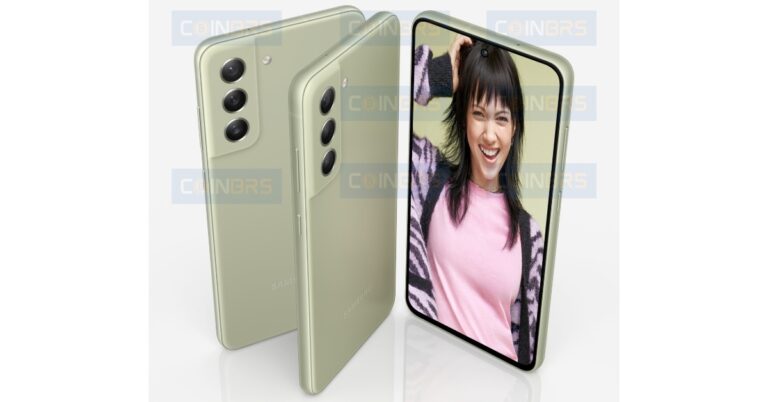
Image Courtesy: CoinBRSIf you want to get a flagship experience without making a huge hole in your wallet Samsung Galaxy S21 FE is for you. With the Galaxy S20 FE, Samsung had entered into a new market and it was also an instant hit. Samsung Galaxy S20 FE was an all-around good Samsung flagship at an affordable price. Based on the most recent specs leak, the Galaxy S21 FE will have a 6.41-inches 120Hz FHD+ AMOLED display. Powering this setup will be Snapdragon 888 or Exynos 2100 chipset and a 4,500 mAh battery with 25W charging speeds. The phone will come somewhere in January 2022.The expected price for S21 FE is Rs 58,000.
Samsung Galaxy S22 Ultra
Image Courtesy- FrontPageTechIf you want to experience a true flagship that the company can offer you should go for the S22 Ultra. In the flagship world, Samsung’s S series is the most important series. They are the flagships that come at the starting of January, and they set the bar for the upcoming premium smartphones. The S21 series was a hit series and it looks like Samsung will shake the market again with its S22 series. The Samsung Galaxy S22 Ultra is the best that Samsung can offer. Some specs of the device are as follows- 6.8-inches QHD+ Dynamic OLED Display, Qualcomm Snapdragon 8 Gen1 chip with up to 16GB RAM, and 512GB internal storage option. The phone cloud also offers a primary 108Mp camera. The expected price for S22 Ultra is Rs 1,10,000.Read also: 7 new smartphones that will be launched in the first 3 months
Samsung Galaxy A33 5G
Image Courtesy- 91MobilesApart from flagships, Samsung has also planned to launch some interesting 5G phones as well, one of which is the Galaxy A33 5G. The Samsung Galaxy A33 5G is rumoured to launch in early 2022. Some specs of the phone are as follows- a 6.4-inches display with an Infinity-U punch-hole design. The design will look very similar to other Samsung phones. The phone could launch in four different colour options. There are not many details available on the specs part but it is expected that the phone will come with 5G capabilities.The price of the phone is TBA (to be announced).
Samsung Galaxy A13 5G
We will see a lot of action from the A series of Samsung, the company can also launch another 5G phone under its A series in the first quarter of 2022. The Samsung Galaxy A13 5G will carry a MediaTek Dimensity 700 chipset and comes with 4GB RAM according to the latest rumours. It will have a plastic body that the company will name as “Glastic body”. It might also have a 50Mp main camera. The expected price of Galaxy A13 5G is around Rs 22,000.
Samsung Galaxy M22
Image Courtesy- MySmartpriceThe M series of Samsung is quite popular among those who want to get a Samsung phone under the 20K price range. Samsung might also launch the Galaxy M22 very soon. The phone has been spotted on many certification websites. The support page for Galaxy M22 has already gone live on the official site. The phone will come with a 90Hz Super AMOLED display with MediaTek Helio G80 chipset and the primary camera will be a 48MP shooter, and it will have a quad-camera setup and a 5000mAh battery. The expected price of the phone wil be around Rs 16,000.Read also: Samsung Galaxy M22 support page went live on the SamsungFor the latest gadget and tech news, and gadget reviews, follow us on Twitter, Facebook and Instagram. For newest tech & gadget videos subscribe to our YouTube Channel. You can also stay up to date using the Gadget Bridge Android App. You can find the latest car and bike news here.



 MHL stands for Mobile High-definition Link, MHL uses a five-pin connection to deliver up to 1080p picture quality, 192khz sound quality, and 7.1 channel surround sound. You can connect your smartphones, tablets, and other mobile devices to a TV or a monitor and share the smartphone’s display on it. In short, it is a wired form of Google Chromecast that lets you screencast to a TV with some wires. The plus point here is that since it is a wired connection there is zero latency between the phone and the screen.
Read also: Google’s Stadia controller will not support Bluetooth headsets
How to use MHL
There are a few items required if you want to screencast with the help of MHL.
MHL stands for Mobile High-definition Link, MHL uses a five-pin connection to deliver up to 1080p picture quality, 192khz sound quality, and 7.1 channel surround sound. You can connect your smartphones, tablets, and other mobile devices to a TV or a monitor and share the smartphone’s display on it. In short, it is a wired form of Google Chromecast that lets you screencast to a TV with some wires. The plus point here is that since it is a wired connection there is zero latency between the phone and the screen.
Read also: Google’s Stadia controller will not support Bluetooth headsets
How to use MHL
There are a few items required if you want to screencast with the help of MHL.
 Now that you have all the items required it is just time to Plug and Play! Just connect one end of the HDMI cable to the adapter and the other end to the TV.
Now connect your smartphone with the MHL adapted using the micro USB or Type-C port on the adapter (depending upon your phone type). Once you have connected everything you will be able to see your smartphone’s display to your TV.
And it is that simple to get used to MHL technology, this can be a very useful hack if you do not have a smart TV or Google Chromecast at your home. MHL cables are freely available in markets and also on Amazon.
Read also: Epson launches TW650 and TW5650 entry level Full HD
For the latest gadget and tech news, and gadget reviews, follow us on Twitter, Facebook and Instagram. For newest tech & gadget videos subscribe to our YouTube Channel. You can also stay up to date using the Gadget Bridge Android App. You can find the latest car and bike news here.
Now that you have all the items required it is just time to Plug and Play! Just connect one end of the HDMI cable to the adapter and the other end to the TV.
Now connect your smartphone with the MHL adapted using the micro USB or Type-C port on the adapter (depending upon your phone type). Once you have connected everything you will be able to see your smartphone’s display to your TV.
And it is that simple to get used to MHL technology, this can be a very useful hack if you do not have a smart TV or Google Chromecast at your home. MHL cables are freely available in markets and also on Amazon.
Read also: Epson launches TW650 and TW5650 entry level Full HD
For the latest gadget and tech news, and gadget reviews, follow us on Twitter, Facebook and Instagram. For newest tech & gadget videos subscribe to our YouTube Channel. You can also stay up to date using the Gadget Bridge Android App. You can find the latest car and bike news here.  MHL stands for Mobile High-definition Link, MHL uses a five-pin connection to deliver up to 1080p picture quality, 192khz sound quality, and 7.1 channel surround sound. You can connect your smartphones, tablets, and other mobile devices to a TV or a monitor and share the smartphone’s display on it. In short, it is a wired form of Google Chromecast that lets you screencast to a TV with some wires. The plus point here is that since it is a wired connection there is zero latency between the phone and the screen.
Read also: Google’s Stadia controller will not support Bluetooth headsets
How to use MHL
There are a few items required if you want to screencast with the help of MHL.
MHL stands for Mobile High-definition Link, MHL uses a five-pin connection to deliver up to 1080p picture quality, 192khz sound quality, and 7.1 channel surround sound. You can connect your smartphones, tablets, and other mobile devices to a TV or a monitor and share the smartphone’s display on it. In short, it is a wired form of Google Chromecast that lets you screencast to a TV with some wires. The plus point here is that since it is a wired connection there is zero latency between the phone and the screen.
Read also: Google’s Stadia controller will not support Bluetooth headsets
How to use MHL
There are a few items required if you want to screencast with the help of MHL.
 Now that you have all the items required it is just time to Plug and Play! Just connect one end of the HDMI cable to the adapter and the other end to the TV.
Now connect your smartphone with the MHL adapted using the micro USB or Type-C port on the adapter (depending upon your phone type). Once you have connected everything you will be able to see your smartphone’s display to your TV.
And it is that simple to get used to MHL technology, this can be a very useful hack if you do not have a smart TV or Google Chromecast at your home. MHL cables are freely available in markets and also on Amazon.
Read also: Epson launches TW650 and TW5650 entry level Full HD
For the latest gadget and tech news, and gadget reviews, follow us on Twitter, Facebook and Instagram. For newest tech & gadget videos subscribe to our YouTube Channel. You can also stay up to date using the Gadget Bridge Android App. You can find the latest car and bike news here.
Now that you have all the items required it is just time to Plug and Play! Just connect one end of the HDMI cable to the adapter and the other end to the TV.
Now connect your smartphone with the MHL adapted using the micro USB or Type-C port on the adapter (depending upon your phone type). Once you have connected everything you will be able to see your smartphone’s display to your TV.
And it is that simple to get used to MHL technology, this can be a very useful hack if you do not have a smart TV or Google Chromecast at your home. MHL cables are freely available in markets and also on Amazon.
Read also: Epson launches TW650 and TW5650 entry level Full HD
For the latest gadget and tech news, and gadget reviews, follow us on Twitter, Facebook and Instagram. For newest tech & gadget videos subscribe to our YouTube Channel. You can also stay up to date using the Gadget Bridge Android App. You can find the latest car and bike news here. 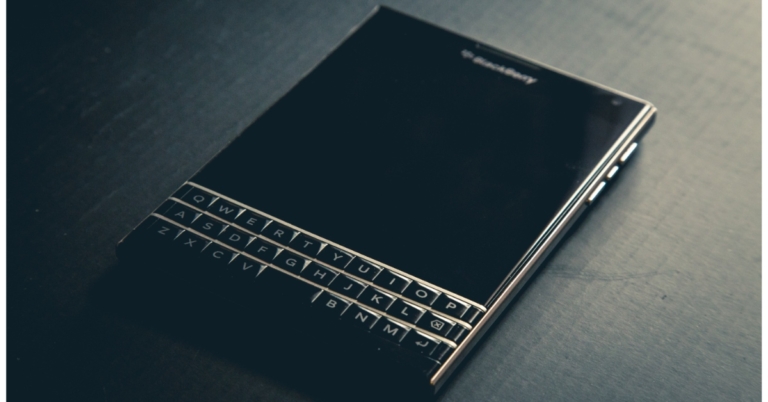







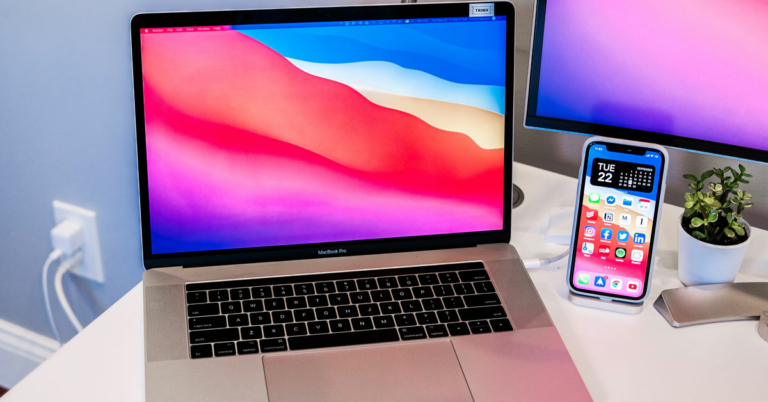
 Just download the app for Android from here and for iOS from here, and install the companion software for mac from here and for windows from here. Now, just open the software on your computer and then connect your phone via USB. And that is it! Now you have connected the phone or tablet to your PC.
 Spacedesk is a quite popular choice if you want to make use of your old Android tablet or phone as a secondary display. The app lets users connect a tablet or phone with a Windows PC using USB, Wi-Fi, or LAN. Just install the necessary drivers needed for this onto your PC by clicking here, and app for your tablet or phone from here. The app is available for Windows 7 and above. The setup process of Spacedesk is very simple for even a 10-year kid, just follow the steps that the apps tell you to follow and that is it, anyone can setup this with the provided instruction. And that is it. Now you can use your old tablet or phone as a secondary display.
Read also: Samsung is planning to launch three new tablets in India
Spacedesk is a quite popular choice if you want to make use of your old Android tablet or phone as a secondary display. The app lets users connect a tablet or phone with a Windows PC using USB, Wi-Fi, or LAN. Just install the necessary drivers needed for this onto your PC by clicking here, and app for your tablet or phone from here. The app is available for Windows 7 and above. The setup process of Spacedesk is very simple for even a 10-year kid, just follow the steps that the apps tell you to follow and that is it, anyone can setup this with the provided instruction. And that is it. Now you can use your old tablet or phone as a secondary display.
Read also: Samsung is planning to launch three new tablets in India
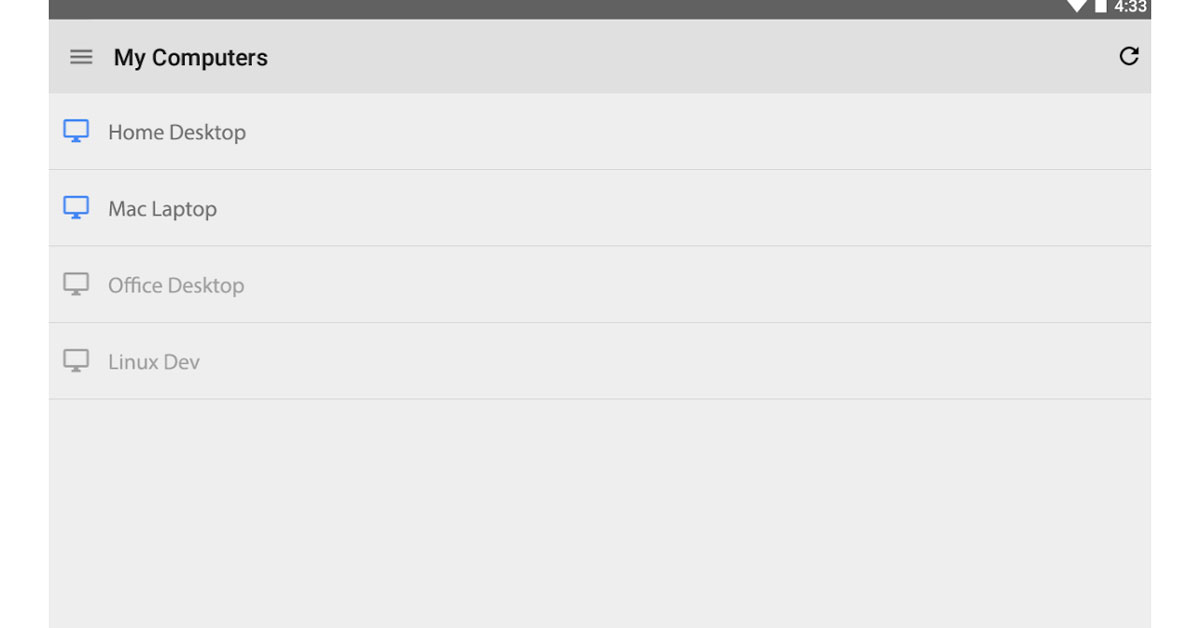 It is a software by Google that lets users connect smartphones or tablets as a remote control for PC. Users can control the laptop or desktop from which they have connected their phones. Just download Google Remote desktop from here and set up the remote access from here. The setup process is very simple just follow the steps that the apps tell you to follow and that is it, anyone can setup this with the provided instruction.
 As the name says “Wired”, the software requires a wire to connect your phone/tablet to a computer. Since you are connected with a wired medium the plus side is that you get better resolution and frame rate. It supports Full HD resolution at 60 frames per second.
  Just download the app for Android from here and for iOS from here, and install the companion software for mac from here and for windows from here. Now, just open the software on your computer and then connect your phone via USB. And that is it! Now you have connected the phone or tablet to your PC.
 It is another software that can be used to mirror a display on your iPhone or iPad. It supports 60 fps and plus offers multi-touch on the device you are using it on. The iDisplay has every feature that you can ask for but the only thing is that unlike other methods mentioned above which are free, iDisplay is not free and you have to pay $18 for this. The setup method is similar to all the above and you can check out the software from here.
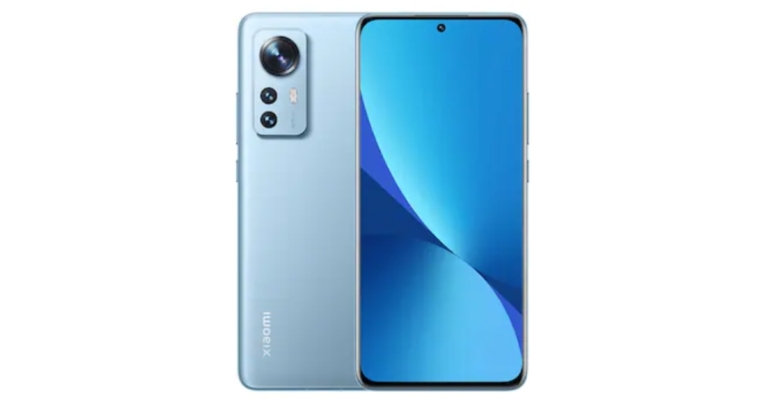
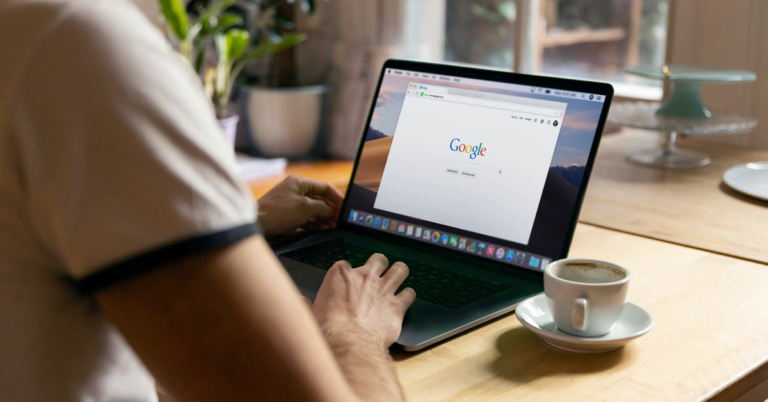


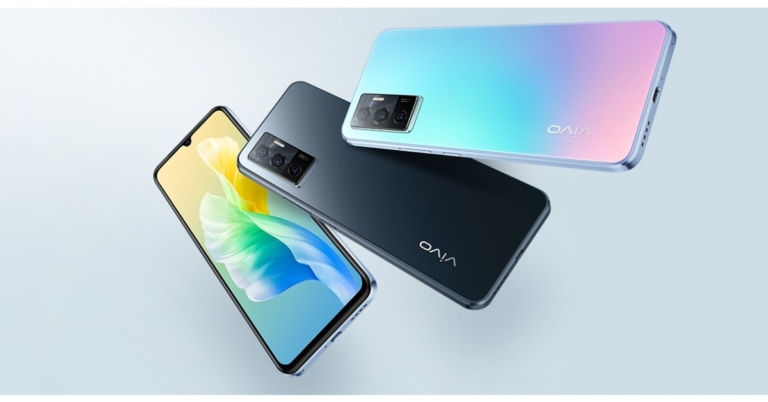
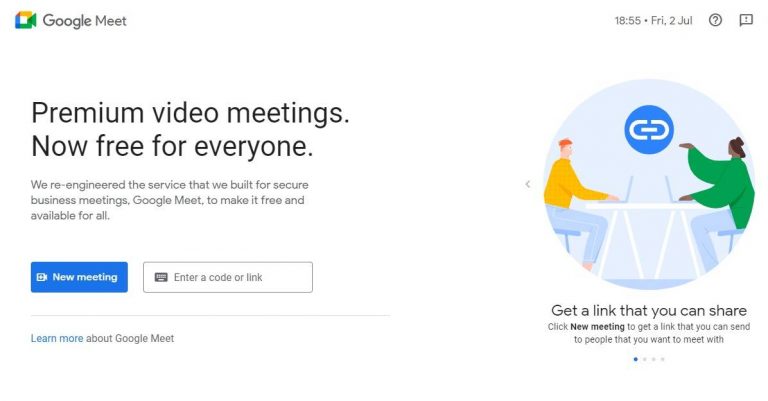
 Sitting in a room well isolated can reduce the amount of echo and background noise. Also, try to attend meetings in that room of your house which is filled with sound-absorbing materials such as rugs, mats, carpets, and heavy curtains. Soft materials like blankets and rugs have the ability to absorb sound up to some extent. Also, you have to make sure that while attending the meeting you are not directly facing a wall, as it will reflect back your voice and can produce an echo that you do not want.
 Most people don’t know where the microphone of their device is placed, so either they end up blocking the MIC on their phone or they stay too far from the MIC of their laptop, as a result, it produces an echo. If you attend meetings on a phone then mics are generally placed at the bottom of the phone and on the top bezel in the case of laptops.
So make sure that you are not too far from them because it will produce an echo. Additionally, you should also use an external mic if it is available with you, or you can just use any normal pair of earphones. External MIC/earphones generally are better than onboard mics on most laptops. Using a good microphone will omit most of the echo that is produced.
Most people don’t know where the microphone of their device is placed, so either they end up blocking the MIC on their phone or they stay too far from the MIC of their laptop, as a result, it produces an echo. If you attend meetings on a phone then mics are generally placed at the bottom of the phone and on the top bezel in the case of laptops.
So make sure that you are not too far from them because it will produce an echo. Additionally, you should also use an external mic if it is available with you, or you can just use any normal pair of earphones. External MIC/earphones generally are better than onboard mics on most laptops. Using a good microphone will omit most of the echo that is produced.
 If your TV has now slowed down then chances are that you have filled up the storage of your TV or maybe some apps are the culprit. In order to clear data or cache data from your TV just follow the given steps:
Step 1: Go to your Android TV Settings, different TVs might have different methods so just look for your TV in the instruction manual.
Step 2: Then go to Apps and tap your preferred app.
Step 3: Click on Clear Cache and press the OK button, or just clear all the data and press OK.
That is how you can clear data on your TV and it should make your TV run faster.
If your TV has now slowed down then chances are that you have filled up the storage of your TV or maybe some apps are the culprit. In order to clear data or cache data from your TV just follow the given steps:
Step 1: Go to your Android TV Settings, different TVs might have different methods so just look for your TV in the instruction manual.
Step 2: Then go to Apps and tap your preferred app.
Step 3: Click on Clear Cache and press the OK button, or just clear all the data and press OK.
That is how you can clear data on your TV and it should make your TV run faster.
 If clearing data and cache didn’t work then you should uninstall the apps that are just taking up space and you do not use them. This is the best method to clear up the space on your TV. To uninstall apps just follow the steps:
Step 1: Open your Android TV Menu.
Step 2: Head to the Apps section and highlight the app from the list you want to remove.
Step 3: Press and hold the Select or Enter key on your TV Remote.
Step 4: The final step is to just uninstall the app.
And that’s how you can uninstall any app that you do not use on your Android TV.
If clearing data and cache didn’t work then you should uninstall the apps that are just taking up space and you do not use them. This is the best method to clear up the space on your TV. To uninstall apps just follow the steps:
Step 1: Open your Android TV Menu.
Step 2: Head to the Apps section and highlight the app from the list you want to remove.
Step 3: Press and hold the Select or Enter key on your TV Remote.
Step 4: The final step is to just uninstall the app.
And that’s how you can uninstall any app that you do not use on your Android TV.
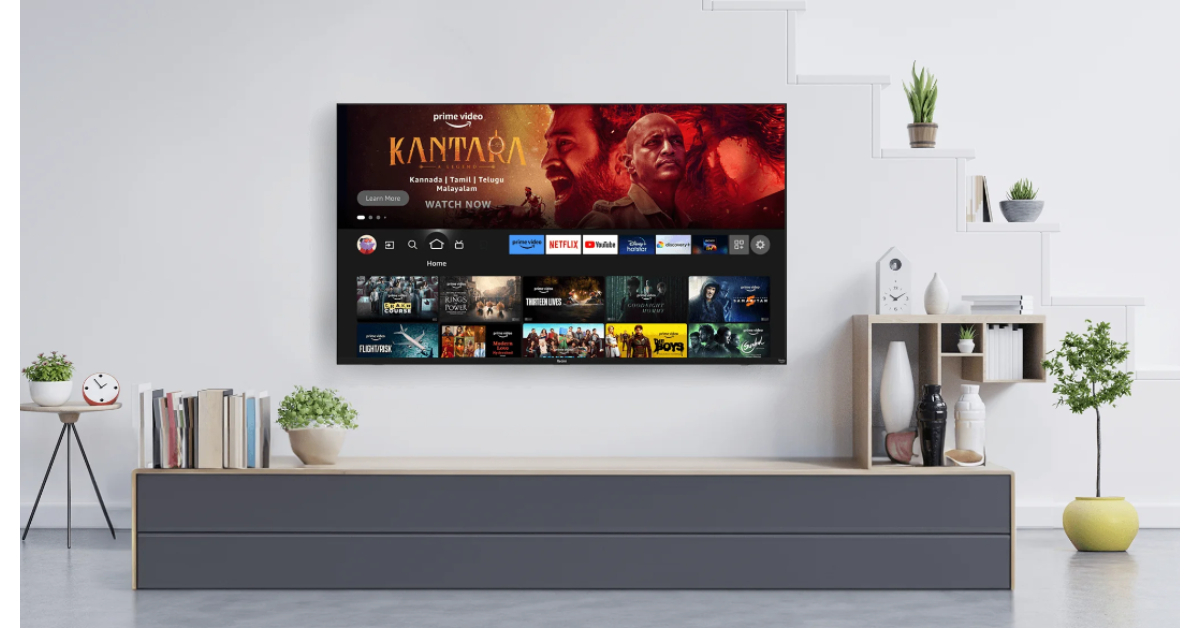 Some Android TVs (especially in the budget category) ship with a lot of bloatware apps that ultimately slow it down. Some of these apps can’t be removed from the TV, but you can disable them. If you don’t use the Google app on your device, you should consider disabling it as well. Here’s how.
Step 1: Go to Settings.
Step 2: Scroll down and select Apps.
Step 3: Select Google.
Step 4: Hit Disable.
Similarly, you can disable other bloatware apps on your TV.
Read also: Best 4 ways to remove Chinese apps from your Android
Some Android TVs (especially in the budget category) ship with a lot of bloatware apps that ultimately slow it down. Some of these apps can’t be removed from the TV, but you can disable them. If you don’t use the Google app on your device, you should consider disabling it as well. Here’s how.
Step 1: Go to Settings.
Step 2: Scroll down and select Apps.
Step 3: Select Google.
Step 4: Hit Disable.
Similarly, you can disable other bloatware apps on your TV.
Read also: Best 4 ways to remove Chinese apps from your Android
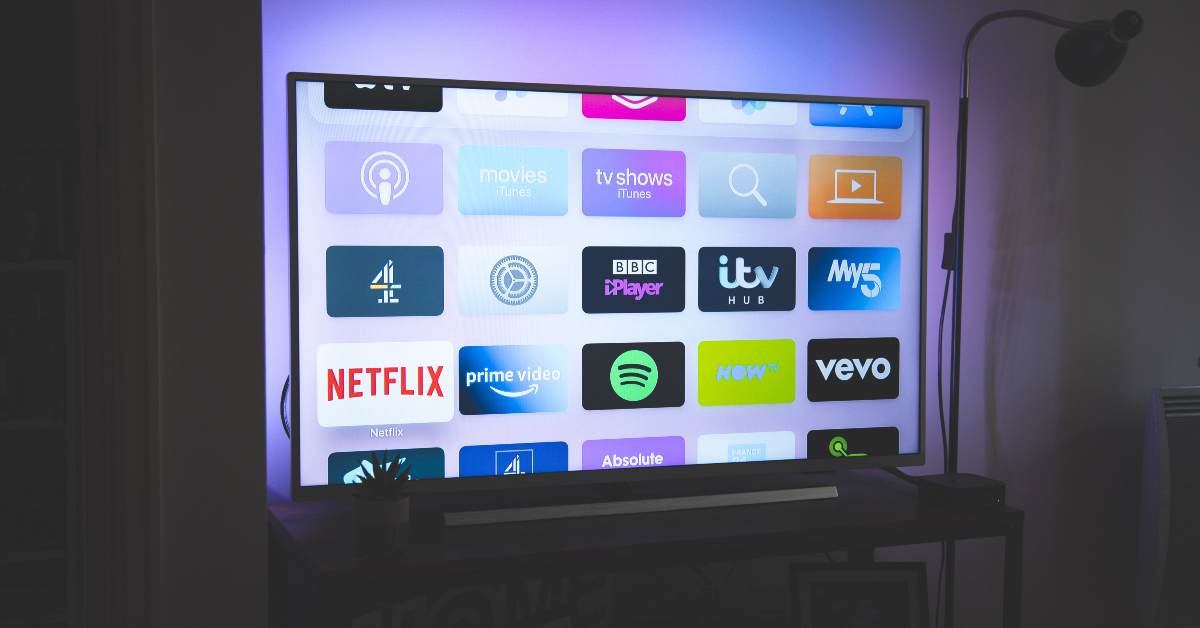 You have to turn off the automatic app updates as well in order to make your Android TV run faster. To do this just follow the given steps:
Step 1: Open the Google Play Store on your Android TV, and go to Settings.
Step 2: Over here, click on Auto-update apps and turn it off.
It is that simple, just 2 steps and that is it!
You have to turn off the automatic app updates as well in order to make your Android TV run faster. To do this just follow the given steps:
Step 1: Open the Google Play Store on your Android TV, and go to Settings.
Step 2: Over here, click on Auto-update apps and turn it off.
It is that simple, just 2 steps and that is it!
 Since Android TV relies on the internet they need to have a good internet connection otherwise you might see lags in the performance of the TV. So, if possible then connect your TV to a 5GHz band, since it offers more speed. Also, make sure that the WiFi router is fairly close to the TV. If possible then use a wired connection rather than using WiFi since a wired connection offers lossless speed and you will feel fewer lags in your experience.
 Older software versions can cause your TV to slow down. Make sure its updated to the latest OS version. Here’s how.
Step 1: Go to Settings and select About.
Step 2: Hit System Update.
Step 3: Click on Software Update and select Check For Updates.
Step 4: Download any new updates.
Older software versions can cause your TV to slow down. Make sure its updated to the latest OS version. Here’s how.
Step 1: Go to Settings and select About.
Step 2: Hit System Update.
Step 3: Click on Software Update and select Check For Updates.
Step 4: Download any new updates.
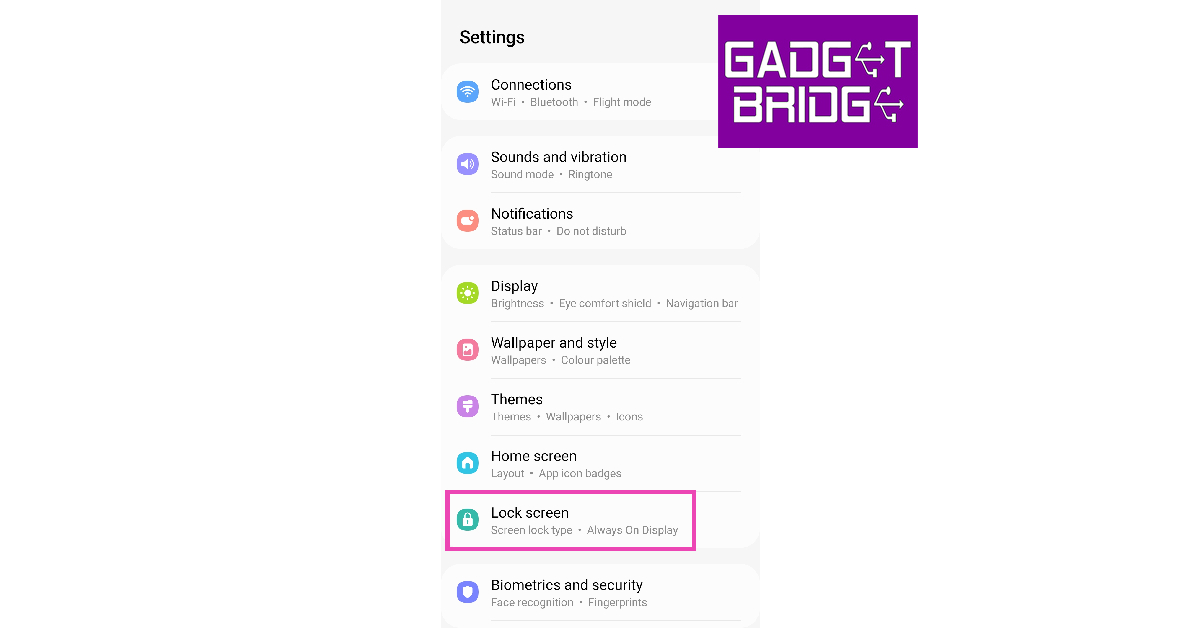 Step 2: Tap on Widgets.
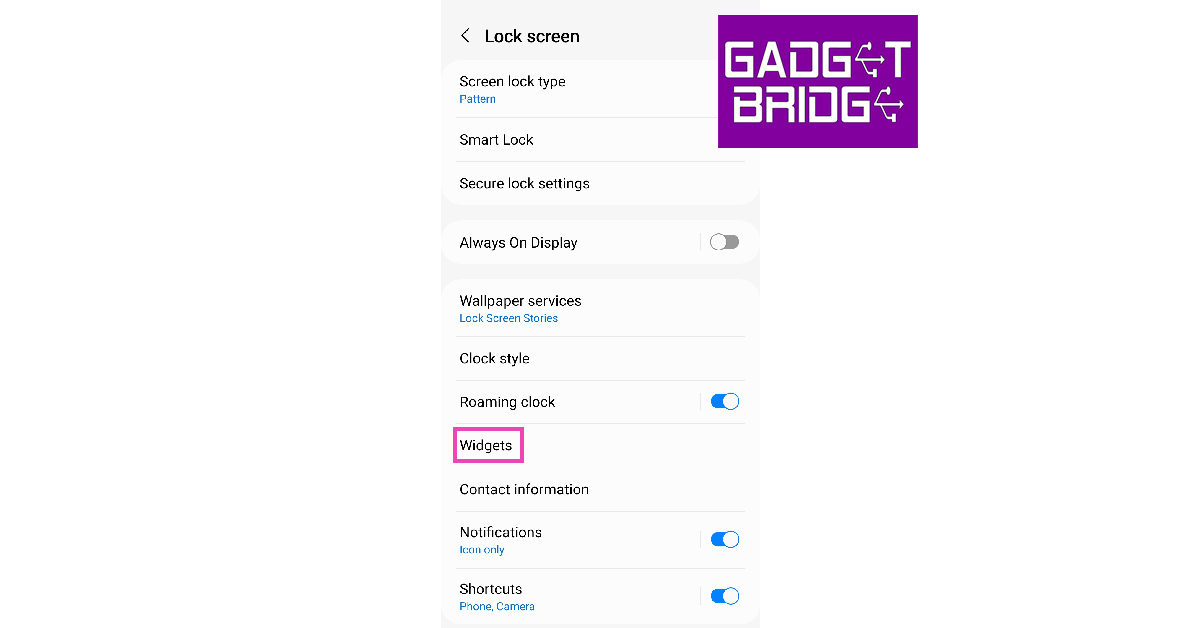 Step 3: Turn on the toggle switch for Voice Recorder.
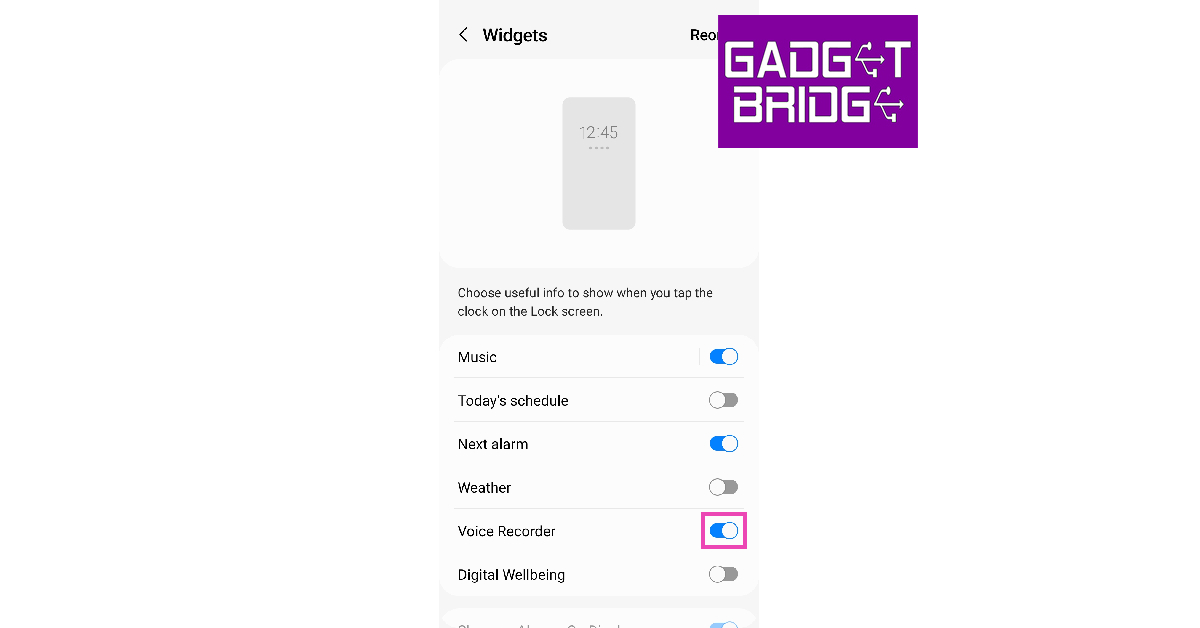 Step 4: Lock your phone’s screen.
Step 5: Press the side key once.
Step 6: Tap once on the clock to reveal the widgets.
Step 4: Lock your phone’s screen.
Step 5: Press the side key once.
Step 6: Tap once on the clock to reveal the widgets.
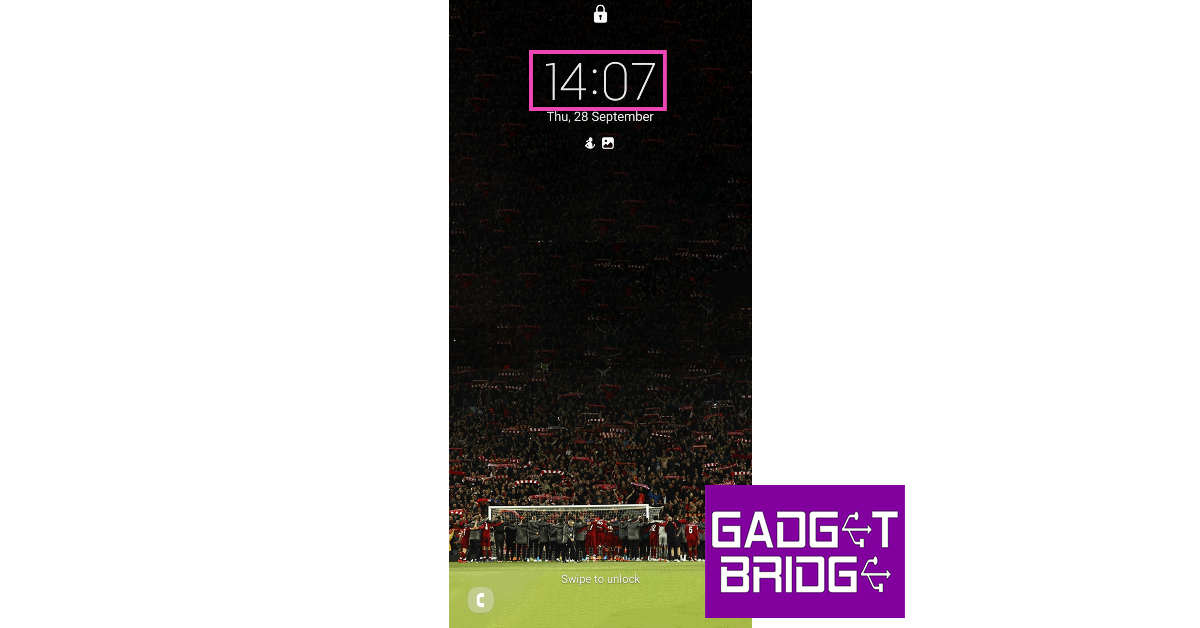 Step 7: Hit the red button on the voice recorder widget to start recording audio.
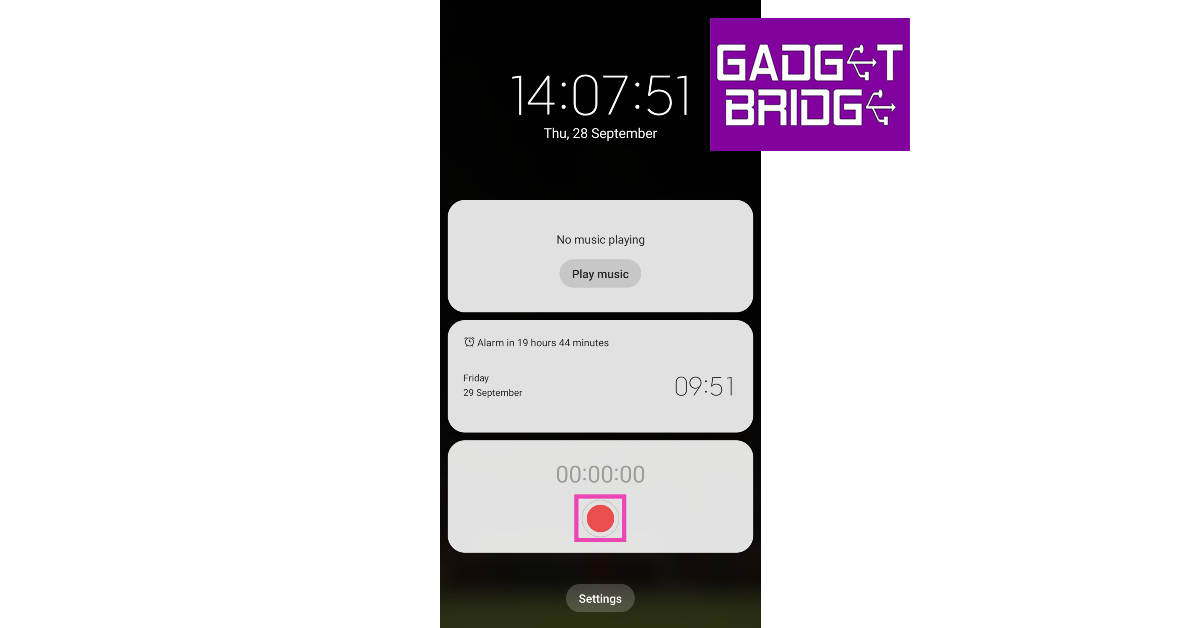 Step 8: Hit the Stop icon when you’re done.
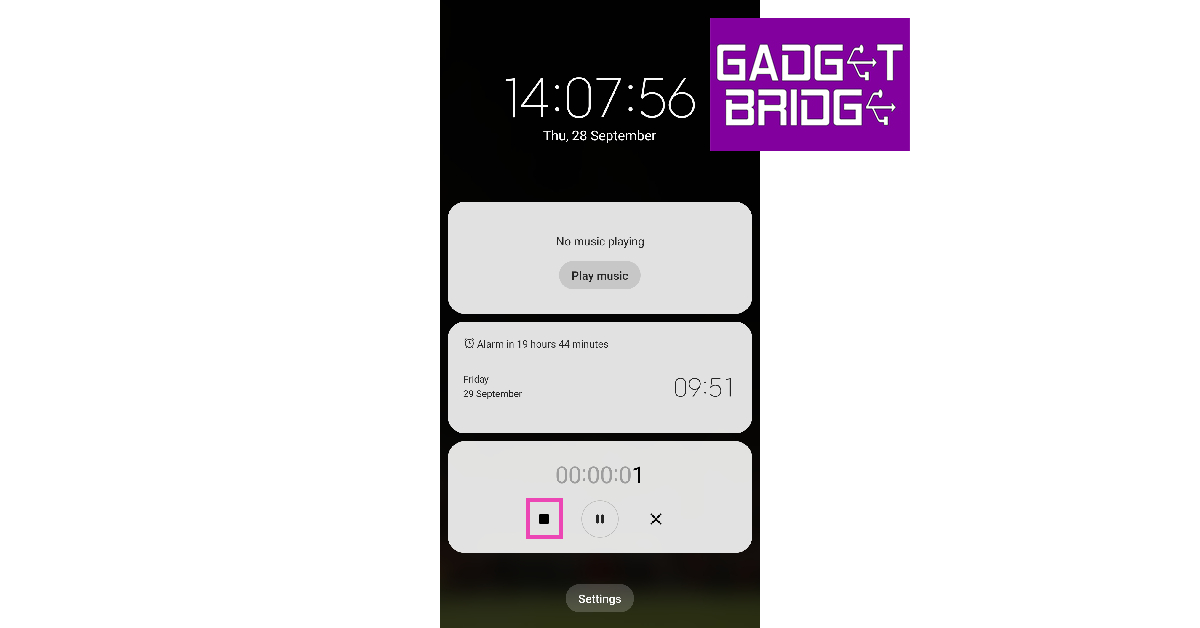 Read also: 4 Ways to record Clubhouse audio conversations
 GOM Recorder is an audio recording app that can be very useful in certain situations where you have to quickly start recording the audio. The GOM Recorder comes with motion gestures you just have to set the intensity and shake your phone to start recording.
 It also comes with a schedule recording feature, along with a quick widget that you can add to your home screen, these features make GOM Recorder an easy audio spy tool for Android. You can download GOM Recorder by clicking here.
 You just have to turn on the app once and leave it, the app automatically removes the part where there was silence. This can be extremely useful. The app also offers tonnes of useful features including sensitivity control, live audio spectrum analyzer, gain control, Wave/PCM encoding with adjustable sample rate, and whatnot. You can download Smart Recorder by clicking here.
 The final app on our list is Background Video Recorder. With the above apps you can just record the audio, but using this app you can also record videos in the background without letting anyone know about it. Just install the app by clicking here. The app has an option to disable camera sounds and previews so, no one will be able to tell you’re actually recording instead of playing a game or watching a movie.
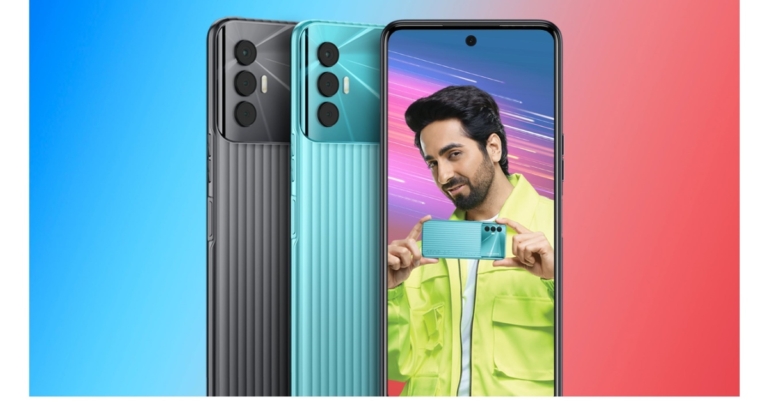



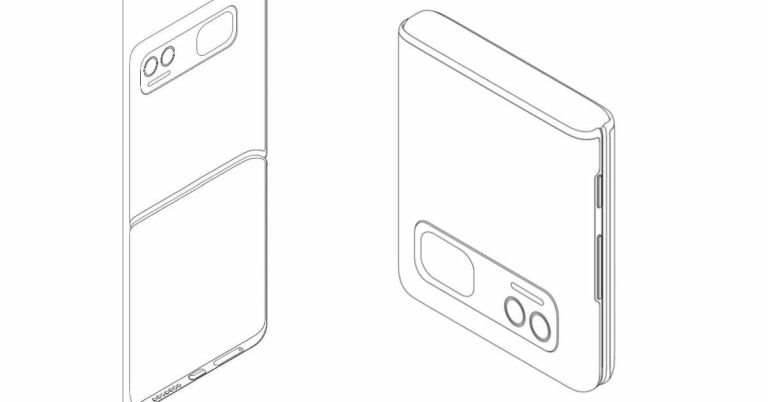
 In the patent images, we can clearly see a hinge dividing the phone horizontally into two. We can also see a front pill-shaped camera cutout and a horizontal camera module. On the bottom side,
  we can see the type-C port and SIM card slot as well. Also, the design is more suitable for most people since when the phone is folded into half the size it fits very easily inside the pocket. Another benefit of the clamshell design is that it offers a more sensible screen aspect ratio, so watching movies and videos won’t be a problem in this type of design.
 Just like its inspiration, it looks like that the Flip phone from Xiaomi will also feature a secondary display at the back of the phone. The secondary display can be very useful to check time, notifications, and also to click selfies with the back of the camera. The Galaxy Z Flip 3 features a 1.9-inch Super AMOLED display at the back of the phone.


 We will see a lot of action from the A series of Samsung, the company can also launch another 5G phone under its A series in the first quarter of 2022. The Samsung Galaxy A13 5G will carry a MediaTek Dimensity 700 chipset and comes with 4GB RAM according to the latest rumours. It will have a plastic body that the company will name as “Glastic body”. It might also have a 50Mp main camera. The expected price of Galaxy A13 5G is around Rs 22,000.
