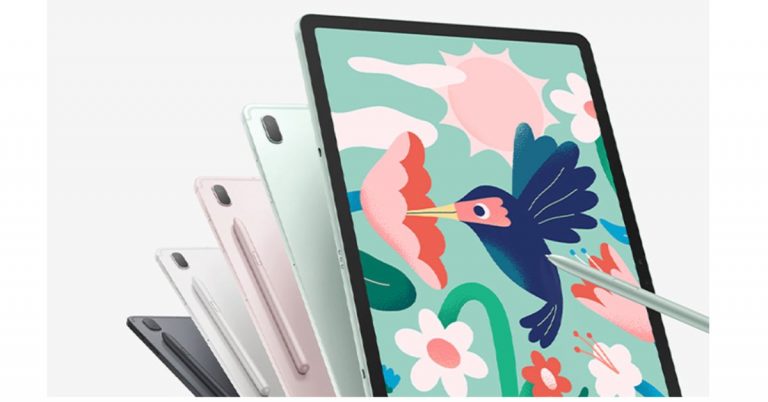
After launching Samsung Galaxy Tab A7 Lite and Galaxy Tab S7 FE in the UK, the tablets are all set to make their way to the Indian market. The company recently announced to launch both the device in India today and have also been listed on Amazon as well as the company’s official website to tease their availability. Samsung is all geared up to launch its newest tablets: Galaxy Tab S7 FE andGalaxy Tab A7 Lite in India today. The devices are also scheduled to go on sale from June 23 as per the microsite. Samsung Galaxy Tab S7 FE 5G specifications and expected pricingSamsung Galaxy Tab S7 FE 5G runs Samsung One UI based on top of Android 11 and will be powered by Qualcomm Snapdragon 750G SoC with up to 6GB of RAM and 128GB of storage options. The storage can be expanded up to 1TB via a microSD card. The device features a 12.4-inch WQXGA TFT display with 2,560×1,600 pixels of resolution. There is a single 8-megapixel main rear sensor that supports 1080p video recording at 30fps. On the front, there is a 5-megapixel camera sensor for taking selfies. On the connectivity front, there is Bluetooth v5, USB Type-C port, Gigabit Wi-Fi among others. The tab is backed by a 10,090mAh battery with 45W fast charging support and offers up to 12 hours of runtime via the cellular network. There is an S-Pen Samsung DeX app support along with dual speakers optimised by AKG. The device will be offered in different shades of Mystic Black, Mystic Silver, Mystic Green, and Mystic Pink colours.The company has not revealed the pricing of the tab but it was launched at GBP 589 translates to Rs 60,989 for the 4GB RAM with a 64GB internal storage option. The 6GB RAM with 128GB storage variant at GBP 629 translates to Rs 65,123. Samsung Galaxy Tab A7 Lite specifications and expected pricingSamsung Galaxy Tab S7 FE 5G is powered byMediaTek Helio P22T paired with up to 4GB of RAM and 64GB of storage. The internal storage can be expanded up to 1TB using a microSD card. The device runs Samsung One UI based on top of Android 11 and features an 8.7-inch display. It comes with an 8-megapixel main sensor on the back of the phone and a 5-megapixel camera sensor for taking selfies on the front. In terms of connectivity, there is 4G LTE (optional), Wi-Fi 802.11ac, Bluetooth v5, GPS, USB Type-C, and a 3.5mm audio jack. The sensor on the tab includes an accelerometer, ambient light sensor, and magnetometer. It is fuelled by a 5,100mAh battery that supports 15W fast charging. To recall,Samsung Galaxy Tab A7 Lite was launched last month in May at GBP 149 that translates to Rs 15,429 for the WiFi model while the LTE model will be available at GBP 179 that translates to Rs 18,531. The tablet was offered in two colour options, Grey and Silver.
For the latest gadget and tech news, and gadget reviews, follow us on Twitter, Facebook and Instagram. For newest tech & gadget videos subscribe to our YouTube Channel. You can also stay up to date using the Gadget Bridge Android App.
Browsing in Google Chrome is the most convenient way to surf the internet. With so many good features, the chrome web browser is one of the best out there. One of its unique features is that it saves all the passwords entered in the browser. But sometimes you want to remove the saved passwords. Learn how to remove all the saved passwords in your Google Chrome web below.
In This Article
Remove saved passwords on PC and laptop
The Google Chrome web browser records websites you browse and syncs them to your mobile device. And also saves the passwords you have typed in on the browser if you had accepted to save them. The good thing about the browser is that it allows you to delete the saved password of all the websites or the websites you select. You can easily remove or delete the saved password from Google Chrome on your PC or laptop. See the steps below:
Open the Google Chrome browser on your computer
Click on the vertical three-dot on the top right corner
After clicking that scroll down on setting
And tap on Autofill, which is on the left side panel
Saving the online passwords in the Google Chrome browser is the most convenient way to remember our password. The next time you visit a website it will auto-fill and take you directly to the website without the need to log in. All the passwords are stored in the Google password manager portal using which you can easily login into any website of which you have saved the password. Just in case the password is not saved on your smartphone the Chrome browser will ask for your permission. And with your consent, the password to Chrome is saved. Google allows you to remove the saved password if you ever do not need them or want to remove them from the browser. Follow the steps below to know how to remove the saved password.
Open the Google Chrome app on your smartphone
Click on the three-dot for menu options
Go to settings
Scroll down and tap on the password
List of account appears
Select the account you want to remove the password of
Now find the delete option on the top with the bin icon
Amazon Quiz has gone live on its platform. The quiz timings are daily from 12 AM to 11:59 PM. By submitting correct answers, millions of Amazon customers can win free gadgets as well as Amazon Pay Balance. By participating in the Amazon Quiz today you can stand a chance to win Rs 25,000 Amazon Pay Balance.
Daily the e-commerce platform brings a fresh questionnaire to which the contestants have to answer correctly to enter into a lucky draw. The quiz can be played daily from 8 AM to 12 noon. The Amazon Quiz contains five easy questions that are based on current affairs and general knowledge. Only one person is declared as a winner and the results are announced at the end of every month. Answering all the questions correctly might let you win something and a wrong answer will get you eliminated from the quiz. To make sure you answer all the questions correctly Gadget Bridge everyday updates all the correct answers to all 5 questions. check out today’s answers for the Quiz to win a Rs 25,000 Amazon Pay Balance.
June 18 Amazon Quiz Answers
Question 1: As the Chief Minister of which the state of India did Pinarayi Vijayan take oath in May 2021?
The answer is- Kerala
Question 2: Under the ‘International Climate Plan,’ which nation announced that it will double its annual public climate finance to developing countries?
The answer is- The USA
Question 3: Who recently won his 12th Barcelona Open, one of the most important events in Spanish tennis?
The answer is- Rafael Nadal
Question 4: In which 2007 film, did this animal dream of becoming a chef in spite of the disapproval of his family and the prejudice of humans?
The answer is- Ratatouille
Question 5: This picture shows an event that took place at which of these places? The answer is- Bikini Atoll
The American multinational computer technology company, Dell, has unveiled four new laptops in the Indian market today. The company has introduced a new range of Dell Inspiron laptops that includes- Dell Inspiron 14 2-in-1, Dell Inspiron 14, Dell Inspiron 15 and Dell Inspiron 13. All these devices come with a similar design featuring slim bezels on the sides and HD displays with an HD webcam. The laptops come with support for ExpressCharge and a fingerprint reader that uses Windows Hello.
In This Article
Dell Inspiron 14 2-in-1 specifications and pricing
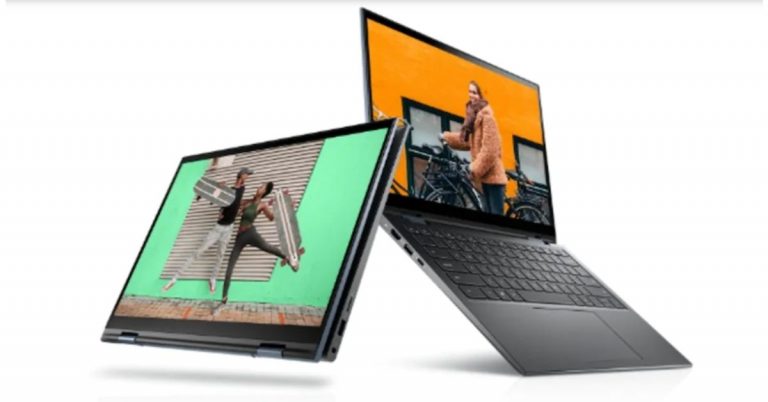
Starting with Dell Inspiron 14 2-in-1, which is a convertible laptop having a 14-inch full-HD touch display with 1,920×1,080 pixels of resolution. This Dell laptop is powered by Intel and AMD processors. The one with an 11th-Generation Intel Core i7 processor paired with Nvidia GeForce MX350 GPU for graphics offers 2GB of GDDR5 graphics memory. Whereas the AMD Ryzen 7 5700U CPU is coupled with Radeon graphics. Both the Intel and AMD configurations offer up to 16GB of DDR4 RAM and 512GB of M.2 PCIe NVMe SSD. You can use this device like a tablet or can switch it to various positions. There is Wi-Fi 6 and Bluetooth v5, an HDMI port, two USB 3.2 Gen 1 Type-A ports, a USB 3.2 Gen 1 Type-C port, and a 3.5mm headphone jack for connectivity. All the models pack a 54Whr battery.In terms of pricing, the Dell Inspiron 14 2 in 1 laptop’s Intel variant will come with a starting price of Rs 57,990 while the AMD version at Rs 65,990. Both the models are now available for sale across the Dell website, Amazon, large-format retail, multi-brand outlets, and select Dell exclusive stores.
Dell Inspiron 14, Dell Inspiron 15 specifications and price
Both of these laptops share some similarities besides the screen size. The Dell Inspiron 14 features a 14-inch full-HD display with 1,920×1,080 pixels of resolution. On the contrary, the Dell Inspiron 15 is highlighted with a 15.6-inch full-HD display having 1,920×1,080 pixels of resolution. The 14-inch laptop equips 11th-Generation Intel Core i7 processors with up to Nvidia GeForce MX450 GPU whereas the 15-inch model includes both Intel and AMD CPUs under its hood. Each of the laptops offers up to 16GB of DDR4 RAM and up to 1TB of M.2 PCIe NVMe SSD.Dell Inspiron 14Both the Dell laptops are fuelled by 54Whr batteries and come integrated with dual speakers as well as microphones. In terms of connectivity, there is Wi-Fi 6 for wireless connectivity, an HDMI port, a Thunderbolt 4 port, a USB Type-C 3.2 Gen2 port, two USB Type-A 3.2 Gen1 ports, an SD card reader, a headphone/ microphone jack.Dell Inspiron 15The price of the Dell Inspiron 14 will start at Rs 44,990 and will go on sale starting June 18 which is tomorrow. Whereas Dell Inspiron 15 price varies on the CPUs, the AMD version can be purchased at a starting price of Rs 57,990 (sale from June 22) and the Intel model at Rs 48,990 (sale begins on June 18).
Dell Inspiron 13 specifications and price
Finally, the Dell Inspiron 13 is powered by an 11th-Generation Intel Core i7-11370H CPU combined with up to Nvidia GeForce MX450 GPU with 2GB of GDDR6 graphics memory. It is provided with up to 16GB of LPDDR34x RAM and 512GB of NVMe SSD for storing content. Besides this, the laptop comes with a 13.3-inch QHD+ display having 2,560×1,600 pixels of resolution. Furthermore, the Inspiron laptop also includes a fingerprint reader that uses Windows Hello for authentications. The machine is backed by a 54Whr battery and it comes with Wi-Fi 6, Bluetooth v5.1, HDMI port, a USB Type-A 3.2 Gen 1 port, two Thunderbolt 4 ports, and a 3.5mm headphone jack as connectivity options.Dell Inspiron 13Speaking of the pricing, the Dell Inspiron 13 price will start at Rs 68,990 in India. It will be available for purchase via the Dell website, Amazon, large-format retail, multi-brand outlets, and select Dell exclusive stores from July 7 onwards.
For the latest gadget and tech news, and gadget reviews, follow us on Twitter, Facebook and Instagram. For newest tech & gadget videos subscribe to our YouTube Channel. You can also stay up to date using the Gadget Bridge Android App.
A laptop without a functioning keyboard is unimaginable. Hardship will be faced if the keyboard is not working. And the keyboard shortcuts make working on a laptop or PC easier and faster. There are some ways to fix keyboard shortcuts, if not working on a laptop or PC. You can follow the below methods.
In This Article
Reset language in the keyboard setting
The change in the language usually interchanges all the keyboard settings. You can easily fix this problem by visiting the control panel and adding or removing a language. For example, the keyboard setting in (US English) keyboard and (UK English) is different. Hence changing the language in the setting will help to fix the keyboard shortcuts that are not working on your laptop or PC.
Typesetting in the search bar on the bottom left corner
Or manually open by clicking on the windows icon next to the search bar
Go to language
Scroll down to Add language
Add you preference
US english is common
Make it primary and your keyboard shortcut will back to normal
Sticky keys are features to make keyboard shortcuts easy to use. Sticky keys is a Windows feature that lets you press on a key at a time for shortcuts. If the keyboard shortcuts are not working, enabling or disabling the sticky keys will help.
Go to the setting by clicking on the Windows icon
Scroll down to Ease of Access
Scroll down again till the end of the panel
Under the interaction option of the left
Find the Use sticky keys option
Toggle it on, if it was off
Toggle it off, if it was on
Reinstall keyboard driver
The driver powers and functions in the laptop or PC. So, reinstalling it can help with the problems of the keyboard shortcuts. Learn how to configure the driver in the steps below.
The troubleshooter function in the laptop can always diagnose the problem and fix it.Using the Windows troubleshooter you can fix the keyboard shortcut problem. Here are the steps.
Click the Windows icon
Go to settings
Find update and security
Select troubleshoot with the tool icon
And navigate to keyboard click on it
Now on the below troubleshooter, you will see “Run the troubleshooter”
It will detect the problem and click on fix it
Re-enable Windows Hotkeys
Another method to fix the keyboard shortcut problem is reenabling the Windows Hotkeys. Learn how to enable the Hotkeys below
Go to the bottom left corner of the screen and press right-click
Computer audio not functioning, can be for many reasons. It might be because of the not-compatible headphones you have plugged in. Or it might be the changes in settings when the Windows update on your laptop. To fix the audio problems in your laptop read the methods below.
In This Article
Audio driver: Install or Uninstall
If any hardware in the computer is not working it is better to check the driver first. To check when it was last updated and if it needs to be updated now. You can access your hardware from the device manager. If you see any yellow exclamation mark you need to update or reinstall the driver. Follow the steps to open the device manager, check, and reinstall the driver if required.
Press Windows + X keys
Find device manager and click on it
Tap on Sound, Video, and game controller
Click on Realtek High definition audio or similar audio property
Another easy option to check the sound problem in your laptop is checking the audio source. You can find the audio source on the taskbar. Check the steps.
Click on the Volume icon on the taskbar
Find the inverted “v” sign and click on it
Check for another speaker and select it
If there are more than two options try clicking and checking on all.
Not selecting the right speakers might be the problem
Other options to fix the speakers on your laptop having no sound is by running Windows Troubleshoot. Many problems can be fixed by Windows Troubleshooters. Follow the steps:
Press Windows + I
It will open settings
Click on Update and Security
Now select Troubleshoot on the left panel
Check for errors
Find audio errors: If any
Click on Playing audio and run Troubleshooter
The troubleshooter will direct you to the problem and you can fix it
Audio services
Another method to fix the no sound on your laptop is by restarting the audio services. By restarting all the audio services, the laptop speaker might work again. Check the method below:
Go to the search box on the taskbar
Type Services
Click on the Services to open the service manager
Locate: Windows Audio, Windows Audio Endpoint Builder, Remote Procedure call (PRC)
Hit the right-click and restart each service
Enable Playback devices
Another method to fix the laptop speaker is to check if the speaker’s might is disabled on the Playback devices. To enable it you can open the control panel and fix the problem. Here is the method.
Press Windows + R
And run mmsys.cpl
Find the disabled speaker and right-click to enable it
Netflix is one of the best OTT (Over-the-top) content platforms to stream movies and shows. By popular choice even in 2021, Netflix has remained as many people’s favourite streaming platform. The streaming platform provides you old, new, and original content to binge-watch. Creating an account on Netflix is also easy and affordable. Netflix allows you to have five users at maximum. But how do you add or remove the users? Follow the guide below:
In This Article
On the Netflix website
Netflix has become one of the most reliable streaming sites that include a broad catalog of video content. You can binge-watch all genres of movies, shows, docu-series, and also Netflix original programming. The choice provided on Netflix is huge and has a long list to watch. Netflix gives you three options to open an account. The Basic plan, the standard plan, and the premium plan. The maximum number of users allowed in any of the plans is 5. You can add the user or remove the user from the parental control. Here’s how.
Read more: Netflix’s StreamFest to kickstart in India on December 5
Add profile
Tap the profile icon on the top right corner
Go to manage profiles
Select add profile
Give profile name and icon
If you want to restrict content and add a profile for kid tick the option in the box
Press continue
Remove profile
Go to the profile icon
Select manage profile
Click on the profile you want to remove
And find the button on the button “Delete profile”
On the Netflix App
As said, you can create a maximum of five profiles on the Netflix account. Every profile can watch their most loved movies and shows on their own profile and does not have to mess with another recommendation. So that all users can watch different shows at different times on different devices. This gives you privacy and also does not change your preferred settings. One important and interesting feature is you can create a profile for kids and give them an account with restricted content. The steps below will show you how to add or remove a profile.
Read also: How to change profile pictures of Gmail, YouTube and Google accounts
Spotify, in March, acquired the sports-focused Locker Room app Betty Labs. Now the music streaming company has announced the launch of a live audio app called Spotify Greenroom with the goal of creating a live audio experience that will delight creators and listeners everywhere. With the launch, the audio-based social media app aims to take on Clubhouse that will allow users to host or join in a live discussion. While announcing the Founder and CEO, Daniel Ek said, “Since bringing the Locker Room app into the fold, we’ve been working to expand its capabilities, with the goal of creating a live audio experience that will delight creators and listeners everywhere. And we wanted to do it with a Spotify twist that operated as an extension of the app already loved by 356 million listeners. That’s why we renamed it “Spotify Greenroom,” With the launch of the live audio platform Greenroom, the Swedish online music streaming giant will provide an opportunity for creators of all types to connect with their fans more deeply and meaningfully. The new Clubhouse-like features are available on iOS and Android in over 135 markets around the world. The Spotify Greenroom will allow creators and artists to host or participate in live rooms. The users can log on to Greenroom using their Spotify log-in info. In addition to this, the live audio platform also allows you to record so you can complement your on-demand content with live conversations and Chat controls.Apart from joining a group, you can also search for upcoming rooms, join and even create one.As per the music streaming app, it will work on evolving the Greenroom, as it understands more about what creators and listeners want from their live audio experience. Additionally, the company also promises to bring exciting new programming to the platform spanning music, culture, and entertainment topics in addition to the sports content Locker Room has been known for. Besides this, to make it a creator-friendly live audio platform a Spotify Creator Fund has been announced that will help live audio creators monetize their work. Those who are interested cansign up to find out more about participation when the Creator Fund opens later this summer.
For the latest gadget and tech news, and gadget reviews, follow us on Twitter, Facebook and Instagram. For newest tech & gadget videos subscribe to our YouTube Channel. You can also stay up to date using the Gadget Bridge Android App.
After long anticipation and rumours, OnePlus has officially launched its second Nord device this year in the market. The OnePlus Nord N200 5G has made its debut in the US, which is a successor of the OnePlus N100. To recall, last week the Chinese smartphone company introduced the OnePlus Nord CE 5G in India. The Nord N200 5G features a 90Hz display, triple rear cameras and a 5,000mAh battery. The device is powered by the Qualcomm Snapdragon 480 SoC.
In This Article
OnePlus Nord N200 5G pricing and availability
The OnePlus Nord N200 5G has been launched in the US and Canada in a single 4GB RAM with a 64GB storage model. The device in the US will be selling at $239.99, which translates to Rs 17,600. Whereas, in Canada, it can be purchased for CAD 319.99, which translates to Rs 19,300. The phone will be available in a single Blue Quantum colour option and will go on sale starting June 25 via the companies official website, Best Buy, Amazon, and B&H in both regions.It should be noted that similar to its predecessor OnePlus Nord N100 the device is expected to stay limited to the US and Canada only.
OnePlus Nord N200 5G specifications
Speaking of the specifications, the OnePlus Nord N200 5G runs on OxygenOS based on top of Android 11 out of the box. The device features a 6.49-inch full-HD+ display and comes with 90Hz refresh rate support. Under the hood, there is an octa-core Qualcomm Snapdragon 480 SoC paired with 4GB of RAM with 64GB of storage that can be expanded further using a microSD card. There is a side-mounted fingerprint sensor onboard as well.The OnePlus Nord N200 5G comes with a triple camera setup on the back of the phone that includes a 13-megapixel primary sensor, in terms of photos and videos. In addition to this, there is a 2-megapixel macro lens and a 2-megapixel monochrome sensor. On the connectivity front, OnePlus Nord N200 5G includes a 5G, 4G LTE, Wi-Fi, Bluetooth, GPS/ A-GPS, USB Type-C, and a 3.5mm headphone jack. In addition to this, the mobile phone also ships a 5,000mAh battery that supports 18W fast charging. The device is touted to last a day when fully charged.
For the latest gadget and tech news, and gadget reviews, follow us on Twitter, Facebook and Instagram. For newest tech & gadget videos subscribe to our YouTube Channel. You can also stay up to date using the Gadget Bridge Android App.
Working on a laptop or studying on the computer has become a necessity. Life has become more indoor and works more remotely with the lockdown. Laptop and computers are being used more than ever, which puts more load on the system. With the increasing use of PC or laptops, the health of the computer is at risk. You can see the health of Windows 10 by following the guide below. There are more ways as well to check a PC’s health, we have jotted those down here too, for your convenience.
In This Article
Windows security
How can encrypt and decrypt files and folders in Windows 10?The first thing you can do to check the health of your computers or laptop without any application is by visiting the Windows security option. You can check the health of the computer down to its battery life. Here are the steps below.
Go to the search box on the left bottom corner
Type Windows Security on the search bar
Find Device & health option and click on it
The device will show your health report and the last time the scan was performed
Below the last time scan, the device will also show you the key areas the device health monitors
The Windows time service: If it is running well it will show a green tick icon
Storage capacity: If good, then you will see a green tick on the left
To check the health status of your Dell laptop or PC there is an easy way. You need to download software from Dell.com. The software is completely malware-free as it is Dell’s own system health check-up tool. And you can download it for free. Here is how you can do
Go to Dell.com
On the top right corner keyword search
Search Free PC Health Check
Click the green button: begin free PC Health check
You can also call an expert from the number given
Now with just three-step after clicking the green button you can check the health
First, run the software on the computer
Open it after running it on your PC or laptop
Second, let the software get the full report of your computer
Third, click on speed up your PC and check if any problems detected
You can download CrystalDiskinfo easily for free on the internet. The third-party app allows you to check the condition of your hard drive (HDD or SSD) and the overall health status of your computer. The app gives an overview of the state of your drives. The software gives the details including temperature, spin-up time, uptime, error rates, and more. And lastly, calculate the overall health status for you to fix.
For the latest gadget and tech news, and gadget reviews, follow us on Twitter, Facebook and Instagram. For newest tech & gadget videos subscribe to our YouTube Channel. You can also stay up to date using the Gadget Bridge Android App.
Using a widget on the Windows 10 taskbar makes things easier instead of searching for it on the search bar. It can help you give information instantly without performing any process such as news and interest widget. But it may create inconvenience when many widgets are pinned on the taskbar. For some people who wish not to use the “news and interest” widget, you can turn off the function by following the steps below.
In This Article
Disable news and interest widget on Windows 10
Microsoft recently unveiled the news and interest widget on the taskbar for Windows 10. The idea is so that people do not have to use their phones to check the weather and see it on the taskbar. The widget will be available on the Windows10 version of 1909, 2004, 20H2, and 2H1. The function on news and interest uses AI technology to show what is relevant for you. However, you can always turn off the widget if you want to by using settings. Here are the steps you can take.
On the home screen of Windows 10 right-click on the taskbar
Now click on News and interest
You see an option: Select turn off to remove it
There is an option also if you want to keep the icon only: it will reduce the widget size in the taskbar
You also have the option to remove the widget from the taskbar using the Registry editor. Follow the steps to know how to remove the widget using Registry.
Press Windows+R for Run dialog
On the Run dialog: Type regedit and enter
Running will open up Registry Editor
Navigate to key path; HKEY_CURRENT_USER\Software\Microsoft\Windows\CurrentVersion\Feeds
Right-click the Feed keys
Go to the new and choose DWORD(32bit) value
Type the new key as ShellFeedsTakbarViewMode and press enter
Double click the newly created keys: shown on the right side of the screen
Click the Ok button when Edit DWORD (32 bit) pops up
Now you can restart your computer and the widget on the taskbar will disable completely
Today, Krafton has released the Battlegrounds Mobile India test program. The early access version is now available for download on the Google Play Store. However, the beta game is available to a limited number of testers; the company announced it through its official Facebook page. Prior to this, the much-awaited battle royal game was up for pre-registration only.The updated Official Facebook page has only mentioned access to the Battlegrounds Mobile India beta game, but it did not disclose anything about the limited access to the game. This is why very few people got access to the early version as the beta testing program and it has closed now. Notably, the Indian fans were already waiting when the PUBG Mobile India remake was announced last month and went up for the pre-registrations on May 18. “BATTLEGROUNDS MOBILE INDIA Early Access version is now available on Google Play Store!http://bit.ly/BATTLEG_EARLYACCESS_FBCan’t get in? Don’t worry, more slots will be made available frequently. Also, your in-game progress and purchases will be stored and available in the final version of the game” says the updated Facebook page.When Gadget Bridge tried to download the game, we were greeted with an internal server error or said that the limited number of beta testers has reached the maximum.
https://twitter.com/sulabhpuri/status/1405398258986278916/photo/1
“Thanks for your interest in becoming a tester for the Battlegrounds Mobile India app. However, at this time the Battlegrounds Mobile India app’s testing program has reached the maximum number of testers that can participate in it and isn’t accepting any testers.”While those who have got early access to the battle royal shared the screenshots. As per the shared screenshot, the game is 721MB in size. It should be noted that the original version is expected to launch on June 18 in India that is tomorrow and the open beta has been released just before the anticipated launch date. However, Krafton, the developer of the PUBG Mobile India remake Battlegrounds Mobile India has not officially announced the exact launch date of the battle royal game.
For the latest gadget and tech news, and gadget reviews, follow us on Twitter, Facebook and Instagram. For newest tech & gadget videos subscribe to our YouTube Channel. You can also stay up to date using the Gadget Bridge Android App.
The Chinese smartphone companies OnePlus and Oppo have announced a merger to provide better product quality as well as services. CEO Pete Lau has officially declared its partnership with its sister company Oppo, however, OnePlus will continue to operate as a separate brand and Oppo’s sub-brand. Those who are unaware, both the companies are a part of the same parent company BBK Electronics and the OnePlus has always shared support to its sibling as we have already noticed in the design features of Oppo smartphones.The news came through the forum post by CEO Pete Lau who is also the co-founder of this premium smartphone company along with Carl Pei. However, Carl Pei went away to start its own venture Nothing. The blog post said, “As many of you know, last year I took on some additional responsibilities to oversee product strategy for both OnePlus and OPPO. Since then, we have integrated a number of our teams together with OPPO to better streamline our operations and capitalize on additional shared resources. After seeing a positive impact from those changes, we’ve decided to further integrate our organization with OPPO.”Also Read: OnePlus Nord CE 5G and TV U1S launched in India: Here are all the price and availability detailsThrowing more light on how both the companies will exactly work on their upcoming products the CEO went on to say that he believes that the integration will bring a positive change for the community as well as for the users and will provide more resources at hand to create even better products, bringing faster and more stable software updates for OnePlus users.Even after this partnership, OnePlus will continue to operate independently. “We will continue launching OnePlus products, holding events (hopefully in person soon) and engaging directly with you for feedback through the same OnePlus channels as before. OnePlus’ commitment to you remains the same.” the OnePlus founder assured.Also read: OnePlus Nord CE 5G Vs Nord Vs Xiaomi Mi 10i: Which one should you go for?Lau further added that “Now, we’re at a turning point for the future of OnePlus. As we’ve begun growing our product portfolio, we’re able to give you more choices than ever before. True to our Never Settle spirit, we want to continue giving you the highest-quality OnePlus experience possible. And to do that, we must adapt as a team and as a brand.”The company did not explicitly state but we have reached the conclusion that with this merger OP aims to expand its product portfolio and bring positive impact to the new users. It should also be noted that OP ships its latest OnePlus 9 Series in China with Oppo’s ColorOS rather than its HydrogenOS. Also, those who are unaware Vivo, iQOO, Realme, Oppo and OnePlus are also the subsidiaries of BBK Electronics therefore it is one of the largest smartphone manufacturers in the world. This merger came when OnePlus is firming its roots in the US market with the launch of the OnePlus 9 and Nord N200 5G.
For the latest gadget and tech news, and gadget reviews, follow us on Twitter, Facebook and Instagram. For newest tech & gadget videos subscribe to our YouTube Channel. You can also stay up to date using the Gadget Bridge Android App.
The e-commerce website Flipkart is hosting Daily Trivia Quiz. Every day it brings a bunch of new questions for its users. By answering them correctly you can win exciting prizes. The questionnaire is based on questions related to general knowledge. Also, the users can win free vouchers and super coins, among other offers via the daily quiz. June 17 Flipkart Daily Trivia Quiz Answers has already gone live on its platform.
The participant should be at least 18 years old and should have a valid login ID. The Quiz is available on the mobile platform and not the web version. E-commerce conducts the quiz on daily basis and goes live at 12:00 AM IST and runs till 11:59 PM IST. The winners are announced within 15 days from the date of participation that can be viewed under the Gems/Rewards section in the app.
In This Article
How to participate in the Flipkart Daily Trivia Quiz
To participate download the Flipkart app on your phone. Then open the Flipkart app then head to Game Zone. Now click on the Daily Trivia Banner or search for Daily Trivia. Enter the game and answer all 5 questions with correct answers.
June 17 Flipkart Daily Trivia Quiz Answers
Question 1: Which of these creature kills its prey by a method called ‘contraction’
Answer: Rock Python
Question 2: In which religion would you find a ritual and family celebration named Bar Mitzvah?
Answer: Judaism
Question 3: Which team won the Syad Mushtaq Ali Trophy 2019 final recently?
Answer: Karnataka
Question 4: On which author’s work is the Hollywood movie ‘ Journey to the Center of the Earth’ based?
Answer: Jules Verne
Question 5: What is used to forward data packets to the appropriate parts of a computer network?
Answer: Router
Amazon India is back with another lucrative quiz on its platform. Amazon Quiz has already gone live and today you can stand a chance to win Rs 15,000 Amazon Pay Balance. Every day the e-commerce platform brings an opportunity for its customers to win amazing prizes by answering five questions. The questionnaire is based on general knowledge and current affairs. If you managed to answer all the questions correctly you will be eligible to win gifts such as iPhone X, iPhone Xs, Seagate HDD, GoPro Hero 8 Camera, LG Smartphones, Air Purifier, Oppo smartphones, Amazon Pay Balance among others.
The Amazon Quiz is hosted for the app users only which means desktops users cannot participate in the quiz. So before participating just make sure you have downloaded the App. The lucky users might win something by answering all the questions correctly. The Amazon Quiz can be played daily from 8 AM to 12 noon. Daily the e-commerce platform gives a chance to millions of people across the country to win exciting prizes. To participate and win Rs 15,000 Amazon Pay Balance check out today’s answers.
June 17 Amazon Quiz Answers
Question 1: Sunderlal Bahuguna, the man who taught India to hug trees, recently passed away. He was behind which of these?
The answer is- Chipko Movement
Question 2: In March 2021, which cricketer scored the fastest 50 by a player on his ODI debut?
The answer is- Krunal Pandya
Question 3: Name the 2020 film starring Tom Hanks as Commander Ernest Krause, commanding officer of the USS Keeling.
The answer is- Greyhound
Question 4: Known for hodoo rock formationa and hot air balloon rides, which place in Turkey in this?
The answer is- Cappadocia
Question 5: Name this iconic car from Volkswagen
The answer is- Beetle
Using Wi-Fi is very convenient indoors or outdoors. Wi-Fi gives you the desired bandwidth to browse and download. However, at times it gets very unnecessary to keep saving that Wi-Fi you no longer connect to. It only creates an unwanted long list of Wi-Fi points you have connected to in the past. You can easily remove that old password from your Android mobile. Here are the steps.
In This Article
On Android stock
This guide to delete old Wi-Fi networks is for Google Pixel, Motorola, and Nokia smartphones that are running the Android one operating system. And the steps will also work on Android 9, Android 10, Android 11. Here are the steps.
First, you need to open the screen or unlock the screen if there is a password
Now you have to open the settings on your Android smartphones which have a tool icon
After opening the setting the next step you have to do is open the Network and Internet option
Scroll down and press on the Wi-Fi options
Now the list of Wi-Fi you were connected
Select the wifi you want to forget
Click on the setting with the tool icon
And now press the forget button: that is a Bin icon
On Xiaomi Phones
Xiaomi also gives the options to delete the old Wi-Fi options. The steps are for MIUI 10, MIUI 11, and MIUI 12 versions. Follow the steps.
These steps are for those Samsung smartphones, which have One User Interface. The company allows the user to forget and delete the old and unnecessary Wi-Fi networks.Follow the steps.
You can follow this step for Oneplus smartphones, which have OxygenOS. The steps on this operating system are also simple.
Go to device setting
Press Wi-Fi and internet option
Tap on the Saved Wi-Fi option
Then click on Delete and you will be able to remove the old Wi-Fi
On Sony smartphones
The mobile sony also gives you the option to forget the unwanted Wi-Fi that you do not connect to it anymore. The steps are for Sony Xperia phones which have Xperia UI. Check the steps below.
Facebook has become the most popular social networking website ever. The users of Facebook range from children to the elderly. It is almost like the word “Social” is created by Facebook. Some socially awkward users like to browse the site offline. Check out the guide below to go offline and not let anyone know you are there.
In This Article
On the Facebook website
Even though it holds the word “Social” that is closely associated while browsing Facebook there are instances that we want to use it offline. For example, you want to quickly check your notifications and the message but seeing you come online might attract those friends to who you do not want to reply. It takes you to a situation where it only creates hurdles for yourself. Why don’t you avoid those situational encounters and go incognito? Here are the easy steps you can follow:
First, open Facebook.com on your browser
Log in with your Username and Password
Once you open the page: go to the messenger(message)
On the right side of the screen: Click the three-dot icon
It will take you to chat settings
Click on the turn off the active status option
It will make you active status page
Choose from: turn off active status for all contacts, all contacts except, and for only some contact
Facebook has unbelievable millions of users. And maybe a hundred or thousand people who are your friends on the platform. Facebook recently introduced the green icon to let the users know who is online and who is not. Many consider it advantageous and many do not. For those who value privacy by browsing Facebook without the green icon, the popular social network allows you to turn it off in a few simple steps. Facebook also allows you to turn it off for those who use the Facebook app. On the app, you need to turn it off on the messenger app with some simple steps. Turning the green icon and going offline on the app is easy and simple. Please follow the steps below.
Life has become more challenging with the pandemic. Being confined only to the house and room have brought the struggle of mental health. Seeking physical help has been more difficult with the lockdown across the country. With the mental health problem rising significantly, but fewer resources to help yourself, here are the best 5 apps. Read the list.
In This Article
Moodfit
Moodfit will help you maintain mental health. The app charts your mood, medications, and activities by setting goals like a companion. Regularly exercising your mind on the app will help shape up your mood and mental health. The questionnaire function in the app will determine the condition and stability of your mental health. Moodfit will help you identify the best treatment strategies for you and help you understand medication and therapy better. The app is available on the play store.Download here
Calm
Calm gives you the best soothing soundtracks to help heal your mental health. The app includes mindful movement and a meditation program for a speedy recovery. It will help you improve your sleep immensely and make you feel fresh and alive the next morning. Calm is the leading app for meditation and sleep that will help you with improving mental health. The app has Sleep stories, breathing exercises, masterclasses, and relaxing music. Try now by downloading from the Google Play Store.Download here
Read more: 10 best smartwatches for tech freaks that were launched this year
Headspace
Headspace app will help you recover from anxiety and help you with meditation and sleep. The app will give you guided meditation, sleep casts, and assist you in how to centre yourself to bring happiness. Headspace is quick and easy to use and helps you in tracking your daily medication progress. The app will help you focus, breathe, stay calm, and perform at your best with the medication exercise they have. It will also make you sleep better for a mindful tomorrow. You can download the app from the play store.Download here
Read also: Mi Watch Lite with 11 workout modes and 120 watch faces launched
Talkspace: Counseling & therapy
Talkspace has a different service from the other apps on the list. The app is designed to be used online by letting you match with licensed therapists for better one-on-one support. The app provides you to chat, audio, or video message 24/7 and the expert will get back to you. The app is the most convenient platform if you want to improve your mental health. Talkspace gives you the best face-to-face therapy session in an app. And it is safe and secure, the app is protected using banking-grade encryption. Try now. Download the app here
Better help: online counselling & therapy
The app offers you weekly live sessions with licensed therapists. And for better communication with your therapist, you can send voice messages, text messages, voice messages. The app also gives you the option for group therapy. Better help includes sessions from depression to anxiety for individuals, couples, and family. Using the app is very simple. You need to fill up a questionnaire and the app will match you with the best-licensed counsellor. You can also get your own secure and private “counselling room”. Download here
For the latest gadget and tech news, and gadget reviews, follow us on Twitter, Facebook and Instagram. For newest tech & gadget videos subscribe to our YouTube Channel. You can also stay up to date using the Gadget Bridge Android App.
Today, Truecaller announced that it has released new features for Android smartphone users on the demand of user feedback. The new update will bring a slew of important functionalities such as group voice calling, Smart SMS, and Inbox Cleaner. With the new group voice call, the users will be able to make international calls with up to eight people on its platform. On the other hand, the Smart SMS will help them filter out spam messages and make day-to-day communication a lot more convenient. Whereas, Inbox Cleaner lets consumers free up space on their phone by removing unused messages.Commenting on the new additions, Rishit Jhunjhunwala, MD India, Truecaller said, “We continue to remain focused on the evolving needs of our users and meet those needs with innovative solutions. These features get us closer to our mission: to make communication safer and more efficient for everyone. Truecaller has evolved into a powerful communication hub and for the people who wish to use the app to its fullest, these features will greatly add value. With Group voice calling, Smart SMS and Inbox cleaner, I am hopeful that consumers will be able to operate more effectively given the benefits of staying connected, using messaging service smartly to stay on top of important information and lastly inbox cleaner to save the mobile phone from running out of space.”In order to improve the user experience on its platform, Truecaller has brought three new features with the new update that will allow the user to group call, filter out spam messages as well as unused messages from their phone using the app.The first feature is the Group Voice Calling, which is free for all users. It will allow users to add up to eight participants to a call while retaining high voice clarity. This can be done without adding them to their phonebook. In addition to this, the ongoing call will show each participant’s city and this will be visible to all people in the call. When initiating a call, Truecaller will also indicate when a user is busy in another call or is offline. Importantly, all group voice calls are secured with symmetric encryption. There will also be a dial back option from call logs that help to manage the group (including adding or removing participants) when calling them back.Smart SMS is another feature that comes with the new Truecaller update. It will help the user to filter out spam messages and in categorising useful information. The built-in SMS intelligence will allow users to work offline and it also reminds you of payments and in general making your SMS inbox a more organised place. Currently, this feature will be rolled out to users in India, Kenya, Nigeria and South Africa. It will soon be available in the US, Sweden, Malaysia, Indonesia and Egypt. Lastly, the Inbox Cleaner will help you clear out all those old, unwanted messages in just a few seconds. There is no need to spend individual time selecting SMSs to delete. A quick tap on Inbox Cleaner from the menu will show you how many old OTPs and spam SMSes you have accumulated and another tap on the ‘clean up’ button will quickly and effectively remove old SMSes without affecting your important data.This feature is designed to run in the background, allowing users to continue working on other tasks within Truecaller or any other app on the device while Inbox Cleaner works its magic.
For the latest gadget and tech news, and gadget reviews, follow us on Twitter, Facebook and Instagram. For newest tech & gadget videos subscribe to our YouTube Channel. You can also stay up to date using the Gadget Bridge Android App.
Apple Music gives you the best sound quality for audio music. But with the Apple music lossless the music will even get better. Apple lossless audio compression preserves all the original data from the source file that gives you the clearest audio for a better music experience. Follow the steps below to get the Apple music lossless.
In This Article
Compatibility of Apple music lossless
Apple Lossless Audio Codec (ALAC) has a resolution ranging from 16-bit/44.1 kHz (CD Quality) up to 24-bit/192 kHz. With the lossless audio compression technology, you get to listen to the original sound without any compression. The ALAC (Apple Lossless Audio Codec) will let you experience an identical sound with what the artist has recorded. Here are the Apple devices that support the latest Apple music lossless:
On iPhone or iPad
Apple music lossless is compatible with iPhone and iPad which iOS or iPadOS is 14.6 updated. To enable it on the above device. Go to settings on the Apple music. Click on Audio Quality. Choose the Lossless on or off button. You can listen to it from the iPhone or iPad speakers, wired headphones or earphones, and powered speakers.
Read more: 10 headphones launched in 2020 to offer amazing sound experience
On Mac
The Apple music lossless can be played on a Mac with built-in speakers, wired connection headphones, or powered speakers. To turn on the lossless first open the music app. Go to the music bar. Select Music>Preferences. Tap the Playback. Find Audio Quality and choose to turn it on or off.
Read also: Apple could soon foray in to cloud game streaming service
On Apple TV 4K
To get the availability on your Apple TV first you need to update to tvOS14.6. And connect it to an AV receiver using an HDMI cable. The steps to enable the Apple music lossless in your Apple TV are simple. Go to settings>Open Apps and select music. Now select Audio Quality and select on or off lossless. Apple music lossless will be available from June 2021 in the Apple Music catalogue, which includes more than 75 million songs. The sound will be supporting Dolby Atmos for that surround sound. With the Apple Music subscription, you will be able to listen to Apple music lossless on the above devices. Get the Apple Music subscription today and enable the Apple music lawless on your Apple devices to listen to the exact sound that the artist has recorded.
For the latest gadget and tech news, and gadget reviews, follow us on Twitter, Facebook and Instagram. For newest tech & gadget videos subscribe to our YouTube Channel. You can also stay up to date using the Gadget Bridge Android App.
This year June 20 will be celebrated as Father’s Day and you must be scratching your head to decide what to gift your dad this year too. Due to the COVID situation in the country, you must be scared to go out and pick a gift for him. So your’s truly Gadget Bridge has a solution for your problem as we have curated a list of the best gadgets that will definitely make your father feel special if he is tech-savvy. Saregama Carvaan II Multimedia Speaker
In This Article
Gifts for your music lover dad:
Saregama Carvaan II Multimedia SpeakerIf your dad is old and retired then this portable music player is a perfect gift to make him feel relaxed and stress-free. Because of its portability and premium look, this device also works as a decor item in your home. It can be easily carried on a terrace, balcony or garden area to spend some quality time alone or with your family. The device comes pre-loaded with over 5,000 Hindi songs. Available viaReliance Digitalat Rs 5,990The Gateway True Wireless EarbudsThe Gateway True Wireless EarbudsThe Gateway True Wireless Earbuds is Acer’s premium offering that comes with an ‘in the ear’ design. These have a fast pairing feature that allows them to pair with the user’s phone, tablet or PC the moment when the case is opened. It comes with 24 hours of long standby time. There is Touch/Tap Control for music, calls as well as voice assistance apps. The device is priced at Rs 1,492 via AmazonFujifilm Instax Mini 40
If your day loves to click pictures:
Fujifilm Instax Mini 40Fujifilm Instax Mini 40 is a perfect gift for your superhero that will bring a big smile to his face. The portable camera supports mini-format film letting the users enjoy on-the-spot photo printing. It features Automatic Exposure, Selfie Mode and more. He can simply pull out the lens to instantly switch toSelfie Mode and the users can also check their framing with the mirror next to the lens. This device is available via Amazon at 8,499.Amazon Echo Dot 3rd gen
Gift for the tech-savvy father:
Amazon Echo Dot 3rd genThis Father’s day you can also gift your father this smart speaker. Amazon Echo Dot can be controlled by voice and is compact in size so it fits anywhere in your home. It can be paired with your phone or can be connected with other speakers. Your father can stream music, news and can use it to control lights, ACs, TVs, geysers, water motors and more. The device is priced at Rs 2,599 and is available atAmazon.Mi Beard Trimmer 1C
If loves to pamper himself:
Mi Beard Trimmer 1CYes, this is a beard grooming device for your handsome dad if he loves to pamper himself or groom. Because of such kinds of gifts he will go out of the house less for grooming purposes and will stay protected at home from COVID. It comes with self-sharpening blades and longer battery life. There are 20 length settings with 0.5mm precision to ensure accuracy. The beard trimmer can last up to 60 minutes on a single charge. There is an LED battery indicator that directs you how much battery is left before you start styling your beard. The device is priced at Rs 999 and can be purchased viaFlipkart.Mi Smart Band 5
Fitness Accessory for your dad:
Mi Smart Band 5 If your father loves to stay healthy and regularly goes on a walk or a gym then Mi Smart Band 5 is a smart option. This smart band offers 11 fitness tracking modes which include outdoor running, walking, riding, indoor running, indoor swim, free exercise, yoga, rowing machine, indoor riding, elliptical machine, as well as rope skipping. It further includeshealth monitoring features such as resting heart rate, deep sleep, light sleep, REM (rapid eye movement), stress monitoring, guided breathing exercise, step count, calorie count, and goal setting. You can buy it fromAmazonat Rs 2,499.Acer Extensa 15 laptop
If he is working from home:
Acer Extensa 15 laptopThe Acer Extensa laptop is powered by 10th Gen Intel Core i3 Processors paired with Intel UHD graphics and up to 12GB of DDR4 memory using a single soDIMM module. It features a 15.6 inches Full HD display with narrow bezels and comes with ComfyView technology that limits the reflected light to reduce eye strain along with BlueLightShield to cut harmful blue light. The device is available via Acer E-Store at Rs 26,499
For the latest gadget and tech news, and gadget reviews, follow us on Twitter, Facebook and Instagram. For newest tech & gadget videos subscribe to our YouTube Channel. You can also stay up to date using the Gadget Bridge Android App.
Video calling has become the new normal in work life and education. The Pandemic has taken all life indoors. And Zoom has become the most popular platform for video calling. Zoom can be confusing with the availability of many of its features and buttons. This guide below will make your video calling experience on Zoom easier and help you use all its advanced options like an expert. Here is the guide.
In This Article
Guide on how to use Zoom
Daily lives have changed, virtual reality has become the new normal. Work environment and educational assessment have become very dependent on Zoom or any other video calling platform. Zoom offers you the simplicity in using a video calling app yet there are a variety of advanced options to improve your remote work and education productivity. Zoom is compatible with Windows, Mac, Linux, IOS, and Android. The guide below has all the tips to use the popular Zoom video calling app like a pro.
Read more: How can you view multiple participants in Google Meet?
Zoom web portal
To use Zoom video calling on their web portal, you need to open any browser on the internet and open Zoom.us to start video calling. Next, sign up with your account if you need you can also change your profile. Now you see three options on the top corner: Schedule a meeting, Join a meeting, and Host a meeting choose the option and start the video call. When you start video calling on Zoom you have the option to video call with video or without video and also with the audio or with audio using the icon the will be shown on the screen
To use the Zoom desktop app, first, download the app from the internet/App Store/Play Store using a browser and install it on your computers. Create an account on the desktop app and set your profile. Now you will see four icons on the top of the page: home, chat, meeting, contacts. Press home for a new meeting, or join. You will also see the options schedule or share screen. Now you can start or join a meeting by pressing the icon given. On the desktop app also you have the option to choose with audio and without, and with video or without video.
Changing the video layout on zoom
Zoom allows you to change the layout that displays in the Zoom Rooms screen. Zoom allows you to have a room with one screen or a room with multiple screens.For the Zoom screen with one screen, you can change the layout by tapping on the Change View option. And for the Zoom room with multiple screens, you can toggle the icon for Active speaker and Gallery views. There are three layouts you can change into according to the room screen. Zoom gives you Active speaker view, Thumbnail View, and Gallery view. And in a Zoom room with one screen or multiple screens, you can share the screen too. Check the guide below on how to do that.
Zoom room screen with one screen
To change the display for a room with one screen: tap “Change View”. For a room screen with one screen, you can have an active view option and a Thumbnail view option. During the screen share for Active Speaker view: go-to options to move floating video. You can also stop the floating video with the Off button option, enlarge it, or you can swap content.
Zoom room screen with multiple screens
For zoom rooms with multiple screens, you can have the Gallery view option and the Active view screen option. You can share content in the multi-screen room and also change the background image of the room.
Last month Samsung introduced two new tablets Samsung Galaxy Tab A7 Lite and Galaxy Tab S7 FE to its portfolio. However, the devices have only launched in the UK and other select markets. Today the company has announced to launch both the tablets in the Indian market on June 18. Prior to the announcement, the Samsung Galaxy Tab A7 Lite was already listed on Amazon ahead of the launch to tease its availability. But now the company has created a microsite to tease both the devices.Samsung has today officially announced to launch Galaxy Tab S7 FE and Galaxy Tab A7 Lite – in India on June 18. According to the company, both the devices will go on sale from June 23. Additionally, the teaser site for both the tablets have also gone live.To recallSamsung Galaxy S7 FE 5G was launched at GBP 589 translates to Rs 60,989 for the 4GB RAM with a 64GB internal storage option. The 6GB RAM with 128GB storage variant at GBP 629 translates to Rs 65,123. The device will be offered in different shades of Mystic Black, Mystic Silver, Mystic Green, and Mystic Pink colours.On the other hand,Samsung Galaxy Tab A7 Lite was launched last month in May at GBP 149 that translates to Rs 15,429 for the WiFi model while the LTE model will be available at GBP 179 that translates to Rs 18,531. The tablet was offered in two colour options, Grey and Silver. Also Read: Samsung Galaxy Tab A7 Lite and Galaxy Tab S7 FE launched Samsung Galaxy Tab S7 FE 5G specifications Samsung Galaxy Tab S7 FE 5G will come with a 12.4-inch WQXGA TFT display with 2,560×1,600 pixels of resolutions. It will run Samsung One UI based on top of Android 11 and will be powered by Qualcomm Snapdragon 750G SoC with up to 6GB of RAM and 128GB of storage options. The storage can be expanded up to 1TB via a microSD card.For the cameras, there is an 8-megapixel main rear sensor that supports 1080p video recording at 30fps. On the front, there is a 5-megapixel camera sensor for taking selfies.For connectivity, there is Bluetooth v5, USB Type-C port, Gigabit Wi-Fi among others. The device packs a 10,090mAh battery with 45W fast charging support and offers up to 12 hours of runtime via the cellular network. There is an S-Pen Samsung DeX app support along with dual speakers optimised by AKG.Also Read: Samsung Galaxy Tab A7 Lite to launch in India on June 23, gets listed on Amazon
Samsung Galaxy Tab A7 Lite specifications
TheSamsung Galaxy Tab A7 Lite was launched with an 8.7-inch display. It runs on Samsung One UI based on top of Android 11. Under the hood, there isMediaTek Helio P22T paired with up to 4GB of RAM and 64GB of storage. The internal storage can be expanded up to 1TB using a microSD card.For imaging, there is a single 8-megapixel main sensor on the back of the phone and a 5-megapixel camera sensor for taking selfies on the front. It is backed by a 5,100mAh battery that supports 15W fast charging. In terms of connectivity, there is 4GLTE (optional), Wi-Fi 802.11ac, Bluetooth v5, GPS, USB Type-C, and a 3.5mm audio jack. The sensor on the tab includes an accelerometer, ambient light sensor, and magnetometer.
For the latest gadget and tech news, and gadget reviews, follow us on Twitter, Facebook and Instagram. For newest tech & gadget videos subscribe to our YouTube Channel. You can also stay up to date using the Gadget Bridge Android App.
Learning English can get difficult with every level you go up. English has become the language of the learned. The language has been widely used in education and work in India and abroad. Skilled in the English language will open up many opportunities in your life. We bring you the list of the best websites and apps that will help you learn the language. Here is the list.
In This Article
Grammarly
Available both on websites and app Grammarly gives you the option to copy all your text on the website or app directly for correction or you can type it there. The English learning does not stop in this software. You can also use it for your Facebook, Gmail, WordPress, and any online typing software by downloading an extension. Grammarly is like your virtual editor; it helps you review your mistakes before changing them. The writing tool helps you find your grammatical mistakes and gives appropriate suggestions and alternative vocabulary. If you want to use it for work-related writing they give you the option to upgrade (for a nominal fee) for better writing.
Read also: Google to roll out Indian language support Search, Maps and more apps in India
Duo lingo
DuolingoDuo lingo is an app for learning many languages that you choose from. Learning on the app is in the form of games and quizzes, which makes it very interesting. The app is the most popular app for learning a language. The app has around 32 different languages to learn besides English that you can compare and practice your English grammar in it. The English learning experience comes in the form of games. And the app also allows you to compete online with others who are also learning the same language.
The British Council: English grammar
The British Council has both a website and app that will help you learn English faster and easier. The website has many online courses, skills options to practice, grammar to learn, vocabulary, and even train you for IELTS. The British council app offers you learning English while playing games. The app has the option to learn the English language from beginner to advanced level.
Read more: How to change your language in Google on a PC or a smartphone?
Udemy
Udemy is an online website platform for mainly educational learning. The website has a variety of learning courses you learn. Choosing the English learning courses gives you the option to choose from basic level to speciality. The website is the perfect educational online resource to learn English from today and practice your vocabulary. The website charges you a minimum fee for the online classes you will be attending and help you reach from basic to the advanced level.
FluentU
The learning platform has a website as well as an app. FluentU is the most innovative learning platform you can find today. The platform takes to the world of videos from music, movie trailers, news, inspiring talks, etc, and turns them into a personalised language learning lesson. The education platform turns watching videos into a fun activity of learning the English language.
For the latest gadget and tech news, and gadget reviews, follow us on Twitter, Facebook and Instagram. For newest tech & gadget videos subscribe to our YouTube Channel. You can also stay up to date using the Gadget Bridge Android App.
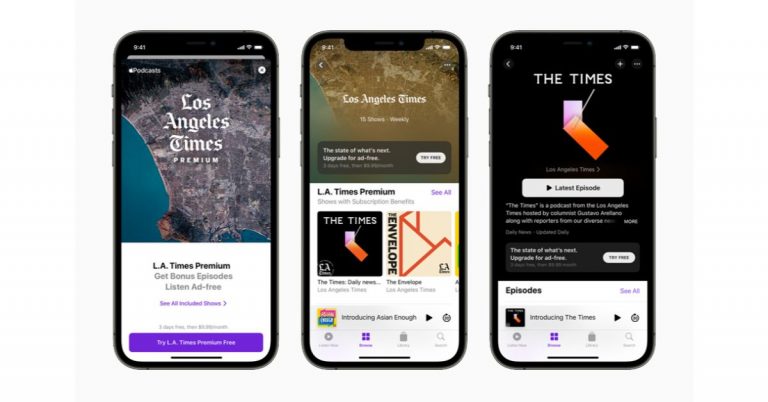
Apple has announced the release of its new podcast subscription and channels for the global market. With this initiative, the users will be able to purchase subscriptions for individual shows and group of shows through its channels. In addition to this, the listeners can also avail themselves of benefits such as ad-free listening and early access. The Podcast service by Apple was announced a few months back and now it has been officially launched for iOS, iPadOS, and macOS users. Commenting on the launch the company said, “Starting today, listeners in more than 170 countries and regions1 can purchase subscriptions for individual shows and groups of shows through channels, making it easy to support their favourite creators, enjoy new content, and unlock additional benefits such as ad-free listening and early access, directly on Apple Podcasts.”The users can get access to several subscriptions and channels featuring brand new shows including news, comedy, sports, and true crime. With the launch of Apple Podcasts Subscriptions and channels, the company aims to keep its customers stay informed, entertained, connected, and inspired. You can also subscribe to the shows from essential independent voices like “Birthful” with Adriana Lozada, “Pantsuit Politics” with Beth Silvers and Sarah Stewart Holland, “Snap Judgment” with Glynn Washington, and “You Had Me At Black” with Martina Abrams Ilunga; premier studios such as Lemonada Media, Luminary, Realm, and Wondery; and leading media and entertainment brands, including CNN, NPR, The Washington Post, and Sony Music Entertainment. Additionally, the listeners can also experience never-before-heard stories on Luminary’s “The Midnight Miracle” with Talib Kweli, Yasiin Bey, and Dave Chappelle, and Pushkin Industries’ “Revisionist History” with Malcolm Gladwell; the next chapters of QCODE’s apocalyptic thriller “Blackout,” starring Rami Malek and Aja Naomi King, and Realm’s “Orphan Black,” featuring Tatiana Maslany; the unrivalled chemistry and insightful commentary driving CNN’s “The Handoff,” and Politico’s “Playbook: Deep Dive”; and many more.According to Apple, when the listeners buy a subscription to a show, they automatically follow the show and the page is updated with a Subscriber Edition label so they know they have access to the premium experience. You will also be able to Search, explore recommendations from the Listen Now and Browse tabs, and share channels using Messages, Mail, and other apps. When they are subscribed to the channels the Listen Now tab expands with new rows that provide easy access to all of the content included in the channel and with their subscription. With two or more channel subscriptions you will see the My Channels row in the Listen Now tab, where you will be able to browse and follow all of the shows offered. More perks include early access to new seasons of critically acclaimed and fan-favourite series and ad-free listening. Moreover, some shows may offer bonus episodes throughout the season.Pricing and availabilityIn terms of availability, the Apple Podcasts Subscriptions and channels are available to listeners in more than 170 countries and regions on Apple devices running iOS 14.6, iPadOS 14.6, and macOS 11.4 or later. So the subscribed content can be played on Apple Watch with watchOS 7.5 or later, on Apple TV with tvOS 14.6 or later, and with HomePod, HomePod mini, and CarPlay.As per the company the pricing will be set by the creator whereas the listeners can manage their subscriptions, and switch from monthly to annual billing if offered, from their Apple ID Account Settings, accessible from the top of the Listen Now tab in Apple Podcasts. The service can be shared among six family members through Family Sharing.
For the latest gadget and tech news, and gadget reviews, follow us on Twitter, Facebook and Instagram. For newest tech & gadget videos subscribe to our YouTube Channel. You can also stay up to date using the Gadget Bridge Android App.



 The Google Chrome web browser records websites you browse and syncs them to your mobile device. And also saves the passwords you have typed in on the browser if you had accepted to save them. The good thing about the browser is that it allows you to delete the saved password of all the websites or the websites you select. You can easily remove or delete the saved password from Google Chrome on your PC or laptop. See the steps below:
 Saving the online passwords in the Google Chrome browser is the most convenient way to remember our password. The next time you visit a website it will auto-fill and take you directly to the website without the need to log in. All the passwords are stored in the Google password manager portal using which you can easily login into any website of which you have saved the password. Just in case the password is not saved on your smartphone the Chrome browser will ask for your permission. And with your consent, the password to Chrome is saved. Google allows you to remove the saved password if you ever do not need them or want to remove them from the browser. Follow the steps below to know how to remove the saved password.
 The Google Chrome web browser records websites you browse and syncs them to your mobile device. And also saves the passwords you have typed in on the browser if you had accepted to save them. The good thing about the browser is that it allows you to delete the saved password of all the websites or the websites you select. You can easily remove or delete the saved password from Google Chrome on your PC or laptop. See the steps below:
 Saving the online passwords in the Google Chrome browser is the most convenient way to remember our password. The next time you visit a website it will auto-fill and take you directly to the website without the need to log in. All the passwords are stored in the Google password manager portal using which you can easily login into any website of which you have saved the password. Just in case the password is not saved on your smartphone the Chrome browser will ask for your permission. And with your consent, the password to Chrome is saved. Google allows you to remove the saved password if you ever do not need them or want to remove them from the browser. Follow the steps below to know how to remove the saved password.

 You can use this device like a tablet or can switch it to various positions. There is Wi-Fi 6 and Bluetooth v5, an HDMI port, two USB 3.2 Gen 1 Type-A ports, a USB 3.2 Gen 1 Type-C port, and a 3.5mm headphone jack for connectivity. All the models pack a 54Whr battery.
In terms of pricing, the Dell Inspiron 14 2 in 1 laptop’s Intel variant will come with a starting price of Rs 57,990 while the AMD version at Rs 65,990. Both the models are now available for sale across the Dell website, Amazon, large-format retail, multi-brand outlets, and select Dell exclusive stores.
You can use this device like a tablet or can switch it to various positions. There is Wi-Fi 6 and Bluetooth v5, an HDMI port, two USB 3.2 Gen 1 Type-A ports, a USB 3.2 Gen 1 Type-C port, and a 3.5mm headphone jack for connectivity. All the models pack a 54Whr battery.
In terms of pricing, the Dell Inspiron 14 2 in 1 laptop’s Intel variant will come with a starting price of Rs 57,990 while the AMD version at Rs 65,990. Both the models are now available for sale across the Dell website, Amazon, large-format retail, multi-brand outlets, and select Dell exclusive stores.


 You can use this device like a tablet or can switch it to various positions. There is Wi-Fi 6 and Bluetooth v5, an HDMI port, two USB 3.2 Gen 1 Type-A ports, a USB 3.2 Gen 1 Type-C port, and a 3.5mm headphone jack for connectivity. All the models pack a 54Whr battery.
In terms of pricing, the Dell Inspiron 14 2 in 1 laptop’s Intel variant will come with a starting price of Rs 57,990 while the AMD version at Rs 65,990. Both the models are now available for sale across the Dell website, Amazon, large-format retail, multi-brand outlets, and select Dell exclusive stores.
You can use this device like a tablet or can switch it to various positions. There is Wi-Fi 6 and Bluetooth v5, an HDMI port, two USB 3.2 Gen 1 Type-A ports, a USB 3.2 Gen 1 Type-C port, and a 3.5mm headphone jack for connectivity. All the models pack a 54Whr battery.
In terms of pricing, the Dell Inspiron 14 2 in 1 laptop’s Intel variant will come with a starting price of Rs 57,990 while the AMD version at Rs 65,990. Both the models are now available for sale across the Dell website, Amazon, large-format retail, multi-brand outlets, and select Dell exclusive stores.



 The change in the language usually interchanges all the keyboard settings. You can easily fix this problem by visiting the control panel and adding or removing a language. For example, the keyboard setting in (US English) keyboard and (UK English) is different. Hence changing the language in the setting will help to fix the keyboard shortcuts that are not working on your laptop or PC.
 The driver powers and functions in the laptop or PC. So, reinstalling it can help with the problems of the keyboard shortcuts. Learn how to configure the driver in the steps below.
 The change in the language usually interchanges all the keyboard settings. You can easily fix this problem by visiting the control panel and adding or removing a language. For example, the keyboard setting in (US English) keyboard and (UK English) is different. Hence changing the language in the setting will help to fix the keyboard shortcuts that are not working on your laptop or PC.
 The driver powers and functions in the laptop or PC. So, reinstalling it can help with the problems of the keyboard shortcuts. Learn how to configure the driver in the steps below.
 If any hardware in the computer is not working it is better to check the driver first. To check when it was last updated and if it needs to be updated now. You can access your hardware from the device manager. If you see any yellow exclamation mark you need to update or reinstall the driver. Follow the steps to open the device manager, check, and reinstall the driver if required.
 Another easy option to check the sound problem in your laptop is checking the audio source. You can find the audio source on the taskbar. Check the steps.
 Another method to fix the no sound on your laptop is by restarting the audio services. By restarting all the audio services, the laptop speaker might work again. Check the method below:
 If any hardware in the computer is not working it is better to check the driver first. To check when it was last updated and if it needs to be updated now. You can access your hardware from the device manager. If you see any yellow exclamation mark you need to update or reinstall the driver. Follow the steps to open the device manager, check, and reinstall the driver if required.
 Another easy option to check the sound problem in your laptop is checking the audio source. You can find the audio source on the taskbar. Check the steps.
 Another method to fix the no sound on your laptop is by restarting the audio services. By restarting all the audio services, the laptop speaker might work again. Check the method below:

 Netflix has become one of the most reliable streaming sites that include a broad catalog of video content. You can binge-watch all genres of movies, shows, docu-series, and also Netflix original programming. The choice provided on Netflix is huge and has a long list to watch. Netflix gives you three options to open an account. The Basic plan, the standard plan, and the premium plan. The maximum number of users allowed in any of the plans is 5. You can add the user or remove the user from the parental control. Here’s how.
Read more: Netflix’s StreamFest to kickstart in India on December 5
Netflix has become one of the most reliable streaming sites that include a broad catalog of video content. You can binge-watch all genres of movies, shows, docu-series, and also Netflix original programming. The choice provided on Netflix is huge and has a long list to watch. Netflix gives you three options to open an account. The Basic plan, the standard plan, and the premium plan. The maximum number of users allowed in any of the plans is 5. You can add the user or remove the user from the parental control. Here’s how.
Read more: Netflix’s StreamFest to kickstart in India on December 5
 As said, you can create a maximum of five profiles on the Netflix account. Every profile can watch their most loved movies and shows on their own profile and does not have to mess with another recommendation. So that all users can watch different shows at different times on different devices. This gives you privacy and also does not change your preferred settings. One important and interesting feature is you can create a profile for kids and give them an account with restricted content. The steps below will show you how to add or remove a profile.
Read also: How to change profile pictures of Gmail, YouTube and Google accounts
As said, you can create a maximum of five profiles on the Netflix account. Every profile can watch their most loved movies and shows on their own profile and does not have to mess with another recommendation. So that all users can watch different shows at different times on different devices. This gives you privacy and also does not change your preferred settings. One important and interesting feature is you can create a profile for kids and give them an account with restricted content. The steps below will show you how to add or remove a profile.
Read also: How to change profile pictures of Gmail, YouTube and Google accounts
 Netflix has become one of the most reliable streaming sites that include a broad catalog of video content. You can binge-watch all genres of movies, shows, docu-series, and also Netflix original programming. The choice provided on Netflix is huge and has a long list to watch. Netflix gives you three options to open an account. The Basic plan, the standard plan, and the premium plan. The maximum number of users allowed in any of the plans is 5. You can add the user or remove the user from the parental control. Here’s how.
Read more: Netflix’s StreamFest to kickstart in India on December 5
Netflix has become one of the most reliable streaming sites that include a broad catalog of video content. You can binge-watch all genres of movies, shows, docu-series, and also Netflix original programming. The choice provided on Netflix is huge and has a long list to watch. Netflix gives you three options to open an account. The Basic plan, the standard plan, and the premium plan. The maximum number of users allowed in any of the plans is 5. You can add the user or remove the user from the parental control. Here’s how.
Read more: Netflix’s StreamFest to kickstart in India on December 5
 As said, you can create a maximum of five profiles on the Netflix account. Every profile can watch their most loved movies and shows on their own profile and does not have to mess with another recommendation. So that all users can watch different shows at different times on different devices. This gives you privacy and also does not change your preferred settings. One important and interesting feature is you can create a profile for kids and give them an account with restricted content. The steps below will show you how to add or remove a profile.
Read also: How to change profile pictures of Gmail, YouTube and Google accounts
As said, you can create a maximum of five profiles on the Netflix account. Every profile can watch their most loved movies and shows on their own profile and does not have to mess with another recommendation. So that all users can watch different shows at different times on different devices. This gives you privacy and also does not change your preferred settings. One important and interesting feature is you can create a profile for kids and give them an account with restricted content. The steps below will show you how to add or remove a profile.
Read also: How to change profile pictures of Gmail, YouTube and Google accounts
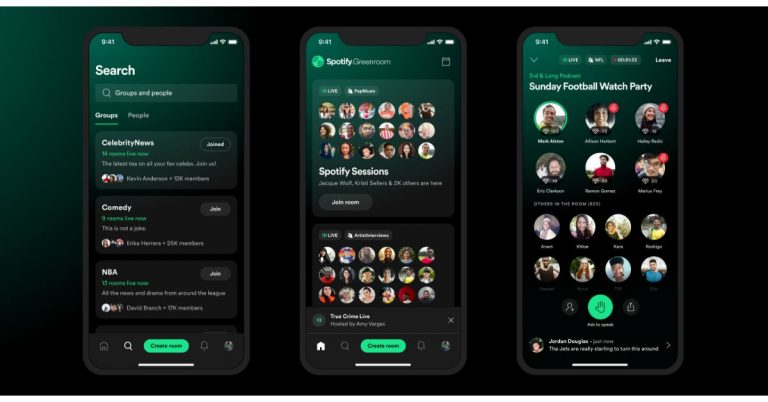
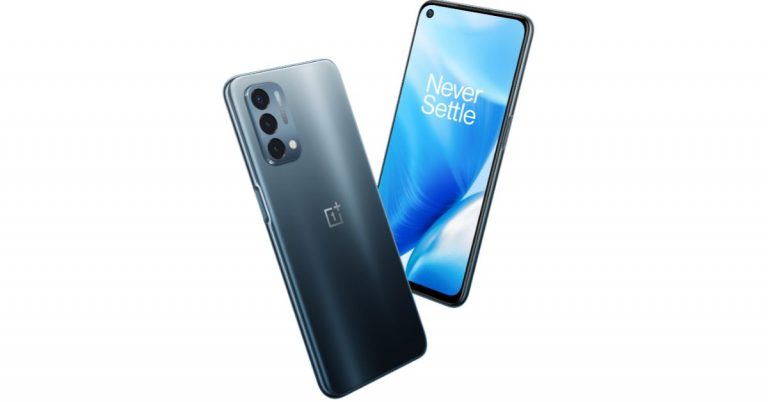
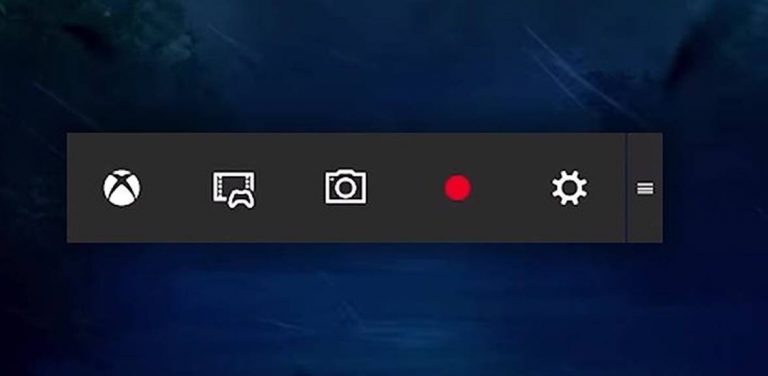

 To check the health status of your Dell laptop or PC there is an easy way. You need to download software from Dell.com. The software is completely malware-free as it is Dell’s own system health check-up tool. And you can download it for free. Here is how you can do
 You can download CrystalDiskinfo easily for free on the internet. The third-party app allows you to check the condition of your hard drive (HDD or SSD) and the overall health status of your computer. The app gives an overview of the state of your drives. The software gives the details including temperature, spin-up time, uptime, error rates, and more. And lastly, calculate the overall health status for you to fix.
For the latest gadget and tech news, and gadget reviews, follow us on Twitter, Facebook and Instagram. For newest tech & gadget videos subscribe to our YouTube Channel. You can also stay up to date using the Gadget Bridge Android App.
You can download CrystalDiskinfo easily for free on the internet. The third-party app allows you to check the condition of your hard drive (HDD or SSD) and the overall health status of your computer. The app gives an overview of the state of your drives. The software gives the details including temperature, spin-up time, uptime, error rates, and more. And lastly, calculate the overall health status for you to fix.
For the latest gadget and tech news, and gadget reviews, follow us on Twitter, Facebook and Instagram. For newest tech & gadget videos subscribe to our YouTube Channel. You can also stay up to date using the Gadget Bridge Android App. 
 You can download CrystalDiskinfo easily for free on the internet. The third-party app allows you to check the condition of your hard drive (HDD or SSD) and the overall health status of your computer. The app gives an overview of the state of your drives. The software gives the details including temperature, spin-up time, uptime, error rates, and more. And lastly, calculate the overall health status for you to fix.
For the latest gadget and tech news, and gadget reviews, follow us on Twitter, Facebook and Instagram. For newest tech & gadget videos subscribe to our YouTube Channel. You can also stay up to date using the Gadget Bridge Android App.
You can download CrystalDiskinfo easily for free on the internet. The third-party app allows you to check the condition of your hard drive (HDD or SSD) and the overall health status of your computer. The app gives an overview of the state of your drives. The software gives the details including temperature, spin-up time, uptime, error rates, and more. And lastly, calculate the overall health status for you to fix.
For the latest gadget and tech news, and gadget reviews, follow us on Twitter, Facebook and Instagram. For newest tech & gadget videos subscribe to our YouTube Channel. You can also stay up to date using the Gadget Bridge Android App. 
 Microsoft recently unveiled the news and interest widget on the taskbar for Windows 10. The idea is so that people do not have to use their phones to check the weather and see it on the taskbar. The widget will be available on the Windows10 version of 1909, 2004, 20H2, and 2H1. The function on news and interest uses AI technology to show what is relevant for you. However, you can always turn off the widget if you want to by using settings. Here are the steps you can take.
 You also have the option to remove the widget from the taskbar using the Registry editor. Follow the steps to know how to remove the widget using Registry.
 You also have the option to remove the widget from the taskbar using the Registry editor. Follow the steps to know how to remove the widget using Registry.




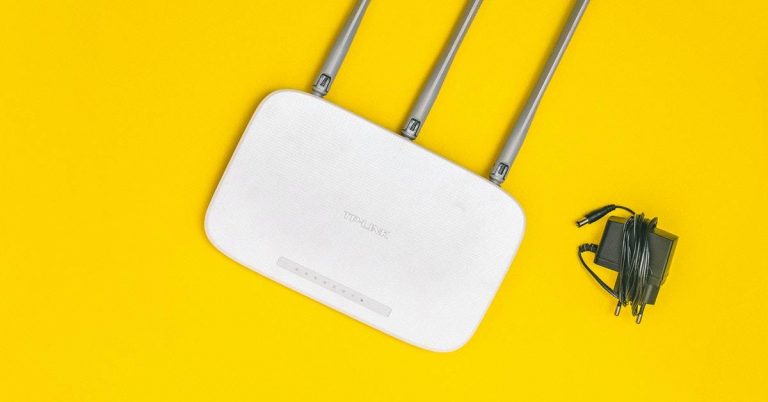
 Xiaomi also gives the options to delete the old Wi-Fi options. The steps are for MIUI 10, MIUI 11, and MIUI 12 versions. Follow the steps.
 These steps are for those Samsung smartphones, which have One User Interface. The company allows the user to forget and delete the old and unnecessary Wi-Fi networks.
Follow the steps.
These steps are for those Samsung smartphones, which have One User Interface. The company allows the user to forget and delete the old and unnecessary Wi-Fi networks.
Follow the steps.
 You can follow this step for Oneplus smartphones, which have OxygenOS. The steps on this operating system are also simple.
 The mobile sony also gives you the option to forget the unwanted Wi-Fi that you do not connect to it anymore. The steps are for Sony Xperia phones which have Xperia UI. Check the steps below.
 Xiaomi also gives the options to delete the old Wi-Fi options. The steps are for MIUI 10, MIUI 11, and MIUI 12 versions. Follow the steps.
 These steps are for those Samsung smartphones, which have One User Interface. The company allows the user to forget and delete the old and unnecessary Wi-Fi networks.
Follow the steps.
These steps are for those Samsung smartphones, which have One User Interface. The company allows the user to forget and delete the old and unnecessary Wi-Fi networks.
Follow the steps.
 You can follow this step for Oneplus smartphones, which have OxygenOS. The steps on this operating system are also simple.
 The mobile sony also gives you the option to forget the unwanted Wi-Fi that you do not connect to it anymore. The steps are for Sony Xperia phones which have Xperia UI. Check the steps below.

 Even though it holds the word “Social” that is closely associated while browsing Facebook there are instances that we want to use it offline. For example, you want to quickly check your notifications and the message but seeing you come online might attract those friends to who you do not want to reply. It takes you to a situation where it only creates hurdles for yourself. Why don’t you avoid those situational encounters and go incognito? Here are the easy steps you can follow:
 Facebook has unbelievable millions of users. And maybe a hundred or thousand people who are your friends on the platform. Facebook recently introduced the green icon to let the users know who is online and who is not. Many consider it advantageous and many do not. For those who value privacy by browsing Facebook without the green icon, the popular social network allows you to turn it off in a few simple steps. Facebook also allows you to turn it off for those who use the Facebook app. On the app, you need to turn it off on the messenger app with some simple steps. Turning the green icon and going offline on the app is easy and simple. Please follow the steps below.
 Even though it holds the word “Social” that is closely associated while browsing Facebook there are instances that we want to use it offline. For example, you want to quickly check your notifications and the message but seeing you come online might attract those friends to who you do not want to reply. It takes you to a situation where it only creates hurdles for yourself. Why don’t you avoid those situational encounters and go incognito? Here are the easy steps you can follow:
 Facebook has unbelievable millions of users. And maybe a hundred or thousand people who are your friends on the platform. Facebook recently introduced the green icon to let the users know who is online and who is not. Many consider it advantageous and many do not. For those who value privacy by browsing Facebook without the green icon, the popular social network allows you to turn it off in a few simple steps. Facebook also allows you to turn it off for those who use the Facebook app. On the app, you need to turn it off on the messenger app with some simple steps. Turning the green icon and going offline on the app is easy and simple. Please follow the steps below.

 Moodfit will help you maintain mental health. The app charts your mood, medications, and activities by setting goals like a companion. Regularly exercising your mind on the app will help shape up your mood and mental health. The questionnaire function in the app will determine the condition and stability of your mental health. Moodfit will help you identify the best treatment strategies for you and help you understand medication and therapy better. The app is available on the play store.
Download here
Moodfit will help you maintain mental health. The app charts your mood, medications, and activities by setting goals like a companion. Regularly exercising your mind on the app will help shape up your mood and mental health. The questionnaire function in the app will determine the condition and stability of your mental health. Moodfit will help you identify the best treatment strategies for you and help you understand medication and therapy better. The app is available on the play store.
Download here
 Calm gives you the best soothing soundtracks to help heal your mental health. The app includes mindful movement and a meditation program for a speedy recovery. It will help you improve your sleep immensely and make you feel fresh and alive the next morning. Calm is the leading app for meditation and sleep that will help you with improving mental health. The app has Sleep stories, breathing exercises, masterclasses, and relaxing music. Try now by downloading from the Google Play Store.
Download here
Read more: 10 best smartwatches for tech freaks that were launched this year
Calm gives you the best soothing soundtracks to help heal your mental health. The app includes mindful movement and a meditation program for a speedy recovery. It will help you improve your sleep immensely and make you feel fresh and alive the next morning. Calm is the leading app for meditation and sleep that will help you with improving mental health. The app has Sleep stories, breathing exercises, masterclasses, and relaxing music. Try now by downloading from the Google Play Store.
Download here
Read more: 10 best smartwatches for tech freaks that were launched this year
 Headspace app will help you recover from anxiety and help you with meditation and sleep. The app will give you guided meditation, sleep casts, and assist you in how to centre yourself to bring happiness. Headspace is quick and easy to use and helps you in tracking your daily medication progress. The app will help you focus, breathe, stay calm, and perform at your best with the medication exercise they have. It will also make you sleep better for a mindful tomorrow. You can download the app from the play store.
Download here
Read also: Mi Watch Lite with 11 workout modes and 120 watch faces launched
Headspace app will help you recover from anxiety and help you with meditation and sleep. The app will give you guided meditation, sleep casts, and assist you in how to centre yourself to bring happiness. Headspace is quick and easy to use and helps you in tracking your daily medication progress. The app will help you focus, breathe, stay calm, and perform at your best with the medication exercise they have. It will also make you sleep better for a mindful tomorrow. You can download the app from the play store.
Download here
Read also: Mi Watch Lite with 11 workout modes and 120 watch faces launched
 Talkspace has a different service from the other apps on the list. The app is designed to be used online by letting you match with licensed therapists for better one-on-one support. The app provides you to chat, audio, or video message 24/7 and the expert will get back to you. The app is the most convenient platform if you want to improve your mental health. Talkspace gives you the best face-to-face therapy session in an app. And it is safe and secure, the app is protected using banking-grade encryption. Try now.
Download the app here
Talkspace has a different service from the other apps on the list. The app is designed to be used online by letting you match with licensed therapists for better one-on-one support. The app provides you to chat, audio, or video message 24/7 and the expert will get back to you. The app is the most convenient platform if you want to improve your mental health. Talkspace gives you the best face-to-face therapy session in an app. And it is safe and secure, the app is protected using banking-grade encryption. Try now.
Download the app here
 The app offers you weekly live sessions with licensed therapists. And for better communication with your therapist, you can send voice messages, text messages, voice messages. The app also gives you the option for group therapy. Better help includes sessions from depression to anxiety for individuals, couples, and family. Using the app is very simple. You need to fill up a questionnaire and the app will match you with the best-licensed counsellor. You can also get your own secure and private “counselling room”.
Download here
For the latest gadget and tech news, and gadget reviews, follow us on Twitter, Facebook and Instagram. For newest tech & gadget videos subscribe to our YouTube Channel. You can also stay up to date using the Gadget Bridge Android App.
The app offers you weekly live sessions with licensed therapists. And for better communication with your therapist, you can send voice messages, text messages, voice messages. The app also gives you the option for group therapy. Better help includes sessions from depression to anxiety for individuals, couples, and family. Using the app is very simple. You need to fill up a questionnaire and the app will match you with the best-licensed counsellor. You can also get your own secure and private “counselling room”.
Download here
For the latest gadget and tech news, and gadget reviews, follow us on Twitter, Facebook and Instagram. For newest tech & gadget videos subscribe to our YouTube Channel. You can also stay up to date using the Gadget Bridge Android App.  Moodfit will help you maintain mental health. The app charts your mood, medications, and activities by setting goals like a companion. Regularly exercising your mind on the app will help shape up your mood and mental health. The questionnaire function in the app will determine the condition and stability of your mental health. Moodfit will help you identify the best treatment strategies for you and help you understand medication and therapy better. The app is available on the play store.
Download here
Moodfit will help you maintain mental health. The app charts your mood, medications, and activities by setting goals like a companion. Regularly exercising your mind on the app will help shape up your mood and mental health. The questionnaire function in the app will determine the condition and stability of your mental health. Moodfit will help you identify the best treatment strategies for you and help you understand medication and therapy better. The app is available on the play store.
Download here
 Calm gives you the best soothing soundtracks to help heal your mental health. The app includes mindful movement and a meditation program for a speedy recovery. It will help you improve your sleep immensely and make you feel fresh and alive the next morning. Calm is the leading app for meditation and sleep that will help you with improving mental health. The app has Sleep stories, breathing exercises, masterclasses, and relaxing music. Try now by downloading from the Google Play Store.
Download here
Read more: 10 best smartwatches for tech freaks that were launched this year
Calm gives you the best soothing soundtracks to help heal your mental health. The app includes mindful movement and a meditation program for a speedy recovery. It will help you improve your sleep immensely and make you feel fresh and alive the next morning. Calm is the leading app for meditation and sleep that will help you with improving mental health. The app has Sleep stories, breathing exercises, masterclasses, and relaxing music. Try now by downloading from the Google Play Store.
Download here
Read more: 10 best smartwatches for tech freaks that were launched this year
 Headspace app will help you recover from anxiety and help you with meditation and sleep. The app will give you guided meditation, sleep casts, and assist you in how to centre yourself to bring happiness. Headspace is quick and easy to use and helps you in tracking your daily medication progress. The app will help you focus, breathe, stay calm, and perform at your best with the medication exercise they have. It will also make you sleep better for a mindful tomorrow. You can download the app from the play store.
Download here
Read also: Mi Watch Lite with 11 workout modes and 120 watch faces launched
Headspace app will help you recover from anxiety and help you with meditation and sleep. The app will give you guided meditation, sleep casts, and assist you in how to centre yourself to bring happiness. Headspace is quick and easy to use and helps you in tracking your daily medication progress. The app will help you focus, breathe, stay calm, and perform at your best with the medication exercise they have. It will also make you sleep better for a mindful tomorrow. You can download the app from the play store.
Download here
Read also: Mi Watch Lite with 11 workout modes and 120 watch faces launched
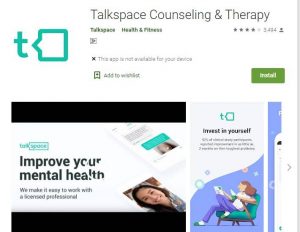 Talkspace has a different service from the other apps on the list. The app is designed to be used online by letting you match with licensed therapists for better one-on-one support. The app provides you to chat, audio, or video message 24/7 and the expert will get back to you. The app is the most convenient platform if you want to improve your mental health. Talkspace gives you the best face-to-face therapy session in an app. And it is safe and secure, the app is protected using banking-grade encryption. Try now.
Download the app here
Talkspace has a different service from the other apps on the list. The app is designed to be used online by letting you match with licensed therapists for better one-on-one support. The app provides you to chat, audio, or video message 24/7 and the expert will get back to you. The app is the most convenient platform if you want to improve your mental health. Talkspace gives you the best face-to-face therapy session in an app. And it is safe and secure, the app is protected using banking-grade encryption. Try now.
Download the app here
 The app offers you weekly live sessions with licensed therapists. And for better communication with your therapist, you can send voice messages, text messages, voice messages. The app also gives you the option for group therapy. Better help includes sessions from depression to anxiety for individuals, couples, and family. Using the app is very simple. You need to fill up a questionnaire and the app will match you with the best-licensed counsellor. You can also get your own secure and private “counselling room”.
Download here
For the latest gadget and tech news, and gadget reviews, follow us on Twitter, Facebook and Instagram. For newest tech & gadget videos subscribe to our YouTube Channel. You can also stay up to date using the Gadget Bridge Android App.
The app offers you weekly live sessions with licensed therapists. And for better communication with your therapist, you can send voice messages, text messages, voice messages. The app also gives you the option for group therapy. Better help includes sessions from depression to anxiety for individuals, couples, and family. Using the app is very simple. You need to fill up a questionnaire and the app will match you with the best-licensed counsellor. You can also get your own secure and private “counselling room”.
Download here
For the latest gadget and tech news, and gadget reviews, follow us on Twitter, Facebook and Instagram. For newest tech & gadget videos subscribe to our YouTube Channel. You can also stay up to date using the Gadget Bridge Android App. 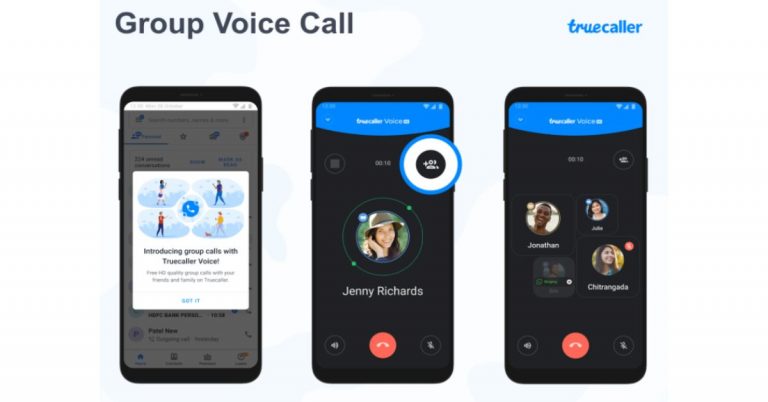
 Smart SMS is another feature that comes with the new Truecaller update. It will help the user to filter out spam messages and in categorising useful information. The built-in SMS intelligence will allow users to work offline and it also reminds you of payments and in general making your SMS inbox a more organised place. Currently, this feature will be rolled out to users in India, Kenya, Nigeria and South Africa. It will soon be available in the US, Sweden, Malaysia, Indonesia and Egypt.
 Lastly, the Inbox Cleaner will help you clear out all those old, unwanted messages in just a few seconds. There is no need to spend individual time selecting SMSs to delete. A quick tap on Inbox Cleaner from the menu will show you how many old OTPs and spam SMSes you have accumulated and another tap on the ‘clean up’ button will quickly and effectively remove old SMSes without affecting your important data.
This feature is designed to run in the background, allowing users to continue working on other tasks within Truecaller or any other app on the device while Inbox Cleaner works its magic.
For the latest gadget and tech news, and gadget reviews, follow us on Twitter, Facebook and Instagram. For newest tech & gadget videos subscribe to our YouTube Channel. You can also stay up to date using the Gadget Bridge Android App.
Lastly, the Inbox Cleaner will help you clear out all those old, unwanted messages in just a few seconds. There is no need to spend individual time selecting SMSs to delete. A quick tap on Inbox Cleaner from the menu will show you how many old OTPs and spam SMSes you have accumulated and another tap on the ‘clean up’ button will quickly and effectively remove old SMSes without affecting your important data.
This feature is designed to run in the background, allowing users to continue working on other tasks within Truecaller or any other app on the device while Inbox Cleaner works its magic.
For the latest gadget and tech news, and gadget reviews, follow us on Twitter, Facebook and Instagram. For newest tech & gadget videos subscribe to our YouTube Channel. You can also stay up to date using the Gadget Bridge Android App.  Smart SMS is another feature that comes with the new Truecaller update. It will help the user to filter out spam messages and in categorising useful information. The built-in SMS intelligence will allow users to work offline and it also reminds you of payments and in general making your SMS inbox a more organised place. Currently, this feature will be rolled out to users in India, Kenya, Nigeria and South Africa. It will soon be available in the US, Sweden, Malaysia, Indonesia and Egypt.
 Lastly, the Inbox Cleaner will help you clear out all those old, unwanted messages in just a few seconds. There is no need to spend individual time selecting SMSs to delete. A quick tap on Inbox Cleaner from the menu will show you how many old OTPs and spam SMSes you have accumulated and another tap on the ‘clean up’ button will quickly and effectively remove old SMSes without affecting your important data.
This feature is designed to run in the background, allowing users to continue working on other tasks within Truecaller or any other app on the device while Inbox Cleaner works its magic.
For the latest gadget and tech news, and gadget reviews, follow us on Twitter, Facebook and Instagram. For newest tech & gadget videos subscribe to our YouTube Channel. You can also stay up to date using the Gadget Bridge Android App.
Lastly, the Inbox Cleaner will help you clear out all those old, unwanted messages in just a few seconds. There is no need to spend individual time selecting SMSs to delete. A quick tap on Inbox Cleaner from the menu will show you how many old OTPs and spam SMSes you have accumulated and another tap on the ‘clean up’ button will quickly and effectively remove old SMSes without affecting your important data.
This feature is designed to run in the background, allowing users to continue working on other tasks within Truecaller or any other app on the device while Inbox Cleaner works its magic.
For the latest gadget and tech news, and gadget reviews, follow us on Twitter, Facebook and Instagram. For newest tech & gadget videos subscribe to our YouTube Channel. You can also stay up to date using the Gadget Bridge Android App. 
 Apple music lossless is compatible with iPhone and iPad which iOS or iPadOS is 14.6 updated. To enable it on the above device. Go to settings on the Apple music. Click on Audio Quality. Choose the Lossless on or off button. You can listen to it from the iPhone or iPad speakers, wired headphones or earphones, and powered speakers.
Read more: 10 headphones launched in 2020 to offer amazing sound experience
Apple music lossless is compatible with iPhone and iPad which iOS or iPadOS is 14.6 updated. To enable it on the above device. Go to settings on the Apple music. Click on Audio Quality. Choose the Lossless on or off button. You can listen to it from the iPhone or iPad speakers, wired headphones or earphones, and powered speakers.
Read more: 10 headphones launched in 2020 to offer amazing sound experience
 The Apple music lossless can be played on a Mac with built-in speakers, wired connection headphones, or powered speakers. To turn on the lossless first open the music app. Go to the music bar. Select Music>Preferences. Tap the Playback. Find Audio Quality and choose to turn it on or off.
Read also: Apple could soon foray in to cloud game streaming service
The Apple music lossless can be played on a Mac with built-in speakers, wired connection headphones, or powered speakers. To turn on the lossless first open the music app. Go to the music bar. Select Music>Preferences. Tap the Playback. Find Audio Quality and choose to turn it on or off.
Read also: Apple could soon foray in to cloud game streaming service
 To get the availability on your Apple TV first you need to update to tvOS14.6. And connect it to an AV receiver using an HDMI cable. The steps to enable the Apple music lossless in your Apple TV are simple. Go to settings>Open Apps and select music. Now select Audio Quality and select on or off lossless.
Apple music lossless will be available from June 2021 in the Apple Music catalogue, which includes more than 75 million songs. The sound will be supporting Dolby Atmos for that surround sound. With the Apple Music subscription, you will be able to listen to Apple music lossless on the above devices. Get the Apple Music subscription today and enable the Apple music lawless on your Apple devices to listen to the exact sound that the artist has recorded.
For the latest gadget and tech news, and gadget reviews, follow us on Twitter, Facebook and Instagram. For newest tech & gadget videos subscribe to our YouTube Channel. You can also stay up to date using the Gadget Bridge Android App.
To get the availability on your Apple TV first you need to update to tvOS14.6. And connect it to an AV receiver using an HDMI cable. The steps to enable the Apple music lossless in your Apple TV are simple. Go to settings>Open Apps and select music. Now select Audio Quality and select on or off lossless.
Apple music lossless will be available from June 2021 in the Apple Music catalogue, which includes more than 75 million songs. The sound will be supporting Dolby Atmos for that surround sound. With the Apple Music subscription, you will be able to listen to Apple music lossless on the above devices. Get the Apple Music subscription today and enable the Apple music lawless on your Apple devices to listen to the exact sound that the artist has recorded.
For the latest gadget and tech news, and gadget reviews, follow us on Twitter, Facebook and Instagram. For newest tech & gadget videos subscribe to our YouTube Channel. You can also stay up to date using the Gadget Bridge Android App.  Apple music lossless is compatible with iPhone and iPad which iOS or iPadOS is 14.6 updated. To enable it on the above device. Go to settings on the Apple music. Click on Audio Quality. Choose the Lossless on or off button. You can listen to it from the iPhone or iPad speakers, wired headphones or earphones, and powered speakers.
Read more: 10 headphones launched in 2020 to offer amazing sound experience
Apple music lossless is compatible with iPhone and iPad which iOS or iPadOS is 14.6 updated. To enable it on the above device. Go to settings on the Apple music. Click on Audio Quality. Choose the Lossless on or off button. You can listen to it from the iPhone or iPad speakers, wired headphones or earphones, and powered speakers.
Read more: 10 headphones launched in 2020 to offer amazing sound experience
 The Apple music lossless can be played on a Mac with built-in speakers, wired connection headphones, or powered speakers. To turn on the lossless first open the music app. Go to the music bar. Select Music>Preferences. Tap the Playback. Find Audio Quality and choose to turn it on or off.
Read also: Apple could soon foray in to cloud game streaming service
The Apple music lossless can be played on a Mac with built-in speakers, wired connection headphones, or powered speakers. To turn on the lossless first open the music app. Go to the music bar. Select Music>Preferences. Tap the Playback. Find Audio Quality and choose to turn it on or off.
Read also: Apple could soon foray in to cloud game streaming service
 To get the availability on your Apple TV first you need to update to tvOS14.6. And connect it to an AV receiver using an HDMI cable. The steps to enable the Apple music lossless in your Apple TV are simple. Go to settings>Open Apps and select music. Now select Audio Quality and select on or off lossless.
Apple music lossless will be available from June 2021 in the Apple Music catalogue, which includes more than 75 million songs. The sound will be supporting Dolby Atmos for that surround sound. With the Apple Music subscription, you will be able to listen to Apple music lossless on the above devices. Get the Apple Music subscription today and enable the Apple music lawless on your Apple devices to listen to the exact sound that the artist has recorded.
For the latest gadget and tech news, and gadget reviews, follow us on Twitter, Facebook and Instagram. For newest tech & gadget videos subscribe to our YouTube Channel. You can also stay up to date using the Gadget Bridge Android App.
To get the availability on your Apple TV first you need to update to tvOS14.6. And connect it to an AV receiver using an HDMI cable. The steps to enable the Apple music lossless in your Apple TV are simple. Go to settings>Open Apps and select music. Now select Audio Quality and select on or off lossless.
Apple music lossless will be available from June 2021 in the Apple Music catalogue, which includes more than 75 million songs. The sound will be supporting Dolby Atmos for that surround sound. With the Apple Music subscription, you will be able to listen to Apple music lossless on the above devices. Get the Apple Music subscription today and enable the Apple music lawless on your Apple devices to listen to the exact sound that the artist has recorded.
For the latest gadget and tech news, and gadget reviews, follow us on Twitter, Facebook and Instagram. For newest tech & gadget videos subscribe to our YouTube Channel. You can also stay up to date using the Gadget Bridge Android App. 






 Daily lives have changed, virtual reality has become the new normal. Work environment and educational assessment have become very dependent on Zoom or any other video calling platform. Zoom offers you the simplicity in using a video calling app yet there are a variety of advanced options to improve your remote work and education productivity. Zoom is compatible with Windows, Mac, Linux, IOS, and Android. The guide below has all the tips to use the popular Zoom video calling app like a pro.
Read more: How can you view multiple participants in Google Meet?
Daily lives have changed, virtual reality has become the new normal. Work environment and educational assessment have become very dependent on Zoom or any other video calling platform. Zoom offers you the simplicity in using a video calling app yet there are a variety of advanced options to improve your remote work and education productivity. Zoom is compatible with Windows, Mac, Linux, IOS, and Android. The guide below has all the tips to use the popular Zoom video calling app like a pro.
Read more: How can you view multiple participants in Google Meet?
 Zoom allows you to change the layout that displays in the Zoom Rooms screen. Zoom allows you to have a room with one screen or a room with multiple screens.
For the Zoom screen with one screen, you can change the layout by tapping on the Change View option. And for the Zoom room with multiple screens, you can toggle the icon for Active speaker and Gallery views. There are three layouts you can change into according to the room screen. Zoom gives you Active speaker view, Thumbnail View, and Gallery view. And in a Zoom room with one screen or multiple screens, you can share the screen too. Check the guide below on how to do that.
Zoom allows you to change the layout that displays in the Zoom Rooms screen. Zoom allows you to have a room with one screen or a room with multiple screens.
For the Zoom screen with one screen, you can change the layout by tapping on the Change View option. And for the Zoom room with multiple screens, you can toggle the icon for Active speaker and Gallery views. There are three layouts you can change into according to the room screen. Zoom gives you Active speaker view, Thumbnail View, and Gallery view. And in a Zoom room with one screen or multiple screens, you can share the screen too. Check the guide below on how to do that.
 Daily lives have changed, virtual reality has become the new normal. Work environment and educational assessment have become very dependent on Zoom or any other video calling platform. Zoom offers you the simplicity in using a video calling app yet there are a variety of advanced options to improve your remote work and education productivity. Zoom is compatible with Windows, Mac, Linux, IOS, and Android. The guide below has all the tips to use the popular Zoom video calling app like a pro.
Read more: How can you view multiple participants in Google Meet?
Daily lives have changed, virtual reality has become the new normal. Work environment and educational assessment have become very dependent on Zoom or any other video calling platform. Zoom offers you the simplicity in using a video calling app yet there are a variety of advanced options to improve your remote work and education productivity. Zoom is compatible with Windows, Mac, Linux, IOS, and Android. The guide below has all the tips to use the popular Zoom video calling app like a pro.
Read more: How can you view multiple participants in Google Meet?
 Zoom allows you to change the layout that displays in the Zoom Rooms screen. Zoom allows you to have a room with one screen or a room with multiple screens.
For the Zoom screen with one screen, you can change the layout by tapping on the Change View option. And for the Zoom room with multiple screens, you can toggle the icon for Active speaker and Gallery views. There are three layouts you can change into according to the room screen. Zoom gives you Active speaker view, Thumbnail View, and Gallery view. And in a Zoom room with one screen or multiple screens, you can share the screen too. Check the guide below on how to do that.
Zoom allows you to change the layout that displays in the Zoom Rooms screen. Zoom allows you to have a room with one screen or a room with multiple screens.
For the Zoom screen with one screen, you can change the layout by tapping on the Change View option. And for the Zoom room with multiple screens, you can toggle the icon for Active speaker and Gallery views. There are three layouts you can change into according to the room screen. Zoom gives you Active speaker view, Thumbnail View, and Gallery view. And in a Zoom room with one screen or multiple screens, you can share the screen too. Check the guide below on how to do that.
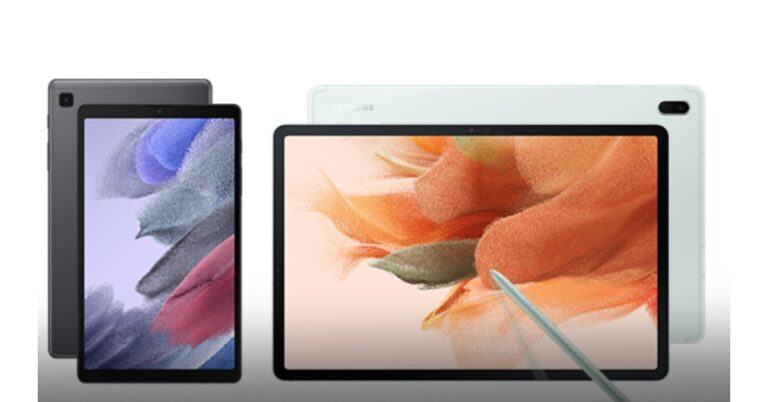

 Available both on websites and app Grammarly gives you the option to copy all your text on the website or app directly for correction or you can type it there. The English learning does not stop in this software. You can also use it for your Facebook, Gmail, WordPress, and any online typing software by downloading an extension. Grammarly is like your virtual editor; it helps you review your mistakes before changing them. The writing tool helps you find your grammatical mistakes and gives appropriate suggestions and alternative vocabulary. If you want to use it for work-related writing they give you the option to upgrade (for a nominal fee) for better writing.
Read also: Google to roll out Indian language support Search, Maps and more apps in India
Available both on websites and app Grammarly gives you the option to copy all your text on the website or app directly for correction or you can type it there. The English learning does not stop in this software. You can also use it for your Facebook, Gmail, WordPress, and any online typing software by downloading an extension. Grammarly is like your virtual editor; it helps you review your mistakes before changing them. The writing tool helps you find your grammatical mistakes and gives appropriate suggestions and alternative vocabulary. If you want to use it for work-related writing they give you the option to upgrade (for a nominal fee) for better writing.
Read also: Google to roll out Indian language support Search, Maps and more apps in India

 The British Council has both a website and app that will help you learn English faster and easier. The website has many online courses, skills options to practice, grammar to learn, vocabulary, and even train you for IELTS. The British council app offers you learning English while playing games. The app has the option to learn the English language from beginner to advanced level.
Read more: How to change your language in Google on a PC or a smartphone?
The British Council has both a website and app that will help you learn English faster and easier. The website has many online courses, skills options to practice, grammar to learn, vocabulary, and even train you for IELTS. The British council app offers you learning English while playing games. The app has the option to learn the English language from beginner to advanced level.
Read more: How to change your language in Google on a PC or a smartphone?
 The learning platform has a website as well as an app. FluentU is the most innovative learning platform you can find today. The platform takes to the world of videos from music, movie trailers, news, inspiring talks, etc, and turns them into a personalised language learning lesson. The education platform turns watching videos into a fun activity of learning the English language.
For the latest gadget and tech news, and gadget reviews, follow us on Twitter, Facebook and Instagram. For newest tech & gadget videos subscribe to our YouTube Channel. You can also stay up to date using the Gadget Bridge Android App.
The learning platform has a website as well as an app. FluentU is the most innovative learning platform you can find today. The platform takes to the world of videos from music, movie trailers, news, inspiring talks, etc, and turns them into a personalised language learning lesson. The education platform turns watching videos into a fun activity of learning the English language.
For the latest gadget and tech news, and gadget reviews, follow us on Twitter, Facebook and Instagram. For newest tech & gadget videos subscribe to our YouTube Channel. You can also stay up to date using the Gadget Bridge Android App.  Available both on websites and app Grammarly gives you the option to copy all your text on the website or app directly for correction or you can type it there. The English learning does not stop in this software. You can also use it for your Facebook, Gmail, WordPress, and any online typing software by downloading an extension. Grammarly is like your virtual editor; it helps you review your mistakes before changing them. The writing tool helps you find your grammatical mistakes and gives appropriate suggestions and alternative vocabulary. If you want to use it for work-related writing they give you the option to upgrade (for a nominal fee) for better writing.
Read also: Google to roll out Indian language support Search, Maps and more apps in India
Available both on websites and app Grammarly gives you the option to copy all your text on the website or app directly for correction or you can type it there. The English learning does not stop in this software. You can also use it for your Facebook, Gmail, WordPress, and any online typing software by downloading an extension. Grammarly is like your virtual editor; it helps you review your mistakes before changing them. The writing tool helps you find your grammatical mistakes and gives appropriate suggestions and alternative vocabulary. If you want to use it for work-related writing they give you the option to upgrade (for a nominal fee) for better writing.
Read also: Google to roll out Indian language support Search, Maps and more apps in India

 The British Council has both a website and app that will help you learn English faster and easier. The website has many online courses, skills options to practice, grammar to learn, vocabulary, and even train you for IELTS. The British council app offers you learning English while playing games. The app has the option to learn the English language from beginner to advanced level.
Read more: How to change your language in Google on a PC or a smartphone?
The British Council has both a website and app that will help you learn English faster and easier. The website has many online courses, skills options to practice, grammar to learn, vocabulary, and even train you for IELTS. The British council app offers you learning English while playing games. The app has the option to learn the English language from beginner to advanced level.
Read more: How to change your language in Google on a PC or a smartphone?
 Udemy is an online website platform for mainly educational learning. The website has a variety of learning courses you learn. Choosing the English learning courses gives you the option to choose from basic level to speciality. The website is the perfect educational online resource to learn English from today and practice your vocabulary. The website charges you a minimum fee for the online classes you will be attending and help you reach from basic to the advanced level.
 The learning platform has a website as well as an app. FluentU is the most innovative learning platform you can find today. The platform takes to the world of videos from music, movie trailers, news, inspiring talks, etc, and turns them into a personalised language learning lesson. The education platform turns watching videos into a fun activity of learning the English language.
For the latest gadget and tech news, and gadget reviews, follow us on Twitter, Facebook and Instagram. For newest tech & gadget videos subscribe to our YouTube Channel. You can also stay up to date using the Gadget Bridge Android App.
The learning platform has a website as well as an app. FluentU is the most innovative learning platform you can find today. The platform takes to the world of videos from music, movie trailers, news, inspiring talks, etc, and turns them into a personalised language learning lesson. The education platform turns watching videos into a fun activity of learning the English language.
For the latest gadget and tech news, and gadget reviews, follow us on Twitter, Facebook and Instagram. For newest tech & gadget videos subscribe to our YouTube Channel. You can also stay up to date using the Gadget Bridge Android App.