13 super genius tricks every iPhone and iPad owner should know

Everyone has loved Apple products since the first segment of the iPhone and iPad came into the market. This list will show 13 super genius tricks every iPhone and iPad owner should know to increase their productivity and get the best out of these superb devices. Since the launch of the devices, there have been many major upgrades making these devices incredibly flexible and useful. There are often some features introduced in the Apple device that are either hidden or we know less about them. Lets look at some of them below Some applications come in handy when running in the background such as weather forecasts or news applications especially when you wake up in the morning. But background refresh can also result in some not useful apps using bandwidth and battery in the background for no good reason.  A prime example is Facebook that tends to demand extra resources that it really needs. This can be controlled by going into Settings > General > Background App Refresh and toggle off the applications that do not require background refresh according to you.
  • Make use of widgets

Make use of widgets Widgets in both iPad and iPhones can be extremely helpful in showing widgets to show calendar items, weather forecasts, news headlines and anything else you fancy. All you have to do is hold on to the blank bit of your home screen. After that, a panel will open in which you can select widgets you want to add.  If for some reason you change your mind just press and hold the widget until you see a little circle with a minus sign over each widget. Tapping the minus sign will remove it from your Home screen.
  • Make use of floating keyboard 

Make use of floating keyboard The default keyboard especially on iPad takes a lot of room when switched to landscape mode. It can be made smaller by pressing and holding on the keyboard icon at the lower left of the keyboard and then sliding your finger over Float.  The keyboard will become much smaller and can be repositioned by dragging it across the screen. It can be returned to normal form by pinching out using two fingers. 
  • Use applications in Split view

Use applications in Split view Split view is a brilliant feature available in iPads and iPhones. One can easily work in two applications side by side. A great example of this can be if you are writing a research paper on the web.  You can just open the notes app in one half of the screen and browser on the next. Slide over and drag the application from the dock while it is currently open. It will automatically open in a split view. Read Also: Apple now owns Intel’s smartphone modem patents
  • Slide Over

Slide Over It does not work for iPhone but is a handy feature if one uses iPad more often. It helps you to quickly use another app without leaving the current one. Your iPad remembers which apps you use in this mode for faster switching. To use it, open the first app and then slide up from the bottom to show the Dock.  Touch and hold the icon for the second app and drag it upwards. The application will try to go in a split-screen mode rather than dragging it to the other half, releasing it to the opened app and making the application open in a floating window.
  • Switch off gestures

Gestures are an easy way to navigate through apps or to utilise the full power of your device. But sometimes this can be interfering with either other apps or you are not habitual to it. One can easily switch off gestures as well by heading to Settings > General > Multitasking. By switching the toggle you can now easily get rid of gestures and triggering the same mistakes.
  • PiP mode for multitasking

PiP mode for multitasking Imagine watching a film or having a FaceTime video call in full-screen mode and you need to switch to another application to complete some work. Well, Apple has got you covered. Just press the little arrow icon on the screen.  For example, if you are watching a video on Apple Music. Press the Windows icon on the top left corner and the video will start playing in PiP mode. Tapping on the video again will bring it back to normal size. It is some of the best tricks every iPhone and iPad owner should know
  • Create PDFs and screenshots of the entire page

Create PDFs and screenshots of the entire page If you are surfing through your browser and want to save and share it as a PDF, it’s easy using the Safari browser. All you need to do is bring up the Share menu in the browser. The menu will include a “Make PDF” option. It comes in handy, especially for offline reading purposes.  There is also a feature to take screenshots of the entire page. Take a normal screenshot and tap on the thumbnail to open editing mode. The top will have an option of “Capture the entire page”. With the help of this, you can save and share the screenshot later as well. Read Also: Microsoft revamps Xbox Game Bar on Windows 10
  • Live Text

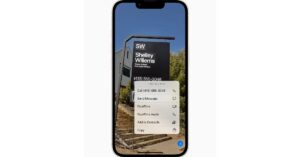
Live Text This feature rolled out recently with iOS 15 and works exactly like Google Lens. The new feature scans for text in images, through your phone’s camera, in screenshots, and in Safari. Tap on the Live Text button on the image or tap on the text highlighted by your camera. You can also use this feature on the recently snapped photos by selecting the text in a document. 
  • Focus Mode

Focus Mode Focus mode works similarly to Do not disturb, but better. The feature also has a Sleep mode, which lets you set your sleep schedule. New modes have been recently included in the interface as well like the Personal and Work modes.  One can set on the focus mode according to their need and silence their smartphones right away. It’s a good productivity feature to help you in the settings.
  • Use the keyboard like a trackpad

Use the keyboard like a trackpad An underrated feature that has been long in Apple devices. It’s a handy feature if one is typing long paragraphs and it becomes really difficult to tap on a particular correction. This feature comes in handy for these situations.  Just hold the Space bar on your keyboard and the keyboard will turn into a trackpad. With which you can navigate to any word or paragraph easily and make changes.
  • Finish web address instantly

Finish web address instantly It is a small yet interesting option which Apple has added. Yes it won’t save you a lot of time but surely will make your internet experience better. Just open Safari and type any website name. After typing the name, hold the full stop (dot) to see many domain options like .com, .co.uk and so on. One can also hold other alphabets/numbers as well to see multiple options related to them. Read Also: Genius brings the new HS-G500V gaming headset
  • Set setting per-site

Some websites have a lot of ads on their page and it gets difficult to fetch out useful details from them. It’s easy to avoid by tapping on the AA icon in the safari address bar and switching it to reading mode. This will strip down a lot of unnecessary clutter.  By tapping the same icon again you can adjust font, colour and size as well. In the website setting, you can choose from whether to use content blockers or request the desktop site rather than the mobile one too. These are some super genius tricks every iPhone and iPad owner should know. These tricks will come in handy and improve your experience with Apple products. Also, some of them can improve your productivity as well. For the latest gadget and tech news, and gadget reviews, follow us on TwitterFacebook and Instagram. For newest tech & gadget videos subscribe to our YouTube Channel. You can also stay up to date using the Gadget Bridge Android App. You can find the latest car and bike news here.
10 things to check when buying a second-hand Android smartphone

With every advancing year, the price of new Android smartphones is skyrocketing. We can see that the newer android flagships are becoming so expensive. Hence, if you want to own flagship and cannot afford to buy a new flagship. It’s wise to consider a second-hand phone, as it will cost you much less than buying a new one. Here are 10 things to check when buying a second-hand Android smartphone. The basic and first step to check the authenticity of the buyer is to ask for the bill. From the bill you get to know many details of the buyer and if the Smartphone is stolen or not. You can check it by asking the seller to show you a valid purchase receipt. If the seller refuses to do so, refuse to buy.
  • Cross-check the IMEI

If the seller shows the valid purchase receipt and you think he/she is speaking the truth. The next step is to ask them for the original retail box of the device. In the device cross-check the IMEI number with IMEI written on the box. All you have to do is type *#06# in the dialer of the phone and it will produce the IMEI number.
  • Check for physical damage

As most people in this world use a smartphone, it is the most abused technology on the planet. And there is a good chance that the smartphone you are planning to buy could have gone through some good physical abuse as well. This extra wear and tear might have decreased the lifespan of the device. Hence, it is important to inspect the device from each and every angle. If you are sure about buying the phone make sure to peel off any stickers or skins which can be hiding some nasty dents and scratches underneath. Also, be sure to remove the tempered glass as well if it’s not transparent. To check for cracks or scratches on the screen.
  • Ask for the original charging brick and data cable

Smartphone companies put a lot of standard quality products inside the smartphone box for the sake of brand reputation. The accessories are tested multiple times to ensure quality. If the seller doesn’t have it, both the charging adapter and data cable try to negotiate to cover up the cost of you buying it. Read Also:Top ways to fix Microsoft Teams sign in error
  • Keep an eye on battery drain patterns

Depending on the usage pattern a general Lithium-ion battery in a smartphone lasts for around two years. If the smartphone is quite old it’s better to keep an eye on the battery percentage. Unlike the iPhone there is no battery health option in Android thus one has to manually calculate it. The battery is the backbone of a smartphone making it a crucial thing to check before being a used Android smartphone. Andriod
  • Ask for any repairs phone has undergone

One of the important aspects of buying a used smartphone. Ask the seller if the phone has undergone many repairs. If yes, ask for any receipt of parts changed as some of the recent changes may be covered in warranty if done by the company’s service centre. If the seller denies any repairs, check closely on the phone’s edge, frame and display connection. An unprofessional screen replacement can be easily spotted. It is advised to stay away from the phones with lots of repairs as it surely won’t last long for you as well.
  • Test if all the components work 

It’s important to check each and every aspect of the device patiently if you’re buying it second hand. As soon as you get the in-hand experience of the phone check if the Power and volume rockers work by vigorously pressing them. Connect the cable to the charging port and test if the device is charging. Click some pictures from the front and rear cameras. Make sure the proximity sensor works by making calls.  Ambient light sensors can be checked by switching on automatic brightness and covering the phone’s top. Play some good quality music to check the phone’s bottom-firing or front-firing speaker.
  • Check for the phone’s information with IMEI

It’s important for one to check if the IMEI number has not been tampered with or the mobile is not some Chinese knock off. Just head to imei.info and enter the IMEI number of the phone and match the details from the box and the website. Also if you live outside India, one can check the warranty claims as well. Read Also: Apple announces free repairs for these ‘defective’ iPhones 
  • Check phone’s hardware

To double-check the above step and to ensure that it is not a duplicate phone download CPU-Z from the play store and check all the hardware mentioned there. This hardware check will spot a fake or clone Android phone with ease. It gets usually difficult with Samsung devices as the company sells their product with different chipsets in different countries.  A lot of fake clones are powered by ancient Mediatek (MTK) processors.
  • Other hardware checks 

Many smartphone companies like OnePlus and Samsung offer diagnostic applications to check multiple aspects like speakers, screens or even the shows the warranty claimed on the devices previously. One can download Samsung Memeber on Samsung smartphone or OnePlus Care on OnePlus phones to check it. These applications can come in handy to check the smartphone before you buy it.  These are 10 things to check when buying a second-hand Android smartphone. If all the checks are successful you can surely consider buying that smartphone. We also advise you to take the phone to the respective service centre for getting an expert eye on it. Also, do not buy the phone if there is even a slight bit of doubt in your mind. For the latest gadget and tech news, and gadget reviews, follow us on TwitterFacebook and Instagram. For newest tech & gadget videos subscribe to our YouTube Channel. You can also stay up to date using the Gadget Bridge Android App. You can find the latest car and bike news here.

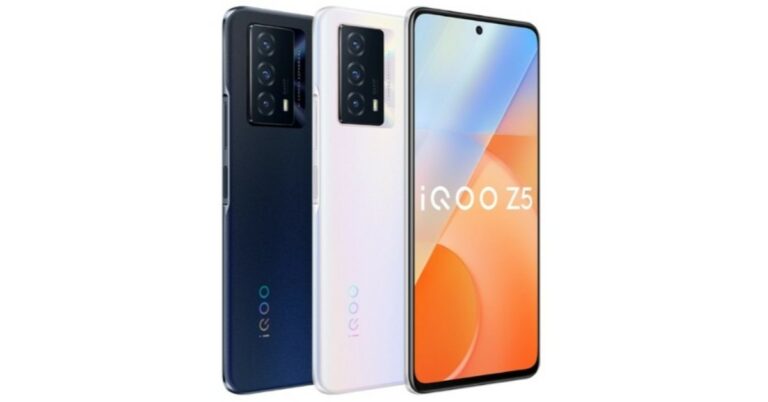
iQoo Z5 with Snapdragon 778G SoC and 120Hz display launched in India

Vivo’s sub-brand has officially announced the launch of iQoo Z5 5G in India today. Prior to the launch in the country, the 5G smartphone officially debuted in China last week.  The newly arrived device is powered by Qualcomm Snapdragon 778G SoC and a 120Hz refresh rate display. In addition to this iQoo Z5 boasts a 5,000mAh battery paired with 44W flash charge support.

iQoo Z5 price in India and availability details

iQoo Z5 has been launched in India in two different variants. The 8GB RAM with 128GB storage is priced at Rs 23,990. Whereas the 12GB RAM with 256GB storage model will be available at 26,990.  The phone will be offered in two colour options of Arctic Dawn and Mystic Space. In terms of availability, the device will go on sale on the first day of the Amazon Great Indian Festival sale that will begin from October 3.  iQoo Z5 price in India and availability details The sale offers include Rs 1,500 off to HDFC bank cardholders including EMI transactions. There will be flat Rs 1,500 off with an Amazon coupon along with no-cost EMI options for up to 9 months The company will also provide free six months screen replacement as well.

iQoo Z5 5G specifications

Coming to the specifications, iQoo Z5 5G is highlighted with a 6.67-inch full HD+ LCD display with 1,080 X 2,400 pixels of resolution. The screen also comes with a 120Hz refresh rate, HDR 10 support, DCI-P3 colour gamut and offers a 20:9 aspect ratio. The screen also comes with TUV Rheinland rating and 240Hz touch sampling rate. The phone runs on Origin OS 1.0 on top of Android 11. Under the hood, there is a Qualcomm Snapdragon 778G SoC with Adreno 642L GPU. It comes with up to 12GB of LPDDR5 RAM and up to 256GB of UFS 3.1 storage.  The phone includes VC liquid cooling for temperature reduction, 4G game vibration along with the linear motor, and Ultra Game Mode 2.0 for gaming. In terms of optics, iQoo Z5 includes a triple rear camera set-up that includes a 64-megapixel main sensor with an f/1.79 aperture. The set-up also housed an 8-megapixel ultra-wide-angle lens with  f/2.2 aperture and a 2-megapixel macro lens with f/2.4 aperture.  Also Read: Comparison: iQoo Z5 vs iQoo Z3 Upfront there is a 16-megapixel sensor with an f/2.45 aperture for taking selfies and video calling. The rear camera includes features like dual view, super night mode and more. For endurance, iQoo Z5 5G includes a 5,000mAh battery with 44W flash charge fast charging support. Additionally, the phone includes 5G, tri-band W-Fi with 2.4 GHz, 5.1 GHz and 5.8GHz bands, Bluetooth v5.2, USB Type C port, USB OTG, GPS and 3.3mm headphone jack for connectivity.  The sensors on the phone include a side-mounted fingerprint sensor, Face Wake unlock, gravity, ambient light, proximity, gyroscope and compass. The device also includes dual stereo speakers. For the latest gadget and tech news, and gadget reviews, follow us on TwitterFacebook and Instagram. For newest tech & gadget videos subscribe to our YouTube Channel. You can also stay up to date using the Gadget Bridge Android App. You can find the latest car and bike news here.
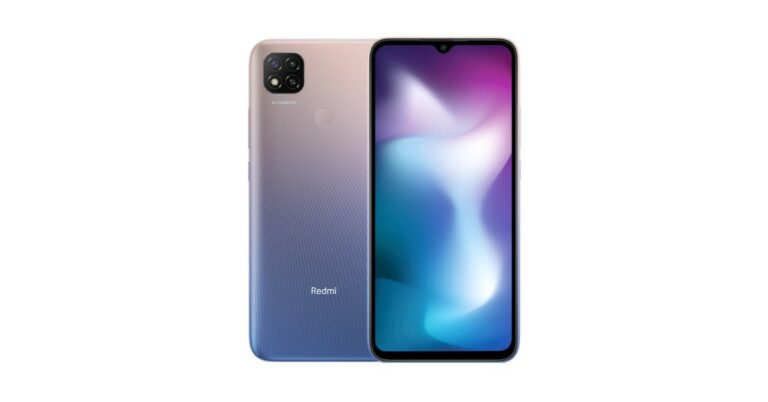
Redmi 9 Activ budget smartphone with MediaTek Helio G35 SoC launched in India

The Chinese smartphone company Xiaomi has announced the launch of its latest pocket-friendly smartphone in India. The Redmi 9 Activ is the latest addition by the company and is currently up for sale in the country. The newest phone comes with a water drop style HD+ display and is powered by MediaTek Helio G35 SoC. In addition to this, the smartphone boasts a 5,000mAh battery and dual rear cameras.

Redmi 9 Activ price in India and availability details

Redmi 9 Activ has been launched in India with a price tag of Rs 9,499 for the 4GB RAM with 64GB storage options. The 6GB RAM with 128GB storage variant is available at Rs 10,999. The device comes in three colour options of Carbon Black, Coral Green and Metallic Purple.  The budget smartphone will be available via Amazon, Mi.com, Mi Home and Mi Studio stores in the country.  Redmi 9 Activ price in India

Redmi 9 Activ specs and features

Redmi 9 Activ comes with a 6.53-inch HD+ Dot Drop Display having 720×1600 pixels of resolution. The screen offers 400 nits of max brightness and a 20:9 aspect ratio.  The device runs on MIUI 12 based on top of Android 11. Under the hood, there is MediaTek Helio G35 SoC cooped with 6GB of LPDDR4X RAM and 128GB of eMMC 5.1 storage that can be expanded via a microSD card.  For the photos and videos, Redmi 9 Active features a dual rear camera set up that includes a 13MP primary sensor with f/2.2 aperture and a 2MP depth sensor with f/2.4 lens. There is an LED flash as well and the cameras also support features like AI Beauty 5.0 and AI scene detection.  Upfront, there is a 5MP selfies camera with an f/2.2 aperture for taking selfies and video calling.  Redmi 9 Active houses a 5,000mAh battery that supports 10W charging. For connectivity, there is 4G VoLTE, WiFi 802.11 b/g/n, Bluetooth v5, GPS/A-GPS, FM Radio and Micro-USB port. The phone also includes a rear-mounted fingerprint sensor, accelerometer, ambient light sensor and a proximity sensor. For the latest gadget and tech news, and gadget reviews, follow us on TwitterFacebook and Instagram. For newest tech & gadget videos subscribe to our YouTube Channel. You can also stay up to date using the Gadget Bridge Android App. You can find the latest car and bike news here.

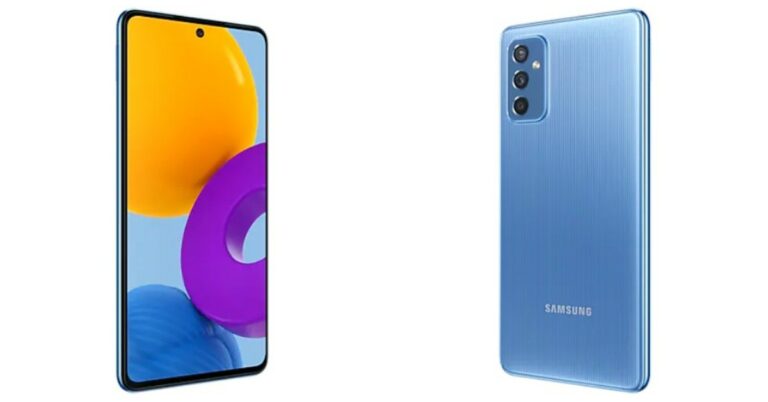
Samsung Galaxy M52 5G with 120Hz Super AMOLED Plus display launched  

Samsung Galaxy M52 5G has officially debuted in Poland. The device is also set to launch in India tomorrow. The phone has been listed on the company’s website there and as per the listing it will come with a triple rear camera set up consisting of a 64-MP primary sensor.  In addition to this, there is an AMOLED display with 120Hz refresh rate support. The 5G smartphone also includes a 5,000mAh battery with 25W fast charging support.

Samsung Galaxy M52 5G price and availability

The price of the Poland specific model of Samsung Galaxy M52 5G has not been listed on the company’s official website. But as per the listing, the phone will be available in a single 128GB storage option. There it is available in three colour options of Black, Blue and White. price of Samsung Galaxy M52 5G According to reports, the device was listed to come with a price tag of PLV 1,749 that translates to Rs 32,900 for the 8GB RAM with 128GB storage options. 

Samsung Galaxy M52 5G specifications

Samsung Galaxy M52 5G listing on the Poland website reveals that the phone will come with a 6.7 inf full HD super AMOLED Plus display with 1,080×2,400 pixels of resolution. The screen will offer 120Hz refresh rate support and a 20: 9 aspect ratio.  The phone will run on OneUI 3.1 based on top of Android 11 and will be powered by an unnamed octa-core SoC with 6GB of RAM and 128GB of onboard storage. The storage can be expanded up to 1TB using a microSD card. But the Amazon listing in India has confirmed that the upcoming smartphone will equip Qualcomm Snapdragon 778G under its hood.  In addition to this, the Samsung Galaxy M52 5G will feature a  triple rear camera set up consisting of a 64-MP primary sensor. Completing the setup there is a 12MP ultra wide-angle lens with f/2.2 aperture and a 5MP macro sensor. For taking selfies and video calling the device will sport a 32MP front-facing camera with an f/2.2 aperture.  Samsung Galaxy M52 5G boasts a 5,000mAh battery with 25W fast charging support. There is a side-mounted fingerprint sensor on the phone that also acts as a power button.  For connectivity, the 5G smartphone will include 5G, Bluetooth v5.0, Wi-FI, USB Type C and NFC support. The sensor on board includes an accelerometer, ambient light sensor, gyroscope, magnetometer, and proximity sensor. For the latest gadget and tech news, and gadget reviews, follow us on TwitterFacebook and Instagram. For newest tech & gadget videos subscribe to our YouTube Channel. You can also stay up to date using the Gadget Bridge Android App. You can find the latest car and bike news here.
iQoo Z5 India launch today: Here is how to watch the launch stream?

iQoo Z5 is all set to launch in India today. The device is the latest addition to the company’s 5G portfolio and it will be succeeding iQoo Z3 that was launched just a few months ago in the country. The phone first broke cover in China last week and will now hit the Indian stores. The device includes the latest Qualcomm Snapdragon 778G and a 20Hz refresh rate support. 

iQoo Z5 launch details

iQoo Z5 is scheduled to launch in India today. The company will be hosting a virtual launch event to introduce the smartphone in the country. In interested one can watch the live streaming of the launch on the company’s official YouTube channel and well as on its social media channels. The link to YouTube is as follows and according to Indian Standard Time, the event will begin at noon.

What will be the price of the Z5 in India and its availability?

Although iQoo Z5 has been earlier launched in China the pricing will be somewhere similar to Chinese specific models. It is available in 8GB RAM with 128GB storage priced at CYN 1,899 that converts to Rs 21,600. The 256GB model costs CYN 2,099 that translates to Rs 23,900 and the 12GB RAM with 256GB storage options is available at CYN 2,299 that is roughly around Rs 26,000. iQoo Z5 is expected to be available in two colour options of Twilight Morning and Blue Origin. In India, the iQoo Z5 phone is tipped to be priced under Rs 30,000 and Amazon listing confirms its availability in India.  What will be the price of iQoo Z5 in India and its availability?

iQoo Z5 specification

iQoo Z5 will feature a 6.67-inch full HD+ LCD display with 1,080 X 2,400 pixels of resolution. The screen also comes with a 120Hz refresh rate, HDR support and offers a 20:9 aspect ratio. It will be powered by  Qualcomm Snapdragon 77G SoC with Adreno 642L GPU and will be available with up to 12GB of LPDDR5 RAM and up to 256GB of UFS 3.1 storage.  For the photos and videos, the iQoo Z5 will include a triple rear camera set-up that includes a 64-megapixel main sensor with an f/1.79 aperture. The set-up also housed an 8-megapixel ultra-wide-angle lens with  f/2.2 aperture and a 2-megapixel macro lens with f/2.4 aperture. Upfront there is a 16-megapixel sensor with an f/2.45 aperture for taking selfies and video calling. The iQoo Z5 5G smartphone will be housing a 5,000mAh battery with 44W flash charge fast charging support. In addition to this, the handset includes 5G, tri-band W-Fi with 2.4 GHz, 5.1 GHz and 5.8GHz bands, Bluetooth v5.2, USB Type C port, USB OTG and 3.3mm headphone jack for connectivity. In addition to this, there will be a side-mounted fingerprint sensor, Face Wake unlock, gravity, ambient light, proximity, gyroscope and compass.  For the latest gadget and tech news, and gadget reviews, follow us on TwitterFacebook and Instagram. For newest tech & gadget videos subscribe to our YouTube Channel. You can also stay up to date using the Gadget Bridge Android App. You can find the latest car and bike news here.

27 September 2021 Amazon Quiz today answers: Answer to win Rs 5,000 Amazon Pay Balance

27 September 2021 Amazon Quiz has gone live on its platform. The quiz timings are 12 AM to 11:59 PM. The interested users can participate in the Amazon daily quiz to win exciting prizes. The company puts up 5 questions based on general awareness. You can submit the correct answers from the four options. Today the participants have the chance to win Rs 5,000 Amazon Pay Balance. Daily the e-commerce platform Amazon brings a new set of a questionnaire that includes five easy questions. The Amazon Quiz can be played from 12 AM to 11:59. The users have to answers all the questions correctly to enter into a lucky draw. The result of today’s quiz will be announced at the end of the month and only one person is declared a winner. We at Gadget Bridge updates all the answers to the Amazon Quiz on our website for the convenience of our readers. Here are the answers of the 27 September 2021 Amazon Quiz that will make you win Rs 5,000 Amazon Pay Balance.

27 September 2021 Amazon Quiz Answers

Question 1: In 2020, the theme of which day celebrated on August 19 was Pandemic lockdown through the lens?

Answer: World Photography Day

Question 2: Shelly-Ann Fraser Pryce recorded a personal best of 10.60 and beat Elaine Thompson- Herah at a Diamond League meeting in 2021?

Answer: Lausanne

Question 3: In the movie Shershaah, Kiara Advani plays the role of ___ Cheema. 

Answer: Dimple

Question 4: This entertainment venue is the headquarters of which Dance Company?

Answer: The Rockettes

Question 5: Which character from the animated Pixar movie, Luca wants to win the rance so they can buy this scooter with the cash prize?

Answer: Alberto

For the latest gadget and tech news, and gadget reviews, follow us on TwitterFacebook and Instagram. For newest tech & gadget videos subscribe to our YouTube Channel. You can also stay up to date using the Gadget Bridge Android App. You can find the latest car and bike news here.
How to add music to your Facebook profile

Music is the way to express your emotions and feelings. Facebook developers thought why not add this feature to their social media platform as well. From adding ambience to your profile or just compiling your favourite soundtracks.  Now you can easily add music to your profile to express yourself even better. Worry not, the music won’t start blasting from your phone’s speaker. It won’t play until one taps on it to listen. Here is how to Add Music to Your Facebook Profile. Step 1 – Install the Facebook application on your respective Android or iOS device. Step 2 – Log in to your profile. Step 3 – Tap on the burger icon in the top right corner. Tap on the burger icon in the top right corner Step 4 – Scroll down to find music(usually below the “Friends” section). Scroll down to find music Step 5 – Select music and tap on + next to it in the option. tap on + Step 6 – Now one can either add from the trending one or search for their favourite song. add from the trending one or search Read Also: How to remove profile picture from Google account and Gmail Following these steps, you will be able to add music to your Facebook profile. The music added will be automatically public and other friends can view this by going into the music section of your profile. It is an easy way to make your profile stand out from others.  For the latest gadget and tech news, and gadget reviews, follow us on Twitter, Facebook and Instagram. For newest tech & gadget videos subscribe to our YouTube Channel. You can also stay up to date using the Gadget Bridge Android App. You can find the latest car and bike news here.

Best ways to log out of your Google account from an Android phone or PC remotely

There can be multiple reasons why one needs to log out from a Google account on their Android device. Reasons can differ from losing your smartphone to simply upgrading to a new one. Also, if the phone is lost there is a lot of sensitive data that one can access from your smartphone. Below are the best ways to log out of your Google account from an Android phone. There are basically two ways to do it. Either directly from the smartphone or by a computer.  Step 1 – Open setting Step 2 – Head to accounts and then select the Google account. Accounts Step 3 – Tapping Remove account will directly log out your account from the device. (Your smartphone may ask you for your password or pin). Remove account Read Also: Intel has launched Compute Stick mini PC for Rs 10,999 in India
  • Remotely from another computer

There can be a possibility that you lost your device and are unable to recover your smartphone. Google provides you with a feature to remotely remove your account using Google Dashboard. All you need is a computer with an internet connection and your Google credentials. Step 1 – Open desired browser and head to myaccount.google.com. Google dashboard Step 2 – Click on the Security tab from the left panel. Step 3 – Scroll a little down to find the Your Devices tab and click Manage devices Security, Manage devices Read Also: WhatsApp restores green colour notification for beta users Step 4 – Press the three-dot on the device and click on Sign out  Select device Step 5 – Click Sign out to confirm. Sign Out These are some easy and best ways to log out of your Google account from an Android phone. For instance, if one does not have a computer with them. They can easily open Google Dashboard on their smartphone browser and follow the same process on it as well. For the latest gadget and tech news, and gadget reviews, follow us on TwitterFacebook and Instagram. For newest tech & gadget videos subscribe to our YouTube Channel. You can also stay up to date using the Gadget Bridge Android App. You can find the latest car and bike news here.
Top 5 ways to fix if you are unable to download apps on your Android phone?

There is a selection of applications available in the Google Play Store. Google Play is a digital distribution service owned by Google and provides service to all Android users. Not being able to download applications from Google play is a common issue faced by many. There is no such one medicine that fixes all methods for this option but one option from below will surely solve the problem. Here are the top 5 ways to fix if you are unable to download apps on your Android phone. Check Internet Connection If the download ain’t starting or the PlayStore is showing you offline. It is definitely a problem of either a slow connection or no connection. Make sure you are connected on an Internet connection that is strong and has a decent speed. If you are connected to Wi-Fi, try switching to mobile data or vice versa. Also, make sure the VPN is disabled as it sometimes hinders the download. 
  • Force stop and Clear Data

Clearing data and force stopping the Play Store will give it a fresh start. By this method, most of the problems related to the Play Store like general bugs or downloading issues should be fixed. Here is how to do it. Step 1 – Hold the Play Store icon for 1 second to see options. Step 2 – Select App info from the listed options. App info Step 3 – First press force stop in the opened window. Step 4 – Next head to the Storage option. Storage option Step 5 – Press the Clear storage option. Clear Storage The name of the above may differ in phones according to the brand one is using. Play store Majorly relies on Play Services and Download Manager. If the problem by this step persists try to clear the data of the Play Services and Download manager as well. Read Also: Google finally removed this ‘controversial’ app from Play Store
  • Reinstall Play Store

If the above didn’t work for you, worry not. There is a possibility that the Play Store got updated incorrectly and caused the issue. Uninstalling the update and updating it back can resolve this issue. Here are steps on how you can do it.  Step 1 – Hold the play store icon for 1 second to see options. Step 2 – Select App info from the listed options. App info Step 3 – Tap the three-dot on the top right corner of the screen. Step 4 – Select Uninstall Updates and then Ok to confirm. Uninstall updates This will revert the Play Store to its factory settings. Start using play store and the application will automatically update in the background. One can try restarting their Android smartphone as well. 
  • Remove your Google account and re-add it

There might be an account-related issue that can cause this to happen. To eliminate that doubt follow these steps to remove your Google account and re-add it. Step 1 – Open Setting.  Step 2 – Head to the Accounts section. Accounts Step 3 –  Select the Google account that is needed to be removed. (Phone might ask you pin or password to complete the process) Remove account Open Google Play Store again and it will ask you to sign in. Just input the credentials and you are good to go. Read Also: 10 things to do to deal with your slow internet connection
  • Factory Reset the phone

Usually, this is not required and can be avoided to fix such an issue. But one can consider completely wiping off all the data from their Android smartphone to give it a fresh start. Also, after the process, the applications won’t download from the get-go. As Google first completes the syncing process and puts the apps in the queue to download later. In these cases, Google will either won’t start the download or show “pending download” for everything in the queue. Wait for the initial processes to complete and try again. These were some simple steps that one can follow to fix unable to download apps on your Android phone. Mostly the general issues can be solved with the first 3 steps. If the problem persists we advise you to take your Android smartphone to your respective service centres. For the latest gadget and tech news, and gadget reviews, follow us on TwitterFacebook and Instagram. For newest tech & gadget videos subscribe to our YouTube Channel. You can also stay up to date using the Gadget Bridge Android App. You can find the latest car and bike news here.

5 Ways to Fix Wi-Fi Keeps disconnecting and reconnecting on iPhone

Wireless connections are the most convenient ways to connect to the internet. Many Apple iPhone users have wireless network issues on their smartphones. The phone frequently disconnects from their Wi-Fi and they end up reconnecting it manually. If you face the same issues, worry not. Here are 5 ways to fix Wi-Fi that keeps disconnecting and reconnecting on the iPhone. No need to try all of them. Just work your way down and check-list and see which one works for you. Check your Wi-Fi There are a number of reasons thanks to the Wi-Fi, which can cause frequent disconnections. Your iPhone may be too far from the network range. Make sure that the iPhone is within the network area. Also, check if all other devices are suffering from the same problem.  In this case, try restarting your router and see if that fixes the problem. If the issue is not resolved, there might be some hardware issues. Try contacting your service provider or router manufacturer to fix it for you.
  • Enable Auto-Join in iPhone

Enabling the auto-join feature can solve frequent disconnections as well. There is a strong possibility that you might have switched it on, but it got switched off automatically due to some reason. Here is how you can enable it. Step 1 – Open settings.  Open Setting Step 2 – Select Wi-Fi.  Step 3 – Tap on the information mark next to your Wi-Fi network.  Auto Join Step 4 – Enable Auto-Join. Auto Join If this method was successful your iPhone won’t automatically disconnect to your network now. Read Also: How to join missed Whatsapp video calls?
  • Forget and reconnect

There might have been some issue when you connected your Wi-Fi for the first time. One can fix this by resetting the network connection on your iPhone. By forgetting the Wi-Fi connection and rejoining it, will most probably fix this issue. Here is how you can do it. Step 1 – Open Settings.  Open Setting Step 2 – Select the Wi-Fi option.  Step 3 – Tap on the information mark next to your Wi-Fi name.  Auto Join Step 4 – Press the “Forget This Network” option. Forget the network After forgetting the network try reconnecting to your Wi-Fi and see if it works for you. If not, head to the next step.
  • Renew Lease 

By renewing the Lease you’ll be retrieving a new IP address and routing data from the DHCP server, wireless router in this case. In other words, you will be updating the address information of your network. This method is worth giving a try when your iPhone disconnects from Wi-Fi frequently. Step 1 – Open settings.  Open Setting Step 2 – Select the Wi-Fi option. Step 3 – Tap on the information mark next to your Wi-Fi name.  Auto Join Step 4 – Tap the “Renew Lease” option. Renew Lease Check if the Wi-Fi problem for your iPhone recovers. Read Also: 7 Ways to fix Wi-Fi keeps disconnecting and reconnecting
  • Reset network settings

This is the final option you have left to try if the problem still persists. Sometimes iPhone network issues can be solved by resetting network settings. Here is how you can perform this. Step 1 – Open Settings.  Open Setting Step 2 – Select “General” from the list. Step 3 – Tap on transfer or reset>Reset option. transfer and reset Step 4 – Select “Reset Network Setting” from the options.  Reset Network setting Your iPhone will do a quick restart and wait until the process is complete. Then, try connecting your device back to your Wi-Fi network and see if this fixes the problem. These are simple 5 Ways to Fix Wi-Fi keeps disconnecting and reconnecting on iPhone problems. If none of the above steps solves the issue and the problem occurs with all the Wi-Fi networks, we recommend you take your iPhone to an authorised Apple service centre. For the latest gadget and tech news, and gadget reviews, follow us on TwitterFacebook and Instagram. For newest tech & gadget videos subscribe to our YouTube Channel. You can also stay up to date using the Gadget Bridge Android App. You can find the latest car and bike news here.

Samsung announces Big TV Festival and Home Like Never Before Offers in India ahead of the festivals

As the festive season is inching closer Samsung has officially announced its Big TV Festival and Home Like Never Before Offers. Both the offers can be available from today onwards and will be live till November 10 that will bring assured gifts cashback and more deals across its home products portfolio.  Commenting on the launch, Raju Pullan, Senior Vice President, Consumer Electronics Business, Samsung India said, “Festive season is a very important time of the year for consumers to upgrade their homes and for us to connect with them. Spending more time at home has transformed consumer preferences, leading to a rise in demand for big-screen TVs that not only offer a premium cinematic experience but also give their living space a distinctive edge. We have also seen a rise in demand for large capacity refrigerators, washing machines and microwaves. There is also a trend to buy second and third ACs for homes as all family members continue to work and study from home. We have brought back the Big TV Festival and introduced Home Like Never Before offers to make celebrations even more special and memorable.”  Samsung’s Big TV Festival and Home Like Never Before Offers will also provide easy EMIs at all leading consumer electronics retailers across the country. As per the company, the Big TV Festival will be valid on the purchase of select 55-inch and above Neo QLED and QLED TVs, and 75-inch and above Crystal 4K UHD TVs.  Samsung announces Big TV Festival and Home Like Never Before Offers in India ahead of the festivals On the purchase of the Select Televisions, the buyers are eligible to get a complimentary Soundbar worth up to Rs 1,04,900 and up to 20% cashback. This will also include easy EMIs starting at Rs 1,990 along with a 3-year complete warranty on TVs and a 10-year no screen burn-in warranty on select QLED TVs.  The Samsung QLED lineup is powered by Quantum Dot technology that optimizes the TV’s brightness levels and delivers brighter and deeper colours, to deliver the visual experience intended by creators. It features Object Tracking Sound (OTS) and Active Voice Amplifier (AVA) for cinematic experience at home. The QLED TVs also comes with new Bixby and Alexa feature on One Remote Control allowing connections to all connected devices Moreover, Samsung has also introduced ‘Home Like Never Before’ offers that will be applicable to its home appliances like Refrigerators, Washing Machines, Microwaves and Air Conditioners and others. These offers will provide cashback of up to 25% and EMIs starting at Rs 990.  In addition to this, the customers can get a complimentary Borosil kit on select Microwaves, a 5-year comprehensive warranty, free installation on select ACs along with an extended warranty on multiple Samsung consumer electronics products.  For the latest gadget and tech news, and gadget reviews, follow us on TwitterFacebook and Instagram. For newest tech & gadget videos subscribe to our YouTube Channel. You can also stay up to date using the Gadget Bridge Android App. You can find the latest car and bike news here.

7 Ways to fix Wi-Fi keeps disconnecting and reconnecting on Android

The Internet is a way to connect with other people, sharing files, entertainment, sharing information, socialising, and many other things that could be beneficial for us. Most of the work has switched to online mode and thus making the internet the most valuable resource. But with every company having their own custom skin over the Android platform, It runs down to many glitches. From random restarts to random disconnecting of WiFi. If you are facing this issue then Here are 7 ways to fix Wi-Fi that keeps disconnecting and reconnecting on Android smartphones. Sometimes simply reconnecting to your Wi-Fi can solve the issue. To start fresh we need to forget the network and try connecting again. Follow the following steps to do so. Step 1 – From the drop-down menu in Android, press and hold the Wi-Fi option till the settings open. hold the WiFi option Step 2 – Select the Wi-Fi that is creating the issue. _Select the WiFi that is creating the issue Step 3 – Tap Forget in the Wi-Fi setting. Tap Forget in the WiFi setting After following these steps simply re-enter the password and try to reconnect to your WiFi and check if the problem solves. If not, follow the next step. Read Also: How to fix the bad signal strength of Android and iPhones
  • Reset network setting on Android

There might be some bug that occurred in your phone’s network setting. Resetting it will solve the problem and here is how it can be done. Step 1 – Open Settings. Step 2 – Search for ”Reset Options” and select Wi-Fi. reset Options Step 3 – Press “Rest Setting”. Reset WiFi setting Once the step is done successfully (some smartphones might restart), try reconnecting to your Wi-Fi network now.
  • Other Application Interference

Check for the applications that have access to control Wi-Fi. There are often times that your phone’s Wi-Fi may be affected due to such applications. The best example of such applications are VPNs, anti visor Wi-Fi prioritise apps etc. If these applications are necessary to you, try disabling them for the time being. After that try to reconnect to your network and see if the issue gets resolved. 
  • Try removing other networks

It is a built-in feature in android smartphones that it automatically connects to the WiFi with the strongest strength or better speed. This game of shifting networks for finding the optimised one may cause frequent disconnection and connection problems. Try removing the other WiFi network following the methods shown in the first option.
  • Restart your router

Just like restarting most of the devices to fix a bunch of random glitches, routers are no different. Press the restart button on the router to give it a fresh start. If there is no restart button on your router, simply disconnect it from the power supply then reconnect the same. If the device is not blacklisted by the router, this method will probably fix the issue. Read Also: How to join missed Whatsapp video calls?
  • Check the router settings

Reset D-Link There might be some issue with your router. Most routers in the market have a client filtering system that works on MAC addresses. This can result in blocking your device or blacklisting.  Head to the wireless setting in your router and check the blacklist. Make sure your device is not there or blocked. Many network operators lock the Wi-Fi and won’t let users tamper with the setting. In such cases call your network provider and request them an engineer to fix it for you. (Above image shows how to do it in a D-Link router)
  • Upgrade router firmware 

This step is to be done by professionals only as it takes time and knowledge related to network operations. One can download firmware manually from the official site of the router company and simply update it by logging into the network. This step usually is not required as most of the routers automatically come with the latest firmware or auto-update themselves. Unless you are using some high-end router that requires a firmware update manually, then you might need to do it. We recommend not to try this process on your own. Instead, ask the customer support to send a technician if required. These are 7 ways to fix Wi-Fi that keeps disconnecting and reconnecting on Android smartphones. These simple DIYs will surely fix the issue and connect you back to the internet hassle-free. For the latest gadget and tech news, and gadget reviews, follow us on TwitterFacebook and Instagram. For newest tech & gadget videos subscribe to our YouTube Channel. You can also stay up to date using the Gadget Bridge Android App. You can find the latest car and bike news here.

Vivo X70 5G series to launch in India on September 30: Everything we know so far

0
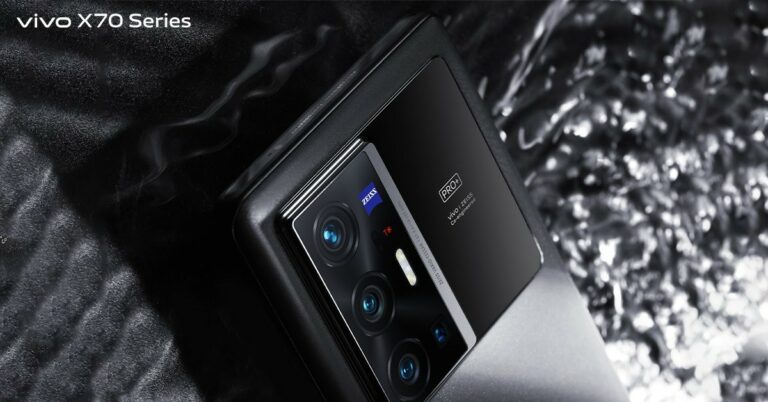
Vivo earlier this month introduced the Vivo X70 5G Series in China earlier this month. This is the company’s most premium smartphone series which includes three devices- vanilla X70, Vivo X70 Pro and X70 Pro+. Now all the devices are set to make their India debut on September 30. The company has also created a dedicated event microsite ahead of the official announcement however it doesn’t reveal how many smartphones will arrive but the microsite does shed light on the key details of the upcoming line-up. Vivo X70 5G series is scheduled to launch in India on September 30 at 12 noon. The company has not yet revealed whether it is going for a virtual launch or will silently list it on its official website and e-commerce platforms in the country. The dedicated event page for the upcoming smartphone also went live in India. Besides this, the Flipkart listing also confirms its availability on the e-commerce platform. Both the listing on the official website and the online retailer reveals the key highlights of the upcoming devices which includes gimbal support with ultra-sensing for the camera system and Zeiss Optics with Zeiss T coating. 

Vivo X70 specifications

Vivo X70 features a 6.56-inch full HD AMOLED display with a 120Hz refresh rate and HDR support. The phone runs on OriginOS 1.0 on top of Android 11 and is powered by MediaTek Dimensity 1200 SoC paired with ARM G77 GPU. It will be available with up to 12GB of RAM and 256GB of storage option. In terms of cameras, the device will include a triple rear camera set up that will include a 40MP primary sensor, a 12MP ultra wide-angle sensor and a 12-megapixel portrait sensor. The vanilla X70 will sport a 32MP selfie sensor. In addition to this, the smartphone will pack a 4,400mAh battery with 44W Flash Charge fast charging support.

Vivo X70 Pro specifications

Vivo X70 Pro has a similar display as the standard variant however this phone is powered by Samsung’s Exynos 1080 SoC paired with ARM G78 GPU along with 12GB of RAM and 512GB of internal storage. There is a quad rear camera set up on the handset that includes a 50MP primary sensor. The 12MP sensors are the same as above along with an additional 8MP periscopic lens. The selfie camera sensor is also the same.  Vivo X70 Pro has a slightly bigger 4,450mAh battery with similar charging support. 

Vivo X70 Pro+ specifications

Vivo X70 Pro+ is the top of the line variant which comes with a 6.78 ultra HD AMOLED display and 120Hz refresh rate support. Under the hood, there is the most powerful Qualcomm Snapdragon 888+ SoC paired with Adreno 660 GPU along with 12GB of RAM with up to 512GB storage options. The device comes with the quad rear camera setup that includes a 48MP Sony IMX578 ultra-wide-angle sensor, a 50MP primary sensor, a 12MO portrait and an 8MP periscope lens. The selfie camera remains the same as its other two siblings.  Vivo X70 Pro+ boasts a 5,000mAh battery with 55W Flash Charge with 50W Wireless Flash Charge fast charging support. 

Vivo X70 5G series pricing(expected)

As of now, there are no details with regard to the pricing of but in China, Vivo X70 is selling at CYN 3,699 that translates to Rs 42,100 for 8GB RAM with 128GB storage options. The 256GB storage model comes at CYN 3,999 that is roughly around Rs 45,500 and the 12GB RAM with 256GB storage model costs CYN 4,299 translating to Rs 49,000. The Vivo X70 Pro is available in 8GB of RAM with 128GB storage priced at CYN 4,299 which converts to Rs 49,091, 256GB variant at CYN 4,599 that translates to Rs 52,400. The 12GB RAM with 256GB storage comes with a price tag of Rs 4,799 which converts to Rs 54,700 and the 12GB with 512GB option at CYN 5,299 comes around Rs 57,000. Lastly, the Vivo X70 Pro+ price is set at CYN 5,499 for the 8GB RAM with 256GB storage that converts to Rs 62,700. The 12GB RAM with 256GB storage is available at CYN 5,999 that is roughly around Rs 68,300 and CYN 6,999 for the 12GB RAM with 512GB storage option which is around Rs 79,700.  For the latest gadget and tech news, and gadget reviews, follow us on TwitterFacebook and Instagram. For newest tech & gadget videos subscribe to our YouTube Channel. You can also stay up to date using the Gadget Bridge Android App. You can find the latest car and bike news here.

Amazon Great Indian Festival Sale 2021 to kick off on October 4

Amazon Great Indian Festival Sale 2021 has been officially announced to commence from October 4 in the country. The e-commerce platform has announced that their sale will start a few days before Flipkart’s Big Billion Days Sale 2021 kicks off.  Amazon will also offer 24 hours early access to the sale to Prime members, which means the prime member can avail of deals and discounts a day before the sale officially opens to all.  Commenting on the announcement Manish Tiwary, Vice President, Amazon India said, “This year’s Great Indian Festival is a celebration of the resilience of local shops and small and medium sellers. We are humbled by their spirit and delighted with the opportunity to partner and enable their growth, especially in view of recent challenges owing to the pandemic. We continue to innovate on behalf of our customers to offer the widest selection, value and convenience, ensuring fast delivery of their #KhushiyonKeDibbe, to get them ready for the festive season from the comfort and safety of their homes.” Amazon Great Indian Festival Sale 2021 will begin on October 4 and it is going to be almost a month-long sale, however, the company has not revealed when the sale ends. In addition to this, the company has also revealed bank offers and EMI details.  The e-commerce giant will be offering huge discounts across its product portfolio during the sale period. Products like smartphones, tablets, laptops, smartwatches, home appliances and Smart TVs from popular brands will be up for sale. Amazon devices like Echo, Fire TV Stick and Kindle will be available at their lowest prices.  According to Amazon the Great Indian Festival Sale 2021 will include more than 1,000 new product launches from top brands such as Samsung, OnePlus, Xiaomi, Sony, Apple, Boat, Lenovo, HP, Asus, Fossil, Levi’s, BIBA, Allen Solly, Adidas, American Tourister, Prestige, Eureka Forbes, Bosch, Pigeon, Bajaj, Big muscles, Lakme, Maybelline, Forest Essentials, The Body Shop, WOW, Nivea, Dabur, P&G, Tata Tea, Huggies, Pedigree, Sony PS5,  Microsoft Xbox, Hasbro, Funskool, Philips, Vega and more. Customers making purchases during the festive sale can get up to 10 percent instant discounts on HDFC bank debit and credit card transitions. This offer is also applied to EMI transactions as well. Amazon will also provide up to Rs 5,000 off on utility bills, book tickets and sending money via Amazon Pay. Customers can look forward to a wide range of affordable options with Amazon Pay ICICI Bank credit card to enjoy 5% reward points with R s750 as a joining bonus, signing up for Amazon Pay Later to get a flat Rs 150 back along with instant credit up to Rs 60,000, rewards worth Rs 1000 back for customers who use Rs 1000 gift cards, rewards worth Rs 200 by adding money to the Amazon Pay balance, and 10% cashback up to Rs.100 on shopping when using Amazon Pay UPI.  On the other hand, on the bulk purchase Amazon Business customers will get exclusive offers, bulk discounts, lower festive price offers, cashback, rewards and more, for their regular business buying or corporate gifting for clients or employees.  Customers will save 28% more with GST invoices on all transactions across categories like laptops, printers, networking devices, office electronics, vacuum cleaners etc. from top brands like HP, Lenovo, Canon, Godrej, Casio, Eureka Forbes and more. For user convenience and to expand its reach, Amazon now offers customers to shop in their preferred languages. They can choose from English, Hindi, Tamil, Telugu, Malayalam, Kannada, Bengali and Marathi. For the latest gadget and tech news, and gadget reviews, follow us on TwitterFacebook and Instagram. For newest tech & gadget videos subscribe to our YouTube Channel. You can also stay up to date using the Gadget Bridge Android App. You can find the latest car and bike news here.

Malware alert: CERT-In cautions Indian Bank users of Drinik Android Malware promising Income tax refunds

According to the latest advisory released by Indian Computer Emergency Response Team (CERT-In) about the recently identified malware called Drinik. This Android malware is claimed to be targeting Indian bank users pretending to masquerade as Income Tax refunds.  Indian Computer Emergency Response Team (CERT-In) has observed that the bank customers in the country are being attacked by a new type of mobile banking campaign using Drinik Android malware. This is a kind of hacking process which is practised to gain access to the victim’s personal or bank details.  According to CERT-in, the victim will receive an SMS containing a link to a phishing website that pretends to be similar to the Income Tax Department website. When the victim lands on the website he/she will be asked to enter their personal information. Then they will be asked to download and install the malicious APK file in order to complete verification. After the installation, the app(masquerades as an Income Tax Website) will ask permission to grant access to SMS, call logs, contacts and others. According to the Government, if the victim does not provide any info to the website pretending to be of the IT department, the same screen with the form is displayed in the Application and the user is asked to fill in to proceed.  Drinik Android Malware targeting Indian bank user The Information will include full name, PAN, Aadhaar number, address, DOB, mobile number and email address. Not only this it will also ask you to enter your financial details such as A/C number, IFSC code, CIF number, debit card number, expiry date, CVV and PIN. After it has gathered all the required information the app will state that there is a refund amount that could be transferred to the user’s bank account.  Drinik Android Malware targeting Indian bank user The moment the victim enters the amount and clicks on Transfer the app shows an error and demonstrates a fake update scream. While the screen for installing updates is shown the Trojan is the backend will send all the user details including SMS and call log to the attacker’s device. These details are then used by the hacker to generate the bank-specific mobile banking screen to render it on the user’s device. The victim is then requested to enter the mobile banking credentials that will be captured and then used by the attacker. To prevent yourself from such frauds you are advised to avoid downloading any potentially harmful apps on your device by limiting your download sourced to official app stores like Google Play and Apple Store. Always check for the user review, app details, number of downloads and comments before you download any app.  Also, verify app permission and grant permission which are relevant for the purpose of the app. Avoid checking the Untrusted Sources checkbox to install sideloaded apps. Always consider using safe browsing tools, filtering tools in your antivirus, firewall and filtering services. One should also be cautioned towards shortened URLs like bit.ly and TinyURL.  You can always hover your cursor over the shortened URLs to see the full website domain before clicking on the link. Even if something like this happens to you then you should immediately report to the respective bank with the relevant details to take further appropriate actions. As per the Indian Computer Emergency Response Team (CERT-In) Drinik started as a primitive SMS stealer and has now evolved to a banking trojan that demonstrates phishing screens and persuades users to enter sensitive banking information.  Customers of more than 27 Indian banks including major public and private sector banks have already been targeted by the Drinik Android malware.  For the latest gadget and tech news, and gadget reviews, follow us on TwitterFacebook and Instagram. For newest tech & gadget videos subscribe to our YouTube Channel. You can also stay up to date using the Gadget Bridge Android App. You can find the latest car and bike news here.

Best ways to fix YouTube comments not showing in a video

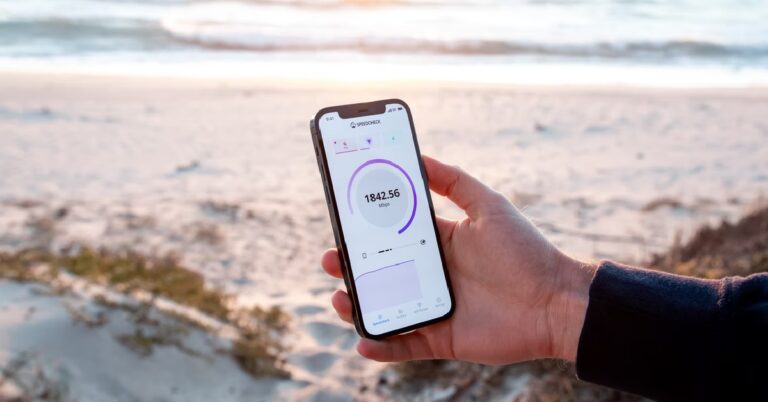
YouTube is one of the biggest websites and apps to consume multimedia content on. The application has been in the market for years. With lots of changes in its years of evolution, there are still times when users face some major issues on the application out of nowhere. One such issue is the YouTube comments not showing on a video. There is no exact reason why this happens but here are some fixes for our readers. Check Internet connection The most basic solution to try as soon as you face any issue related to online services. There might be a glitch while a sudden split-second disconnection in the application or website. So this is the first thing you should do.  Check the internet connection on the device and other devices if it’s not showing in the current one. Users can also go to Fast.com to check their internet speed as well. A proper connection with decent speeds is required to load any content of a website.
  • Try Incognito tab

Try Incognito Tab If the internet connection is proper, there is a chance your account with which you are logged in has some issue or you need to clear the cache. To eliminate that possibility, try playing the same video in Incognito mode on a smartphone or computer.  Read Also: Google’s Incognito Mode to become truly private
  • Sign-in with a different account

If the comments do not show up in the above method, there is another way to recheck it by logging in to a different account. Try logging in with another account or ask your family or friends to play the same video and check if they see the comments.  If the comments are showing up for them and not for only you then it is confirmed that there is some issue with your account. Logout and re-login. Try logging in to your account on some other device and check if the problem persists.
  • Clear Cookies and cache file

Cache files and cookies are saved to make your browsing experience a little faster and better. A small amount of information is saved by the website or application for giving its user a smooth experience. But a bad cache can result in some parts of the website not loading for you. Try cleaning it and see if it makes a difference.

For Android

Hold the application for 2 seconds to discover app info(or similar setting) then head to storage > tap the clear cache option. Clear Cache in Android

For Web

Step 1 – Select the setting of your Chrome browser from the burger drop-down list. Step 2 – On the “Privacy and Security” tap on “Clear Browsing data”. “Privacy and Security” tap on “Clear Browsing data” Step 4 – On the basic tab select basic options(or advance if one wishes) and click clear data. Clear data Read Also: YouTube introduced new search filters 
  • Try a different browser

There is a possibility that there might be some problem with your current browser or some bug might have stopped comments from showing up. Try using some other browser to confirm the issue. If the comments show up in a different browser, try removing extensions from your primary browser as sometimes extensions specially ad-blockers interfere with websites in a bad way.  These are some easy steps that will fix your issue of YouTube comments not showing under a video. If none of the above works try contacting YouTube customer support as there might be some issue regarding your account for which the company stopped displaying the comment for you. For the latest gadget and tech news, and gadget reviews, follow us on TwitterFacebook and Instagram. For newest tech & gadget videos subscribe to our YouTube Channel. You can also stay up to date using the Gadget Bridge Android App. You can find the latest car and bike news here.

3 tricks to use different notification sound for different apps on Android

With so many applications installed on Android smartphones sending a lot of notifications on a daily basis. It gets difficult to recognise and figure out which application sent notification or if it’s of any importance.  This can be difficult especially while you are doing some work that requires concentration. To make this easy one can set different notification sounds for each application. Wish to do the same? Here are 3 tricks to use different notification sounds for apps on Android smartphones. It would be to your surprise that this method has been integrated into your android smartphone for a long time and is very simple to use as well. Google added this feature after Android 8.0 Oreo and most of the devices in the market will be running it or above. So here is how you can do it. Step 1 – Open Settings. Step 2 – Open Apps & Notifications (or similar settings depending on the smartphone you are using). aps and notification in setting Step 3 – Select the application you want to set the notification for. select the application Step 4 – In the setting select Notification Option. Notification setting Step 5 – There will be different notification options to choose from. Choose accordingly. Step 6 – Tap on the “Sound” option to change the notification sound. Select sound Follow the same steps for each application to setup custom notification for each one of them. Read Also: YouTube rolls out a new notification system to its platform
  • In-app setting

Applications have started to include this setting natively. The below method is just an example of how to do it. Following these steps in any other different application will produce the same results.  Step 1 – Open the desired application you want to change notification of. Step 2 – Head to the application’s setting to find out Notification(or similar setting). Notification and sounf in app setting Step 3 – Select from different options you want to change the sound for. Change Notification sound Step 4 – Change the notification sound accordingly for each setting you wish. Sound setting in application Go to different applications and change the setting of each to get different notification sounds.
  • Using third party application

There are many third-party applications available in the Play Store to select from. Among these our selection is ZEDGE. The application works flawlessly and has tons of wallpaper and ringtones to choose from.  With so many options to select from, most of the features in the application are free. Here is how to use ZEDGE to change the notification sound of your android smartphone. Step 1 – Head to the Play Store and install the ZEDGE application. Download Zedge Step 2 – Open the app and press the burger icon on the top left corner of the screen Step 3 – Select the notification option. Notification in Zedge Step 4 – There will be a lot of tunes available to download.  Step 5 – Select the tune accordingly and press the download option.  Step 6 – After the download button is pressed there will be options to set the tone as notification, ringtone or alarm. Choose the notification and you are good to go. Read Also: Best ways to fix YouTube Notifications not working The application is free mostly, but to get some extra premium wallpapers and ringtones users can pay a small monthly or annual fee to support the developers. These are simple 3 to use different notification sounds for apps on Android and avoid confusion. One can add more sounds externally by connecting through a computer system as well to get a variety to select from. For the latest gadget and tech news, and gadget reviews, follow us on TwitterFacebook and Instagram. For newest tech & gadget videos subscribe to our YouTube Channel. You can also stay up to date using the Gadget Bridge Android App. You can find the latest car and bike news here.

These Innovative Gadgets Will Dominate Gaming Industry

In the past two decades, we have seen remarkable growth in the tech world. The growth is so rapid that we get new upgrades of a device every year. For instance, every smartphone manufacturer updates its mobile phone models each year to offer advanced technologies to players. Along with smartphones, many other gadgets have also made a leap of development in the gaming industry. For instance, smart wearables were unimaginable a few years back, but now they are in great demand in the gaming world. Online betting sites and online casinos also use such high-tech gadgets to provide a dedicated gameplay experience. Reputable platforms such as 20Bet online betting website and many other gaming platforms use such gadgets to offer an intuitive experience to players. There are many innovative gadgets that have the potential to dominate the gaming industry. Selected game studios are already using these gadgets to offer an improved gaming experience, but wide acceptance is still awaiting. With this article, we will inform you about some innovative gadgets that will impact the gaming industry in the future.

VR Headsets

Virtual reality or VR technology has reformed many sectors. From the entertainment industry to the business sector, everywhere, VR tech is being used. In the gaming industry, the importance of virtual reality gadgets will increase in the future. VR aims to offer a realistic gaming experience by providing a virtual world via headsets. This way, players will immerse themselves in the gaming world. For instance, if you love tennis, but what if you want to play at midnight. With VR headsets and a racquet designed for the game, you will get the feeling of being on a real tennis court. Thus, we will see more usage of VR in the future.

Augmented Reality Devices

Augmented reality is the future of the gaming industry, but its usage is still limited as of now. Many people confuse AR with virtual technology, but they are very different. With a VR headset, you can watch and experience the virtual world with visuals and graphics. On the other hand, AR gadgets showcase the virtual world in your room. For example, if you want to play poker with your friends but don’t have a poker table, an AR gadget can give an augmented reality visual to your regular table to make it look like a poker table.

Smartwatches

With the introduction of Apple’s smartwatch, demand for smart wearables has increased. Many other tech companies have also launched their smartwatches. This gadget has the potential to dominate the gaming industry in the future. Apple has launched a standalone app store for its watch, allowing users to download various apps for the watch. In the future, players will be allowed to play selected games from their smart devices. The concept was already introduced by Microgaming a few years ago. Microgaming developer a smartwatch that allows players to play slots without smartphones. This received a lukewarm response from players, but it may get wide acceptance in the future when possibilities are endless.

Mini Consoles

Gaming consoles like PlayStation and Xbox have changed the face of the gaming world, but now the trend of mini gaming consoles may emerge. Gaming phones are already available in the market, but they don’t replicate gaming consoles. With mini consoles, players can have an intuitive gaming experience. Sony and some other gaming companies have launched their mini gaming consoles, and they received positive responses from players. We expect next-gen smart mobile gaming consoles which would offer an enriched gaming experience. Thus, we can definitely say that such gadgets have a bright future in the gaming industry as players can have fun while on the move. For the latest gadget and tech news, and gadget reviews, follow us on TwitterFacebook and Instagram. For newest tech & gadget videos subscribe to our YouTube Channel. You can also stay up to date using the Gadget Bridge Android App. You can find the latest car and bike news here.

Comparison: iQoo Z5 vs iQoo Z3

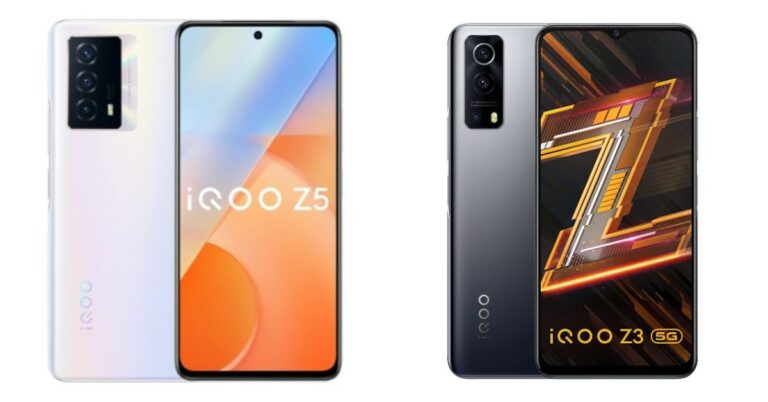
Vivo’s sub-brand iQoo has introduced iQoo Z5 as the successor to iQoo Z3, which was launched a few months ago. The Z5 has debuted in China and will make its way to the Indian market on September 27.  The phone comes with a triple rear camera and an upgraded chipset. Moreover, it retains the 120Hz refresh rate display. Considering the price and the features we have put together iQoo Z5 up against its predecessor iQoo Z3 to help you decide, which offers all the features at its best price.

Display

iQoo Z5: 6.67-inch full HD+ LCD display iQoo Z3: 6.58-inch full-HD+ LCD display

Processor

iQoo Z5: Qualcomm Snapdragon 77G SoC with Adreno 642L GPU iQoo Z3:Qualcomm Snapdragon 768G SoC with Adreno 620 GPU

Rear camera(s)

iQoo Z5: Triple rear camera set-up that includes a 64-megapixel main sensor with an f/1.79 aperture. The set-up also houses an 8-megapixel ultra-wide-angle lens with f/2.2 aperture and a 2-megapixel macro lens with f/2.4 aperture.  iQoo Z3: Triple rear camera setup that includes a 64-megapixel primary sensor with an f/1.79 aperture. In addition to this, there is an 8-megapixel ultra-wide-angle sensor with f/2.2 aperture and a 2-megapixel lens with f/2.4 aperture.

Selfie camera

iQoo Z5: 16-megapixel sensor with an f/2.45 aperture  iQoo Z3: 16-megapixel camera sensor with f/2.0 aperture Also Read: iQoo Z5 with Snapdragon 778G SoC and 120Hz display launched in India

RAM and storage

iQoo Z5: 8GB RAM with 128GB and 12GB RAM with 256GB storage iQoo Z3: 6GB RAM with 128GB storage and 8GB RAM with 128GB/256GB storage

Battery

iQoo Z5: 5,000mAh battery with 44W flash charge fast charging support iQoo Z3: 4,400mAh battery with a 55W fast charging support. 

Operating system

iQoo Z5: OriginOS for iQoo 1.0 based on Android 11 iQoo Z3: OriginOS for iQoo 1.0 based on Android 11

Starting Price

iQoo Z5: Rs 23,990 iQoo Z3: Rs 19,990

Our Take

Both the iQoo phones share similarities in terms of cameras only. The rest of the specs of the newest iQoo Z5 have been upgraded and it has a slightly larger display, bigger battery life and Qualcomm Snapdragon 77G SoC with Adreno 642L GPU, too.  But the previous gen has a faster 2.8GHz chipset than the latest one with 2.4GHz, which means a smoother experience. In addition to this, the predecessor also has provision for a slot for a memory card that will give you more storage capacity. So in our opinion, iQoo Z3 is worth considering as it is more value for money if you are looking for more space and similar performance. For the latest gadget and tech news, and gadget reviews, follow us on TwitterFacebook and Instagram. For newest tech & gadget videos subscribe to our YouTube Channel. You can also stay up to date using the Gadget Bridge Android App. You can find the latest car and bike news here.

Twitter adds Bitcoin support to Tips, now allows Spaces users to record and replay audio conversations

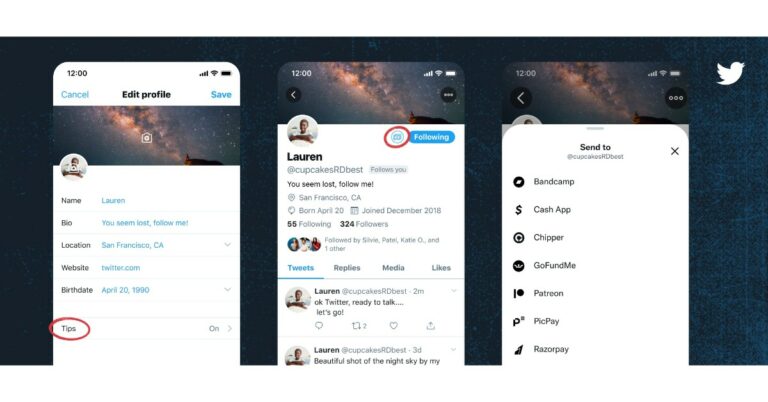
In May this year, Twitter introduced a new way to support and donate money on the platform called Tip Jar. This feature was available for anyone using the microblogging site in English allowing users to send tips to accounts.  Now the functionality has been further expanded to all the users across the globe and has been renamed to Tips. Also, the social media platform has added support for sending tips using Bitcoin. Moreover, the new feature namely recording and replay options will be integrated into Spaces. When Tip Jar was launched in May it used third party payment. Services like RazorPay, Bandcamp, Cash App, Chipper, Patreon, Razorpay, Wealthsimple Cash and Venmo. In addition to this, the company has also added  GoFundMe – an online fundraising platform – and PicPay – a Brazilian mobile payments platform to the list.  Users can only send tips to accounts who have turned on Tips. If the feature is enabled you will see an icon next to the Follow button on the profile page. Tap the icon, and you’ll see a list of payment services or platforms that the account has enabled, and you can select whichever you prefer.  Now Twitter has added more payment options like Bitcoin to enable paying tips using Strike, a payments application built on the Bitcoin Lightning Network that allows people to send and receive Bitcoin.  Strike offers instant and free payments globally. With the new crypto addition, the creators will get cryptocurrency funds as tips. Strike is available to people in El Salvador and the U.S. (excluding Hawaii and New York). People in the eligible markets will have to sign up for a Strike account and add their Strike username to receive Bitcoin tips over the Lightning Network. You can use any Bitcoin Lightning wallet to send tips to someone’s Strike account.  Moreover, when enabling Tips on your Twitter profile you can now also add your Bitcoin address. People can copy your address and paste it into a Bitcoin wallet of their choice to send you a payment directly. But to enable the service or to send a tip the user should be above 18 years old.  Apart from this, Twitter has also added a recording and replay option to Spaces, which is an alternative to Clubhouse. This feature will allow users to listen to audio conversations after it has ended. Note that Clubhouse does not offer such a feature on its platform. As of now the feature is not yet released but is expected to be launched soon. For the latest gadget and tech news, and gadget reviews, follow us on TwitterFacebook and Instagram. For newest tech & gadget videos subscribe to our YouTube Channel. You can also stay up to date using the Gadget Bridge Android App. You can find the latest car and bike news here.

24 September 2021 Amazon Quiz today answers: Answer to win Rs 20,000 Amazon Pay Balance

24 September 2021 Amazon Quiz has gone live on its platform. The quiz timings are 12 AM to 11:59 PM. The Amazon App users can participate in the quiz daily and all they have to do is submit correct answers to the questions asked on the e-commerce platform. Today’s participants can get a chance to win Rs 20,000 Amazon Pay Balance. Amazon brings a fresh questionnaire that contains 5 questions daily. These questions are based on current affairs and general knowledge. The quiz can be played from 8 AM to 11:59 PM and the contestants need to answer correctly to enter into a lucky draw.  Only one person is declared as a winner and the results will be announced at the end of every month. And to make sure that you give correct answers to all the 5 questions Gadget Bridge everyday updates all the answers to the Amazon Quiz. Do check out 24 September 2021 Amazon Quiz Answers to win Rs 20,000 Amazon pay Balance.

24 September 2021 Amazon Quiz Answers

Question 1: On 8th August, a dau is dedicated to a famous movement, part of India’s freedom struggle. Name the movement

Answer: Quit India Movement

Question 2: In Spiderman: No Way Home, Alfred Molina returns to play the role of which villain he has played in a previous Spiderman film?

Answer: Doctor Octopus

Question 3: At the recently concluded World Junior Athletics Championship Amit Khatri won a silver in which event?

Answer: 10 KM Walk

Question 4: What was the name of this bird in the movie, Rio?

Answer: Rafael

Question 5: Which Continent can the invention of this art form be traced back to?

Answer: Asia For the latest gadget and tech news, and gadget reviews, follow us on TwitterFacebook and Instagram. For newest tech & gadget videos subscribe to our YouTube Channel. You can also stay up to date using the Gadget Bridge Android App. You can find the latest car and bike news here.

Audio-Technica ATH-102USB headphones with built-in mic launched in India

Japanese audio product manufacturer, Audio-Technica, has announced the launch of its latest headphones in the Indian market. The Audio-Technica ATH-102USB headphones come with an in-built mic that makes them fit for those working from home. It will be beneficial for web conferencing as well as for online lessons. The microphone has a built-in noise-cancelling feature. The wired headset also comes with a special antibacterial and deodorant processing to maintain hygiene.  Audio-Technica ATH-102USB headphones have been launched in India with a price tag of Rs 2,393. The headset features a 30mm dynamic driver that comes with an output sound pressure level of 92dB/mW. The audio device offers a maximum input of 100mW and 320 impedance. It offers a playback frequency band of  20-20,000Hz. The driver uses a  carbon black film diaphragm, you can hear clear and natural sounds from the content of your choice.    Audio-Technica ATH-102USB headphones price in India In addition to this, the headphones come with a bidirectional built-in mic, which offers noise cancellation features. The condenser microphone attached to the headphones utilises the proximity effect of a bi-directional electret condenser microphone that suppresses ambient noise and carries clear audio to the listener. Moreover, the provided windscreen helps cut the noise (pop noise) caused by your own breath.  Audio-Technica ATH-102USB is an open type USB headset that comes along with soft ear pads for comfort during extended use. Whereas the lightweight design reduces the strain on the neck and shoulders, making it comfortable for long meetings. There is a slider adjustment as well for a secure fit.  It is compatible with USB Type-A and USB Type-C allowing listening to calls, music, games, etc. just by connecting the headset via USB (plug and play). Audio-Technica headphones also have an in-line controller that allows you to adjust the volume and turn the microphone on / off. The AT102USB’s main body is administered with a special antibacterial and deodorized treatment making them hygienic to use over time, anywhere, anytime. This process is applied to the headset, controller, plug part, ear pads, and windscreen, which suppresses the growth of many bacteria including Escherichia coli, yellow cocci, and more. For the latest gadget and tech news, and gadget reviews, follow us on TwitterFacebook and Instagram. For newest tech & gadget videos subscribe to our YouTube Channel. You can also stay up to date using the Gadget Bridge Android App. You can find the latest car and bike news here.

iQoo Z5 5G with 120Hz display and Snapdragon 778G launched

Vivo’s sub-brand iQoo today officially announced the launch of its new 5G smartphone in the market. iQoo Z5 5G first broke cover in China today. The device is a successor of iQoo Z3 5G, which was introduced a few months back.  The newest smartphone comes with upgraded features and equips a Qualcomm Snapdragon 778G SoC. In addition to this, the phone includes a triple rear camera set up and a 120Hz refresh rate display. Note that iQoo Z5 India launch is also set for September 27.

iQoo Z5 5G price and availability

iQoo Z5 5G has been introduced in three different configurations of 8GB RAM with 128GB storage priced CYN 1,899 that translates to Rs 21,600. Whereas the 8GB RAM with 256GB storage will come at  CYN 2,099 that comes around Rs 23,900 and the 12GB RAM with 256GB storage model will be available at CYN 2,299 that converts to Rs 26,200. The newly launched smartphone will come in two colour options of Twilight Morning and Blue Origin. The device is now up for pre-orders and it is scheduled to go on sale in China from September 28 via the company’s official website, JD.com and Tmall The upcoming phone will also get launched in India on September 27 at 12 noon. The device is tipped to be priced under 30,000 and has already been listed on Amazon ahead of the Indian launch. iQoo Z5 5G price in India

iQoo Z5 5G specifications

Speaking of the specifications, iQoo Z5 5G is headlined with a 6.67-inch full HD+ LCD display with 1,080 X 2,400 pixels of resolution. The screen also comes with a 120Hz refresh rate, HDR support and offers a 20:9 aspect ratio.  Under the hood, there is a Qualcomm Snapdragon 77G SoC with Adreno 642L GPU. It comes with up to 12GB of LPDDR5 RAM and up to 256GB of UFS 3.1 storage.  In terms of optics, the phone includes a triple rear camera set-up that includes a 64-megapixel main sensor with an f/1.79 aperture. The set-up also housed an 8-megapixel ultra-wide-angle lens with  f/2.2 aperture and a 2-megapixel macro lens with f/2.4 aperture. Upfront there is a 16-megapixel sensor with an f/2.45 aperture for taking selfies and video calling.  iQoo Z5 5G is fueled by a 5,000mAh battery with 44W flash charge fast charging support. In addition to this, the handset includes 5G, tri-band W-Fi with 2.4 GHz, 5.1 GHz and 5.8GHz bands, Bluetooth v5.2, USB Type C port, USB OTG and 3.3mm headphone jack for connectivity.  The sensors on the phone include a side-mounted fingerprint sensor, Face Wake unlock, gravity, ambient light, proximity, gyroscope and compass.  For the latest gadget and tech news, and gadget reviews, follow us on TwitterFacebook and Instagram. For newest tech & gadget videos subscribe to our YouTube Channel. You can also stay up to date using the Gadget Bridge Android App. You can find the latest car and bike news here.

OnePlus Nord CE 5G Long Term Review: A simple smartphone with clean UI, good for daily usage

OnePlus Nord CE 5G is the second smartphone to launch in India after the first generation of Nord. And finally, here we are with the long term review of OnePlus Nord CE 5G. We have been testing the phone for quite a long time now so we wanted to share our honest opinions and whether it’s worth paying for. The device is a cheaper variant of Nord from last year and it comes with 5G connectivity at a lesser price, which starts at Rs 22,999 in India for the base variant. 

OnePlus Nord CE 5G Review: Design and Display

So let’s get started with the design of One Plus Nord CE 5G first. The look of the phone is pretty basic; it comes with a lightweight build with curved edges. As for the colours, you can choose from three hue options Blue Void, Silver ray and Charcoal Ink. The Blue Void variant, which we have has a matte finish that makes it resistant to fingerprint and smudges. Thankfully our unit also didn’t suffer any scratches so we didn’t feel the need for Gorilla Glass protection.  review of OnePlus Nord CE The hands-on feel of the device is quite good having a nice grip and is much wider. Instead of metal forming it has got a plastic one, but sadly the OnePlus’s signature alert slider is missing here. Despite this, there is a single power button on the right side and a volume rocker and SIM card slot on either side. Also, there is an arrangement for the microSD card slot.  We are glad that the company has not skipped the 3.5mm headphone jack, unlike the alert slider. Notably, the headphone jack was missing in the previous generation of Nord, but as said we are happy to have it here. The bottom part also includes a USB Type-C port and loudspeaker. review of OnePlus Nord CE On the front, the OnePlus Nord CE 5G features a 6.43-inch Fluid AMOLED display with full HD+ resolution. It comes with a 90Hz refresh rate support. There is an in-display fingerprint scanner and the display comes with the cheaper Asahi Dragontrail glass protection instead of Gorilla Glass display protection.  We have zero complaints about the display, it has nice punchy colours and gets fairly bright as well. But speaking of the outdoor visibility, the phone disappointed us. The outdoor brightness is so low that you will hardly be able to read text or emails on your phone.  review of OnePlus Nord CE The in-display fingerprint sensor is fast plus accurate while the touch response is impressive, too. Watching movies is good but listening to music during the usage period has not been really great as the device lacks stereo speakers. It lacks bass and the single loudspeaker is not very loud. But (as said) the good thing is that the company has provided a 3.5mm headphone jack, so you can use a pair of headphones for better sound. During our usage, we did not feel any lag as the company has optimised the display really well. 

OnePlus Nord CE 5G Review: Performance and cameras. 

In terms of performance, OnePlus has provided a Qualcomm Snapdragon 750G processor here. A similar chipset is also being offered on Samsung Galaxy M52, which is its main competitor. You get the option to choose from 6GB RAM with 128GB storage, 8GB RAM with 128GB storage and 12GB RAM with 256GB in this OnePlus smartphone.  The unit which we have for the review is the 12GB RAM variant. In this phone, it offers only one 5G band. Besides support for Bluetooth 5.1, dual-band WiFi and NFC the device also supports 6 satellite navigation systems. OnePlus Nord CE Review: Performance and cameras.  Performance-wise, OnePlus Nord CE UI jitters a little sometimes. In our opinion, the UI is not well optimised and needs a bit of work. This was seen when switching between applications on the phone. Thankfully we did not come across any lag, hang or app crash. The jittering issue is only faced when the phone is accessed at a 90Hz refresh rate, 60Hz it is much better.  When it comes to gaming, Nord CE 5G performance is exceptional. Games like Call of Duty are playable at 60fps at very high graphics and frame rates. Software is taken care of by OxygenOS 11, which is based on Android 11. There were no complaints while scrolling through Instagram feeds and Twitter too. The dark mode is well implemented all across the theme.  Compared to Xiaomi phones you will get a clean UI and there is only a Netflix app that can be removed if the user wants so very less bloatware. OnePlus’s software support and updates is the biggest USP in the OnePlus Nord CE, which is why we would always prefer OnePlus phones over other Chinese brands. Also, you get an ad-free experience in it.   Moving to the cameras, OnePlus Nord CE 5G sports a triple rear camera set up, which is housed inside a pill-shaped camera module. It consists of a 64-megapixel OmniVision primary camera sensor, an 8-megapixel ultra-wide camera with 119 degrees of FoV and a 2-megapixel depth sensor. Upfront, there is a 16-megapixel camera sensor for taking selfies and video calling.  OnePlus Nord CE Review: Performance and cameras.  Landscape images taken during the day are laden with natural colours, however, in certain conditions we felt that a bit more saturation could have done wonders. Photos captured from the wide-angle lens have good details but there is a noticeable change in the colour when compared to the shots taken from the OmniVision sensor, which are comparatively more saturated. Dynamic range is compromised in some areas but the images are not bad either. OnePlus Nord CE Review: Performance and cameras.  The portrait sensor did a pretty decent job by retaining natural skin tone, contrast level as well as bokeh. In some situations, we noticed the subject and background separation looks kind of weird. However, this is just a random occurrence. When the portrait shots are compared with competitors the camera processing is better here as it processes the shadow area more accurately.  The Nord CE 5G struggles in low light scenarios as the images are grainy and lack details. Turning on the night mode does help but its image quality will not be satisfactory at all, as it makes the images look a bit unnatural. Again, this is something we would like to see an update on in future rollouts. OnePlus Nord CE Review: Performance and cameras.  On the other side, the selfie camera is decent but not great. You do end up getting pleasing images (7/10 times) during the day with enough details and good background exposure. In terms of portraits, for the most part, the edge detection looks fairly ok but the quality dips under low light situations. The phone allows you to record videos in 4K @ 30fps. These are fairly stable with a good amount of details and contrast throughout. Video recording at 1080p@60/30fps is not that stable; there is a noticeable wobble.  The ultrawide sensor allows videos in 1080p@30fps, which lack details and are extremely trembly. Furthermore, the front camera is limited to 1080p@60/30fps resolution which could have been better.  Getting to the battery life the 4,500mAh battery gave us a good one day of battery life when heavily used. The battery is supported with a  65-watt fast charging, which was also provided on the original Nord. But OnePlus provides a Warp Charge 30T Plus charger. It takes from empty to 100 percent charge in about one hour or more. Also, we don’t get to see the wireless charging option.

Verdict

There is nothing spectacular about the cameras on the OnePlus Nord CE 5G but we did enjoy our time with them. We thoroughly enjoyed using the smartphone and we have very few complaints about the phone, overall. But for the price it comes in, we don’t think it is the best value for money. If you can spend a little bit more, get the OnePlus Nord 2 (as that is a better bet). But if you are a bit tight on the budget and are looking for a dedicated gaming phone with a decent camera set up, bright display, clean OS and fast charging, this phone will serve you well.
OnePlus Nord CE 5G Review Pros
  • Simple design and lightweight
  • good display brightness
  • Clean UI
  • NFC support
OnePlus Nord CE 5G Review Cons
  • Alert Slider missing
  • One 5G band
  • No OIS
For the latest gadget and tech news, and gadget reviews, follow us on TwitterFacebook and Instagram. For newest tech & gadget videos subscribe to our YouTube Channel. You can also stay up to date using the Gadget Bridge Android App. You can find the latest car and bike news here.