Samsung Galaxy A52 review: What a wonderfully well-made device

Samsung Galaxy A52 was launched in the Indian market some time back at a starting price of Rs 26,499. The smartphone looks is very good and different to look at, sports a quad camera setup and packs a 4,500mAh battery. But does the performance of the device match its good looks and specifications? We spent a few days with the smartphone and here’s our review of Samsung Galaxy A52 that details on all the pros and cons of the device:

Samsung Galaxy A52 design and display

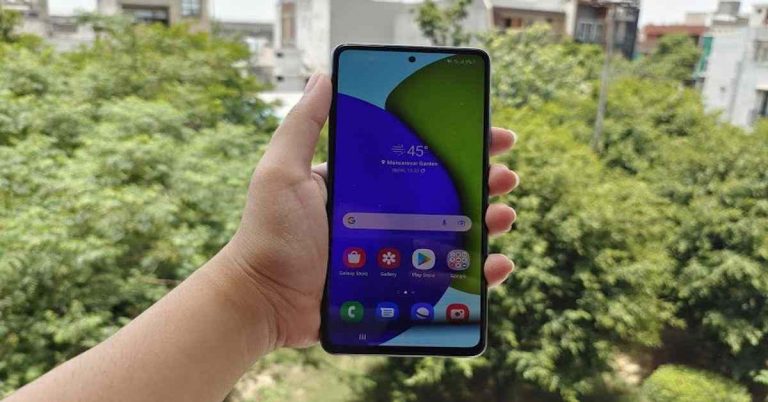
The look and feel of Samsung Galaxy A52 really make it stand out. The smartphone is available in Awesome Black, Awesome White, Awesome Blue, and Awesome Violet colour options and the latter two variants look funky. The device that we got for review was dressed in blue. The back panel of Samsung Galaxy A52 is made up of plastic and has a matte finish, so you will not face any problem with fingerprint smudges. There is a camera module on the back of the handset which houses four lenses and an LED flash. Besides this, the back panel also has ‘Samsung’ branding. Pic1 The company could have opted for a material other than plastic to make the device look more premium at this price point. But moving on, the edges of the smartphone have a glossy finish and the Power and Volume Rocker keys are sandwiched on the left one. The top edge has the SIM tray and the secondary microphone, while the bottom edge has the Type-C port, speaker grill, microphone and a 3.5mm headphone jack. The handset has an IP67 rating, which means that it is dust and sand proof and is also tested to work perfectly after being in up to 1 meter of water for half an hour. Flip over and you will see the 6.5-inch Super AMOLED full-HD+ hole-punch display of Samsung Galaxy A52. We have seen thinner bezels than that of the smartphone, and the chin at the bottom is even thicker. There is a selfie camera in the hole on the top and the fingerprint scanner embedded on the lower half of the screen of the device. The colours projected on the display of the smartphone were bright and vibrant and the images were crisp and sharp. The colours remain consistent at different viewing angles and the sunlight readability was decent. Samsung A52 6 The display of the smartphone comes with a refresh rate of 90Hz, which can also be turned down to 60Hz in case you want to get more battery life. We watched quite a few Netflix episodes on the device, and during our time with it, we had a decent viewing experience. YouTube videos were much better to watch even at 1080p.

Samsung Galaxy A52 performance and cameras

Before we begin talking about the performance of Samsung Galaxy A52, let’s take a minute to shed light on the rest of its specifications. The handset is powered by the Qualcomm Snapdragon 720G processor coupled with up to 8GB of RAM and 128GB internal storage. The smartphone has a hybrid SIM card slot, so you can either choose to add a second SIM card or a microSD card. The device houses 4,500mAh battery and runs Android 11 skinned with OneUI 3.1. There are plenty of bloatware apps on Samsung Galaxy A52 including Snapchat, Candy Crush Saga, Moj, ShareChat, PhonePe, Amazon, etc. The good thing is that most of these apps, apart from the ones from Samsung’s own suite, can be uninstalled. The device also comes with Galaxy Store, which sends quite a few notifications. Samsung A52 2 Samsung Galaxy A52 turned out to be a smooth performer. We multitasked a lot on the smartphone and it managed to most tasks we threw at it with ease. We opened and switched between a lot of apps and multiple Chrome tabs during the day, and we didn’t encounter any lag or stutter while doing so. We read e-books on Kindle, watched shows on Netflix, listened to audiobooks for hours, and we our experience was a pleasant one. We should mention though that the device starts warming up while watching movies and playing games. In fact, gaming was an aspect that we have mixed feelings about. On one hand, even graphic-hungry games like Asphalt 9: Legends ran smoothly, but as we mentioned earlier, the device started heating up after a while and we also noticed a drop in the battery levels just after 15 minutes. pic 2 Coming to the battery life of the smartphone, the 4,500mAh battery can last a day and a half with moderate usage involving watching Netflix and YouTube videos, listening to music, clicking pictures and an active Instagram account. The call quality of the smartphone was good too, and neither we faced a problem listening to callers, nor did they while listening to us. Also read: Oppo Watch review: For the everyday power user Finally, let’s talk about the cameras of Samsung Galaxy A52. The device comes with a quad-camera setup on its back panel that includes a 64MP primary sensor, a 12MP ultra-wide angle lens, a 5MP macro lens, and a 5MP depth sensor. On the front panel, there is a 32MP selfie camera. We should mention that the camera app has a variety of other modes including Single Take, Pro, Night mode, Slow Motion, Hyperlapse, etc. There is a scene optimizer on the camera app which could recognise most of the objects we clicked. Samsung A52 image The camera experience on the device was average. The images that were taken in daylight by the primary camera turned out to be decent, but we should mention that when we transferred them to our laptop, they did lose some quality. But the images taken from the primary camera were obviously better in terms of detail as compared to the ones taken from the ultra-wide sensor. But those weren’t bad either. The images clicked in dimly-lit areas were average and Night Mode only made them marginally better. Pic1 outside We tried using the Macro and Portrait modes on the smartphone too, and the results that we got from them were quite good. We were happy with the quality and the details of the images that were captured. Samsung A52 image 3 The selfie camera mostly did a good job too, and performed decently in low-light areas too.

Verdict

We had much fun in the Samsung Galaxy A52 review. The smartphone has a great design, a good display, and its IP67 rating is definitely a big plus. The battery was lasting too. The cameras could be a lot better, and some aspects of the performance like warming up of the device were a bit disappointing. If the pros of the smartphone that we mentioned in the review are what you look for in a device, you can go for Samsung Galaxy A52, but otherwise, you may want to consider another Samsung device. There are plenty of handsets from Samsung’s own M and A-range that have proven their mettle, so you might want to go for them instead. For the latest gadget and tech news, and gadget reviews, follow us on TwitterFacebook and Instagram. For newest tech & gadget videos subscribe to our YouTube Channel. You can also stay up to date using the Gadget Bridge Android App.

How to delete Snapchat from iPhone or Android smartphone?

Snapchat is another social media app that offers some unique trademarks. The app will allow you to share messages, pictures, and videos temporarily. The new concept of disappearing whatever you send is admired by many social media enthusiasts. But if you ever decide to delete your Snapchat account from your mobile. Here are the steps below.  Note: Apparently Snapchat has not offered the button to delete the account from the Snapchat app. However, you can use any browser on your iPhone or Android smartphone and you can delete the account permanently. 

Delete your Snapchat account from your Android smartphone:

Delete your Snapchat account from your Android smartphone:If you are confused about how to delete your Snapchat account, like all social media apps it can be deleted in a few steps. Snapchat has been popular with users who like to opt for sending disappearing messages and the app is the perfect platform. But if your time has come to take a break from Snapchat, follow the steps and delete your account. 
  • Open this link on any browser of your Android mobile. And visit the portal that opens up for further steps,
  •  As the portal opens up you are required to log in with your Username or Email and Password>Press Log in
  • After logging in an OTP code will be sent and once you receive it enter the code on the page. 
  • Enter your credentials again and hit continue.
Read more: Instagram released Reels Remix, a feature similar to TikTok’s Duet

Another Method to delete a Snapchat account from your Android smartphone:

Another Method to delete a Snapchat account from your Android smartphone:This is another method that you can delete from your Snapchat account permanently. This step is from the Snapchat app, which will help in opening and deleting your account. Follow to know the other method. 
  • Open the app>Tap on the profile (Top left corner).
  • Click on settings (Top right corner).
  • From the Support options>I need help.
  • When the support page opens up>Search delete my account>Click on it.
  • The next page will direct you to a link to the accounts portal.
  • A confirmation page will come>Delete account.
Read also: How can you bring back recently deleted images on Instagram?

Delete your Snapchat account from iPhone mobile:

Delete your Snapchat account from iPhone mobile:Snapchat has attracted a lot of users with its distinct features and User Interface. But the competition stack is very high from many social media sites. If you are searching for the button to delete your Snapchat account. Here are the following steps.
  • Open the app on your iPhone.
  • Swipe the screen on the app to open the settings.
  • Click on the Settings icon on the top right corner.
  • From the setting page>Support>My account setting>Account information.
  • Scroll to Delete my account.
  • Enter Password to verify.
  • Tap continue and complete the deactivation.
  • If you want to reactivate your Snapchat account just in case>Type your username and password within 30 days of your deactivation.
For the latest gadget and tech news, and gadget reviews, follow us on TwitterFacebook and Instagram. For newest tech & gadget videos subscribe to our YouTube Channel. You can also stay up to date using the Gadget Bridge Android App

WhatsApp rolling out View Once feature to Android beta testers, photos and videos will disappear after seen

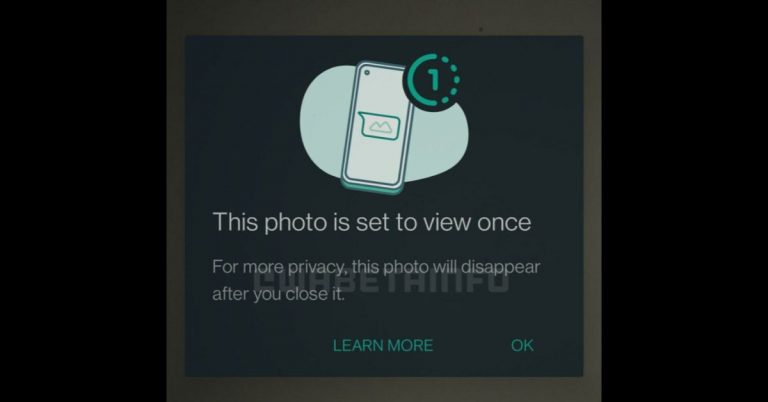
WhatsApp is testing a new Photos and Videos feature on its platform. The instant messaging service was spotted testing a new privacy feature in which the media received will disappear after it has been seen. The new privacy feature is called View Once and is being rolled out for specific beta testers. As per a report by WABetaInfo, the feature was earlier called expiring media and now known as Video once. The feature known as WhatsApp view once is available on WhatsApp beta for Android 2.21.14.3. When turning on this feature the sent media which may include photos and videos can only be video once and will disappear from the chat after you dismiss the photo or the video. This feature is similar to Snapchat which has this feature since its inception. The View Once feature is very different from the disappearing messages feature as messages of media disappear only after 24 hours. That feature was also introduced to WhatsApp in November last year.  
WhatsApp rolling out View Once feature to Android beta testers, photos and videos will disappear after seen
Image Courtesy: WABetaInfo
However, the new privacy feature is being rolled out to Android only but for some of the beta testers. The activation for iOS beta testers will be following later. The report says those who didn’t join the beta program can only receive photos and videos set to view once.  Read also: WhatsApp’s new update for Android and iOS: What all is new including disappearing messages and how will it work Once the functionality goes live on the platform the users will see a view once button when sharing the media. When you send photos and videos using Whatsapp view once, they can only be viewed once, and you’re notified when the recipient has opened them. 
WhatsApp rolling out View Once feature to Android beta testers, photos and videos will disappear after seen
Image Courtesy: WABetaInfo
When the receiver gets photos and videos with the view once enabled the media will disappear after they have been viewed or when you close it. According to the report even if you have turned off the read receipt the recipient will still be notified or able to see whether you have opened the media set to view once or not but you will not see when the recipient opens yours. In the same ways in groups, you can see when other participants open expiring photos even if you have disabled read receipts.  Though the receiver cannot save the photos or videos, they might be able to take screenshots or video capture. In this case, WhatsApp won’t notify you because there isn’t screenshot detection so privacy is not guaranteed.  Read also: Facebook to add new features to WhatsApp: Instagram Reels, disappearing images and more You can also share photos and videos set to view once in groups, and you can see who opened them in Message Info. But here is a loophole if you have blocked someone but they and you are a member of the same group can still open those photos and videos: in fact, they cannot message or call you but they can still interact with you in groups.  For the latest gadget and tech news, and gadget reviews, follow us on TwitterFacebook and Instagram. For newest tech & gadget videos subscribe to our YouTube Channel. You can also stay up to date using the Gadget Bridge Android App.

How to add music to your Instagram story?

Instagram has become a trending image-based social media app. The app had introduced music additions when uploading Instagram stories, some time back. The option to choose the soundtrack is from many sources, apart from Instagram’s own music library.  Now the moment you upload the story you will also have an option to add a background soundtrack. Read below to know how to add music to your Instagram stories. 

Add music from the Instagram library: 

Add music from the Instagram library: The steps below are to add music to your Instagram stories from Instagrams own music library. Follow the below.
  • Open Instagram>Stories from the upper-left corner of the screen.
  • Select Add to your story.
  • From the sticker icon>Music sticker.
  • Search for the song and click on it
  • Use the slider to decide the length of the song and which part of the song you want to play.
  • Click Done and publish your story.
Read more: Listen to Spotify songs even when offline: Download your playlist on mobile or desktop app

Add music to your Instagram stories from Spotify:

Add music to your Instagram stories from Spotify:You can also add music to your Instagram stories from apps like Spotify. And the steps to add the music are similar in iPhone and Android. Follow below to know more.
  • Open the Spotify app>Play the song you want to add.
  • From the three-dot on the top corner>Share.
  • From the options go to Instagram stories.
  • The song will open up on your Instagram and now you can make changes.
Read also: How to create your own Spotify playlist

Add music to your Instagram stories from Soundcloud: 

Add music to your Instagram stories from Soundcloud: The songs available on Soundcloud can be added to your Instagram stories. The steps are the same for both Android and iPhone. Check the steps below.
  • Open the Soundcloud app>Play the song.
  • Go to the share icon on the bottom of the screen.
  • From the options that show on the screen.
  • Choose Share to Instagram stories. 
  • The song opens up on the Instagram app>Make some setting>Upload.
  • Similarly, if you want to search for a song from someone in the Instagram stories you tap on the song title and it will open up in the Soundcloud app.

Add songs from the Shazam music app: 

Add songs from the Shazam music app: The music app owned by Apple has some interesting and innovative features. You can add the music from Shazam to your Instagram stories also in a few easy steps. Here are the steps
  • Open the Shazam app>Choose the song.
  • From the menu>Choose Share.
  • And select Instagram stories. 
  • Add some stickers>Upload.
  • And to open a song from Instagram stories>Title>Open Shazam. 
For the latest gadget and tech news, and gadget reviews, follow us on TwitterFacebook and Instagram. For newest tech & gadget videos subscribe to our YouTube Channel. You can also stay up to date using the Gadget Bridge Android App.

July 1 Flipkart Daily Trivia Quiz Answers: Answer to win exciting prizes

The e-commerce website Flipkart is hosting Daily Trivia Quiz. Every day it brings a bunch of new questions for its users. By answering them correctly you can win exciting prizes. The questionnaire is based on questions related to general knowledge. Also, the users can win free vouchers and super coins, among other offers via the daily quiz. July 1 Flipkart Daily Trivia Quiz Answers has already gone live on its platform. The participant should be at least 18 years old and should have a valid login ID. The Quiz is available on the mobile platform and not the web version. E-commerce conducts the quiz on daily basis and goes live at 12:00 AM IST and runs till 11:59 PM IST.  The winners are announced within 15 days from the date of participation that can be viewed under the Gems/Rewards section in the app.

How to participate in the Flipkart Daily Trivia Quiz

To participate download the Flipkart app on your phone. Then open the Flipkart app then head to Game Zone. Now click on the Daily Trivia Banner or search for Daily Trivia. Enter the game and answer all 5 questions with correct answers.

July 1 Flipkart Daily Trivia Quiz Answers 

Question 1: Who Is the newly appointed head coach of the South Africa cricket team till 2023? Answer: Mark Boucher Question 2:  For which football club does Egyptian forward Mo Salah play? Answer: Liverpool FC Question 3: In which city is the oldest international cricket stadium of India located? Answer: Kolkata Question 4: What Are the vertical columns on a chessboard called? Answer: Files Question 5: Who Is The first male Cricketer to score century on ODI And Test Debuts? Answer: Abid Ali
For the latest gadget and tech news, and gadget reviews, follow us on TwitterFacebook and Instagram. For newest tech & gadget videos subscribe to our YouTube Channel. You can also stay up to date using the Gadget Bridge Android App.

July 1 Amazon Quiz- Answer these five questions and you could win Rs 30,000

The daily Quiz is now live on the Amazon app and today you have a chance to win Rs 30,000. The participants can play the quiz from 12 AM to 11:59 PM. Those who are unaware of the e-commerce platform bring a fresh quiz on a daily basis which consists of five questions related to general knowledge and current affairs. The participants need to answer all the questions correctly and their names will be selected for a lucky draw. The company will announce the winner’s name at the end of the month. One wrong answer could eliminate you from the quiz. The result of today’s Amazon quiz will be announced a the end of the month. Only app users are eligible to participate in the Quiz. We have already updated all the answers of today’s quiz below. Question 1: Which film won the Best Film Award At Dadasaheb Phalke International Film Festival 2021? The answer is- Jungle Cry Question 2: The Indian Army recently launched the first Green Solar Energy harnessing plant in which state? The answer is- Sikkim Question 3: UNESCO World Press Freedom Prize is named after which brave Colombian journalist? The answer is- Guillermo Cano Question 4: Because they wear striped shirts, what are the officials in this sport known as? The answer is- Zebras Question 5: Which Roman god gave his name to this month? The answer is- Janus For the latest gadget and tech news, and gadget reviews, follow us on TwitterFacebook and Instagram. For newest tech & gadget videos subscribe to our YouTube Channel. You can also stay up to date using the Gadget Bridge Android App.

Samsung Galaxy A22 with 90Hz AMOLED display and a 5,000mAh battery launched in India

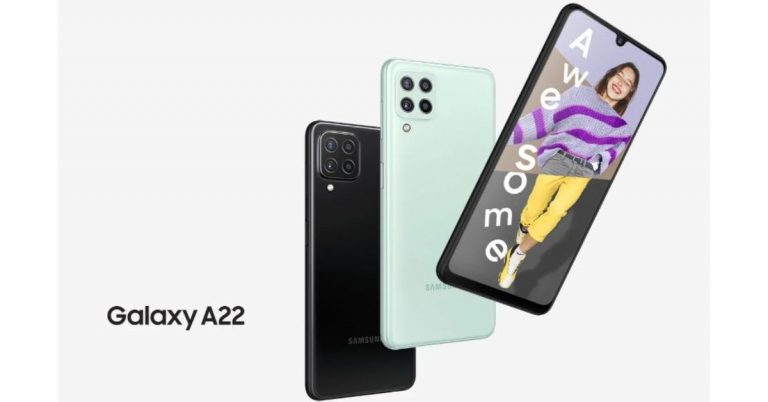
Samsung today officially announced the launch of a new A-series smartphone in the Indian market. The company has introduced Samsung Galaxy A22, which features a quad rear camera set up. Moreover, there is a 90Hz AMOLED display and a 5,000mAh battery with 15W Adaptive Fast Charging.  Samsung Galaxy A22 Price and availability Samsung Galaxy A22 has been launched in India in a single 6GB RAM with a 128GB storage model. The device is priced at Rs 18,999 and will be offered in two colour options of Black and Mint. The device will be available for purchase via the company’s official website in the country and is likely to retail at more online channels.  To recollect, the Samsung Galaxy A22 first debuted in the European market alongside the 5G variant earlier this month. There the handset is available in three different configurations of 4GB RAM with 64GB storage, 4GB RAM with 128GB storage, and 6GB RAM with 128GB storage. Samsung Galaxy A22 with 90Hz AMOLED display and a 5,000mAh battery launched in India Samsung Galaxy A22 tech specs and features Samsung Galaxy A22 features a 6.4-inch HD+ Super AMOLED display with 720×1,600 pixels of resolution. It offers a 90Hz refresh rate panel and a 20:9 aspect ratio. The device runs on One UI 3.1 Core based on Android 11 out of the box. Under the hood, there is an unnamed octa-core SoC paired with 6GB RAM with 128GB storage. The internal memory can be expanded up to 1TB using a microSD card.  In terms of camera capabilities, the Samsung Galaxy A22 comes with a quad rear camera setup that includes a 48-megapixel primary sensor with an f/1.8 aperture with optical image stabilisation (OIS). Further accompanied by an 8-megapixel ultra-wide-angle lens, a 2-megapixel macro lens and a 2-megapixel depth sensor with an f/2.4 aperture. For taking selfies, there is a 13-megapixel camera sensor on the front. The handset packs a 5,000mAh battery that is supported by 15W Adaptive Fast Charging. The device is said to deliver up to 38 hours of talk time. In terms of connectivity, there is 4G LTE, Wi-Fi 802.11ac, Bluetooth v5.0, GPS/ A-GPS, USB Type-C, and a 3.5mm audio jack. While the sensors on the phone include a side-mounted fingerprint sensor, accelerometer, ambient light, gyroscope, magnetometer, and proximity sensor. For the latest gadget and tech news, and gadget reviews, follow us on TwitterFacebook and Instagram. For newest tech & gadget videos subscribe to our YouTube Channel. You can also stay up to date using the Gadget Bridge Android App.

TCL launches an exclusive range of Mini LED and QLED TVs in India

The Chinese electronics maker, TCL, today announced the launch of its new range of 4K QLED TVs in India. The new series includes three models- Mini LED QLED 4K C825 with Magic Camera, QLED 4K C728 with Game Master and QLED 4K C725 with Video Call Camera. All the TCL C-Series collection features a 120Hz MEMC along with Dolby Vision and Dolby Vision IQ support. The whole range comes with voice control support and other advanced features. TCL Mini LED QLED4K C825  TCL Mini LED QLED 4K C825 supports Dolby Vision IQ and features a 120Hz MEMC. While TCL’s proprietary software algorithm reduces visual fatigue and delivers enhanced image quality. It has a Game Master feature that comes with an HDMI 2.1 support that enables high-quality gameplay and offers smoother processing and powerful optimization. The Television also equips a 1080P magnetic magic camera that is workable with Google Duo and Zoom Meet. For the audio it has  IMAX Enhanced certified 2.1 integrated ONKYO Soundbar with Dolby Atmos and a built-in Subwoofer. The TCL Mini LED QLED 4K C825 will be available in India in two different sizes 55inches and 65 inches. The device can be purchased at a price tag of Rs 114,990 and 149,990 respectively. TCL QLED 4K C725  This QLED Television is available in three sizes which offer 4K resolution. It comes with Dolby Vision, HDR 10+ technology along with AiPQ Engine, and supports both MEMC and HDMI 2.1. Integrated with ONKYO certified soundbar which is powered by  Dolby Atmos for high-quality audio. Additionally the TCL QLED 4K C725 also offers hands-free voice control 2.0.  Besides this, the TV operates with TCL Smart UI, which includes TCL Home Entertainment Center, where users can enjoy all kinds of global and local content in TCL Channel 3.0. The users can also play games via air console in the Game Center with no additional gamepad required. Whereas the Home Control Center, with Mirroring and MagiConnect, will enable mobile casting. You will also get a personalised screensaver and quick panel. This model will be available in three sizes 50, 55 and 65 inches priced at Rs 64,990, Rs 72,990, Rs 99,999 respectively. TCL QLED 4K TV C728  This Television comes with dedicated gaming features like Game Master backed by HDMI 2.1. There are other features like Variable Refresh Rate (VRR), Auto Low Latency Mode (ALLM), eARC, and the company’s proprietary software algorithm that will enhance the gaming experience. The QLED Display Technology ensures over 100% colour volume for enhanced visual impact and support for  Dolby Vision, Dolby Vision IQ, and Dolby Atmos. It comes with a 120Hz high refresh rate with MEMC for smooth animation. This TV also offers hands-free voice control as well.  The TCL QLED 4K TV C728 comes in three sizes 55, 65 and 75 inches priced at Rs 79,990, Rs 102,990 and Rs 159,990 respectively.

Top 5 ways to take a screenshot on a Mac? (2024)

Screenshots have become essential, maybe for work or to be shared on social media. Taking a screenshot is an easy process and a way to show others what you are viewing on your screen. On a Mac as well, the steps to capture a screenshot are fairly simple if you know the correct command keys. Follow the guide below to take screenshots on a Mac. Read Also: Philips TAB4228 Soundbar with 120W sound output launched in India

Using Shift+Command+3: 

On MacTo take the screenshot of the entire screen press Shift+Command+3 on your Mac. After pressing the command key a thumbnail will appear on your screen at the corner. You can also use the edit option to edit the screenshot. Once you have clicked the screenshot it will be saved on your Mac. Read more: How to take a screenshot on Windows 10 using a laptop or a PC?

Using Shift+Command+4:

Using Shift+Command+3: This function is to capture a customised selection of the screenshots. This means you can take screenshots of a portion of your screens. Press Shift+Command+4 and wait for the cursor to change into Apple crosshair. There are many options now that you can make use of. Follow the steps:
  • Press and release spacebar: By pressing the spacebar the crosshair will change into a camera icon that can now be dragged into an open window and screenshot it.  The screenshot will be a white border around the window with a bit of a drop shadow
  • Press and hold the spacebar: After you drag the camera icon to choose the portion of the screenshot if you press and hold the spacebar it locks the shape and size of the selection area 
  • Hold down the shift key: Pressing the shift key locks each side of the selection portion and lets you move your mouse up or down to position the bottom edge.

Shift+Command+5:

Shift+Command+5:If you want to take screenshots of a particular window or menu you can press the keys Shift+Command+5. After pressing the command keys, click on the Capture selected window option in the toolbar. Now the pointer will turn into a camera icon and you can drag the icon to a window to capture the screenshot. You can also take a custom screenshot by using the spacebar. There are some advanced features with this command: you can also capture video by pressing Shift+Command+5.  Read also: Top 5 things you didn’t know your Apple Watch could do

ShiftCommand+6: 

If you have a 16-inch MacBook Pro or a Mac with a touch bar, you can take screenshots of the touch bar by using Shift+Command+6. 

Use a third-party app: Shottr

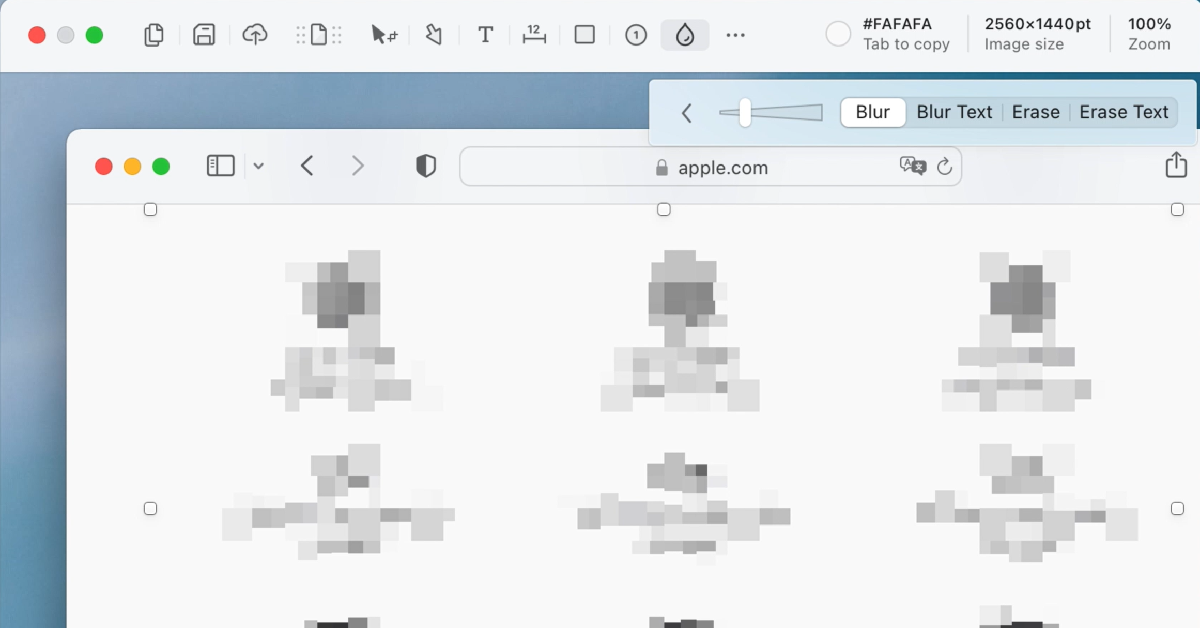
Top 5 ways to take a screenshot on a Mac? (2024) If you don’t want to rely on native methods to take a screenshot on Mac, you can always download a third-party app. Shottr is one of the best ones around. Not only can Shottr take screenshots on your Mac, but it can also carry out basic editing tasks like erasing certain elements from the screen grabs and pixelating or blurring personal information. You can also pin multiple screenshots on the screen and extract text from them to your clipboard. Want to take a rolling screenshot? Shottr can manage that too.

Frequently Asked Questions (FAQs)

How do I take a screenshot on a Mac?

The quickest way to take a screenshot of the entire screen on a Mac is by pressing Shift + Command + 3.

How do I take a partial screenshot on Mac?

If you want to capture only a part of the screen on your Mac, press Command + Shift + 4, use the crosshair to select the area and shape of the screenshot, press and hold the spacebar to adjust the selected area, and then release the mouse.

How do I blur out parts of a screenshot on Mac?

Use the Shottr app to pixelate or blur out the sensitive information on your Mac screenshots. Read Also: Top 5 Things to Know Before Buying a VR Headset

Conclusion

These are the top 5 ways to take a screenshot on your Mac. The images that you have taken screenshots of are by default saved on your Mac desktop. But in case you are not able to find it, go to Launchpad>Other>Screenshot. If you have any queries related to these methods, let us know in the comments!

Best ways to clean your kitchen appliances like microwaves, ovens, toasters, grillers, etc.

Nothing beats your mood more than seeing those kitchens in an awful manner. And nothing lightens up the ambience than looking at those clean and shiny kitchen appliances. If you are a cleaning freak like Monica from Friends or just are fond of neatness, here are some hacks you can apply today to your chores. Follow the hacks below to clean your kitchen appliances.

Microwaves cleaning hacks: 

Microwaves cleaning hacks: Cleaning your microwaves is everyday work and it often gets overlooked. The task seems to take a lot of time but to your surprise, these hacks will make things easier. A clean microwave will ensure the durability of the appliance and hygienic cooking as well. Follow the hacks to clean your microwaves.
  • By using a wet paper towel, clean the interior of the appliance and leave it for some time.
  • Use baking soda, which helps in removing the spills inside the microwaves.
  • Another method that you use is by using water and vinegar. By mixing the vinegar in the water, pour it into a bowl and microwave it for 5 minutes. Once you see all the steam inside of the microwave let it cool down and wipe it with a clean cloth. 
  • You can try lemons. Cut the lemon into slices and place it in a bowl of water and put it in the microwave for some minutes. Make sure there is steam inside the microwave, wait for the appliance to cool down, and clean the interior with a cloth or any cleaning scrubs.
Read more: Sharp’s countertop microwave ovens feature Wi-Fi connectivity and Alexa compatibility

Hacks for ovens and toasters:

Electrical appliances such as ovens and toasters are advised to be cleaned regularly. The leftover crumbs from your toast might spark a circuit. There are some easy things you can start doing every day after you toast your breakfast: unplug the toaster and shake it upside down so that the crumbs fall down. If the toaster has a crumb tray regularly clean and you can also use a brush to clean the inside of a toaster. For ovens, you can wash the removable tray with water and make sure it is dry before you put it back. You can also use vinegar mixed with water to clean the insides of the oven.  Read also: World Food Day: Top gadgets that will help you prepare great food at home

How to clean your grillers:

Most grillers come with a non-stick surface so cleaning the grillers will help preserve the non-stick surface and make the appliance last longer. The everyday hacks for cleaning a grill can be started off by wiping it with a wet paper towel after you finish using the appliances but make sure the grill has cooled down. Also, use some warm water and wipe the surface with a clean cloth so that all the leftovers stuck on the grillers are wiped off. You can also use a brush soaked in water to rub off any particles that cannot be cleaned with a wet paper towel. Before plugging back in, make sure the appliances are dry and clean. 

How to clean your coffee maker:

How to clean your coffee maker:The coffee maker which is used daily should be cleaned regularly, possibly every day. This will prevent bacteria growth and also make your coffee taste better. The coffee maker mixed moisture and warmth which is the highest breeding ground for bacteria and other mold growth. The parts of the coffee maker can be washed with warm and soapy water. Make sure you empty the water reservoir and drip trays regularly. Do not forget to leave the reservoir lid open so that it is dry out. 

How to clean your RO water tank: 

The motive of RO water is drinking clean water so cleaning the RO water tank is critically important. The first thing you can do to maintain a clean hygienic RO water tank is by making sure you change the RO filters on a timely basis. Not just the filters and the interiors, it is also important to clean the exteriors of the RO to maintain a hygienic environment around the RO water tank. You can use vinegar water to clean the RO tank and let it dry, then wash it with clean RO water.  For the latest gadget and tech news, and gadget reviews, follow us on TwitterFacebook and Instagram. For newest tech & gadget videos subscribe to our YouTube Channel. You can also stay up to date using the Gadget Bridge Android App.

Android Update: Google Messages to auto delete OTPs after 24 hours from your device

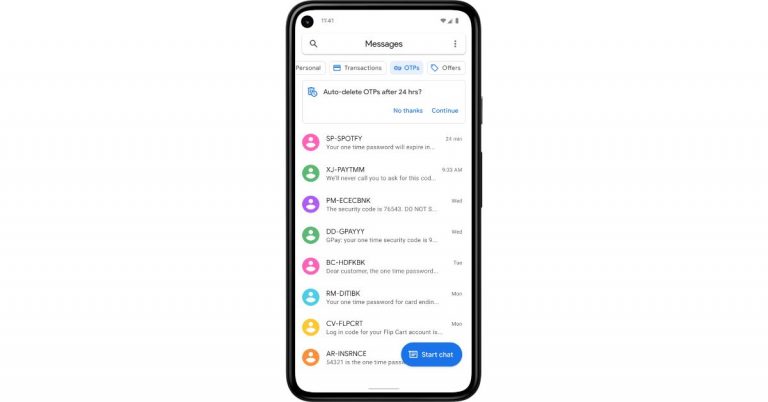
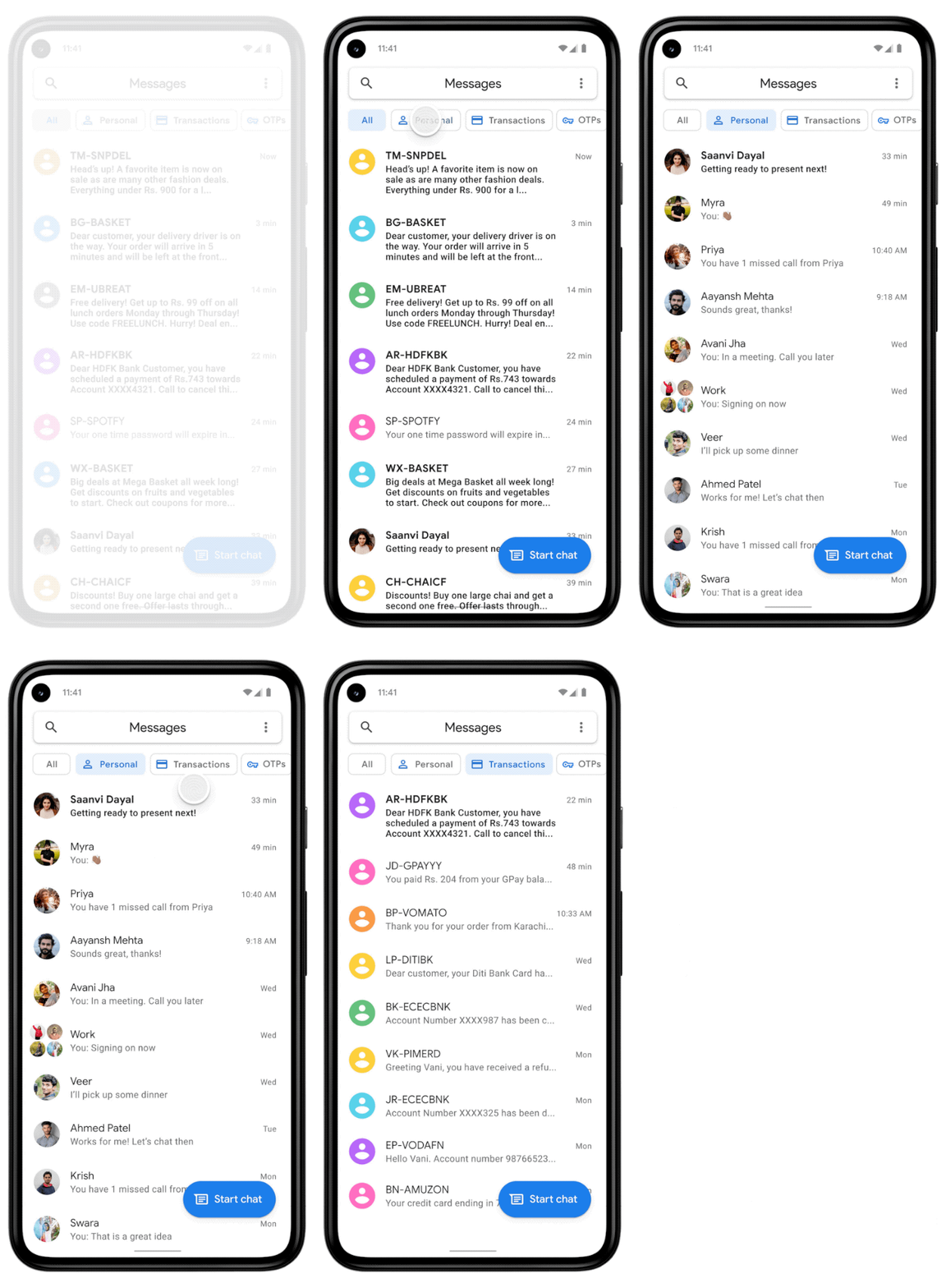
Google is rolling out a fresh update for Android devices. The new update comes for the Google Messages application, which will be delivering two new features to your devices. The first is the auto delete OTPs messages and the other one is the sorting feature, which is going to sort all your messages into categories. This will make it easier for users to not manually segregate or delete the promotional or One Time Passwords that we receive from businesses or while making money transactions and logging in accounts. The news comes by way of a blog post by the company, which has announced a very important update for the Google Messages application to make text or messages on your device simpler to consume.  The blog post says, “With our Messages app, we’re bringing a seamless and helpful experience on Android.  We’ve heard from many users in India that they receive a lot of different types of messages, from friends and family and businesses sending promotions, receipts, order confirmations and more. With so many incoming texts vying for your attention, it can be difficult to separate the important ones from everything else.  To help you easily manage your messages, today we have two new updates to the Messages app to share.” In order to keep your inbox clutter-free, the Messages app has received a feature in which it uses machine learning technology to automatically sort your messages into categories, including personal, transactions and OTPs. The new functionality will filter out bank transactions and bills to the transitions tab while the conversations with saved numbers can be easily located in the personal tab. The decluttering of the messages will not hamper any of your conversations they will stay in a device but will be more manageable.  We all have a habit of not deleting one-time passwords (OTPs) from our phones after money transitions, payments or account log-in is complete. So now the Google Messages app will take the lead by auto-deleting the OTPs from your phone. The application will provide the option to automatically delete your one-time passwords (OTPs) 24-hours after they’re received, so you don’t have to spend time deleting them manually. To enable the feature, just tap continue when you see the suggestion prompt to confirm your selection. As per the company, the new update for the Messages app will be pushed out over the coming weeks (in English) on Android phones in India running Android 8 or newer. These features are optional and can be managed in settings, too. To try them out, update your Messages app to the latest version or download the app here For the latest gadget and tech news, and gadget reviews, follow us on TwitterFacebook and Instagram. For newest tech & gadget videos subscribe to our YouTube Channel. You can also stay up to date using the Gadget Bridge Android App.

How can you fix errors on Covid 19 vaccine certificates online?

The website or the app of CoWIN have allowed you to correct any particular errors on your vaccine certificates. There are some details you should keep in mind before you make those changes. Make sure to fill in all the information correctly since the chance of fixing the errors is allotted just one time. The website has opened a portal to change your name, gender, photo ID number, and date of birth. 

How to fix errors on the vaccine certificates online:

How to fix errors on the vaccine certificates online:The CoWIN vaccination certificates are produced when you are traveling and will help in entering many premises. Earlier the status update on your vaccination was through the Aarogya Setu app, but now CoWIN has allowed you to make changes. Here are the steps to fix the errors. 
  • Go to cowin.gov.in and sign in with your mobile number that has been registered
  • Once the mobile number is verified it will show your account details 
  • Click on the “Raise an issue” option on the top and select the member’s name
  • Press on the “Correction in certificate” option 
  • There will be four options given: Name, Year of Birth, Photo ID Number, and Gender
  • Select the options you need to fix the errors for
  • And tap on Continue>Submit
Read more: How to download and install watchOS 7.4 beta 5 on your Apple Watch?

How to verify your vaccine certificates: 

How to verify your vaccine certificates: Those who have received the first dose will have a single blue border with vaccination status on the home screen. And for those who have gotten the second dose have a “Blue Shield” with a double tick displayed on CoWin after 14 days of the vaccination. When you get vaccinated the certificate that has been issued includes a secure QR code to maintain authenticity and you can do the authentication from the CoWIN portal. Here are the steps:
  • Open the CoWIN site and click on Verify Certificate on the top bar 
  • Select the button Scan your QR code using the notification that will prompt you to activate your camera
  • Aim the camera at the QR code of your vaccine certificate and scan it 
  • Wait for the response for the certification 
  • It will either show “Certificate successful” or “Certificate Invalid” 
Read also: A new Windows 10 update may fix the printing issue that led to BSoD: How to fix it These are the guides on how to fix any errors that you faced on your Covid 19 vaccine certificate. And also how to check your vaccine certificate authenticity. Follow the above steps to fix the errors and check your vaccine certificates.  For the latest gadget and tech news, and gadget reviews, follow us on TwitterFacebook and Instagram. For newest tech & gadget videos subscribe to our YouTube Channel. You can also stay up to date using the Gadget Bridge Android App.

Amazon Echo Show 10 and Echo Show 5 launched in India

0
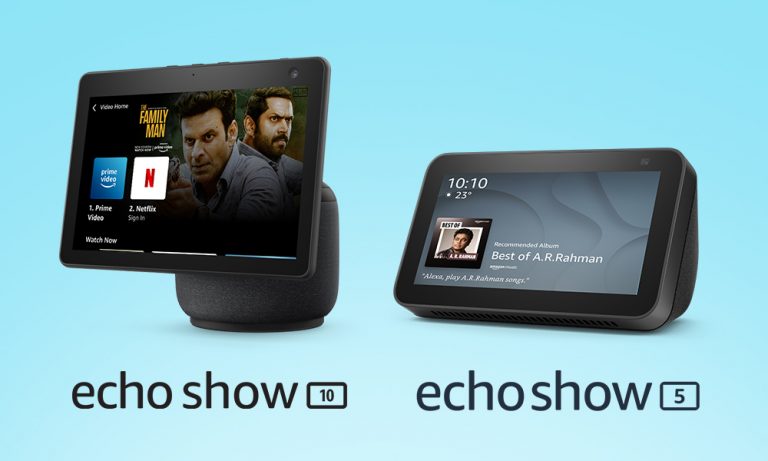
Amazon has expanded its lineup of Echo Show devices with the announcement of the third generation of Echo Show 10 in India. The new smart display officially made its debut along with other Echo devices in September last year. The Amazon Echo Show 10 (3rd generation) comes with an all-new design while holding on to its 10-inch display. The biggest USP of the device is that it comes with a 360-degrees rotating body which automatically rotates when you interact with Alexa. Alongside this, the company has also launched Echo Show 5 which was launched in the US last month. Amazon Echo Show 10 (3rd generation) and Echo Show 5 price in India and availability Amazon Echo Show 10 (3rd generation) has made its debut in India with a price tag of Rs 24,999. It should be noted that the device was launched in the US at $250 that translates to Rs 18,600 which is cheaper than the price quoted for the Indian market. This smart device will be available in India in a single black colour variant via the e-commerce website only. Whereas in the US it comes in two colour variants Charcoal and Glacier White.  Besides this, the company has also introduced another smart display- Echo Show 5 (2nd Generation) at Rs 8,999. However, the smaller and affordable Echo Show will be available at a discounted price of Rs 6,999. It comes in three colour variants: Black, White, and Blue.  Amazon Echo Show 10 features Amazon Echo Show 10 features a 10-inch adaptive HD display. It equips a 360-degrees rotating body that automatically rotates when you interact with Alexa. Also, the display will rotate with you during a video call and watching videos that makes sure that it is always in view. There is a 13-megapixel wide-angle camera that moves left to right and right to left keep you at the centre of the frame. 
Amazon Echo Show 10
Amazon Echo Show 10
The Amazon Echo Show 10 also incorporates Alexa Group Calling features that lets you connect with up to 8 people for video calling. Besides this, it also supports Zoom and Amazon Chime video conferencing as well. There are dual front-firing tweeters and a powerful woofer onboard. With Netflix support Echo Show 10 will be able to stream content. The smart display also uses advanced computer vision algorithms to help make your home smarter and more secure. When Alexa Guard is in Away Mode, Echo Show 10 can periodically pan the room and will send you a Smart Alert if it detects someone in its field of view. 
Echo Show 5
Echo Show 5
Amazon Echo Show 5 features The Echo Show 5 is a smaller and more affordable smart display by Amazon. It features a 5.5-inch touch display and comes with an upgraded 2-megapixel HD camera. The camera can also be accessed through the Alexa app to check in on home when you are out of town or away from your home. It can also control smart home devices and also play news and provide weather updates and more. It is also capable of recognising sounds of a crying baby, dog barking, person coughing or snoring—and automate a series of actions. For the latest gadget and tech news, and gadget reviews, follow us on TwitterFacebook and Instagram. For newest tech & gadget videos subscribe to our YouTube Channel. You can also stay up to date using the Gadget Bridge Android App.

Dell UltraSharp Webcam with AI-backed Auto-Framing feature launched in India

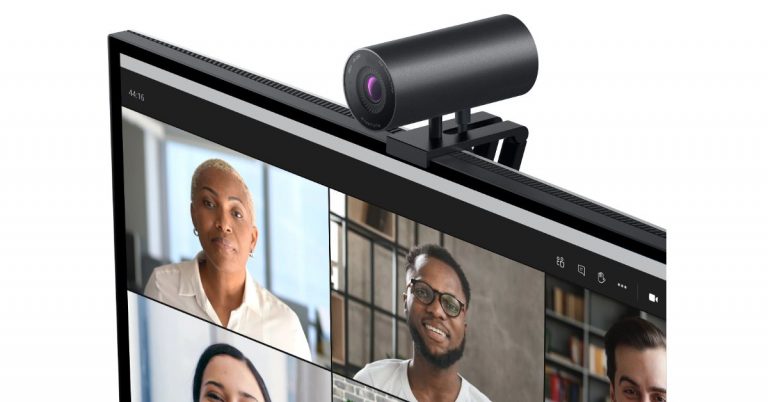
The pandemic is changing our lifestyle and work ethics, along with education and entertainment. We have started valuing products that offer convenience and enable us to multitask seamlessly. Dell is the latest entrant in the market to offer a webcam for 4K video conferencing. The brand has announced the launch of the Dell UltraSharp Webcam that comes with an auto framing feature. It will compete against Mi TV Webcam and the OnePlus TV camera. Dell UltraSharp Webcam price and availability details Dell UltraSharp Webcam has been introduced in India with a hefty price tag of Rs 18,999. The device will be available for purchase via Dell’s enterprise channels across the country.  Similar to the Dell Webcam, other brands such as Xiaomi and OnePlus have also brought their proprietary webcam for the Smart TVs in the Indian market. OnePlus TV Camera is priced in India at Rs 2,999 whereas Mi TV Webcam comes at a much lesser price tag of Rs 1,999. Both the webcam modules are currently available for purchase in the country. Dell UltraSharp Webcam with AI-backed Auto-Framing feature launched in India Dell UltraSharp Webcam specifications Speaking of the design first, the Dell UltraSharp Webcam features an all-aluminium cylindrical body. There is a magnetic mount along with a tripod adapter so that it can be attached to your device easily. It comes with a magnetic snap-on cover for privacy. There is a white LED light indicator, which lets us know when the webcam is in use. This Webcam from Dell comes with an 8.3-megapixel Sony STARVIS CMOS sensor. The camera is capable of offering 4K UHD resolution at 24fps/ 30fps frame rate and full-HD and HD resolution at up to 60fps frame rate. In addition to this, the camera module also comes integrated with the multi-element lens on top for well light videos and Digital Overlap HDR capability. Over that, the webcam features an AI-backed Auto-Framing feature to keep you stay focused during video conferencing. The device is compatible with both Windows and macOS devices. The Dell UltraSharp Webcam uses 3D/2D video noise reduction for not so grainy picture quality and offers a customisable field of view options to choose from 65, 78, and 90-degrees of FOV. Additionally, it is also capable of providing 5x digital zoom. Furthermore, there is a Dell Express Sign-In feature to detect motion with a built-in proximity sensor. This also lets it log you out when it detects you have stepped away from the sensor. With an IR sensor, it logs in users using Windows Hello. On the connectivity front, there is a USB Type-C port, which can be used to connect with a PC using a USB-A-to-USB-Type C cable that comes inside the box.  For the latest gadget and tech news, and gadget reviews, follow us on TwitterFacebook and Instagram. For newest tech & gadget videos subscribe to our YouTube Channel. You can also stay up to date using the Gadget Bridge Android App.

How to make live wallpapers for your Android smartphones

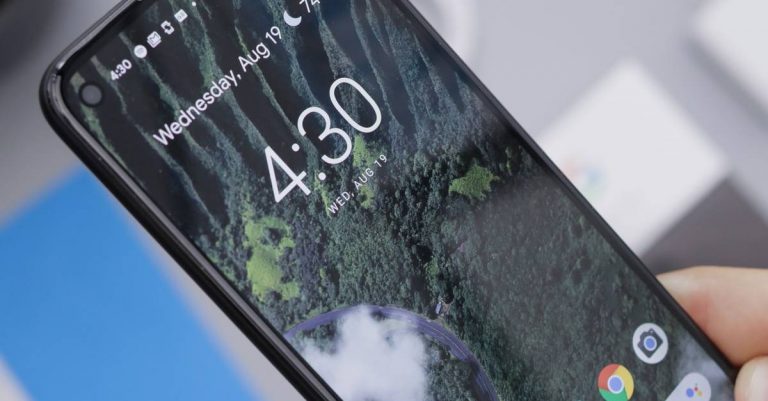
Live wallpaper is basically one that contains some form of animation. These wallpapers are interactive wallpapers that are used on your Android home screen. The Google Play Store is home to a vast array of live wallpaper with so many options to choose from. So if you are ever sick of the same dull wallpapers try the live wallpapers by following the guide below.

Pre-installed live wallpaper on Android smartphone

There are not many options to choose from for the pre-installed live wallpaper library. But android smartphones do come with some pre-loaded live wallpapers that you can set on your home screen. Here are the steps: 
  • From your home screen press the menu button or go to Settings from the gear icon
  • Select Display from the options given in Settings
  • Press on wallpapers 
  • From the three options that pop up choose one: Home screen, Lockscreen, Both home screen, and Lock screen
  • Now from the page “Select wallpaper from” choose Live wallpaper: Gallery, Live wallpaper, wallpaper
  • From the list of live wallpaper select one and change your homescreen layout
Read more: How to recover deleted images on your Android smartphone

Live wallpaper from Google Playstore:

Live wallpaper from Google Playstore:As mentioned, Playstore has thousands of Live wallpaper apps on the market for you to download and install and most of them are for free. There are many ways to download a live wallpaper. You can either check the live wallpaper for rating, search on Google for the best live wallpaper on Play Store, or just go Google Playstore and type live wallpaper on the search box and click on the one you like. Here is how you can download and install a live wallpaper app.
  • Open the Play Store on your Android smartphone and search live wallpaper
  • Browse for the live wallpaper whose aesthetic appeals to you 
  • Open the page and click install 
  • After the download of the app
  • Go to phone settings>Display>Wallpaper
  • Choose Home screen, Lock screen, or Both>Live wallpaper>Set wallpaper 
  • Check your home screen
Read also: Easy step by step guide on how to download Battlegrounds Mobile India on Android devices

Set videos as live wallpaper on your Android smartphones: 

Set videos as live wallpaper on your Android smartphones: Most Android phones do not come with pre-installed video live wallpaper, but you can always download it from the Google Play Store. The video live wallpaper is to be added to your home screen through a third-party app so make sure you have the best-looking app. Here is a guide to add video as live wallpaper.
  • Open your Google Play Store and download the best video live wallpaper app you can do that by just typing Video live paper on the search box and choose the one which has the best rating and that is of your taste
  • Download and install the app on your phones
  • Open the app on your smartphone after installation
  • Go to choose options and select the video from your gallery or from other platforms you have a video you want to use as live wallpaper 
  • Click Ok>Apply 
For the latest gadget and tech news, and gadget reviews, follow us on TwitterFacebook and Instagram. For newest tech & gadget videos subscribe to our YouTube Channel. You can also stay up to date using the Gadget Bridge Android App.

Google may launch and release Pixel 5a smartphone in August: Report

Previously Google confirmed that Pixel 5A will be a mid-range option that is going to be available later this year in the worldwide markets. But according to a fresh report the company is expected to launch the device in August. In addition to this, the phone may also go on sale in a similar month of the launch. However, the past rumours suggested that this time the company might not bring the device to the stores.  Reportedly, Google Pixel 5A is said to be announced in August. The device is a follow up of the original Pixel 5, which was launched last year. However, the upcoming devices are said to be low-cost handsets. Another report suggests, that the phone has been spotted with multiple references to the codename “Barbet” in the latest Android 12 Developer Preview that is slated to be used for the models which were launched last year. These references have a model number “sm7250” that is believed to be the Qualcomm Snapdragon 765G SoC which is also present in the Pixel 5 and Pixel 4a 5G. Earlier Google Pixel 5a was rumoured to be cancelled by the company but the company took this matter into its hands therefore by confirming the launch. Google released a statement saying “Pixel 5a 5G is not cancelled. It will be available later this year but will be available in the US and Japan. This statement contradicts an alleged BIS listing which indicated the launch in India as well.  Last year Google Pixel 4a and 5 was launched in the month of October. In the same way, the launch of the Pixel 5a is expected to happen around the same timeline or maybe earlier. 
Google Pixel 6
Image Courtesy: Jon Prosser/YouTube
Separately, Google Pixel 6 is also scheduled for a launch. The device is said to be powered by the company’s in-house chipset codenamed “Whitechapel” which is also being referred to as GS101. The GS in the acronym stands for Google Silicon. The new chipset is said to be co-developed with Samsung that may share some similarities with its Exynos chipsets. The Google Silicon is also said to have an octa-core ARM CPU with two Cortex-A78 plus two Cortex-A76 and four Cortex-A55 cores. This can be further paired with ARM Mali GPU which is based on Samsung’s 5nm manufacturing architecture. For the latest gadget and tech news, and gadget reviews, follow us on TwitterFacebook and Instagram. For newest tech & gadget videos subscribe to our YouTube Channel. You can also stay up to date using the Gadget Bridge Android App.

June 30 Flipkart Daily Trivia Quiz Answers: Answer to win exciting prizes

The e-commerce website Flipkart is hosting Daily Trivia Quiz. Every day it brings a bunch of new questions for its users. By answering them correctly you can win exciting prizes. The questionnaire is based on questions related to general knowledge. Also, the users can win free vouchers and super coins, among other offers via the daily quiz. June 30 Flipkart Daily Trivia Quiz Answers has already gone live on its platform. The participant should be at least 18 years old and should have a valid login ID. The Quiz is available on the mobile platform and not the web version. E-commerce conducts the quiz on daily basis and goes live at 12:00 AM IST and runs till 11:59 PM IST.  The winners are announced within 15 days from the date of participation that can be viewed under the Gems/Rewards section in the app.

How to participate in the Flipkart Daily Trivia Quiz

To participate download the Flipkart app on your phone. Then open the Flipkart app then head to Game Zone. Now click on the Daily Trivia Banner or search for Daily Trivia. Enter the game and answer all 5 questions with correct answers.

June 30 Flipkart Daily Trivia Quiz Answers 

Question 1: Starring Irrfan Khan, which film was a biopic on a 7-time national steeplechase champion?
 Answer: Paan Singh Tomar
Question 2: Who replaced Navjot Singh Sidhu in the Kapil Sharma Show? Answer: Archana Puran Singh Question 3: Who replaced Navjot Singh Sidhu in the Kapil Sharma Show? Answer: Ramayana Question 4:Who wins the title of the best student in the film ‘Student of the Year’? Answer: Varun Dhawan Question 5:   Who acted as the boxer ‘Apollo Creed’ in the ‘Rocky’ film series? Answer: Bruce Bennet
For the latest gadget and tech news, and gadget reviews, follow us on TwitterFacebook and Instagram. For newest tech & gadget videos subscribe to our YouTube Channel. You can also stay up to date using the Gadget Bridge Android App.

June 30 Amazon Quiz answers: Participate and win exciting prizes

The e-commerce platform Amazon is back with another new session of the quiz on its platform. It brings Amazon Quiz sessions for its customers on a daily basis. Customers can stand a chance to win bumper prizes just by playing at home from 12 AM to 11:59 PM. Every day Amazon asks 5 questions that the customers have to answer correctly. This session is only available for app user in India. In today’s Amazon Quiz the winners will get a chance to win Rs 25,000 Amazon Pay Balance. Check out June 30 Amazon Quiz answers:
Question 1: Parul Debi Das, who recently passed away, was the first female IAS officer from which state?

Carl Pei’s Nothing to launch Ear 1 TWS earbuds on July 27

Carl Pei today officially announced the launch of his very first product that is Ear 1 TWS earbuds on July 27 under his newly founded tech firm Nothing. Prior to the announcement, the CEO confirmed the first truly wireless earbuds that were earlier teased to launch on June 1.  CEO Carl Pei took to Twitter to announce the final date of the launch of Nothing Ear 1 TWS earbuds in the market. With the launch of its first truly wireless earbuds that will be looking to go after consumer tech giants such as Apple, Samsung and OnePlus offering AirPods, Galaxy Buds and OnePlus Buds respectively.  Earlier the Nothing Ear 1 TWS earbuds were announced to launch on June 1st but now the company’s head itself confirmed July 27 as the final date for the unveiling. His tweet reads, “ A month ago we announced that ear (1) would be revealed in June. We’re near the finish line and there are a few things left to finalize. For this reason, @Nothing ear (1) will now come out a bit later this summer. Your support and patience mean the world to us. More updates soon!” The launch is scheduled to kickstart at 2 PM BST and 6:30 PM IST. To launch the product in the Indian market Nothing has appointed Samsung’s executive Manu Sharma who recently announced the collaboration of Nothing with Flipkart. He took to Twitter to announce the association to make its TWS earbuds available for purchase in India. His tweet reads, “For the upcoming launch of @nothing ear (1), we are excited to partner with Flipkart as we mark Nothing’s entry in India #ear1 #SoundOfChange #nothing #buildingnothing Carl Pei’s Nothing to launch Ear 1 TWS earbuds on July 27 The doesn’t divulge much information but the previous design concept of its upcoming TWS earphones shared by the company mentions that Ear 1 TWS will be a combination of transparency, iconic form, and refined functionality. It is the starting point that will define the artistry, confidence and craftsmanship that will carry our products and services for years to come. Whereas the teaser shows the form factor of the audio device. It should be noted that the Noting earbuds are designed in association with Stockholm-based Teenage Engineering. For the latest gadget and tech news, and gadget reviews, follow us on TwitterFacebook and Instagram. For newest tech & gadget videos subscribe to our YouTube Channel. You can also stay up to date using the Gadget Bridge Android App.

How can you spot a fake Amazon review? Here are a few ways

It will come as a surprise to some Amazon buyers that put product reviews sometimes can be fake. You can identify and know which is a fake review, as it can be critical to buying the best product online. An integral part of the online shopping experience has become which product is worth buying or not and the reviews for the product say so much about them. With more and more cases of fake reviews being caught by experts, it is high time you learn how to differentiate. Here are some ways you can spot fake Amazon reviews. 

There is a huge number of reviews in a short span of time: 

Generally, it takes a lot of time to get reviews on a product. Considering the fact that there are limited customers that are going to review the product on the Amazon website. If you spot flooding of reviews it is high time you should consider the reviews are paid reviews, for which people are being paid to write positive reviews. Read more: Redmi Note 10 review: Insanely good budget smartphone

Company website not available: 

Company website not available: Another thing you need to look at to spot fake reviews is by checking the company which uploaded the product. If you do not seem to locate an authentic company website, it is highly probable that the company is not trustworthy and all the reviews are to be reconsidered. These are signs that you can spot fake reviews easily.  Read also: How to spot a phishing email or SMS message and avoid it?

Similar wording reviews:

The writing style of a person does not change completely. If the reviews are from the same person but different accounts the content and the words will not be very different. If you are able to observe such similarities you can easily spot a fake review on the Amazon website. 

ReviewMeta: Reviews tools

ReviewMeta: Reviews toolsUsing a review tool is the best method to check if the review is genuine or fake. Reviewmeta simply uses the grading process as an Amazon-only analyzer. The steps to verify the review on the tool are easy and simple: you copy the URL and paste it on the website. The website will eliminate all the unreliable reviews and help you spot fake reviews on Amazon. The algorithm works in a unique way, letting you grade the reviews and provide detailed breakdowns with graphs. You can also add an extension to your browser. 

Fakespot: Tools 

Fakespot: Tools The review tools will rate how reliable product pages are on Amazon and other websites. You can open the fakespot website and copy the URL from Amazon and paste it on site. Fakespot will then grade the page and see how reliable the information can be. The algorithm of Fakespot finds reviews, analyses language, checks previous reviews, and purchase history to determine the product and the reviews. It filters out all the fake reviews for you to shop better and you can also add an extension of it to your browser.  For the latest gadget and tech news, and gadget reviews, follow us on TwitterFacebook and Instagram. For newest tech & gadget videos subscribe to our YouTube Channel. You can also stay up to date using the Gadget Bridge Android App.

Top 4 ways to block an app from accessing the Internet on Windows PC/Laptop? (2024)

For the unknown, just clicking on the ‘Allow Notifications’ popup of an app/software during the setup process gives internet access to the app. There are other instances as well when you want your applications to connect to a local network and better internet, but not all of them. Here are the top 4 ways to block the app access to the internet on your Windows computers. 

From Windows Defenders Firewall

From Windows Defenders Firewall:Although allowing apps to run online using the internet on the laptop is usually good, there are many reasons to block an app from accessing the internet on your computer. One example is to stop automatic updates of an app or disable an app that cannot be used offline. The following are the steps to block an app on Windows computers. 
  • Open your computer, go to the bottom left corner on the Search bar and type Windows Defenders Firewall 
  • On the next page click on Windows Defenders Firewall and open it 
  • From the left side, panel scroll down and select Advanced settings  
  • When the Advanced settings program is open click outbound rules from the side panel
  • Now from the right-side panel click on New rule 
  • New Outbound Rule Wizard will open and from the options choose Program and click Next
  • From This program, path browse the apps you want to block, select the app, and press Next
  • On the next screen tap on Block the Connection
  • The program will ask when/where you want to apply this rule, tick on all three options: Domain, Private, Public
  • Next name the rule and add a description to it 
  • Hit finish and the app will be blocked from accessing the internet
Read more: How to sign out of all your Google accounts at once on all devices?

Block Internet access using a network adapter

Block Internet access using network adapter:By disabling the network adapter you can also block the app access to the internet. Access to all utilities or setups of your computers will be blocked if you disable the network and will help the app in denying access to the internet on your computers. Follow the steps to disable the network adaptor. 
  • Open the Run app on your Windows computers by searching from the search box on the bottom left corner Or you can use the command key Win+R>msc
  • Open Device Manager on your computers by searching it from the search box 
  • From the Device Manager navigate to Network adapters
  • From the page click on the arrow icon to expand the list 
  • From the drop-down page, you will see what applications are connected to the internet 
  • Select the application or program you want to disable by using right-click 
  • From the option that appears from the right-click choose to disable

Use Command Prompt

A simple command in CMD can block internet access for any app. But first, you need to copy the app’s path. You can do this by locating the app in its source folder, right clicking on it, and selecting ‘Copy as path’. Once that’s done, launch CMD and enter the following command:

netsh advfirewall firewall add rule name=”FF Block In” protocol=TCP dir=in action=block program=(paste the path of the app here)

Use a third-party tool

If the methods mentioned above seem complicated to you, using a third-party tool can make things easier. OneClickFirewall is one such tool. After installing OCF on your PC, simply right-click on the app you want to prevent from using the internet and select ‘Block Internet Access’. It’s that easy.

Frequently Asked Questions (FAQs)

How do I block an app from accessing the Internet?

You can use Windows Firewall Defender to block an app from using the Internet on your PC. If Firewall Defender is too confusing for you, download OneClickFirewall, right click on the app, and select ‘Block Internet Access’.

How do I block an app from accessing the Internet using Command Prompt?

Copy the app’s path, go to CMD and enter: netsh advfirewall firewall add rule name=”FF Block In” protocol=TCP dir=in action=block program=(paste the path of the app here)

How do I turn off background data usage for an app on Android?

Go to Settings>Apps, select the app, tap on mobile data, and turn off the toggle switch for Allow Background Data Usage. Read also: Twitter updates its rules against hateful conduct on its platform

Conclusion

These are the top 4 ways to block an app from accessing the Internet on a Windows PC or laptop. Windows Firewall Defender also lets you block apps on your PC from using the Internet. You can make a whitelist of apps for which you don’t want the ban to apply. If you know any other ways to go about this task, let us know in the comments!

Netflix lets you stream videos even before they are done downloading

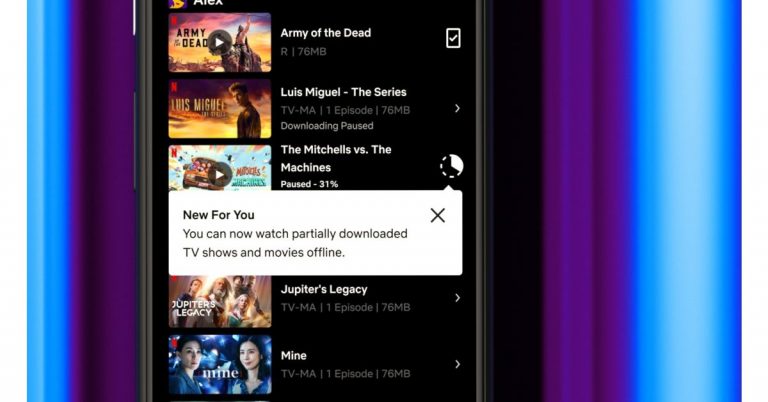
In a new update, the video streaming application Netflix is now allowing users to watch videos before they are partially downloaded. The partial downloading functionality comes for Android users and allows them to start watching series or movies even before the app has completed downloading. The users can choose to finish the download and keep watching, therefore, improving the Netflix download and watch experience. Netflix’s Partial downloading feature is now accessible to Android phones as well as tablets and is currently under testing for iOS devices, which will be launching in the coming months.  Keela Robinson, Vice President, Product Innovation said, “So we know the disappointment when you realize your download never completed because of unreliable wifi or a maxed-out data plan. That’s why we’ve improved the Netflix download experience so you can now start watching The Mitchells vs The Machines or the next episode of Luis Miguel – The Series even if it hasn’t completed downloading. Once you’ve regained a strong enough connection, you can choose to finish the download and keep watching — avoiding those surprise notices that you’ve gone over your data limits.” Prior to this, the user’s were not allowed to stream until the download was complete. Netflix’s partial downloads feature will liberate users to watch the videos in case the download gets disrupted due to poor internet connection. So even if the download is incomplete you will be able to watch the downloaded part while the rest of the part can be streamed later on, when the device gets access to the internet.   Separately, Netflix earlier this year introduced Downloads For You, a new feature that automatically downloads recommended shows or movies to your mobile device based on your tastes.  How to automatically download videos or movies:
  • Go to the Downloads tab on your mobile device and toggle on Downloads For You.
  • Choose the amount of content you want to be downloaded to your device (1GB, 3GB, or 5GB) and click Turn On. The more space you allow, the more recommendations Netflix will download for you.
For the latest gadget and tech news, and gadget reviews, follow us on TwitterFacebook and Instagram. For newest tech & gadget videos subscribe to our YouTube Channel. You can also stay up to date using the Gadget Bridge Android App.

How to use Clubhouse app on PC?

It seems Clubhouse is attracting a lot of attention. The recently released audio-based app has been in the headlines lately. The invite-only social media audio app lets you host a room for audio discussion and live audio. Officially as everyone knows there has not been a Clubhouse version for PC, but to ease the thought there are some ways you can download and install Clubhouse on PC. 

Using BlueStacks: Android Apps Emulator 

Using BlueStacks: Android Apps Emulator The Android application emulator is one of the best options available to run your Clubhouse app on your PC. You can download the BlueStack software on your computers and the Android apps emulator will let you download and install the Clubhouse app on your PC.  The BlueStack emulator is available for both Windows and Mac. The following steps is how to download and install the BlueStacks programming and Clubhouse app. 
  • Download the BluStacks software on your PC here https://www.bluestacks.com/
  • After the download is complete, install and open the software 
  • On the home screen, you will find Play Store
  • Open Play Store and search for Clubhouse app
  • Click the install button next to Clubhouse 
  • Complete the installation and sign in with your Mobile number: Make sure you have your phone with you along the process of logging
Read more: How to create your own room in the Clubhouse app: A complete step by step guide

Install the Clubdeck app on PC: 

Install the Clubdeck app on PC: For those who are new to Clubdeck, it is an unofficial desktop client app for the Cubhouse app. Using the Cludeck website you can access your Clubhouse app on your Windows or Mac PC. The websites you can use have some features for Clubhouse Moderators also. The best part of Clubdeck websites is all the functionality of the app is made available. And also features some advanced functions like recording, streaming to other social networks, and playing custom local audio. Check out the guide below to know more about Clubdeck. 
  • Go to clubdeck.app
  • Download the installer and install it properly on your computers and correctly 
  • Open the app and sign in using your mobile number registered on your Clubhouse account 
  • Wait for the verification send to the number and enter the code 
  • After you press submit it will open your Clubhouse account and you can use all features available to the app 
  • The Clubdeck allows you some additional features: Professional microphone for better quality, reroute audio through software like Loopback or Blackhole, Play custom sounds and jiggles files from local media or YouTube, Record and restream the session on Social Media, real-time insight from listeners of your Clubhouse room, backchannel chat to coordinate live with co-moderators, and shortcuts to navigate and moderate Clubhouse like a pro. 
Read also: How to run Android apps on your PC without using an emulator?  For the latest gadget and tech news, and gadget reviews, follow us on TwitterFacebook and Instagram. For newest tech & gadget videos subscribe to our YouTube Channel. You can also stay up to date using the Gadget Bridge Android App.

Everything you need to know about Ticketed Twitter Space and how to start one?

Twitter has now enabled the features to host Spaces for accounts that have 600 or more followers. Twitter space is an online community to share their knowledge, their professional abilities, and a place to come together. Twitter Space is an audio-based feature, which lets people interact in groups for a live session. Twitter has added a new ticketed feature in Twitter Space that lets you create a ticket for joining the Space session. The creator of the Ticketed Twitter Space can charge the ticket fee from 1 dollar to 999 dollars. Twitter is synonymous with discussions of what’s happening around the world. The unfiltered thought of users is often shared and expressed. With the Ticketed Twitter Space, the discussion will be brought to live audio experiences. The Twitter account that has enabled the Ticketed space will be able to monetise their Space and charge a fee as a Ticket to join the Twitter Space.  Read more: Now you can be the first to try Ticketed Spaces and Super Follows with your audience, Twitter opens applications

How can you start a Ticketed Twitter Space?

How can you start a Ticketed Twitter Space?The following steps are to enable the Ticketed feature in your Twitter account. And make sure you meet the requirement set out by Twitter to enable the feature. 
  • Open the Twitter app 
  • Go to the top left corner and click on the three horizontal line icon: (Hamburger menu)
  • Scroll down on the side panel and select Monetization
  • And from the options click on Ticketed Space
  • From the page open up press on “Apply for Ticketed Spaces beta”
  • Now you have registered and Twitter will get back to you 
Read also: How can you update or correct your PAN card online?

Functions of Ticketed Twitter Space: 

Functions of Ticketed Twitter Space: The tickets let you host an audio-based live session and let you control the entry of other participants by putting a fee to join your sessions. Know more below:
  • Monetisation: The audience of your session through Twitter Space is charged a fee from 1 dollar to high as 999 dollars as a ticket. 
  • Intimate settings: The live session created on Twitter Space lets you host invitees from 5 to 100 for deeper discussion and live audio sharing 
  • Promote Space: The promotion of your upcoming live audio discussion can be alerted with a push of an in-app notification that will be sent to their devices and you can share the details on your Timeline as well.

Super Follows: 

Super Follows: If your Twitter account starts to get more Super Follows you can earn more revenue and also create more content. With the increase in Super Follows, you can earn monthly revenue by creating a direct relationship with your active followers. Also, you can create bonus content and offer it to your biggest followers. Customisation is another great feature of having Super Follows. You can customise the price from 2.99 dollars to 9.99 dollars per month.  For the latest gadget and tech news, and gadget reviews, follow us on TwitterFacebook and Instagram. For newest tech & gadget videos subscribe to our YouTube Channel. You can also stay up to date using the Gadget Bridge Android App.

MWC 2021: Samsung gives insight into new One UI Watch experience jointly built with Google

At the ongoing MWC 2021 Samsung at its virtual tech conference introduced the One UI Watch user experience, which is its new unified platform jointly built with Google. According to the company, the new operating system will bring performance enhancements between the Galaxy Watch and Android smartphones. In addition to this, the upcoming Galaxy Watch will be the first to bring the new interface at its Unpacked event that is scheduled for late summer. While presenting the new unified platform and One UI Watch Patrick Chomet, EVP and Head of Customer Experience Office, Mobile Communications Business at Samsung Electronics said, “To unlock the full potential of these wearables, we’re leveraging our long legacy of mobile innovations and our partnerships with trusted industry leaders who have grown with us in our open ecosystem. Through these efforts, we will enrich our smartwatch experience and convenience of the Galaxy ecosystem for our consumers.” One UI Watch will offer a whole new watch experience between the Watch and Android smartphones. As per the company when you install watch-compatible apps on your smartphone they will automatically get downloaded onto your Galaxy Watch. Additionally, if you personalise your clock app on your phone to show the time in different cities around the globe, this will be automatically reflected on your watch as well.  Similarly, when you block calls or messages on your phone they will also be blocked on your Watch as well. Besides this, the users will also be able to integrate third-party apps like Adidas Running, GOLFBUDDY Smart Caddie, Strava and Swim.com, Spotify and YouTube Music as well as Google Maps via Google Play directly on your Galaxy Watch. On top of that, One UI Watch user experience will also accompany an improved watch face design tool. This will enable designers to create new watch faces. Moreover, the Android developers will be able to create new designs that will be added to Samsung’s collection of watch faces later this year. This will give more customisation options to users. Like we mentioned earlier the upcoming Galaxy Watch will be the first to feature the new One UI Watch. As per the company the unified platform is scheduled to be announced at Samsung’s Unpacked event later this summer. For the latest gadget and tech news, and gadget reviews, follow us on TwitterFacebook and Instagram. For newest tech & gadget videos subscribe to our YouTube Channel. You can also stay up to date using the Gadget Bridge Android App.