

In This Article
Clear Cache data and app data
 If your TV has now slowed down then chances are that you have filled up the storage of your TV or maybe some apps are the culprit. In order to clear data or cache data from your TV just follow the given steps:
Step 1: Go to your Android TV Settings, different TVs might have different methods so just look for your TV in the instruction manual.
Step 2: Then go to Apps and tap your preferred app.
Step 3: Click on Clear Cache and press the OK button, or just clear all the data and press OK.
That is how you can clear data on your TV and it should make your TV run faster.
If your TV has now slowed down then chances are that you have filled up the storage of your TV or maybe some apps are the culprit. In order to clear data or cache data from your TV just follow the given steps:
Step 1: Go to your Android TV Settings, different TVs might have different methods so just look for your TV in the instruction manual.
Step 2: Then go to Apps and tap your preferred app.
Step 3: Click on Clear Cache and press the OK button, or just clear all the data and press OK.
That is how you can clear data on your TV and it should make your TV run faster.
Uninstall apps
 If clearing data and cache didn’t work then you should uninstall the apps that are just taking up space and you do not use them. This is the best method to clear up the space on your TV. To uninstall apps just follow the steps:
Step 1: Open your Android TV Menu.
Step 2: Head to the Apps section and highlight the app from the list you want to remove.
Step 3: Press and hold the Select or Enter key on your TV Remote.
Step 4: The final step is to just uninstall the app.
And that’s how you can uninstall any app that you do not use on your Android TV.
If clearing data and cache didn’t work then you should uninstall the apps that are just taking up space and you do not use them. This is the best method to clear up the space on your TV. To uninstall apps just follow the steps:
Step 1: Open your Android TV Menu.
Step 2: Head to the Apps section and highlight the app from the list you want to remove.
Step 3: Press and hold the Select or Enter key on your TV Remote.
Step 4: The final step is to just uninstall the app.
And that’s how you can uninstall any app that you do not use on your Android TV.
Free the Storage Space
If you are running out of storage space on your TV, it is a good idea to clear it up. If there’s not enough storage space, your TV can slow down considerably. Step 1: Go to Settings and select More Settings. Step 2: Click on Storage. Step 3: This is where you’ll see the storage breakdown among Apps, Media, Downloads, and more. Visit each category and delete the files you no longer need.Disable Bloatware Apps
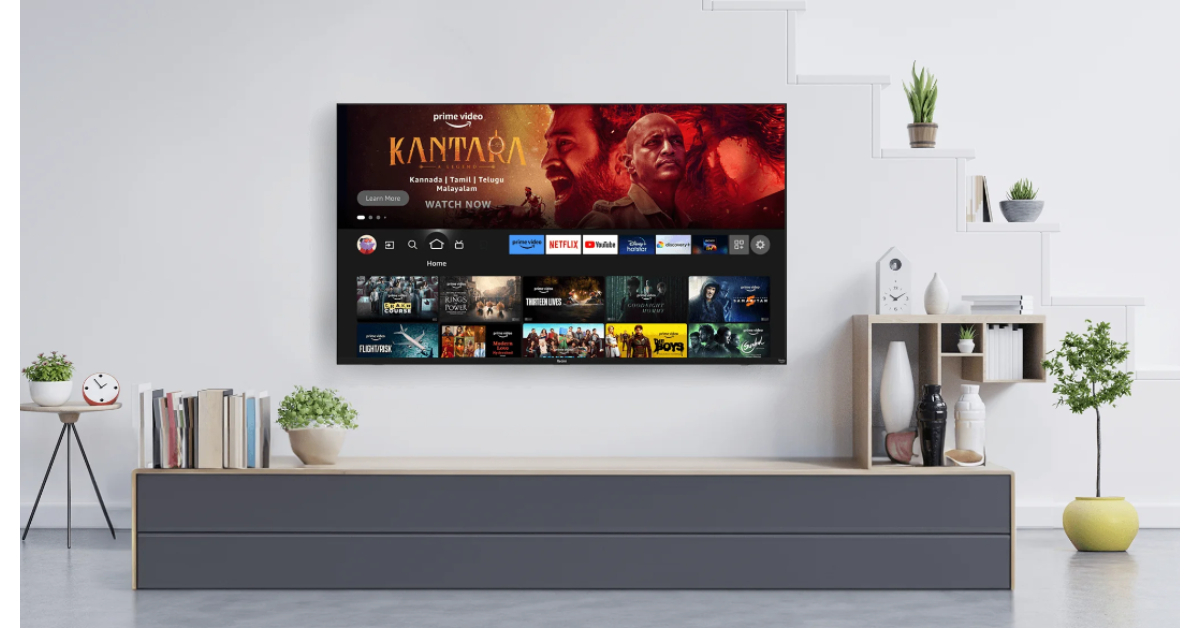 Some Android TVs (especially in the budget category) ship with a lot of bloatware apps that ultimately slow it down. Some of these apps can’t be removed from the TV, but you can disable them. If you don’t use the Google app on your device, you should consider disabling it as well. Here’s how.
Step 1: Go to Settings.
Step 2: Scroll down and select Apps.
Step 3: Select Google.
Step 4: Hit Disable.
Similarly, you can disable other bloatware apps on your TV.
Read also: Best 4 ways to remove Chinese apps from your Android
Some Android TVs (especially in the budget category) ship with a lot of bloatware apps that ultimately slow it down. Some of these apps can’t be removed from the TV, but you can disable them. If you don’t use the Google app on your device, you should consider disabling it as well. Here’s how.
Step 1: Go to Settings.
Step 2: Scroll down and select Apps.
Step 3: Select Google.
Step 4: Hit Disable.
Similarly, you can disable other bloatware apps on your TV.
Read also: Best 4 ways to remove Chinese apps from your Android
Turn Off Usage Diagnostics & Location Tracking
If you will turn off this feature then it will help to improve the performance of your Android TV and will make it run faster. Since Android TVs are not meant for multitasking, this feature runs in the background and consumes resources making your TV run slower. To disable this just follow the steps: Step 1: Open the Settings on your Android TV, and scroll down and click on Location under Personal. Step 2: Over here, click on Location Status and turn it Off. Step 3: Now, just go back to the Settings menu and click on Usage & Diagnostics. Step 4: Disable the toggle to turn it Off. This is how you can turn off this feature and make your TV run faster.Disable Automatic Software Updates
Android TVs have a decent processor inside them but that is not meant for multitasking or handling many tasks at the same time. Background updates take up resources from your TV and make it slow down. If you want to make your TV run faster then just disable the background update settings by following these steps: Step 1: Open the Settings menu on your TV. Step 2: Go to the System Software Update menu. Step 3: Over here you will have to turn off automatic updates and that is it.Disable Automatic App Updates
 You have to turn off the automatic app updates as well in order to make your Android TV run faster. To do this just follow the given steps:
Step 1: Open the Google Play Store on your Android TV, and go to Settings.
Step 2: Over here, click on Auto-update apps and turn it off.
It is that simple, just 2 steps and that is it!
You have to turn off the automatic app updates as well in order to make your Android TV run faster. To do this just follow the given steps:
Step 1: Open the Google Play Store on your Android TV, and go to Settings.
Step 2: Over here, click on Auto-update apps and turn it off.
It is that simple, just 2 steps and that is it!
Limit Your TV’s Background Processes
Using developer options, you can decide the number of processes your TV is allowed to handle in the background at any given time. Doing so will help in speeding up its performance. Step 1: Go to Settings and select About. Step 2: Click on Build Number 7 times to enter Developer Mode. Step 3: Go back to Settings and select More Settings. Step 4: Scroll all the way down and select Developer Options. Step 5: Click on Background Processes Limit. Step 6: Select the number of processes you want your TV to handle in the background.Turn Off or Reduce Animation Scales
Using developer options, you can also turn off or reduce the animations on your TV to make it run faster. Here’s how. Step 1: Go to Settings and select Developer Options. Step 2: Scroll down to the animation scales section. Step 3: Turn off the Window Animation Scale, Transition Animation Scale, and Animator Duration Scale. If you don’t want to turn them off entirely, you can reduce them by a certain factor.Use a higher bandwidth connection
 Since Android TV relies on the internet they need to have a good internet connection otherwise you might see lags in the performance of the TV. So, if possible then connect your TV to a 5GHz band, since it offers more speed. Also, make sure that the WiFi router is fairly close to the TV. If possible then use a wired connection rather than using WiFi since a wired connection offers lossless speed and you will feel fewer lags in your experience.
Close apps
We all have a habit of jumping straight to the home and not closing the apps. Again, smart TVs do not have specs that are made to handle many tasks at the same time. When you jump straight to the home screen, the app keeps running in the background and takes up resources from the TV, slowing its performance. So it is advised that you should always press the back button to close the apps, not the home button.Update Your TV’s OS
 Older software versions can cause your TV to slow down. Make sure its updated to the latest OS version. Here’s how.
Step 1: Go to Settings and select About.
Step 2: Hit System Update.
Step 3: Click on Software Update and select Check For Updates.
Step 4: Download any new updates.
Older software versions can cause your TV to slow down. Make sure its updated to the latest OS version. Here’s how.
Step 1: Go to Settings and select About.
Step 2: Hit System Update.
Step 3: Click on Software Update and select Check For Updates.
Step 4: Download any new updates.

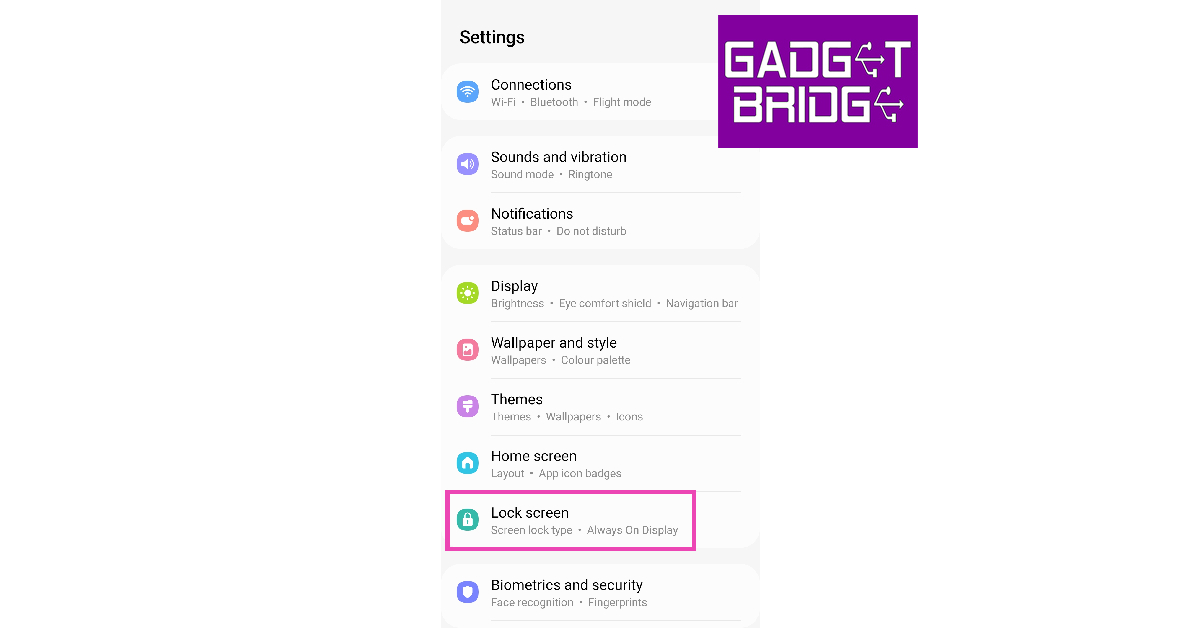 Step 2: Tap on Widgets.
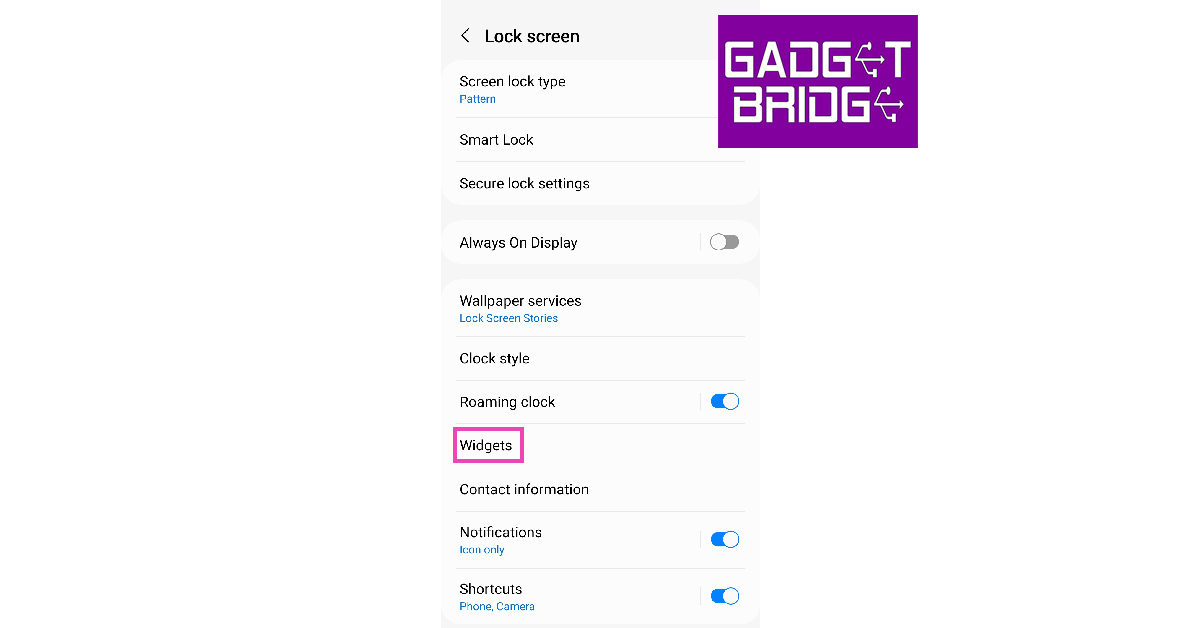 Step 3: Turn on the toggle switch for Voice Recorder.
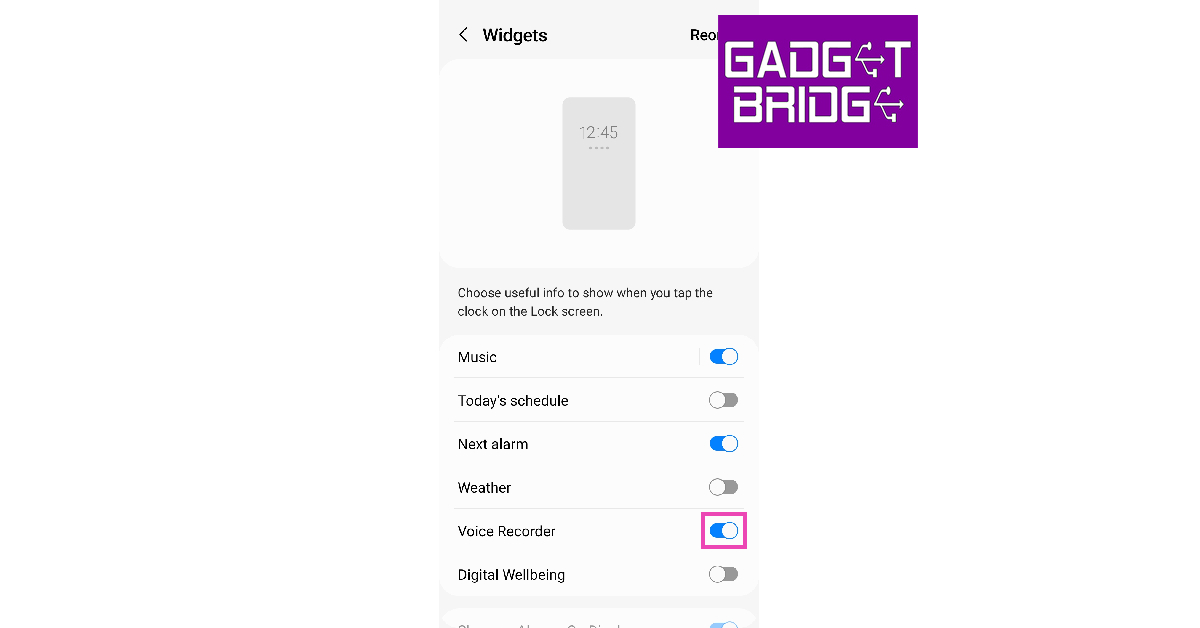 Step 4: Lock your phone’s screen.
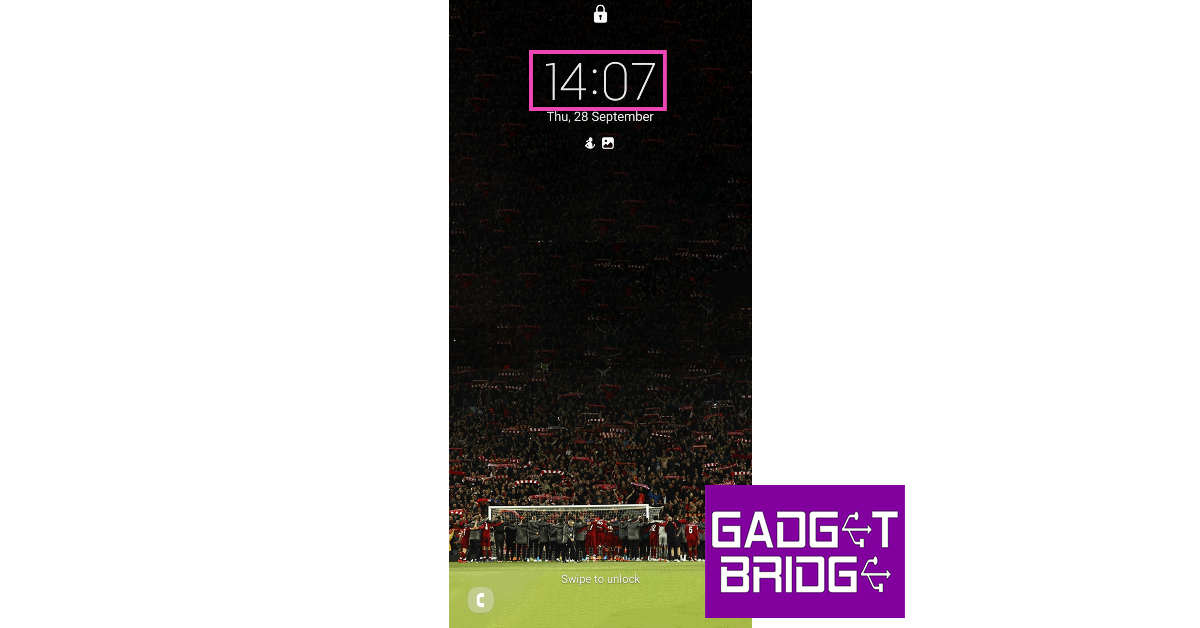
Step 5: Press the side key once.
Step 6: Tap once on the clock to reveal the widgets.
Step 4: Lock your phone’s screen.
Step 5: Press the side key once.
Step 6: Tap once on the clock to reveal the widgets.
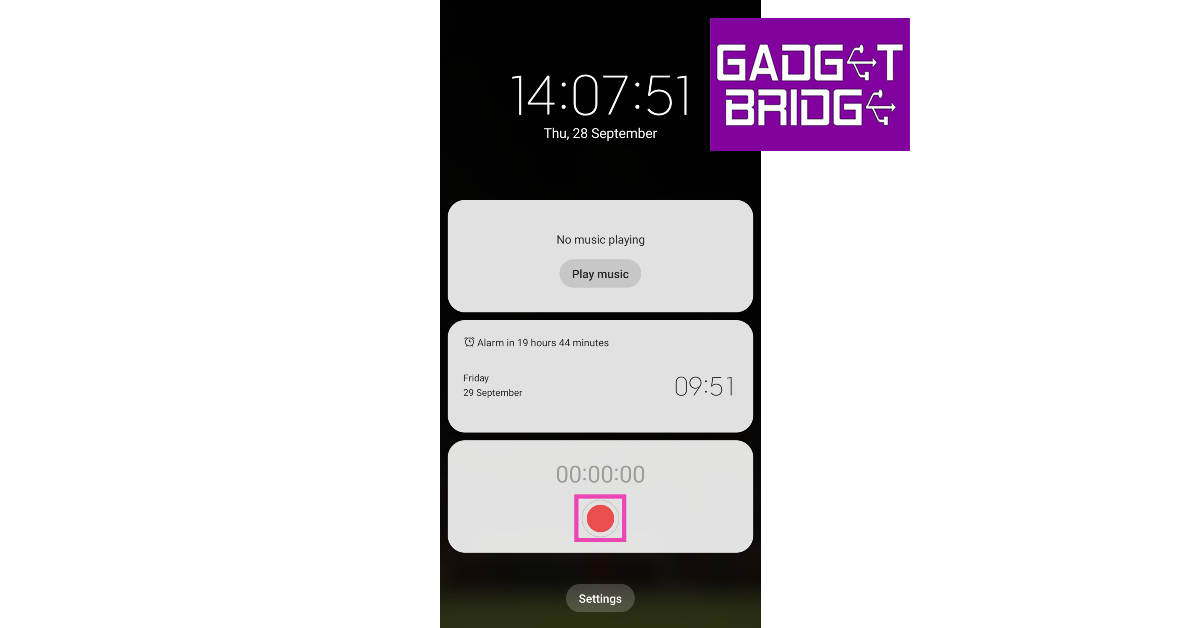
 Step 7: Hit the red button on the voice recorder widget to start recording audio.
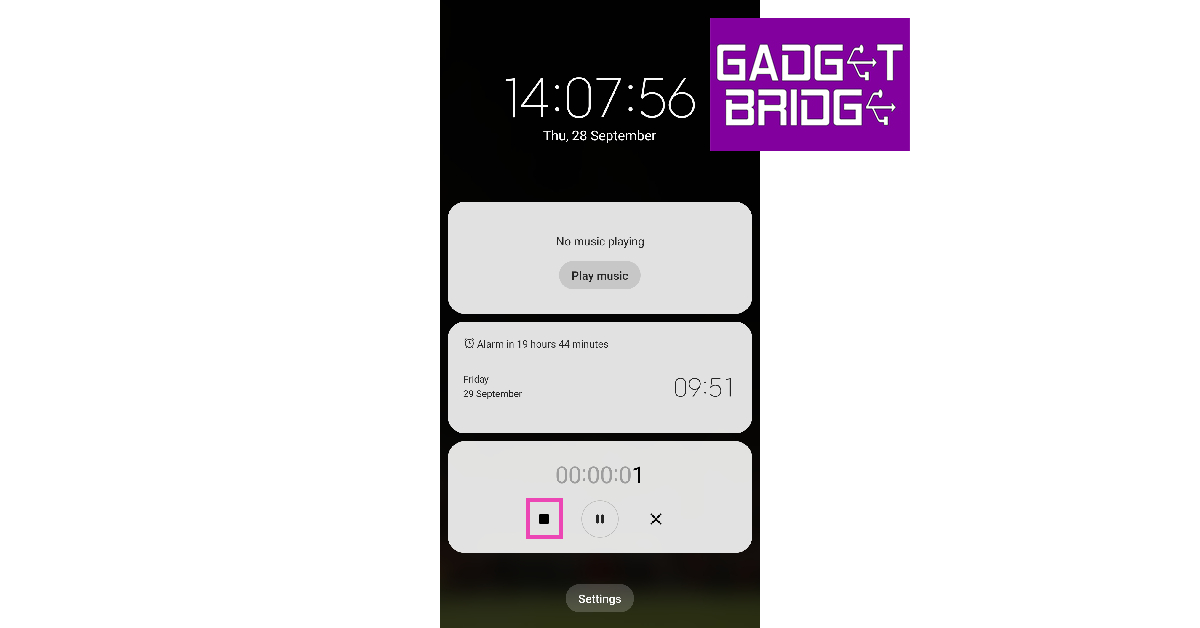
 Step 8: Hit the Stop icon when you’re done.
 Read also:
  GOM Recorder is an audio recording app that can be very useful in certain situations where you have to quickly start recording the audio. The GOM Recorder comes with motion gestures you just have to set the intensity and shake your phone to start recording.
 It also comes with a schedule recording feature, along with a quick widget that you can add to your home screen, these features make GOM Recorder an easy audio spy tool for Android. You can download GOM Recorder by clicking
 The final app on our list is Background Video Recorder. With the above apps you can just record the audio, but using this app you can also record videos in the background without letting anyone know about it. Just install the app by clicking


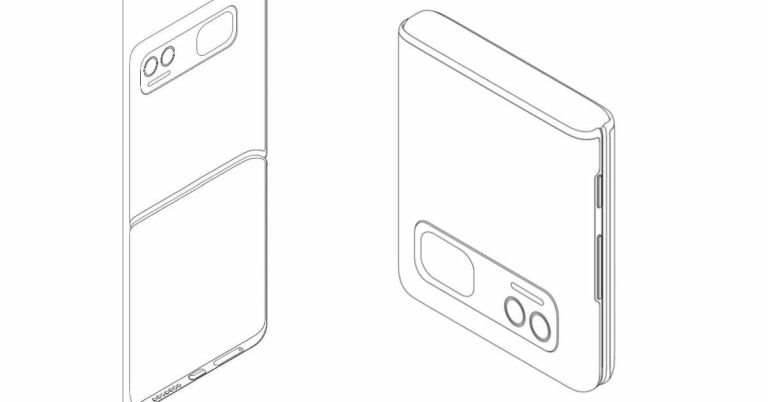
 In the patent images, we can clearly see a hinge dividing the phone horizontally into two. We can also see a front pill-shaped camera cutout and a horizontal camera module. On the bottom side,
  we can see the type-C port and SIM card slot as well. Also, the design is more suitable for most people since when the phone is folded into half the size it fits very easily inside the pocket. Another benefit of the clamshell design is that it offers a more sensible screen aspect ratio, so watching movies and videos won’t be a problem in this type of design.
 Just like its inspiration, it looks like that the Flip phone from Xiaomi will also feature a secondary display at the back of the phone. The secondary display can be very useful to check time, notifications, and also to click selfies with the back of the camera. The


 We will see a lot of action from the A series of Samsung, the company can also launch another 5G phone under its A series in the first quarter of 2022. The Samsung Galaxy A13 5G will carry a


 DigiLocker is a platform for the issuance and verification of documents & certificates in a digital way, you can also save your scanned documents in this as well. You can download DigiLocker for iOS from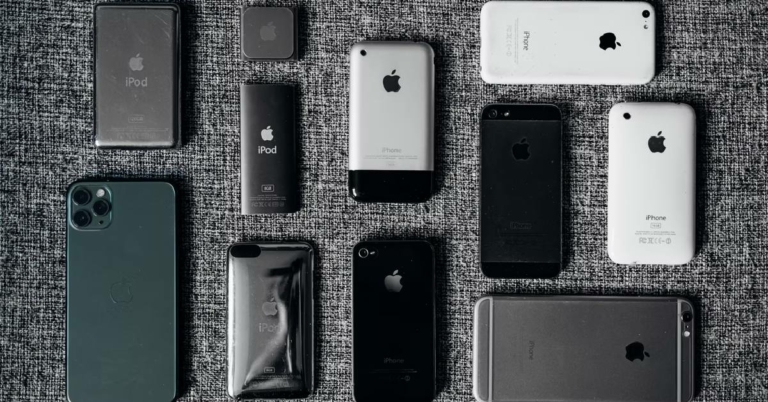

 An alternative way to check the model no of the iPhone is to check the backside of the iPhone (for models older than iPhone8). If you have the latest series of iPhones that comes with a notch. You have to remove the sim tray and check the model no from there.
 The alternative option is to check the backplate of the iPad on the bottom. With these methods, you can find which iPad you have and if you want to check the origin of your iPad you can check the list from


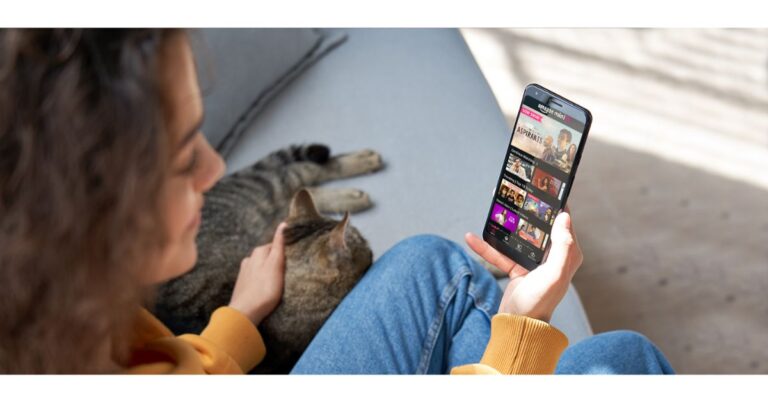


 Another way to play video while doing your work is to play videos in either pip mode or split-screen mode. Both modes allow users to shrink the size of the window so that they can focus on other work while the video is playing. There are different ways for every phone to enable PiP and split-screen functionality so, just have a look on the internet and you are good to go.
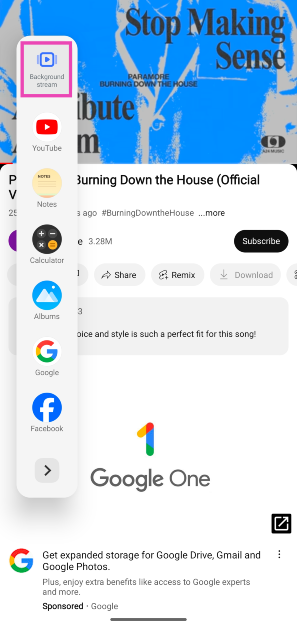 The video will start playing in the background.
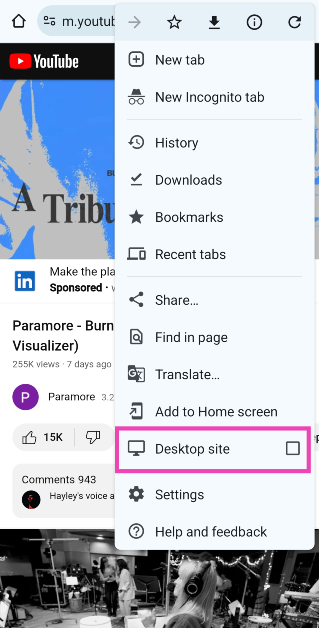
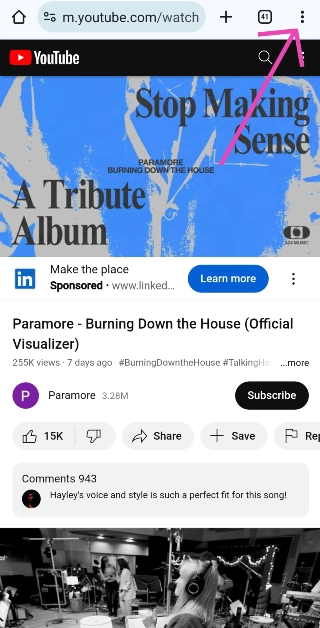 Step 3: Hit Desktop Mode.
 Step 4: Minimise the browser.
Step 5: Swipe down from the status bar and hit the Play button in the video player.
Step 4: Minimise the browser.
Step 5: Swipe down from the status bar and hit the Play button in the video player.
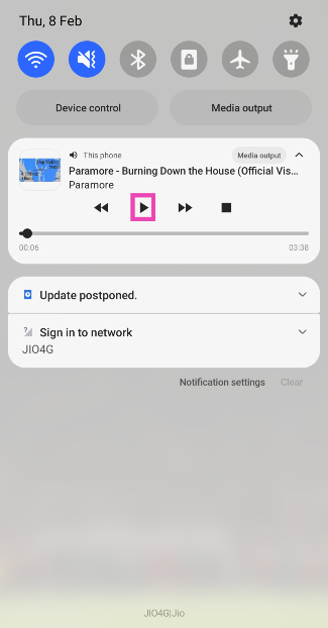 The video will start playing in the background.




 If you use Clubhouse on your PC then you can use any screen recording software to record all the conversation on Twitter spaces, if you are on a Mac you can use QuickTime and if you are on Windows PC you can use OBS, or stream labs or any other software that records the PC screen. Just open and join the Clubhouse on PC and record the screen. If you do not know how to record a screen on a windows pc then click













 With more accessible super-fast networks, cloud computing is a technological trend that we will see in the year 2022. Since users will have a quicker and more reliable network cloud computing will become mainstream.
  AI and ML are the most used terms at this time. They gained a lot of popularity when manufacturers started implementing them in
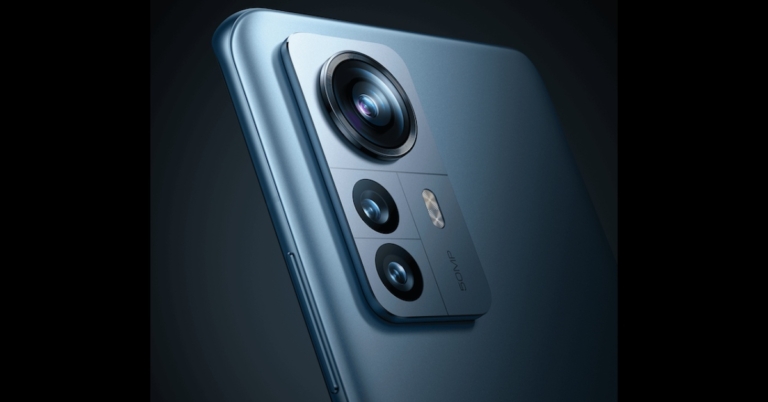
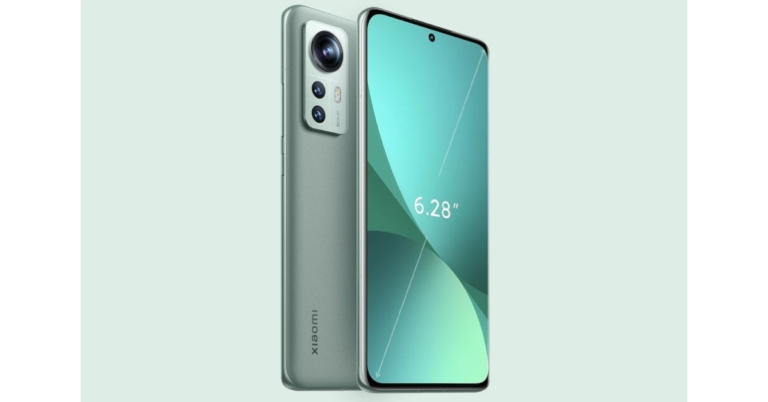
  Putting three different lenses of different focal lengths was just an alternate option to achieve different focal lengths. In 2020 Xiaomi and recently
  The concept of AR and VR has been for a while now and in 2022, we could see major leaps in this sector. With the Rise of the Metaverse, the future of a digital world is coming closer to us. We have already seen how much a pandemic can have an impact on our day-to-day work.
 The luxury audio group will be showcasing its latest product offerings at Harman’s EXPLORE 2022 event on 5, 6, and 7 January at CES. On January 7, 2021, the one of a kind HARMAN EXPLORE virtual event will offer an inside look at their newest experience-focused automotive, audio, and technology solutions.
 Samsung is all set and charged up for the CES as well and Samsung looks set to unveil a new generation of flat-panel TVs that will be a hybrid between their Quantum Dot displays technology and the OLED technology that is being used by other brands. We expect Samsung to show off a number of new 4K and 8K Neo QLED TVs in CES 2022. We could also get some glimpse or hints on the upcoming
  In CES 2022, we could expect a lot of display products from LG with a bunch of AR and VR gadgets. LG will also show up their first ever gaming laptop in CES 2022. The LG 17G90Q with its big 17-inches screen and
 TCL always has some interesting range of TVs, phones, flexible-screen devices, and other gadgets, and this year is no different for TCL. Since the main earning source for TCL is TVs, we could see some new TVs from TCL under the new 6-Series Mini LED TVs. We could also see the TCL 20 series or maybe the TCL 30 range of phones this year.
 The most interesting announcement that can be expected from
  Canon is a very famous camera brand and we can expect some interesting showcases from Canon. One of the main cameras expected to come in early 2022 is the
  The popular pc maker
  Qualcomm is a leading mobile chipmaker, and we could expect some interesting announcements from the company next year in CES 2022. Although Qualcomm already had their own
  Asus has confirmed that they will be at CES showing their latest creations for gamers, creators, and professionals. Asus has promised “exciting” debuts for devices including laptops, monitors, and other gadgets. We could also see some new products in the ROG lineup of Asus.