-
In This Article
Using built-in function
 Step 2 – Select the video you want to download.
Step 3 – Tap download.
Step 2 – Select the video you want to download.
Step 3 – Tap download.
 Step 4 – Select the quality of video you want the video to be downloaded in.
 Step 5 – wait for the download to complete, it can be viewed in the download section in the library.
Following these methods will help you watch the video of your choice even when you are offline or with slow internet connectivity.
Step 5 – wait for the download to complete, it can be viewed in the download section in the library.
Following these methods will help you watch the video of your choice even when you are offline or with slow internet connectivity.
-
Third-Party application
 Step 2 – Tap on the Download Snaptube option.
Step 3 – Press Allow to start downloading.
Step 4 – Tap on the file once downloading is completed.
Step 5 – Press install on the next menu.
Step 2 – Tap on the Download Snaptube option.
Step 3 – Press Allow to start downloading.
Step 4 – Tap on the file once downloading is completed.
Step 5 – Press install on the next menu.
 Step 6 – Open the application and accept the terms and conditions.
Step 7 – Search for the video you want to download.
Step 6 – Open the application and accept the terms and conditions.
Step 7 – Search for the video you want to download.
 Step 8 – Select the desired format and start the download.
 Following these steps will download the video in the selected format to your local storage. With the help of this app, you will be able to download videos from platforms like YouTube, Facebook, Instagram, etc. and watch them later.
Read Also: How to record WhatsApp voice calls?
Following these steps will download the video in the selected format to your local storage. With the help of this app, you will be able to download videos from platforms like YouTube, Facebook, Instagram, etc. and watch them later.
Read Also: How to record WhatsApp voice calls?
-
From Online web service
 Step 3 – Open desired browser and go to en.savefrom.net
Step 4 – Paste the copied URL to the Enter URL section.
Step 3 – Open desired browser and go to en.savefrom.net
Step 4 – Paste the copied URL to the Enter URL section.
 Step 5 – Select the format you want to download in and tap download.
 Once the download is completed the video will be saved in your local storage.
These are some simple tricks to download your favourite and desired YouTube video. We advise if you are planning for steps 2 and 3 make sure to ask permission of the creator to download if not used for personal consumption.
For the latest gadget and tech news, and gadget reviews, follow us on Twitter, Facebook and Instagram. For newest tech & gadget videos subscribe to our YouTube Channel. You can also stay up to date using the Gadget Bridge Android App. You can find the latest car and bike news here.
Once the download is completed the video will be saved in your local storage.
These are some simple tricks to download your favourite and desired YouTube video. We advise if you are planning for steps 2 and 3 make sure to ask permission of the creator to download if not used for personal consumption.
For the latest gadget and tech news, and gadget reviews, follow us on Twitter, Facebook and Instagram. For newest tech & gadget videos subscribe to our YouTube Channel. You can also stay up to date using the Gadget Bridge Android App. You can find the latest car and bike news here. 
 The wireless charger can charge any device, be it a smartphone or a tablet with wireless Qi-charging capability. So before buying you will also need to check if your smartphone can charge wirelessly.
We tested the SanDisk Ixpand wireless charger with various devices including OnePlus 9, Apple iPhone 11 and Samsung Galaxy S series smartphones. The charging was seamless with all the devices. 15W charge supply is what the wireless charging plate provides, which is one of the fastest in current wireless charging standards. We were able to charge the iPhone 11 from 0-100% in under 3 hours. The OnePlus 9 took additional 30 minutes since the battery size is much larger.
Over that, the
The wireless charger can charge any device, be it a smartphone or a tablet with wireless Qi-charging capability. So before buying you will also need to check if your smartphone can charge wirelessly.
We tested the SanDisk Ixpand wireless charger with various devices including OnePlus 9, Apple iPhone 11 and Samsung Galaxy S series smartphones. The charging was seamless with all the devices. 15W charge supply is what the wireless charging plate provides, which is one of the fastest in current wireless charging standards. We were able to charge the iPhone 11 from 0-100% in under 3 hours. The OnePlus 9 took additional 30 minutes since the battery size is much larger.
Over that, the  So, is it worth buying? We would say yes. At Rs 2,999 this wireless charger gives you a host of conveniences. You do not have to plug in the cable to your smartphone to charge it. Just place it on the pad and it starts charging. Also, a smartphone is something you keep using every now and then, so the hassle of plugging and unplugging a device during work hours is also gone.
Over that, if you use more than one device, it helps you get rid of multiple chargers and cables. Just placed your Qi-enables device on it and you are good to go. The only downside is that you will not get super-fast charging as you get from a 35W+ wire charger. If convenience matters to you, go for it!
So, is it worth buying? We would say yes. At Rs 2,999 this wireless charger gives you a host of conveniences. You do not have to plug in the cable to your smartphone to charge it. Just place it on the pad and it starts charging. Also, a smartphone is something you keep using every now and then, so the hassle of plugging and unplugging a device during work hours is also gone.
Over that, if you use more than one device, it helps you get rid of multiple chargers and cables. Just placed your Qi-enables device on it and you are good to go. The only downside is that you will not get super-fast charging as you get from a 35W+ wire charger. If convenience matters to you, go for it!





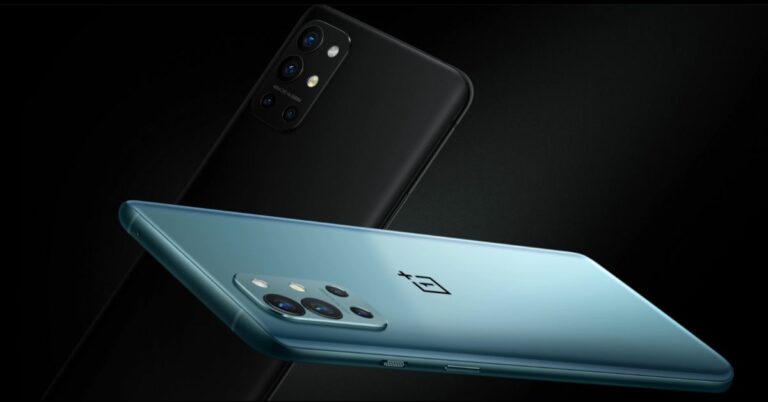








 Read Also:










 Step 3 –
 Read Also:
  Step 7 –
  Read Also:
  Step 4 –
 Step 6 –






 Screen size:
  Screen size:
  Screen size:
 Screen size:
 Screen size:
 Screen size:
 Screen size:
 Step 3 –
 Read Also:
  Step 7 –
 Read Also:
  Step 4 –
 Step 6 –