Microsoft is all set to launch the next generation of the Windows update at the Microsoft Event. This is going to be a virtual event that will be hosted today via an online presentation. At the tech event today the software giant will be taking the wraps off Windows 11 that will succeed the existing Windows 10 operating system. The company will be showcasing the new interface and animations that will be coming to the new OS. Here is more in the story that you should know about just before the official announcement of Windows 11.How to Watch the Livestream of Microsoft Event?The Microsoft Event for the launch of the next generation of Windows will kickstart at 11 AM ESR that is 8.30 PM IST. The live stream link has gone live on the company’s official website so you can catch the event live there.What you can expect from today’s Windows 11 launch event?Ahead of the official announcement, a major leak has revealed the design and feature to come with the arrival of Windows 11. The users will get to see a whole new interface which will include a redesigned Start menu, app icons shifted to the centre of the taskbar and a more clear tray area. The app icon and the Start menu can either be moved to the centre of the taskbar or to the left side. The Live Tiles are said to be completely removed from the Start menu. In short, the interface will look more simplified with pinned apps and a lot more.
There will be a system-wide dark mode with the redesigned app icon and rounded corners throughout Windows 11. The new operating system is likely to include a widget icon that is designed to slide out and provide quick access to news, weather, and other web content.New snap controls can be accessed from the maximize button on all apps. The company is said to have taken a lot of inspiration from Windows 10X which was scrapped later on. The users will be able to snap windows side by side or arrange them in sections on your desktop.Besides this, Microsoft is also said to be working on the new app store for windows. The company’s CEO Satya Nadella and chief product officer Panos Panay both will be presenting the new Windows operating system. The Chief commented, “Soon we will share one of the most significant updates to Windows of the past decade to unlock greater economic opportunity for developers and creators. I’ve been self-hosting it over the past several months, and I’m incredibly excited about the next generation of Windows.”Moreover, some product configuration keys were also spotted in the leaked Windows 11 build that carries titles of Windows 7 and Windows 8.1. This indicates that the next generations of Windows will be brought as a free upgrade for users on older Windows operating systems such as Windows 7 and Windows 8.1 other than WIndows 10.
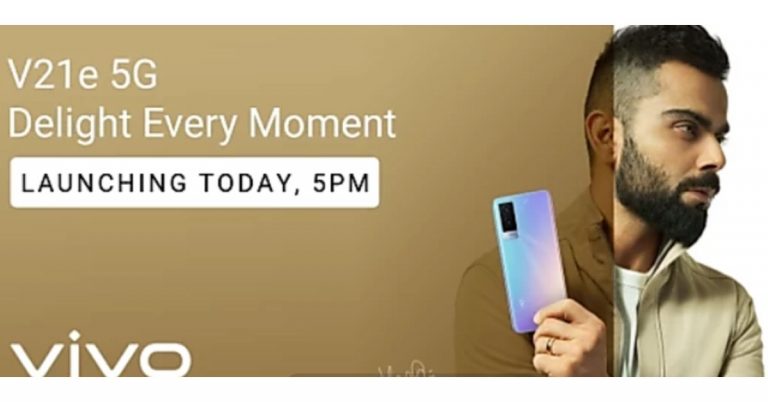
The Chinese smartphone company, Vivo, is all set to launch its new smartphone in its premium mid-range V-Series. The company will be introducing Vivo V21e 5G in the Indian market today as its second addition to the Vivo V21 line-up. The device also got listed on Flipkart ahead of the official announcement. As per the microsite the phone will be offered in an 8GB of RAM and to carry 44W fast charging support.As per the company Vivo V21e 5G will belaunchingin India at 5 PM in the evening today. Before arriving in the country the device was first launched in Malaysia a few months back with an octa-core Qualcomm Snapdragon 720G SoC paired with 8GB of RAM and 128GB of storage. Whereas a Geekbenck listing suggests that it would be carrying a MediaTek Dimensity 700 SoC that may be paired with 8GB of RAM. The Geekbench scores are 462 in single-core tests and 1,502 in multi-core. Moreover, it would also ship Android 11 out of the box. Rumours suggest that Vivo V21e 5G will be featuring a 6.44-inch Full HD+ AMOLED display and fuelled by a 4,400 mAh battery with 44W fast charging support. On the other hand, the dedicated microsite on Flipkart suggests that the upcoming smartphone will be 8GB RAM with 3GB expandable RAM and a 44W fast charging support. Additionally, there will be a 32-megapixel selfie camera and a dual camera set up on the back of the phone highlighted with a 64-megapixel primary sensor. It will also come in two colour options. To recall, in Malaysia it was made available in two different shades of Diamond Flare and Roman Black.Coming to the pricing, just ahead of the official launch, the Vivo V21e 5G price is tipped to be at Rs 24,990 for the 8GB RAM with 128GB storage which is on the higher side. In Malaysia, it was introduced at MYR 1,299 that translates to Rs 23,299.
For the latest gadget and tech news, and gadget reviews, follow us on Twitter, Facebook and Instagram. For newest tech & gadget videos subscribe to our YouTube Channel. You can also stay up to date using the Gadget Bridge Android App.
The e-commerce website Flipkart is hosting Daily Trivia Quiz. Every day it brings a bunch of new questions for its users. By answering them correctly you can win exciting prizes. The questionnaire is based on questions related to general knowledge. Also, the users can win free vouchers and super coins, among other offers via the daily quiz. June 24 Flipkart Daily Trivia Quiz Answers has already gone live on its platform.
The participant should be at least 18 years old and should have a valid login ID. The Quiz is available on the mobile platform and not the web version. E-commerce conducts the quiz on daily basis and goes live at 12:00 AM IST and runs till 11:59 PM IST. The winners are announced within 15 days from the date of participation that can be viewed under the Gems/Rewards section in the app.
In This Article
How to participate in the Flipkart Daily Trivia Quiz
To participate download the Flipkart app on your phone. Then open the Flipkart app then head to Game Zone. Now click on the Daily Trivia Banner or search for Daily Trivia. Enter the game and answer all 5 questions with correct answers.
June 24 Flipkart Daily Trivia Quiz Answers
Question 1: Who played the role of Rustom Billimoria in the 2017 film Rangoon?
Answer: Saif Ali Khan
Question 2: In whose honour did Pandit Ravi Shankar compose the Raga Mohankauns?
Answer: Mahatma Gandhi
Question 3: Which band released the iconic album Sgt. Pepper’s Lonely Hearts Club Band?
Answer: The Beatles
Question 4: Courteney Cox was offered which part before she played Monica in the TV show Friends?
Answer: Rachel
Question 5: Former Miss World Manushi Chhillar is all set to make her Bollywood debut opposite
Answer: Akshay Kumar
Today’s Amazon Quiz has gone live now and the e-commerce platform Amazon is giving you a chance to win Rs 20,000 Amazon Pay Balance. It can be played daily from 12 AM to 11:59 PM. Millions of its customers are trying their luck by participating in the daily quiz to win free gadgets as well as Amazon Pay Balance. All you need to do is log in to your Amazon app on your device and participate in today’s quiz.
Every day Amazon brings a fresh questionnaire that consists of five easy questions based on general knowledge and current affairs. By submitting correct answers the contestants can win exciting prizes such as iPhone X, iPhone Xs, Seagate HDD, GoPro Hero 8 Camera, LG Smartphones, Bose Sound Touch 20 Speakers, OnePlus 7T among others. One thing to note is that the quiz is not available for the desktop platform, you can only participate in the quiz from 12 AM to 11:59 PM via mobile app. After giving all the correct answers to the question you will get shortlisted for a lucky draw to select a winner. The results will be announced at the end of the month. Check out today’s answers for the Amazon Quiz to win Rs 20,000 Amazon Pay Balance.
June 24 Amazon Quiz Answers
Question 1: Which international organisation recently released ‘Immunization Agenda 2030’?
The answer is- WHO
Question 2: The ‘Plain of Jars’ is a mysterious megalithic archaeological landscape located in which country?
The answer is- Laos
Question 3: In which country is an AI powered drone project set up to detect and map the most important habitats of Maui and Hector dolphins?
The answer is- New Zealand
Question 4: This character was named in honour of whom?
The answer is- The second person to walk on the Moon
Question 5: This infamous Pripyat sign can be found at the entrance to which complex?
The answer is- Chernobyl
Recently Google rolled out an update for Google Meet offering more improvements to automatic hand lowering, better notification and others. In a new development, soon the video conferencing app users will get more education-focused features including controls for moderators and admins. Additionally Google Meet will also get YouTube live streams, live translated captions and more. Another important feature to arrive in the coming future is the Video lock that will allow the host to close the video for all the participants immediately.At its, The Anywhere School 2021 online event the tech giant Google announced to bring a lot of new education-focused features to Google Meet in its next update. According to the company, the teacher and co-teacher in a Classroom class will be meeting hosts in Meet by default, enabling multiple teachers to share the load of managing a class. The students will also be able to automatically become admitted to the meeting once the teacher arrives. Additionally, those not on the Classroom roster will have to “ask to join” and only the teacher(s) can allow them into the meeting. With these features, the company aims to make Google Classroom safer and more secure by design.All meetings, initiated from Meet or Calendar will get features like, host ends breakout rooms, participants will get a warning and then will be forced back into the main hosts can meeting. Moreover, the hosts can match the breakout room safety settings with the safety settings from the main meeting. To avoid distractions, hosts will be able to turn off everyone’s video at once with a “video lock.” Whereas hosts using tablets and mobile phones will get important meeting safety controls, like the ability to end meetings for everyone on the call and mute everyone at once. Giving more control to the admins, this month onward new settings to the Admin console will be added so that school leaders will be able to set policies for who can join their school’s video calls and whether people from their school can join video calls from other schools. However, the new addition will not affect the default experience and will only change if your admin changes the current setting.New settings to control whetherQuick access is enabled by default, and other settings to control whether people can use the chat in meetings. On the other hand, admins with Education Standard and Education Plus will be capable to end any meeting in their organization directly from the investigation tool, and Quick access will be automatically turned off so nobody can rejoin the meeting without the host present all at once.Google Meet users can also unpin your presentation or minimize their self-feed to see more of their students on the call and also differentlayout options to customize what you want to focus on. Whereas meetings not initiated from Classroom will soon start supporting multiple hosts, therefore, you will be able to choose co-hosts in meetings, and all meeting hosts will have access to safety controls. As we mentioned before Google will be improving the hand raise featurein Meet so that it is easier to notice and address raised hands and teachers can more easily see and hear who raised their hands. Google Meet also supports closed captions in five languages and the user will also be able to pin multiple tiles to customize what they want to focus on. For example, students can easily pin a sign language interpreter and the teacher so they can see both at the same time.Adding more features Google will also be introducing live translated captions to Meet so that you can listen to someone speaking one language and see real-time captions in another language. Also soon the users will be able to use closed captions during private live streams as well as most public live streams streamed right to YouTube so anyone outside of your institution can attend. This feature is ideal for school board meetings, school events and more. However, this will be released in beta this year and will be rolled out to customers with the Teaching and Learning Upgrade or Education Plus in early 2022.
For the latest gadget and tech news, and gadget reviews, follow us on Twitter, Facebook and Instagram. For newest tech & gadget videos subscribe to our YouTube Channel. You can also stay up to date using the Gadget Bridge Android App.
You can meet your electricity needs by installing a bunch of solar panel systems on rooftops. By investing a little in the solar system you can avoid all the difficulties during a power-cut or black-out. Moreover, spending on solar panels will help you cut down your utility bills and save some electricity (as said). Here are some of the best options available.
In This Article
LOOM Solar Panel: 390 Watts- 24 volts Mono Perc (Pack of 2)
The first solar panel on the list is by LOOM, which has 390 Watts-24 volts. This solar panel is one of the best options to install on rooftops for a residential system since it generates 30-50% more power than average other solar panels. The frame of the panel has been tested super strong and with middle support for lasting life. It has 24 V battery charging and comes with a 19% Cell Conversion efficiency. When you buy the product the company Loom solar Pvt. Ltd provides you with a pre-installed junction box with diodes and also comes with a pair of pre-attached 1M wire & MC4 connectors. Price: Rs 50,000Buy on Amazon.in
Microtek Solar Panel 150 Watts 12 V: Poly Crystalline Panel
The next on the list is the Microtek Solar panel with 150 Watts and 12 V. The solar panel has a multi-crystalline silicon solar cell type and the frame is made up of Anodised aluminum alloy with low iron glass. The main features are optimal output over decades with a very good low light response and it is suitable for on-grid as well as off-grid applications. The solar panel has been tested with a Damp heat test, thermal cycling test, and humidity freeze test. And best of all, the solar panel comes with a 25 years performance warranty.Price: Rs 8,000Buy from Amazon.in
Read more: OnePlus Nord CE 5G price tipped to start at Rs 22,999 in India, back panel design also revealed
Luminous 325 Watts/24V: Poly Crystalline Panel
This solar panel is from a trusted Indian manufacturing brand having service centers across India. This Luminous solar panel has excellent low light performance, an Anti-reflective coating, and high torsion resistance against wind and snow loads. The features come with advanced EVA encapsulation, PID resistance technology to avoid power loss. The dimension of the solar panel is 1976x991x40 (mm). The best part of the panel is it gives you 25 years of performance warranty. Price: Rs 25,000Buy it from Amazon.in
Read also: Samsung Galaxy S21+ review: Very close to perfection
LOOM Solar Panel: 190 Watts/12 Volt: Mono Perc Solar Panel
The next solar panel is also from Loom solar panel having 190 Watts/12 Volt. This solar panel can withstand high wind and snow load and it also has a resistant aluminum frame which allows the panel to last for decades. It is compatible with both on-grid and off-grid inverters. The solar panels come with pre-installed diodes in the Junction box with a pair of 40-inch cables and MC4 connectors. The panel has been marked with A+grade and it also has anti-PID Mono cells having a conversion efficiency of 20%. Price: Rs 20,000You can buy it on Amazon.nAll of the above will be delivered to your doorstep by Amazon India. Do check with your local electrician before ordering and check which one will suit you best and is compatible with the inverter installed.
For the latest gadget and tech news, and gadget reviews, follow us on Twitter, Facebook and Instagram. For newest tech & gadget videos subscribe to our YouTube Channel. You can also stay up to date using the Gadget Bridge Android App.
Backing up your iPhone data to your Mac works in many ways. If you have securely uploaded all your data to your Mac, in case you lose your iPhone you can still have access to all your files and photos using the Mac. You can back up your iPhone to your Mac if it is on macOS 10.15 Catalina or above. Read the steps below to back up your iPhone to your Mac.
In This Article
Backup iPhone on Mac with USB cable:
Before the release of macOS 10.5 Catalina in 2019, the backup to your Mac was with the iTunes app. Now after macOS 10.5 released you can connect your iPhones with the USB cable and back up to your Mac swiftly. Check the steps below to back up your data to your Mac.
Connect your iPhone to your Mac with an Apple cable
On the screen displayed navigate to Finder, which is on the sidebar
From the Finder, sider click on your iPhone
Click the Trust blue icon
On the finder page select general
And press on “Backup all of the data of your iPhone to this Mac”
After you have completed your backup process from your iPhone to your Mac. It is suggested to better encrypt your back for safety and security. The encryption process is easy and simple. Follow the steps below.
Plugin your iPhone on your Mac
‘Search the Finder window once you are plugged into your Mac
It is unlikely that the above steps will not work, but just in case we added a third-party app to the list. You can backup your iPhone to your Mac using a third-party app also. You can download the Syncios iPhone manager app and backup your iPhone to your Mac with these quick steps below.
Download the app and install it on your Mac device
Connect your iPhone with a USB cable
A page will show up on the screen
And you can select the data you want to back up
You can back up all type of data files, folders, image, contacts, apps, and even call logs
After selecting all the data you want to backup to your Mac: Click next
Cooking is regarded as one of the oldest forms of art. The passion to cook also releases dopamine and keeps you calm and focused. Moreover in this time of isolation due to pandemic cooking should be a trade to learn and practice. Now we can use our Android phones to learn how to cook and also check the recipes for the best meals. Below are some of the top rated apps for the chef in you.
In This Article
Whisk: Recipe Saver, Meal Planner & Grocery List
The first benefit of downloading this app is you can create your personal cookbook. It is very simple to search for recipes on the Web and add them to your personal list on the cookbook or edit them. Now you will never need a paper or memorise them. The app also features a Whisk Meal Planner for you to plan your meal in advance and the option is entirely free to access. The most interesting part is you can copy recipes from any website you have visited and liked the recipe. You can edit the copied recipe and add comments to it. Download the app and make cooking more exciting. Download from Play Store
Cheftap: Recipe Clipper, Planner and Grocery list
Cheftap is the most organised coking app you will find. It allows you to use tags, search and sorting to help find recipes easily. You can easily take out the recipe from any blog and also use the app as a meal planner effortlessly. The app’s unique feature lets you create menus of food and meals you cook regularly. Over that, it also offers you to make copies of recipes and let you create your own. The meal planner of this app is of great help; it will help you track what is in stock and what is not. Use the app and enjoy cooking effortlessly. Download the app on Play Store
Read more: Apple to unveil its online store in India on September 23
Cookpad: Create your own recipe:
The app is like using social media for people who love cooking. You can have access to thousands of recipe ideas, and cooking experiences are shared by people on the app. You will never run out of recipes in this app. The app lets you browse a collection of recipes or search by specifics via ingredients, seasonal dishes, and more. The app will not just provide cooking knowledge but will let you share all your recipes with others. Download it from Google Play Store
Read also: World Food Day: Top gadgets that will help you prepare great food at home
Tasty
The next best app for cooking is Tasty, which has some unique features. The app will not only give you access to more than 3,000 recipes but also be a coach with the all-new-step-step instruction mode. The app will also keep your screen awake during your cooking so you don’t have to check your phone often making it so convenient. Tasty lets you search the recipe on the app according to social plans, ingredients, dietary needs, difficulty, speed, cuisine, and more making your recipe search more easy and simple. Check out the app on Google Play Store.Download it on the Play Store.
For the latest gadget and tech news, and gadget reviews, follow us on Twitter, Facebook and Instagram. For newest tech & gadget videos subscribe to our YouTube Channel. You can also stay up to date using the Gadget Bridge Android App.
The popular microblogging site, Twitter, is seeking applications to test Super Follows content subscription and ticketing features on its platform. The social media platform has opened up the application and if you are a user then you can be the first one to test the feature. Twitter keeps working on finding different ways for people to earn money from the audience support and engage their followers in a new way. As per the latest blog post, it is taking applications from users to be one of the first to get access to Ticketed Spaces and Super Follows with your audience that will help you earn some bucks. The blog post reads, “Starting today, you can apply to be one of the first to try Ticketed Spaces and Super Follows with your audience.”With Ticketed Spaces, Twitter users will be able to monetize their audience, can host more intimate conversions as well as promote Spaces. To monetize your audience, Ticketed Spaces will let you create unique and exclusive live audio experiences in Twitter Spaces, ones your audience is willing to pay for. Ticketed SpacesWith Ticketed Spaces, you have flexibility in setting the ticket price, which can be as low as $1 and as high as $999. You will also be capable of setting the size of your Ticketed Space, inviting 100 people, or just 5. Additionally will also have the ability to remind your attendees that your Space is happening with push and in-app notifications sent directly to their devices and share your Space details directly to your Home Timeline.As per the microblogging website, Super Follows will let you earn revenue by offering an extra level of content and interaction as a monthly subscription. This will offer a direct relationship with your most engaged followers that can generate monthly revenue. Also, you can provide bonus content and interaction to your biggest supporter, therefore, building a strong relationship. The users can also customize what you offer and choose from price points of $2.99, $4.99 or $9.99 per month.Super FollowsAbove all, you will be able to earn up to 97% of the revenue from Spaces ticket purchases and Super Follows subscriptions. And Twitter will not take more than a 3% share until you exceed $50,000 in lifetime earnings on both products. After this point, Twitter’s share increases to up to 20% of future earnings.
Who is eligible?
So to be one of the first to try Ticketed Spaces and Super Follows all you need to do is apply for both Ticketed Spaces (iOS and Android) and Super Follows (iOS only). There is a separate application to test out each product but right now the testing will be carried out in the US only and is open for the mobile platform only.To apply to be part of the test groups, open Twitter and navigate to the sidebar, then tap Monetization to learn more and see if you’re eligible. If you have at least 10,000 followers on Twitter then you are eligible to apply for Super Follows. Whereas to apply first for Ticketed Spaced then Twitter users should at least have 1,000 followers.
For the latest gadget and tech news, and gadget reviews, follow us on Twitter, Facebook and Instagram. For newest tech & gadget videos subscribe to our YouTube Channel. You can also stay up to date using the Gadget Bridge Android App.
The South Korean giant Samsung has quietly launched Galaxy Chromebook Go in the market. This Chrome-OS based laptop is cheaper than the Galaxy Chromebook 2 that arrived in 2020. The new device features a 14-inch display and is powered by a dual-core Intel Celeron CPU.
In This Article
Samsung Galaxy Chromebook Go pricing and availability
As of now, the device has only been listed on the website whereas the availability details are yet to be revealed which is expected to be announced at Samsung Galaxy Mobile World Congress virtual event on June 28. But the Samsung Galaxy Chromebook Go is expected to come with a starting price of $350 or lower. To recall, the original Galaxy Chromebook was released in 2020 at a starting price tag of $1,000.
Samsung Galaxy Chromebook Go specifications and features
Talking about the specs, the budget-friendly Galaxy Chromebook Go has a 14-inch TFT HD display instead of a 4K OLED screen though it is larger than its predecessor. It comes with a resolution of 1366×768 pixels. The new Samsung laptop is powered by a Celeron N4500 processor with Intel UHD integrated graphics. It should be noted that its predecessor Galaxy Chromebook 2 offers a Core i5 processor. It will be available with 4GB RAM and 8GB RAM LPDDR4X RAM as options and 32GB, 64GB and 128GB storage variants. The storage can be expanded via a microSD card. It runs on Google’s Chrome operating system.In addition to this, the Samsung Galaxy Chromebook Go includes a webcam on top with an HD resolution of 720p along with a digital microphone. There are 1.5W dual speakers onboard as well. In terms of connectivity, there is Wi-Fi 6 and Bluetooth v5.1 wireless operation along with other options such as USB Type-C ports, a USB 3.2 port, and a 3.5mm headphone-microphone combo jack. The new Chromebook is backed by a 42.3Wh battery that comes with a 5W USB Type-C charger. The laptop measures 327.1×225.6×15.9mm and weighs at just 1.45Kg.
For the latest gadget and tech news, and gadget reviews, follow us on Twitter, Facebook and Instagram. For newest tech & gadget videos subscribe to our YouTube Channel. You can also stay up to date using the Gadget Bridge Android App.
Recently a UI feature briefly appeared as a “backchannel” indicating Clubhouse is planning to include a text chat option. A direct message is very popular on many social networks. Without the option for the instant message, it feels so outdated on Clubhouse or any social app. This feature, which Clubhouse does not have is the talk of the town, but with the new UI element popping out, it has to be expected that Clubhouse will be adding the feature soon.
Connect from Instagram or Twitter:
The new Clubhouse app designed mainly for podcasts has not yet featured a chat option but you can connect with users through Instagram or Twitter. When a user signs up to Clubhouse, it allows them to connect their Instagram or Twitter. When you link your primary Instagram and Twitter account the app gives an option to let you connect to other Clubhouse users. You can connect via social network accounts. Read the following steps to know how to check their social account and connect.
Scroll down and click on their Instagram pr Twitter account
Using the account the app will connect you to their respective Instagram or Twitter account.
Make sure when you hit up at the DM you are from the app
And you connect someone from Clubhouse using Instagram and Twitter account
Read more: Clubhouse Android Beta app to be available for all Android users across India starting May 21The official team at Clubhouse hosts a session “Clubhouse Town Halls’ ‘ every Sunday at 9 PM Pacific Time for answering all the questions of users around the globe. In the very session, The CEO of Clubhouse Paul Davidson has discussed the Backchannel and expressed that the Direct message feature is something that the user should have considering there are so many people who want to deepen the friendship and relationship on the app.
Read also: Launched: Clubhouse Android Beta app now up for download in India via Google Play StoreThe clubhouse is one of the newest trending apps and a new platform where everyone is exploring. This chat feature is highly anticipated to come. Many sources say that the developers have expressed that Clubhouse is in the building process and they regularly explore and test the potential of features that might come. Sometimes these features become a part of the app. Moreover, Clubhouse has a new competitor in the market with the launch of the Greenroom app by Spotify, which offers a live text room. So it is very likely that the instant messaging option will be delivered soon by Clubhouse developers in their app, too.
For the latest gadget and tech news, and gadget reviews, follow us on Twitter, Facebook and Instagram. For newest tech & gadget videos subscribe to our YouTube Channel. You can also stay up to date with the Gadget Bridge Android App.
Twitter recently rolled out its promoted tweets advertisement service. The promotion gave you advertising from the trends list. You were able to get these sponsored tweets if you followed them. But these posts fill your timeline, which can be irrelevant to you or sometimes inappropriate. Now you have the option to hide these tweets in the following ways.
In This Article
Hide the Promoted Tweets from your timeline:
The advertisement of promoted tweets can create discomfort by filling up your timeline. Even though if you had followed the page earlier you can still hide their ads now. Follow the steps to know how to hide the promotion from your Twitter timeline.
Open the Twitter app and log in with your username and password
On the promoted tweets find the arrow icon or the vertical three-dot and click on it
Now select I don’t like this ad or not interested
Now you can hide the promoted ad from your timeline
Another option to remove the promoted tweets from your account is to block the accounts or the page. This will not let the page show up again and help you to hide the promoted tweets from your Twitter timeline. Check the guide below to block the account
Log in to your Twitter account from your phone or desktop
When you open Twitter on the timeline you see the promotion click on the three-dot menu for options
Now with the drop-down screen scroll down to Block @ the account
Click on it and it will block the account and it will not appear on the screen anymore
You can also hide the page promotion from your Twitter timeline by visiting the Personalised settings. Read the guide below to hide the promoted tweets from your Twitter timeline.
Sign in to your Twitter account using your username and password
Click on more with the three-dot icon
Go to Settings
And select Privacy and settings
Under “Data sharing and off-Twitter activity”
Tap on Ads preference
Click personalised ad
Also, you can use other options
Mute the page or account
The last option on the list to hide the promoted tweets on your Twitter timeline is to use the option of mute the page or account. Follow the steps to know how to mute it.
Go to your Twitter account
Browse for the page or account
Choose the page you like to mute
Click on the option from the three-dot
From the page that opens select mute and clicks Yes I’m sure
Privacy is always the priority when using tech or gadgets. Having a private conversation or call needs to be secure or private. There are many instances where you want to hide private calls or messages. It may be for a secret birthday party or for that celebration you want to keep a secret. You can hide your calls or messages from a contact on your Android device by following the guide below.
In This Article
Securing with A password, fingerprint, or PIN
To save yourself from those prying eyes you can always hide your calls or messages on your Android mobile by putting a password or fingerprint. Securing your phone with a PIN is always a simple way to start to keep things private and secure. You can always turn on the silent notifications to keep those messages private. Follow the steps for notification settings below.
Open the phone screen and go to settings
Find Apps and notification
Navigate to Sensitive notification and toggle it off
And also turn on the Hide silent conversations and notifications
If you don’t want people to find certain conversations after opening the Google Messages app, simply store them in the Archive folder. Archived conversations don’t appear on the main page, even when they have unread messages. You can archive a conversation by long-pressing it and hitting the box icon with the arrow. The Archive folder can be accessed by hitting your profile icon at the top right corner of the screen.
Lock a chat on WhatsApp
Archiving your messages can only get you so far. As soon as someone accesses the Archived folder, it’s game over for privacy. WhatsApp, being one of the most popular messaging platforms in the world, lets you secure your chats by storing them in a locked folder. This folder is secured by your biometric and password. To lock a chat, open it in WhatsApp, tap the name of the contact, hit Chat lock, and turn on the toggle switch for ‘Lock this chat with fingerprint’.
Calculator Pro+ Private Message and Call screening: App
Calculator Pro+ is the decoy app that hides your calls and messages. The app has a calculator icon so that you can hide all your calls or messages in plain sight from an Android phone. Follow the steps for the settings
First, download Calculator Pro+ from the Play Store
Allow permission on the app for contacts and storage and proceed
On the next step, you can set a four-digit PIN to secure it
Choose the calculator screen to start hiding calls and messages
When the Message box screen pop up make sure you add the contacts you want to make calls and message privately
After adding the contacts it will now move to a private database
Using Private Text Messaging + Secure Texting & Calling:
Another app that you can choose to hide your calls or messages is Private Text Messaging+. You can download the app from Playstore and installation is simple and easy. The app allows you to have end-to-end encryption with the CoverMe Private Messenger. It gives the option to keep all your contacts, call records, and messages private. A pin-based lock for more securing the app. Text messages can be added to privacy. And you can also put the app to hide. The best feature is you can send disappearing messages and also recall sent messages. Over that, you can also include a private Vault to hide all your photos, videos, and passwords.Download on Play storeRead also:10 must-know Hidden Features of Microsoft Word
TextU-Private SMS Messenger, call app
TextU is another app that you can download from the Play Store to hide your calls or messages from a contact. The perks of the app are the list of options provided by the app. From secure messages, Caller ID, Private box, to delay & schedule SMS you can access many features on the app. TextU has an encrypted messages option to secure all your messages to keep people away from snooping. Other features include the option to lock your app with patterns to use your phone in private. Try the app by downloading it from the Play Store.Download here from the Play Store
Frequently Asked Questions (FAQs)
How do I archive my conversations in Google Messages?
Long-press a conversation and hit the folder with the arrow icon at the top toolbar to archive it.
Where is the Archived folder in Google Messages?
Tap on your profile picture at the top right corner of the screen and select Archive to view the contents of the archived folder.
How do I lock a chat in WhatsApp?
Open a message, tap the name of the contact, then go to Chat lock>Lock this chat with a fingerprint. You can view the locked folder by scrolling all the way to the top of the chat page and swiping down once.
Read Also:Best smartphone deals to look out for during Amazon Great Summer Sale
Conclusion
These are the top 6 ways to hide calls and messages from a particular contact on your Android smartphone. You can also use DND and only allow certain contacts to filter through. The calls and messages from other contacts will be muted and you will only be notified when you take your phone off DND.
Noise Buds XS201 true wireless stereo (TWS) earbuds have been launched in India. This is the company’s latest budget-friendly offering which comes with Dual Equaliser. It features a 6mm driver for an impressive sound experience and supports Android and iOS devices via 5.1 Bluetooth connectivity. There is full touch control and each earbud offers up to 4.5 hours of playback on a single charge and up to 14 hours of total playback including a chagrin case. In addition to this, the earbuds are IPX5 rated for water and dust resistance.Commenting on the launch, Amit Khatri, Co-Founder, Noise said, “We at Noise, are continuously working towards offering the smartest technology and features to Noisemakers within an affordable price range which earlier, one could only imagine. We intend to offer a phenomenal experience to the Noisemakers with a wide portfolio of smart TWS earbuds. Our newest offering, Buds VS201 with Dual Equalizer not only augments the sound and audio quality but also offers a comfortable fit for prolonged usage.”Noise Buds XS201 true wireless stereo (TWS) earbuds pricing and availabilityNoise Buds XS201 true wireless stereo (TWS) earbuds have been launched in India with a price tag of Rs 1,499. But as introductory offers the company is offering them at a discounted price of Rs 1,299 for a limited period. It will be offered in a single Charcoal Black colour option. The earphones will be exclusively available via the e-commerce website Amazon in the country.Noise Buds XS201 true wireless stereo (TWS) earbuds features and specifications Noise Buds XS201 true wireless stereo (TWS) earbuds feature a Dual Equalizer and 6mm driver that is claimed to allow the user to balance the sound quality between normal and bass modes to offer a whimsical musical experience. The earphones have Bluetooth Version v5.1 which offers a Bluetooth range of 10 metres and supports Android and iOS devices. Noise Buds XS201i are IPX5 sweat and water-resistant and come with full touch controls for accessing the call, during workout sessions, switch tracks and binge-watching. The TWS earbuds by Noise also come with a Type-C charging case with charging indicators. Each earbud offers 4.5 hours of battery life on a single charge, but with the charging case it provides a total playback of up to 14 hours. The wireless earphones also have Voice Assistant/Siri support for voice control.
For the latest gadget and tech news, and gadget reviews, follow us on Twitter, Facebook and Instagram. For newest tech & gadget videos subscribe to our YouTube Channel. You can also stay up to date using the Gadget Bridge Android App.
Twitter has changed the authentication process from password to Auth. This means you will not be sharing your username and password when logging into any third-party app without your authorisation. This will help increase the security of your accounts. Read the below guide to see how to remove third-party access from your accounts.
In This Article
Remove third-party access from Twitter account:
How will the YouTube video play feature of Twitter work?Twitter introducing the authentication process is a big step to keeping your account more secure. Especially when you sign up for any other app using your Twitter account and the app might turn out to be spam. Twitter works continuously to improve such flaws and to manage the third-party app accessing your account, so they have updated the app permission. The third-party app request authorisation has changed and the app you only authorise can have access when you are signing up for a third-party tool. And also Twitter brings you the options to remove all the third-party access directly from your Twitter account. You can see how to remove the apps that have access to your Twitter account by reading the below steps.
Read more: How to remove saved passwords from Google Chrome browser on smartphone and PC
Disabled form App or Desktop:
If you are using an Android device these steps guide you on how to disable the third-party access allowed on your Twitter account for a safer and secure account with privacy maintained. Check out the steps.
Open Twitter account and sign in with your username and password
Go to more and select Settings and privacy
From settings access the “Security and account access”
Now click on Apps and session
And select connected apps
Press on the app you want to disable and click on the Revoke app permission
On iPhone or Mac:
You can also remove third-party access to your Twitter account if you are using an iPhone or a Mac. Check the steps below.
For iPhone Tap on the profile icon and in Mac click the three-dot menu icon
Find Settings and privacy
Next, click on Account
Navigate to the section Apps and session
Choose the Apps you want to remove the access from the Twitter account
Remove third-party access from your Instagram account:
Instagram allows you to connect to third-party apps for its services. But there are still many apps linked to your Instagram account which you do not even need, use, or forget you have allowed permission to have access. Fortunately, Instagram allows you disabled third-party access to your account with some easy and simple steps. Revoking the third-party access will help you in keeping your account secure and maintain privacy. Follow the steps below to know how to revoke the access.
On the mobile app:
These steps are to disable the apps that have access to your Instagram account. The simple and easy steps will help you to securely so do. Follow the steps below.
Open the Instagram app
Go to Profile on the bottom corner and click on it
Now click on the hamburger menu: Three horizontal line
Find Setting on the bottom of the side panel
On the settings page go to the security
Scroll down to Apps and Websites
Select active
And choose the apps you want to remove and press remove
On the website: Desktop
You can also remove third-party access from your Instagram account if you are using it from the website or your desktop version. Follow the guide to disable it.
Browse Instagram and log in with your username and password
Go to the profile icon on the extreme right corner
From the drop-down menu select settings
Click on Apps and websites
And on the page open on the right find the apps you want to remove from the Active page
After showcasing at CES 2020 the Lenovo ThinkPad X1 Fold has now hit the Indian shores. So far we know that many companies such as Dell, HP, Samsung among others offer convertible laptops in the market. But this laptop is the world’s first foldable laptop, setting it apart from others. The device looks similar to any other foldable phone, which we have seen but is still different as it is aimed at professional users who are looking for a more portable option, which offers the best hardware.You must have seen a foldable phone or a convertible laptop that transforms into a tablet but have you ever heard of a full-fledged laptop that comes with a foldable screen? Lenovo has officially launched its world’s first foldable laptop namely Lenovo ThinkPad X1 Fold and it belongs to the ThinkPad series of laptops in India. No, it is neither a phone nor a tablet when unfolded it opens up to a 13.3-inchOLED 2K display that looks like a big-sized tablet and on being folded its compresses to 9.6-inches. It can be split into two screens or can be accessed in its full width. The display is by LG, which offers thin bezels. With the help of a mechanical hinge, the device transforms into a foldable screen. It can be used as a regular laptop in landscape mode and in portrait mode to be accessed as a notebook using Lenovo’s Active Pen you can take notes or do sketching on it. In addition to this, the Lenovo ThinkPad X1 Fold ships an Easel Stand for the Whereas Bluetooth Mini Fold Keyboard can be attached to it to make it work as your regular laptop.As for the software, the new foldable laptop runs Windows 10 Pro. There is a preloaded Mode Switcher app that will allow you to change the orientation of the laptop as you like. Now you must be thinking this should be as fragile as a foldable phone but according to company Lenovo ThinkPad X1 Fold is MIL-STD 810H certified and can withstand stresses while opening or closing the laptop’s lid several or a thousand times.Powered by an Intel Core i5 processor and paired with 11th-generation Intel UHD graphics the device offers 8GB of LPDDR4x RAM, and up to 1TB of PCIe-NVMe M.2 2242 SSD storage.In terms of connectivity, there is 5G/ 4G LTE support, which is optional. Furthermore, it includes Wi-Fi 6, Bluetooth v5.1, and two USB Type-C 3.2 Gen 2 ports.Lenovo ThinkPad X1 Fold comes with a Hybrid infrared (IR) and HD webcam integrated with Windows Hello facial recognition. The device also equips four microphones and a Dolby Atmos speaker and is claimed to offer up to 10.4 hours of video playback. The 50Wh battery also supports 50W Rapid Charge fast charging technology. Coming to the pricing, the Lenovo ThinkPad X1 Fold will be available at Rs 3,29,000 in India. However, it is currently listed on the Lenovo India website at a starting price of Rs 2,48,508.
For the latest gadget and tech news, and gadget reviews, follow us on Twitter, Facebook and Instagram. For newest tech & gadget videos subscribe to our YouTube Channel. You can also stay up to date using the Gadget Bridge Android App.
The e-commerce website Flipkart is hosting Daily Trivia Quiz. Every day it brings a bunch of new questions for its users. By answering them correctly you can win exciting prizes. The questionnaire is based on questions related to general knowledge. Also, the users can win free vouchers and super coins, among other offers via the daily quiz. June 23 Flipkart Daily Trivia Quiz Answers has already gone live on its platform.
The participant should be at least 18 years old and should have a valid login ID. The Quiz is available on the mobile platform and not the web version. E-commerce conducts the quiz on daily basis and goes live at 12:00 AM IST and runs till 11:59 PM IST. The winners are announced within 15 days from the date of participation that can be viewed under the Gems/Rewards section in the app.
In This Article
How to participate in the Flipkart Daily Trivia Quiz
To participate download the Flipkart app on your phone. Then open the Flipkart app then head to Game Zone. Now click on the Daily Trivia Banner or search for Daily Trivia. Enter the game and answer all 5 questions with correct answers.
June 23 Flipkart Daily Trivia Quiz Answers
Question 1: Who among these made a special appearance in the film Zero?
Answer: R. Madhavan
Question 2: From 2009 to 2014, who served as the Leader of the Opposition in the Rajya Sabha?
Answer: Arun Jaitley
Question 3: Airports Authority of India appointed Taniya Sanyal as its first woman _____.
Answer: Firefighter
Question 4: Sharanya Manivannan’s novel ‘The Queen of Jasmine Country’ is about which poet?
Answer: Andal
Question 5: Soap Operas get their name from which company originally sponsoring such programs?
Answer: Procter & Gamble
Amazon Quiz for June 23 has gone live. Daily the e-commerce platform brings a new quiz that gives a chance to its millions of users to win exciting prizes being offered by the company. The quiz contains 5 general questions that you have to answer correctly. Today you can stand a chance to win Rs 15,000 Amazon Pay Balance.
Daily the e-commerce platform brings a fresh questionnaire to which the contestants have to answer correctly to enter into a lucky draw. The quiz can be played daily from 12 AM to 11:59 PM. The quiz contains a total of five questions, all the questions are based on general knowledge and current affairs. Only one person will be declared a winner. Amazon will announce the result of the quiz at the end of the month. Only app users are eligible to participate in the Quiz. If you don’t know the answers, every day we update all the Amazon Quiz questions with their correct answers on our website. Check out today’s answers for the Amazon Quiz to win Rs 15,000 Amazon Pay Balance.
June 23 Amazon Quiz Answers
Question 1: Project Dantak, a project of Border Roads Organisation, just completed 60 years. It was undertaken in which neighbouring country? The answer is- Bhutan
Question 2: Which sportsperson and UNICEF Goodwill Ambassador led the global vaccination drive during World Immunization Week 2021?
The answer is- David Beckham
Question 3: Commercial Crew Program to carry astronauts to and from the International Space station is a partnership between private industry and whom?
The answer is- NASA
Question 4: In which year did he receive the Nobel Peace Prize? (See Image in App)
The answer is- He never received the Nobel Peace Prize
Question 5: Name the architect of this building.
The answer is- Frank Gehry
For the latest gadget and tech news, and gadget reviews, follow us on Twitter, Facebook and Instagram. For newest tech & gadget videos subscribe to our YouTube Channel. You can also stay up to date using the Gadget Bridge Android App.
Google Chrome is one of the most popular web browsers in the world. The browser makes it easier to download any image from web pages across the internet. But sometimes you may experience broken images or problems of not being able to download images from the web browser. Here are some ways you can fix the ‘images not getting downloaded from the Google Chrome browser’ issue.
Read Also:Top 2 Ways to Schedule a Text Message on an iPhone (2024)
In This Article
Check your internet connection
If you’re unable to download any image using Google Chrome, it could just be because of a faulty internet connection. Load another webpage or perform a speed test to confirm whether that is the case. If Chrome is able to load other web pages with ease, move on to other fixes.
Check your device’s storage
If your phone or laptop is running out of storage, it won’t be able to save the images you’re trying to download from the internet. On your smartphone, go to Settings>Storage and have a look at the internal storage capacity. If it is close to full, delete some files from your device to make space.
Clear cache & cookies, and browsing data
You can try clearing your browsing data, and cache & cookies on Chrome. If you had synced data of your browsing history or all your saved passwords, deleting it on your computers will delete it everywhere it is synced. Here are the steps to clear all your browsing data.
Open Chrome on your computer
Go to the top right corner and click the vertical three-dot icon
Scroll down to more tool from the drop-down window and click on it
A panel will appear now, select clearing browsing data
Another method to fix images not able to download from the Google Chrome browser is by turning off the added extension on your Chrome browser. The below steps will show you how to turn off an extension.
Open the Chrome browser and go to the vertical three-dot icon
Click setting and select extension
Now on the screen, you will see all the added extensions
Another way to fix the image not getting downloaded is to make sure the option to show all images is selected. If the option is not selected the problem might be with this option. Check the steps below to see if the option is selected.
Open Google Chrome browser and go to settings
Now select Privacy and Settings
Scroll down to Site settings
And on the Content options
Click on Image and toggle to show all
Switch on Javascript
Turning on the Javascript might help solve the problem of not being able to download images on the Google Chrome browser. Javascript is required for many features to work. Allowing all sites to run Javascript will help with the download. Follow the steps to switch on Javascript.
Open the Chrome browser and select settings
Click the Privacy and settings
Find the Site settings by scrolling down
And with the options Content on the screen click on Java
Toggle the Java to on and try downloading the images
Update Google Chrome browser
If you’re using an older version of Chrome, it may struggle to download new images. You can update the browser by going to Options>Help>About Chrome>Update or by simply clicking on the red arrow icon at the top right corner of the screen. Smartphone users can update Chrome using the Google Play Store.
Frequently Asked Questions (FAQs)
Why am I not able to download images from the Google Chrome browser?
If you’re unable to download images using Chrome, it could be because of a faulty internet connection, corrupted cache, lack of storage on your device, or malfunctioning extensions.
How do I update Google Chrome on my device?
On your smartphone, you can update Google Chrome by visiting its page in the Play Store and hitting the update button. On your PC, you can update the browser by clicking on the red arrow icon at the top right corner of the screen.
Hopefully, one out of the above will work for you and you will be able to see and download images from your Google Chrome browser. Some websites restrict users from downloading images, no matter which browser they are using. You can get around this issue by taking a screenshot.
The E-commerce website Amazon today announced the commencement of the Grand Gaming Days Sale on its platform. The new sale will bring discounts and deals on gaming laptops, gaming consoles, accessories, graphics cards, monitors and more. There will be up to 50 percent off as well as additional exchange offers on the gaming devices offered by popular brands like Lenovo, Acer, ASUS, LG, HP, Sony, Dell, Corsair, Cosmic byte, JBL and more. Amazon Grand Gaming Days Sale is now live on the e-commerce platform that will go on until June 24. The customer can get great discounts and deals on gaming laptops, desktops & monitors, advanced headphones, gaming consoles, graphic cards, TVs from popular brands. There will be up to 40 percent off on Television having high-resolution RAM and Higher refresh rates. There will be no-cost EMI and exchange offers with a price drop on select models. Also, there will be up to 50% off on Gaming accessories like Racing wheels, Blue switch mechanical Keyboards, high DPI gaming mice and RGB gaming headsets with 7.1 surround sound, from top brands like Logitech, Redgear, Alienware and HyperX. However, the discounted deals will be applicable to select models. There will also be a 10 percent discount to SBI credit cardholders. The Low latency headphone will get up to 65percent off whereas the price of the gaming microphones will start at Rs 2,249. Following are the top deals on gaming products that you can avail of during the Amazon Grand Gaming Days Sale:Gaming laptops such asAcer Nitro 15.6 inch,HP Pavilion Gaming 15.6 inch FHD Laptop andMSI Bravo 15 FHD Gaming Laptop will be available at a discounted price of Rs 67,990, Rs 93,000 and Rs 77,990 respectively. On the other hand Gaming monitors likeLG 24-inch Gaming Monitor andAOPEN Acer 24-inch Full HD Curve VA Panel Gaming Monitor can be purchased for Rs 13,499 and Rs 10,999 respectively during the Grand Gaming Days Sale.Gaming accessories by Zebronics, HyperX, Logitech, MSI, Claw and others will also be part of the ongoing Sale on Amazon. The customers can purchase ZEBRONICS Zeb-MAX Plus V2 Mechanical Keyboard for Rs 3.310,HyperX Cloud Core + 7.1 Gaming Headset at Rs 5,990. Other than thisLogitech G923 Racing Wheel and Pedals can be grabbed for Rs 5,000 off andLogitech G333 Gaming Earphones at a discounted price of Rs 3,395.Clutch GM40 Gaming Optical Mouse by MSI is not retailing at Rs 2,499.Coming to the Gaming TelevisionRedmi (55) 4K Ultra HD Android Smart TV which comes with dual 15W speakers and DTS Virtual: X support can be bought for Rs 40,999. TheSony Bravia (55) 4K Ultra HD Certified Android TV is powered by X1 4K Processor and includes a Bass Reflex speaker that delivers impressive low-end sound that is well suited to movies, sport and music. You can now purchase it at a discounted price at the Grand Gaming Days Sale on Amazon.
For the latest gadget and tech news, and gadget reviews, follow us on Twitter, Facebook and Instagram. For newest tech & gadget videos subscribe to our YouTube Channel. You can also stay up to date using the Gadget Bridge Android App.
For the past couple of weeks, we have been using Redmi Note 10 Pro Max as the primary device. However, we have already reviewed the vanilla variant earlier, so we took a little bit more time to test this device and this is our honest review of the Redmi Note 10 Pro Max.
In This Article
Redmi Note 10 Pro Max Design and Display
Starting with the design, as we said in our earlier review (of its younger sibling) the Redmi Note Series comes with a sleek good looking design. Being a very sleek smartphone the Redmi Note 10 Pro Max is not at all a very light phone because the company has used a more premium and heavier material than plastic (which is a good thing). The device is wrapped in Corning Gorilla Glass 5 from the front to the back and packs a big 5,000mAh battery. However, the heft of the handset is acceptable and easy to hold in the hands. We like that Xiaomi is offering the phone in gorgeous colour options. The unit we have is the Dark Night colour variant and it also comes in another Glacial Blue colour to choose from. All the colour options look refreshing. Being a darker colour, the phone does attract fingerprint smudges that is why we would prefer to go for the lighter variant. We loved the camera module design as it has a thick chrome or you can say silver frame around the 108-megapixel prime camera lens.The frame given on the sides here is still plastic. On the right side of the frame, you will see a power button that doubles up as a fingerprint sensor. Our hands can easily reach them, which is again a very good thing. Just above it, there is a volume key button and on the other side, a MicroSD card/SIM tray is given. The 3.5mm audio jack and a secondary speaker grill can be found at the top of the frame. Whereas a USB Type-C port and the primary speaker is given at the bottom. Notably, the device comes with an IP53 rating, for safekeeping against water and dust. Coming to the front, it has a Super AMOLED 6.67-inch full-HD+ display. This has support for HDR-10, up to 1,200 nits of peak brightness, full DCI-P3 colour gamut coverage and a 120Hz maximum refresh rate support. The screen comes with TUV Rheinland certification for low blue light emission and has Corning Gorilla Glass 5 protection. The screen is of top quality and everything on it looks crisp and bright. While watching movies and videos it delivers vivid colours and deep blacks, whereas the outside(directly under the sun) visibility is also not an issue. No doubt, Xiaomi offers the best in class display at this price point.The audio department has also been improved as the smartphone now comes with two speakers (stereo output) that are loud and offer a decent amount of details, which is great for the multimedia buff.
Redmi Note 10 Pro MaxPerformance and Cameras
Done with the design and display, let’s talk about the performance next. With the Redmi Note 10 Pro Max, Xiaomi has gone with the 4G capable octa-core Qualcomm Snapdragon 732G SoC, which is a good performer in this price range, but the company could have gone for the 5G 750G chipset. We performed our tests on the 6GB RAM LPDDR4X with 128GB UFS2.2 storage variant and we found it to be a very good performer for its price.In terms of gaming, if we compare Redmi Note 10 Pro Max with last year’s device the performance here is much better. In Call of Duty Mobile, it can go up to high settings. There are no heating issues when heavy-duty games such as COD or Asphalt 9 are played, but it does get warm (after prolonged gaming), which is not a major concern as it runs without any stutters.We have experienced some minor issues and that is basically software related. Redmi Note 10 Pro Max ships with MIUI 12 on top of Android 11. The apps don’t take much time to load and the multitasking is swift. Other usages such as texting, browsing social media are also a breeze. We tested the phone on a high 120Hz refresh rate setting and the things here are pretty smooth. But we have to mention, the screen refresh rate goes back to the standard 60Hz refresh rate while watching movies or pictures.The dark mode on the phone is not that optimised, some parts which are supposed to be dark are not. So we would recommend you to keep the system-wide dark mode off as you would experience a lot of dark and not-dark modes, which takes away from the experience. Also, when 4 to 5 apps are running in the background it takes a few seconds to reload a particular app or either kill one. We have also seen some ads running on the lock screen which in this segment should not happen. The MIUI skin needs a lot of improvement in our opinion, as when we reopen an app it is very slow to reload. However, when it comes to multitasking we did not encounter any lag or jittery performance. So the MIUI left us with a mixed bag of feelings.As Redmi Note 10 Pro Max comes with dual speakers, it delivers respectable quality. Mid and Highs are good and have a decent level of detail. Finally, let’s talk about the cameras. Here it has a quad-camera set up on its back that includes a 108-megapixel primary sensor setting it apart from its other two siblings. There is a 5-megapixel super macro lens, an 8-megapixel ultra-wide-angle camera and a 2-megapixel depth sensor onboard. Standard Mode(Left) 108-megapixel sensor(Right)The normal daytime images are quite good having a good amount of details, dynamic range and colour reproduction is ok as well. But when we compared it to other phones the images lacked a little bit of sharpness and brightness and the device tended to oversaturate the photos a little. Though while shooting photos of flowers we loved the colour we got, more because of the colour contrast. Compared to the primary lens we noticed a magenta tint in the wide-angle shots, which made them look less vibrant. Additionally, the wide-angle shots also lacked a satisfactory amount of details too. Ultra-wide(Left) Wide(Right)As far as the portraits are concerned the human elements looked a bit darker, but the results are not bad at all. The autofocus is also fast, especially when your subject is in the centre area. Under low light conditions, the device will not disappoint you at all; it delivers popping colours that look pleasing to the eyes. With night mode on, the images contained plenty of details with the right amount of exposure but that’s not in the case of dark conditions. Macro ShotsThe macro images shot from this phone will give amazing results so this device can be a good option if you are considering buying one of the best macro cameras.Macro ShotsFor selfies, there is a 16-megapixel front-facing camera. Here we noticed a greenish tint in the selfies, therefore, making the human element look less natural. The same goes with the portraits selfies but the edge detection is on point. There is a cinematic effects option that will enhance the portrait selfies if you wish to. The edge detection is good when there is a human element but when you are shooting flowers or there are other objects in the image, the blur effect is not that amazing. In some situations, you would notice boosted colours, which could be an issue of processing. We are sure in future updates this will be sorted by Xiaomi.Getting to the videography there is no OIS, instead, the company has provided EIS, which is only applicable when shooting in 1080p@ 30fps. The resolution can be increased to 1080P @ 60fps or 4K @ 30fps for better details but there will be no image stabilisation. You will see a noticeable shake while walking. The device also offers you video recording in wide-angle in 1080p @ 30fps. We did not notice any frame skipping when shooting in slow motion. The clone feature allows you to take multiple shots of a subject at the same place. The video from the front camera is limited to 1080p @ 30fps only, which is not that good if you are into vlogging or similar stuff. There is an interesting feature if we open the more menu in the camera app which is the dual video. Let’s now talk about its battery, Redmi Note 10 Pro Max boasts a 5020mAh battery. However, there is a 120Hz refresh rate display and with it, the battery will hardly last for a day. Thankfully, it supports a 33W fast charging, which takes about 30 minutes to get its charge to 50 percent and 100 percent in 1 hr 15 minutes.
Conclusion
Now here comes the last part of our Redmi Note 10 Pro Max review. Considering the camera performance there was a lot of temperature difference in standard and wide-angle shots. You will notice a magenta tone in wide-angle shots and there is more softness. The images taken from the 108-megapixel camera are also nice and images are printable too. But we would recommend you to use this option less often as it takes more space in your storage because of the heavy file size. Xiaomi has also brought a significant improvement to the Redmi Note 10 Pro Max compared to its predecessor. All in all, at the price point this is one of the best options right now. We loved the display and the sound. You can go for it, without a doubt.Pros
Working remotely brings many difficulties to video calls. But Microsoft Teams now lets you blur your background to avoid those awkward disturbances. Now you can disguise your room with the new blur feature by Microsoft? The newly added feature will be very helpful for people who do not work from an office. Follow the guide and know how to operate the blurred background on Microsoft Teams.
In This Article
Switch on blur background before the Microsoft Teams meeting:
Microsoft team has now featured the option to video calls without much distraction or any hustle and bustle in the background. No matter the situation, many users will now be able to conduct important meetings without worrying about what is going on around them. To change the background appearance in your video you can either blur your background or replace it with any image you choose. Check the steps below.
Open Microsoft Team and go to Background Filters: Below the video image
On the display that appears on the right side: Select blur
By clicking the Blur option you will able to blur your background
While everything is blur you will be focus on the screen
You can also go to Add new and replace the background with a new image you select
You can also disable the effect by clicking on the stop icon
Microsoft teams let you connect face-to-face video chat remotely through video calls with options in groups also. The video calling service from Microsoft is now used widely for remote work. And at times the meeting schedule on Microsoft Teams can get unexpected disturbances in the background or somewhere farther, but still be visible on the screen. To be safe from such incomings, Microsoft has revealed this new option of blur background during the video call as well. Follow the guide and enable the feature on your Microsoft Teams.
During the meeting check the screen for the ellipsis icon: The three-dot icon
And go to show background effects
Now you can choose a background from the sidebar that appears on the left side of the screen
You have two options: Blur your background or use a custom image
Select the blur you background to blur
Or you can choose an image also by visiting the Add new option
Google Chrome can be used to open PDF documents on your computer. The new version of Chrome browser v87 includes a new redesigned PDF reader. The new edition has integrated support for page thumbnail, previews, support for documents outline, a file zoom view controller, a Fit to page option, and support to rotate the documents. Read how to open and view PDF on your Google Chrome browser.
In This Article
Using Chrome Flag page:
The new update on PDF-viewer on the Google Chrome browser has brought the built-in PDF viewer, which is PDFium. To enable the new feature you can visit the Chrome Flag page. Follow the steps below to enable it.
Open Google Chrome browser on your computer
Open the Chrome Flag page from the search bar
Or you can use this link: chrome://flags/#pdf-viewer-update
Now with the option given next to PDF viewer update click on enabled
Now you use the feature and view any PDF file without any other action as it will open the file directly in the Chrome browser
Google Chrome browser has a handy built-in PDF file viewer for quick and easy access to your PDF documents. The built-in feature allows you instant access to any PDF you want. You do not have to necessarily download very PDF files, you can view them first on your Chrome browser. This will save you a lot of time and unnecessary download of PDF files. This is how to enable it using the Google Chrome settings.
Open your Google Chrome browser on your system
Go to the vertical three-dot icon and click on it
And from the drop-down list select settings
From the left side, panel click on Privacy and Security
Now scroll down to the bottom of the page on the Window
The extension will make Google Chrome the default PDF viewer browser. The third option to view your PDF on Google Chrome browser with no difficulties is where you download the PDF or read it by adding an extension to your Chrome browser. The steps below will show how to add and PDF file extension.
Open the Chrome browser
Click on the vertical three-dot icon on the top right corner
Scroll down to settings
And go to the extension on the left side panel
Click on the extension and using the three horizontal line on the top left corner go to open google chrome web store on the bottom of the left side panel
Now search PDFjs viewer on the search bar which is on the left side panel
Click on the PDFjs and use the Add to chrome option to enable and view PDF files with ease
For a very long time rumour mills have been suggesting that WhatsApp will soon enable its users to use their accounts on multiple devices. The Multi-device support was recently spotted in the latest beta version. Now according to a report, the new functionality will first arrive in beta on the WhatsApp Web, desktop, and Portal clients before being made available to Android and iPhone users. Also, it is said to be accessible to a limited number of users at its initial stage before releasing to the public.Multi-device is the most awaited feature, which is still in the pipeline and will soon be rolled out to the users. This functionality will allow users to enable multiple devices with one account without requiring an active Internet connection on the main device. As per the latest report by WABetaInfo, which shares all the important updates related to WhatsApp, has revealed that the first version of the multi-device operation will be rolled out for WhatsApp Web, WhatsApp Desktop and Portal only. That means that the users won’t be able to link a mobile phone like another iPhone or Android at first, but soon they will be able to.The shared WhatsApp screenshot also confirms that the first version of the multi-device will support those devices only which may also affect the performance and quality for a short time, as being a beta version which usually carries bugs and other issues. But that would be fixed before the final release of this functionality. The first version of multi-device operation only allows WhatsApp Web, WhatsApp Desktop and Portal to work without an active Internet connection on your phone.The report also states that in order to be able to link a second mobile phone WhatsApp might offer a logout option in a future update. Though the feature is still in the works, it will appear only on linked devices allowing users to link mobile devices too in the future. In the past, a chat betweenMark Zuckerberg and Will Cathcart confirmed to WABetaInfo that multi-device is coming within two months. Like we said before in Multi-device the linked device will still be functional without an active Internet connection on the main device. It will allow linking up to 4 devices to your WhatsApp account. Additionally, WhatsApp will also allow users to migrate their chat history between Android and iOS.
For the latest gadget and tech news, and gadget reviews, follow us on Twitter, Facebook and Instagram. For newest tech & gadget videos subscribe to our YouTube Channel. You can also stay up to date using the Gadget Bridge Android App.
Xiaomi today officially announced the launch of Mi 11 Lite and Mi Watch Revolve Active in India. The smartphone is a toned-down model of the Mi 11 whereas the smartwatch is a follow up of Mi Watch Revolve. Check out the pricing and specification of both the devicesMi 11 Lite specifications and pricingThe Mi 11 Lite ships MIUI 12 on top of Android 11. Highlighted with a 6.55-inch full-HD+ AMOLED display the screen comes with 1,080×2,400 pixels of resolution and 90Hz refresh rate support. It has HDR10+ and Dolby Vision support, 402ppi pixel density, 800 nits peak brightness with Corning Gorilla Glass 5 protection. Under the hood, there is a Qualcomm Snapdragon 732G SoC paired with up to 8GB of LPDDR4X RAM and up to 128GB of UFS 2.2 storage.For imaging, Mi 11 Lite comes with a triple camera set up on the rear panel that includes a 64-megapixel primary sensor with an f/1.79 aperture. Further assisted by an 8-megapixel ultra-wide-angle lens with f/2.2 and a 5-megapixel telemacro camera with f/2.4 aperture. For taking photos and videos there is a 16-megapixel front-facing camera with an f/2.45 aperture.On the connectivity front, there is Wi-Fi, 4G, Bluetooth v5.1, NFC, GPS, and a USB Type-C port. The sensors on the phone include a proximity sensor, ambient light sensor, accelerometer, gyroscope, electronic compass, linear motor, IR Blaster and a side-mounted fingerprint scanner. There is a 4,250mAh battery onboard that supports 33W fast charging.With that said, Mi 11 Lite will be available in India in two different configurations of 6GB RAM with 128GB storage at Rs 18,999. The 8GB RAM with 128GB model is going to be priced at Rs 20,999. This phone will be offered in Jazz Blue, Tuscany Coral, and Vinyl Black colour options. The launch offer includes a pre-order disFlipkart count of Rs 1500 and up to Rs 1500 cashback to HDFC Bank customers, therefore, bringing down the effective price to Rs 18,999 and Rs 20,999 respectively. The pre-orders will begin from June 25 at 12 noon via mi.com, Mi Home, and retail stores across the country. The first sale is scheduled to happen on June 28 from 12 noon onwards.
Mi Watch Revolve Active specifications and pricingMi Watch Revolve Active is a follow up of Mi Watch Revolve featuring a 1.3-inch Always-on AMOLED display with over 110 watch faces. The watch comes integrated with GPS and offers more than 117 sports modes along with fitness analysis. For health management its offer a blood oxygen saturation (SpO2) monitor, which is an essential feature to rule out the COVID symptoms.In addition to this, there is a VO2 Max sensor to measure the maximum oxygen consumed during a workout, sleep monitor and heart rate monitor. Besides this the smartwatch also offers a body energy monitor, stress level monitor, call and text notifications, stopwatch, alarm, timer, Find My Phone, flashlight, and more. It has Amazon Alexa enabled for voice control as well. Other than built-in GPS there is Glonass, Galileo and BDF as connectivity option onboard.Speaking of the pricing Mi Watch Revolve Active has been launched at Rs 8, 249 in India. The sale will begin on June 25 at 12 noon via mi.com, Amazon, mi Home and retail stores in the country. For the early birds, there will be a Rs 1,000 discount and up to Rs 750 instant off for HDFC Bank customers.
For the latest gadget and tech news, and gadget reviews, follow us on Twitter, Facebook and Instagram. For newest tech & gadget videos subscribe to our YouTube Channel. You can also stay up to date using the Gadget Bridge Android App.







 The first solar panel on the list is by LOOM, which has 390 Watts-24 volts. This solar panel is one of the best options to install on rooftops for a residential system since it generates 30-50% more power than average other solar panels. The frame of the panel has been tested super strong and with middle support for lasting life. It has 24 V battery charging and comes with a 19% Cell Conversion efficiency. When you buy the product the company Loom solar Pvt. Ltd provides you with a pre-installed junction box with diodes and also comes with a pair of pre-attached 1M wire & MC4 connectors.
Price: Rs 50,000
Buy on Amazon.in
The first solar panel on the list is by LOOM, which has 390 Watts-24 volts. This solar panel is one of the best options to install on rooftops for a residential system since it generates 30-50% more power than average other solar panels. The frame of the panel has been tested super strong and with middle support for lasting life. It has 24 V battery charging and comes with a 19% Cell Conversion efficiency. When you buy the product the company Loom solar Pvt. Ltd provides you with a pre-installed junction box with diodes and also comes with a pair of pre-attached 1M wire & MC4 connectors.
Price: Rs 50,000
Buy on Amazon.in
 The next on the list is the Microtek Solar panel with 150 Watts and 12 V. The solar panel has a multi-crystalline silicon solar cell type and the frame is made up of Anodised aluminum alloy with low iron glass. The main features are optimal output over decades with a very good low light response and it is suitable for on-grid as well as off-grid applications. The solar panel has been tested with a Damp heat test, thermal cycling test, and humidity freeze test. And best of all, the solar panel comes with a 25 years performance warranty.
Price: Rs 8,000
Buy from Amazon.in
Read more: OnePlus Nord CE 5G price tipped to start at Rs 22,999 in India, back panel design also revealed
The next on the list is the Microtek Solar panel with 150 Watts and 12 V. The solar panel has a multi-crystalline silicon solar cell type and the frame is made up of Anodised aluminum alloy with low iron glass. The main features are optimal output over decades with a very good low light response and it is suitable for on-grid as well as off-grid applications. The solar panel has been tested with a Damp heat test, thermal cycling test, and humidity freeze test. And best of all, the solar panel comes with a 25 years performance warranty.
Price: Rs 8,000
Buy from Amazon.in
Read more: OnePlus Nord CE 5G price tipped to start at Rs 22,999 in India, back panel design also revealed
 This solar panel is from a trusted Indian manufacturing brand having service centers across India. This Luminous solar panel has excellent low light performance, an Anti-reflective coating, and high torsion resistance against wind and snow loads. The features come with advanced EVA encapsulation, PID resistance technology to avoid power loss. The dimension of the solar panel is 1976x991x40 (mm). The best part of the panel is it gives you 25 years of performance warranty.
Price: Rs 25,000
Buy it from Amazon.in
Read also: Samsung Galaxy S21+ review: Very close to perfection
This solar panel is from a trusted Indian manufacturing brand having service centers across India. This Luminous solar panel has excellent low light performance, an Anti-reflective coating, and high torsion resistance against wind and snow loads. The features come with advanced EVA encapsulation, PID resistance technology to avoid power loss. The dimension of the solar panel is 1976x991x40 (mm). The best part of the panel is it gives you 25 years of performance warranty.
Price: Rs 25,000
Buy it from Amazon.in
Read also: Samsung Galaxy S21+ review: Very close to perfection
 The next solar panel is also from Loom solar panel having 190 Watts/12 Volt. This solar panel can withstand high wind and snow load and it also has a resistant aluminum frame which allows the panel to last for decades. It is compatible with both on-grid and off-grid inverters. The solar panels come with pre-installed diodes in the Junction box with a pair of 40-inch cables and MC4 connectors. The panel has been marked with A+grade and it also has anti-PID Mono cells having a conversion efficiency of 20%.
Price: Rs 20,000
You can buy it on Amazon.n
All of the above will be delivered to your doorstep by Amazon India. Do check with your local electrician before ordering and check which one will suit you best and is compatible with the inverter installed.
For the latest gadget and tech news, and gadget reviews, follow us on Twitter, Facebook and Instagram. For newest tech & gadget videos subscribe to our YouTube Channel. You can also stay up to date using the Gadget Bridge Android App.
The next solar panel is also from Loom solar panel having 190 Watts/12 Volt. This solar panel can withstand high wind and snow load and it also has a resistant aluminum frame which allows the panel to last for decades. It is compatible with both on-grid and off-grid inverters. The solar panels come with pre-installed diodes in the Junction box with a pair of 40-inch cables and MC4 connectors. The panel has been marked with A+grade and it also has anti-PID Mono cells having a conversion efficiency of 20%.
Price: Rs 20,000
You can buy it on Amazon.n
All of the above will be delivered to your doorstep by Amazon India. Do check with your local electrician before ordering and check which one will suit you best and is compatible with the inverter installed.
For the latest gadget and tech news, and gadget reviews, follow us on Twitter, Facebook and Instagram. For newest tech & gadget videos subscribe to our YouTube Channel. You can also stay up to date using the Gadget Bridge Android App.
 The first solar panel on the list is by LOOM, which has 390 Watts-24 volts. This solar panel is one of the best options to install on rooftops for a residential system since it generates 30-50% more power than average other solar panels. The frame of the panel has been tested super strong and with middle support for lasting life. It has 24 V battery charging and comes with a 19% Cell Conversion efficiency. When you buy the product the company Loom solar Pvt. Ltd provides you with a pre-installed junction box with diodes and also comes with a pair of pre-attached 1M wire & MC4 connectors.
Price: Rs 50,000
Buy on Amazon.in
The first solar panel on the list is by LOOM, which has 390 Watts-24 volts. This solar panel is one of the best options to install on rooftops for a residential system since it generates 30-50% more power than average other solar panels. The frame of the panel has been tested super strong and with middle support for lasting life. It has 24 V battery charging and comes with a 19% Cell Conversion efficiency. When you buy the product the company Loom solar Pvt. Ltd provides you with a pre-installed junction box with diodes and also comes with a pair of pre-attached 1M wire & MC4 connectors.
Price: Rs 50,000
Buy on Amazon.in
 The next on the list is the Microtek Solar panel with 150 Watts and 12 V. The solar panel has a multi-crystalline silicon solar cell type and the frame is made up of Anodised aluminum alloy with low iron glass. The main features are optimal output over decades with a very good low light response and it is suitable for on-grid as well as off-grid applications. The solar panel has been tested with a Damp heat test, thermal cycling test, and humidity freeze test. And best of all, the solar panel comes with a 25 years performance warranty.
Price: Rs 8,000
Buy from Amazon.in
Read more: OnePlus Nord CE 5G price tipped to start at Rs 22,999 in India, back panel design also revealed
The next on the list is the Microtek Solar panel with 150 Watts and 12 V. The solar panel has a multi-crystalline silicon solar cell type and the frame is made up of Anodised aluminum alloy with low iron glass. The main features are optimal output over decades with a very good low light response and it is suitable for on-grid as well as off-grid applications. The solar panel has been tested with a Damp heat test, thermal cycling test, and humidity freeze test. And best of all, the solar panel comes with a 25 years performance warranty.
Price: Rs 8,000
Buy from Amazon.in
Read more: OnePlus Nord CE 5G price tipped to start at Rs 22,999 in India, back panel design also revealed
 This solar panel is from a trusted Indian manufacturing brand having service centers across India. This Luminous solar panel has excellent low light performance, an Anti-reflective coating, and high torsion resistance against wind and snow loads. The features come with advanced EVA encapsulation, PID resistance technology to avoid power loss. The dimension of the solar panel is 1976x991x40 (mm). The best part of the panel is it gives you 25 years of performance warranty.
Price: Rs 25,000
Buy it from Amazon.in
Read also: Samsung Galaxy S21+ review: Very close to perfection
This solar panel is from a trusted Indian manufacturing brand having service centers across India. This Luminous solar panel has excellent low light performance, an Anti-reflective coating, and high torsion resistance against wind and snow loads. The features come with advanced EVA encapsulation, PID resistance technology to avoid power loss. The dimension of the solar panel is 1976x991x40 (mm). The best part of the panel is it gives you 25 years of performance warranty.
Price: Rs 25,000
Buy it from Amazon.in
Read also: Samsung Galaxy S21+ review: Very close to perfection
 The next solar panel is also from Loom solar panel having 190 Watts/12 Volt. This solar panel can withstand high wind and snow load and it also has a resistant aluminum frame which allows the panel to last for decades. It is compatible with both on-grid and off-grid inverters. The solar panels come with pre-installed diodes in the Junction box with a pair of 40-inch cables and MC4 connectors. The panel has been marked with A+grade and it also has anti-PID Mono cells having a conversion efficiency of 20%.
Price: Rs 20,000
You can buy it on Amazon.n
All of the above will be delivered to your doorstep by Amazon India. Do check with your local electrician before ordering and check which one will suit you best and is compatible with the inverter installed.
For the latest gadget and tech news, and gadget reviews, follow us on Twitter, Facebook and Instagram. For newest tech & gadget videos subscribe to our YouTube Channel. You can also stay up to date using the Gadget Bridge Android App.
The next solar panel is also from Loom solar panel having 190 Watts/12 Volt. This solar panel can withstand high wind and snow load and it also has a resistant aluminum frame which allows the panel to last for decades. It is compatible with both on-grid and off-grid inverters. The solar panels come with pre-installed diodes in the Junction box with a pair of 40-inch cables and MC4 connectors. The panel has been marked with A+grade and it also has anti-PID Mono cells having a conversion efficiency of 20%.
Price: Rs 20,000
You can buy it on Amazon.n
All of the above will be delivered to your doorstep by Amazon India. Do check with your local electrician before ordering and check which one will suit you best and is compatible with the inverter installed.
For the latest gadget and tech news, and gadget reviews, follow us on Twitter, Facebook and Instagram. For newest tech & gadget videos subscribe to our YouTube Channel. You can also stay up to date using the Gadget Bridge Android App.

 Before the release of macOS 10.5 Catalina in 2019, the backup to your Mac was with the iTunes app. Now after macOS 10.5 released you can connect your iPhones with the USB cable and back up to your Mac swiftly. Check the steps below to back up your data to your Mac.
 After you have completed your backup process from your iPhone to your Mac. It is suggested to better encrypt your back for safety and security. The encryption process is easy and simple. Follow the steps below.
 Before the release of macOS 10.5 Catalina in 2019, the backup to your Mac was with the iTunes app. Now after macOS 10.5 released you can connect your iPhones with the USB cable and back up to your Mac swiftly. Check the steps below to back up your data to your Mac.
 After you have completed your backup process from your iPhone to your Mac. It is suggested to better encrypt your back for safety and security. The encryption process is easy and simple. Follow the steps below.

 The first benefit of downloading this app is you can create your personal cookbook. It is very simple to search for recipes on the Web and add them to your personal list on the cookbook or edit them. Now you will never need a paper or memorise them. The app also features a Whisk Meal Planner for you to plan your meal in advance and the option is entirely free to access. The most interesting part is you can copy recipes from any website you have visited and liked the recipe. You can edit the copied recipe and add comments to it. Download the app and make cooking more exciting.
Download from Play Store
The first benefit of downloading this app is you can create your personal cookbook. It is very simple to search for recipes on the Web and add them to your personal list on the cookbook or edit them. Now you will never need a paper or memorise them. The app also features a Whisk Meal Planner for you to plan your meal in advance and the option is entirely free to access. The most interesting part is you can copy recipes from any website you have visited and liked the recipe. You can edit the copied recipe and add comments to it. Download the app and make cooking more exciting.
Download from Play Store
 Cheftap is the most organised coking app you will find. It allows you to use tags, search and sorting to help find recipes easily. You can easily take out the recipe from any blog and also use the app as a meal planner effortlessly. The app’s unique feature lets you create menus of food and meals you cook regularly. Over that, it also offers you to make copies of recipes and let you create your own. The meal planner of this app is of great help; it will help you track what is in stock and what is not. Use the app and enjoy cooking effortlessly.
Download the app on Play Store
Read more: Apple to unveil its online store in India on September 23
Cheftap is the most organised coking app you will find. It allows you to use tags, search and sorting to help find recipes easily. You can easily take out the recipe from any blog and also use the app as a meal planner effortlessly. The app’s unique feature lets you create menus of food and meals you cook regularly. Over that, it also offers you to make copies of recipes and let you create your own. The meal planner of this app is of great help; it will help you track what is in stock and what is not. Use the app and enjoy cooking effortlessly.
Download the app on Play Store
Read more: Apple to unveil its online store in India on September 23
 The app is like using social media for people who love cooking. You can have access to thousands of recipe ideas, and cooking experiences are shared by people on the app. You will never run out of recipes in this app. The app lets you browse a collection of recipes or search by specifics via ingredients, seasonal dishes, and more. The app will not just provide cooking knowledge but will let you share all your recipes with others.
Download it from Google Play Store
Read also: World Food Day: Top gadgets that will help you prepare great food at home
The app is like using social media for people who love cooking. You can have access to thousands of recipe ideas, and cooking experiences are shared by people on the app. You will never run out of recipes in this app. The app lets you browse a collection of recipes or search by specifics via ingredients, seasonal dishes, and more. The app will not just provide cooking knowledge but will let you share all your recipes with others.
Download it from Google Play Store
Read also: World Food Day: Top gadgets that will help you prepare great food at home
 The next best app for cooking is Tasty, which has some unique features. The app will not only give you access to more than 3,000 recipes but also be a coach with the all-new-step-step instruction mode. The app will also keep your screen awake during your cooking so you don’t have to check your phone often making it so convenient. Tasty lets you search the recipe on the app according to social plans, ingredients, dietary needs, difficulty, speed, cuisine, and more making your recipe search more easy and simple. Check out the app on Google Play Store.
Download it on the Play Store.
For the latest gadget and tech news, and gadget reviews, follow us on Twitter, Facebook and Instagram. For newest tech & gadget videos subscribe to our YouTube Channel. You can also stay up to date using the Gadget Bridge Android App.
The next best app for cooking is Tasty, which has some unique features. The app will not only give you access to more than 3,000 recipes but also be a coach with the all-new-step-step instruction mode. The app will also keep your screen awake during your cooking so you don’t have to check your phone often making it so convenient. Tasty lets you search the recipe on the app according to social plans, ingredients, dietary needs, difficulty, speed, cuisine, and more making your recipe search more easy and simple. Check out the app on Google Play Store.
Download it on the Play Store.
For the latest gadget and tech news, and gadget reviews, follow us on Twitter, Facebook and Instagram. For newest tech & gadget videos subscribe to our YouTube Channel. You can also stay up to date using the Gadget Bridge Android App.  The first benefit of downloading this app is you can create your personal cookbook. It is very simple to search for recipes on the Web and add them to your personal list on the cookbook or edit them. Now you will never need a paper or memorise them. The app also features a Whisk Meal Planner for you to plan your meal in advance and the option is entirely free to access. The most interesting part is you can copy recipes from any website you have visited and liked the recipe. You can edit the copied recipe and add comments to it. Download the app and make cooking more exciting.
Download from Play Store
The first benefit of downloading this app is you can create your personal cookbook. It is very simple to search for recipes on the Web and add them to your personal list on the cookbook or edit them. Now you will never need a paper or memorise them. The app also features a Whisk Meal Planner for you to plan your meal in advance and the option is entirely free to access. The most interesting part is you can copy recipes from any website you have visited and liked the recipe. You can edit the copied recipe and add comments to it. Download the app and make cooking more exciting.
Download from Play Store
 Cheftap is the most organised coking app you will find. It allows you to use tags, search and sorting to help find recipes easily. You can easily take out the recipe from any blog and also use the app as a meal planner effortlessly. The app’s unique feature lets you create menus of food and meals you cook regularly. Over that, it also offers you to make copies of recipes and let you create your own. The meal planner of this app is of great help; it will help you track what is in stock and what is not. Use the app and enjoy cooking effortlessly.
Download the app on Play Store
Read more: Apple to unveil its online store in India on September 23
Cheftap is the most organised coking app you will find. It allows you to use tags, search and sorting to help find recipes easily. You can easily take out the recipe from any blog and also use the app as a meal planner effortlessly. The app’s unique feature lets you create menus of food and meals you cook regularly. Over that, it also offers you to make copies of recipes and let you create your own. The meal planner of this app is of great help; it will help you track what is in stock and what is not. Use the app and enjoy cooking effortlessly.
Download the app on Play Store
Read more: Apple to unveil its online store in India on September 23
 The app is like using social media for people who love cooking. You can have access to thousands of recipe ideas, and cooking experiences are shared by people on the app. You will never run out of recipes in this app. The app lets you browse a collection of recipes or search by specifics via ingredients, seasonal dishes, and more. The app will not just provide cooking knowledge but will let you share all your recipes with others.
Download it from Google Play Store
Read also: World Food Day: Top gadgets that will help you prepare great food at home
The app is like using social media for people who love cooking. You can have access to thousands of recipe ideas, and cooking experiences are shared by people on the app. You will never run out of recipes in this app. The app lets you browse a collection of recipes or search by specifics via ingredients, seasonal dishes, and more. The app will not just provide cooking knowledge but will let you share all your recipes with others.
Download it from Google Play Store
Read also: World Food Day: Top gadgets that will help you prepare great food at home
 The next best app for cooking is Tasty, which has some unique features. The app will not only give you access to more than 3,000 recipes but also be a coach with the all-new-step-step instruction mode. The app will also keep your screen awake during your cooking so you don’t have to check your phone often making it so convenient. Tasty lets you search the recipe on the app according to social plans, ingredients, dietary needs, difficulty, speed, cuisine, and more making your recipe search more easy and simple. Check out the app on Google Play Store.
Download it on the Play Store.
For the latest gadget and tech news, and gadget reviews, follow us on Twitter, Facebook and Instagram. For newest tech & gadget videos subscribe to our YouTube Channel. You can also stay up to date using the Gadget Bridge Android App.
The next best app for cooking is Tasty, which has some unique features. The app will not only give you access to more than 3,000 recipes but also be a coach with the all-new-step-step instruction mode. The app will also keep your screen awake during your cooking so you don’t have to check your phone often making it so convenient. Tasty lets you search the recipe on the app according to social plans, ingredients, dietary needs, difficulty, speed, cuisine, and more making your recipe search more easy and simple. Check out the app on Google Play Store.
Download it on the Play Store.
For the latest gadget and tech news, and gadget reviews, follow us on Twitter, Facebook and Instagram. For newest tech & gadget videos subscribe to our YouTube Channel. You can also stay up to date using the Gadget Bridge Android App. 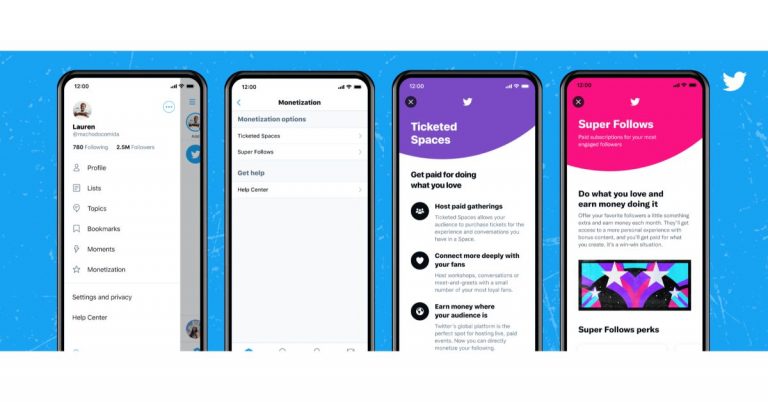




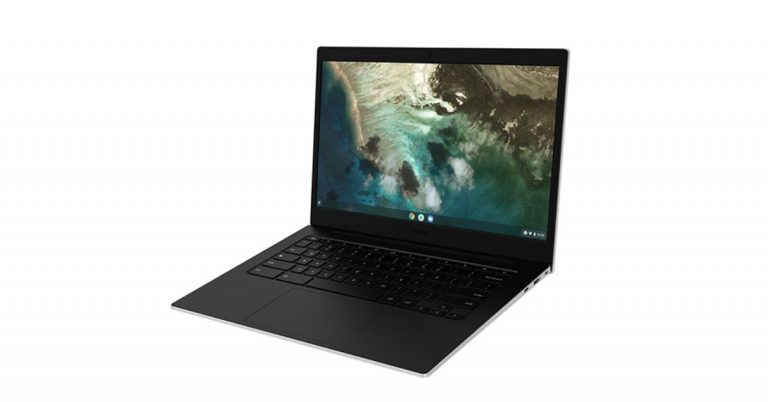



 The new Clubhouse app designed mainly for podcasts has not yet featured a chat option but you can connect with users through Instagram or Twitter. When a user signs up to Clubhouse, it allows them to connect their Instagram or Twitter. When you link your primary Instagram and Twitter account the app gives an option to let you connect to other Clubhouse users. You can connect via social network accounts. Read the following steps to know how to check their social account and connect.
 The new Clubhouse app designed mainly for podcasts has not yet featured a chat option but you can connect with users through Instagram or Twitter. When a user signs up to Clubhouse, it allows them to connect their Instagram or Twitter. When you link your primary Instagram and Twitter account the app gives an option to let you connect to other Clubhouse users. You can connect via social network accounts. Read the following steps to know how to check their social account and connect.

 Another option to remove the promoted tweets from your account is to block the accounts or the page. This will not let the page show up again and help you to hide the promoted tweets from your Twitter timeline. Check the guide below to block the account
 You can also hide the page promotion from your Twitter timeline by visiting the Personalised settings. Read the guide below to hide the promoted tweets from your Twitter timeline.
 The last option on the list to hide the promoted tweets on your Twitter timeline is to use the option of mute the page or account. Follow the steps to know how to mute it.
 Another option to remove the promoted tweets from your account is to block the accounts or the page. This will not let the page show up again and help you to hide the promoted tweets from your Twitter timeline. Check the guide below to block the account
 You can also hide the page promotion from your Twitter timeline by visiting the Personalised settings. Read the guide below to hide the promoted tweets from your Twitter timeline.
 The last option on the list to hide the promoted tweets on your Twitter timeline is to use the option of mute the page or account. Follow the steps to know how to mute it.
 Archiving your messages can only get you so far. As soon as someone accesses the Archived folder, it’s game over for privacy. WhatsApp, being one of the most popular messaging platforms in the world, lets you secure your chats by storing them in a locked folder. This folder is secured by your biometric and password. To lock a chat, open it in WhatsApp, tap the name of the contact, hit Chat lock, and turn on the toggle switch for ‘Lock this chat with fingerprint’.
 Calculator Pro+ is the decoy app that hides your calls and messages. The app has a calculator icon so that you can hide all your calls or messages in plain sight from an Android phone. Follow the steps for the settings
 Another app that you can choose to hide your calls or messages is Private Text Messaging+. You can download the app from Playstore and installation is simple and easy. The app allows you to have end-to-end encryption with the CoverMe Private Messenger. It gives the option to keep all your contacts, call records, and messages private. A pin-based lock for more securing the app. Text messages can be added to privacy. And you can also put the app to hide. The best feature is you can send disappearing messages and also recall sent messages. Over that, you can also include a private Vault to hide all your photos, videos, and passwords.
Download on Play store
Read also: 10 must-know Hidden Features of Microsoft Word
Another app that you can choose to hide your calls or messages is Private Text Messaging+. You can download the app from Playstore and installation is simple and easy. The app allows you to have end-to-end encryption with the CoverMe Private Messenger. It gives the option to keep all your contacts, call records, and messages private. A pin-based lock for more securing the app. Text messages can be added to privacy. And you can also put the app to hide. The best feature is you can send disappearing messages and also recall sent messages. Over that, you can also include a private Vault to hide all your photos, videos, and passwords.
Download on Play store
Read also: 10 must-know Hidden Features of Microsoft Word
 TextU is another app that you can download from the Play Store to hide your calls or messages from a contact. The perks of the app are the list of options provided by the app. From secure messages, Caller ID, Private box, to delay & schedule SMS you can access many features on the app. TextU has an encrypted messages option to secure all your messages to keep people away from snooping. Other features include the option to lock your app with patterns to use your phone in private. Try the app by downloading it from the Play Store.
Download here from the Play Store
TextU is another app that you can download from the Play Store to hide your calls or messages from a contact. The perks of the app are the list of options provided by the app. From secure messages, Caller ID, Private box, to delay & schedule SMS you can access many features on the app. TextU has an encrypted messages option to secure all your messages to keep people away from snooping. Other features include the option to lock your app with patterns to use your phone in private. Try the app by downloading it from the Play Store.
Download here from the Play Store
 Archiving your messages can only get you so far. As soon as someone accesses the Archived folder, it’s game over for privacy. WhatsApp, being one of the most popular messaging platforms in the world, lets you secure your chats by storing them in a locked folder. This folder is secured by your biometric and password. To lock a chat, open it in WhatsApp, tap the name of the contact, hit Chat lock, and turn on the toggle switch for ‘Lock this chat with fingerprint’.
 Calculator Pro+ is the decoy app that hides your calls and messages. The app has a calculator icon so that you can hide all your calls or messages in plain sight from an Android phone. Follow the steps for the settings
 Another app that you can choose to hide your calls or messages is Private Text Messaging+. You can download the app from Playstore and installation is simple and easy. The app allows you to have end-to-end encryption with the CoverMe Private Messenger. It gives the option to keep all your contacts, call records, and messages private. A pin-based lock for more securing the app. Text messages can be added to privacy. And you can also put the app to hide. The best feature is you can send disappearing messages and also recall sent messages. Over that, you can also include a private Vault to hide all your photos, videos, and passwords.
Download on Play store
Read also: 10 must-know Hidden Features of Microsoft Word
Another app that you can choose to hide your calls or messages is Private Text Messaging+. You can download the app from Playstore and installation is simple and easy. The app allows you to have end-to-end encryption with the CoverMe Private Messenger. It gives the option to keep all your contacts, call records, and messages private. A pin-based lock for more securing the app. Text messages can be added to privacy. And you can also put the app to hide. The best feature is you can send disappearing messages and also recall sent messages. Over that, you can also include a private Vault to hide all your photos, videos, and passwords.
Download on Play store
Read also: 10 must-know Hidden Features of Microsoft Word
 TextU is another app that you can download from the Play Store to hide your calls or messages from a contact. The perks of the app are the list of options provided by the app. From secure messages, Caller ID, Private box, to delay & schedule SMS you can access many features on the app. TextU has an encrypted messages option to secure all your messages to keep people away from snooping. Other features include the option to lock your app with patterns to use your phone in private. Try the app by downloading it from the Play Store.
Download here from the Play Store
TextU is another app that you can download from the Play Store to hide your calls or messages from a contact. The perks of the app are the list of options provided by the app. From secure messages, Caller ID, Private box, to delay & schedule SMS you can access many features on the app. TextU has an encrypted messages option to secure all your messages to keep people away from snooping. Other features include the option to lock your app with patterns to use your phone in private. Try the app by downloading it from the Play Store.
Download here from the Play Store

 Noise Buds XS201 true wireless stereo (TWS) earbuds features and specifications
Noise Buds XS201 true wireless stereo (TWS) earbuds feature a Dual Equalizer and 6mm driver that is claimed to allow the user to balance the sound quality between normal and bass modes to offer a whimsical musical experience. The earphones have Bluetooth Version v5.1 which offers a Bluetooth range of 10 metres and supports Android and iOS devices.
Noise Buds XS201i are IPX5 sweat and water-resistant and come with full touch controls for accessing the call, during workout sessions, switch tracks and binge-watching.
The TWS earbuds by Noise also come with a Type-C charging case with charging indicators. Each earbud offers 4.5 hours of battery life on a single charge, but with the charging case it provides a total playback of up to 14 hours. The wireless earphones also have Voice Assistant/Siri support for voice control.
For the latest gadget and tech news, and gadget reviews, follow us on Twitter, Facebook and Instagram. For newest tech & gadget videos subscribe to our YouTube Channel. You can also stay up to date using the Gadget Bridge Android App.
Noise Buds XS201 true wireless stereo (TWS) earbuds features and specifications
Noise Buds XS201 true wireless stereo (TWS) earbuds feature a Dual Equalizer and 6mm driver that is claimed to allow the user to balance the sound quality between normal and bass modes to offer a whimsical musical experience. The earphones have Bluetooth Version v5.1 which offers a Bluetooth range of 10 metres and supports Android and iOS devices.
Noise Buds XS201i are IPX5 sweat and water-resistant and come with full touch controls for accessing the call, during workout sessions, switch tracks and binge-watching.
The TWS earbuds by Noise also come with a Type-C charging case with charging indicators. Each earbud offers 4.5 hours of battery life on a single charge, but with the charging case it provides a total playback of up to 14 hours. The wireless earphones also have Voice Assistant/Siri support for voice control.
For the latest gadget and tech news, and gadget reviews, follow us on Twitter, Facebook and Instagram. For newest tech & gadget videos subscribe to our YouTube Channel. You can also stay up to date using the Gadget Bridge Android App.  Noise Buds XS201 true wireless stereo (TWS) earbuds features and specifications
Noise Buds XS201 true wireless stereo (TWS) earbuds feature a Dual Equalizer and 6mm driver that is claimed to allow the user to balance the sound quality between normal and bass modes to offer a whimsical musical experience. The earphones have Bluetooth Version v5.1 which offers a Bluetooth range of 10 metres and supports Android and iOS devices.
Noise Buds XS201i are IPX5 sweat and water-resistant and come with full touch controls for accessing the call, during workout sessions, switch tracks and binge-watching.
The TWS earbuds by Noise also come with a Type-C charging case with charging indicators. Each earbud offers 4.5 hours of battery life on a single charge, but with the charging case it provides a total playback of up to 14 hours. The wireless earphones also have Voice Assistant/Siri support for voice control.
For the latest gadget and tech news, and gadget reviews, follow us on Twitter, Facebook and Instagram. For newest tech & gadget videos subscribe to our YouTube Channel. You can also stay up to date using the Gadget Bridge Android App.
Noise Buds XS201 true wireless stereo (TWS) earbuds features and specifications
Noise Buds XS201 true wireless stereo (TWS) earbuds feature a Dual Equalizer and 6mm driver that is claimed to allow the user to balance the sound quality between normal and bass modes to offer a whimsical musical experience. The earphones have Bluetooth Version v5.1 which offers a Bluetooth range of 10 metres and supports Android and iOS devices.
Noise Buds XS201i are IPX5 sweat and water-resistant and come with full touch controls for accessing the call, during workout sessions, switch tracks and binge-watching.
The TWS earbuds by Noise also come with a Type-C charging case with charging indicators. Each earbud offers 4.5 hours of battery life on a single charge, but with the charging case it provides a total playback of up to 14 hours. The wireless earphones also have Voice Assistant/Siri support for voice control.
For the latest gadget and tech news, and gadget reviews, follow us on Twitter, Facebook and Instagram. For newest tech & gadget videos subscribe to our YouTube Channel. You can also stay up to date using the Gadget Bridge Android App. 

 You can also remove third-party access to your Twitter account if you are using an iPhone or a Mac. Check the steps below.
 These steps are to disable the apps that have access to your Instagram account. The simple and easy steps will help you to securely so do. Follow the steps below.

 If you are using an Android device these steps guide you on how to disable the third-party access allowed on your Twitter account for a safer and secure account with privacy maintained. Check out the steps.
 You can also remove third-party access to your Twitter account if you are using an iPhone or a Mac. Check the steps below.
 These steps are to disable the apps that have access to your Instagram account. The simple and easy steps will help you to securely so do. Follow the steps below.
 You can also remove third-party access from your Instagram account if you are using it from the website or your desktop version. Follow the guide to disable it.
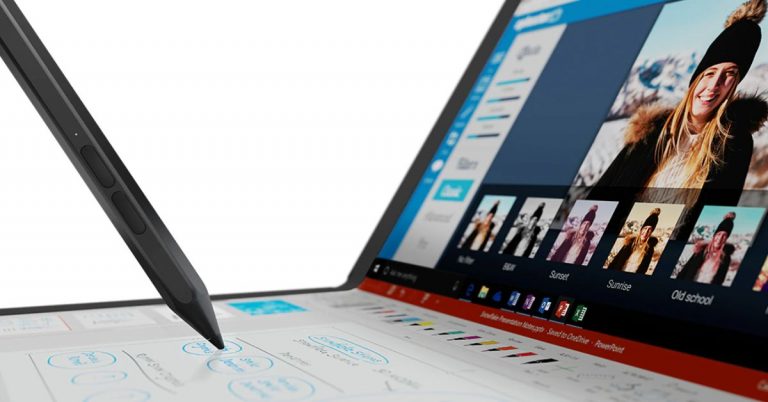
 The display is by LG, which offers thin bezels. With the help of a mechanical hinge, the device transforms into a foldable screen. It can be used as a regular laptop in landscape mode and in portrait mode to be accessed as a notebook using Lenovo’s Active Pen you can take notes or do sketching on it. In addition to this, the Lenovo ThinkPad X1 Fold ships an Easel Stand for the Whereas Bluetooth Mini Fold Keyboard can be attached to it to make it work as your regular laptop.
As for the software, the new foldable laptop runs Windows 10 Pro. There is a preloaded Mode Switcher app that will allow you to change the orientation of the laptop as you like. Now you must be thinking this should be as fragile as a foldable phone but according to company Lenovo ThinkPad X1 Fold is MIL-STD 810H certified and can withstand stresses while opening or closing the laptop’s lid several or a thousand times.
Powered by an Intel Core i5 processor and paired with 11th-generation Intel UHD graphics the device offers 8GB of LPDDR4x RAM, and up to 1TB of PCIe-NVMe M.2 2242 SSD storage.
The display is by LG, which offers thin bezels. With the help of a mechanical hinge, the device transforms into a foldable screen. It can be used as a regular laptop in landscape mode and in portrait mode to be accessed as a notebook using Lenovo’s Active Pen you can take notes or do sketching on it. In addition to this, the Lenovo ThinkPad X1 Fold ships an Easel Stand for the Whereas Bluetooth Mini Fold Keyboard can be attached to it to make it work as your regular laptop.
As for the software, the new foldable laptop runs Windows 10 Pro. There is a preloaded Mode Switcher app that will allow you to change the orientation of the laptop as you like. Now you must be thinking this should be as fragile as a foldable phone but according to company Lenovo ThinkPad X1 Fold is MIL-STD 810H certified and can withstand stresses while opening or closing the laptop’s lid several or a thousand times.
Powered by an Intel Core i5 processor and paired with 11th-generation Intel UHD graphics the device offers 8GB of LPDDR4x RAM, and up to 1TB of PCIe-NVMe M.2 2242 SSD storage.
 In terms of connectivity, there is 5G/ 4G LTE support, which is optional. Furthermore, it includes Wi-Fi 6, Bluetooth v5.1, and two USB Type-C 3.2 Gen 2 ports.
Lenovo ThinkPad X1 Fold comes with a Hybrid infrared (IR) and HD webcam integrated with Windows Hello facial recognition. The device also equips four microphones and a Dolby Atmos speaker and is claimed to offer up to 10.4 hours of video playback. The 50Wh battery also supports 50W Rapid Charge fast charging technology.
Coming to the pricing, the Lenovo ThinkPad X1 Fold will be available at Rs 3,29,000 in India. However, it is currently listed on the Lenovo India website at a starting price of Rs 2,48,508.
For the latest gadget and tech news, and gadget reviews, follow us on Twitter, Facebook and Instagram. For newest tech & gadget videos subscribe to our YouTube Channel. You can also stay up to date using the Gadget Bridge Android App.
In terms of connectivity, there is 5G/ 4G LTE support, which is optional. Furthermore, it includes Wi-Fi 6, Bluetooth v5.1, and two USB Type-C 3.2 Gen 2 ports.
Lenovo ThinkPad X1 Fold comes with a Hybrid infrared (IR) and HD webcam integrated with Windows Hello facial recognition. The device also equips four microphones and a Dolby Atmos speaker and is claimed to offer up to 10.4 hours of video playback. The 50Wh battery also supports 50W Rapid Charge fast charging technology.
Coming to the pricing, the Lenovo ThinkPad X1 Fold will be available at Rs 3,29,000 in India. However, it is currently listed on the Lenovo India website at a starting price of Rs 2,48,508.
For the latest gadget and tech news, and gadget reviews, follow us on Twitter, Facebook and Instagram. For newest tech & gadget videos subscribe to our YouTube Channel. You can also stay up to date using the Gadget Bridge Android App.  The display is by LG, which offers thin bezels. With the help of a mechanical hinge, the device transforms into a foldable screen. It can be used as a regular laptop in landscape mode and in portrait mode to be accessed as a notebook using Lenovo’s Active Pen you can take notes or do sketching on it. In addition to this, the Lenovo ThinkPad X1 Fold ships an Easel Stand for the Whereas Bluetooth Mini Fold Keyboard can be attached to it to make it work as your regular laptop.
As for the software, the new foldable laptop runs Windows 10 Pro. There is a preloaded Mode Switcher app that will allow you to change the orientation of the laptop as you like. Now you must be thinking this should be as fragile as a foldable phone but according to company Lenovo ThinkPad X1 Fold is MIL-STD 810H certified and can withstand stresses while opening or closing the laptop’s lid several or a thousand times.
Powered by an Intel Core i5 processor and paired with 11th-generation Intel UHD graphics the device offers 8GB of LPDDR4x RAM, and up to 1TB of PCIe-NVMe M.2 2242 SSD storage.
The display is by LG, which offers thin bezels. With the help of a mechanical hinge, the device transforms into a foldable screen. It can be used as a regular laptop in landscape mode and in portrait mode to be accessed as a notebook using Lenovo’s Active Pen you can take notes or do sketching on it. In addition to this, the Lenovo ThinkPad X1 Fold ships an Easel Stand for the Whereas Bluetooth Mini Fold Keyboard can be attached to it to make it work as your regular laptop.
As for the software, the new foldable laptop runs Windows 10 Pro. There is a preloaded Mode Switcher app that will allow you to change the orientation of the laptop as you like. Now you must be thinking this should be as fragile as a foldable phone but according to company Lenovo ThinkPad X1 Fold is MIL-STD 810H certified and can withstand stresses while opening or closing the laptop’s lid several or a thousand times.
Powered by an Intel Core i5 processor and paired with 11th-generation Intel UHD graphics the device offers 8GB of LPDDR4x RAM, and up to 1TB of PCIe-NVMe M.2 2242 SSD storage.
 In terms of connectivity, there is 5G/ 4G LTE support, which is optional. Furthermore, it includes Wi-Fi 6, Bluetooth v5.1, and two USB Type-C 3.2 Gen 2 ports.
Lenovo ThinkPad X1 Fold comes with a Hybrid infrared (IR) and HD webcam integrated with Windows Hello facial recognition. The device also equips four microphones and a Dolby Atmos speaker and is claimed to offer up to 10.4 hours of video playback. The 50Wh battery also supports 50W Rapid Charge fast charging technology.
Coming to the pricing, the Lenovo ThinkPad X1 Fold will be available at Rs 3,29,000 in India. However, it is currently listed on the Lenovo India website at a starting price of Rs 2,48,508.
For the latest gadget and tech news, and gadget reviews, follow us on Twitter, Facebook and Instagram. For newest tech & gadget videos subscribe to our YouTube Channel. You can also stay up to date using the Gadget Bridge Android App.
In terms of connectivity, there is 5G/ 4G LTE support, which is optional. Furthermore, it includes Wi-Fi 6, Bluetooth v5.1, and two USB Type-C 3.2 Gen 2 ports.
Lenovo ThinkPad X1 Fold comes with a Hybrid infrared (IR) and HD webcam integrated with Windows Hello facial recognition. The device also equips four microphones and a Dolby Atmos speaker and is claimed to offer up to 10.4 hours of video playback. The 50Wh battery also supports 50W Rapid Charge fast charging technology.
Coming to the pricing, the Lenovo ThinkPad X1 Fold will be available at Rs 3,29,000 in India. However, it is currently listed on the Lenovo India website at a starting price of Rs 2,48,508.
For the latest gadget and tech news, and gadget reviews, follow us on Twitter, Facebook and Instagram. For newest tech & gadget videos subscribe to our YouTube Channel. You can also stay up to date using the Gadget Bridge Android App. 


 If you’re unable to download any image using Google Chrome, it could just be because of a faulty internet connection. Load another webpage or perform a speed test to confirm whether that is the case. If Chrome is able to load other web pages with ease, move on to other fixes.
 Another method to fix images not able to download from the Google Chrome browser is by turning off the added extension on your Chrome browser. The below steps will show you how to turn off an extension.
 Another way to fix the image not getting downloaded is to make sure the option to show all images is selected. If the option is not selected the problem might be with this option. Check the steps below to see if the option is selected.
 If you’re unable to download any image using Google Chrome, it could just be because of a faulty internet connection. Load another webpage or perform a speed test to confirm whether that is the case. If Chrome is able to load other web pages with ease, move on to other fixes.
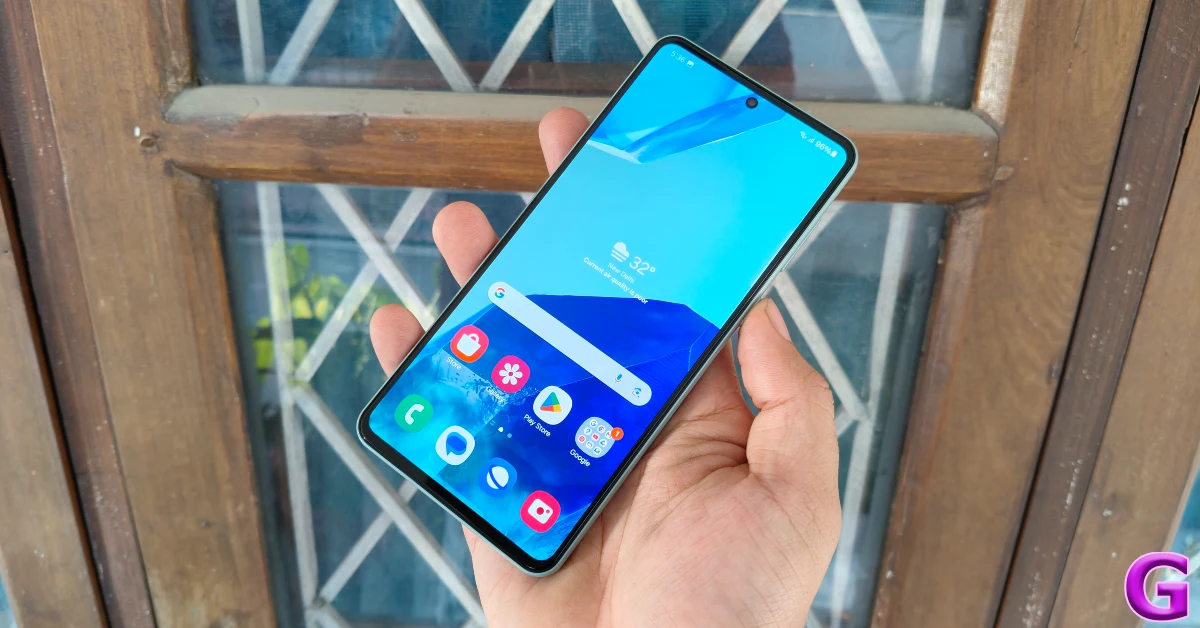 If your phone or laptop is running out of storage, it won’t be able to save the images you’re trying to download from the internet. On your smartphone, go to Settings>Storage and have a look at the internal storage capacity. If it is close to full, delete some files from your device to make space.
 Another method to fix images not able to download from the Google Chrome browser is by turning off the added extension on your Chrome browser. The below steps will show you how to turn off an extension.
 Another way to fix the image not getting downloaded is to make sure the option to show all images is selected. If the option is not selected the problem might be with this option. Check the steps below to see if the option is selected.
 If you’re using an older version of Chrome, it may struggle to download new images. You can update the browser by going to Options>Help>About Chrome>Update or by simply clicking on the red arrow icon at the top right corner of the screen. Smartphone users can update Chrome using the Google Play Store.

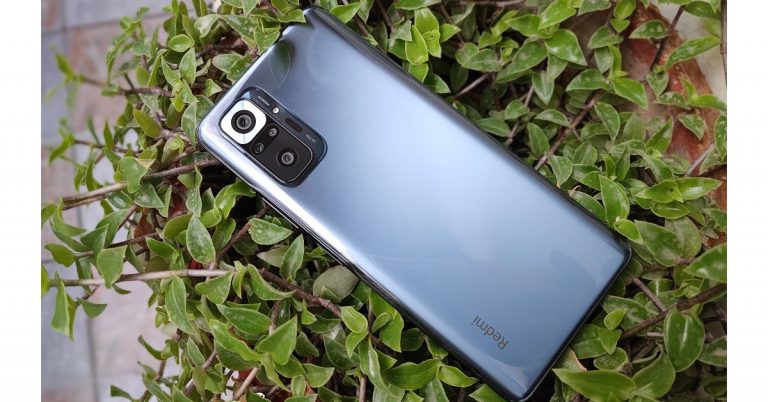
 The device is wrapped in Corning Gorilla Glass 5 from the front to the back and packs a big 5,000mAh battery. However, the heft of the handset is acceptable and easy to hold in the hands. We like that Xiaomi is offering the phone in gorgeous colour options.
The unit we have is the Dark Night colour variant and it also comes in another Glacial Blue colour to choose from. All the colour options look refreshing. Being a darker colour, the phone does attract fingerprint smudges that is why we would prefer to go for the lighter variant. We loved the camera module design as it has a thick chrome or you can say silver frame around the 108-megapixel prime camera lens.
The device is wrapped in Corning Gorilla Glass 5 from the front to the back and packs a big 5,000mAh battery. However, the heft of the handset is acceptable and easy to hold in the hands. We like that Xiaomi is offering the phone in gorgeous colour options.
The unit we have is the Dark Night colour variant and it also comes in another Glacial Blue colour to choose from. All the colour options look refreshing. Being a darker colour, the phone does attract fingerprint smudges that is why we would prefer to go for the lighter variant. We loved the camera module design as it has a thick chrome or you can say silver frame around the 108-megapixel prime camera lens.
 The frame given on the sides here is still plastic. On the right side of the frame, you will see a power button that doubles up as a fingerprint sensor. Our hands can easily reach them, which is again a very good thing. Just above it, there is a volume key button and on the other side, a MicroSD card/SIM tray is given. The 3.5mm audio jack and a secondary speaker grill can be found at the top of the frame. Whereas a USB Type-C port and the primary speaker is given at the bottom. Notably, the device comes with an IP53 rating, for safekeeping against water and dust.
 In terms of gaming, if we compare Redmi Note 10 Pro Max with last year’s device the performance here is much better. In Call of Duty Mobile, it can go up to high settings. There are no heating issues when heavy-duty games such as COD or Asphalt 9 are played, but it does get warm (after prolonged gaming), which is not a major concern as it runs without any stutters.
We have experienced some minor issues and that is basically software related. Redmi Note 10 Pro Max ships with MIUI 12 on top of Android 11. The apps don’t take much time to load and the multitasking is swift. Other usages such as texting, browsing social media are also a breeze. We tested the phone on a high 120Hz refresh rate setting and the things here are pretty smooth. But we have to mention, the screen refresh rate goes back to the standard 60Hz refresh rate while watching movies or pictures.
The dark mode on the phone is not that optimised, some parts which are supposed to be dark are not. So we would recommend you to keep the system-wide dark mode off as you would experience a lot of dark and not-dark modes, which takes away from the experience. Also, when 4 to 5 apps are running in the background it takes a few seconds to reload a particular app or either kill one.
We have also seen some ads running on the lock screen which in this segment should not happen. The MIUI skin needs a lot of improvement in our opinion, as when we reopen an app it is very slow to reload. However, when it comes to multitasking we did not encounter any lag or jittery performance. So the MIUI left us with a mixed bag of feelings.
As Redmi Note 10 Pro Max comes with dual speakers, it delivers respectable quality. Mid and Highs are good and have a decent level of detail.
In terms of gaming, if we compare Redmi Note 10 Pro Max with last year’s device the performance here is much better. In Call of Duty Mobile, it can go up to high settings. There are no heating issues when heavy-duty games such as COD or Asphalt 9 are played, but it does get warm (after prolonged gaming), which is not a major concern as it runs without any stutters.
We have experienced some minor issues and that is basically software related. Redmi Note 10 Pro Max ships with MIUI 12 on top of Android 11. The apps don’t take much time to load and the multitasking is swift. Other usages such as texting, browsing social media are also a breeze. We tested the phone on a high 120Hz refresh rate setting and the things here are pretty smooth. But we have to mention, the screen refresh rate goes back to the standard 60Hz refresh rate while watching movies or pictures.
The dark mode on the phone is not that optimised, some parts which are supposed to be dark are not. So we would recommend you to keep the system-wide dark mode off as you would experience a lot of dark and not-dark modes, which takes away from the experience. Also, when 4 to 5 apps are running in the background it takes a few seconds to reload a particular app or either kill one.
We have also seen some ads running on the lock screen which in this segment should not happen. The MIUI skin needs a lot of improvement in our opinion, as when we reopen an app it is very slow to reload. However, when it comes to multitasking we did not encounter any lag or jittery performance. So the MIUI left us with a mixed bag of feelings.
As Redmi Note 10 Pro Max comes with dual speakers, it delivers respectable quality. Mid and Highs are good and have a decent level of detail.
 Finally, let’s talk about the cameras. Here it has a quad-camera set up on its back that includes a 108-megapixel primary sensor setting it apart from its other two siblings. There is a 5-megapixel super macro lens, an 8-megapixel ultra-wide-angle camera and a 2-megapixel depth sensor onboard.


 The device is wrapped in Corning Gorilla Glass 5 from the front to the back and packs a big 5,000mAh battery. However, the heft of the handset is acceptable and easy to hold in the hands. We like that Xiaomi is offering the phone in gorgeous colour options.
The unit we have is the Dark Night colour variant and it also comes in another Glacial Blue colour to choose from. All the colour options look refreshing. Being a darker colour, the phone does attract fingerprint smudges that is why we would prefer to go for the lighter variant. We loved the camera module design as it has a thick chrome or you can say silver frame around the 108-megapixel prime camera lens.
The device is wrapped in Corning Gorilla Glass 5 from the front to the back and packs a big 5,000mAh battery. However, the heft of the handset is acceptable and easy to hold in the hands. We like that Xiaomi is offering the phone in gorgeous colour options.
The unit we have is the Dark Night colour variant and it also comes in another Glacial Blue colour to choose from. All the colour options look refreshing. Being a darker colour, the phone does attract fingerprint smudges that is why we would prefer to go for the lighter variant. We loved the camera module design as it has a thick chrome or you can say silver frame around the 108-megapixel prime camera lens.
 The frame given on the sides here is still plastic. On the right side of the frame, you will see a power button that doubles up as a fingerprint sensor. Our hands can easily reach them, which is again a very good thing. Just above it, there is a volume key button and on the other side, a MicroSD card/SIM tray is given. The 3.5mm audio jack and a secondary speaker grill can be found at the top of the frame. Whereas a USB Type-C port and the primary speaker is given at the bottom. Notably, the device comes with an IP53 rating, for safekeeping against water and dust.
 Coming to the front, it has a Super AMOLED 6.67-inch full-HD+ display. This has support for HDR-10, up to 1,200 nits of peak brightness, full DCI-P3 colour gamut coverage and a 120Hz maximum refresh rate support. The screen comes with TUV Rheinland certification for low blue light emission and has Corning Gorilla Glass 5 protection. The screen is of top quality and everything on it looks crisp and bright. While watching movies and videos it delivers vivid colours and deep blacks, whereas the outside(directly under the sun) visibility is also not an issue. No doubt, Xiaomi offers the best in class display at this price point.
The audio department has also been improved as the smartphone now comes with two speakers (stereo output) that are loud and offer a decent amount of details, which is great for the multimedia buff.
Coming to the front, it has a Super AMOLED 6.67-inch full-HD+ display. This has support for HDR-10, up to 1,200 nits of peak brightness, full DCI-P3 colour gamut coverage and a 120Hz maximum refresh rate support. The screen comes with TUV Rheinland certification for low blue light emission and has Corning Gorilla Glass 5 protection. The screen is of top quality and everything on it looks crisp and bright. While watching movies and videos it delivers vivid colours and deep blacks, whereas the outside(directly under the sun) visibility is also not an issue. No doubt, Xiaomi offers the best in class display at this price point.
The audio department has also been improved as the smartphone now comes with two speakers (stereo output) that are loud and offer a decent amount of details, which is great for the multimedia buff.
 In terms of gaming, if we compare Redmi Note 10 Pro Max with last year’s device the performance here is much better. In Call of Duty Mobile, it can go up to high settings. There are no heating issues when heavy-duty games such as COD or Asphalt 9 are played, but it does get warm (after prolonged gaming), which is not a major concern as it runs without any stutters.
We have experienced some minor issues and that is basically software related. Redmi Note 10 Pro Max ships with MIUI 12 on top of Android 11. The apps don’t take much time to load and the multitasking is swift. Other usages such as texting, browsing social media are also a breeze. We tested the phone on a high 120Hz refresh rate setting and the things here are pretty smooth. But we have to mention, the screen refresh rate goes back to the standard 60Hz refresh rate while watching movies or pictures.
The dark mode on the phone is not that optimised, some parts which are supposed to be dark are not. So we would recommend you to keep the system-wide dark mode off as you would experience a lot of dark and not-dark modes, which takes away from the experience. Also, when 4 to 5 apps are running in the background it takes a few seconds to reload a particular app or either kill one.
We have also seen some ads running on the lock screen which in this segment should not happen. The MIUI skin needs a lot of improvement in our opinion, as when we reopen an app it is very slow to reload. However, when it comes to multitasking we did not encounter any lag or jittery performance. So the MIUI left us with a mixed bag of feelings.
As Redmi Note 10 Pro Max comes with dual speakers, it delivers respectable quality. Mid and Highs are good and have a decent level of detail.
In terms of gaming, if we compare Redmi Note 10 Pro Max with last year’s device the performance here is much better. In Call of Duty Mobile, it can go up to high settings. There are no heating issues when heavy-duty games such as COD or Asphalt 9 are played, but it does get warm (after prolonged gaming), which is not a major concern as it runs without any stutters.
We have experienced some minor issues and that is basically software related. Redmi Note 10 Pro Max ships with MIUI 12 on top of Android 11. The apps don’t take much time to load and the multitasking is swift. Other usages such as texting, browsing social media are also a breeze. We tested the phone on a high 120Hz refresh rate setting and the things here are pretty smooth. But we have to mention, the screen refresh rate goes back to the standard 60Hz refresh rate while watching movies or pictures.
The dark mode on the phone is not that optimised, some parts which are supposed to be dark are not. So we would recommend you to keep the system-wide dark mode off as you would experience a lot of dark and not-dark modes, which takes away from the experience. Also, when 4 to 5 apps are running in the background it takes a few seconds to reload a particular app or either kill one.
We have also seen some ads running on the lock screen which in this segment should not happen. The MIUI skin needs a lot of improvement in our opinion, as when we reopen an app it is very slow to reload. However, when it comes to multitasking we did not encounter any lag or jittery performance. So the MIUI left us with a mixed bag of feelings.
As Redmi Note 10 Pro Max comes with dual speakers, it delivers respectable quality. Mid and Highs are good and have a decent level of detail.
 Finally, let’s talk about the cameras. Here it has a quad-camera set up on its back that includes a 108-megapixel primary sensor setting it apart from its other two siblings. There is a 5-megapixel super macro lens, an 8-megapixel ultra-wide-angle camera and a 2-megapixel depth sensor onboard.





 Microsoft team has now featured the option to video calls without much distraction or any hustle and bustle in the background. No matter the situation, many users will now be able to conduct important meetings without worrying about what is going on around them. To change the background appearance in your video you can either blur your background or replace it with any image you choose. Check the steps below.
 Microsoft teams let you connect face-to-face video chat remotely through video calls with options in groups also. The video calling service from Microsoft is now used widely for remote work. And at times the meeting schedule on Microsoft Teams can get unexpected disturbances in the background or somewhere farther, but still be visible on the screen. To be safe from such incomings, Microsoft has revealed this new option of blur background during the video call as well. Follow the guide and enable the feature on your Microsoft Teams.
 Microsoft team has now featured the option to video calls without much distraction or any hustle and bustle in the background. No matter the situation, many users will now be able to conduct important meetings without worrying about what is going on around them. To change the background appearance in your video you can either blur your background or replace it with any image you choose. Check the steps below.
 Microsoft teams let you connect face-to-face video chat remotely through video calls with options in groups also. The video calling service from Microsoft is now used widely for remote work. And at times the meeting schedule on Microsoft Teams can get unexpected disturbances in the background or somewhere farther, but still be visible on the screen. To be safe from such incomings, Microsoft has revealed this new option of blur background during the video call as well. Follow the guide and enable the feature on your Microsoft Teams.

 The new update on PDF-viewer on the Google Chrome browser has brought the built-in PDF viewer, which is PDFium. To enable the new feature you can visit the Chrome Flag page. Follow the steps below to enable it.
 Google Chrome browser has a handy built-in PDF file viewer for quick and easy access to your PDF documents. The built-in feature allows you instant access to any PDF you want. You do not have to necessarily download very PDF files, you can view them first on your Chrome browser. This will save you a lot of time and unnecessary download of PDF files. This is how to enable it using the Google Chrome settings.
 The extension will make Google Chrome the default PDF viewer browser. The third option to view your PDF on Google Chrome browser with no difficulties is where you download the PDF or read it by adding an extension to your Chrome browser. The steps below will show how to add and PDF file extension.
 The new update on PDF-viewer on the Google Chrome browser has brought the built-in PDF viewer, which is PDFium. To enable the new feature you can visit the Chrome Flag page. Follow the steps below to enable it.
 Google Chrome browser has a handy built-in PDF file viewer for quick and easy access to your PDF documents. The built-in feature allows you instant access to any PDF you want. You do not have to necessarily download very PDF files, you can view them first on your Chrome browser. This will save you a lot of time and unnecessary download of PDF files. This is how to enable it using the Google Chrome settings.
 The extension will make Google Chrome the default PDF viewer browser. The third option to view your PDF on Google Chrome browser with no difficulties is where you download the PDF or read it by adding an extension to your Chrome browser. The steps below will show how to add and PDF file extension.
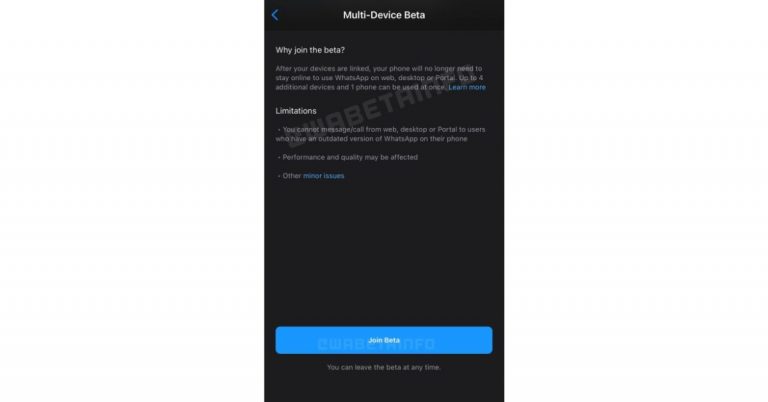

 On the connectivity front, there is Wi-Fi, 4G, Bluetooth v5.1, NFC, GPS, and a USB Type-C port. The sensors on the phone include a proximity sensor, ambient light sensor, accelerometer, gyroscope, electronic compass, linear motor, IR Blaster and a side-mounted fingerprint scanner. There is a 4,250mAh battery onboard that supports 33W fast charging.
With that said, Mi 11 Lite will be available in India in two different configurations of 6GB RAM with 128GB storage at Rs 18,999. The 8GB RAM with 128GB model is going to be priced at Rs 20,999. This phone will be offered in Jazz Blue, Tuscany Coral, and Vinyl Black colour options.
The launch offer includes a pre-order disFlipkart count of Rs 1500 and up to Rs 1500 cashback to HDFC Bank customers, therefore, bringing down the effective price to Rs 18,999 and Rs 20,999 respectively. The pre-orders will begin from June 25 at 12 noon via mi.com, Mi Home, and retail stores across the country. The first sale is scheduled to happen on June 28 from 12 noon onwards.
Mi Watch Revolve Active specifications and pricing
Mi Watch Revolve Active is a follow up of Mi Watch Revolve featuring a 1.3-inch Always-on AMOLED display with over 110 watch faces. The watch comes integrated with GPS and offers more than 117 sports modes along with fitness analysis. For health management its offer a blood oxygen saturation (SpO2) monitor, which is an essential feature to rule out the COVID symptoms.
In addition to this, there is a VO2 Max sensor to measure the maximum oxygen consumed during a workout, sleep monitor and heart rate monitor. Besides this the smartwatch also offers a body energy monitor, stress level monitor, call and text notifications, stopwatch, alarm, timer, Find My Phone, flashlight, and more. It has Amazon Alexa enabled for voice control as well. Other than built-in GPS there is Glonass, Galileo and BDF as connectivity option onboard.
On the connectivity front, there is Wi-Fi, 4G, Bluetooth v5.1, NFC, GPS, and a USB Type-C port. The sensors on the phone include a proximity sensor, ambient light sensor, accelerometer, gyroscope, electronic compass, linear motor, IR Blaster and a side-mounted fingerprint scanner. There is a 4,250mAh battery onboard that supports 33W fast charging.
With that said, Mi 11 Lite will be available in India in two different configurations of 6GB RAM with 128GB storage at Rs 18,999. The 8GB RAM with 128GB model is going to be priced at Rs 20,999. This phone will be offered in Jazz Blue, Tuscany Coral, and Vinyl Black colour options.
The launch offer includes a pre-order disFlipkart count of Rs 1500 and up to Rs 1500 cashback to HDFC Bank customers, therefore, bringing down the effective price to Rs 18,999 and Rs 20,999 respectively. The pre-orders will begin from June 25 at 12 noon via mi.com, Mi Home, and retail stores across the country. The first sale is scheduled to happen on June 28 from 12 noon onwards.
Mi Watch Revolve Active specifications and pricing
Mi Watch Revolve Active is a follow up of Mi Watch Revolve featuring a 1.3-inch Always-on AMOLED display with over 110 watch faces. The watch comes integrated with GPS and offers more than 117 sports modes along with fitness analysis. For health management its offer a blood oxygen saturation (SpO2) monitor, which is an essential feature to rule out the COVID symptoms.
In addition to this, there is a VO2 Max sensor to measure the maximum oxygen consumed during a workout, sleep monitor and heart rate monitor. Besides this the smartwatch also offers a body energy monitor, stress level monitor, call and text notifications, stopwatch, alarm, timer, Find My Phone, flashlight, and more. It has Amazon Alexa enabled for voice control as well. Other than built-in GPS there is Glonass, Galileo and BDF as connectivity option onboard.
 Speaking of the pricing Mi Watch Revolve Active has been launched at Rs 8, 249 in India. The sale will begin on June 25 at 12 noon via mi.com, Amazon, mi Home and retail stores in the country. For the early birds, there will be a Rs 1,000 discount and up to Rs 750 instant off for HDFC Bank customers.
For the latest gadget and tech news, and gadget reviews, follow us on Twitter, Facebook and Instagram. For newest tech & gadget videos subscribe to our YouTube Channel. You can also stay up to date using the Gadget Bridge Android App.
Speaking of the pricing Mi Watch Revolve Active has been launched at Rs 8, 249 in India. The sale will begin on June 25 at 12 noon via mi.com, Amazon, mi Home and retail stores in the country. For the early birds, there will be a Rs 1,000 discount and up to Rs 750 instant off for HDFC Bank customers.
For the latest gadget and tech news, and gadget reviews, follow us on Twitter, Facebook and Instagram. For newest tech & gadget videos subscribe to our YouTube Channel. You can also stay up to date using the Gadget Bridge Android App.  On the connectivity front, there is Wi-Fi, 4G, Bluetooth v5.1, NFC, GPS, and a USB Type-C port. The sensors on the phone include a proximity sensor, ambient light sensor, accelerometer, gyroscope, electronic compass, linear motor, IR Blaster and a side-mounted fingerprint scanner. There is a 4,250mAh battery onboard that supports 33W fast charging.
With that said, Mi 11 Lite will be available in India in two different configurations of 6GB RAM with 128GB storage at Rs 18,999. The 8GB RAM with 128GB model is going to be priced at Rs 20,999. This phone will be offered in Jazz Blue, Tuscany Coral, and Vinyl Black colour options.
The launch offer includes a pre-order disFlipkart count of Rs 1500 and up to Rs 1500 cashback to HDFC Bank customers, therefore, bringing down the effective price to Rs 18,999 and Rs 20,999 respectively. The pre-orders will begin from June 25 at 12 noon via mi.com, Mi Home, and retail stores across the country. The first sale is scheduled to happen on June 28 from 12 noon onwards.
Mi Watch Revolve Active specifications and pricing
Mi Watch Revolve Active is a follow up of Mi Watch Revolve featuring a 1.3-inch Always-on AMOLED display with over 110 watch faces. The watch comes integrated with GPS and offers more than 117 sports modes along with fitness analysis. For health management its offer a blood oxygen saturation (SpO2) monitor, which is an essential feature to rule out the COVID symptoms.
In addition to this, there is a VO2 Max sensor to measure the maximum oxygen consumed during a workout, sleep monitor and heart rate monitor. Besides this the smartwatch also offers a body energy monitor, stress level monitor, call and text notifications, stopwatch, alarm, timer, Find My Phone, flashlight, and more. It has Amazon Alexa enabled for voice control as well. Other than built-in GPS there is Glonass, Galileo and BDF as connectivity option onboard.
On the connectivity front, there is Wi-Fi, 4G, Bluetooth v5.1, NFC, GPS, and a USB Type-C port. The sensors on the phone include a proximity sensor, ambient light sensor, accelerometer, gyroscope, electronic compass, linear motor, IR Blaster and a side-mounted fingerprint scanner. There is a 4,250mAh battery onboard that supports 33W fast charging.
With that said, Mi 11 Lite will be available in India in two different configurations of 6GB RAM with 128GB storage at Rs 18,999. The 8GB RAM with 128GB model is going to be priced at Rs 20,999. This phone will be offered in Jazz Blue, Tuscany Coral, and Vinyl Black colour options.
The launch offer includes a pre-order disFlipkart count of Rs 1500 and up to Rs 1500 cashback to HDFC Bank customers, therefore, bringing down the effective price to Rs 18,999 and Rs 20,999 respectively. The pre-orders will begin from June 25 at 12 noon via mi.com, Mi Home, and retail stores across the country. The first sale is scheduled to happen on June 28 from 12 noon onwards.
Mi Watch Revolve Active specifications and pricing
Mi Watch Revolve Active is a follow up of Mi Watch Revolve featuring a 1.3-inch Always-on AMOLED display with over 110 watch faces. The watch comes integrated with GPS and offers more than 117 sports modes along with fitness analysis. For health management its offer a blood oxygen saturation (SpO2) monitor, which is an essential feature to rule out the COVID symptoms.
In addition to this, there is a VO2 Max sensor to measure the maximum oxygen consumed during a workout, sleep monitor and heart rate monitor. Besides this the smartwatch also offers a body energy monitor, stress level monitor, call and text notifications, stopwatch, alarm, timer, Find My Phone, flashlight, and more. It has Amazon Alexa enabled for voice control as well. Other than built-in GPS there is Glonass, Galileo and BDF as connectivity option onboard.
 Speaking of the pricing Mi Watch Revolve Active has been launched at Rs 8, 249 in India. The sale will begin on June 25 at 12 noon via mi.com, Amazon, mi Home and retail stores in the country. For the early birds, there will be a Rs 1,000 discount and up to Rs 750 instant off for HDFC Bank customers.
For the latest gadget and tech news, and gadget reviews, follow us on Twitter, Facebook and Instagram. For newest tech & gadget videos subscribe to our YouTube Channel. You can also stay up to date using the Gadget Bridge Android App.
Speaking of the pricing Mi Watch Revolve Active has been launched at Rs 8, 249 in India. The sale will begin on June 25 at 12 noon via mi.com, Amazon, mi Home and retail stores in the country. For the early birds, there will be a Rs 1,000 discount and up to Rs 750 instant off for HDFC Bank customers.
For the latest gadget and tech news, and gadget reviews, follow us on Twitter, Facebook and Instagram. For newest tech & gadget videos subscribe to our YouTube Channel. You can also stay up to date using the Gadget Bridge Android App.